How to Add an Email Extractor to Chrome (2026 Step-by-Step Guide)
Want to pull verified B2B emails straight from your browser? Here's how to add an email extractor to Chrome the right way, which extension to pick, and how to stay off blocklists.
Adding an email extractor to Chrome takes about two minutes. Using one without burning your data quality, your Chrome profile, or your sender reputation takes a little more thought. This guide covers both: the click-by-click install, and the judgment calls that separate a clean prospecting workflow from a list of bounced junk.
TL;DR#
- Install path: Open the Chrome Web Store, search the extension name, click Add to Chrome, then pin it to your toolbar. The whole thing is under two minutes.
- The real decision isn't installation — it's which extractor. Scraper-only tools pull whatever text looks like an email; finder-grade tools match a verified email to a real person and company.
- Always verify before you send. Raw scraped addresses bounce at 20–40%. A quick verification pass keeps you under the 2–3% bounce threshold mailbox providers tolerate.
- Respect the rules. Chrome's store policy and data-privacy laws (GDPR/CCPA) both apply. Page-scraping personal inboxes is a fast way to a ban; pulling business contact data with a reputable provider is standard practice.
- Best all-rounder for B2B: a finder-backed extension like the Tomba Chrome extension that pairs in-browser capture with verification, rather than a pure regex scraper.
What does "add an email extractor to Chrome" actually mean?#
Think of a Chrome email extractor like a metal detector you clip onto your belt. As you walk across a webpage — a company team page, a LinkedIn profile, a directory listing — it beeps when it finds something useful and hands it to you without you having to dig manually.
Technically, an email extractor is a browser extension that reads the content of the page you're on (or a page you point it at) and pulls out email addresses. There are two very different breeds, and confusing them is the most common mistake:
- Pure scrapers run a pattern match (regex) over visible page text and grab anything shaped like
name@domain.com. Fast, free, and frequently wrong — they collect role addresses, decoys, and stale contacts with no validation. - Finder-grade extractors connect to a data provider's API. Instead of only reading what's on the page, they resolve the person and company and return a verified address with a confidence score. This is the category serious prospectors use.
The install steps are identical. The output quality is not.
How do you add an email extractor to Chrome, step by step?#
Here's the exact sequence. It's the same for almost every extension in the Chrome Web Store.
- Open the Chrome Web Store. Go to
chromewebstore.google.comor click the puzzle-piece icon → Manage Extensions → Open Chrome Web Store. - Search the extension by name. Type the tool you've chosen (for example, "Tomba email finder"). Don't just search "email extractor" and grab the top result — the store ranks by installs, not by data quality.
- Check the listing before you click. Look at the developer name, the review count, the last-updated date, and the requested permissions. An extractor that asks to "read and change all your data on all websites" with 40 reviews and no update since 2023 is a risk.
- Click "Add to Chrome," then "Add extension" in the confirmation dialog. Chrome downloads and installs it in a few seconds.
- Pin it. Click the puzzle-piece icon and hit the pin next to the extension so its icon stays visible in your toolbar.
- Sign in / connect your account. Finder-grade tools require an account so usage counts against your plan and results are verified server-side. Free scrapers usually skip this.
- Run it on a test page. Open a company "About" or "Team" page and click the extension icon. Confirm it returns addresses with the format and confidence data you expect.
That's it. The friction was never the install — it's everything after.
Which Chrome email extractor should you choose?#
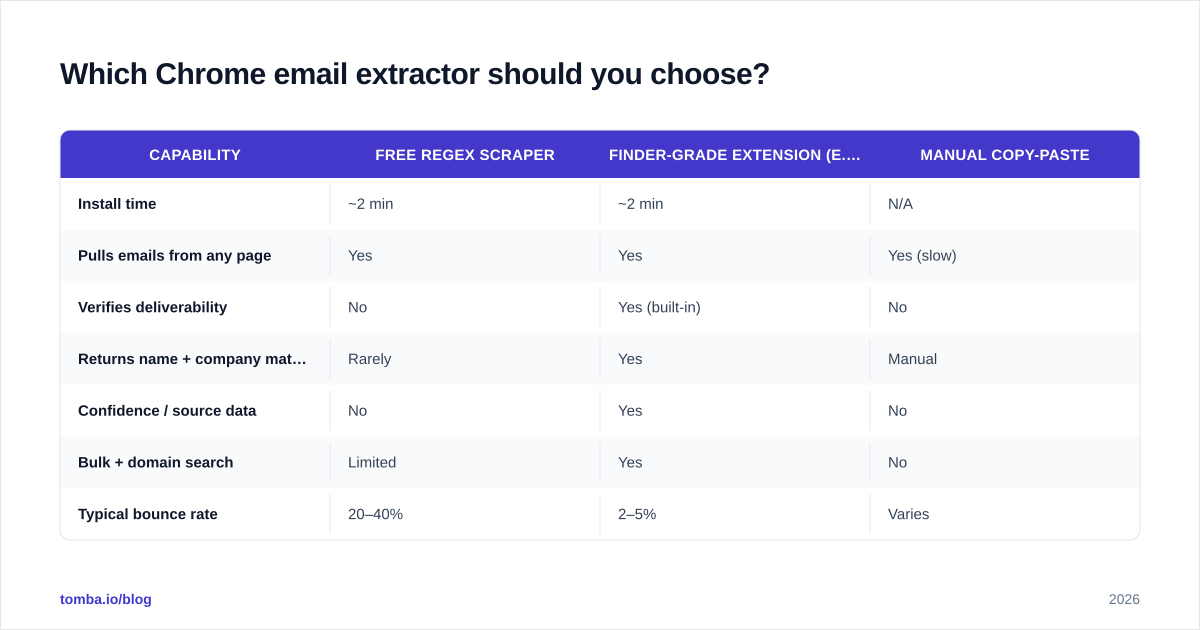
The right tool depends on whether you need raw volume or deliverable, attributable B2B contacts. Here's how the main categories stack up.
| Capability | Free regex scraper | Finder-grade extension (e.g. Tomba) | Manual copy-paste |
|---|---|---|---|
| Install time | ~2 min | ~2 min | N/A |
| Pulls emails from any page | Yes | Yes | Yes (slow) |
| Verifies deliverability | No | Yes (built-in) | No |
| Returns name + company match | Rarely | Yes | Manual |
| Confidence / source data | No | Yes | No |
| Bulk + domain search | Limited | Yes | No |
| Typical bounce rate | 20–40% | 2–5% | Varies |
| CRM / Sheets export | Sometimes | Yes | Manual |
| Cost | Free | Free tier, then from $49/mo | Your time |
A free scraper is fine if you're grabbing three addresses off a conference page once a quarter. The moment you're building lists you'll actually email, the verification and attribution columns are what protect your domain. You can confirm any address a scraper hands you with a standalone email verifier before it ever enters a sequence.
For a deeper feature-by-feature breakdown of how browser extensions compare across providers, see Tomba's roundup on the email finder extension category.
Is using a Chrome email extractor legal and safe?#
Short answer: extracting business contact data with a reputable provider is standard and legal in most B2B contexts, but how you collect and use it matters more than the tool itself.
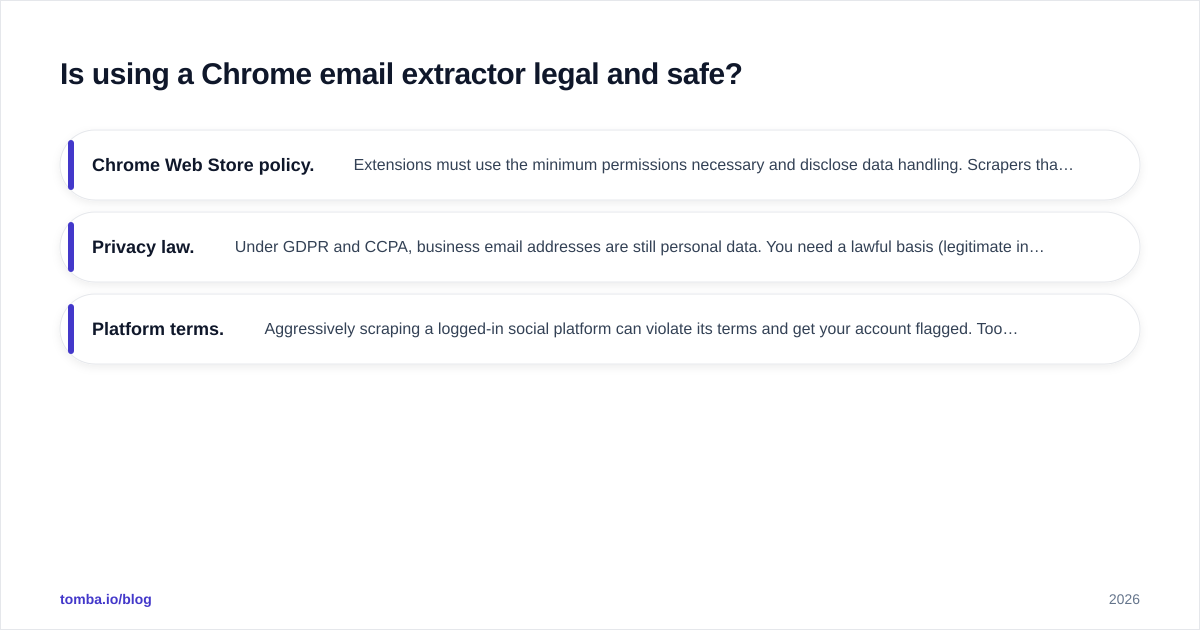
Three rules keep you safe:
- Chrome Web Store policy. Extensions must use the minimum permissions necessary and disclose data handling. Scrapers that quietly exfiltrate browsing data get pulled. Stick to listed, actively maintained extensions from named developers.
- Privacy law. Under GDPR and CCPA, business email addresses are still personal data. You need a lawful basis (legitimate interest is the common one for B2B outreach), you must honor opt-outs, and you should be able to say where the data came from. Reputable providers document their data sources; pure scrapers can't tell you where anything originated.
- Platform terms. Aggressively scraping a logged-in social platform can violate its terms and get your account flagged. Tools that resolve contacts via a compliant data API rather than hammering the page DOM are the safer architecture.
The practical takeaway: the tool is rarely the legal problem. How you source, store, and contact people is. Pick an extractor that gives you provenance and verification, and you've removed most of the risk.
How do you keep extracted emails from wrecking your deliverability?#
This is where most people get burned. They add an extractor, scrape 500 addresses, blast a sequence, and watch their domain reputation crater within a week.
Here's the chain of events you're trying to avoid: scraped lists are full of invalid, role-based, and spam-trap addresses → those addresses bounce → mailbox providers read high bounce rates as a spam signal → your sender reputation drops → even your good emails land in spam. One bad list poisons every campaign that follows it.
The fix is a verification gate between extraction and sending:
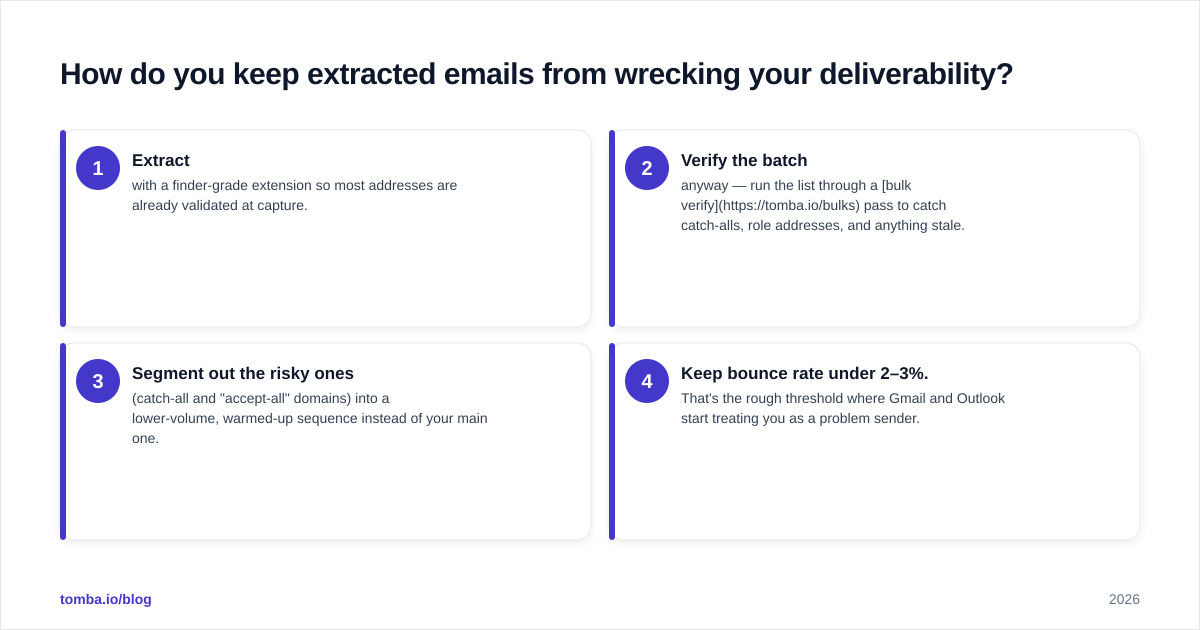
- Extract with a finder-grade extension so most addresses are already validated at capture.
- Verify the batch anyway — run the list through a bulk verify pass to catch catch-alls, role addresses, and anything stale.
- Segment out the risky ones (catch-all and "accept-all" domains) into a lower-volume, warmed-up sequence instead of your main one.
- Keep bounce rate under 2–3%. That's the rough threshold where Gmail and Outlook start treating you as a problem sender.
If you want the underlying mechanics, Google's own Postmaster Tools guidelines spell out exactly what they measure. Reputation is a leading indicator, not a lagging one — protect it before you scale.
What's the difference between an email extractor and an email finder?#
People use these terms interchangeably, but they describe opposite starting points.
- An extractor starts with a page and asks "what emails are on here?" It's content-first. Great when you're already looking at a relevant list, team page, or directory.
- A finder starts with a person or company and asks "what's this individual's email?" It's identity-first. Great when you know who you want to reach and need the address.
The strongest Chrome extensions do both: extract what's on the page and let you query by name or domain through a built-in domain search. That combination is why a finder-backed extension beats a regex scraper for real prospecting — you're never stuck when the email isn't printed on the page in plain text.
Here's a quick decision guide:
| Your situation | Use this |
|---|---|
| You're on a company team/about page with visible emails | Extractor mode |
| You have a name + company but no email | Finder mode (name/domain lookup) |
| You have a list of domains, need all contacts | Domain search / bulk |
| You have an email, need the person behind it | Reverse email lookup |
| You need to validate a list you already own | Email verifier |
Choosing the mode that matches your starting point is the difference between five minutes of work and an afternoon of dead ends.
How much should you expect to pay?#
Free extractors cost nothing up front and a lot on the back end — in bounces, wasted send slots, and reputation damage. Finder-grade tools price by verified lookups, which is the number that actually correlates with revenue.
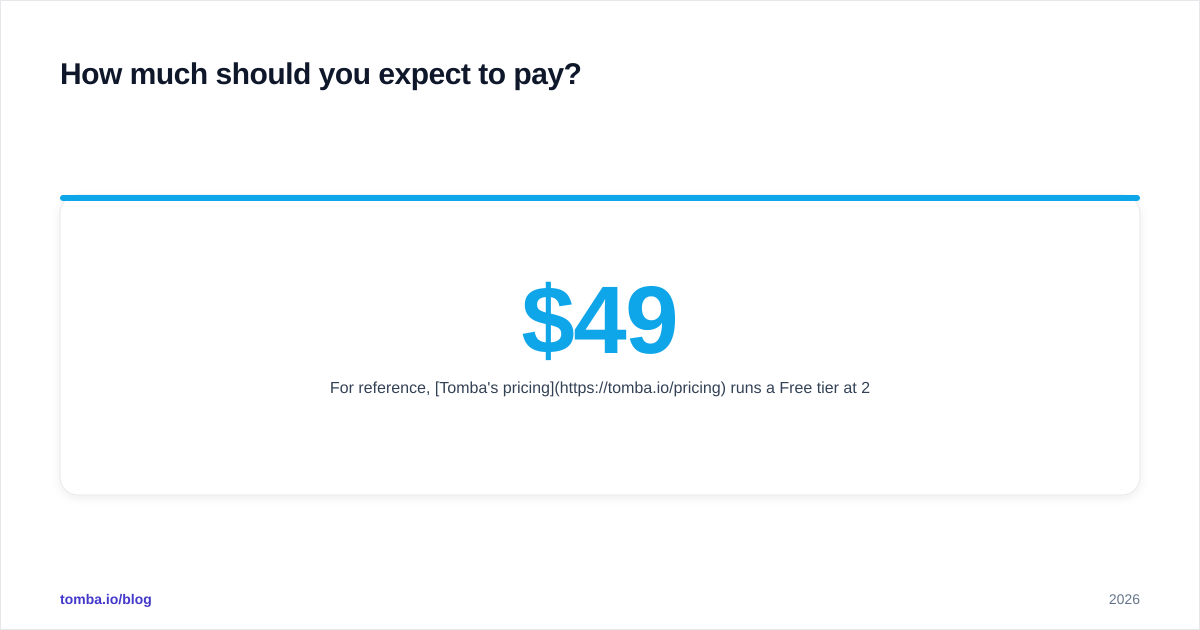
For reference, Tomba's pricing runs a Free tier at 25 searches per month, Starter at $49/mo, Growth at $99/mo, Pro at $249/mo, and custom Enterprise plans. The Free tier is enough to evaluate quality before you commit. Whatever vendor you compare, judge cost per verified, deliverable contact — not cost per raw address scraped. A thousand free addresses that bounce are more expensive than a hundred paid ones that land. Independent review sites like G2 are a useful sanity check on real-user accuracy claims before you buy.
Frequently asked questions#
Can I add an email extractor to Chrome for free? Yes. Many extractors offer a free tier or are entirely free. Free regex scrapers cost nothing but don't verify addresses; finder-grade tools like Tomba include a free monthly allowance (25 searches) so you can test verified results before paying.
Will an email extractor get my Chrome account banned? The extension itself won't, if it's a listed, well-reviewed tool. What gets accounts flagged is aggressive scraping of logged-in platforms against their terms. Use tools that resolve contacts through a compliant data API rather than hammering page content.
Why do scraped emails bounce so much? Pages contain stale, role-based, and decoy addresses, and regex can't tell which are deliverable. Always run extracted lists through verification before sending to keep bounces under the 2–3% danger zone.
Does it work on LinkedIn? Some extensions support LinkedIn-based lookups, often via a dedicated LinkedIn finder mode that resolves the email rather than scraping the profile DOM directly. Check the tool's compliance posture before relying on it.
The bottom line#
Adding an email extractor to Chrome is the easy two minutes. The work that pays off is choosing a finder-grade extension, verifying every address before it enters a sequence, and respecting the privacy rules that govern B2B contact data. Get those three right and your browser becomes a clean, on-demand prospecting engine instead of a bounce-rate liability.
If you want both in one install — page extraction and verified, attributable B2B emails — start with the Tomba Email Finder. Add the extension to Chrome, sign in to your free account, and pull verified contacts straight from the pages you're already browsing. You can scale into Tomba's paid plans once you've seen the data quality for yourself — no list-poisoning, no guesswork, just deliverable emails ready for your next campaign.
// get started
Find, verify and enrich your first contacts today
Start on the free plan with 25 searches a month, then scale when your team is ready.
Free plan · No credit card required · GDPR & CCPA
// about the author