Best Chrome Extensions for Sales Reps & Teams in 2026
The Chrome extensions worth a slot on your toolbar in 2026 — email finders, LinkedIn scrapers, CRM sync, and scheduling — ranked by what reps actually use daily.
Your browser is where prospecting actually happens. Not the CRM, not the dialer — the tab open to a LinkedIn profile, a company website, or a Gmail thread. The right Chrome extensions turn that tab into a one-click research-and-outreach station. The wrong ones bloat your toolbar, leak data, and slow every page load.
This guide ranks the Chrome extensions for sales that earn their place in 2026, grouped by job: finding contacts, enriching them, syncing to your CRM, and booking the meeting. No filler, no "10 random tools" list — just what reps open every day and why.
TL;DR#
- Email-finder extensions are the highest-leverage install — they turn a name and a company tab into a verified work email in one click. Tomba's Chrome extension is the pick for accuracy plus a free tier.
- Build a stack, not a pile. One finder, one verifier, one CRM-sync tool, and one scheduler covers 90% of a rep's daily browser work.
- Free tiers matter more than headline features. Most reps never touch the advanced settings; they touch the credit counter.
- Watch permissions. Any extension that reads "all your data on all websites" deserves a second look before it goes on a sales machine.
- Skip the duplicates. Two email finders fighting over the same LinkedIn DOM is slower and less accurate than one good one.
What are Chrome extensions for sales?#
Chrome extensions for sales are lightweight browser add-ons that inject sales workflows directly into the pages you already browse — LinkedIn, company sites, Gmail, and your CRM. Think of them like kitchen gadgets clipped to the edge of the counter: instead of walking to a drawer (opening a separate app), the tool is right where your hands already are.
Technically, an extension is a small bundle of JavaScript and HTML that Chrome loads alongside web pages. A sales extension typically reads the page you're on (a prospect's profile), calls an external API (an email-finder database), and writes the result back into the page or pushes it to your CRM. The whole loop happens in the tab you never left.
The categories that matter for a 2026 sales stack:
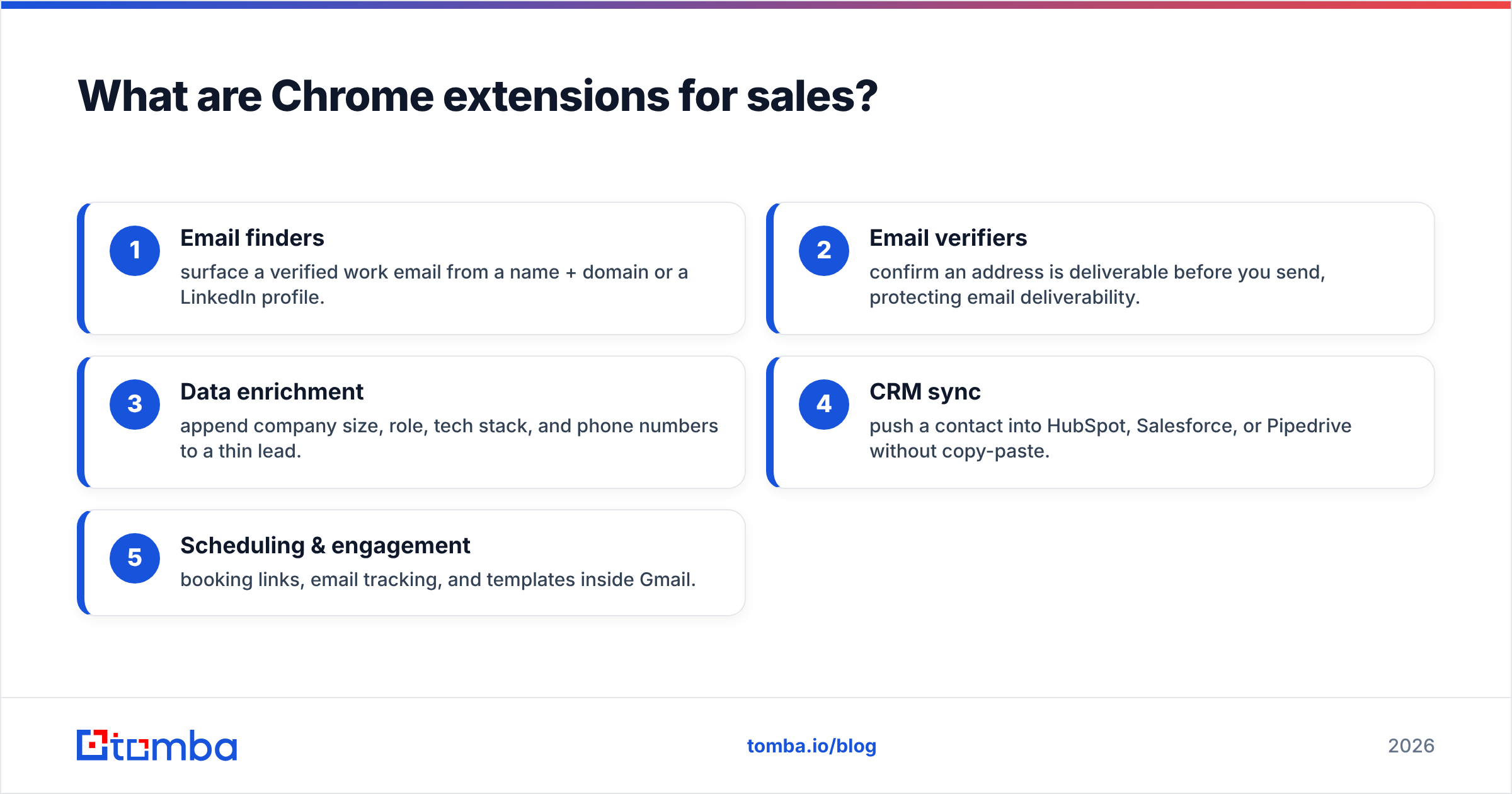
- Email finders — surface a verified work email from a name + domain or a LinkedIn profile.
- Email verifiers — confirm an address is deliverable before you send, protecting email deliverability.
- Data enrichment — append company size, role, tech stack, and phone numbers to a thin lead.
- CRM sync — push a contact into HubSpot, Salesforce, or Pipedrive without copy-paste.
- Scheduling & engagement — booking links, email tracking, and templates inside Gmail.
Why do sales teams rely on Chrome extensions in 2026?#
Because the alternative is tab-switching, and tab-switching is where deals go to die. Every time a rep copies a name out of LinkedIn, pastes it into a separate finder, copies the email back, and pastes it into the CRM, that's four context switches and three chances to fat-finger a typo. An extension collapses that into one click.
The numbers back this up: reps spend only a fraction of their week actually selling, and a large share of the rest is administrative — research, data entry, and tool-juggling. Browser extensions attack exactly that overhead. According to vendor-reviews aggregator G2, the sales-intelligence and engagement categories that ship Chrome extensions are among the fastest-adopted in B2B software, precisely because they remove friction at the point of work.

There's also a quality argument. A finder that reads the live LinkedIn DOM gets the exact name, title, and company spelling — no transcription drift. Pair it with a verifier and you stop bounces before they hit your sender reputation. That's not a convenience; it's deliverability insurance.
Which Chrome extensions should sales teams install?#
Here's the shortlist, scored on what reps care about: what it does, whether there's a usable free tier, the entry price, and who it's best for. Prices are entry paid tier as of 2026 and round to the nearest published plan.
| Extension | Primary job | Free tier | Entry price | Best for |
|---|---|---|---|---|
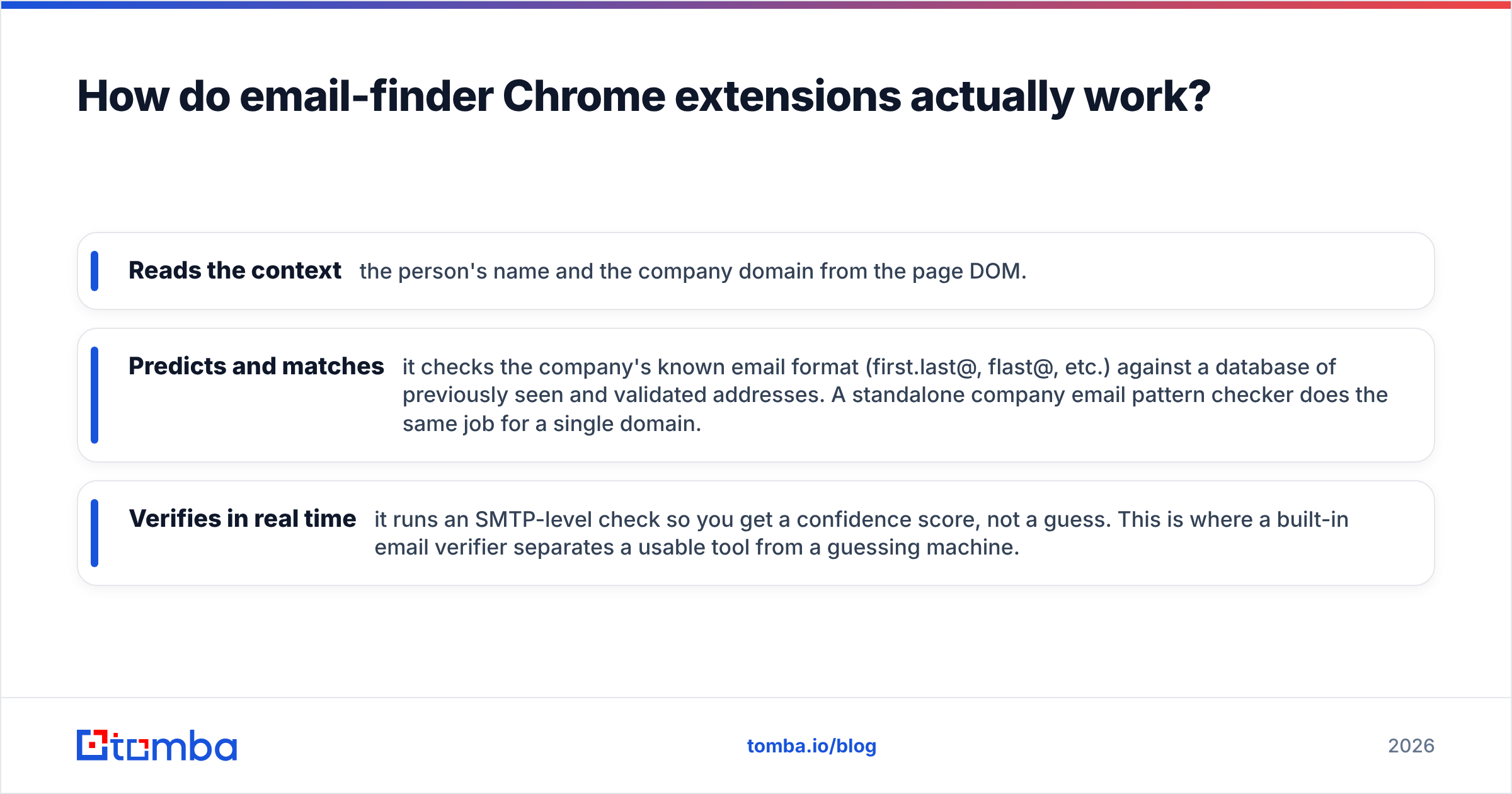
| Tomba | Email finder + verifier | 25 searches/mo | $49/mo | Accuracy-first prospecting on a budget |
| Apollo | Finder + sequencer | Limited credits | ~$49/mo | All-in-one engagement teams |
| Hunter | Domain email search | 25 searches/mo | ~$49/mo | Simple domain-based lookups |
| Lusha | Contact + phone data | 5 credits/mo | ~$36/seat | Phone-heavy outbound |
| RocketReach | Contact database | Trial only | ~$39/mo | Wide title coverage |
| HubSpot Sales | CRM sync + tracking | Generous free | $0–$45/mo | Teams already on HubSpot |
| Calendly | Meeting scheduling | Free plan | ~$10/mo | Booking without back-and-forth |
A few honest notes on the table. "Entry price" is the cheapest paid plan, not the per-seat enterprise rate most teams actually land on — always check the Tomba pricing page or the vendor's own pricing before committing, because credit definitions differ wildly between tools. A "search" on one platform is not a "credit" on another.
How do email-finder Chrome extensions actually work?#
They match patterns and verify, in that order. When you click the extension on a LinkedIn profile or a company page, it does three things behind the scenes:
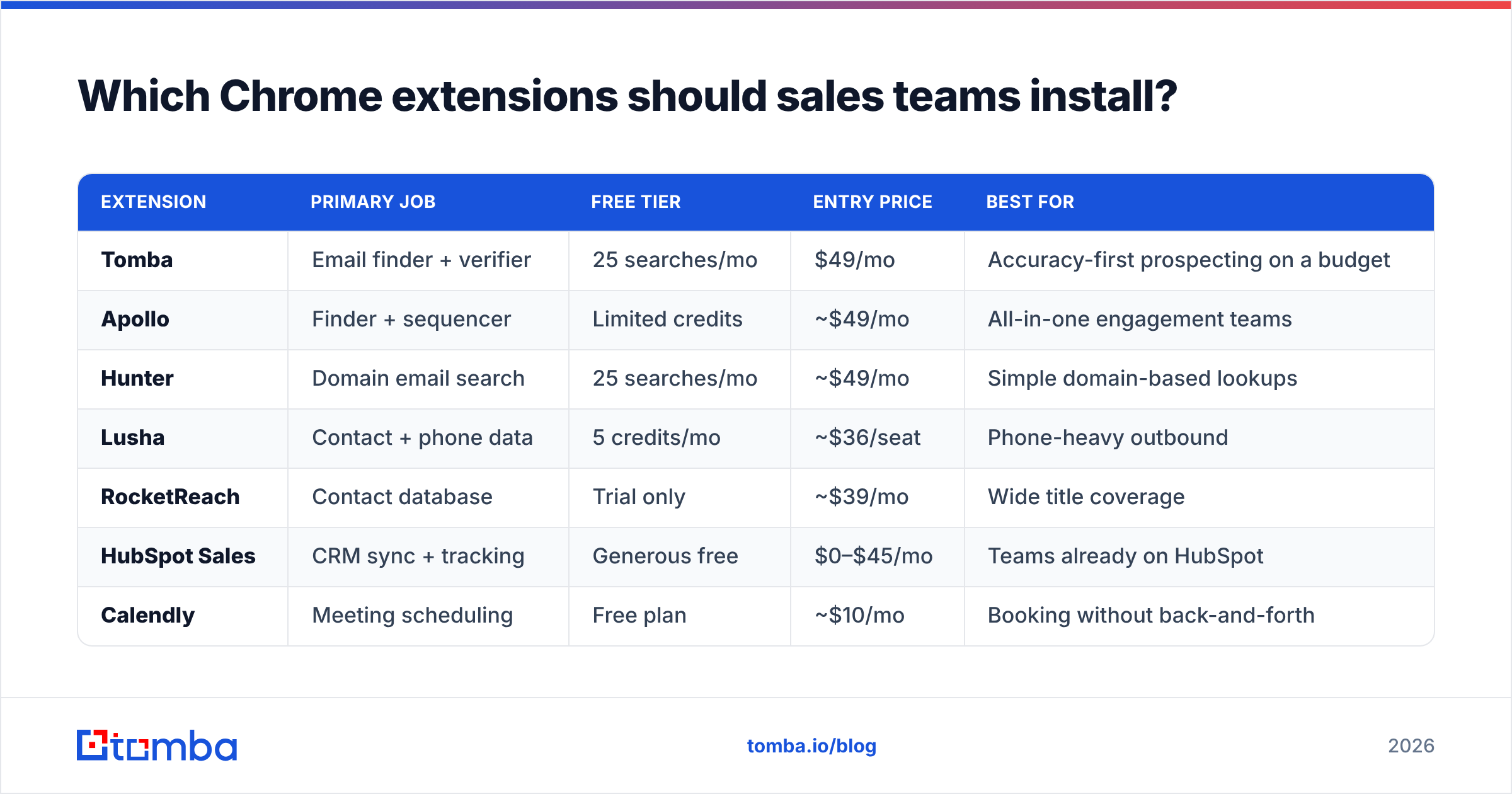
- Reads the context — the person's name and the company domain from the page DOM.
- Predicts and matches — it checks the company's known email format (first.last@, flast@, etc.) against a database of previously seen and validated addresses. A standalone company email pattern checker does the same job for a single domain.
- Verifies in real time — it runs an SMTP-level check so you get a confidence score, not a guess. This is where a built-in email verifier separates a usable tool from a guessing machine.
The accuracy gap between tools comes down to database depth and verification rigor. A finder with a large, fresh data source and strict verification returns fewer addresses but burns fewer credits on bounces. A finder that pattern-guesses without verifying floods your list with john.smith@company.com addresses that may not exist — and every bounce chips at your sender reputation.
For LinkedIn specifically, a dedicated LinkedIn finder extension is the difference between manually permutating emails and getting a verified address in one click while you're already viewing the profile. That single workflow — profile open, click, verified email, push to CRM — is the reason email-finder extensions sit at the top of nearly every rep's toolbar.
Are free Chrome extensions for sales good enough?#
For a solo rep or someone validating a motion — yes, often. For a team hitting volume — no, and here's the honest dividing line.
Free tiers are sized to let you feel the value, not run a campaign. Tomba's free plan gives you 25 searches a month; Hunter's is similar; Lusha's is tighter. That's enough to:
- Test accuracy on accounts you already know (verify the tool gets your email right).
- Enrich a handful of high-value targets each week.
- Decide whether the workflow fits before you pay.
Where free breaks down is repeatability. The moment prospecting becomes a daily habit across a list of hundreds, you'll exhaust a free tier in days. At that point the math flips: a $49/mo plan that saves a rep even 30 minutes a day pays for itself many times over in a single month. The real cost was never the subscription — it was the rep-hours lost to manual lookups and the deals lost to bounced sends.
One caveat on "free": some free extensions monetize by harvesting and reselling the data you look up. Read the privacy policy. A reputable finder publishes where its data comes from; a sketchy one is vague about it.
How do you build a Chrome extension sales stack?#
Stack by job, not by brand. The trap reps fall into is installing five extensions that all do roughly the same thing — three email finders, two enrichment tools — and then wondering why LinkedIn pages load slowly and the data conflicts. Each extension you add reads page content and consumes memory; redundancy is pure overhead.
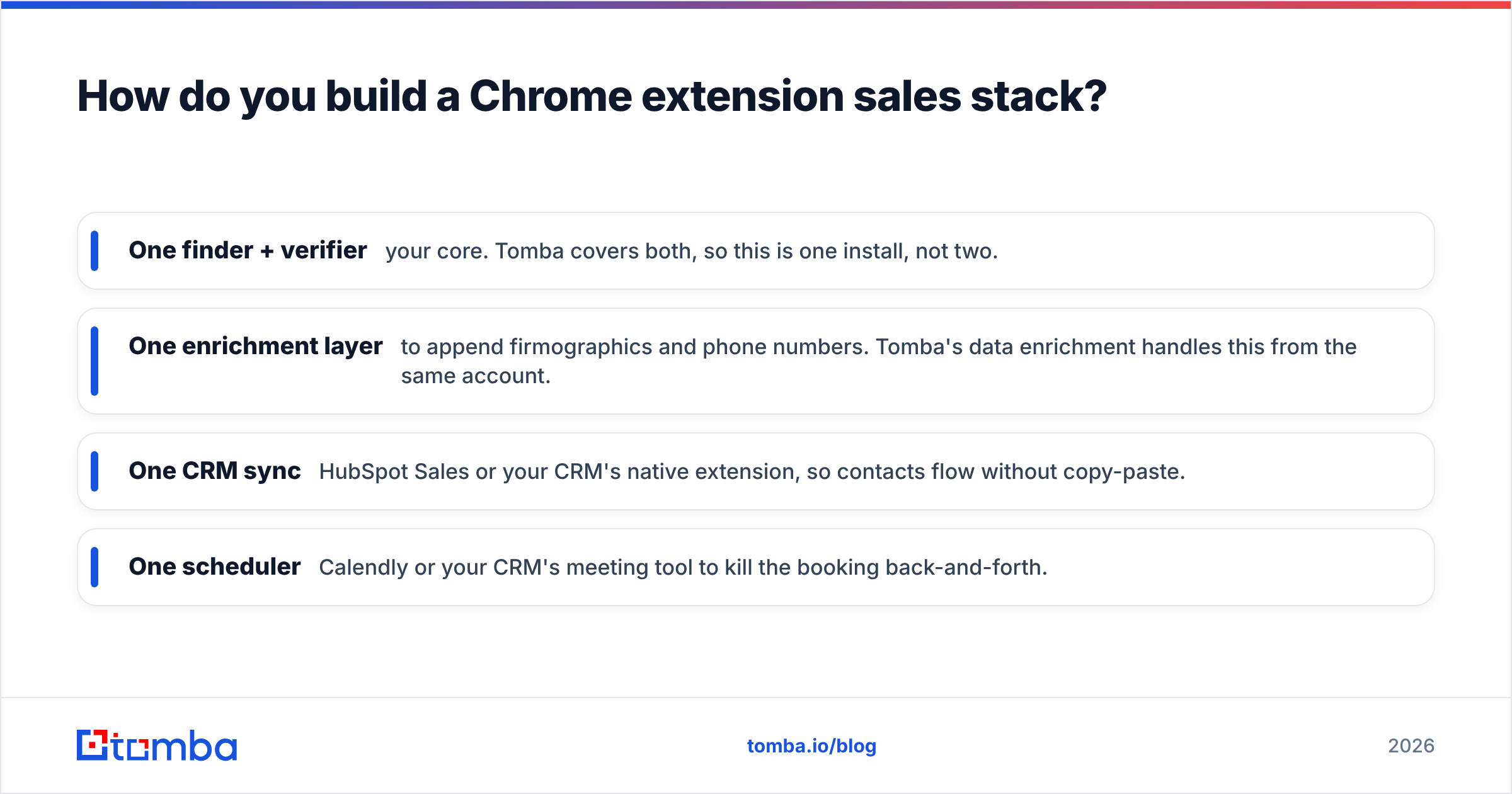
A clean four-tool stack covers nearly everything:
- One finder + verifier — your core. Tomba covers both, so this is one install, not two.
- One enrichment layer — to append firmographics and phone numbers. Tomba's data enrichment handles this from the same account.
- One CRM sync — HubSpot Sales or your CRM's native extension, so contacts flow without copy-paste.
- One scheduler — Calendly or your CRM's meeting tool to kill the booking back-and-forth.

The discipline is resisting the fifth and sixth extension. If a new tool doesn't replace something in your stack, it's probably not worth the toolbar slot and the page-load tax. Audit quarterly: any extension you haven't clicked in 30 days gets uninstalled.
For teams that prefer to keep finding inside their existing tools rather than the browser, most of these vendors also offer spreadsheet add-ons — a Google Sheets finder or an Excel add-in — and an API for fully automated workflows. The Chrome extension is the manual, one-prospect-at-a-time front door; the API and bulk tools are how you scale the same database to thousands of contacts.
What should you watch out for with sales extensions?#
Permissions, accuracy claims, and data freshness — in that order.
Permissions. When you install from the Chrome Web Store, Chrome tells you what the extension can access. "Read and change all your data on all websites" is common for finders (they need to read the page you're on) but it's also a broad grant. Stick to extensions from vendors with a real company, a privacy policy, and a track record. On shared or company machines, run the permission list past whoever owns security.
Accuracy claims. Every vendor advertises high accuracy. The honest test is your own: install the free tier, look up ten people whose real emails you already know, and count the hits and the bounces. A tool that nails your known set will probably nail your unknown set. One that misses on people you know will miss worse on strangers.
Data freshness. People change jobs constantly. A database that isn't continuously refreshed will confidently hand you a verified-looking address at a company the person left months ago. Verification at send-time — re-checking the address right before outreach — is the guardrail. Tools that verify only at lookup time and never again are the ones that quietly rot your list.
A final pitfall: don't let the extension become the strategy. The tool finds and verifies the email. It doesn't write a relevant first line, research the account's trigger event, or decide whether the person is even a fit. The extension removes the grunt work so you can spend that reclaimed time on the parts of selling that actually move a deal.
Frequently asked questions#
Are Chrome extensions for sales safe to use? Generally yes, when they come from established vendors via the official Chrome Web Store. The risk lives in the long tail of unknown, free extensions that over-request permissions or resell lookup data. Vet the publisher and read the privacy policy before installing on a work machine.
Do I need separate finder and verifier extensions? No. The better email-finder extensions verify as part of the lookup, so one install covers both. Running a standalone verifier only makes sense for cleaning lists you sourced elsewhere — for that, a bulk verify workflow beats a one-by-one extension.
Will too many extensions slow down Chrome? Yes. Each active extension consumes memory and can inject scripts into pages, slowing load times. Keep your sales stack to four or five purpose-built tools and uninstall anything you haven't used in a month.
What's the best free Chrome extension for sales? For email finding, a tool with a real free tier and strict verification wins — Tomba gives 25 free searches a month with built-in verification, which is enough to test accuracy and enrich high-value accounts before you commit to a paid plan.
The bottom line#
The best Chrome extensions for sales in 2026 aren't the ones with the longest feature list — they're the ones that remove a click you make a hundred times a day. Start with the highest-leverage job (finding and verifying contacts), pick one tool that does it accurately with a usable free tier, and add only what genuinely fills a gap.
Ready to clean up your toolbar? Install the Tomba Email Finder extension, find verified work emails in one click straight from any LinkedIn profile or company site, and push them to your CRM without a single copy-paste. The free tier gives you 25 searches a month — enough to test it against contacts you already know and see the accuracy for yourself before you ever pay.
// get started
Find, verify and enrich your first contacts today
Start on the free plan with 25 searches a month, then scale when your team is ready.
Free plan · No credit card required · GDPR & CCPA
Get the Tomba newsletter
Product and data updates
// about the author