Best Email Finder Browser Extensions in 2026 (Tested & Ranked)
Browser extensions turn any LinkedIn profile or company site into a verified email in one click. Here's how the top email finder extensions compare in 2026.
You found the perfect prospect on LinkedIn. Now what? You can tab over to a finder tool, paste the name, paste the company, run a search, copy the result, paste it into your CRM — or you can click a button in your browser and have a verified email in two seconds without leaving the page. That second workflow is what an email finder browser extension buys you, and in 2026 it's table stakes for anyone doing outbound at volume.
This guide breaks down what these extensions actually do, where they break, how the major players compare on accuracy and price, and how to pick one that won't quietly torch your sender reputation with bad data.
TL;DR#
- An email finder browser extension pulls professional email addresses directly from the page you're viewing (LinkedIn, a company site, a Sales Navigator list) and verifies them in real time.
- The three things that separate good extensions from bad ones: verification quality, catch-all handling, and credit economics — not the number of databases they claim to have.
- Free tiers are real but small. Expect 25–50 lookups/month before you hit a paywall.
- Tomba's Tomba Chrome extension finds and verifies in one click, runs on a 25-search free tier, and starts at $49/mo — cheaper than most rivals once you factor verification into the price.
- Never trust a raw "found" result. Always verify before you send, or the extension is just a faster way to bounce.
What is an email finder browser extension?#
Think of it as a barista who already knows your order. Instead of walking you through the whole menu every time, it sees who you're looking at and hands you the contact details before you ask. Technically, it's a Chrome (or Edge/Firefox) add-on that reads the profile or domain on your current tab, queries an email-finding API behind the scenes, and overlays the result — usually a verified business email, sometimes a phone number or LinkedIn URL — without a page reload.
Most extensions combine three jobs that used to need three separate tools:
- Find — resolve a name + company into a likely email using pattern detection and known data.
- Verify — ping the mail server (SMTP) to confirm the inbox exists before you trust it.
- Export — push the contact to a CRM, a CSV, or a sequencing tool in one click.
The "find" part is commodity now. The differentiation in 2026 is almost entirely in step two. A tool that hands you j.smith@acme.com with no verification is guessing, and guesses bounce.
How does a browser extension actually find the email?#
Under the hood, every email finder browser extension runs some version of the same pipeline. Understanding it tells you why two tools give different answers for the same prospect.
- Pattern detection. The extension identifies the company's email format (
first.last@,flast@,first@) from previously seen addresses at that domain. This is why a domain search backbone matters — more verified addresses per domain means a more confident pattern. - Data matching. It checks the name against a database of known, sourced contacts. A hit here is gold; it's a real address someone already confirmed.
- Permutation + SMTP check. When there's no direct match, the tool generates candidate addresses from the pattern and tests them against the mail server to see which resolves.
- Catch-all handling. Some domains accept every address at the SMTP layer (catch-all servers), so a "valid" response means nothing. Good tools flag these instead of pretending they're confirmed.
That last point is where cheap extensions fall apart. If a tool reports a catch-all domain as "valid," you'll get a clean-looking list that bounces in the wild. Look for a dedicated catch-all verifier or an explicit "accept-all / risky" status in the result.
Are browser extensions accurate enough to trust?#
Short answer: only if they verify, and only if they're honest about confidence. Accuracy is the whole game, because a bounced email doesn't just waste a lead — it dings your domain's sender reputation and drags down deliverability for every other email you send that week.
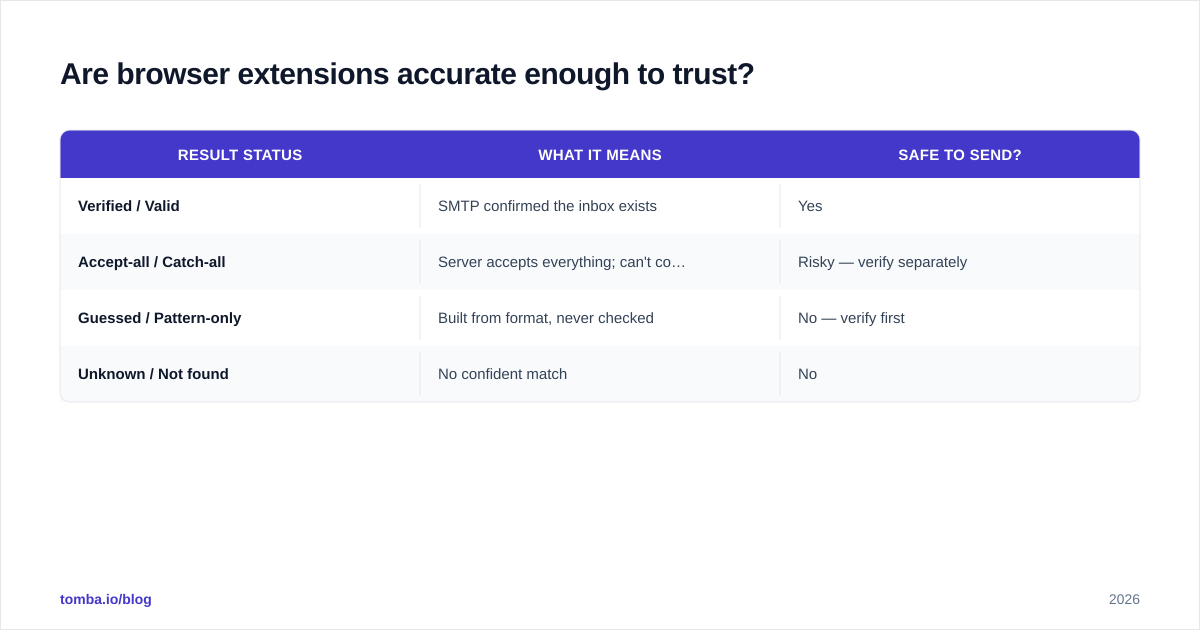
Here's the mental model. An extension can return one of four states, and a trustworthy tool tells you which one you've got:
| Result status | What it means | Safe to send? |
|---|---|---|
| Verified / Valid | SMTP confirmed the inbox exists | Yes |
| Accept-all / Catch-all | Server accepts everything; can't confirm | Risky — verify separately |
| Guessed / Pattern-only | Built from format, never checked | No — verify first |
| Unknown / Not found | No confident match | No |
The tools that get you in trouble are the ones that collapse rows two and three into a green "valid" badge. When you compare extensions, run the same 20 prospects through each and check the bounce rate after sending — that's the only benchmark that matters. Pair any extension with a standalone email verifier for your highest-value lists, and the bounce rate stays under control.

Which email finder browser extension is best in 2026?#
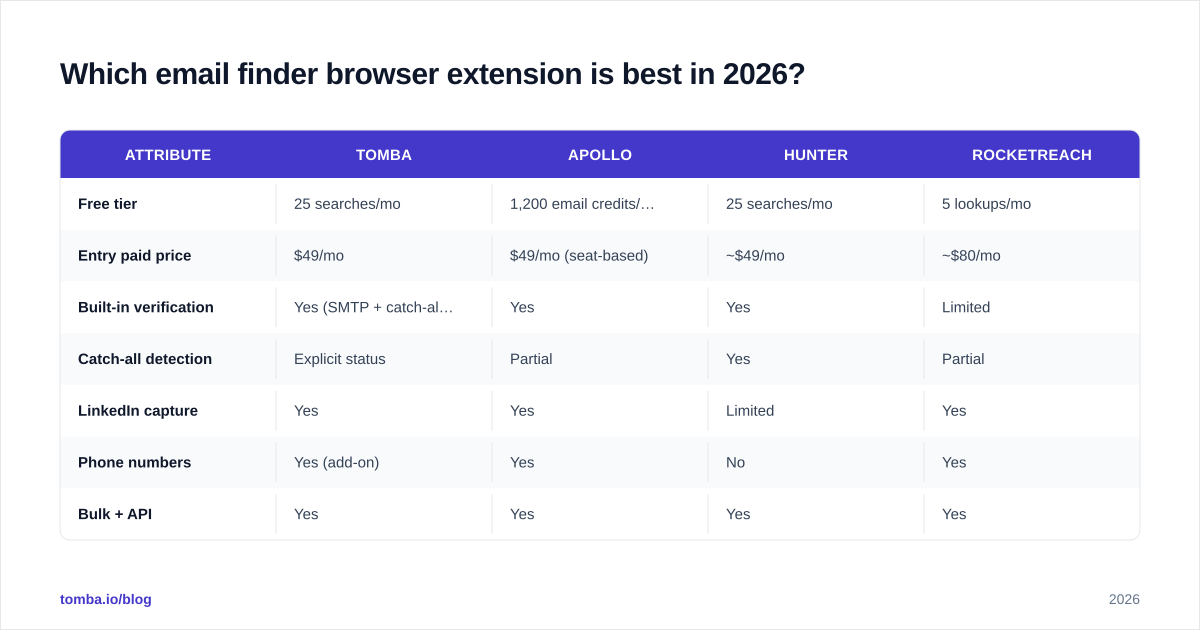
There's no universal winner — there's a best fit for your volume and budget. Below is how the most common options compare on the attributes that actually change your results. Prices reflect entry paid tiers as of 2026; always confirm on the vendor's own page since plans shift.
| Attribute | Tomba | Apollo | Hunter | RocketReach |
|---|---|---|---|---|
| Free tier | 25 searches/mo | 1,200 email credits/yr | 25 searches/mo | 5 lookups/mo |
| Entry paid price | $49/mo | $49/mo (seat-based) | ~$49/mo | ~$80/mo |
| Built-in verification | Yes (SMTP + catch-all flag) | Yes | Yes | Limited |
| Catch-all detection | Explicit status | Partial | Yes | Partial |
| LinkedIn capture | Yes | Yes | Limited | Yes |
| Phone numbers | Yes (add-on) | Yes | No | Yes |
| Bulk + API | Yes | Yes | Yes | Yes |
A few honest takeaways from the table:
- Apollo bundles a full sequencing CRM, so it's great if you want one platform — but you're paying for (and learning) a lot more than an email finder.
- Hunter is clean and reliable for domain-centric finding, but the extension leans on you knowing the company first.
- RocketReach has deep contact coverage including personal data, but the free tier is tiny and pricing climbs fast.
- Tomba is the value pick when your job is specifically find a verified business email and move on — the verification and catch-all handling are built in rather than upsold. See full Tomba pricing for the Growth ($99/mo) and Pro ($249/mo) tiers if you're scaling past a few hundred lookups.
If you're currently on a heavier suite, it's worth checking the Apollo alternative or RocketReach alternative breakdowns before you renew — a lot of teams overpay for sequencing features their extension never touches.

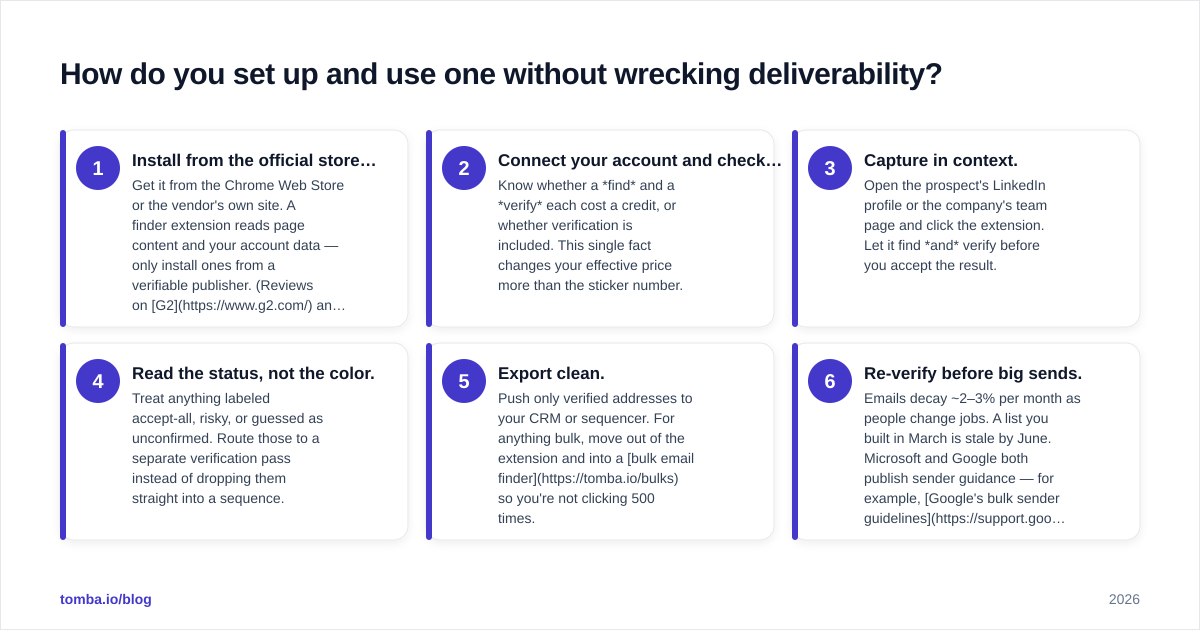
How do you set up and use one without wrecking deliverability?#
Installing takes 60 seconds. Using one well takes a little discipline. Here's the workflow that keeps your data clean and your domain healthy.
- Install from the official store, not a mirror. Get it from the Chrome Web Store or the vendor's own site. A finder extension reads page content and your account data — only install ones from a verifiable publisher. (Reviews on G2 and Capterra are a useful sanity check on legitimacy and support quality.)
- Connect your account and check credit costs. Know whether a find and a verify each cost a credit, or whether verification is included. This single fact changes your effective price more than the sticker number.
- Capture in context. Open the prospect's LinkedIn profile or the company's team page and click the extension. Let it find and verify before you accept the result.
- Read the status, not the color. Treat anything labeled accept-all, risky, or guessed as unconfirmed. Route those to a separate verification pass instead of dropping them straight into a sequence.
- Export clean. Push only verified addresses to your CRM or sequencer. For anything bulk, move out of the extension and into a bulk email finder so you're not clicking 500 times.
- Re-verify before big sends. Emails decay ~2–3% per month as people change jobs. A list you built in March is stale by June. Microsoft and Google both publish sender guidance — for example, Google's bulk sender guidelines spell out the bounce and spam-rate thresholds that get you throttled.
Follow that and the extension is a precision tool. Skip step four and it's a faster way to land in spam folders.
When should you use the extension vs. the API or bulk tools?#
The extension is for discovery in the flow of work — you're researching, you're on a profile, you want one contact now. It's the wrong tool the moment your task becomes repetitive.
| Use case | Best tool | Why |
|---|---|---|
| One prospect while researching | Browser extension | Zero context-switching, instant verify |
| A LinkedIn search of 50 people | Extension's list-capture mode | Batch without leaving the page |
| 5,000 rows from a trade-show list | Bulk uploader / CSV | Extension clicks don't scale |
| Enriching your CRM automatically | Tomba API | Programmatic, no human in the loop |
| Adding emails inside a spreadsheet | Google Sheets add-on | Stay where the data already lives |
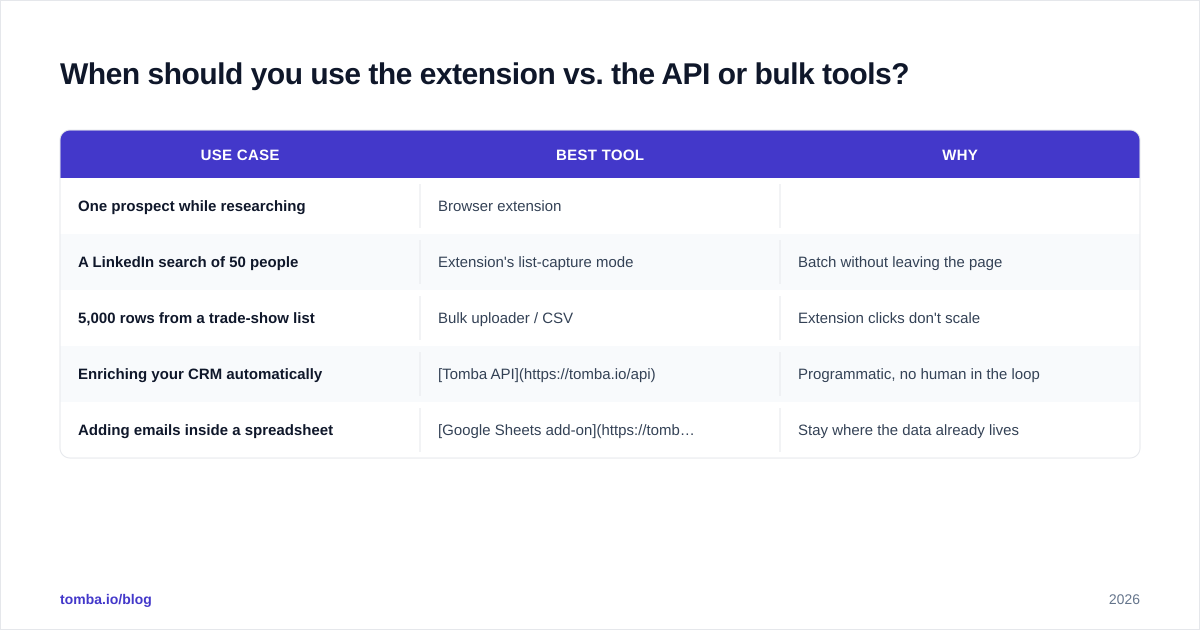
The point: the extension is one entry point into the same verified data set, not the whole product. The teams that get the most out of these tools use the extension for ad-hoc finds and an API or bulk flow for everything systematic.
What should you look for before you commit?#
Cut through the marketing with this checklist. A good email finder browser extension should:
- Verify in real time and show a confidence status, not just a green checkmark.
- Flag catch-all domains explicitly instead of inflating its "valid" rate.
- Make credit costs transparent — you should know exactly what a find and a verify cost.
- Offer a real free tier so you can test accuracy on your own prospects before paying.
- Export cleanly to your CRM and sequencer, ideally with native integrations.
- Respect privacy law — sourced, business-contact data with a clear basis, not scraped personal info.
If a tool can't tell you where its data comes from, that's a red flag for both accuracy and compliance. Tomba documents its data sources openly, which is the kind of transparency worth demanding from any vendor you install into your browser.
The bottom line#
An email finder browser extension is the fastest path from "I found someone interesting" to "I have a verified address in my CRM" — but only when verification is built in and the tool is honest about what it doesn't know. The accuracy of the data matters more than the slickness of the overlay, every time.
If you want a one-click extension that finds and verifies, flags catch-alls instead of hiding them, and won't make you upgrade just to confirm an address is real, start with the Tomba Email Finder and its Chrome extension. The free tier gives you 25 searches a month to test it against your own prospects — run your real list through it, watch the bounce rate, and let the data decide. That's the only benchmark that ever mattered.
// get started
Find, verify and enrich your first contacts today
Start on the free plan with 25 searches a month, then scale when your team is ready.
Free plan · No credit card required · GDPR & CCPA
// about the author