How to Authenticate Email in 2026: SPF, DKIM & DMARC Guide
Learn how to authenticate email with SPF, DKIM, and DMARC so your messages land in the inbox instead of spam. A practical 2026 setup guide for senders.
Email authentication is no longer optional. If you cannot prove your messages actually come from your domain, mailbox providers like Gmail and Outlook will quietly route them to spam — or reject them outright. This guide shows you how to authenticate email properly in 2026 using SPF, DKIM, and DMARC, plus the verification habits that keep your sender reputation clean.
TL;DR#
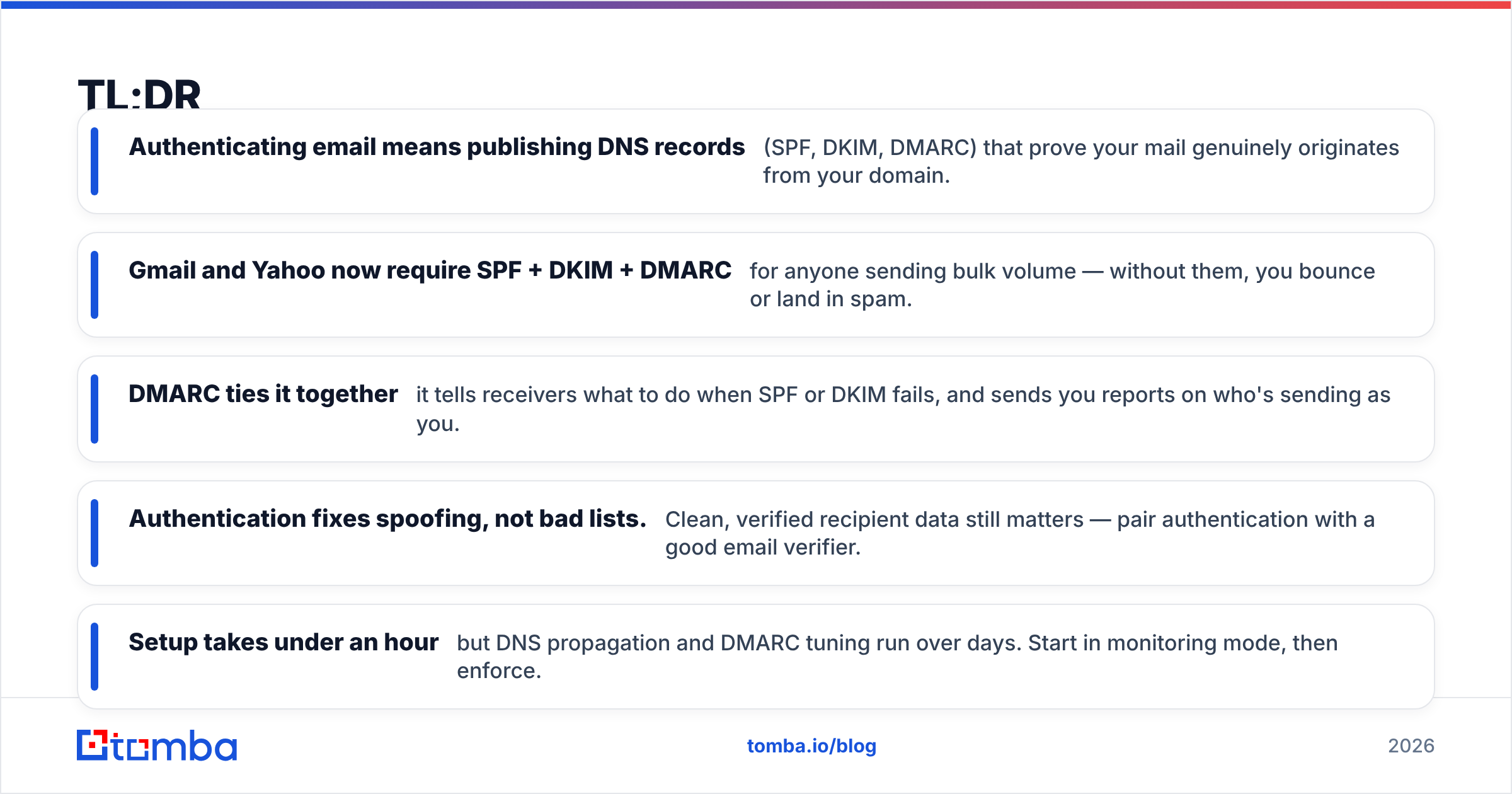
- Authenticating email means publishing DNS records (SPF, DKIM, DMARC) that prove your mail genuinely originates from your domain.
- Gmail and Yahoo now require SPF + DKIM + DMARC for anyone sending bulk volume — without them, you bounce or land in spam.
- DMARC ties it together: it tells receivers what to do when SPF or DKIM fails, and sends you reports on who's sending as you.
- Authentication fixes spoofing, not bad lists. Clean, verified recipient data still matters — pair authentication with a good email verifier.
- Setup takes under an hour but DNS propagation and DMARC tuning run over days. Start in monitoring mode, then enforce.
What does it mean to authenticate email?#
Authenticating email means giving receiving mail servers a cryptographic and DNS-based way to confirm that a message claiming to be from you@yourdomain.com was actually authorized by the owner of yourdomain.com.
Think of it like a passport at a border. Anyone can write your name on an envelope (that's how spoofing works), but a passport with verifiable security features proves the bearer is who they claim to be. SPF, DKIM, and DMARC are the security features stamped into your domain's "passport."
Technically, three DNS records do the work:
- SPF (Sender Policy Framework) — lists which mail servers are allowed to send on behalf of your domain.
- DKIM (DomainKeys Identified Mail) — attaches a tamper-proof digital signature to every message using a private key, verified against a public key in DNS.
- DMARC (Domain-based Message Authentication, Reporting & Conformance) — sets the policy for what happens when SPF or DKIM checks fail, and requests reports.
Without these, mailbox providers treat your mail as unverified. With them, you build the sender reputation that gets you into the inbox.
Why do Gmail and Yahoo require email authentication in 2026?#
The short answer: spam and phishing got bad enough that the major providers drew a hard line. Since early 2024, Google and Yahoo have enforced requirements that became the de facto standard everyone follows in 2026.
If you send to Gmail or Yahoo addresses, you are expected to:
- Authenticate with both SPF and DKIM.
- Publish a DMARC policy (at minimum
p=none). - Keep your spam complaint rate under 0.3%.
- Include a one-click unsubscribe header on bulk mail.
- Send from a domain with valid forward and reverse DNS (PTR) records.
Bulk senders (roughly 5,000+ messages a day to a single provider) face the strictest enforcement, but the trend is clear: every sender benefits from full authentication. Microsoft has signaled similar requirements for Outlook and Hotmail traffic. You can read Google's own rules in the Google sender guidelines.
The practical effect is simple. An unauthenticated domain in 2026 is a domain that bounces.
How do SPF, DKIM, and DMARC compare?#
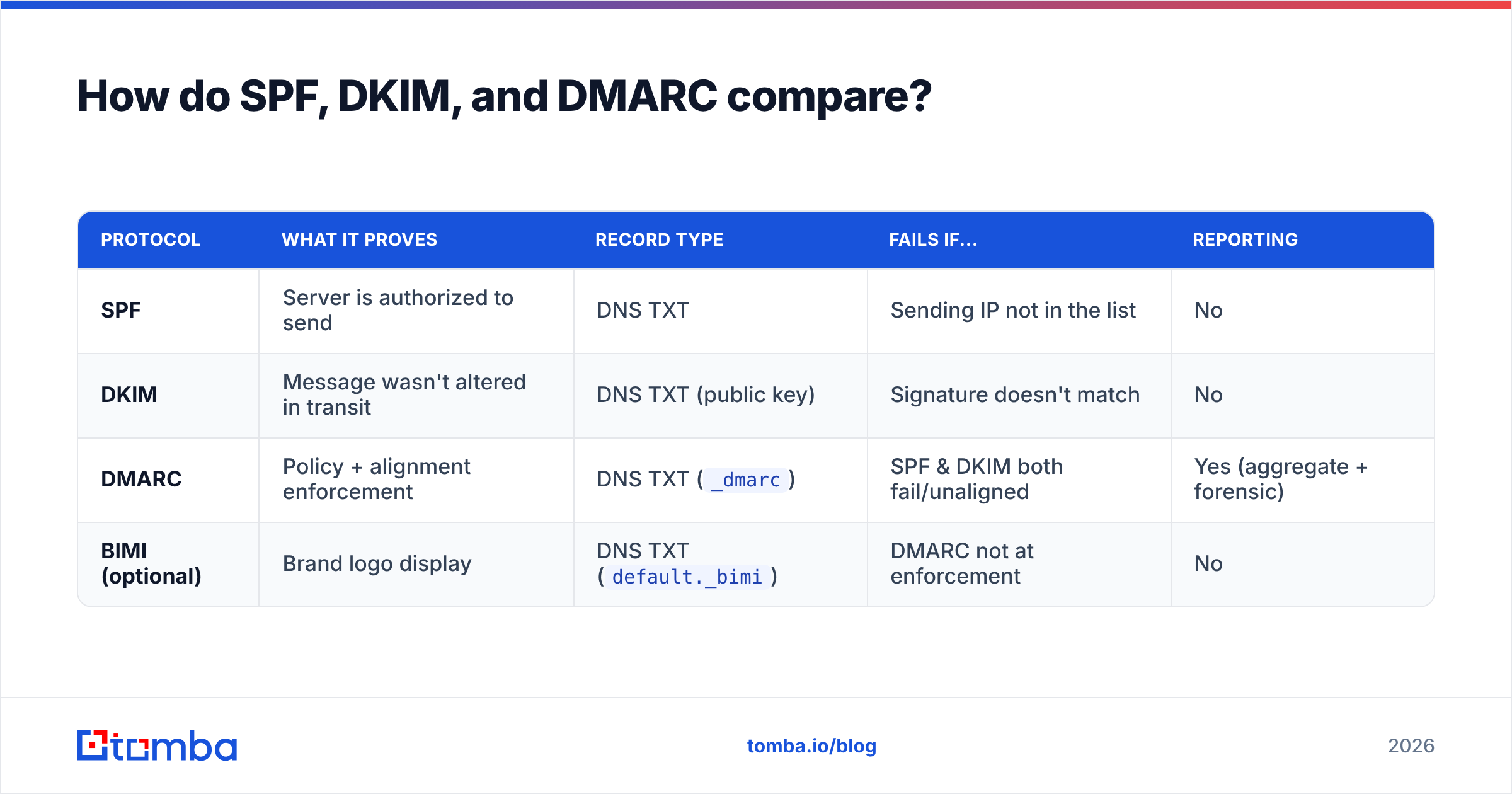
Each protocol solves a different part of the trust problem. You need all three working together — none is sufficient alone.
| Protocol | What it proves | Record type | Fails if... | Reporting |
|---|---|---|---|---|
| SPF | Server is authorized to send | DNS TXT | Sending IP not in the list | No |
| DKIM | Message wasn't altered in transit | DNS TXT (public key) | Signature doesn't match | No |
| DMARC | Policy + alignment enforcement | DNS TXT (_dmarc) |
SPF & DKIM both fail/unaligned | Yes (aggregate + forensic) |
| BIMI (optional) | Brand logo display | DNS TXT (default._bimi) |
DMARC not at enforcement | No |
A useful way to remember the division of labor:
- SPF checks the envelope's return path — who sent it.
- DKIM checks the message body and headers — whether it was tampered with.
- DMARC checks alignment (do the SPF/DKIM domains match the visible From address?) and decides what to do on failure.
- BIMI is the reward: once you reach DMARC enforcement, you can display your verified logo next to messages in supporting inboxes.
How do you set up SPF?#
Publish a single SPF record as a DNS TXT entry on your root domain. It enumerates every service allowed to send mail as you.
A typical record for a domain using Google Workspace plus a marketing platform looks like this:
v=spf1 include:_spf.google.com include:sendgrid.net ~allBreaking it down:
v=spf1— declares the SPF version.include:— authorizes a third-party sender (your ESP, CRM, or transactional service). Add one per service.~all— "soft fail" anything not listed (mark suspicious but deliver). Use-allfor hard fail once you're confident.
The number-one SPF mistake: more than one SPF record on the same domain. DNS allows only a single v=spf1 TXT record — publish two and authentication silently breaks. Merge all your include: statements into one record.
The number-two mistake: exceeding the 10 DNS-lookup limit. Each include: can trigger nested lookups. Go over 10 and SPF returns a permerror. Audit your includes and flatten where possible.
How do you set up DKIM?#
DKIM requires generating a key pair. Your sending platform creates a private key (kept secret, used to sign outgoing mail) and gives you a public key to publish in DNS.
The workflow:
- In your ESP or mail provider, enable DKIM and select a 2048-bit key (1024-bit is legacy and weaker).
- The provider returns a selector (e.g.
google._domainkey) and a public key string. - Publish it as a TXT (or CNAME) record at the selector's subdomain.
A published DKIM record looks like:
google._domainkey.yourdomain.com TXT "v=DKIM1; k=rsa; p=MIGfMA0GCSq...long-public-key...AQAB"Once live, every message your platform sends carries a DKIM-Signature header. The receiver fetches your public key, recomputes the hash, and confirms nothing changed in transit. Because each sending service uses its own selector, you can run multiple DKIM keys side by side without conflict — unlike SPF.

How do you set up DMARC?#
DMARC is one TXT record published at _dmarc.yourdomain.com. It ties SPF and DKIM together and tells receivers what to do on failure.
Start in monitoring mode so you collect data without risking legitimate mail:
_dmarc.yourdomain.com TXT "v=DMARC1; p=none; rua=mailto:dmarc@yourdomain.com; fo=1; adkim=s; aspf=s"The key tags:
p=none— monitor only; take no action on failures yet.p=quarantine— send failing mail to spam.p=reject— block failing mail outright (the end goal).rua=— where to send aggregate reports (who's sending as you).adkim/aspf— alignment strictness (s= strict,r= relaxed).
Run p=none for two to four weeks. Read the aggregate reports, confirm every legitimate source (your ESP, CRM, support desk, invoicing tool) passes alignment, then graduate to p=quarantine, and finally p=reject. Jumping straight to reject before you've mapped your senders is how teams accidentally block their own newsletters.
What's the full email authentication checklist?#
Work through this in order. Each step depends on the previous one being correct.
- Inventory every sending source — Workspace/Microsoft 365, your ESP, transactional API, CRM, helpdesk, billing. You can't authenticate what you don't know about.
- Publish one merged SPF record — single
v=spf1line, all includes, under 10 lookups. - Enable DKIM on every source — 2048-bit keys, one selector per service.
- Publish DMARC at
p=none— with aruaaddress you actually monitor. - Read the reports — fix any legitimate source that fails alignment.
- Escalate the policy —
none→quarantine→rejectover a few weeks. - Verify your recipient list — authentication won't save you from sending to dead addresses. Run lists through an email verifier and use a catch-all verifier for risky domains.
- Monitor reputation continuously — check Google Postmaster Tools and watch your bounce and complaint rates.
Does email authentication fix deliverability on its own?#
No — and this is the trap most teams fall into. Authentication proves identity. It does nothing about behavior or list quality.
You can have flawless SPF, DKIM, and DMARC and still land in spam if you:
- Send to invalid or spam-trap addresses (high bounce rates wreck reputation).
- Blast cold lists that generate complaints.
- Skip warmup on a brand-new domain.
- Write spammy subject lines and trigger content filters.
Authentication and list hygiene are two halves of the same job. Mailbox providers weigh your verified identity and how recipients react to you. A spotless DMARC record sending to a list full of bounces still trains Gmail to distrust you.
This is why pairing authentication with accurate data matters. When you build outreach lists, source them from a tool that returns deliverable addresses in the first place. Tomba's email finder and domain search return verified contacts, and the built-in email verification step strips dead addresses before they ever hit your sender reputation. You can review the full Tomba pricing — it starts with a free tier of 25 searches a month, then $49/mo on Starter.
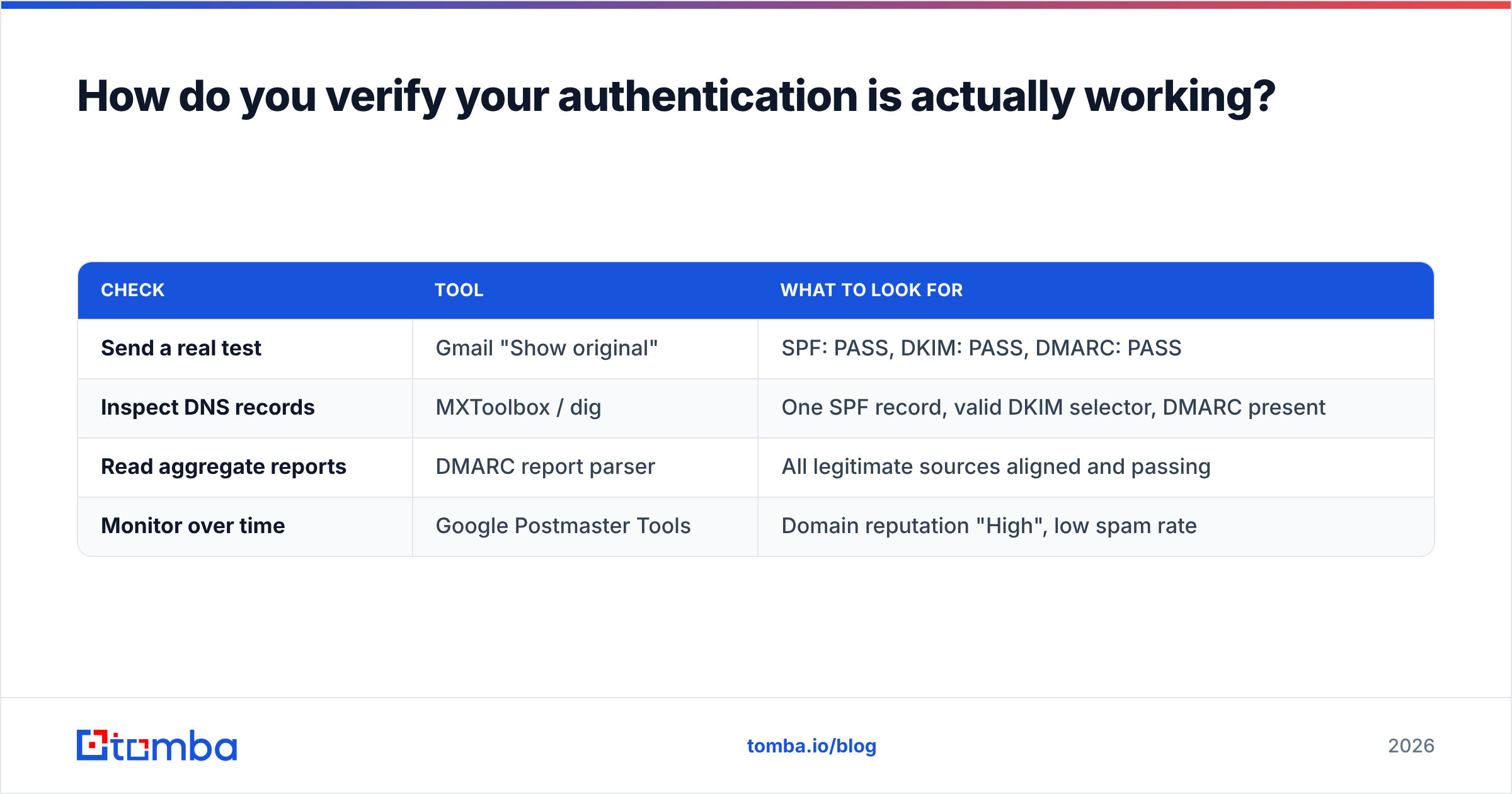
How do you verify your authentication is actually working?#
Don't assume — confirm. After publishing your records, check them three ways:
| Check | Tool | What to look for |
|---|---|---|
| Send a real test | Gmail "Show original" | SPF: PASS, DKIM: PASS, DMARC: PASS |
| Inspect DNS records | MXToolbox / dig | One SPF record, valid DKIM selector, DMARC present |
| Read aggregate reports | DMARC report parser | All legitimate sources aligned and passing |
| Monitor over time | Google Postmaster Tools | Domain reputation "High", low spam rate |
In Gmail, open any message you sent, click the three-dot menu, choose Show original, and you'll see a clean summary of all three checks. Three green PASS lines means your domain authenticates correctly. A dig TXT _dmarc.yourdomain.com confirms your DMARC record is live and readable.
If DMARC reports show a legitimate service failing, the usual cause is missing alignment — the service signs with its own domain instead of yours. Most ESPs let you configure a custom signing domain or subdomain to fix this.
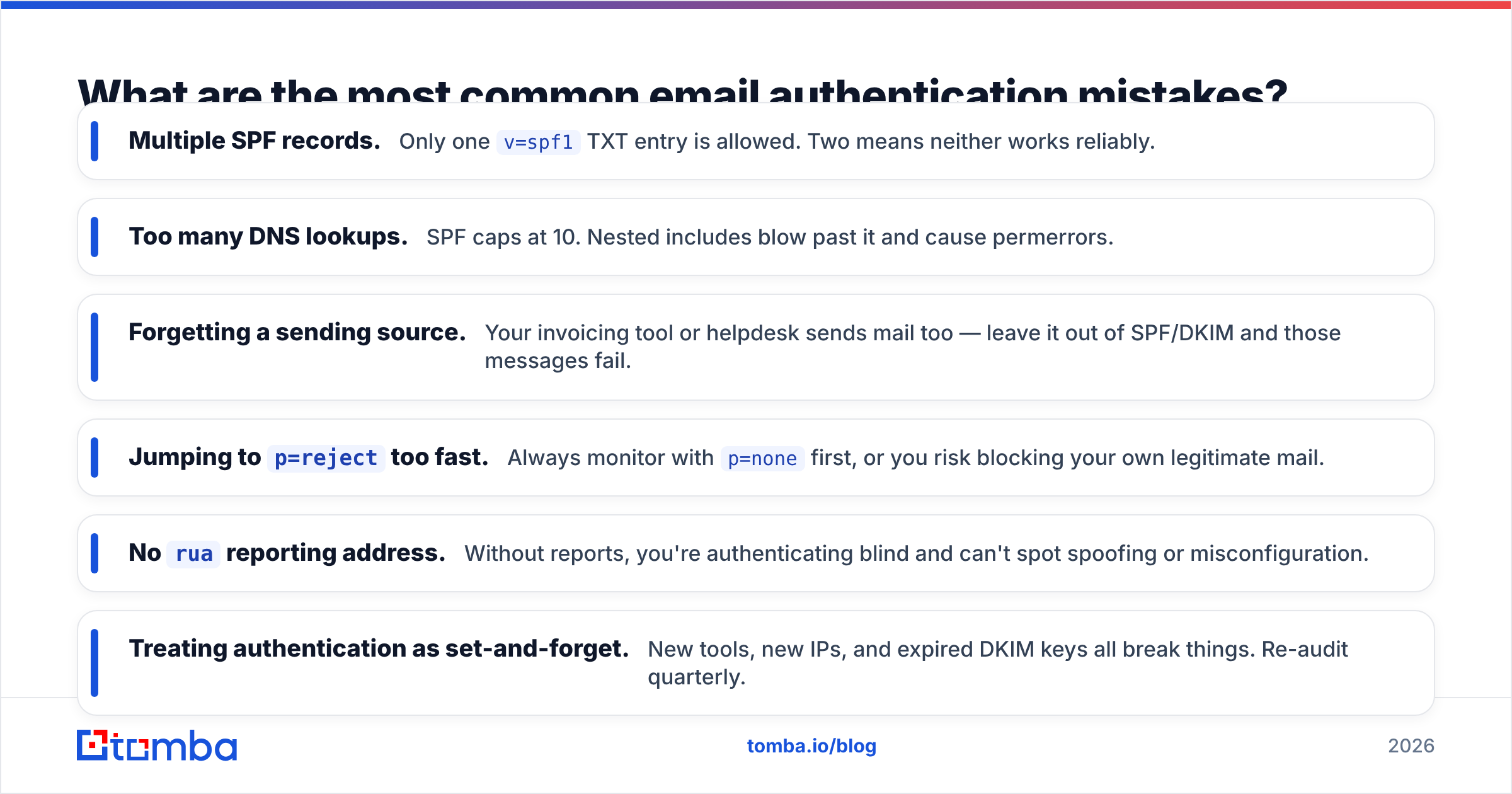
What are the most common email authentication mistakes?#
- Multiple SPF records. Only one
v=spf1TXT entry is allowed. Two means neither works reliably. - Too many DNS lookups. SPF caps at 10. Nested includes blow past it and cause permerrors.
- Forgetting a sending source. Your invoicing tool or helpdesk sends mail too — leave it out of SPF/DKIM and those messages fail.
- Jumping to
p=rejecttoo fast. Always monitor withp=nonefirst, or you risk blocking your own legitimate mail. - No
ruareporting address. Without reports, you're authenticating blind and can't spot spoofing or misconfiguration. - Treating authentication as set-and-forget. New tools, new IPs, and expired DKIM keys all break things. Re-audit quarterly.
- Ignoring list quality. The cleanest DMARC setup can't rescue a list full of bounces. Verify before you send.
Closing: authenticate your domain, then protect it with clean data#
Authenticating email is the foundation of inbox placement in 2026 — SPF proves who's sending, DKIM proves the message is intact, and DMARC enforces the rules and reports abuse. Set them up once, tune DMARC from monitoring to enforcement over a few weeks, and verify with real test sends.
But authentication only proves you're a legitimate sender. Whether you stay legitimate depends on who you send to. Bounces and complaints from a dirty list erode the reputation your DMARC record worked to build. Start every campaign with deliverable contacts: use the Tomba Email Finder to source verified professional addresses by name, domain, or company — then let the verification layer drop anything risky before it touches your hard-won sender reputation. Authentication gets you to the door; clean data keeps you inside.
// get started
Find, verify and enrich your first contacts today
Start on the free plan with 25 searches a month, then scale when your team is ready.
Free plan · No credit card required · GDPR & CCPA
// about the author