How to Set Up Automated Follow Up Emails in Outlook (2026)
Outlook can chase your prospects for you. Here's how to build automated follow up sequences with rules, Quick Steps, Power Automate, and third-party tools in 2026.
Most deals die in the gap between "thanks for the demo" and the reply that never comes. The fix is not working harder — it's making Outlook do the chasing for you. This guide walks through every realistic way to send automated follow up emails in Outlook in 2026, from built-in rules to Power Automate to dedicated sequence tools, and shows you when each one is the right call.
TL;DR#
- Outlook has no true "if no reply, send follow-up" button — you assemble it from rules, templates, Quick Steps, scheduled send, and Power Automate.
- Native options work for low volume (a handful of reminders or scheduled sends), but they don't track replies or stop a sequence automatically.
- Power Automate adds conditional logic and is free on most Microsoft 365 plans, but it's fiddly to maintain at scale.
- Dedicated sequence tools (or a CRM connected to Outlook) handle reply detection, throttling, and stop-on-reply — the things native Outlook can't.
- Garbage in, garbage out: automation only pays off if your contact data is accurate. Verify addresses first so follow-ups don't bounce and torch your sender reputation.
Why automate follow-up emails in Outlook at all?#
Because the money is in the follow-up, and humans forget. Industry data consistently shows the majority of replies to cold or warm outreach arrive on the second, third, or fourth touch — not the first. If you stop after one email, you're leaving most of your pipeline on the table.
Think of automated follow-ups like a thermostat. You set the target once — "keep nudging this prospect until they reply or I hit four touches" — and the system maintains it without you standing at the dial. Manual follow-up, by contrast, is you walking to the furnace every hour to throw on another log. It works until you get busy, and then it doesn't.
The catch: Outlook was built as an inbox, not an outreach engine. So "automated follow up emails Outlook" really means stitching together several features — or bolting on a tool — to approximate what a sales engagement platform does natively.
What are your options for automated follow-up in Outlook?#
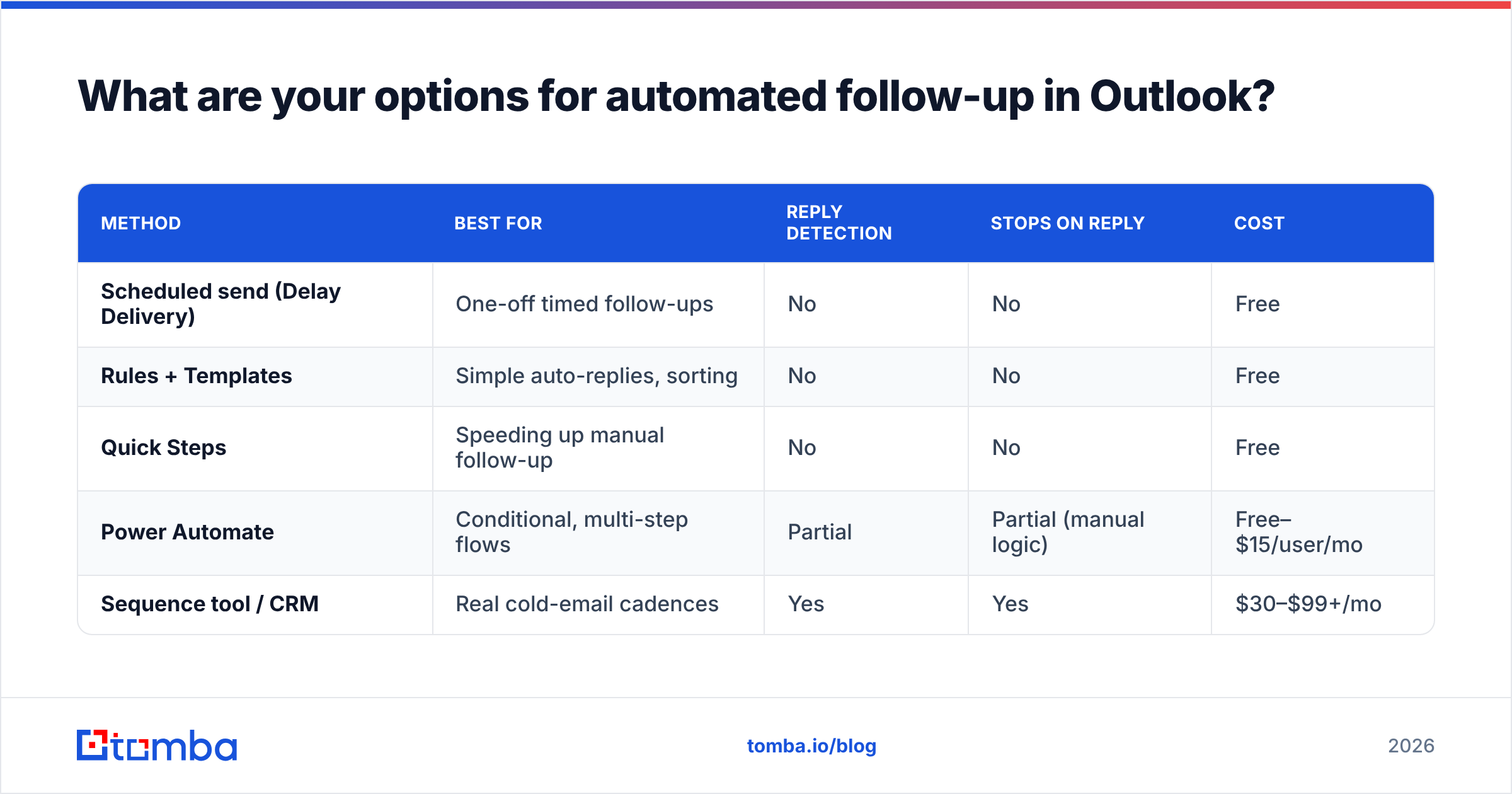
There are five practical routes, and they trade off effort against power. Here's the landscape before we go deep on each.
| Method | Best for | Reply detection | Stops on reply | Cost |
|---|---|---|---|---|
| Scheduled send (Delay Delivery) | One-off timed follow-ups | No | No | Free |
| Rules + Templates | Simple auto-replies, sorting | No | No | Free |
| Quick Steps | Speeding up manual follow-up | No | No | Free |
| Power Automate | Conditional, multi-step flows | Partial | Partial (manual logic) | Free–$15/user/mo |
| Sequence tool / CRM | Real cold-email cadences | Yes | Yes | $30–$99+/mo |
The honest summary: native Outlook automates the sending, not the deciding. It can't natively check "did this person reply?" and cancel the next email. For that you need Power Automate logic or a purpose-built tool.
How do you schedule a single follow-up email in Outlook?#
Use Delay Delivery — the closest thing to one-click automation Outlook ships with.
- Compose your follow-up as if you're sending it now.
- In the new Outlook, open the Options tab (classic) or click the dropdown next to Send.
- Choose Schedule send / Delay Delivery and pick a date and time.
- Hit send. The message sits in your Outbox and fires at the scheduled moment.
This is perfect for "circle back next Tuesday" reminders you write today while the context is fresh. The limitation is obvious: if the prospect replies before Tuesday, Outlook still sends the follow-up unless you manually go delete it from the Outbox. It schedules; it doesn't think.
Pro tip: pair scheduled send with a calendar reminder to check for replies the morning the message is due. It's a manual safety net, but it stops you from sending "just following up!" to someone who answered yesterday.
How do rules and templates create semi-automated follow-ups?#
Outlook rules automate what happens to incoming and outgoing mail; templates (and Quick Parts) automate the writing. Combined, they cut the manual labor of repetitive follow-up even if they don't run a true sequence.
Building a reusable template:
- Write the follow-up once, then File → Save As → Outlook Template (.oft).
- To reuse it, go to New Items → More Items → Choose Form → User Templates in File System.
- Fill in the name and send.
Using a rule for auto-acknowledgement:
- Rules can fire an auto-reply when a message hits certain criteria (from a specific domain, containing a keyword). This is great for "Thanks, I'll review and respond within 24 hours" so prospects aren't left in silence.
Rules plus templates are a solid 80/20 for inbound. For outbound multi-step cadences, they fall short because a rule can't wait three days and then check whether a human replied. That's the wall everyone hits — and where Power Automate or a dedicated tool earns its keep.
Can Power Automate send conditional follow-up emails?#
Yes — Power Automate (included with most Microsoft 365 business plans) is the most powerful native path to automated follow up emails in Outlook, because it can branch on conditions.
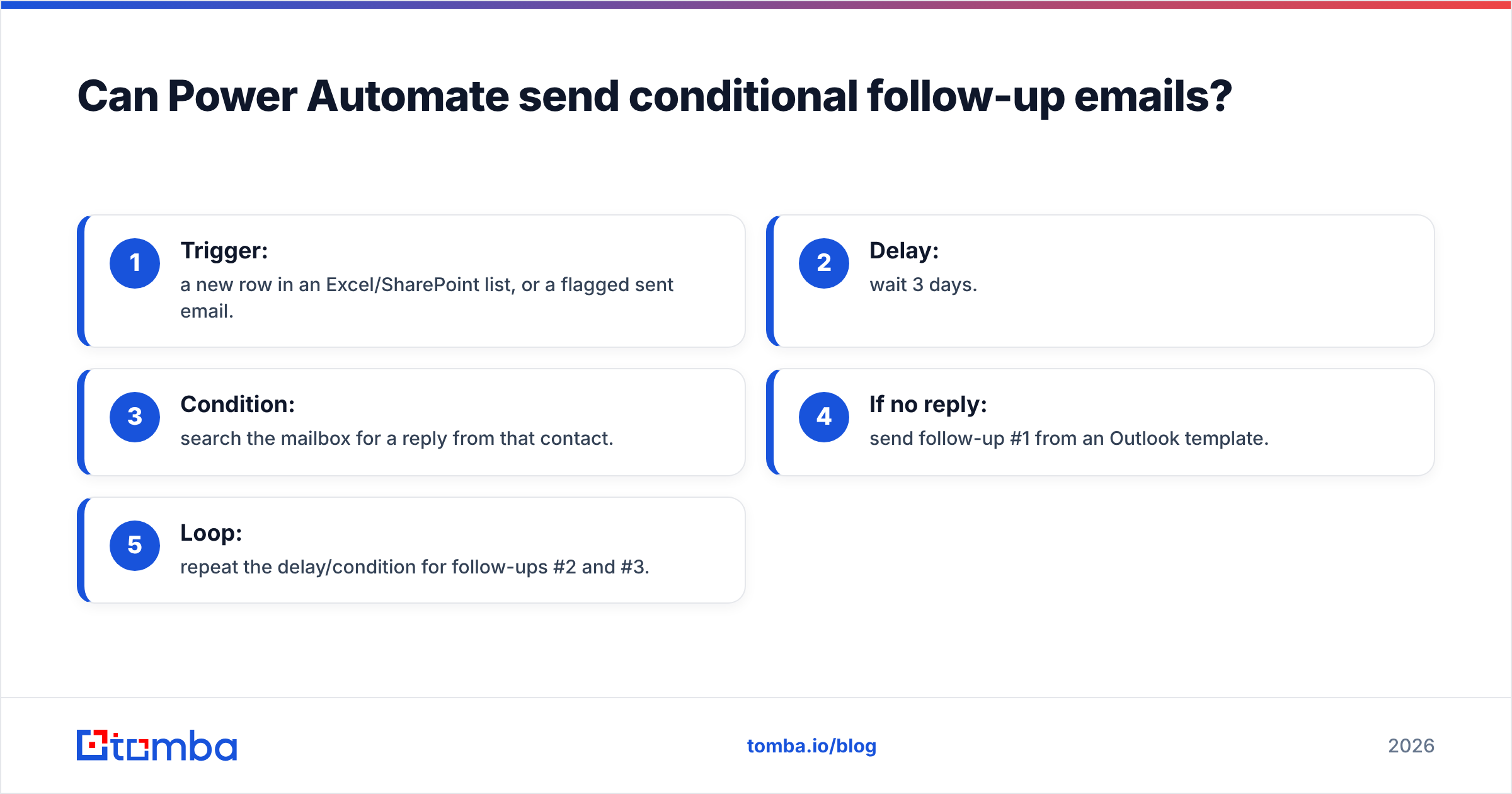
A realistic flow looks like this:
- Trigger: a new row in an Excel/SharePoint list, or a flagged sent email.
- Delay: wait 3 days.
- Condition: search the mailbox for a reply from that contact.
- If no reply: send follow-up #1 from an Outlook template.
- Loop: repeat the delay/condition for follow-ups #2 and #3.
The upside is real conditional logic — including a rough "stop on reply" if you build the search step carefully. The downside is maintenance. Reply detection via mailbox search is brittle (threading, subject changes, and out-of-office replies all confuse it), and debugging a 12-step flow at 11pm is nobody's idea of fun. For a few dozen contacts it's clever; for hundreds it's a part-time job.
If you want to go this route, Microsoft's own Power Automate documentation is the canonical reference, and the templates gallery has email-follow-up starters you can clone.
When should you use a dedicated tool instead?#
When volume, reply tracking, or deliverability matter — which is to say, the moment follow-up becomes a real channel rather than an occasional nudge.
Dedicated sequence tools and CRMs that plug into Outlook (HubSpot, Salesloft, Outreach, and a long tail of cold-email platforms) handle the three things native Outlook can't do well:
- True stop-on-reply — the sequence halts the instant a human responds, so you never send an awkward "just bumping this" to someone mid-conversation.
- Sending throttles and warm-up — they pace your volume so a sudden spike doesn't trip spam filters and wreck your sender reputation.
- Analytics — opens, clicks, reply rates, and response rate per step, so you can cut the touches that don't convert.

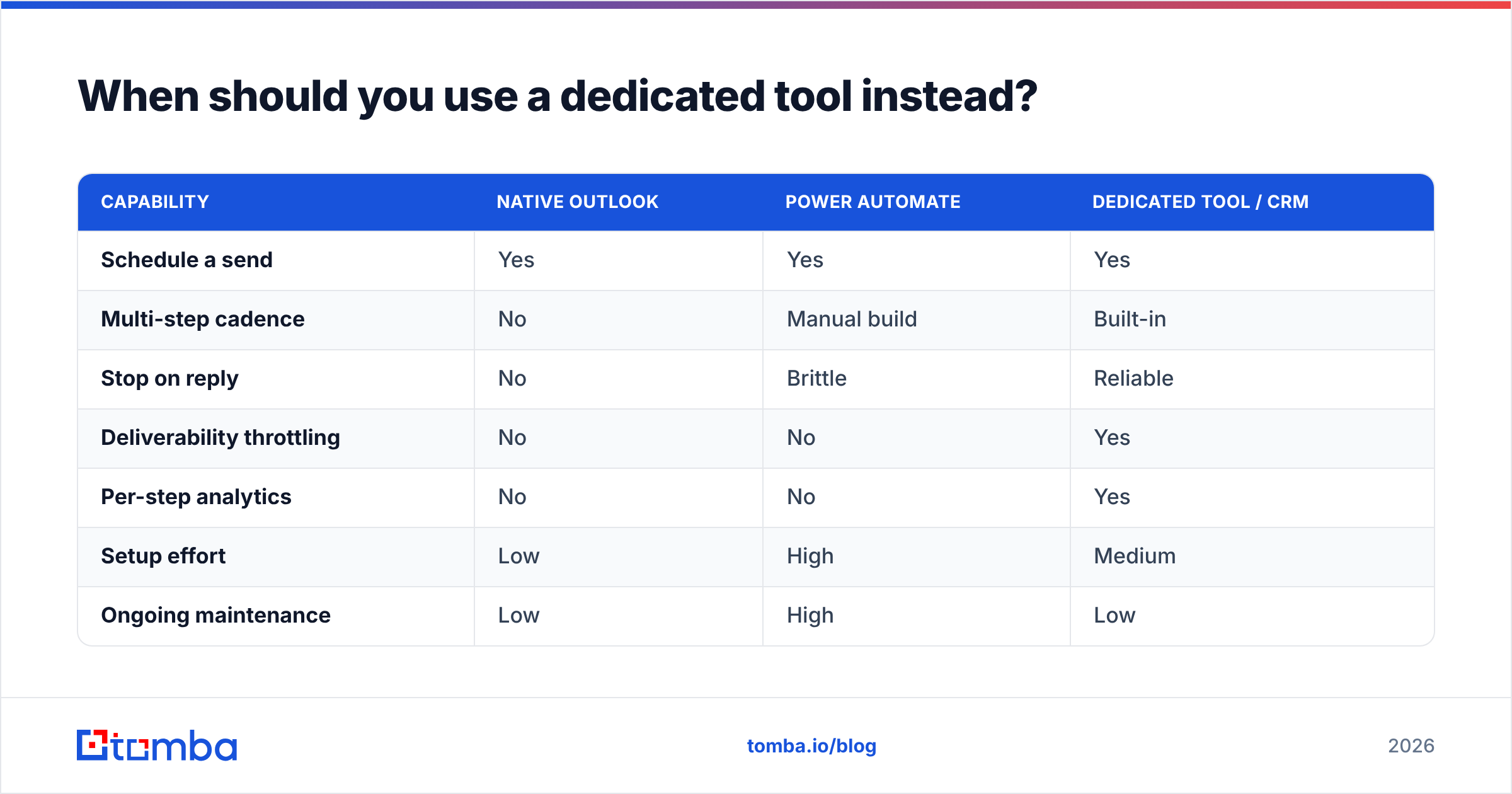
Here's how the three tiers stack up on the attributes that actually decide outcomes:
| Capability | Native Outlook | Power Automate | Dedicated tool / CRM |
|---|---|---|---|
| Schedule a send | Yes | Yes | Yes |
| Multi-step cadence | No | Manual build | Built-in |
| Stop on reply | No | Brittle | Reliable |
| Deliverability throttling | No | No | Yes |
| Per-step analytics | No | No | Yes |
| Setup effort | Low | High | Medium |
| Ongoing maintenance | Low | High | Low |
The pattern is clear: native Outlook wins on simplicity, a dedicated tool wins on everything that scales. Power Automate sits in an awkward middle — powerful but high-maintenance.
What kills automated follow-ups before they work? Bad data.#
Automation multiplies whatever you feed it. Point a flawless three-step sequence at a list full of guessed or stale addresses and you don't get more replies — you get a wall of bounces, a tanking email deliverability score, and follow-ups landing in spam where no one will ever see them.
Mailbox providers read bounce rate as a signal of a careless sender. A few percent is normal; cross into double digits and Gmail, Outlook.com, and corporate filters start routing all your mail — even to valid contacts — into the junk folder. Your automation is now efficiently destroying your own reputation.
Two habits prevent this:
- Find the right address in the first place. Don't guess
firstname@company.com. Use a real email finder that returns the verified pattern for the domain, so your sequence starts from a clean foundation. - Verify before you send. Run the list through an email verifier to strip dead, role-based, and risky addresses. For domains that accept everything, a dedicated catch-all verifier tells you whether a mailbox is actually live.
Think of it like watering a garden on a timer. If half the hoses are cracked, turning up the pressure just floods the patio. Fix the hoses — clean the list — and the same automation finally delivers water where it counts.
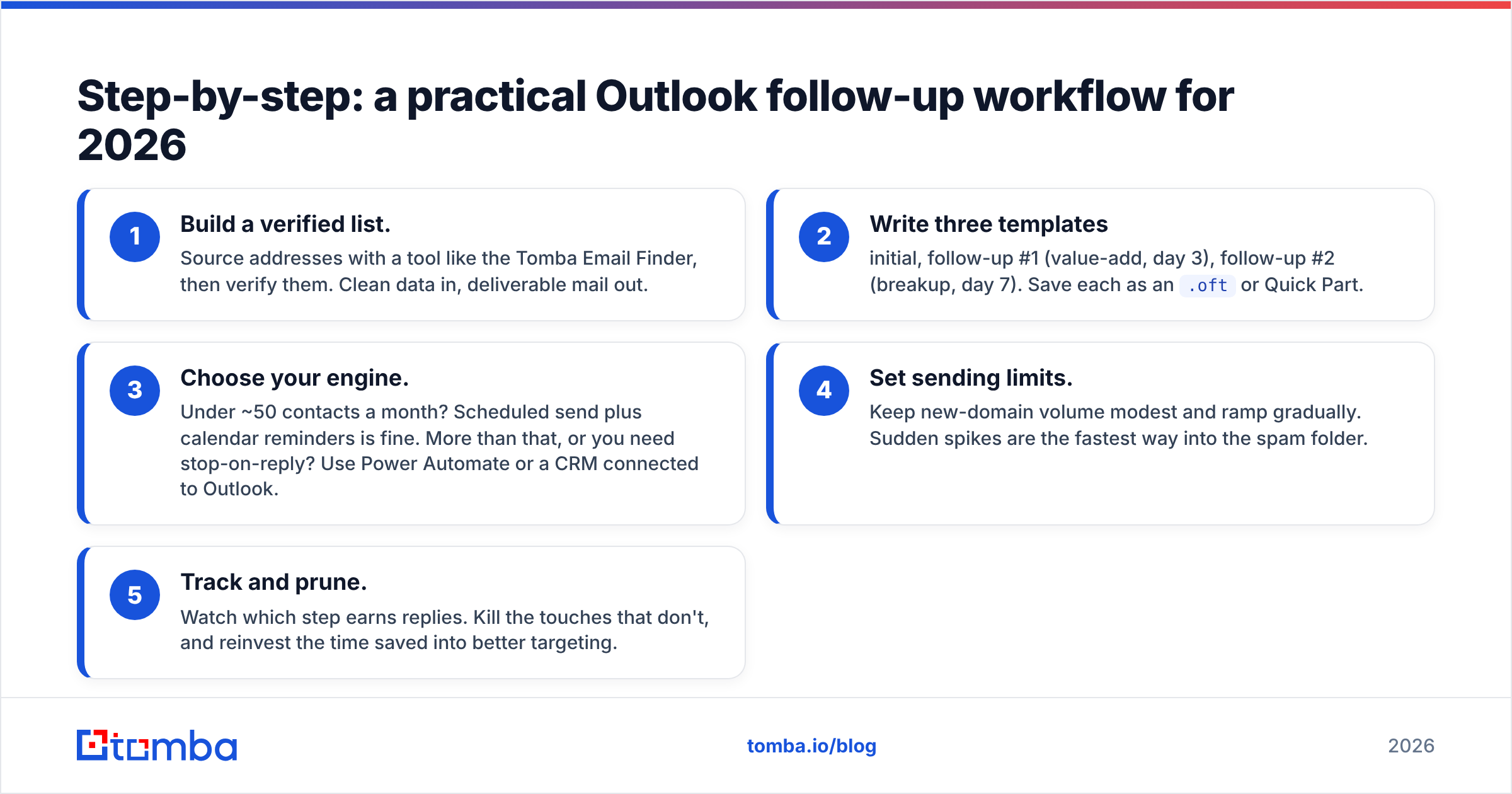
Step-by-step: a practical Outlook follow-up workflow for 2026#
Here's a workflow that balances native simplicity with the data hygiene that keeps it working.
- Build a verified list. Source addresses with a tool like the Tomba Email Finder, then verify them. Clean data in, deliverable mail out.
- Write three templates — initial, follow-up #1 (value-add, day 3), follow-up #2 (breakup, day 7). Save each as an
.oftor Quick Part. - Choose your engine. Under ~50 contacts a month? Scheduled send plus calendar reminders is fine. More than that, or you need stop-on-reply? Use Power Automate or a CRM connected to Outlook.
- Set sending limits. Keep new-domain volume modest and ramp gradually. Sudden spikes are the fastest way into the spam folder.
- Track and prune. Watch which step earns replies. Kill the touches that don't, and reinvest the time saved into better targeting.
This is the realistic 2026 setup: native Outlook for the plumbing, a verification layer for trust, and a logic layer (Power Automate or a tool) only when reply detection genuinely matters to you.
Frequently asked questions#
Can Outlook automatically stop a follow-up when someone replies? Not natively. Scheduled send and rules have no idea whether a human answered. You need Power Automate with a mailbox-search condition, or a dedicated sequence tool, to get reliable stop-on-reply.
Is Power Automate free for follow-up emails? For most Microsoft 365 business plans, the core Power Automate features are included. Premium connectors and higher run volumes may require a paid plan (roughly $15/user/month). Check your specific license.
How many follow-ups should a sequence have? Three to five touches over one to two weeks is the common sweet spot. Beyond that, returns drop and annoyance rises. Always include a polite "breakup" email as the last step.
Will automated follow-ups hurt my deliverability? Only if you send to bad addresses or spike your volume. Verify your list, ramp sending gradually, and keep your bounce rate low. Clean data plus sensible pacing keeps reputation intact.
Do I need a separate tool if I only send a few follow-ups? No. For low volume, Outlook's scheduled send plus saved templates is enough. Add a tool when you outgrow manual reply-checking or need analytics and throttling.
The bottom line#
Outlook can absolutely chase your prospects for you — but only if you give it good fuel and the right engine. Native features schedule and template; Power Automate adds logic; dedicated tools add the reply detection and deliverability controls that make automation safe at scale. Pick the tier that matches your volume, and never automate on top of unverified data.
Before you wire up a single sequence, make sure every address is real. Start with the Tomba Email Finder to source verified, accurate contacts straight from a company domain, then layer your Outlook automation on top. Clean data is the difference between follow-ups that land in the inbox and follow-ups that quietly drag down your reputation. Check the Tomba pricing — there's a free tier with 25 searches a month to test it before you commit. Find the right people first; let Outlook do the chasing second.
Ready to find emails that actually work?
Join 150,000+ professionals who stopped guessing and started sending. Free credits on signup — no credit card required.
Get the Tomba newsletter
Practical outbound tactics and product updates — once every two weeks.
About the author