How to Create an Email Signature That Actually Drives Replies
A working email signature is a conversion asset, not decoration. Here is the exact build order, the tools worth paying for, and the mistakes that quietly kill deliverability.
TL;DR
- A signature is a trust asset, not a business card. Name, role, company, one link, one phone line. Everything else costs you replies.
- Build it in HTML tables, not divs. Outlook's rendering engine is still Microsoft Word, and it ignores most modern CSS.
- Image-heavy signatures break in the two places that matter most: Outlook desktop with images blocked, and Gmail's clipping threshold.
- Free builders get you 90% there in five minutes. Paid platforms only make sense above ~25 employees, when centralized control and campaign banners start paying for themselves.
- Test before you roll out: send to Gmail web, Gmail mobile, Outlook desktop, and Apple Mail. Four clients, four screenshots, done.
What is an email signature actually for?#
An email signature answers three questions your recipient has in the first two seconds: who are you, why should I care, and how do I check you're real.
That is it. Every element that doesn't serve one of those three jobs is dead weight — and in cold outreach, dead weight is measurable. Signatures stuffed with tracking pixels, six social icons, an animated GIF banner, and a legal disclaimer longer than the email body raise spam scores and increase the chance Gmail clips your message with a "..." link.
The pattern that consistently works in B2B looks like this:
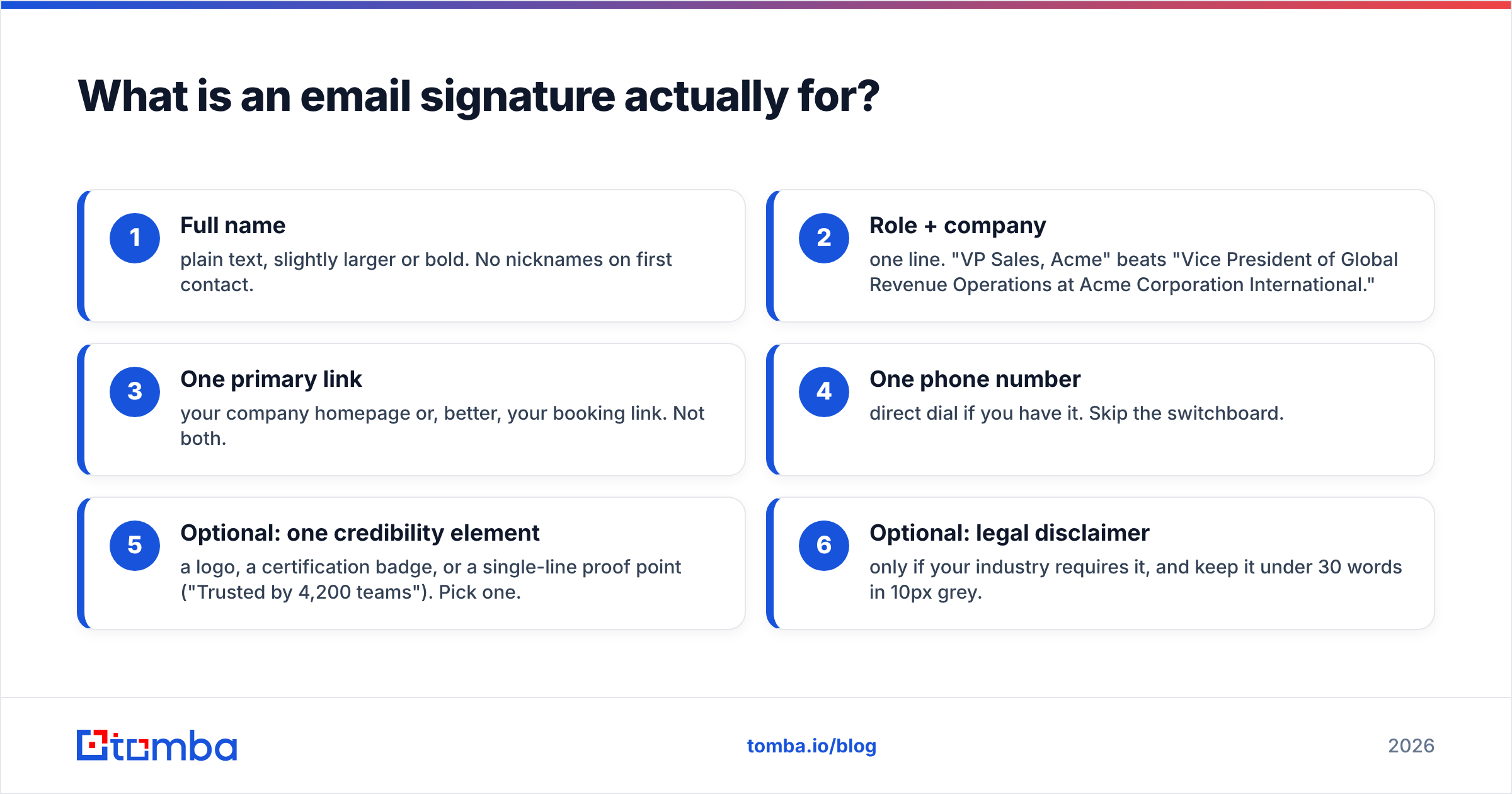
- Full name — plain text, slightly larger or bold. No nicknames on first contact.
- Role + company — one line. "VP Sales, Acme" beats "Vice President of Global Revenue Operations at Acme Corporation International."
- One primary link — your company homepage or, better, your booking link. Not both.
- One phone number — direct dial if you have it. Skip the switchboard.
- Optional: one credibility element — a logo, a certification badge, or a single-line proof point ("Trusted by 4,200 teams"). Pick one.
- Optional: legal disclaimer — only if your industry requires it, and keep it under 30 words in 10px grey.
That six-item hierarchy is the whole design brief. If you're tempted to add a seventh, ask what it does for the recipient.
Wait — that renders wrong. Here it is properly:
How do you create an email signature step by step?#
Five methods, ranked by how much control you need. Pick one and stop researching.
Method 1 — Native client editor (5 minutes, zero cost). Gmail: Settings → See all settings → General → Signature. Outlook: File → Options → Mail → Signatures. Type it, style it lightly, save. This is the right answer for solo operators and anyone who just needs something professional today. Limitation: the native editors mangle spacing and strip most inline CSS on paste.
Method 2 — Free signature generator (10 minutes, zero cost). A generator hands you clean, table-based HTML you paste into the client. Tomba's email signature generator is one option; HubSpot and Canva ship free ones too. Generators solve the single hardest part of this job — producing HTML that survives Outlook — without you writing a table by hand.
Method 3 — Hand-coded HTML (60 minutes, zero cost, full control). Write it yourself if you need pixel precision or you're embedding structured data. Rules that are non-negotiable:
- Use
<table>for layout. Not flexbox, not grid, not floats. - Inline every style attribute.
<style>blocks get stripped by Gmail. - Set explicit
widthandheighton every<img>, plus realalttext. - Host images on HTTPS at a stable URL. Never embed base64 — Outlook shows it as an attachment.
- Keep total HTML under 10 KB. Gmail clips messages past ~102 KB total, and your signature shouldn't eat that budget.
Method 4 — Team signature platform (a day to deploy, $1–5/user/month). Exclaimer, Opensense, and CodeTwo push signatures server-side, so every device — including phones — gets the same block. Worth it when you have marketing banners to rotate or a compliance team that cares.
Method 5 — CRM-native (already paid for). HubSpot, Salesforce, and most sequencers let you attach a signature to a sending identity. If your reps already live in a sequencer, this is the lowest-friction rollout because you're not touching 40 individual Gmail accounts.
Which email signature tool should you choose?#
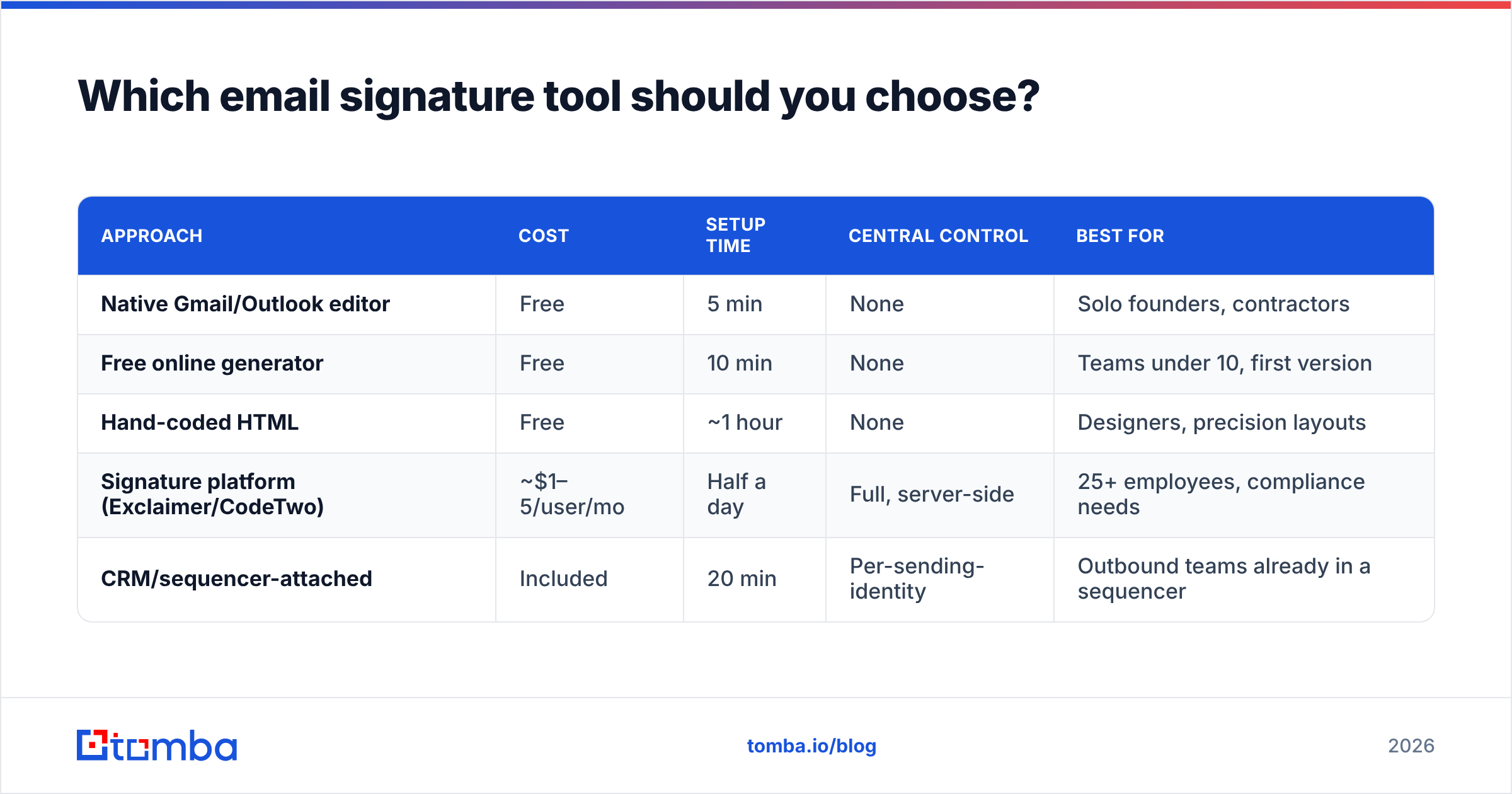
| Approach | Cost | Setup time | Central control | Best for |
|---|---|---|---|---|
| Native Gmail/Outlook editor | Free | 5 min | None | Solo founders, contractors |
| Free online generator | Free | 10 min | None | Teams under 10, first version |
| Hand-coded HTML | Free | ~1 hour | None | Designers, precision layouts |
| Signature platform (Exclaimer/CodeTwo) | ~$1–5/user/mo | Half a day | Full, server-side | 25+ employees, compliance needs |
| CRM/sequencer-attached | Included | 20 min | Per-sending-identity | Outbound teams already in a sequencer |
Two decision rules cut through this table. First: if you cannot name a person responsible for signature consistency, you don't need a platform — you need a generator and a shared doc. Second: if you're rotating campaign banners more than once a quarter, a platform pays for itself in the time you'd spend chasing 40 people to update their block manually.
What breaks email signatures in real inboxes?#
Most signature failures are rendering failures, and they cluster in four places.
Outlook desktop with images blocked. Outlook for Windows renders HTML through the Word engine and blocks external images by default until the recipient clicks "Download pictures." If your entire signature is one image, a large share of your recipients see a grey box with a red X. Always keep name, role, and contact details as live text.
Gmail clipping. Gmail truncates messages over roughly 102 KB and shows a "View entire message" link. A 400 KB PNG logo plus a banner is an easy way to get your CTA hidden behind that link. Compress logos to under 20 KB and cap dimensions at about 150×50 px.
Dark mode inversion. Gmail and Apple Mail invert light backgrounds in dark mode. A black logo on a transparent PNG turns invisible. Use a logo with a light outline, or set an explicit white background on the containing cell.
Mobile width. About half of B2B email is opened on a phone. Anything wider than 320 px triggers horizontal scroll or shrink-to-fit. Test on an actual phone, not a simulator.
There's a fifth failure that isn't about rendering at all: signature bloat hurts email deliverability. Multiple tracked links, a URL shortener, and a large image ratio push spam scores up. Before a big send, run your full message — signature included — through a spam checker and see what the filters actually flag.
Does an email signature affect deliverability and reputation?#
Yes, indirectly, and the mechanism is worth understanding.
Spam filters score text-to-image ratio, link count, link reputation, and HTML complexity. A signature contributes to all four on every message you send. One tracked link is fine. Six social icons pointing to six shortened URLs, on a first-touch cold email to a stranger, is a pattern that filters have been trained on for a decade.
The bigger picture: your signature is one input among many into sender reputation, alongside authentication, list hygiene, and complaint rate. Get your SPF, DKIM, and DMARC records right first — Google's sender guidelines are the canonical reference, and they've been enforced rather than suggested since 2024. A perfect signature on an unauthenticated domain still lands in spam.
The other half of deliverability is who you're sending to. Signatures don't rescue a list full of dead addresses. Run new contacts through an email verifier before the first send — bounce rates above 3% do more reputation damage than any signature design choice ever will.
What should you never put in an email signature?#
A short list, with the reasoning:
- Quotes and mottos. They read as filler and add nothing to the three questions in section one.
- "Sent from my iPhone" plus a full signature. Pick one. Both together looks careless.
- Full postal addresses on cold outreach. Required for CAN-SPAM on marketing email, unnecessary noise on 1:1 sales email — and it makes the block twice as tall on mobile.
- More than two social icons. Choose the one platform where you actually respond. For most B2B sellers that's LinkedIn.
- Animated GIFs. Outlook shows only the first frame, and the file size is pure clipping risk.
- A photo larger than 80×80 px. Headshots can help in relationship-driven sales, but they're the first thing to cut when you're optimizing for size.
- Multiple phone numbers. Office, mobile, and WhatsApp signals that you don't know how you want to be reached.
- Every award you've won. One credibility element, maximum.
The compression test: read your signature aloud. If it takes more than five seconds, cut a line.
How do you roll out signatures across a whole team?#
Standardization matters more than perfection here. A consistent, slightly imperfect signature across 30 reps beats 30 individually beautiful, mutually inconsistent ones.
The rollout that works:
- Lock the template. One HTML file, one owner, one source of truth in your wiki.
- Define exactly which fields vary. Usually name, role, phone, and booking link. Nothing else.
- Generate per-person HTML. A spreadsheet with a formula, or a generator with a CSV import, or a script. Twenty minutes of work for a 50-person team.
- Distribute with screenshots, not instructions. Send each person their HTML plus a two-image walkthrough of where to paste it. Adoption roughly doubles versus written steps.
- Audit quarterly. Send a test to a shared inbox from every rep, and check the four clients listed below.
For outbound teams, tie the rollout to your data workflow. If reps are building lists with a bulk email finder and pushing them into a sequencer, attach the signature at the sending-identity level in the sequencer rather than in each rep's Gmail. One place to update, no drift.
How do you test an email signature before rollout?#
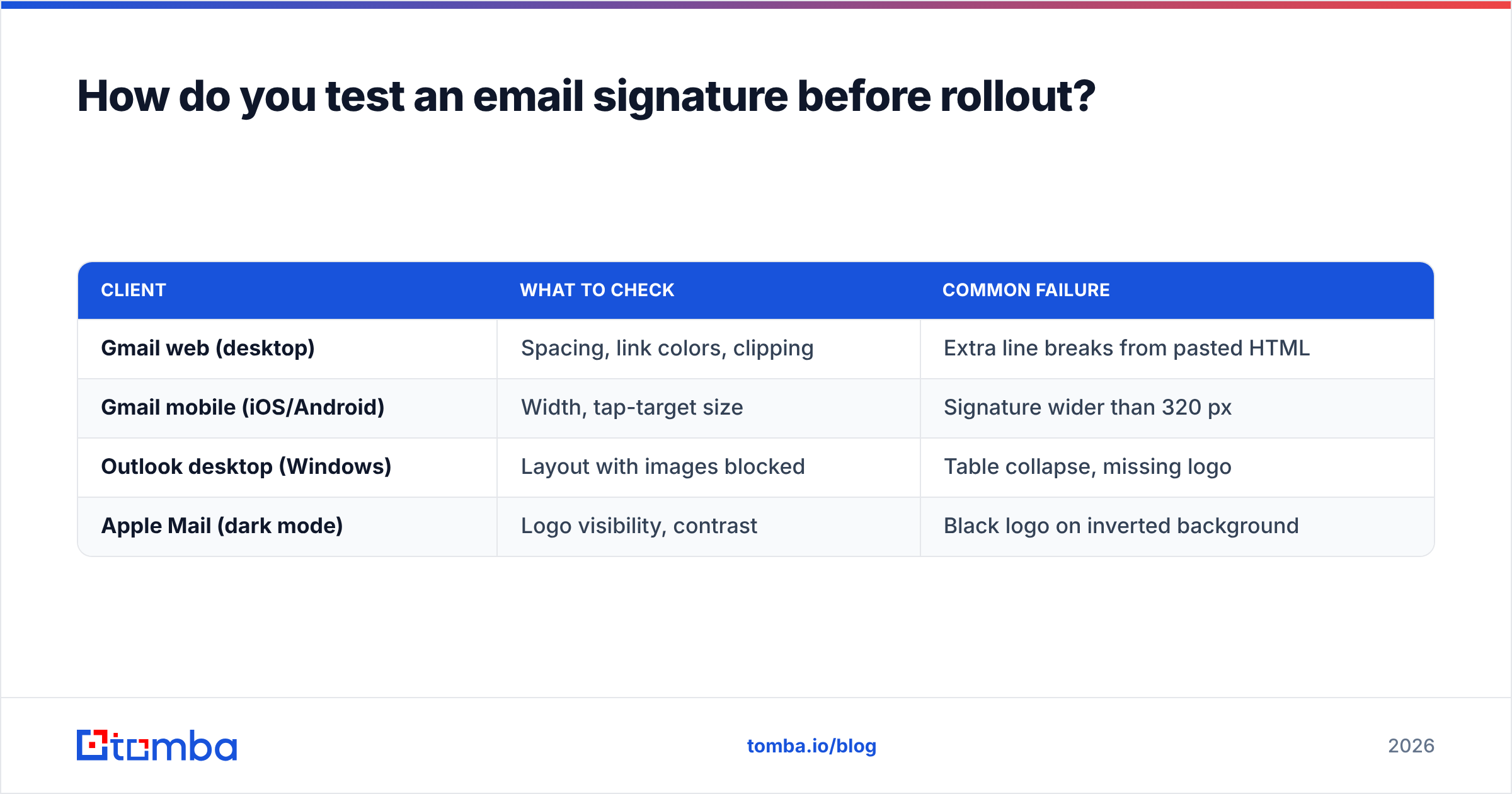
Four clients cover the vast majority of B2B inboxes. Send yourself a real message — not a preview — and screenshot each:
| Client | What to check | Common failure |
|---|---|---|
| Gmail web (desktop) | Spacing, link colors, clipping | Extra line breaks from pasted HTML |
| Gmail mobile (iOS/Android) | Width, tap-target size | Signature wider than 320 px |
| Outlook desktop (Windows) | Layout with images blocked | Table collapse, missing logo |
| Apple Mail (dark mode) | Logo visibility, contrast | Black logo on inverted background |
Two extra checks worth the minute they cost: view the message as plain text to confirm your contact details survive HTML stripping, and forward it once to confirm the signature doesn't nest into an unreadable block. Tools like Litmus render across dozens of clients if you want more coverage, but four screenshots catch nearly everything that matters.
What does a good B2B signature look like in practice?#
Here's a structure you can copy directly. Assume 13px system font, #333 text, #666 for the secondary line:
Jordan Reyes
Head of Partnerships, Northwind
jordan@northwind.com · +1 415 555 0142
northwind.com | Book 15 min
[Northwind logo — 140×40 px]
Four lines of live text, one small image, one booking link. Under 8 KB. Renders identically in every client listed above. Nothing in it depends on images loading.
For reps doing personalized outbound, one variation earns its keep: swap the generic company link for a segment-relevant one. A signature pointing to a case study in the prospect's vertical converts better than a homepage link — and it costs you nothing extra at send time if your sequencer supports a merge field there.
If you're pairing signatures with a cold outreach motion, the signature is the last 5% of the job. The first 95% is reaching a real person at a real address. Bad data means your beautifully rendered block lands in a catch-all void — which is why contact enrichment and verification sit upstream of any signature work in a serious outbound stack.
Frequently asked questions#
Should the signature appear on replies too? Use a short version — name, role, phone — on replies. The full block on every message in a thread is visual clutter.
HTML or plain text? HTML for the primary signature, but design it so the plain-text fallback still contains your name, company, and contact details.
Do signature banners actually work? Modestly, and only with a specific offer. A "Read our 2026 benchmark report" banner on transactional email gets clicks. The same banner on cold outreach adds an image, a link, and spam risk for close to nothing.
How often should I update it? Role changes immediately, campaign banners quarterly, everything else annually. More churn than that and your team stops keeping up.
Can I include a calendar link? Yes, and it's usually the highest-value link in the block. Just don't include it alongside four other links competing for the same click.
Get the contact data your signature is attached to#
A signature only matters if the email reaches a human. Before you spend an afternoon perfecting table markup, make sure the addresses in your sequence are real, deliverable, and attached to the right person.
Tomba's Email Finder locates verified professional addresses by name, domain, or company, with confidence scoring on every result — and the free tier gives you 25 searches a month to test it against a list you already know. Paid plans start at $49/mo (Starter), with Growth at $99/mo and Pro at $249/mo; full Tomba pricing is public, and every plan includes verification so you're not stacking two vendors to do one job.
Build the signature once. Fix the data continuously. That's the order that actually moves reply rates.
Related guides#
// get started
Find, verify and enrich your first contacts today
Start on the free plan with 25 searches a month, then scale when your team is ready.
Free plan · No credit card required · GDPR & CCPA
// about the author