How to Send Email Without Showing Recipients: BCC Guide
Sending one email to 200 people and exposing every address is a privacy incident, not a mistake. Here's how to hide recipients properly in Gmail, Outlook, and at scale — and when BCC quietly breaks your deliverability.
Wondering how to send email without showing recipients? Use BCC. It takes about four seconds, and it works in every major mail client. The harder question is when BCC stops being safe.
TL;DR
- Use BCC (blind carbon copy) to hide recipients — it works in Gmail, Outlook, Apple Mail, and every major client, and takes about four seconds to set up.
- BCC is fine for under ~50 low-stakes recipients. Past that, spam filters, missing personalization, and reply-all chaos start costing you.
- For anything commercial or repeated, use mail merge or a sending platform instead: one email per recipient, no shared To: field, real personalization, real tracking.
- Gmail caps you at 500 recipients/day (2,000 on Workspace); Outlook/Microsoft 365 caps at 500 recipients per message and 10,000/day.
- The privacy failure mode is worse than the deliverability one: one wrong field turns your client list into a public document under GDPR.
How to send email without showing recipients, explained#
You want every person on the list to receive the message, and none of them to see who else got it. There are exactly four mechanisms that achieve this, and they differ in effort, scale, and how professional the result looks.
The default answer is BCC — blind carbon copy. Addresses in the BCC field receive the message but are stripped from the headers every other recipient sees. The name is literal: in the typewriter era, a carbon copy left a visible trace on the page; a blind copy didn't.
The other three are: sending individually (fine for five people, absurd for fifty), mail merge (one real email per person, generated automatically), and a group alias or list server (recipients hidden behind a single address like team@company.com).
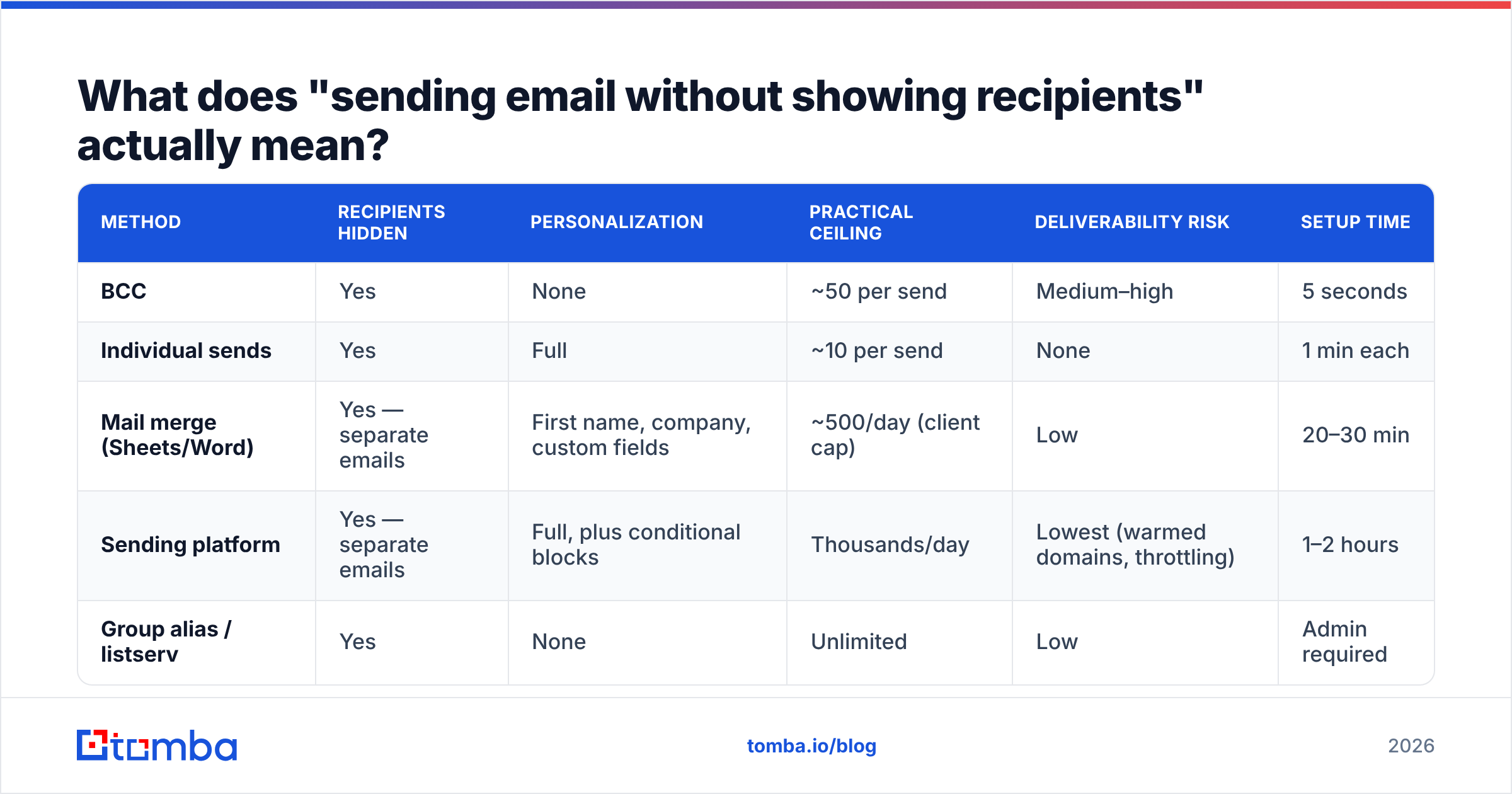
Here's how they compare on the things that actually matter:
| Method | Recipients hidden | Personalization | Practical ceiling | Deliverability risk | Setup time |
|---|---|---|---|---|---|
| BCC | Yes | None | ~50 per send | Medium–high | 5 seconds |
| Individual sends | Yes | Full | ~10 per send | None | 1 min each |
| Mail merge (Sheets/Word) | Yes — separate emails | First name, company, custom fields | ~500/day (client cap) | Low | 20–30 min |
| Sending platform | Yes — separate emails | Full, plus conditional blocks | Thousands/day | Lowest (warmed domains, throttling) | 1–2 hours |
| Group alias / listserv | Yes | None | Unlimited | Low | Admin required |
The decision is not which one hides addresses — all of them do. It comes down to how many people you're mailing, and whether the email is personal correspondence or outreach.
How do you BCC in Gmail, Outlook, and Apple Mail?#
Gmail (web). Click Compose. On the right of the To: field, click Bcc. Paste your addresses there. Put your own address — or a no-reply alias — in the To: field so the message has a valid primary recipient. Send. Keyboard shortcut: Ctrl+Shift+B (Windows) or Cmd+Shift+B (Mac).
Gmail (mobile). Tap Compose, tap the chevron at the right end of the To: row to expand Cc/Bcc, then fill Bcc.
Outlook (new Outlook / web). Compose, then click Bcc in the top-right of the message header. If you don't see it, go to Options → Show Fields → Bcc. In classic desktop Outlook the toggle lives under Options → Bcc in the ribbon.
Apple Mail (macOS). Compose, then View → Bcc Address Field, or hit Cmd+Option+B. On iOS, tap the Cc/Bcc/From line to expand it.
The To: field question. Leaving To: empty makes some servers reject the message. It also looks suspicious to spam filters. Three acceptable patterns:
- Your own address in To: — simplest, and you get a copy for your records.
- A dedicated alias like
announcements@yourdomain.com— looks intentional rather than improvised. undisclosed-recipients:;— a legacy group syntax. It works, but it reads as a mass mail to anyone who notices. That defeats the point if you're going for personal.
When does BCC stop being the right answer?#
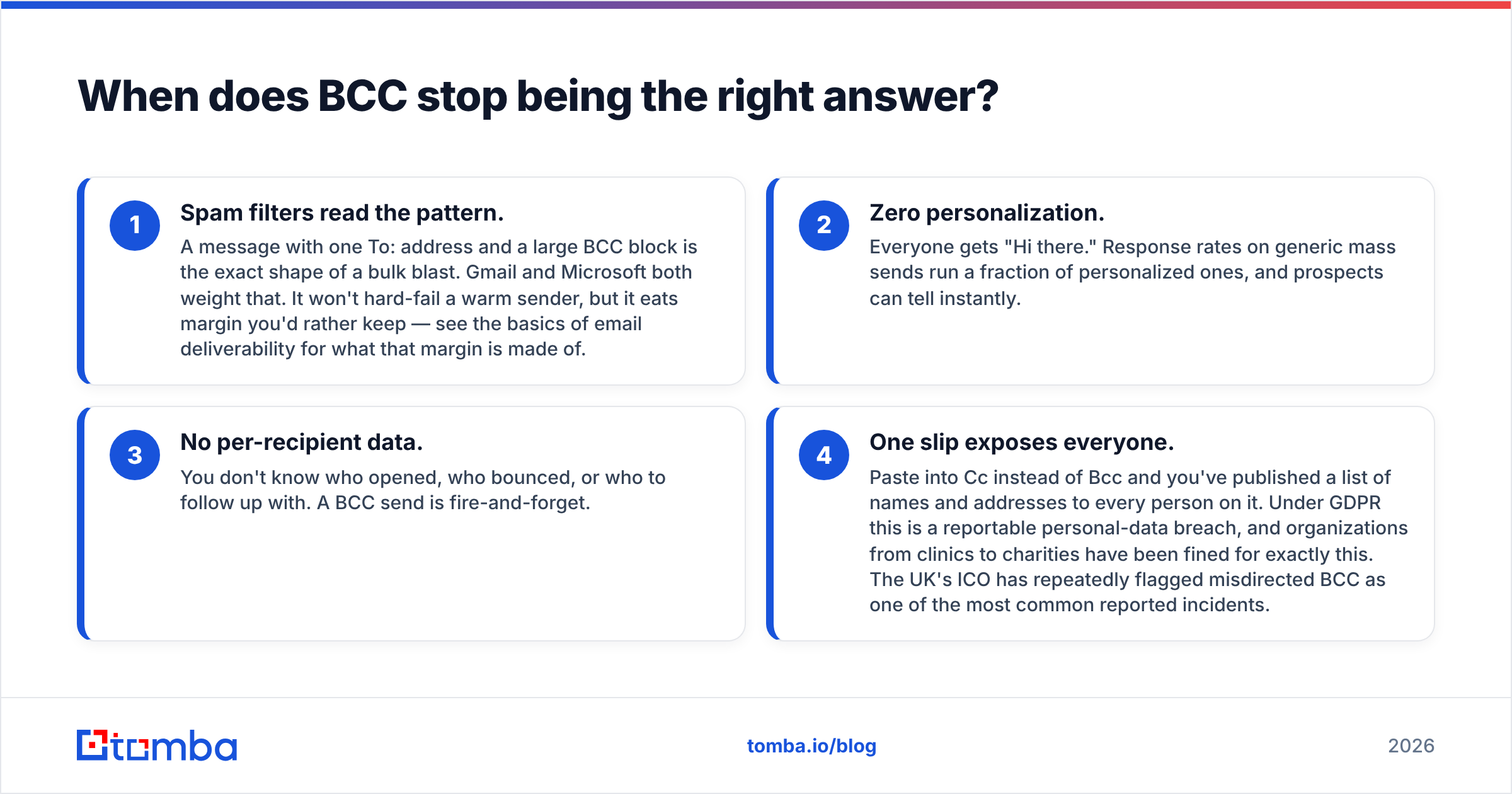
Around fifty recipients, and earlier if the email is commercial. Four things break at once.
- Spam filters read the pattern. A message with one To: address and a large BCC block is the exact shape of a bulk blast. Gmail and Microsoft both weight that. It won't hard-fail a warm sender, but it eats margin you'd rather keep — see the basics of email deliverability for what that margin is made of.
- Zero personalization. Everyone gets "Hi there." Response rates on generic mass sends run a fraction of personalized ones, and prospects can tell instantly.
- No per-recipient data. You don't know who opened, who bounced, or who to follow up with. A BCC send is fire-and-forget.
The fourth break is the expensive one: a single slip exposes everyone. Paste into Cc instead of Bcc and you've published a list of names and addresses to every person on it. Under GDPR that counts as a reportable personal-data breach. Clinics and charities have been fined for exactly this, and the UK's ICO ranks misdirected BCC among the most common incidents it sees.
There's a fifth, subtler failure: reply-all doesn't behave as people expect. A BCC recipient who hits Reply All replies only to the visible To: address — usually you. That's the good case. The bad case is someone replying to a message they weren't supposed to know they received, and confusion follows.
What's the better method for outreach at scale?#
Mail merge, or a proper sending platform. Both produce one genuine email per recipient. That isn't a workaround for hiding addresses — it's the correct architecture. There is no shared recipient list to leak, because there is no shared message.
Gmail + Google Sheets mail merge. Google Workspace has a native mail-merge feature (multi-send) on Workspace Individual and business tiers, and there are well-established Apps Script templates for the rest. You build a sheet with columns for email, first name, company, and any custom variable, then reference them as {{First name}} in the draft. Each send goes out individually from your own address.
Outlook + Word mail merge. Word's Mailings tab has driven this for two decades: Start Mail Merge → E-mail Messages, connect an Excel sheet as the data source, insert merge fields, Finish & Merge → Send Email Messages. Clunky UI, dependable output. Microsoft's own mail merge documentation covers the exact steps per Office version.
Dedicated sending platforms. Once you're past a few hundred a week, you want sending-domain separation, throttling, warmup, bounce handling, and reply detection. That's a different category of tool from your mailbox.
Whichever you pick, the merge is only as good as the list feeding it. A merge that fires "Hi {{First name}}" into a dead address is worse than not sending — it's a bounce against your domain reputation.
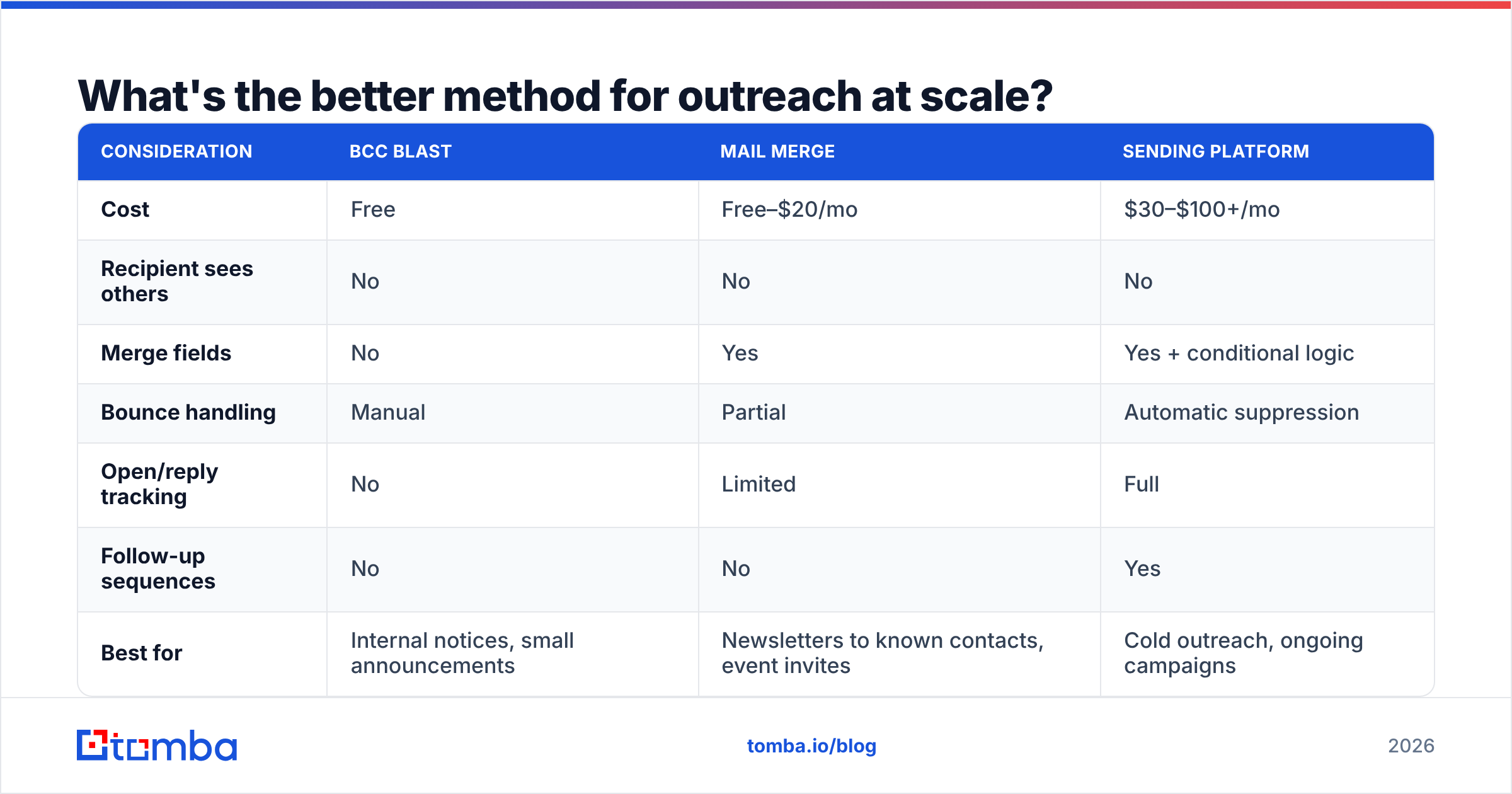
| Consideration | BCC blast | Mail merge | Sending platform |
|---|---|---|---|
| Cost | Free | Free–$20/mo | $30–$100+/mo |
| Recipient sees others | No | No | No |
| Merge fields | No | Yes | Yes + conditional logic |
| Bounce handling | Manual | Partial | Automatic suppression |
| Open/reply tracking | No | Limited | Full |
| Follow-up sequences | No | No | Yes |
| Best for | Internal notices, small announcements | Newsletters to known contacts, event invites | Cold outreach, ongoing campaigns |
| Domain reputation impact | Highest risk | Moderate | Managed |
What are the actual sending limits?#
Know these before you build a list, not after your account gets throttled.
- Gmail free (@gmail.com): 500 recipients per day, counted across all messages. A single BCC of 100 costs you 100.
- Google Workspace: 2,000 recipients per day for external mail; 10,000 for internal.
- Outlook.com free: 300 recipients per day.
- Microsoft 365 / Exchange Online: 500 recipients per message, 10,000 recipients per day.
- Apple iCloud Mail: 1,000 recipients per day, max 500 per message.
Exceed these and you get a temporary send block — 24 hours is typical — plus a reputation dent that outlasts the block. If your list is bigger than the cap, that's the signal to stop using your mailbox as a broadcast tool.
How do you keep your hidden-recipient sends out of spam?#
Hiding recipients doesn't hide you from filters. Three things determine whether the message lands.
Authentication. SPF, DKIM, and DMARC must be published and aligned on your sending domain. Google and Yahoo made this mandatory for bulk senders in 2024, and enforcement has only tightened since. Run your domain through an SPF checker before any large send, and confirm you're not on a shared IP with a bad neighbor using a blacklist checker.
List hygiene. Bounce rate is the single fastest way to torch sender reputation. Anything above 2–3% starts triggering filtering; above 5% mailbox providers begin treating your domain as a list-scraper. Run the list through an email verifier before you send, and drop the invalids rather than "trying anyway." Catch-all domains need their own handling — a catch-all verifier tells a real mailbox apart from a domain that accepts everything and silently deletes most of it.
Content and volume shape. No link shorteners, no single-image emails, no ALL-CAPS subject lines, and a plausible ramp. A domain that sent 20 emails last month and 2,000 today looks exactly like a compromised account. Check drafts against a spam checker if you're unsure what's tripping.
What about legal compliance — is BCC enough?#
No. Hiding recipients from each other is a courtesy, not compliance.
CAN-SPAM (US) requires accurate headers and From lines, a non-deceptive subject, a physical postal address, and a working unsubscribe honored within 10 business days. A BCC blast typically has no unsubscribe mechanism at all, which puts it out of compliance the moment the message is commercial. The FTC's CAN-SPAM compliance guide is short and worth reading once in full.
GDPR (EU/UK) treats email addresses as personal data. You need a lawful basis to send, and exposing one recipient's address to another is a breach — reportable within 72 hours if it poses risk. This is the concrete legal exposure of a Cc/Bcc slip, and it's why "we only did it once" isn't a defense.
PECR, CASL, and equivalents add consent requirements on top in the UK, Canada, and elsewhere. If you're sending B2B outreach into multiple jurisdictions, the safe default is: legitimate-interest basis documented, clear identification, one-click opt-out in every message, suppression list honored permanently.
Mail-merge and platform sends make compliance easier, not harder — each message can carry a personalized unsubscribe link, and suppression is enforced automatically. BCC gives you none of that.
Which method should you pick?#
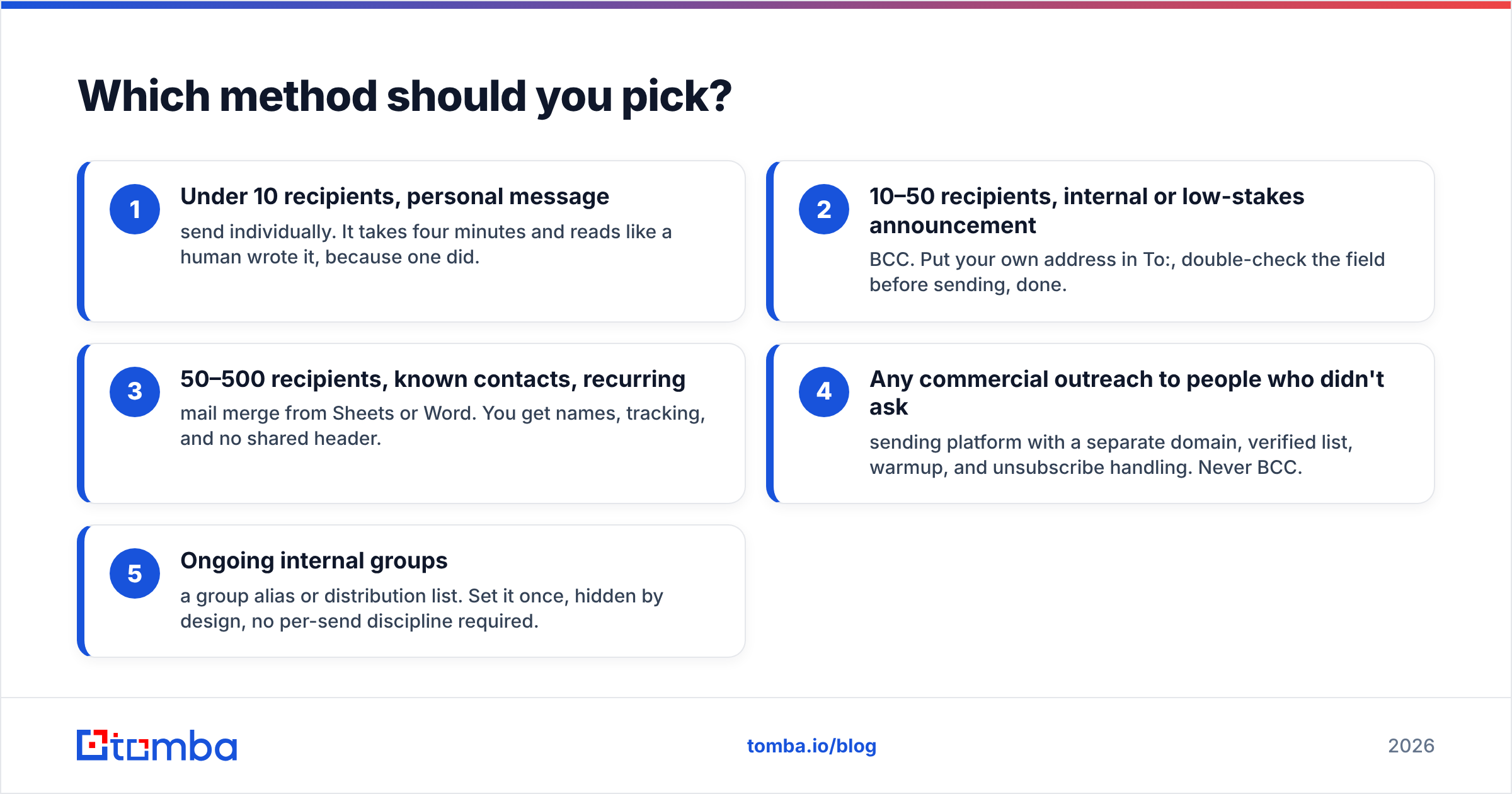
There is no single answer to how to send email without showing recipients. Match the tool to the job:
- Under 10 recipients, personal message — send individually. It takes four minutes and reads like a human wrote it, because one did.
- 10–50 recipients, internal or low-stakes announcement — BCC. Put your own address in To:, double-check the field before sending, done.
- 50–500 recipients, known contacts, recurring — mail merge from Sheets or Word. You get names, tracking, and no shared header.
- Any commercial outreach to people who didn't ask — sending platform with a separate domain, verified list, warmup, and unsubscribe handling. Never BCC.
- Ongoing internal groups — a group alias or distribution list. Set it once, hidden by design, no per-send discipline required.
The pattern underneath: BCC is a client feature for occasional convenience. Everything at volume needs a pipeline — clean list in, individual messages out, bounces and replies routed back.
How do you build the list that feeds the merge?#
A merge is downstream of data. If you're mailing people you already know, export from your CRM and verify before sending. If you're building a new list, the pattern is: identify target companies, find the right role at each, get a verified address, enrich with the fields your merge needs.
That last part is where most people improvise badly — guessing firstname.lastname@company.com and hoping. Guessed addresses bounce, and bounces are exactly the thing that ruins the domain you just warmed up. Use domain search to pull the real addresses and email patterns for a company, then verify each one before it enters the merge sheet. For volume, bulk verify the whole file in one pass rather than one row at a time.
The workflow that holds up: source → verify → enrich → merge → send individually → suppress bounces and opt-outs. No step in that chain involves a BCC field.
Get the list right before you hit send#
Knowing how to send email without showing recipients is the easy half. The hard half is having a list worth sending to — real addresses, correct names, no traps, no dead mailboxes dragging your domain down with every send.
Tomba Email Finder handles that upstream half: find verified professional addresses by name, company, or domain, get the company's actual email pattern instead of guessing it, and export a clean file your mail merge can consume directly. The free tier gives you 25 searches a month to test the accuracy on companies you already know. Paid plans start at $49/mo on Starter and $99/mo on Growth, with full Tomba pricing published up front. Verify the list, run the merge, and let every recipient get an email that looks like it was written for them — because the only address in the header will be theirs.
Related guides#
// get started
Find, verify and enrich your first contacts today
Start on the free plan with 25 searches a month, then scale when your team is ready.
Free plan · No credit card required · GDPR & CCPA
// about the author