How to Setup SPF, DKIM and DMARC in Office 365 (2026)
A step-by-step Microsoft 365 walkthrough for SPF, DKIM and DMARC — exact DNS records, the CNAME trick most admins miss, and how to read your first DMARC report without a paid tool.
TL;DR
- Office 365 gives you SPF for free, but DKIM is off by default and DMARC does not exist until you create the TXT record yourself. Assume nothing is configured.
- Order matters: publish SPF → enable DKIM (two CNAMEs per domain, then flip the toggle) → publish DMARC at
p=none→ read reports for two weeks → tighten top=quarantine, thenp=reject. - The single most common failure is enabling DKIM in the Defender portal before the CNAMEs have propagated. Microsoft throws "CNAME record does not exist" and admins give up.
- Google and Yahoo's bulk-sender rules (5,000+ messages/day) now require all three. Microsoft began enforcing the same for Outlook.com inbound in 2025.
- Authentication only protects mail you actually send. Bad list hygiene still tanks your reputation — verify addresses before you send, not after the bounces land.
Authentication is the plumbing nobody looks at until the basement floods. You do it once per domain, correctly, and then you stop thinking about it — assuming you did it in the right order and read the reports afterward.
What are SPF, DKIM and DMARC, and why does Office 365 need all three?#
Think of sending an email like mailing a physical letter. SPF is the list of post offices allowed to postmark on your behalf. DKIM is the wax seal that proves the envelope wasn't opened in transit. DMARC is the standing instruction you leave with every recipient: "if the postmark and seal don't match my name, here's what to do with it, and mail me a report either way."
Each does a distinct job, and each fails in a distinct way:
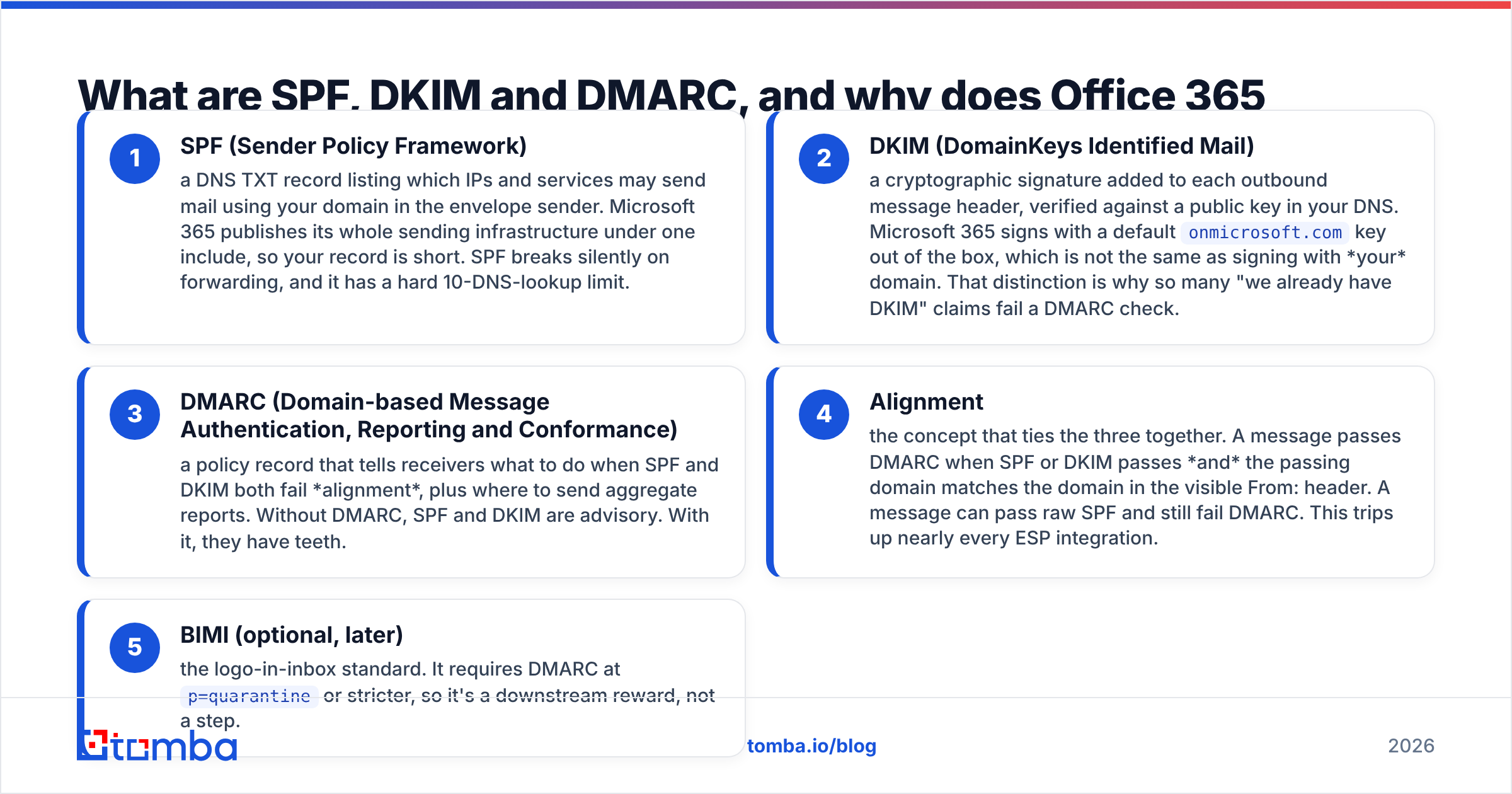
- SPF (Sender Policy Framework) — a DNS TXT record listing which IPs and services may send mail using your domain in the envelope sender. Microsoft 365 publishes its whole sending infrastructure under one include, so your record is short. SPF breaks silently on forwarding, and it has a hard 10-DNS-lookup limit.
- DKIM (DomainKeys Identified Mail) — a cryptographic signature added to each outbound message header, verified against a public key in your DNS. Microsoft 365 signs with a default
onmicrosoft.comkey out of the box, which is not the same as signing with your domain. That distinction is why so many "we already have DKIM" claims fail a DMARC check. - DMARC (Domain-based Message Authentication, Reporting and Conformance) — a policy record that tells receivers what to do when SPF and DKIM both fail alignment, plus where to send aggregate reports. Without DMARC, SPF and DKIM are advisory. With it, they have teeth.
- Alignment — the concept that ties the three together. A message passes DMARC when SPF or DKIM passes and the passing domain matches the domain in the visible From: header. A message can pass raw SPF and still fail DMARC. This trips up nearly every ESP integration.
- BIMI (optional, later) — the logo-in-inbox standard. It requires DMARC at
p=quarantineor stricter, so it's a downstream reward, not a step.

How do you set up SPF in Office 365?#
Start here, because DKIM and DMARC both assume SPF exists.
Step 1 — Find your existing TXT record. Go to your DNS host (GoDaddy, Cloudflare, Route 53, wherever your nameservers point) and look for a TXT record on the root of your domain starting with v=spf1. You may only have one SPF record per domain. Two records is a permanent error and every check fails, so if one exists, you merge into it rather than adding a second.
Step 2 — Publish the record. For a domain that sends only through Microsoft 365:
Type: TXT
Host: @
Value: v=spf1 include:spf.protection.outlook.com -all
Step 3 — Add your other senders. Every service that sends as your domain needs an include: your marketing platform, your invoicing tool, your cold email sequencer, your helpdesk. A realistic record looks like:
v=spf1 include:spf.protection.outlook.com include:_spf.google.com include:mailgun.org -allStep 4 — Watch the lookup count. SPF allows a maximum of 10 DNS lookups when evaluated. Each include: costs at least one, and nested includes cost more — spf.protection.outlook.com alone consumes two. Exceed 10 and the result is permerror, which most receivers treat as a fail. Run your record through a checker before and after every edit; our free SPF checker flags lookup overruns and syntax errors in one pass.
Step 5 — Choose your qualifier. -all is hard fail; ~all is soft fail. Use ~all for the first two weeks while you're still discovering forgotten senders in your DMARC reports, then move to -all. Never ship +all — it authorizes the entire internet to send as you.
DNS changes typically propagate in 15 minutes to an hour, though some registrars honor TTLs up to 48 hours. Lower your TTL to 300 seconds before you start making changes; it saves a lot of waiting later.
How do you enable DKIM in Microsoft 365 step by step?#
This is where most setups stall. Microsoft 365 requires you to publish two CNAME records first, then enable signing in the portal. Doing it in reverse produces an error and no signature.
Step 1 — Get your tenant's initial domain. It's the yourcompany.onmicrosoft.com name your tenant was created with. You need the part before .onmicrosoft.com.
Step 2 — Create two CNAMEs at your DNS host, replacing yourdomain-com with your custom domain using hyphens instead of dots, and yourtenant with your initial domain prefix:
Host:  selector1._domainkey
Value: selector1-yourdomain-com._domainkey.yourtenant.onmicrosoft.com

Host:  selector2._domainkey
Value: selector2-yourdomain-com._domainkey.yourtenant.onmicrosoft.com
Two selectors exist so Microsoft can rotate keys without a signing gap. You need both.
Step 3 — Wait for propagation. Query the records yourself before touching the portal:
nslookup -type=CNAME selector1._domainkey.yourdomain.comIf that returns the Microsoft target, you're ready. If it returns NXDOMAIN, wait.
Step 4 — Enable signing. Go to the Microsoft Defender portal → Email & Collaboration → Policies & Rules → Threat policies → Email authentication settings → DKIM. Select your custom domain and toggle Sign messages for this domain with DKIM signatures to Enabled.
Step 5 — Verify with a real message. Send to an external address you control, open the raw headers, and look for dkim=pass header.d=yourdomain.com. If it says header.d=yourtenant.onmicrosoft.com, the toggle didn't take — the message is signed, but with the wrong domain, and it will fail DMARC alignment.
Step 6 — Repeat per domain. DKIM is per-domain. Five sending domains means five pairs of CNAMEs and five toggles. Microsoft's own DKIM configuration documentation has the current portal paths if the UI has shifted again.
Note the key length. Microsoft defaults to 1024-bit RSA on some tenants; 2048-bit is the current recommendation and can be rotated to via PowerShell (Rotate-DkimSigningConfig -KeySize 2048).
What DMARC policy should you start with?#
Start at p=none. Always. It changes nothing about mail delivery and starts the flow of reports that tell you what you didn't know you were sending.
Type: TXT
Host: _dmarc
Value: v=DMARC1; p=none; rua=mailto:dmarc@yourdomain.com; fo=1; adkim=r; aspf=r
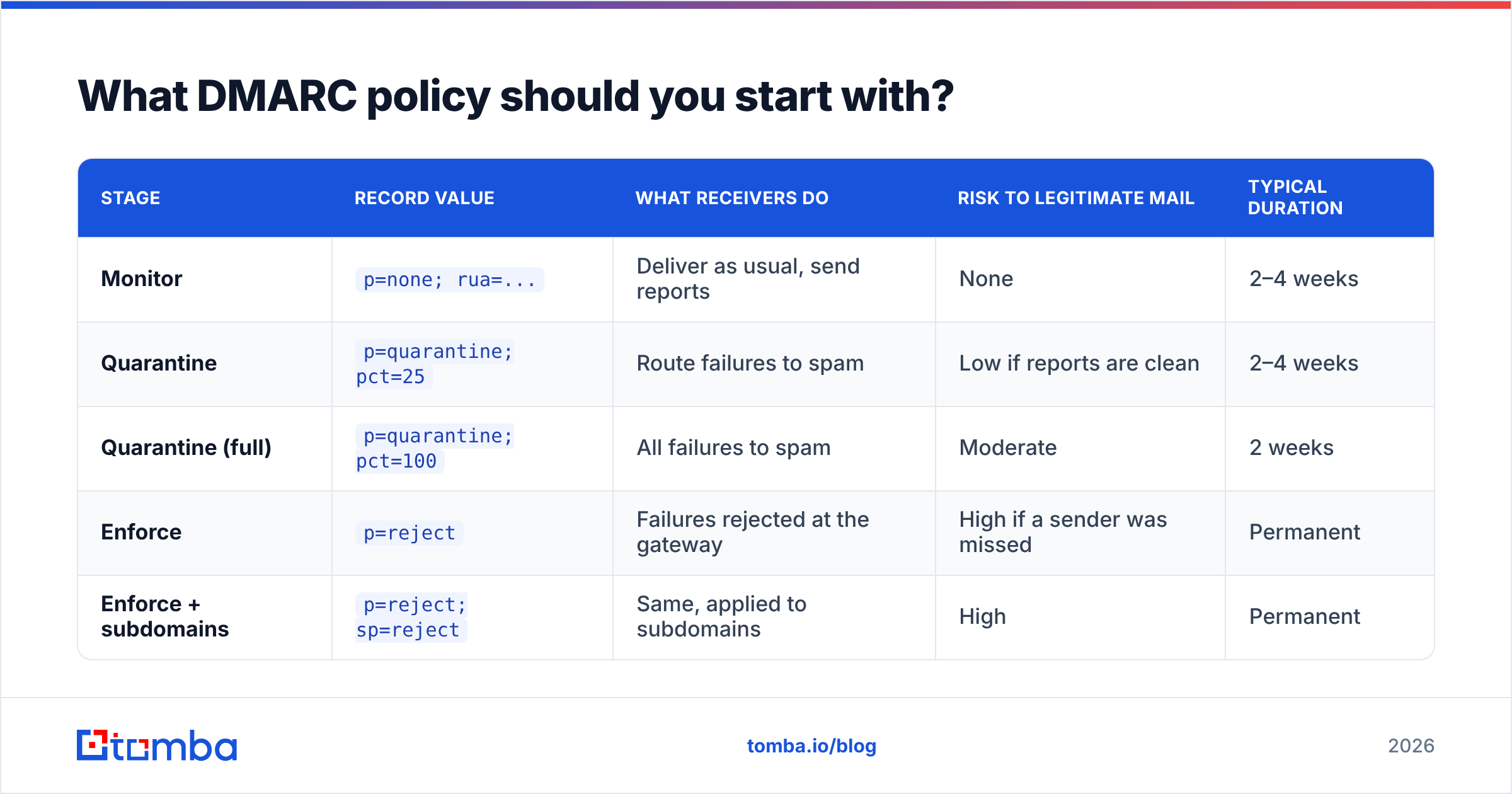
Here's how the three enforcement stages compare in practice:
| Stage | Record value | What receivers do | Risk to legitimate mail | Typical duration |
|---|---|---|---|---|
| Monitor | p=none; rua=... |
Deliver as usual, send reports | None | 2–4 weeks |
| Quarantine | p=quarantine; pct=25 |
Route failures to spam | Low if reports are clean | 2–4 weeks |
| Quarantine (full) | p=quarantine; pct=100 |
All failures to spam | Moderate | 2 weeks |
| Enforce | p=reject |
Failures rejected at the gateway | High if a sender was missed | Permanent |
| Enforce + subdomains | p=reject; sp=reject |
Same, applied to subdomains | High | Permanent |
The pct tag is your safety valve — pct=25 applies the policy to a quarter of failing messages, so a mistake affects 25% of one sender rather than everything. Ramp 25 → 50 → 100 across a few weeks.
Two tags worth understanding: adkim and aspf control alignment strictness. Relaxed (r, the default) lets mail.yourdomain.com align with yourdomain.com. Strict (s) requires an exact match. Stay relaxed unless you have a specific reason not to.
How do you read DMARC reports without buying a tool?#
Aggregate reports arrive as gzipped XML attachments, usually daily, from every major receiver. Raw XML is unpleasant but readable. Each <record> block gives you a source IP, a message count, and the SPF/DKIM results with their alignment verdicts.
What you're hunting for:
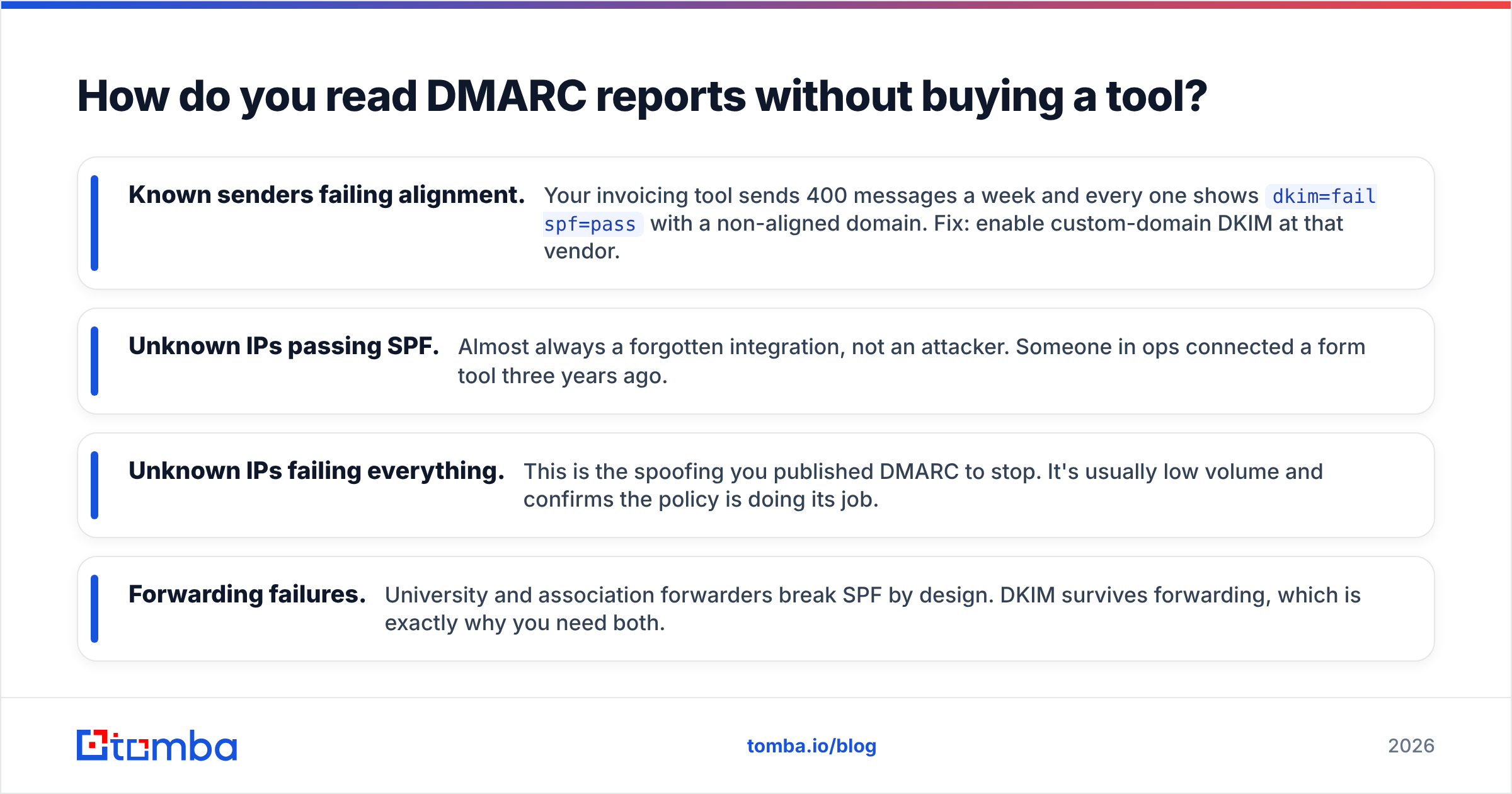
- Known senders failing alignment. Your invoicing tool sends 400 messages a week and every one shows
dkim=fail spf=passwith a non-aligned domain. Fix: enable custom-domain DKIM at that vendor. - Unknown IPs passing SPF. Almost always a forgotten integration, not an attacker. Someone in ops connected a form tool three years ago.
- Unknown IPs failing everything. This is the spoofing you published DMARC to stop. It's usually low volume and confirms the policy is doing its job.
- Forwarding failures. University and association forwarders break SPF by design. DKIM survives forwarding, which is exactly why you need both.
Free parsers exist — dmarcian and Postmark both offer no-cost tiers that turn the XML into a table. If you're only watching one or two domains, forwarding rua to a dedicated mailbox and opening the XML weekly is genuinely enough.

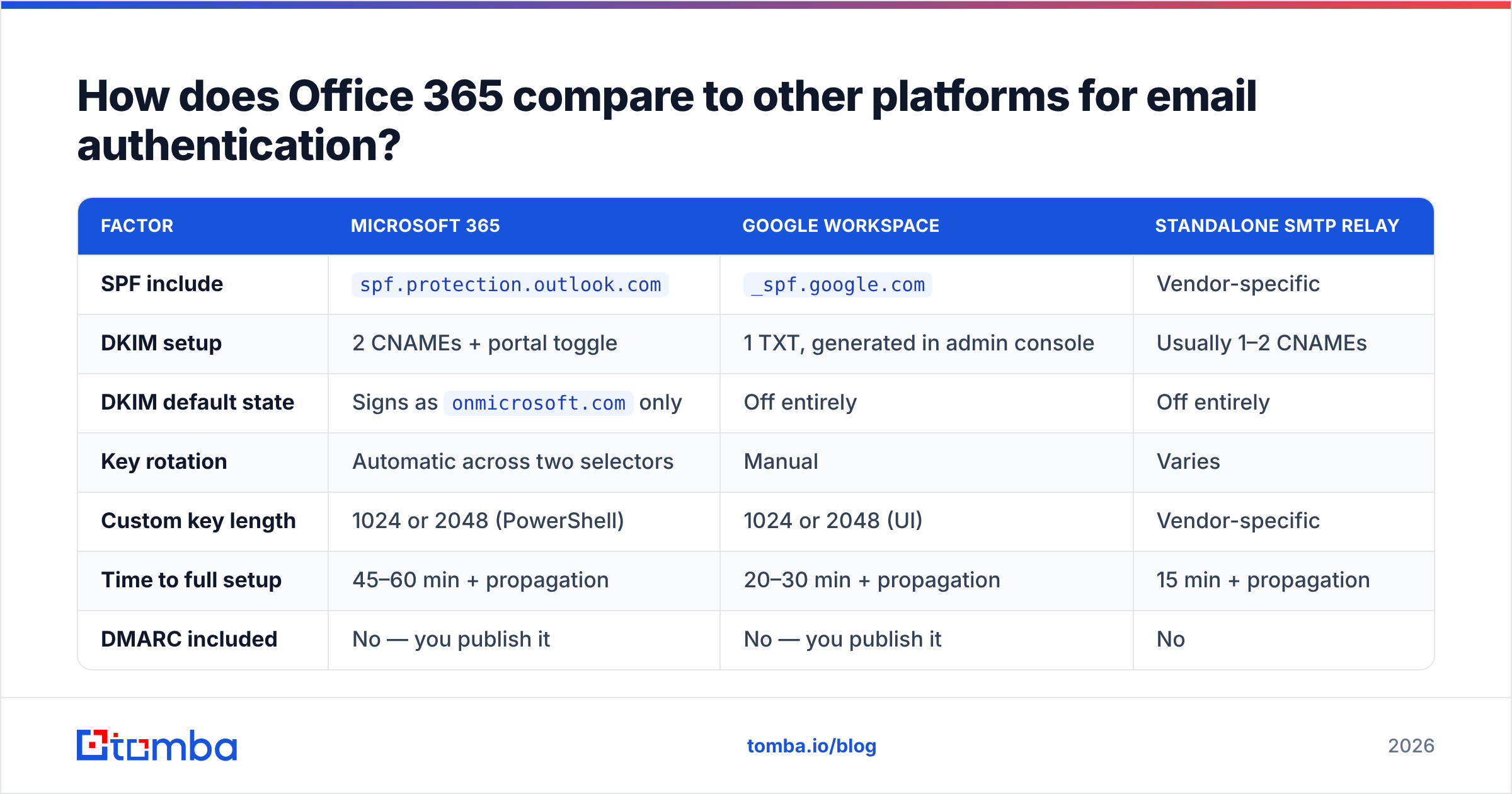
How does Office 365 compare to other platforms for email authentication?#
If you run multiple sending platforms, the setup burden differs meaningfully:
| Factor | Microsoft 365 | Google Workspace | Standalone SMTP relay |
|---|---|---|---|
| SPF include | spf.protection.outlook.com |
_spf.google.com |
Vendor-specific |
| DKIM setup | 2 CNAMEs + portal toggle | 1 TXT, generated in admin console | Usually 1–2 CNAMEs |
| DKIM default state | Signs as onmicrosoft.com only |
Off entirely | Off entirely |
| Key rotation | Automatic across two selectors | Manual | Varies |
| Custom key length | 1024 or 2048 (PowerShell) | 1024 or 2048 (UI) | Vendor-specific |
| Time to full setup | 45–60 min + propagation | 20–30 min + propagation | 15 min + propagation |
| DMARC included | No — you publish it | No — you publish it | No |
Microsoft's two-CNAME approach is more steps than Google's single TXT, but it buys automatic key rotation, which is the better long-run trade. The one genuinely annoying part is that the DKIM toggle lives in the Defender portal rather than the Microsoft 365 admin center where you configured the domain — a split that catches people every single time.
What breaks after setup, and how do you avoid it?#
You add a new sender and forget SPF. New sequencer, new payroll tool, new NPS survey — each one needs an include or its own aligned DKIM. Make "check DMARC reports" a step in your vendor onboarding checklist.
You hit the 10-lookup ceiling. Symptoms: everything worked, you added one include, and now unrelated mail fails. Fix by flattening rarely-changing includes to IP ranges, or by dropping vendors that authenticate via DKIM anyway.
You went to p=reject too fast. Two weeks of clean reports is the minimum. If a single department's tool was missed, rejection is invisible to you and total for them.
Your subdomains are unprotected. Without an sp= tag, subdomains inherit the parent policy — but an unused subdomain with its own weaker DMARC record is a spoofing surface. Publish sp=reject once the parent is enforcing.
You assumed authentication equals deliverability. It doesn't. Authentication proves you are who you say you are; it says nothing about whether recipients want your mail. Bounce rate, spam complaints, and engagement still drive placement. Sending to stale or guessed addresses will damage sender reputation faster than a missing DKIM key ever will. Run lists through an email verifier before the send, and use a catch-all verifier for the domains that accept everything and bounce later.
You never re-checked. DNS records get edited by people who don't know what they're editing. Quarterly, re-run an SPF check, send a test to an external address, and confirm the header still reads dkim=pass header.d=yourdomain.com. Google's bulk sender requirements are the current baseline and worth re-reading annually — they've tightened twice since 2024.
What's the fastest correct sequence?#
If you have an hour and admin access to both DNS and the Microsoft 365 tenant:
- Lower TTL on your domain's TXT and CNAME records to 300 seconds. Wait for the old TTL to expire.
- Publish SPF with
~alland every known sender included. Verify the lookup count is under 10. - Add both DKIM CNAMEs. Query them with
nslookupuntil they resolve. - Toggle DKIM on in the Defender portal. Send a test and read the raw headers.
- Publish DMARC at
p=nonewith aruaaddress you actually monitor. - Wait 14 days. Read every report. Fix each misaligned sender.
- Move to
p=quarantine; pct=25, then 50, then 100 over three weeks. - Move to
p=reject; sp=reject. Restore TTLs. Calendar a quarterly re-check.
Steps 1–5 take under an hour of real work. Steps 6–8 take six weeks of mostly waiting. Anyone who tells you it's a fifteen-minute job is skipping the part that prevents an outage.
For teams building outbound at volume, authentication is table stakes — the harder problem is the list itself. Feed a perfectly authenticated domain a batch of guessed addresses and you'll be back in the spam folder within a fortnight. Tomba's Email Finder returns verified, source-attributed professional addresses so the mail you just spent an afternoon authenticating actually reaches a human. The free tier covers 25 searches a month; paid plans start at $49/mo, with full Tomba pricing available if you need bulk or API throughput.
Related guides#
// get started
Find, verify and enrich your first contacts today
Start on the free plan with 25 searches a month, then scale when your team is ready.
Free plan · No credit card required · GDPR & CCPA
// about the author