CRM Excel Template: Free Setup, Formulas & When to Upgrade
A free CRM Excel template can run your whole pipeline early on. Here is how to build one that works, the exact columns and formulas to use, and the point where a spreadsheet quietly costs you deals.
CRM Excel Template: Free Setup, Formulas & When to Upgrade
You do not need a paid CRM to start managing a pipeline. A well-built CRM Excel template tracks contacts, deals, and follow-ups for a small team without a monthly bill, and it gives you a clear picture of what a "real" CRM should do before you pay for one.
This guide shows you exactly how to build one, the columns and formulas that make it useful instead of a graveyard of stale rows, and the honest signals that tell you a spreadsheet is now costing you deals.
TL;DR#
- A CRM Excel template works well for 1-3 people managing under ~200 active deals — it is free, flexible, and everyone already knows how to use it.
- The core is three tabs: Contacts, Deals/Pipeline, and a Dashboard driven by formulas like
SUMIFS,COUNTIFS, andXLOOKUP. - The most common failure is not the spreadsheet — it is dirty contact data (bounced emails, wrong names, duplicates) feeding into it.
- You will feel the ceiling when you need reminders, multi-user editing, activity history, or email tracking — Excel cannot do these natively.
- Fill the top of your funnel with verified contacts using an email finder so the template starts with data worth managing.
What is a CRM Excel template?#
A CRM Excel template is a spreadsheet pre-structured to do the core job of a customer relationship manager: store who you are talking to, track where each deal sits in your pipeline, and tell you what to do next. Think of it like a kitchen mise en place — everything a paid CRM does automatically, you lay out manually in labeled containers (tabs and columns) so you can reach for it fast.
Technically, it is one workbook with linked sheets. A Contacts sheet holds people and companies. A Deals sheet references those contacts and assigns each opportunity a stage, value, and close date. A Dashboard sheet reads both and rolls the numbers up. The magic is not fancy — it is consistent columns plus a handful of formulas.
The trade-off is honesty about scope. A spreadsheet is a system of record, not a system of action. It will remember everything and remind you of nothing.
Why use a spreadsheet CRM instead of paying for software?#
The short answer: speed to start and zero cost. For a founder-led sales motion or a two-person team, a CRM Excel template gets you organized this afternoon with no procurement, no onboarding, and no seat licenses.
There are real reasons teams pick a spreadsheet on purpose:
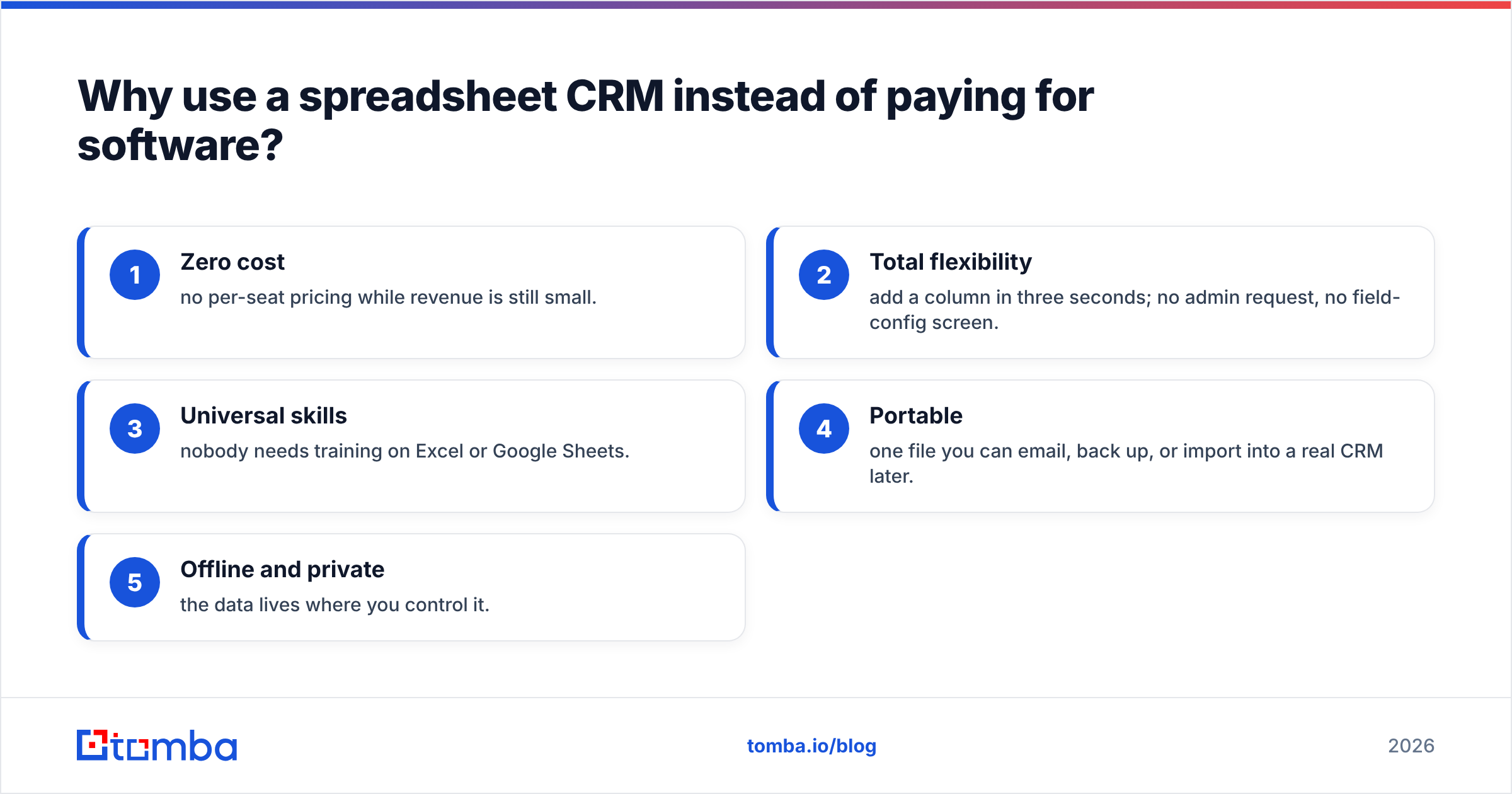
- Zero cost — no per-seat pricing while revenue is still small.
- Total flexibility — add a column in three seconds; no admin request, no field-config screen.
- Universal skills — nobody needs training on Excel or Google Sheets.
- Portable — one file you can email, back up, or import into a real CRM later.
- Offline and private — the data lives where you control it.
The catch is that every one of those strengths is also the ceiling. Flexibility becomes inconsistency once a second person edits it. "Free" stops being free the first time a missed follow-up loses a deal worth more than a year of CRM fees.

How do you build a CRM Excel template from scratch?#
Build three tabs. Do not overengineer — the discipline is in keeping columns consistent, not in adding more of them.
Tab 1 — Contacts#
One row per person. Suggested columns:
- Contact ID (a simple number, used by lookups)
- First name / Last name
- Company
- Job title
- Email (verified — more on this below)
- Phone
- LinkedIn URL
- Source (referral, cold outreach, inbound, event)
- Owner (which rep)
- Date added
Tab 2 — Deals / Pipeline#
One row per opportunity, linked to a Contact ID:
- Deal ID
- Contact ID (references Tab 1)
- Deal name
- Stage (use a dropdown — see below)
- Value ($)
- Expected close date
- Probability %
- Next action and Next action date
- Notes
Tab 3 — Dashboard#
No raw data here — only formulas that summarize the Deals tab.
The essential formulas#
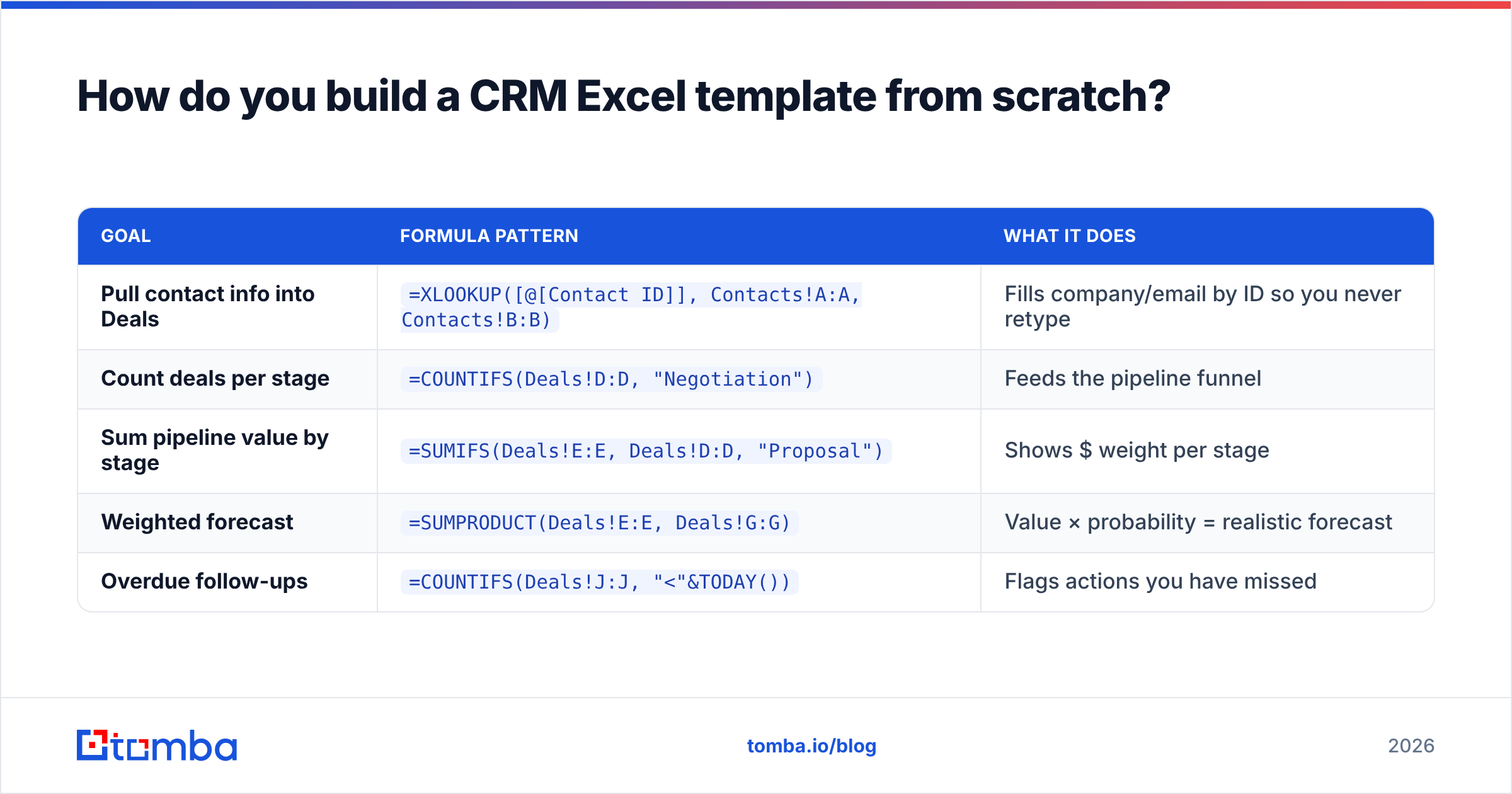
| Goal | Formula pattern | What it does |
|---|---|---|
| Pull contact info into Deals | =XLOOKUP([@[Contact ID]], Contacts!A:A, Contacts!B:B) |
Fills company/email by ID so you never retype |
| Count deals per stage | =COUNTIFS(Deals!D:D, "Negotiation") |
Feeds the pipeline funnel |
| Sum pipeline value by stage | =SUMIFS(Deals!E:E, Deals!D:D, "Proposal") |
Shows $ weight per stage |
| Weighted forecast | =SUMPRODUCT(Deals!E:E, Deals!G:G) |
Value × probability = realistic forecast |
| Overdue follow-ups | =COUNTIFS(Deals!J:J, "<"&TODAY()) |
Flags actions you have missed |
Add a Stage dropdown with Data → Data Validation → List (e.g. New, Contacted, Qualified, Proposal, Negotiation, Won, Lost). This one control is what keeps your dashboard formulas from breaking on typos like "Negotation."
For a deeper primer on structuring stages, Salesforce's overview of what a sales pipeline is is a solid, vendor-neutral read.
What should a spreadsheet CRM actually track?#
Track the minimum that changes a decision. A field you never filter or sum is a field that slows everyone down.
The non-negotiables:
- Stage — where the deal is
- Value — how much it is worth
- Next action + date — the single most important pair; it is your entire follow-up engine
- Owner — who is responsible
Everything else is optional context. Resist the urge to add "favorite color" columns. If you want conditional formatting to earn its keep, color the Next action date red when it is < TODAY() so overdue rows scream at you.
When does a CRM Excel template stop working?#
Here is the honest part. A spreadsheet CRM breaks down at predictable moments, and pretending otherwise is how teams lose deals.
You have outgrown it when:
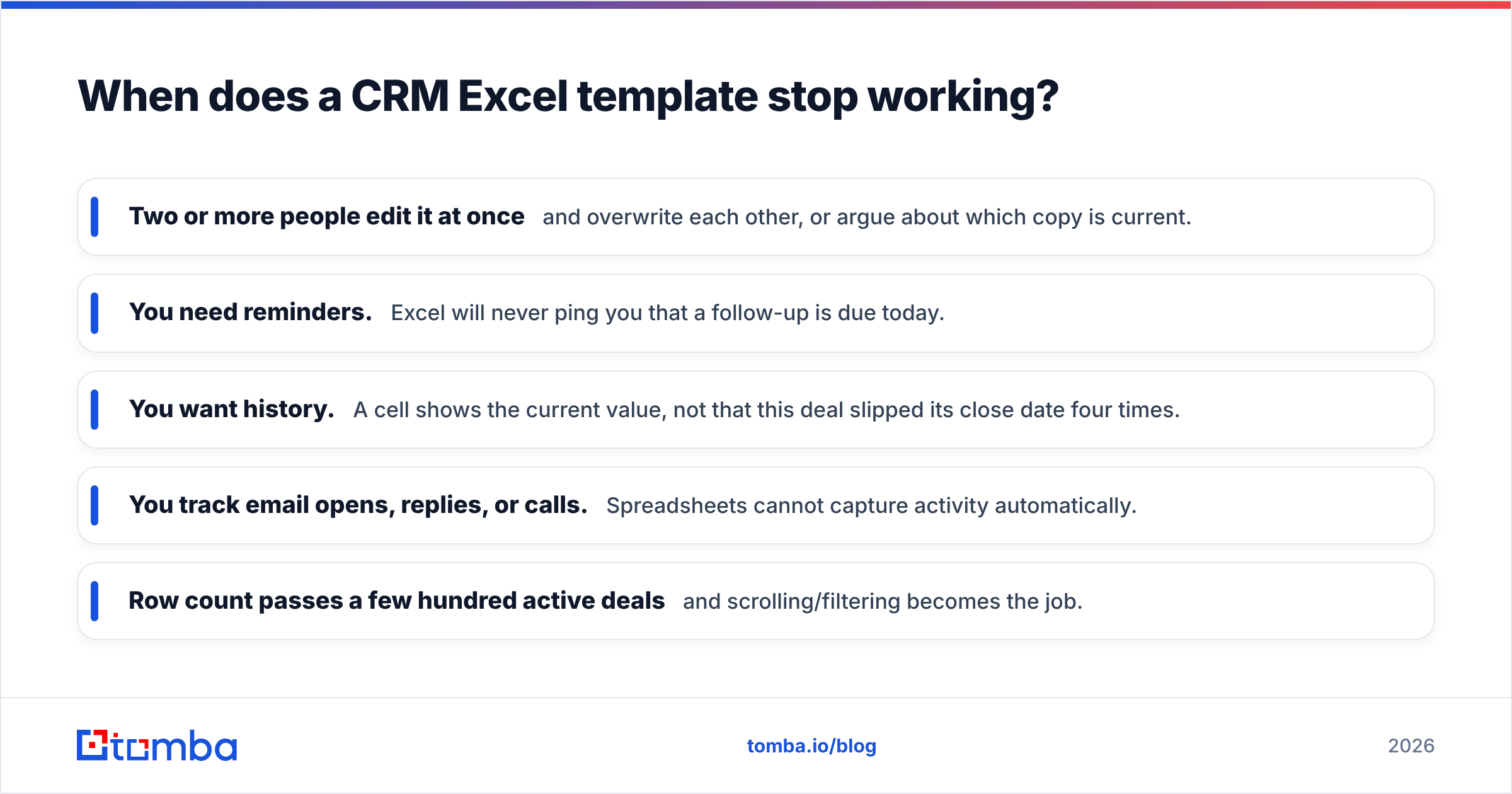
- Two or more people edit it at once and overwrite each other, or argue about which copy is current.
- You need reminders. Excel will never ping you that a follow-up is due today.
- You want history. A cell shows the current value, not that this deal slipped its close date four times.
- You track email opens, replies, or calls. Spreadsheets cannot capture activity automatically.
- Row count passes a few hundred active deals and scrolling/filtering becomes the job.

At that point the tool is taxing your team instead of serving it. That is not a failure of the template — it is the template doing its job of showing you exactly which features you now need to pay for.
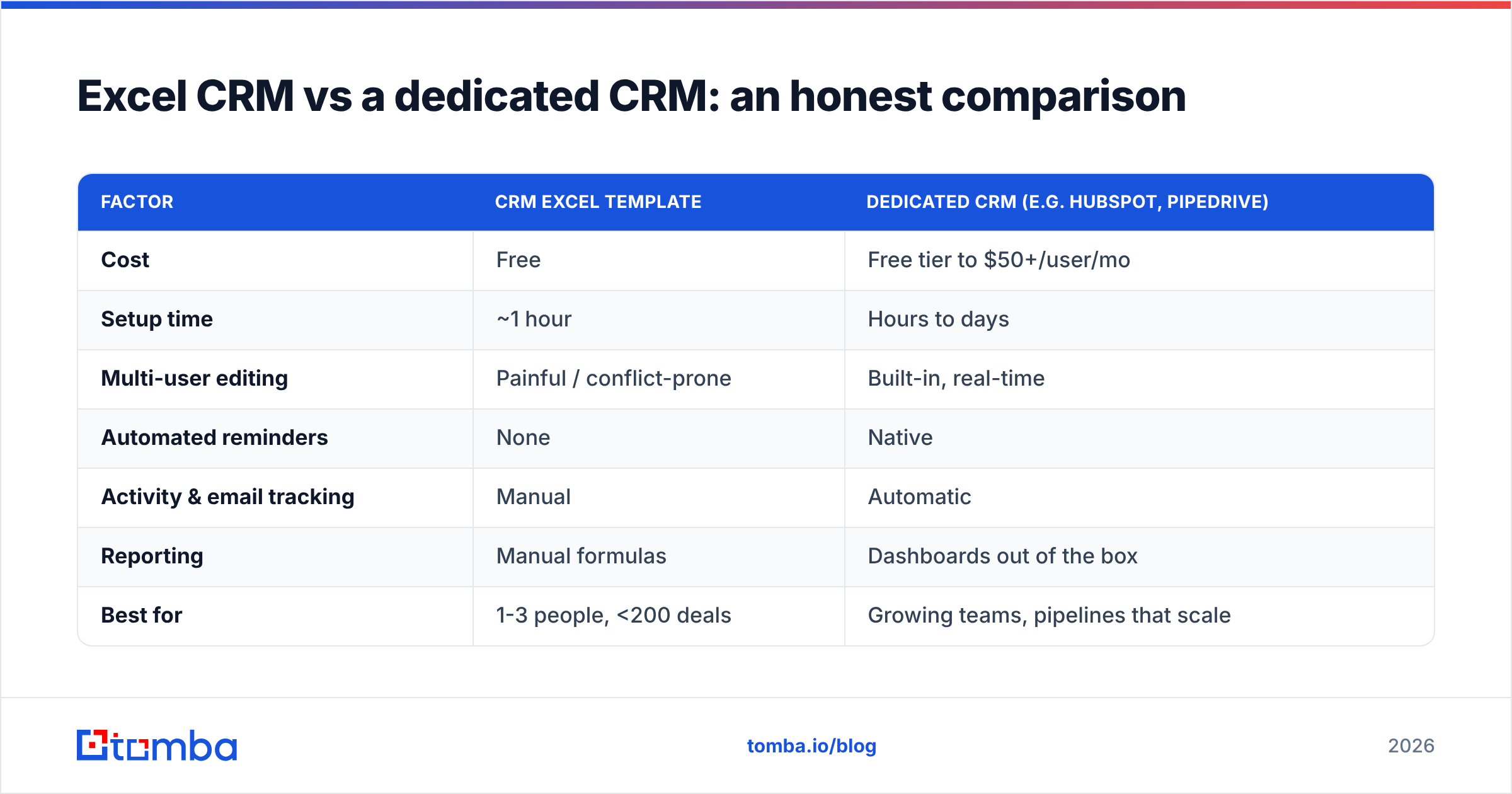
Excel CRM vs a dedicated CRM: an honest comparison#
| Factor | CRM Excel Template | Dedicated CRM (e.g. HubSpot, Pipedrive) |
|---|---|---|
| Cost | Free | Free tier to $50+/user/mo |
| Setup time | ~1 hour | Hours to days |
| Multi-user editing | Painful / conflict-prone | Built-in, real-time |
| Automated reminders | None | Native |
| Activity & email tracking | Manual | Automatic |
| Reporting | Manual formulas | Dashboards out of the box |
| Best for | 1-3 people, <200 deals | Growing teams, pipelines that scale |
| Data enrichment | Manual copy-paste | Native or via integrations |
There is no shame in either column. The right answer is whichever matches your team size and deal volume today. Many teams start in the left column and graduate to the right — and a clean spreadsheet exports straight into most CRMs, so the work is not wasted. HubSpot even publishes its own free CRM Excel templates if you want a ready-made starting point before committing to software.
The real problem is not the spreadsheet — it is the data#
You can build a perfect template and still fail, because a CRM is only as good as the contacts inside it. Garbage in, garbage out. If half your email column bounces, your outreach dies before your formulas ever run.
This is where most Excel CRMs quietly rot: rows of guessed emails (firstname@company.com), duplicate contacts, and missing job titles. Before a name ever hits your Contacts tab, it should be:
- Found accurately — the correct email for the right person, not a pattern guess.
- Verified — checked against the mail server so it will actually deliver.
- Deduplicated — one row per human.
Instead of hand-guessing addresses, use a proper email verifier to confirm deliverability, and pull whole company contact lists at once with domain search so your template starts full of leads worth managing. If you are populating dozens of rows, a bulk email finder turns a company list into a clean, ready-to-paste contact sheet. You can review the current Tomba pricing to match a plan to your volume — the free tier covers 25 searches a month to test the workflow.
For teams that live in spreadsheets, Tomba's Google Sheets add-on and Excel add-in find and verify emails inside the sheet itself, so your CRM template and your data source are the same file.
How do you keep an Excel CRM clean over time?#
Discipline beats features. Three habits keep a spreadsheet CRM alive:
- One owner per file. Designate who edits the master; everyone else requests changes or works in a shared Google Sheet with clear ownership per row.
- Weekly hygiene. Ten minutes every Friday: remove duplicates (Data → Remove Duplicates), clear won/lost deals to an archive tab, and re-verify any email that bounced.
- Validate on entry. Use dropdowns for Stage and Owner, and verify every new email before it earns a row. A bad address caught at entry saves a wasted week of follow-up.
Do these and a spreadsheet will serve a small team faithfully. Skip them and no template — free or paid — will save you.
The bottom line#
A CRM Excel template is a genuinely good tool for the right stage: a small team, a manageable pipeline, and a preference for control over convenience. Build the three tabs, wire up SUMIFS and XLOOKUP, enforce dropdowns, and it will run your sales motion for free.
Just remember the ceiling is real. When you need reminders, multi-user editing, and activity history, that is the market telling you to graduate — and a clean spreadsheet exports cleanly into whatever you choose next.
Whatever tool holds your pipeline, fill it with contacts that actually convert. Start your Contacts tab with verified, deliverable emails using the Tomba Email Finder — find the right person by name, company, or domain, confirm the address is live, and paste it straight into your template. Your formulas can only be as good as the data behind them.
Related guides#
Ready to find emails that actually work?
Join 150,000+ professionals who stopped guessing and started sending. Free credits on signup — no credit card required.
Get the Tomba newsletter
Practical outbound tactics and product updates — once every two weeks.
About the author