DMARC O365: The Complete Setup and Enforcement Guide
Most Microsoft 365 tenants publish a DMARC record, leave it at p=none, and call it done. Here is what actually happens in O365 mail flow, and how to reach p=reject without losing legitimate mail.
TL;DR — what DMARC O365 setup really takes
- DMARC O365 setup is one DNS record plus two things Microsoft does not do for you: aligned DKIM on your own domain, and an SPF record that survives forwarding.
- Microsoft 365 signs mail with your
onmicrosoft.comdomain by default. That signature does not align with your vanity domain, so DMARC fails on DKIM until you turn on custom-domain DKIM. p=noneis monitoring, not protection. Most domains that publish DMARC never move past it, so spoofers still get delivered.- Google and Yahoo's bulk-sender rules made DMARC mandatory for anyone sending 5,000+ messages a day to consumer inboxes. Those rules have been in force since February 2024. O365 tenants that send marketing mail are in scope.
- Budget 6–10 weeks to move from
p=nonetop=reject. DNS is never the bottleneck. Finding the eight forgotten third-party senders is.
What is DMARC, and why is DMARC O365 different?#
DMARC (Domain-based Message Authentication, Reporting and Conformance) is the policy layer that sits on top of SPF and DKIM. Think of SPF and DKIM as two forms of ID at a door. SPF checks whether the sending IP is on your guest list. DKIM checks whether the message carries your tamper-proof signature. Neither one tells the bouncer what to do when the ID fails. Neither one checks that the name on the ID matches the name on the invitation. DMARC does both. It adds alignment (the authenticated domain must match the visible From: domain) and policy (none, quarantine, or reject).
Microsoft 365 differs from a plain SMTP relay in three ways that matter:
- Exchange Online Protection (EOP) signs everything, but not as you. Out of the box, outbound mail is DKIM-signed with your initial
contoso.onmicrosoft.comdomain. The signature is valid, but it does not align withcontoso.com. DMARC reads that as a DKIM failure. - Inbound DMARC handling is set per tenant. EOP honors the sender's published policy. Your anti-phishing policy can still override what happens to
p=quarantineandp=rejectmail. Microsoft changed the defaults in 2023 so that reject means reject, but many older tenants still carry legacy overrides. - Connectors and hybrid mail flow break the assumptions. On-prem Exchange servers, print devices, ERP notifications, and scan-to-email appliances often send as your domain without ever touching the EOP signer.
Microsoft's own DMARC configuration documentation is accurate, but it reads like reference material. The sequence below is what actually gets you to enforcement.
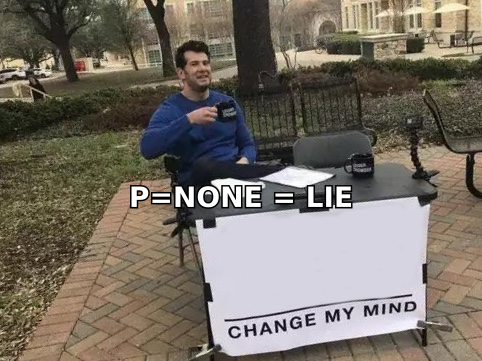
What do the three DMARC policies actually do in O365?#
| Policy | What receivers do | Spoofing protection | Risk of losing legit mail | Where it belongs |
|---|---|---|---|---|
p=none |
Deliver normally, send reports | None | Zero | Weeks 1–4 only, as a discovery phase |
p=quarantine |
Route failures to junk | Partial — mail still lands somewhere | Low-to-moderate | Weeks 5–8, ramped via pct= |
p=reject |
Bounce failures at SMTP | Full | Moderate if senders are undiscovered | The destination for every domain you send from |
| No record | Receiver decides (usually deliver) | None | Zero | Never — Google and Yahoo now penalize this |
The nuance most guides skip: p=quarantine is not a milder p=reject. It is a different failure mode. A quarantined message is invisible to you and unclear to the recipient. A rejected message produces a bounce that lands in your logs, which is far more useful during a rollout. Use pct= to control blast radius. Do not treat quarantine as a permanent hiding place.
One more tag is worth knowing. The subdomain policy tag sp= defaults to whatever p= is set to. If you never send from subdomains, publish sp=reject right away. It costs nothing, and it closes the most common spoofing vector against O365 tenants: attackers who register mail.yourdomain.com-style lookalikes.
How do you set up DMARC O365 step by step?#
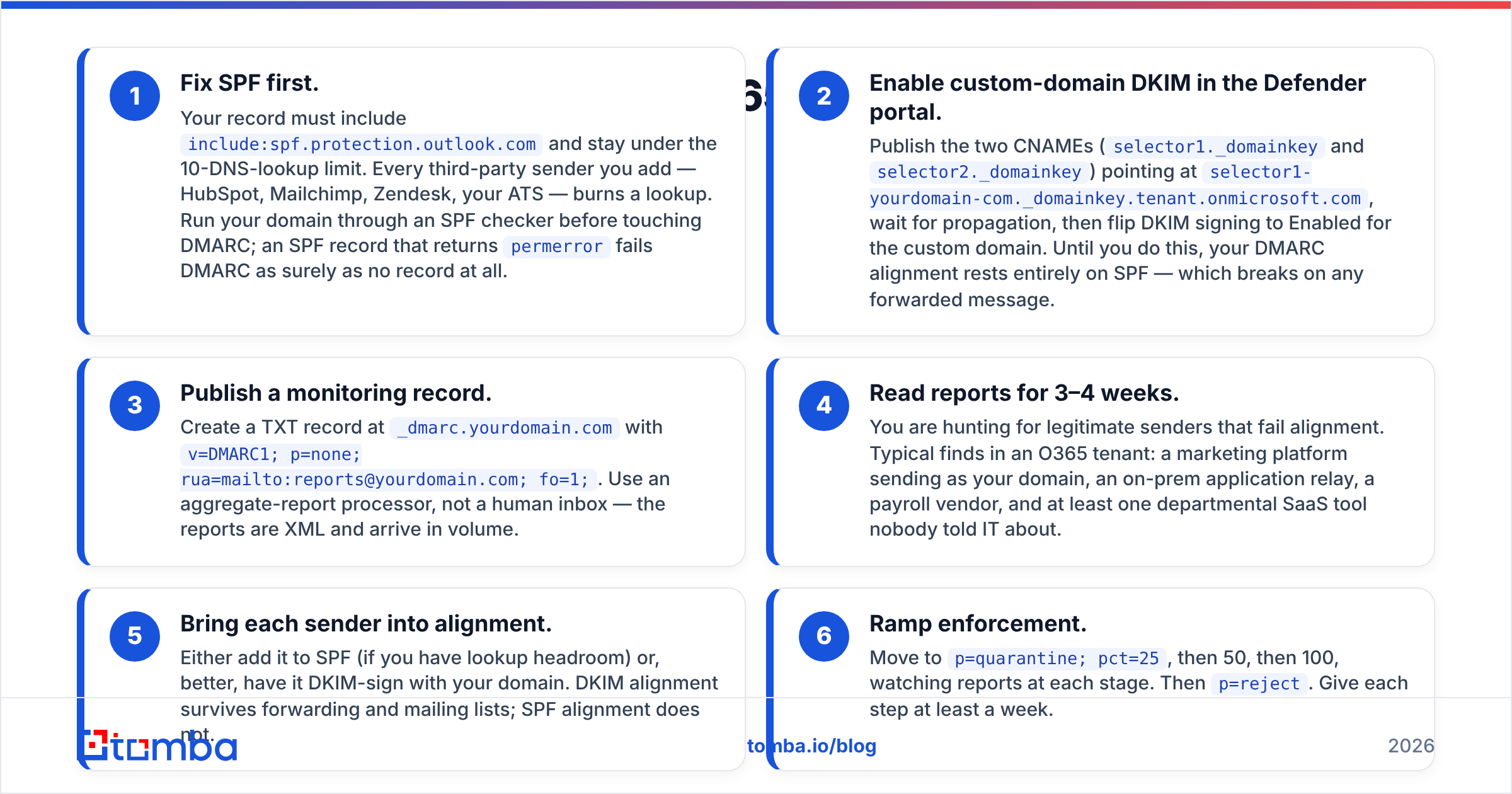
Here is the order that avoids breakage. Do not skip step 2. That is where most O365 rollouts fail quietly.
- Fix SPF first. Your record must include
include:spf.protection.outlook.comand stay under the 10-lookup limit. Every third-party sender burns a lookup — HubSpot, Mailchimp, Zendesk, your ATS. Run your domain through an SPF checker before you touch DMARC. An SPF record that returnspermerrorfails DMARC just as hard as no record at all. - Enable custom-domain DKIM in the Defender portal. Publish the two CNAMEs (
selector1._domainkeyandselector2._domainkey) that point atselector1-yourdomain-com._domainkey.tenant.onmicrosoft.com. Wait for propagation, then switch DKIM signing to Enabled for the custom domain. Until then, your alignment rests on SPF alone, and SPF breaks on any forwarded message.
Those two steps are the real work. The rest is data collection.
- Publish a monitoring record. Create a TXT record at
_dmarc.yourdomain.comwithv=DMARC1; p=none; rua=mailto:reports@yourdomain.com; fo=1;. Point it at an aggregate-report processor, not a human inbox. The reports are XML and they arrive in volume. - Read reports for 3–4 weeks. You are hunting for legitimate senders that fail alignment. Typical finds in an O365 tenant: a marketing platform, an on-prem application relay, a payroll vendor, and at least one departmental SaaS tool nobody told IT about.
Once the sender list stops growing, start closing the gaps.
- Bring each sender into alignment. Add it to SPF if you have lookup headroom. Better, have it DKIM-sign with your domain. DKIM alignment survives forwarding and mailing lists. SPF alignment does not.
- Ramp enforcement. Move to
p=quarantine; pct=25, then 50, then 100, and watch the reports at each stage. Then go top=reject. Give each step at least a week.
Why does DMARC O365 fail when SPF and DKIM both pass?#
This is the single most common support ticket. The answer is always alignment.
SPF authenticates the envelope sender (MAIL FROM / Return-Path). DKIM authenticates the signing domain (the d= tag in the DKIM header). DMARC ignores both unless one of them matches the domain your recipient sees in the From: header.
Here is a concrete O365 example. Your marketing platform sends a campaign as hello@yourcompany.com:
- SPF passes — but it passes for
bounces.marketingtool.net, the platform's envelope domain. Not aligned. - DKIM passes — but with
d=marketingtool.net. Not aligned. - DMARC result: fail, despite two green checkmarks in the message headers.
The other O365-specific failure modes:
onmicrosoft.comDKIM only. Passes DKIM, fails alignment. Fixed by step 2 above.- Relaxed vs strict alignment. DMARC defaults to relaxed (
adkim=r,aspf=r), which allows organizational-domain matches, somail.yourcompany.comaligns withyourcompany.com. Settingadkim=sbreaks that. A surprising number of teams set strict alignment without realizing their transactional subdomain depends on it. - Forwarding. A recipient auto-forwards to Gmail. SPF now fails, because the forwarding server's IP is not in your record. Only DKIM survives. This is why DKIM alignment is not optional at
p=reject. - Autodiscover and mail-flow rules. Transport rules that append disclaimers can break DKIM signatures if they run after signing in some hybrid topologies.
For a broader primer on how these signals combine into inbox placement, the email deliverability glossary entry covers the full stack.
How does DMARC O365 compare with Google Workspace and dedicated tooling?#
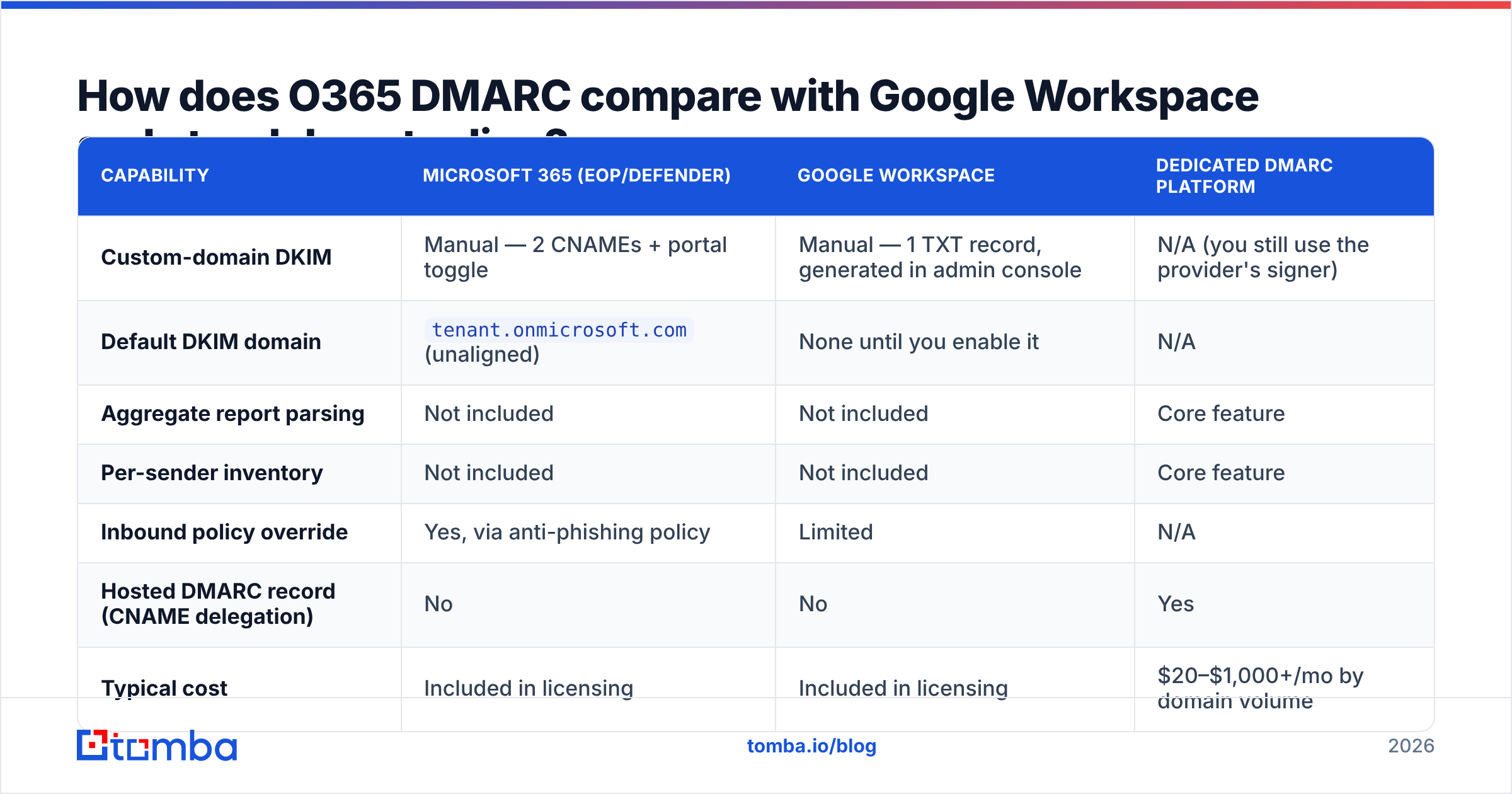
| Capability | Microsoft 365 (EOP/Defender) | Google Workspace | Dedicated DMARC platform |
|---|---|---|---|
| Custom-domain DKIM | Manual — 2 CNAMEs + portal toggle | Manual — 1 TXT record, generated in admin console | N/A (you still use the provider's signer) |
| Default DKIM domain | tenant.onmicrosoft.com (unaligned) |
None until you enable it | N/A |
| Aggregate report parsing | Not included | Not included | Core feature |
| Per-sender inventory | Not included | Not included | Core feature |
| Inbound policy override | Yes, via anti-phishing policy | Limited | N/A |
| Hosted DMARC record (CNAME delegation) | No | No | Yes |
| Typical cost | Included in licensing | Included in licensing | $20–$1,000+/mo by domain volume |
Straight verdict: O365 gives you everything needed to publish and honor DMARC, and nothing to operate it. The gap is report analysis. Aggregate reports arrive as gzipped XML from dozens of receivers every day, and reading them by hand stops scaling around week two. Either pay for a processor or build one. Do not tell yourself you will read raw XML. You will not, and the rollout will stall at p=none like everyone else's.
The DMARC.org deployment guidance is the vendor-neutral reference worth bookmarking here. Microsoft's DKIM setup article covers the exact CNAME values for your tenant.
What breaks when you go to p=reject, and how do you prevent it?#
Five failure patterns account for nearly everything that goes wrong:
- The forgotten sender. A finance tool sends invoices as
billing@yourdomain.comonce a month, and your four-week monitoring window missed it. Fix: monitor for a full billing cycle plus one, and cross-check against your SSO app inventory rather than trusting reports alone. - Mailing lists. Listservs rewrite subjects and bodies, which breaks DKIM. They also send from their own IPs, which breaks SPF. Modern lists implement ARC or rewrite the
From:header. Older internal lists often do not. Fix: audit before enforcing, or move internal lists to Microsoft 365 Groups. - Employee auto-forwarding. Users who forward work mail to personal Gmail will see failures. DKIM alignment solves this. SPF alone does not.
The last two are about people outside your tenant.
- Shared-domain sending by contractors. Agencies send on your behalf from their own platforms. Fix: give them a dedicated subdomain with its own DMARC policy, such as
agency.yourdomain.com, so their mistakes cannot damage your root-domain sender reputation. - Bad recipient data. DMARC does not cause this one, but enforcement makes it visible. High bounce volume from stale lists suppresses reputation no matter how clean your authentication is. Running lists through an email verifier before send keeps hard bounces low enough that the authentication work pays off.
One practical safety valve: keep rua= reporting on permanently after you reach p=reject. Enforcement is not a project you finish. New SaaS tools get bought every quarter, and each one is a potential unaligned sender.
Is DMARC enough on its own?#
No, and this is where teams over-invest. DMARC stops other people from sending as you. It does nothing about whether your own mail is wanted.
Once your authentication stack is clean, the remaining variables are list quality, volume ramp, content, and engagement. A perfectly authenticated cold campaign to 10,000 unverified addresses will still tank your domain. The order of operations that works:
- Authenticate — SPF, DKIM, DMARC at enforcement, plus BIMI if you want the logo.
- Verify — remove invalid, role-based, and catch-all-risk addresses before send.
- Warm — ramp new domains and mailboxes over 4–6 weeks rather than opening the taps.
- Measure — watch reply rate and complaint rate, not just open rate.
DMARC is table stakes as of 2026. Google, Yahoo, and Microsoft's own consumer properties all expect it from bulk senders. It buys you the right to compete for the inbox. It does not win the inbox.
Where should you start this week?#
Publish v=DMARC1; p=none; rua=mailto:...; fo=1; today. It is zero-risk, and it starts the data collection clock. Then enable custom-domain DKIM in the Defender portal, because that one change fixes alignment for most of your legitimate volume. Everything after that is inventory work.
Once authentication is solid, the constraint moves upstream. Are you emailing real, current, reachable people at the companies you want to reach? Clean infrastructure with a stale contact list is a well-tuned engine with no fuel. Tomba's Email Finder resolves verified professional addresses by domain, name, or company. The free tier covers 25 searches a month, and paid plans start at $49/mo. Check the full Tomba pricing breakdown to see which tier matches your send volume.
Related guides#
Ready to find emails that actually work?
Join 150,000+ professionals who stopped guessing and started sending. Free credits on signup — no credit card required.
Get the Tomba newsletter
Practical outbound tactics and product updates — once every two weeks.
About the author