How to Export Leads in 2026: Formats, Tools, and Fixes
Exporting a lead list is easy. Exporting one that actually lands in inboxes is not. Here is how to pull leads out of LinkedIn, Apollo, and your CRM — and what to do before you upload the CSV to a sequencer.
TL;DR
- Exporting leads is three jobs, not one: pulling records, normalizing fields, and verifying deliverability. Most teams do the first and skip the other two.
- CSV is still the universal export format, but a direct API or Sheets sync beats it whenever the list refreshes more than once a month.
- LinkedIn Sales Navigator does not export emails at all — it exports names and companies, which is why enrichment sits between the export and the sequencer.
- A raw export from any database is typically 15–40% stale. Verify before you send, not after your domain gets flagged.
- Budget roughly one hour of cleanup per 1,000 exported rows if you do it manually, or automate it with bulk verification and skip the hour.
What does it actually mean to export leads?#
"Export leads" sounds like a single button. In practice it is a pipeline with three distinct stages, and each one fails differently.
Stage one is extraction — pulling records out of wherever they live: a CRM, a prospecting database, a scraped list, a webinar registration form, a LinkedIn search. This is the part with the button.
Stage two is normalization — turning whatever schema that tool used into the schema your sequencer, CRM, or ad platform expects. Every vendor names fields differently. One exports first_name, another First Name, another contact.givenName. Company names arrive as "Acme, Inc.", "Acme Inc", and "ACME INCORPORATED" in the same file.
Stage three is validation — confirming the email addresses in that file will actually accept mail. This is the stage everyone skips, and it is the stage that determines whether the campaign works.
Think of it like importing groceries. Getting the bags out of the car is trivial. Sorting them into the right cupboards takes a minute. Checking expiration dates is the boring step nobody does — right up until dinner goes wrong.
Where do most lead exports actually come from?#
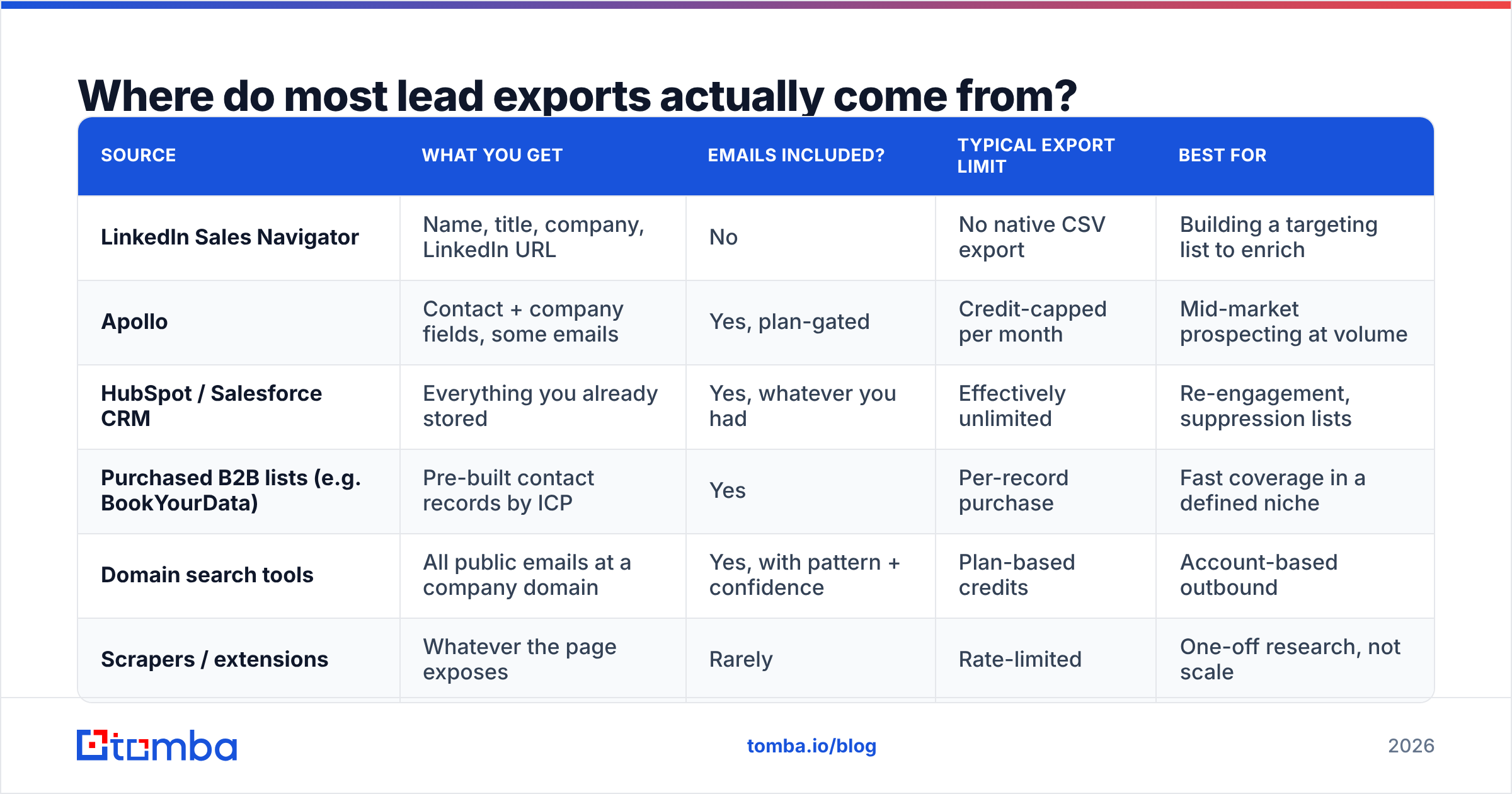
Different sources give you fundamentally different raw material. A LinkedIn export is people without emails. A CRM export is emails without freshness. A database export is both, at varying quality.
| Source | What you get | Emails included? | Typical export limit | Best for |
|---|---|---|---|---|
| LinkedIn Sales Navigator | Name, title, company, LinkedIn URL | No | No native CSV export | Building a targeting list to enrich |
| Apollo | Contact + company fields, some emails | Yes, plan-gated | Credit-capped per month | Mid-market prospecting at volume |
| HubSpot / Salesforce CRM | Everything you already stored | Yes, whatever you had | Effectively unlimited | Re-engagement, suppression lists |
| Purchased B2B lists (e.g. BookYourData) | Pre-built contact records by ICP | Yes | Per-record purchase | Fast coverage in a defined niche |
| Domain search tools | All public emails at a company domain | Yes, with pattern + confidence | Plan-based credits | Account-based outbound |
| Scrapers / extensions | Whatever the page exposes | Rarely | Rate-limited | One-off research, not scale |
The important line in that table is LinkedIn. Sales Navigator deliberately does not hand you a CSV with email addresses — that has been true for years and is not changing. Anyone selling you a "LinkedIn export with verified emails" is running the export through an enrichment layer. You can do the same thing yourself with a LinkedIn finder, which takes the profile URL and returns the work address behind it.
The second important line is your own CRM. Your existing database is usually the highest-intent export you own and the most decayed. B2B contact data goes stale at roughly 22–30% per year as people change jobs, which means a two-year-old CRM export is closer to fiction than data.
Which file format should you export leads in?#
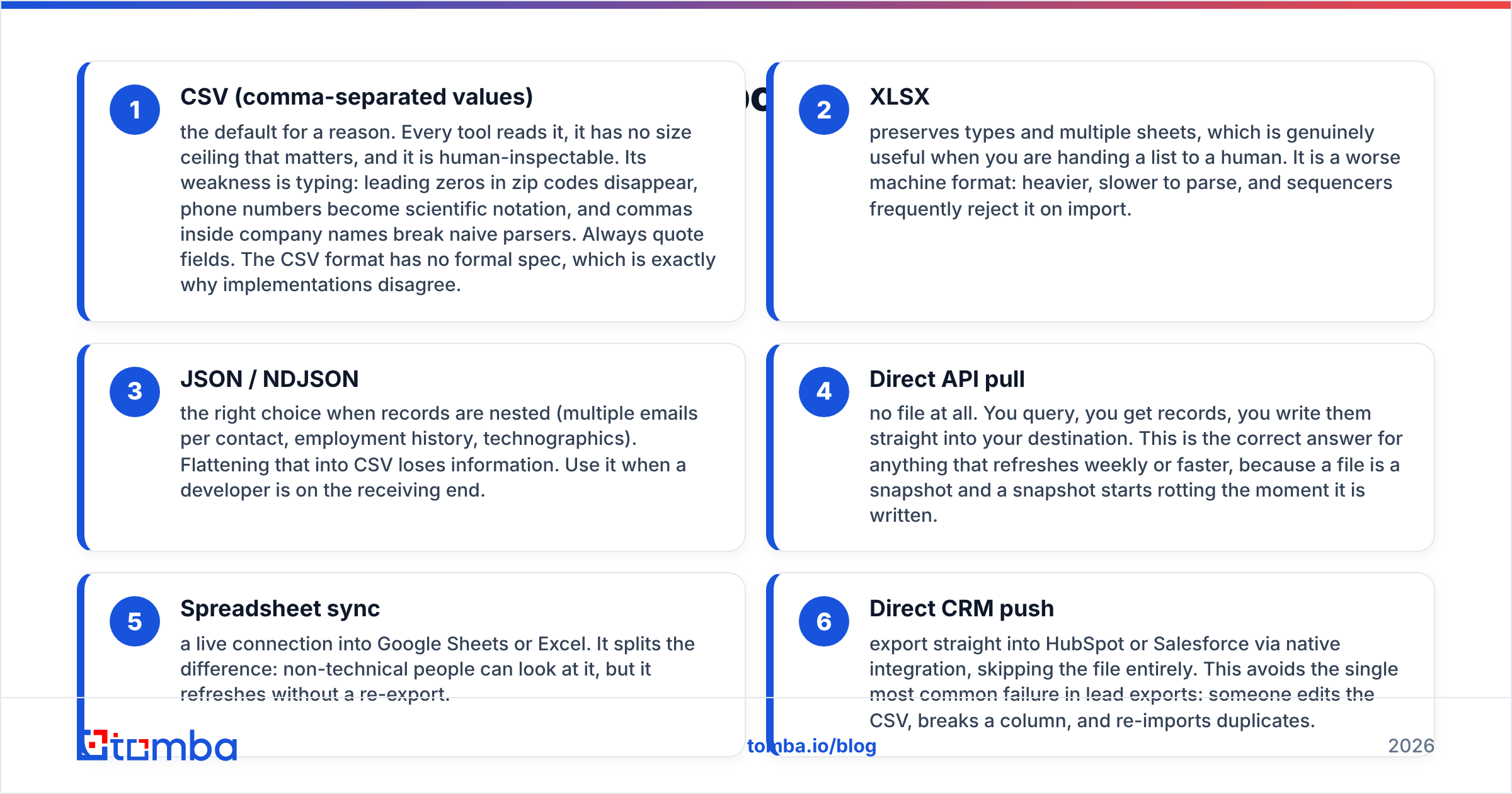
- CSV (comma-separated values) — the default for a reason. Every tool reads it, it has no size ceiling that matters, and it is human-inspectable. Its weakness is typing: leading zeros in zip codes disappear, phone numbers become scientific notation, and commas inside company names break naive parsers. Always quote fields. The CSV format has no formal spec, which is exactly why implementations disagree.
- XLSX — preserves types and multiple sheets, which is genuinely useful when you are handing a list to a human. It is a worse machine format: heavier, slower to parse, and sequencers frequently reject it on import.
- JSON / NDJSON — the right choice when records are nested (multiple emails per contact, employment history, technographics). Flattening that into CSV loses information. Use it when a developer is on the receiving end.
- Direct API pull — no file at all. You query, you get records, you write them straight into your destination. This is the correct answer for anything that refreshes weekly or faster, because a file is a snapshot and a snapshot starts rotting the moment it is written.
- Spreadsheet sync — a live connection into Google Sheets or Excel. It splits the difference: non-technical people can look at it, but it refreshes without a re-export.
- Direct CRM push — export straight into HubSpot or Salesforce via native integration, skipping the file entirely. This avoids the single most common failure in lead exports: someone edits the CSV, breaks a column, and re-imports duplicates.
The practical rule: if a human will read it, export XLSX. If a machine will read it once, export CSV. If a machine will read it repeatedly, do not export at all — connect an email finder API and pull on demand.
Why do exported lead lists bounce so hard?#
Because export volume and export quality are inversely correlated, and the export UI never tells you that.
Every prospecting database blends verified records, pattern-guessed records, and inherited records from older datasets. When you export 5,000 rows, you get all three mixed together with no visible distinction unless the tool exposes a confidence score. Then you upload the file, your sequencer sends it, and mailbox providers grade you on the result.

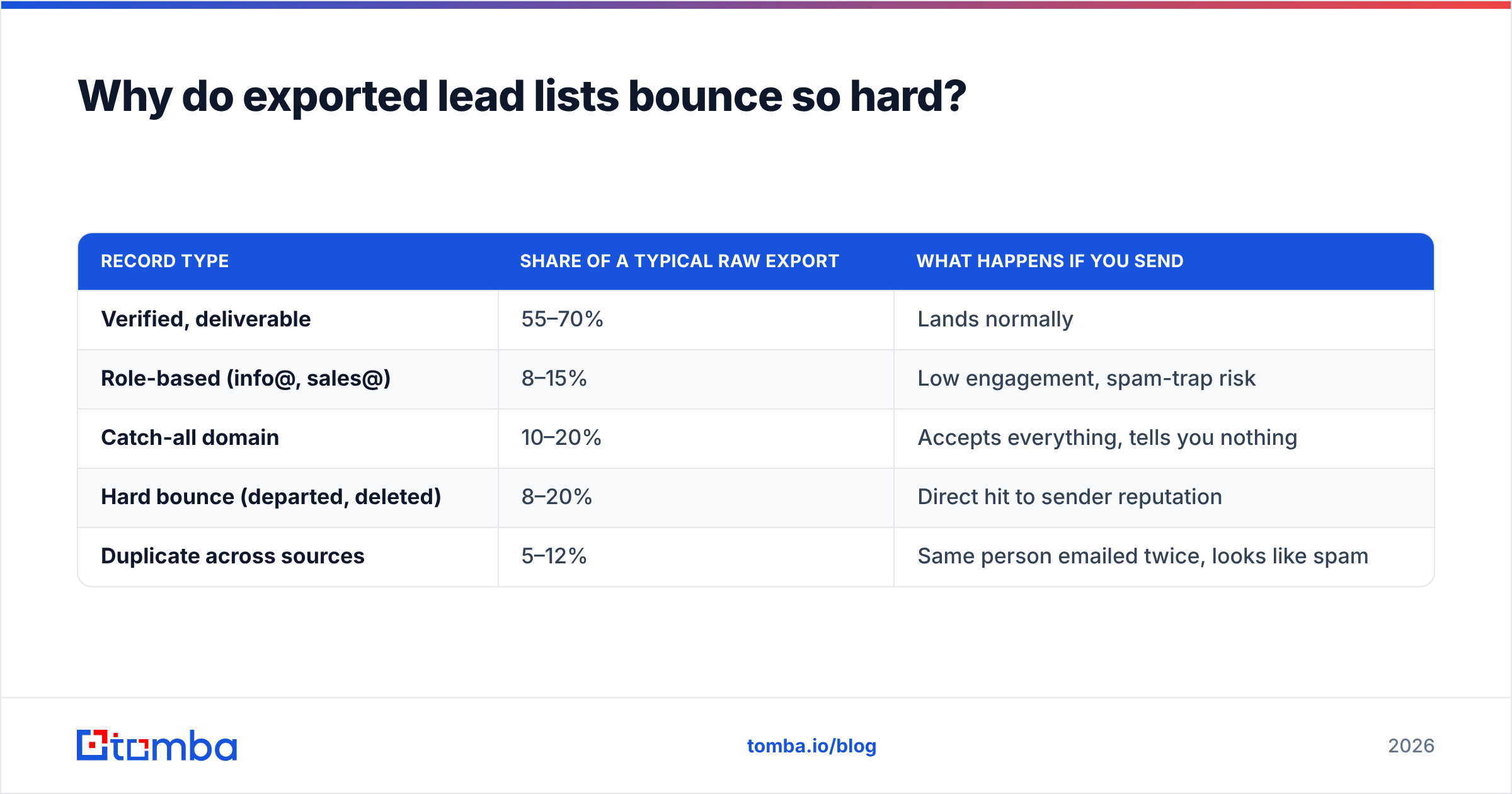
Here is what a raw export typically contains once you actually check it:
| Record type | Share of a typical raw export | What happens if you send |
|---|---|---|
| Verified, deliverable | 55–70% | Lands normally |
| Role-based (info@, sales@) | 8–15% | Low engagement, spam-trap risk |
| Catch-all domain | 10–20% | Accepts everything, tells you nothing |
| Hard bounce (departed, deleted) | 8–20% | Direct hit to sender reputation |
| Duplicate across sources | 5–12% | Same person emailed twice, looks like spam |
Two of those rows deserve extra attention.
Catch-all domains accept mail for any address at the domain, so a standard SMTP check returns "valid" for nonsense@company.com. That is not validation, it is an echo. You need a catch-all verifier that uses additional signals — pattern confidence, historical sends, source corroboration — to grade those addresses instead of rubber-stamping them.
Duplicates across sources are the silent killer when you export leads from three tools and merge. The same person appears as j.smith@acme.com in one export and john.smith@acme.com in another. Deduplicating on email string alone misses it; you need to dedupe on domain + normalized name as well.
Google and Microsoft both tightened bulk-sender requirements in recent years, and the enforced spam-complaint threshold is now unforgiving. A single campaign to an unverified export can cost you weeks of warmup progress.
How do you clean an exported lead list before sending?#
Run these in order. Each step is cheaper than the one after it, so failing fast saves money.
- Strip structural junk. Remove header rows that got duplicated mid-file, trailing whitespace, non-breaking spaces, and any row where the email field does not contain exactly one
@. This catches 2–3% of rows for free. - Normalize casing and names. Lowercase all emails. Title-case first and last names —
JOHNin a merge tag is a giveaway that the list was bought. - Deduplicate twice. Once on exact email, once on domain + last name. Use a remove duplicates pass rather than eyeballing a spreadsheet.
- Suppress the obvious. Remove existing customers, open opportunities, unsubscribes, and competitors. Export your CRM's suppression list and anti-join it. Skipping this is how a rep cold-emails an account another rep is closing.
- Filter role-based addresses unless the campaign specifically targets them.
info@,admin@,support@, andnoreply@rarely reach a decision maker and disproportionately sit on spam traps. - Verify what remains. Run the surviving rows through bulk email verification and keep only deliverable plus high-confidence catch-all. Discard the rest — do not "test send" to them.
- Re-enrich the gaps. Rows that failed verification often have a valid person behind them with a changed address. Feed name + domain back into a finder rather than deleting the account entirely.
Steps one through five are mechanical and can run in a spreadsheet. Steps six and seven need a data provider. For lists over a few hundred rows, a bulk email finder handles both in one upload instead of you scripting it.

Is it legal to export and email a purchased list?#
Short answer: it depends entirely on jurisdiction, and "I bought it from a reputable vendor" is not a defense.
Under CAN-SPAM (US), cold B2B email is legal provided you identify yourself, include a physical address, honor opt-outs promptly, and do not use deceptive headers. Consent is not required.
Under GDPR (EU/UK), you need a lawful basis. For B2B outreach, most senders rely on legitimate interest, which requires that the message be relevant to the recipient's professional role, that you can document where the data came from, and that opting out is trivial. This is where export hygiene becomes a compliance artifact: if you cannot say which source a record came from, you cannot demonstrate a lawful basis. Keep the source column in your export.
Practical implications for how you handle exports:
- Keep provenance. Every exported row should carry a
sourceandexported_atcolumn. Add them manually if the tool does not. - Set a retention window. Records you never contacted should expire, not sit in a shared drive for three years.
- Centralize suppression. An unsubscribe in your sequencer must propagate back to the CRM and to future exports. Vendors like HubSpot handle this natively when you push exports through the integration instead of a loose CSV.
- Avoid re-exporting personal addresses. Gmail and Yahoo addresses in a B2B export are usually scrapes of personal accounts and carry the highest complaint risk.
Which tool should you use to export leads?#
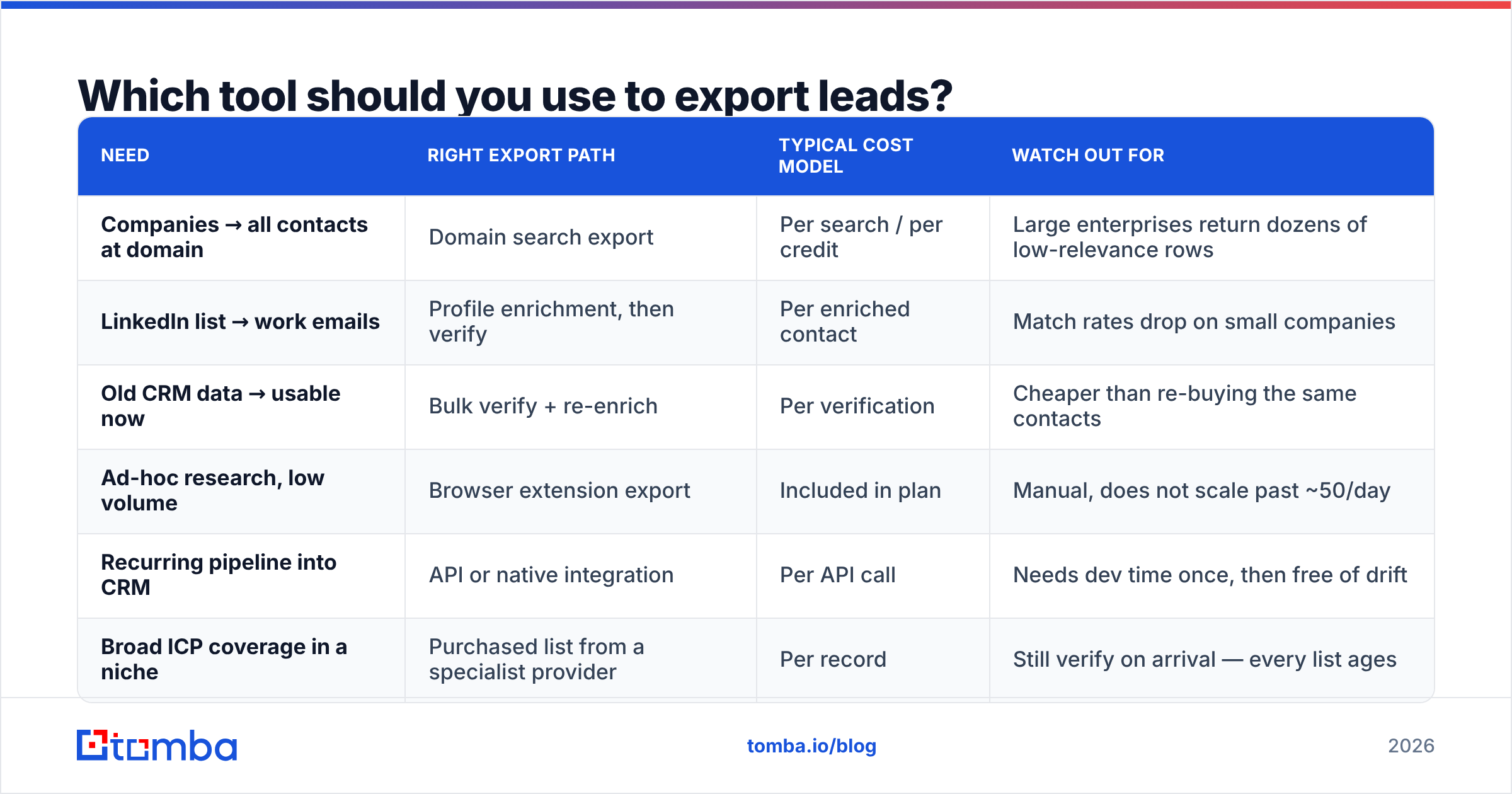
The honest framing: choose based on what you already have, not on feature lists. If you have companies but no contacts, you need domain search. If you have LinkedIn profiles, you need profile enrichment. If you have emails of unknown age, you need verification.
| Need | Right export path | Typical cost model | Watch out for |
|---|---|---|---|
| Companies → all contacts at domain | Domain search export | Per search / per credit | Large enterprises return dozens of low-relevance rows |
| LinkedIn list → work emails | Profile enrichment, then verify | Per enriched contact | Match rates drop on small companies |
| Old CRM data → usable now | Bulk verify + re-enrich | Per verification | Cheaper than re-buying the same contacts |
| Ad-hoc research, low volume | Browser extension export | Included in plan | Manual, does not scale past ~50/day |
| Recurring pipeline into CRM | API or native integration | Per API call | Needs dev time once, then free of drift |
| Broad ICP coverage in a niche | Purchased list from a specialist provider | Per record | Still verify on arrival — every list ages |
On pricing, the number that matters is cost per usable record, not cost per export. A tool at $0.02 per contact with a 60% deliverable rate costs $0.033 per usable record. A tool at $0.04 with 92% deliverable costs $0.043 — closer than the sticker suggests, and the second one does not burn your domain. Compare Tomba pricing on that basis: Free covers 25 searches/mo for testing, Starter is $49/mo, Growth $99/mo, and Pro $249/mo, with verification included rather than billed as a separate product.
If you want third-party signal before committing, the sales intelligence category on G2 is a reasonable place to sanity-check vendor claims about match rates, since reviewers tend to report the number they actually observed.
What does a good export workflow look like end to end?#
Here is the sequence that survives contact with a real campaign:
- Define the ICP filters first, in the source tool, before exporting anything. Exporting broad and filtering later wastes credits permanently — credits are consumed at export, not at use.
- Export in batches of ~500, not 10,000. If the field mapping is wrong, you find out after 500 rows instead of after your whole monthly quota.
- Map to a canonical schema immediately. Pick your column names once —
first_name,last_name,email,company,domain,title,linkedin_url,source,exported_at— and force every export into it. - Clean, dedupe, suppress as described above.
- Verify, then split. Deliverable rows go to the main sequence. High-confidence catch-all rows go to a separate, smaller, slower sequence so a bad batch cannot damage your primary domain.
- Write results back. Bounces, replies, and unsubscribes must return to the source of truth, or your next export repeats the same mistakes.
- Re-verify anything older than 90 days before reusing it. A verified list is a perishable asset, not a permanent one.
Teams that automate steps four through six stop treating exports as projects. It becomes a scheduled job: pull, clean, verify, push, send.
Ready to export leads that actually land?#
Start upstream of the CSV. Instead of exporting a raw list and hoping, use the Tomba Email Finder to build the list from domains, names, or LinkedIn profiles with a confidence score attached to every row — then push it straight into your CRM or sequencer through the API, no file editing in between. The free tier gives you 25 searches a month to test match quality on your own ICP before you pay for anything, and verification is part of the same workflow rather than a separate invoice.
Export fewer rows. Verify all of them. Your sender reputation is the only asset in outbound you cannot buy back.
Related guides#
Ready to find emails that actually work?
Join 150,000+ professionals who stopped guessing and started sending. Free credits on signup — no credit card required.
Get the Tomba newsletter
Practical outbound tactics and product updates — once every two weeks.
About the author