Google Workspace Email Setup: The Complete 2026 Guide
A step-by-step walkthrough of Google Workspace email setup in 2026 — domain verification, MX records, SPF, DKIM, DMARC, aliases, and the sending limits that quietly break cold outreach.
TL;DR
- Google Workspace email setup is four real steps: verify your domain, point MX records at Google, authenticate with SPF + DKIM + DMARC, then create users and aliases. Everything else is optional polish.
- DNS propagation is the part people get wrong. MX records usually resolve within an hour, but DKIM can take up to 48 hours before Google flags it as active.
- Google enforces a hard 2,000 recipients/day limit on paid accounts (500 on trials, 500 for free/legacy accounts). No plan buys you more.
- Since February 2024, Google and Yahoo require SPF, DKIM, DMARC, one-click unsubscribe, and a spam rate under 0.3% for bulk senders. Skipping DMARC now gets you rejected, not just filtered.
- A clean setup means nothing if you send to dead addresses. Verify your list before the first campaign — bounce rate above 3% damages the domain you just configured.
What is Google Workspace email setup?#
Google Workspace email setup is the process of routing mail for a domain you own — you@yourcompany.com — through Google's mail servers instead of a generic Gmail address. You keep the Gmail interface, the search, the spam filtering, and the mobile apps, but the from-address carries your brand.
Think of it like moving into an apartment building. Google owns the building and handles plumbing, security, and trash. You're just proving you signed the lease (domain verification), telling the postal service which building to deliver to (MX records), and putting your name on the mailbox (user accounts and aliases).
The full setup takes 30 to 90 minutes of active work, plus waiting time for DNS. Where teams lose days is the authentication layer — SPF, DKIM, and DMARC — because those records are invisible when they're wrong. Mail looks fine going out and silently lands in spam.
What do you need before you start?#
Four things. Missing any one of them stalls the whole process.
- A registered domain you control. You need login access to the registrar (GoDaddy, Namecheap, Cloudflare, Route 53) to edit DNS. "My developer set it up" is not access.
- A Google Workspace plan. Business Starter, Standard, Plus, or Enterprise. All four include Gmail with a custom domain; they differ on storage, meeting length, and admin controls.
- A super admin account. The first account you create during signup becomes the super admin. Do not use a shared inbox for this.
- A list of the mailboxes you actually need. Every user is a billable seat. Aliases and groups are free — decide upfront which addresses are which.
That last point saves real money. A five-person team often provisions nine seats because someone assumed support@, billing@, hello@, and careers@ each needed their own license. They don't. Those are aliases or Google Groups, and both cost nothing.
Correction — that image renders as:

How do you set up Google Workspace email step by step?#
Step 1 — Sign up and claim the domain#
Start at workspace.google.com and run the signup flow. When it asks whether you have a domain, choose yes and enter it exactly — no www, no https://. Google immediately checks whether the domain is already attached to another Workspace account, which is a common blocker at companies that trialed Workspace years ago and forgot.
Step 2 — Verify domain ownership#
Google gives you a TXT record that looks like google-site-verification=abc123.... Add it to your DNS as a TXT record on the root (@) host, leave TTL at the default, and click verify. Most registrars publish this in under 15 minutes; Cloudflare is close to instant.
If verification fails, the cause is almost always one of three things: the record was added to a subdomain instead of the root, the registrar auto-appended the domain name to the value, or the domain uses different nameservers than the registrar's default panel.
Step 3 — Point MX records at Google#
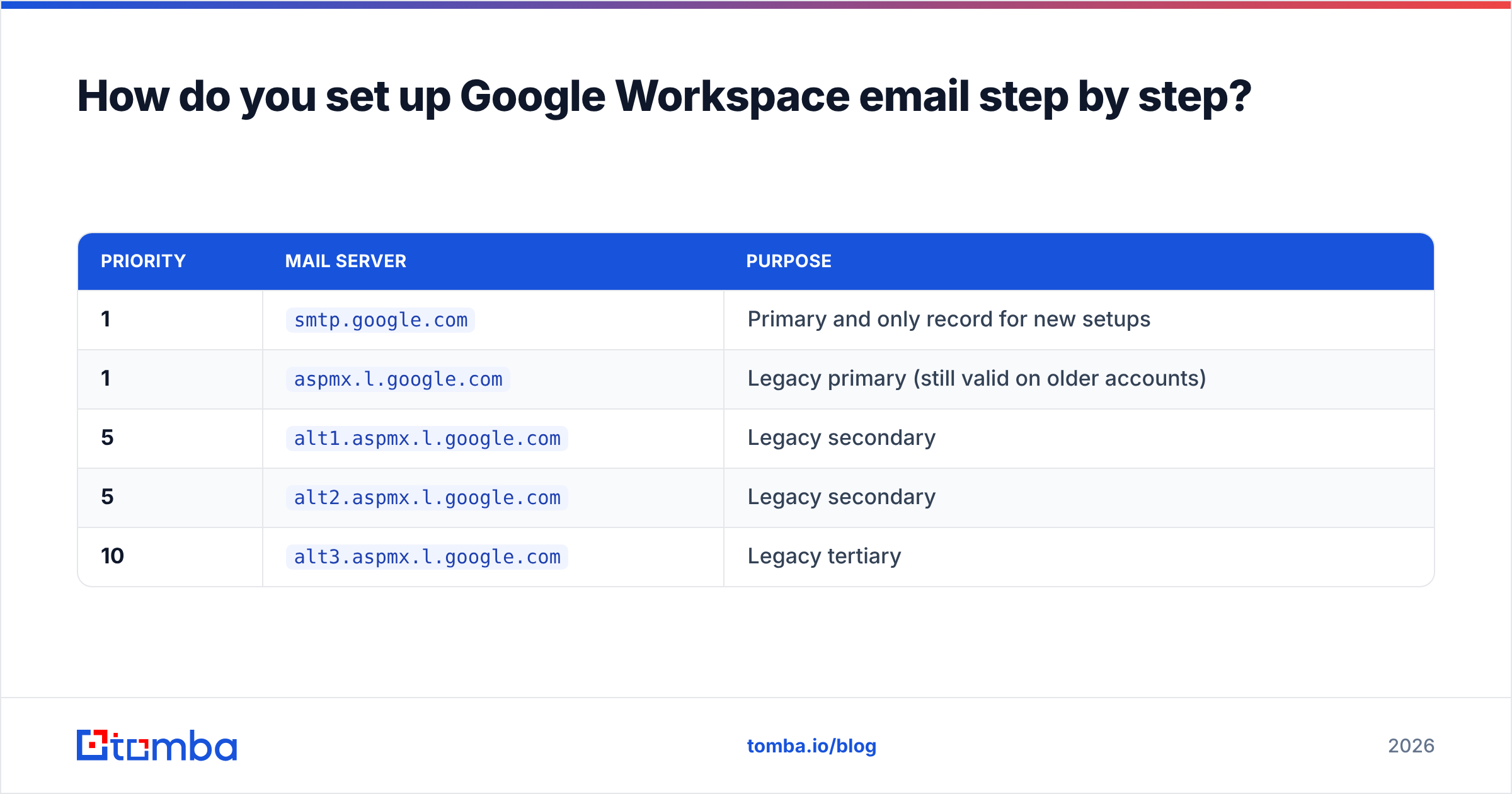
This is the switch that actually moves your mail. Delete any existing MX records — a mailbox cannot have two mail providers — and add Google's:
| Priority | Mail server | Purpose |
|---|---|---|
| 1 | smtp.google.com |
Primary and only record for new setups |
| 1 | aspmx.l.google.com |
Legacy primary (still valid on older accounts) |
| 5 | alt1.aspmx.l.google.com |
Legacy secondary |
| 5 | alt2.aspmx.l.google.com |
Legacy secondary |
| 10 | alt3.aspmx.l.google.com |
Legacy tertiary |
Since 2023, Google consolidated everything into the single smtp.google.com record at priority 1. If you're setting up fresh, use only that one. If you're auditing an inherited account that still has the five legacy records, leave them — they work fine, and mixing the two schemes is what breaks things.
Expect 1 to 4 hours before mail starts flowing, though Google's documentation allows up to 72 hours in the worst case.
Step 4 — Add SPF, DKIM, and DMARC#
Authentication is where most setups quietly fail. Three records, three jobs:
- SPF — a TXT record listing who may send on your behalf. For Google alone:
v=spf1 include:_spf.google.com ~all. You get exactly one SPF record per domain, and you're capped at 10 DNS lookups. Adding your CRM, your ESP, and your sequencer all as separateinclude:statements is how you blow past that limit. - DKIM — a cryptographic signature proving the message wasn't altered. Generate the key in Admin console → Apps → Google Workspace → Gmail → Authenticate email, choose 2048-bit, publish the TXT record at
google._domainkey, then return and click Start authentication. That last click is the step people forget. The record exists, but Google never activates signing. - DMARC — the policy telling receivers what to do when SPF or DKIM fails. Publish at
_dmarcand start permissive:v=DMARC1; p=none; rua=mailto:dmarc@yourdomain.com. Read the reports for two weeks, then tighten top=quarantineand eventuallyp=reject.
Never launch at p=reject. You will bounce your own invoices, your calendar invites, and your marketing platform on day one.
If you want a refresher on what these records do at a conceptual level, our SPF record and email deliverability glossary entries cover the mechanics without the DNS syntax.
Step 5 — Create users, aliases, and groups#
Now the cheap part. In Admin console → Directory → Users, add each person who needs a real mailbox. Then decide how the shared addresses work:
- Alias — a second address delivered into an existing mailbox. Free, up to 30 per user. Good for
sara@ands.johnson@going to the same person. - Group — a distribution address that fans out to multiple people, with optional collaborative-inbox features. Free, unlimited. Good for
support@,sales@,careers@. - User — a full billable seat with its own storage and login. Only for humans.
- Service account — API-level access with domain-wide delegation. For automation, not for people.
Step 6 — Migrate existing mail#
Google's Data Migration Service pulls mail from IMAP sources, Microsoft 365, or another Workspace tenant. Run it after MX cutover so you don't have to run a second delta sync. For under 20 mailboxes it's straightforward; above that, budget a weekend and stage it in batches.
Which Google Workspace plan should you pick?#
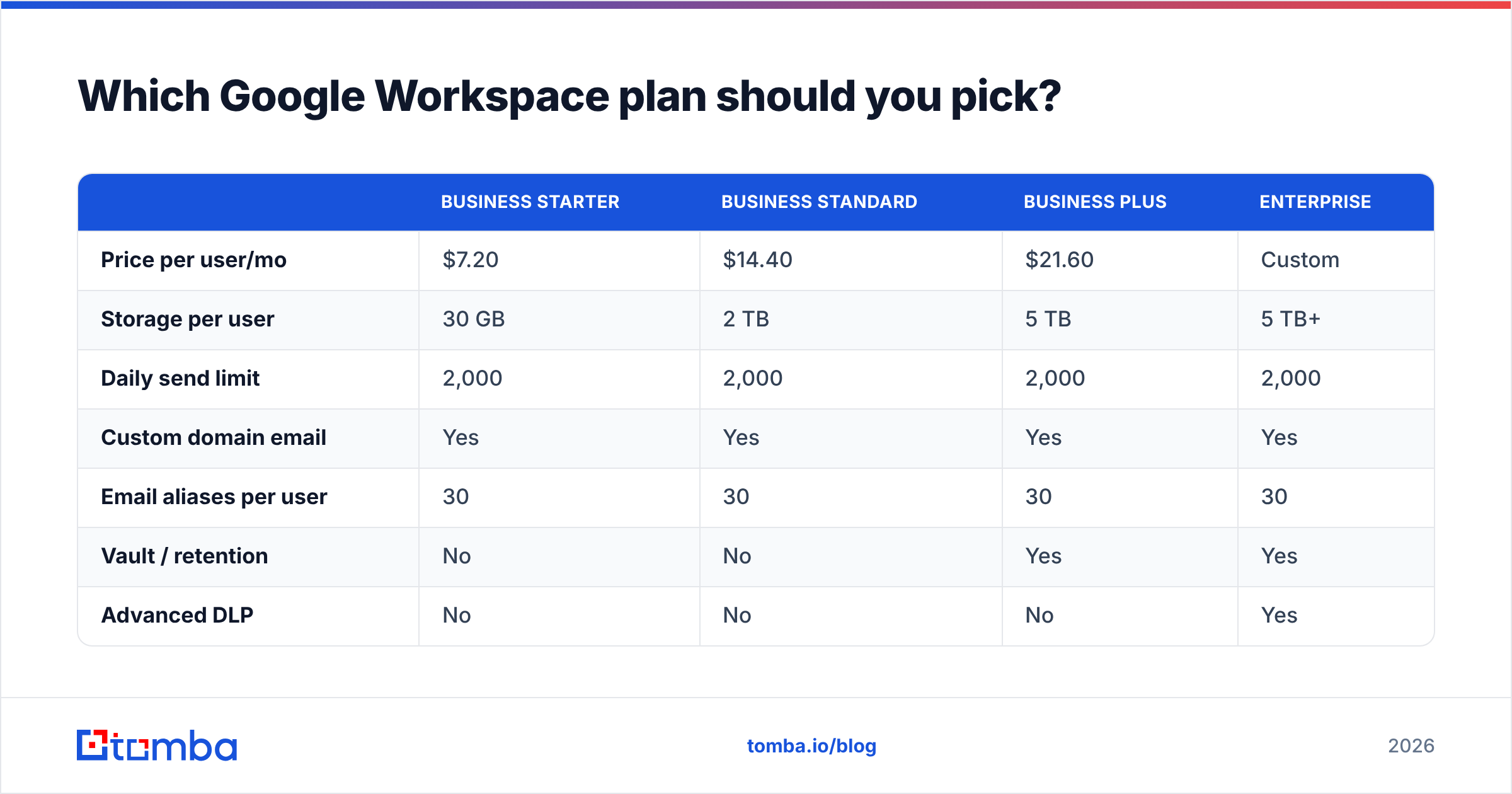
Plan choice matters less than people think for email specifically — every tier gets the same Gmail, the same 2,000-recipient daily limit, and the same authentication tooling. Storage and admin depth are the real differentiators.
| Business Starter | Business Standard | Business Plus | Enterprise | |
|---|---|---|---|---|
| Price per user/mo | $7.20 | $14.40 | $21.60 | Custom |
| Storage per user | 30 GB | 2 TB | 5 TB | 5 TB+ |
| Daily send limit | 2,000 | 2,000 | 2,000 | 2,000 |
| Custom domain email | Yes | Yes | Yes | Yes |
| Email aliases per user | 30 | 30 | 30 | 30 |
| Vault / retention | No | No | Yes | Yes |
| Advanced DLP | No | No | No | Yes |
| Max meeting participants | 100 | 150 | 500 | 1,000 |
| Best for | Solo and 1–5 person teams | Most SMBs | Compliance-sensitive teams | 300+ seats, SSO required |
Prices reflect Google's published annual-commitment rates and shift by region and promotion — check the official Workspace pricing page before you budget. Third-party review data on G2 is useful for reading the admin-experience complaints that marketing pages omit.
The practical takeaway: if email is your only concern, Business Starter is enough. Upgrade for storage, Vault, or meeting size — not for deliverability.
What are the sending limits you need to know?#
This is the section that saves cold-outreach teams from burning a domain in week one.
| Limit | Value | Notes |
|---|---|---|
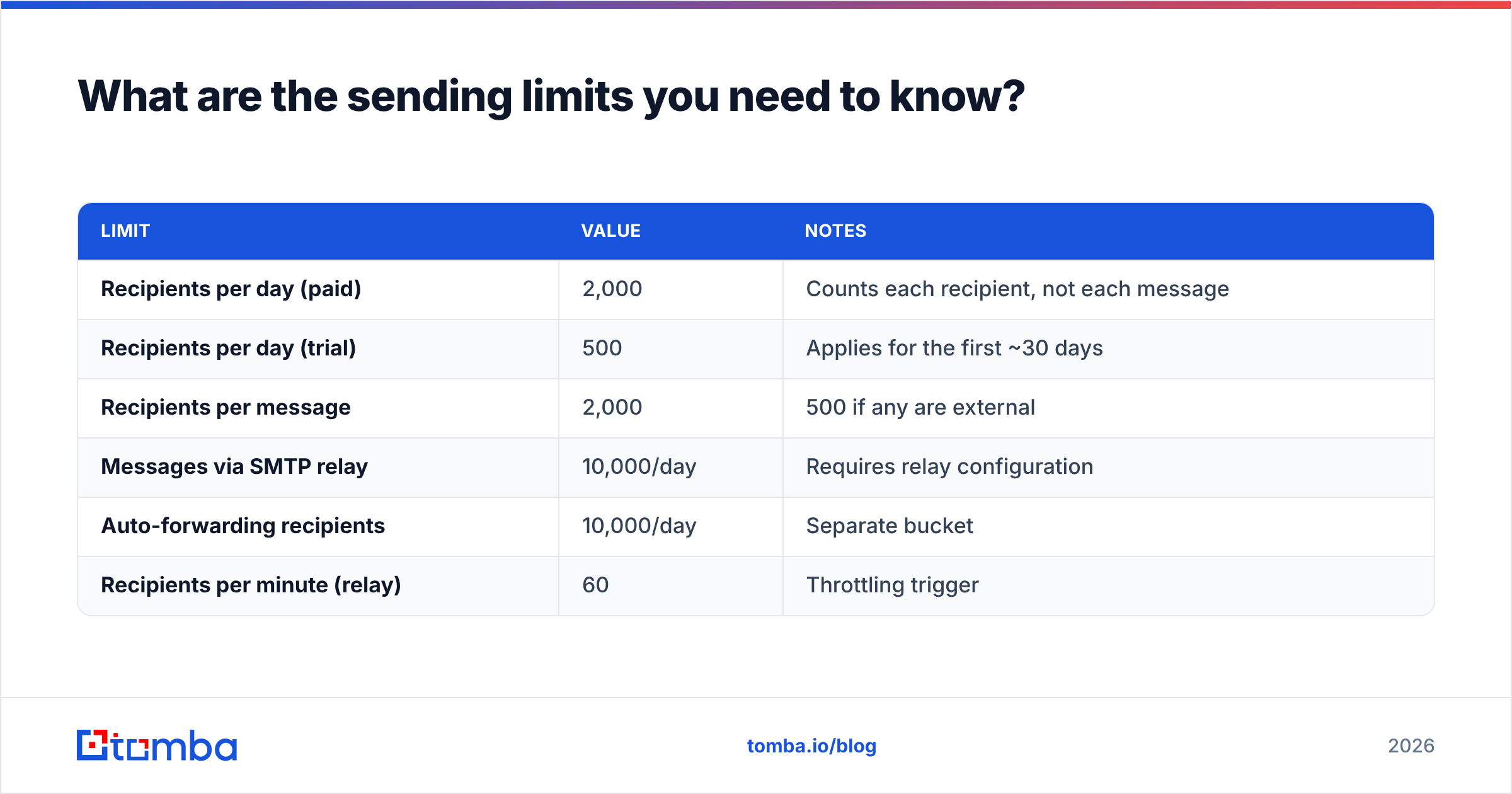
| Recipients per day (paid) | 2,000 | Counts each recipient, not each message |
| Recipients per day (trial) | 500 | Applies for the first ~30 days |
| Recipients per message | 2,000 | 500 if any are external |
| Messages via SMTP relay | 10,000/day | Requires relay configuration |
| Auto-forwarding recipients | 10,000/day | Separate bucket |
| Recipients per minute (relay) | 60 | Throttling trigger |
Hit the limit and Google locks sending for roughly 24 hours with a 550 5.4.5 Daily user sending limit exceeded error. There is no appeal and no plan that raises it. Enterprise does not buy you 10,000 sends a day.
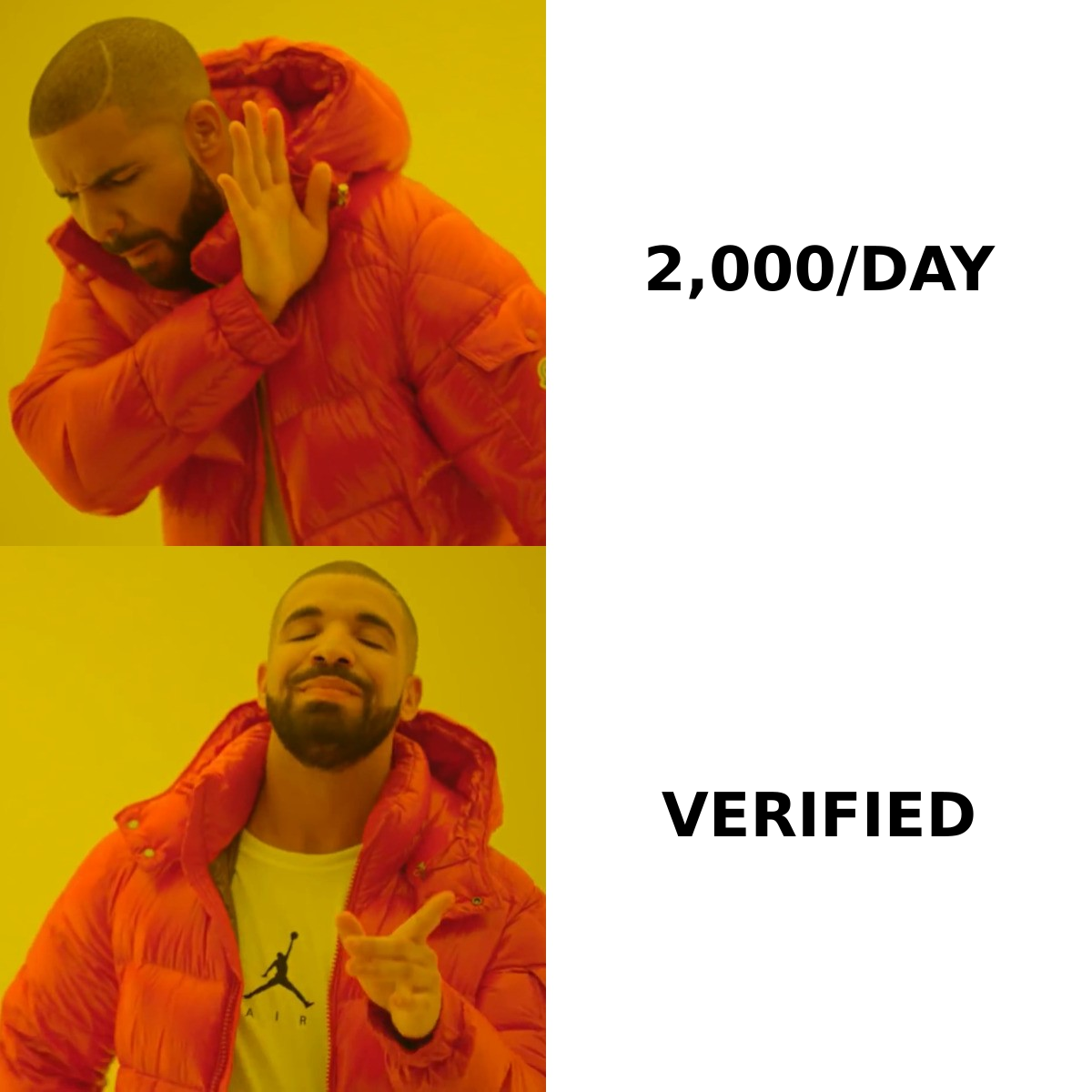
More importantly, 2,000 is the ceiling, not a target. Google and Yahoo's bulk sender requirements — enforced since February 2024 — require a spam complaint rate under 0.3% and full authentication for anyone sending more than 5,000 messages a day to Gmail addresses. Ramp a new domain at 20 to 30 sends a day and build over six to eight weeks.
Why does a clean setup still land in spam?#
Because authentication proves who you are, not whether anyone wants your mail. Once SPF, DKIM, and DMARC pass, mailbox providers move on to engagement signals: opens, replies, deletions without reading, and — most punishing — bounces.
A bounce rate above 3% tells Gmail and Outlook you're working from a scraped or stale list. Above 5% you start seeing blocks rather than spam-folder placement. The domain you just spent a morning configuring gets flagged within a single campaign.
Three things move the needle after setup:
- Verify before you send. Run every address through an email verifier so you're not testing your new domain against dead mailboxes. Catch-all domains need a dedicated catch-all verifier because standard SMTP checks return "accept" for everything.
- Warm the domain gradually. New domains have no reputation history. Start low, increase 20–30% weekly, and prioritize threads that get replies.
- Monitor DMARC reports. The
rua=address you configured receives daily XML aggregate reports showing every source sending as your domain — including the ones you forgot about and the ones spoofing you.
A useful mental model: DNS records are the passport. Sender reputation is the visa history. A valid passport with a suspicious travel record still gets you pulled aside.
How does Google Workspace compare to the alternatives?#
| Google Workspace | Microsoft 365 | Zoho Mail | |
|---|---|---|---|
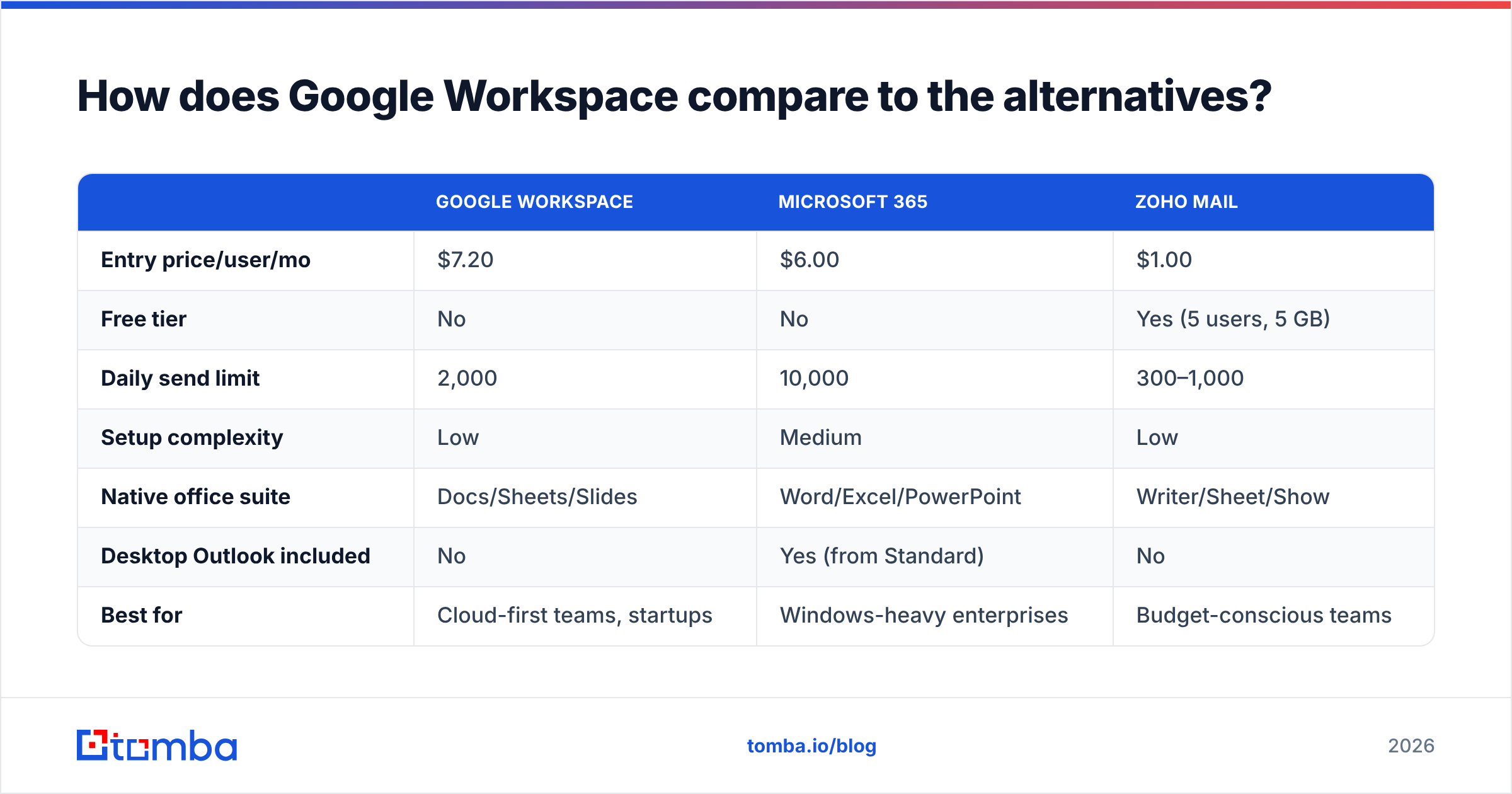
| Entry price/user/mo | $7.20 | $6.00 | $1.00 |
| Free tier | No | No | Yes (5 users, 5 GB) |
| Daily send limit | 2,000 | 10,000 | 300–1,000 |
| Setup complexity | Low | Medium | Low |
| Native office suite | Docs/Sheets/Slides | Word/Excel/PowerPoint | Writer/Sheet/Show |
| Desktop Outlook included | No | Yes (from Standard) | No |
| Best for | Cloud-first teams, startups | Windows-heavy enterprises | Budget-conscious teams |
Microsoft's higher send ceiling is genuinely relevant if you run high-volume transactional mail from user mailboxes. For most B2B teams, Google's interface, search, and third-party integration ecosystem win — and if volume is the constraint, a dedicated sending platform is the right answer regardless of which suite hosts your inbox.
What should you check before your first campaign?#
Run this list before a single outbound email goes out:
- MX lookup returns only Google. No leftover records from the old host.
- SPF resolves in under 10 lookups. Use any SPF checker; a
permerrormeans silent failures. - DKIM shows "Authenticating email" in Admin console. Not just "DNS record found."
- DMARC is published at
p=nonewith a workingruamailbox. Confirm reports arrive within 48 hours. - Send a test to a Gmail address and check "Show original." You want
SPF: PASS,DKIM: PASS,DMARC: PASS. - List verified, bounce risk under 2%. Everything above depends on this.
Step 5 is the single highest-value check in this article. Thirty seconds, and it tells you definitively whether the previous hour of DNS work took effect.
Closing: get the addresses right before you send#
A perfect Google Workspace configuration protects a domain you're about to point at a contact list. If that list is guessed, scraped, or two years old, the DNS work buys you nothing — the bounces do the damage instead.
Build the list properly first. Tomba Email Finder resolves verified professional addresses from a name and domain, with confidence scoring and SMTP validation built into the same call, so what lands in your sequencer is already deliverable. Start on the free tier at 25 searches a month, or move to Starter at $49/mo when you're running real volume — full Tomba pricing is public, no sales call required.
Configure the domain once. Verify the list every time.
Related guides#
Ready to find emails that actually work?
Join 150,000+ professionals who stopped guessing and started sending. Free credits on signup — no credit card required.
Get the Tomba newsletter
Practical outbound tactics and product updates — once every two weeks.
About the author