Google Workspace SPF, DKIM, DMARC: 2026 Setup Guide
Most Google Workspace domains fail DMARC because of one missing record or a stray include. Here is the exact setup order, the DNS values, and the mistakes that quietly kill your cold email.
TL;DR
- Google Workspace does not authenticate your mail correctly out of the box. SPF must be added by hand, DKIM must be generated and switched on per domain, and DMARC does not exist until you publish it.
- Order matters: SPF first, DKIM second, DMARC at
p=nonethird, then tighten toquarantineandrejectover 4-8 weeks of report reading. - The single most common failure is the SPF 10-DNS-lookup limit — chaining
include:records for Workspace plus a sending tool plus a CRM silently returnspermerror, and every message fails SPF. - Since Google and Yahoo's 2024 bulk-sender rules, DMARC is table stakes for anyone sending more than 5,000 messages a day to consumer inboxes — and increasingly for B2B senders too.
- Authentication gets you delivered; it does not get you read. Clean, verified recipient data does the rest of the work.
What do SPF, DKIM, and DMARC actually do?#
Think of sending email like posting a letter. SPF is the list of post offices allowed to stamp mail for your street. DKIM is the wax seal that proves the envelope was not opened in transit. DMARC is the standing instruction you leave at the receiving mailroom: "if the stamp and the seal don't both check out, here's what to do with it, and mail me a report either way."
Technically:
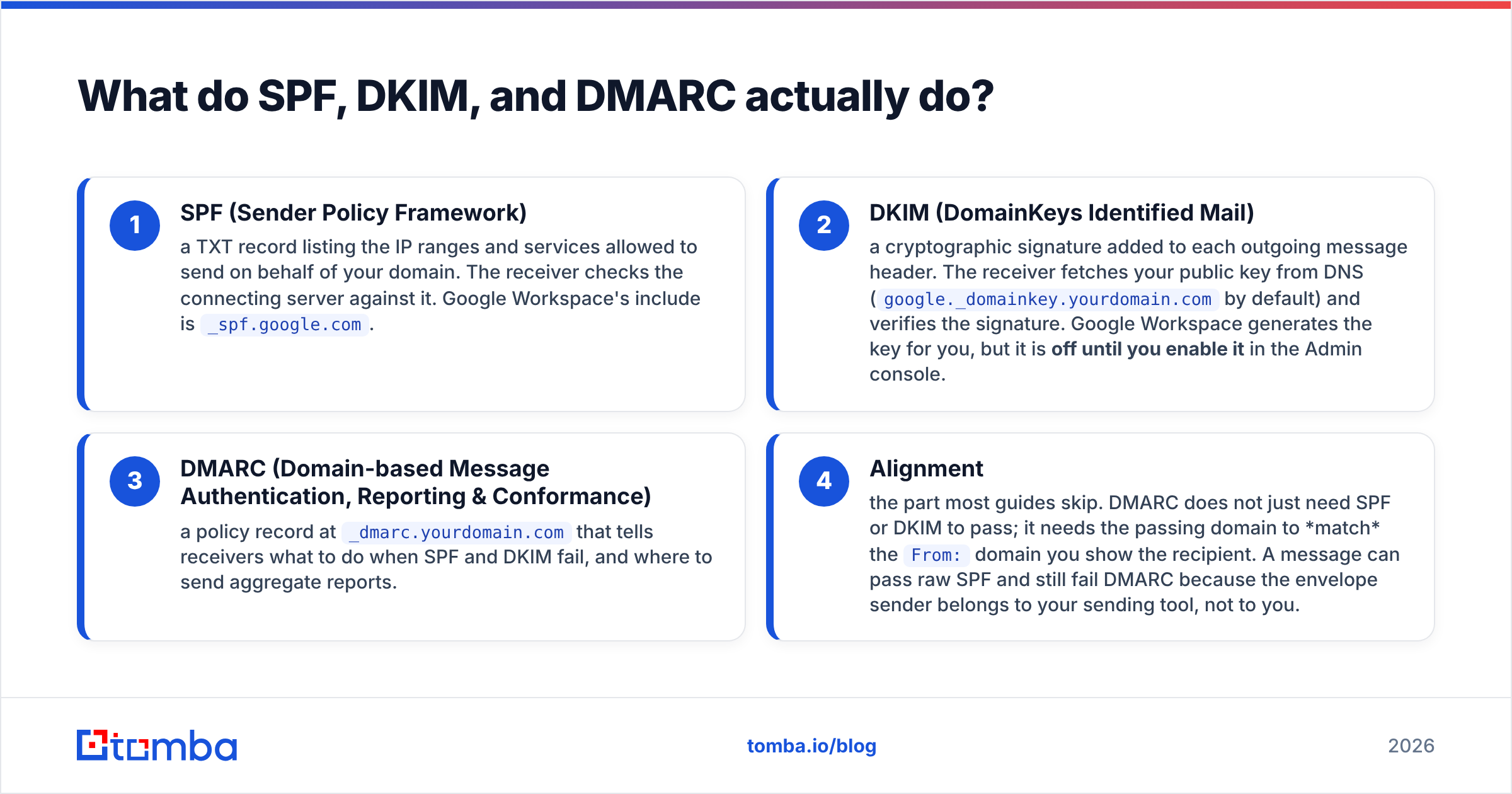
- SPF (Sender Policy Framework) — a TXT record listing the IP ranges and services allowed to send on behalf of your domain. The receiver checks the connecting server against it. Google Workspace's include is
_spf.google.com. - DKIM (DomainKeys Identified Mail) — a cryptographic signature added to each outgoing message header. The receiver fetches your public key from DNS (
google._domainkey.yourdomain.comby default) and verifies the signature. Google Workspace generates the key for you, but it is off until you enable it in the Admin console. - DMARC (Domain-based Message Authentication, Reporting & Conformance) — a policy record at
_dmarc.yourdomain.comthat tells receivers what to do when SPF and DKIM fail, and where to send aggregate reports. - Alignment — the part most guides skip. DMARC does not just need SPF or DKIM to pass; it needs the passing domain to match the
From:domain you show the recipient. A message can pass raw SPF and still fail DMARC because the envelope sender belongs to your sending tool, not to you.
That fourth point is where the majority of "but I set it all up" tickets come from. Passing is not the same as aligning.
What are the exact DNS records for Google Workspace?#
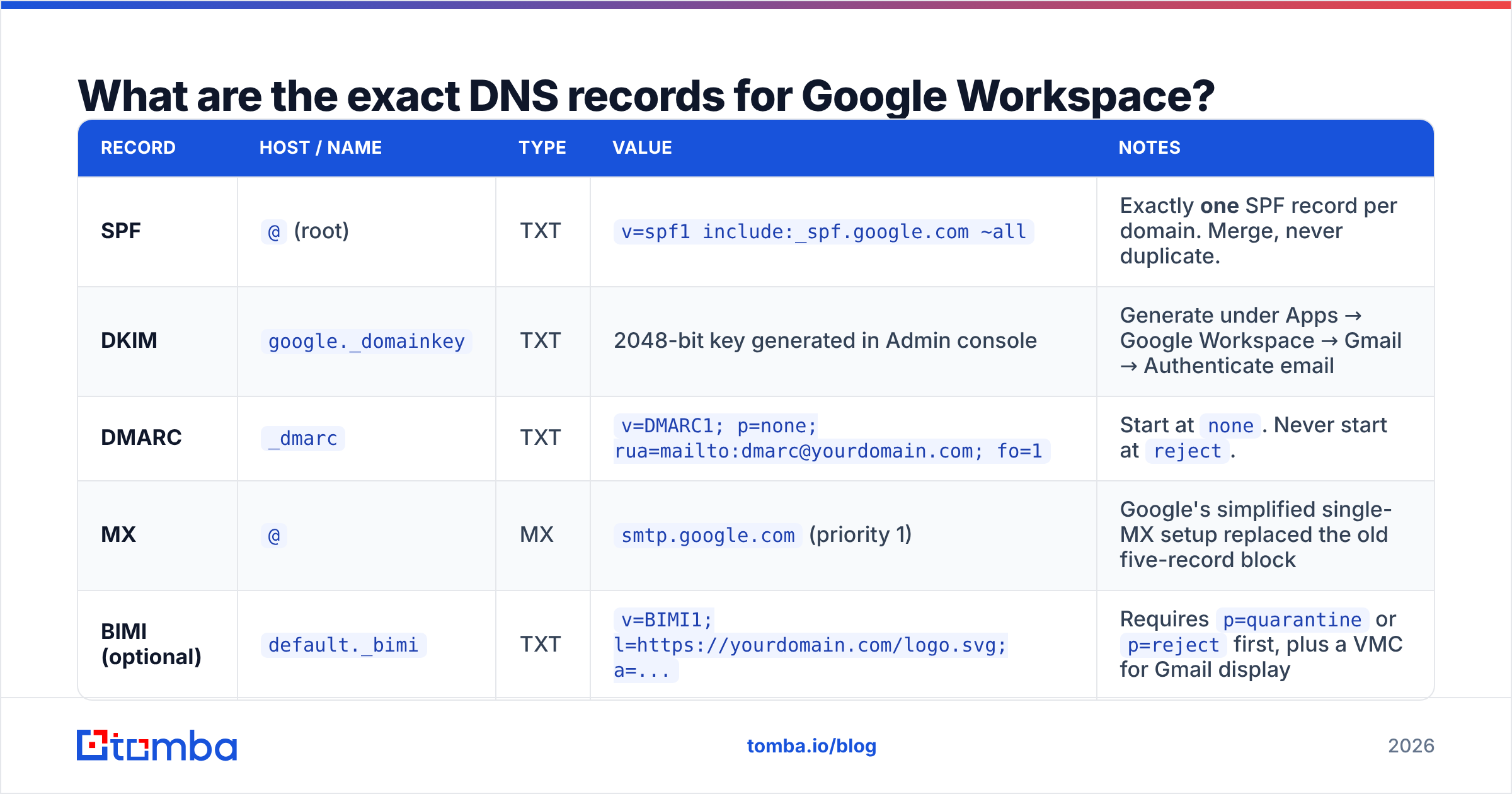
Here is the working baseline. Replace yourdomain.com and add records at your DNS host (Cloudflare, Route 53, GoDaddy — the interface differs, the values do not).
| Record | Host / Name | Type | Value | Notes |
|---|---|---|---|---|
| SPF | @ (root) |
TXT | v=spf1 include:_spf.google.com ~all |
Exactly one SPF record per domain. Merge, never duplicate. |
| DKIM | google._domainkey |
TXT | 2048-bit key generated in Admin console | Generate under Apps → Google Workspace → Gmail → Authenticate email |
| DMARC | _dmarc |
TXT | v=DMARC1; p=none; rua=mailto:dmarc@yourdomain.com; fo=1 |
Start at none. Never start at reject. |
| MX | @ |
MX | smtp.google.com (priority 1) |
Google's simplified single-MX setup replaced the old five-record block |
| BIMI (optional) | default._bimi |
TXT | v=BIMI1; l=https://yourdomain.com/logo.svg; a=... |
Requires p=quarantine or p=reject first, plus a VMC for Gmail display |
Two Workspace-specific details that trip people up:
- DKIM key length. Google's console still offers 1024-bit for hosts that cap TXT record length. Choose 2048 unless your DNS provider physically refuses it. If your host rejects the long string, split it into quoted chunks — most providers concatenate automatically.
- Propagation before activation. Add the DKIM TXT record, wait for propagation (usually minutes, occasionally up to 48 hours), then click "Start authentication" in the console. Clicking early throws an error and people assume the key is broken.
You can sanity-check the published SPF record with a free SPF checker before you touch anything else. If the lookup returns nothing, nothing downstream will work.
Why does SPF break when you add a second sending tool?#
Because SPF has a hard limit of 10 DNS lookups, and every include: costs at least one — often more, since includes nest.
A realistic stack:
v=spf1 include:_spf.google.com include:spf.mandrillapp.com include:sendgrid.net include:_spf.salesforce.com include:mail.zendesk.com ~allThat looks reasonable. It is not. _spf.google.com alone expands into three further includes. Add SendGrid and Salesforce and you are past 10, at which point conforming receivers return permerror and treat SPF as failed — for every message, including the legitimate Workspace ones. Nothing in the Admin console warns you.
Three ways out:
- Audit and prune. Most domains carry includes for tools cancelled two years ago. Remove anything you cannot name a current sender for.
- Use subdomains. Send marketing from
mail.yourdomain.comand transactional fromnotify.yourdomain.com, each with its own SPF record and its own lookup budget. This also isolates reputation damage. - Flatten carefully. SPF flattening tools resolve includes into raw IPs. It works, but vendor IPs change without notice and a stale flattened record fails silently. If you flatten, automate the refresh.
Google's own Workspace admin documentation covers the include syntax; it does not cover multi-vendor lookup budgeting, which is where teams get hurt.
How do you read DMARC reports without drowning?#
Aggregate reports (rua) arrive as gzipped XML, one per receiving provider per day. Sending them to a human's inbox is how DMARC rollouts die in week two.
What you are actually looking for in the XML:
<source_ip>you don't recognise. Either a forgotten legitimate sender, or someone spoofing you.spfresultpasswithdkimresultfail, repeatedly, from one source. That vendor is not signing with your domain. Fix DKIM there before tightening policy.- Alignment mismatches — the
<identifier><header_from>value differs from the authenticated domain. This is the classic "passes SPF, fails DMARC" case. - Volume by source. If 4% of your mail comes from an IP you cannot identify, do not move to
rejectyet.
Free parsers exist, and most ESPs now bundle a DMARC dashboard. The important discipline is boring: review weekly, resolve one unknown source per review, and only then tighten. A rushed p=reject on a domain that still has an unmapped invoicing system will bounce your invoices.
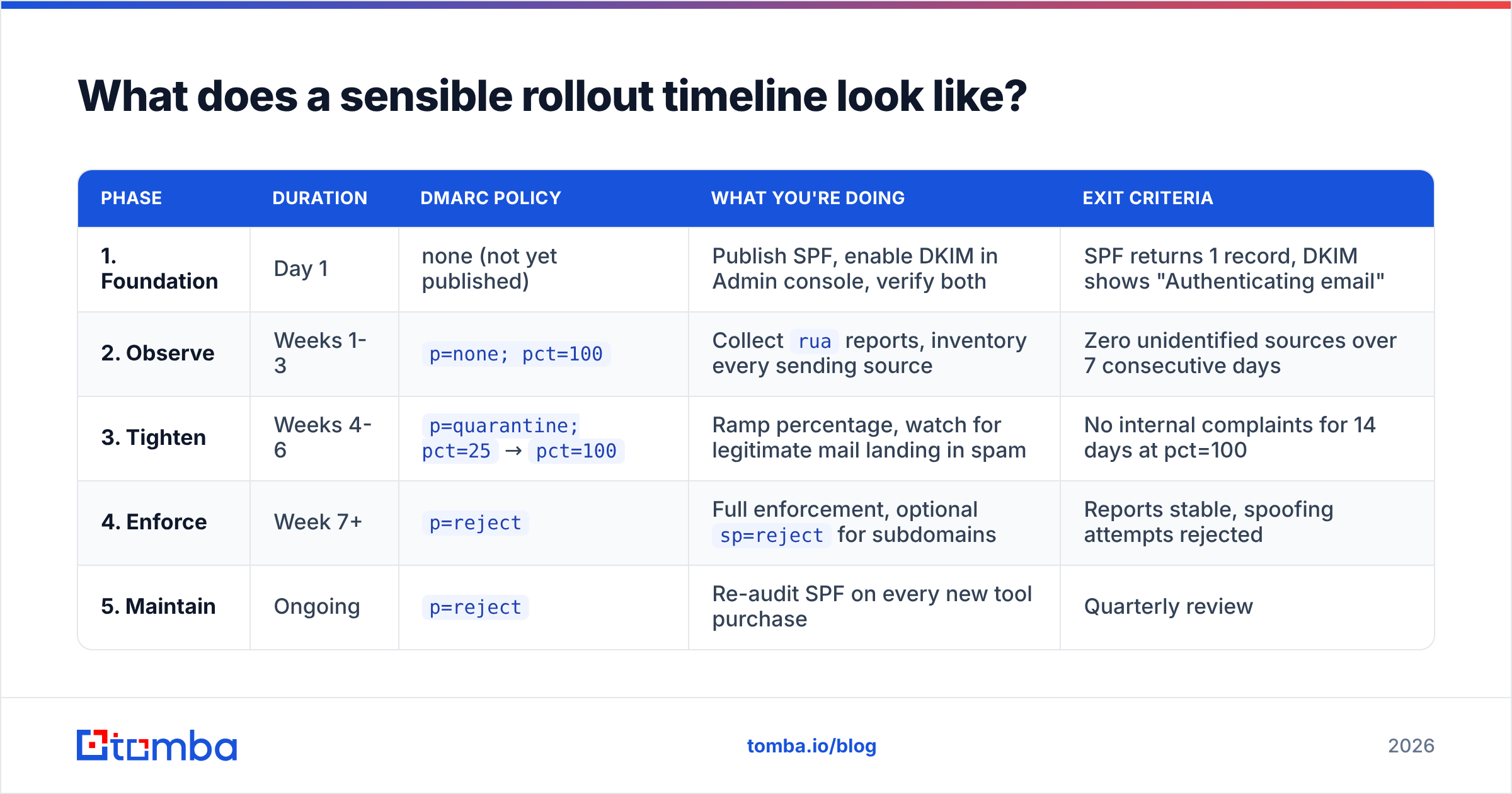
What does a sensible rollout timeline look like?#
| Phase | Duration | DMARC policy | What you're doing | Exit criteria |
|---|---|---|---|---|
| 1. Foundation | Day 1 | none (not yet published) | Publish SPF, enable DKIM in Admin console, verify both | SPF returns 1 record, DKIM shows "Authenticating email" |
| 2. Observe | Weeks 1-3 | p=none; pct=100 |
Collect rua reports, inventory every sending source |
Zero unidentified sources over 7 consecutive days |
| 3. Tighten | Weeks 4-6 | p=quarantine; pct=25 → pct=100 |
Ramp percentage, watch for legitimate mail landing in spam | No internal complaints for 14 days at pct=100 |
| 4. Enforce | Week 7+ | p=reject |
Full enforcement, optional sp=reject for subdomains |
Reports stable, spoofing attempts rejected |
| 5. Maintain | Ongoing | p=reject |
Re-audit SPF on every new tool purchase | Quarterly review |
Two rules that keep this uneventful. First, change one thing at a time — if you flip DKIM and DMARC together and delivery drops, you have no idea which caused it. Second, never let a marketing launch and a policy tightening land in the same week.
Does authentication alone fix deliverability?#
No — and this is the most expensive misconception in cold outreach.
Authentication is a gate check, not a quality signal. Passing SPF, DKIM, and DMARC means Gmail will accept your message for evaluation. What happens next depends on engagement, complaint rate, and bounce rate. Google's postmaster guidance is explicit that spam complaint rates should stay under 0.3%, and Gmail weighs recipient behaviour far more heavily than DNS records.
The three signals that actually move you from Promotions to Primary:
- Bounce rate below 2%. Every hard bounce is a signal you bought or scraped a list. Running addresses through an email verifier before a send is the cheapest deliverability investment available — cheaper than any warmup tool and far cheaper than burning a domain.
- Reply rate. Replies are the strongest positive engagement signal. They come from relevance, not from DNS.
- Consistent volume. A domain that sends 40 messages a day for six months and then blasts 3,000 looks compromised, regardless of authentication.
This is why teams with perfect DMARC still land in spam. Their records are fine; their sender reputation is not. If you are sending to addresses guessed from a pattern generator rather than confirmed ones, no amount of DNS work saves you. Sourcing accurate contacts up front — via domain search or a verified email finder — keeps bounce rates where they need to be for the authentication work to pay off.
What are the most common Google Workspace mistakes?#
Ranked by how often they appear in real audits:
- Two SPF records. Someone added a second TXT record for a new tool instead of merging includes. Two SPF records is an automatic
permerrorunder RFC 7208. There is exactly one legal SPF record per domain. - DKIM generated but never activated. The key sits in DNS, the Admin console still says "Not authenticating." A generated key does nothing until you press start.
p=rejectpublished on day one. Usually after reading a security checklist. Legitimate mail from an unmapped system disappears, and nobody connects the two events for a week.-allbefore the inventory is complete. Hard fail on SPF with an incomplete include list has the same effect as premature reject, minus the reports that would tell you.- Subdomain left unprotected. No
sp=tag and no DMARC record onmail.yourdomain.commeans attackers spoof the subdomain instead. Setsp=rejectonce the parent is enforcing. ruapointed at a mailbox nobody reads. Reports arrive, get filtered, and the rollout stalls atp=noneforever. Use a shared alias with a parser, not a personal inbox.
Number six is the quiet one. A domain parked at p=none for two years gets none of the anti-spoofing benefit and passes exactly zero of the checks that Gmail's bulk-sender requirements care about.
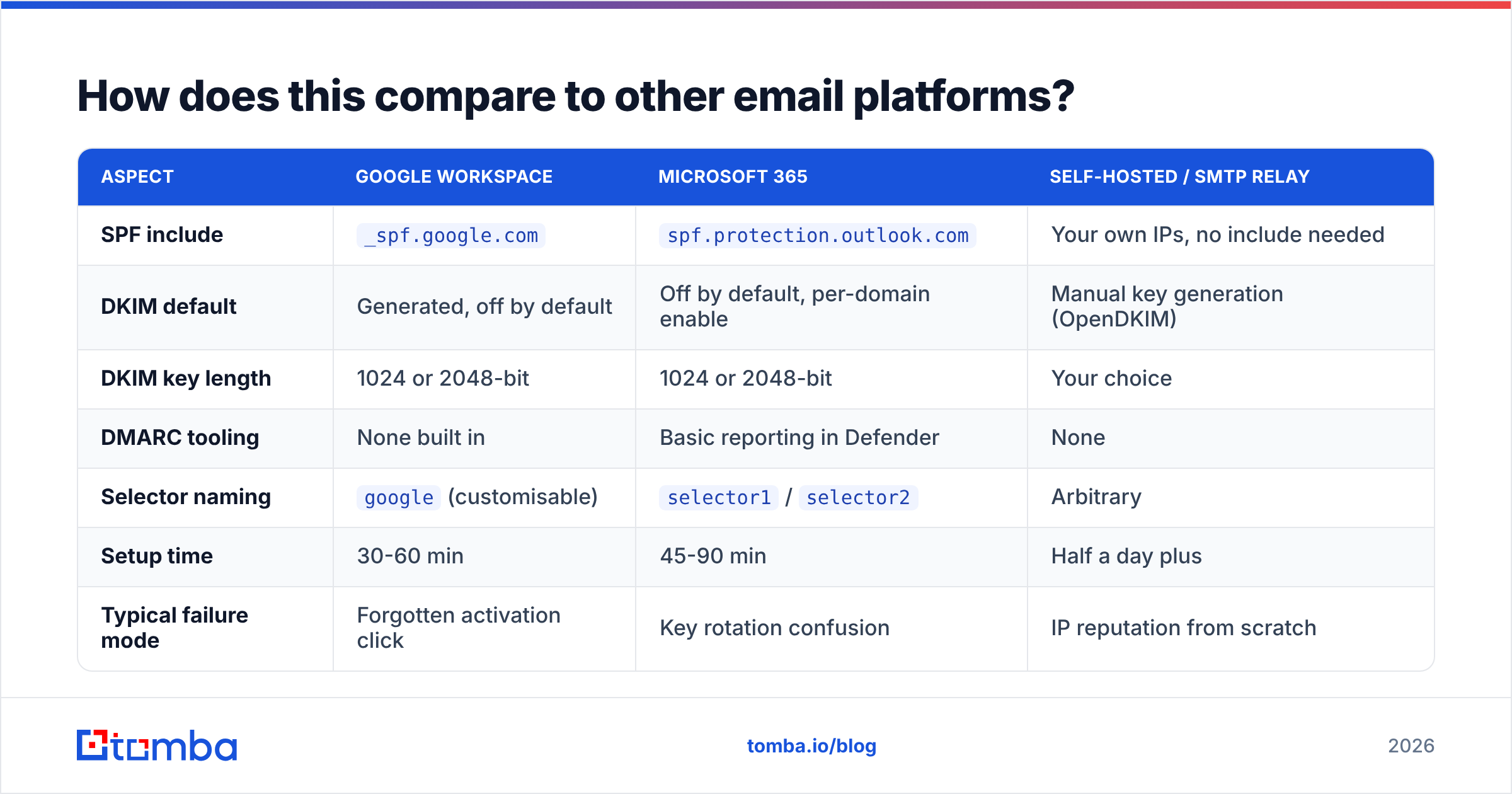
How does this compare to other email platforms?#
Worth knowing if you run mixed infrastructure or are weighing a migration.
| Aspect | Google Workspace | Microsoft 365 | Self-hosted / SMTP relay |
|---|---|---|---|
| SPF include | _spf.google.com |
spf.protection.outlook.com |
Your own IPs, no include needed |
| DKIM default | Generated, off by default | Off by default, per-domain enable | Manual key generation (OpenDKIM) |
| DKIM key length | 1024 or 2048-bit | 1024 or 2048-bit | Your choice |
| DMARC tooling | None built in | Basic reporting in Defender | None |
| Selector naming | google (customisable) |
selector1 / selector2 |
Arbitrary |
| Setup time | 30-60 min | 45-90 min | Half a day plus |
| Typical failure mode | Forgotten activation click | Key rotation confusion | IP reputation from scratch |
Google Workspace is the shortest path to correct authentication of the three — provided you complete the activation step. Microsoft 365's two-selector CNAME model is more robust to key rotation but confuses admins more often. Self-hosting gives total control and hands you a cold IP reputation problem, which takes months to solve.
What should you do the week after enforcement?#
Once p=reject is live and stable, the DNS work is done. The remaining deliverability levers are all about who you send to and how often.
Practical next steps:
- Set a quarterly SPF audit. Every new SaaS tool that sends mail on your behalf is a lookup you did not budget for. Check the count before you add the include.
- Rotate DKIM keys annually. Google supports generating a new key while the old one is live; publish, wait, switch, remove.
- Monitor blocklists. A clean DMARC posture does not protect you from a shared-IP listing. A periodic blacklist checker run costs nothing.
- Fix the list before the DNS. If your bounce rate is above 3%, that is your deliverability problem, not your SPF record. Verify first, then send.
- Warm gradually after any change. Domain or IP change resets the clock. Ramp volume over 3-4 weeks rather than resuming at full send.
For the broader picture of how authentication, reputation, and list quality interact, the email deliverability fundamentals are worth a read alongside G2's vendor comparisons at g2.com if you are shopping for monitoring tooling.
Where should you start?#
Publish SPF today, enable DKIM in the Admin console this afternoon, and put a p=none DMARC record live before you leave. Then spend three weeks reading reports before you touch the policy tag. That sequence takes about an hour of active work and eliminates the two failure modes — premature enforcement and unknown senders — that cause almost every self-inflicted outage.
Then fix the other half of the equation. Authentication earns you the right to be evaluated; accurate recipient data is what keeps bounce rates low enough that the evaluation goes your way. The Tomba Email Finder returns verified, source-attributed business addresses with confidence scores, so the list you send to matches the care you just put into your DNS. The free tier covers 25 searches a month if you want to test bounce rates against your current list; paid plans start at $49/mo — full Tomba pricing is public. Get the records right, then get the addresses right, and deliverability stops being a mystery.
Related guides#
Ready to find emails that actually work?
Join 150,000+ professionals who stopped guessing and started sending. Free credits on signup — no credit card required.
Get the Tomba newsletter
Practical outbound tactics and product updates — once every two weeks.
About the author