How to Find Invalid Email Addresses in Excel (2026 Guide)
Formulas catch typos. They never catch a mailbox that quietly died last quarter. Here are five ways to find invalid email addresses in Excel — and the exact point where a spreadsheet stops protecting your sender reputation.
TL;DR
- Excel can catch syntax problems — missing
@, double dots, trailing spaces, banned characters — with a handful of formulas or the newerREGEXTESTfunction. - Excel cannot tell you whether a mailbox actually exists, whether the domain has MX records, whether the address is a spam trap, or whether it is a catch-all.
- A realistic split: formulas remove roughly 3-8% of a scraped list as malformed. SMTP-level verification usually removes another 10-25% that looked perfectly valid.
- Best workflow: clean and dedupe in Excel first (it's free and instant), then run the survivors through a verifier before they touch your sending tool.
- If your list is over ~2,000 rows or refreshes monthly, an add-in or API beats copy-pasting between tabs.
What counts as an "invalid" email address in a spreadsheet?#
"Invalid" is doing a lot of work in that sentence. Before you write a single formula, separate the five failure types — because Excel only handles the first two.
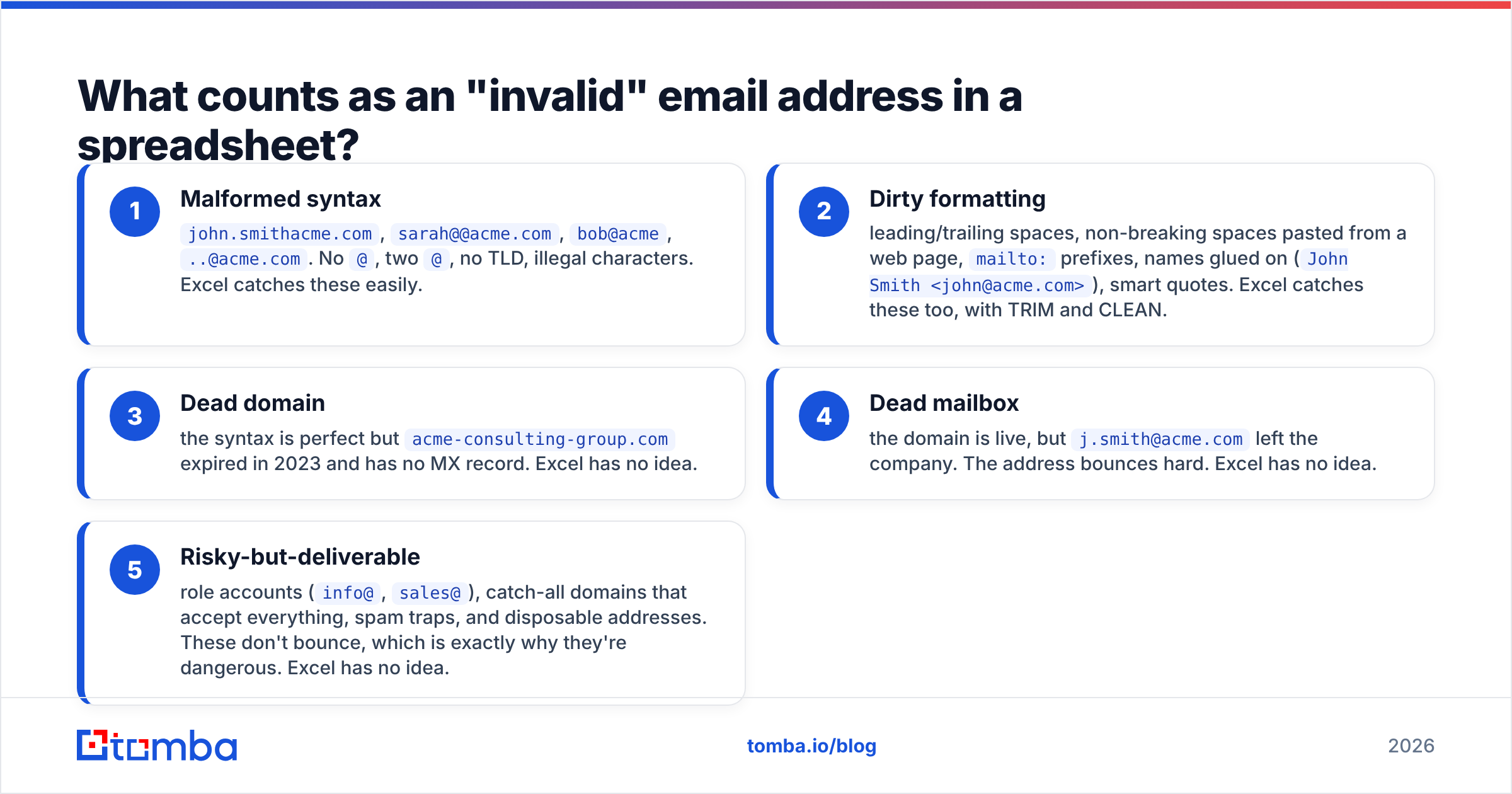
- Malformed syntax —
john.smithacme.com,sarah@@acme.com,bob@acme,..@acme.com. No@, two@, no TLD, illegal characters. Excel catches these easily. - Dirty formatting — leading/trailing spaces, non-breaking spaces pasted from a web page,
mailto:prefixes, names glued on (John Smith <john@acme.com>), smart quotes. Excel catches these too, with TRIM and CLEAN. - Dead domain — the syntax is perfect but
acme-consulting-group.comexpired in 2023 and has no MX record. Excel has no idea. - Dead mailbox — the domain is live, but
j.smith@acme.comleft the company. The address bounces hard. Excel has no idea. - Risky-but-deliverable — role accounts (
info@,sales@), catch-all domains that accept everything, spam traps, and disposable addresses. These don't bounce, which is exactly why they're dangerous. Excel has no idea.
The official definition of a valid email address is far looser than most people assume — plus signs, apostrophes and quoted strings are all legal. That matters, because an over-aggressive Excel formula will delete real, deliverable contacts.

How do you find invalid email addresses in Excel with formulas?#
Start with the cheapest test that catches the most junk: does the cell contain exactly one @, at least one dot after it, and no spaces?
Assuming your addresses sit in column A starting at A2, drop this in B2 and fill down:
=IF(AND(
  ISNUMBER(FIND("@",A2)),
  LEN(A2)-LEN(SUBSTITUTE(A2,"@",""))=1,
  ISNUMBER(FIND(".",MID(A2,FIND("@",A2),LEN(A2)))),
  ISERROR(FIND(" ",TRIM(A2))),
  LEN(A2)>=6
),"OK","CHECK")
Reading it left to right: there is an @, there is exactly one @, there is a dot somewhere after the @, there are no internal spaces once you trim the ends, and the string is at least six characters. That single formula typically flags 3-8% of a scraped or hand-typed list.
Three supporting formulas worth keeping in adjacent columns:
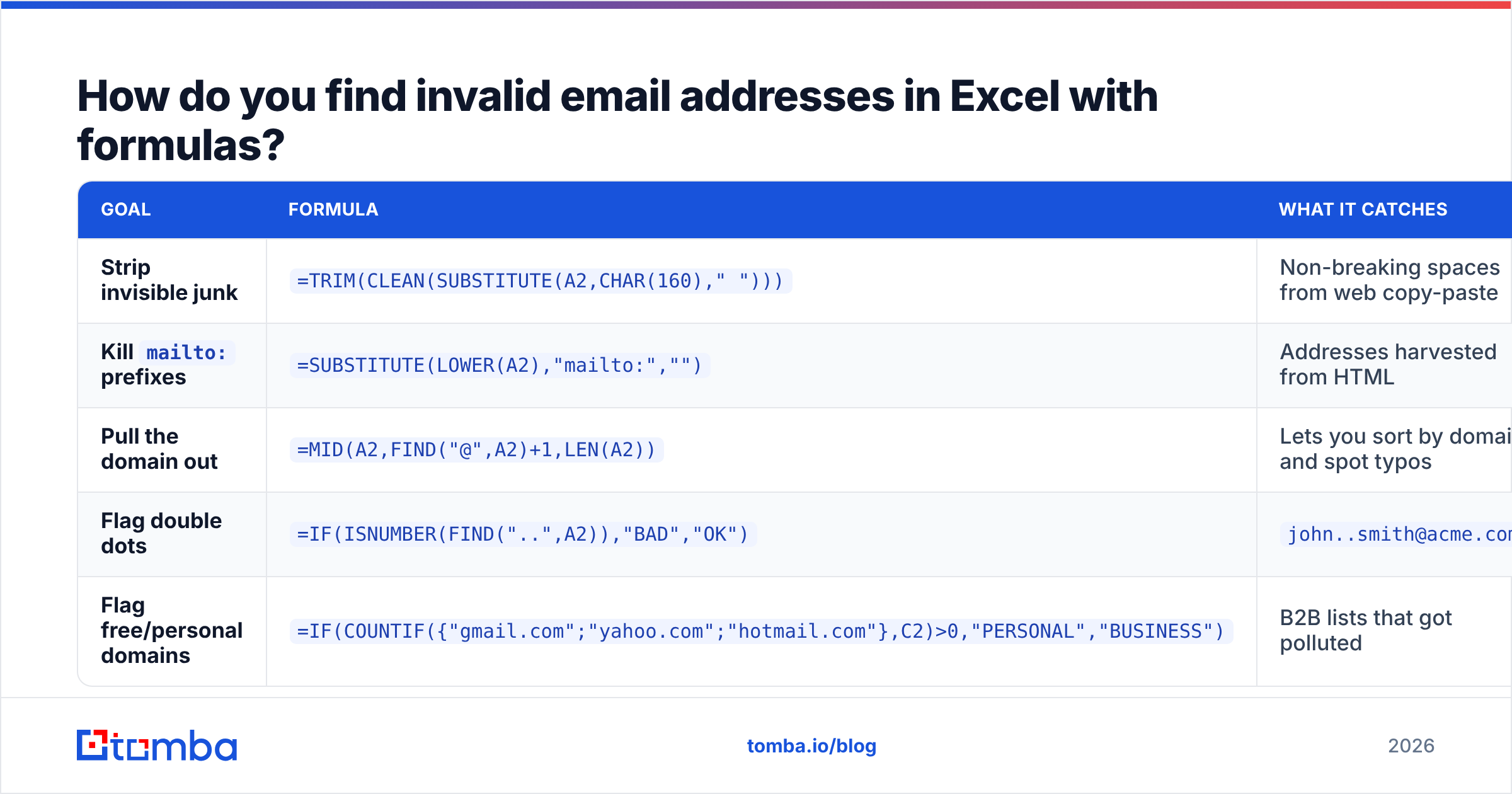
| Goal | Formula | What it catches |
|---|---|---|
| Strip invisible junk | =TRIM(CLEAN(SUBSTITUTE(A2,CHAR(160)," "))) |
Non-breaking spaces from web copy-paste |
Kill mailto: prefixes |
=SUBSTITUTE(LOWER(A2),"mailto:","") |
Addresses harvested from HTML |
| Pull the domain out | =MID(A2,FIND("@",A2)+1,LEN(A2)) |
Lets you sort by domain and spot typos |
| Flag double dots | =IF(ISNUMBER(FIND("..",A2)),"BAD","OK") |
john..smith@acme.com |
| Flag free/personal domains | =IF(COUNTIF({"gmail.com";"yahoo.com";"hotmail.com"},C2)>0,"PERSONAL","BUSINESS") |
B2B lists that got polluted |
That domain-extraction column is the underrated one. Sort by it and typo domains jump out instantly: you'll see 340 rows of salesforce.com and one lonely salesfroce.com. Fixing those by hand recovers real contacts that a pure syntax check would have marked valid and let bounce.
Can regex find invalid emails in Excel?#
Yes, and it's now the fastest option if you're on a current build. Microsoft 365 added REGEXTEST, REGEXEXTRACT and REGEXREPLACE to Excel, which collapses the nested-FIND monster above into one readable line:
=IF(REGEXTEST(TRIM(A2),"^[A-Za-z0-9._%+\-]+@[A-Za-z0-9.\-]+\.[A-Za-z]{2,}$"),"OK","CHECK")If REGEXTEST returns #NAME?, your Excel build doesn't have it yet — check your version against Microsoft's Excel support pages or fall back to the FIND-based formula. Google Sheets users have had REGEXMATCH for years and can use the identical pattern.
Two warnings about regex on email addresses:
Don't chase the "perfect" pattern. The fully RFC-compliant email regex is over 6,000 characters long and nobody maintains it correctly. The simple pattern above is the right trade-off: it catches essentially all real-world typos and rejects almost nothing legitimate.
Never anchor on a TLD whitelist. Patterns written before 2015 often end in (com|net|org|edu|gov). That silently deletes every .io, .ai, .co.uk and .dev contact in your list — which in B2B tech is a meaningful slice of your best prospects.
How do you flag bad rows visually with conditional formatting?#
Formulas in a helper column are fine for filtering, but if a human is going to review the list, colour is faster.
- Select A2:A5000.
- Home → Conditional Formatting → New Rule → "Use a formula to determine which cells to format."
- Enter:
=NOT(REGEXTEST(TRIM(A2),"^[^@\s]+@[^@\s]+\.[A-Za-z]{2,}$")) - Set the fill to red. Confirm.
- Add a second rule with
=COUNTIF($A$2:$A$5000,A2)>1and an amber fill to surface duplicates in place. - Filter by colour to isolate everything that needs a decision.
Now you can scan 5,000 rows in about two minutes and repair the fixable ones — the gmial.com typos, the missing dots, the two addresses that got merged into one cell.
What can Excel never catch?#
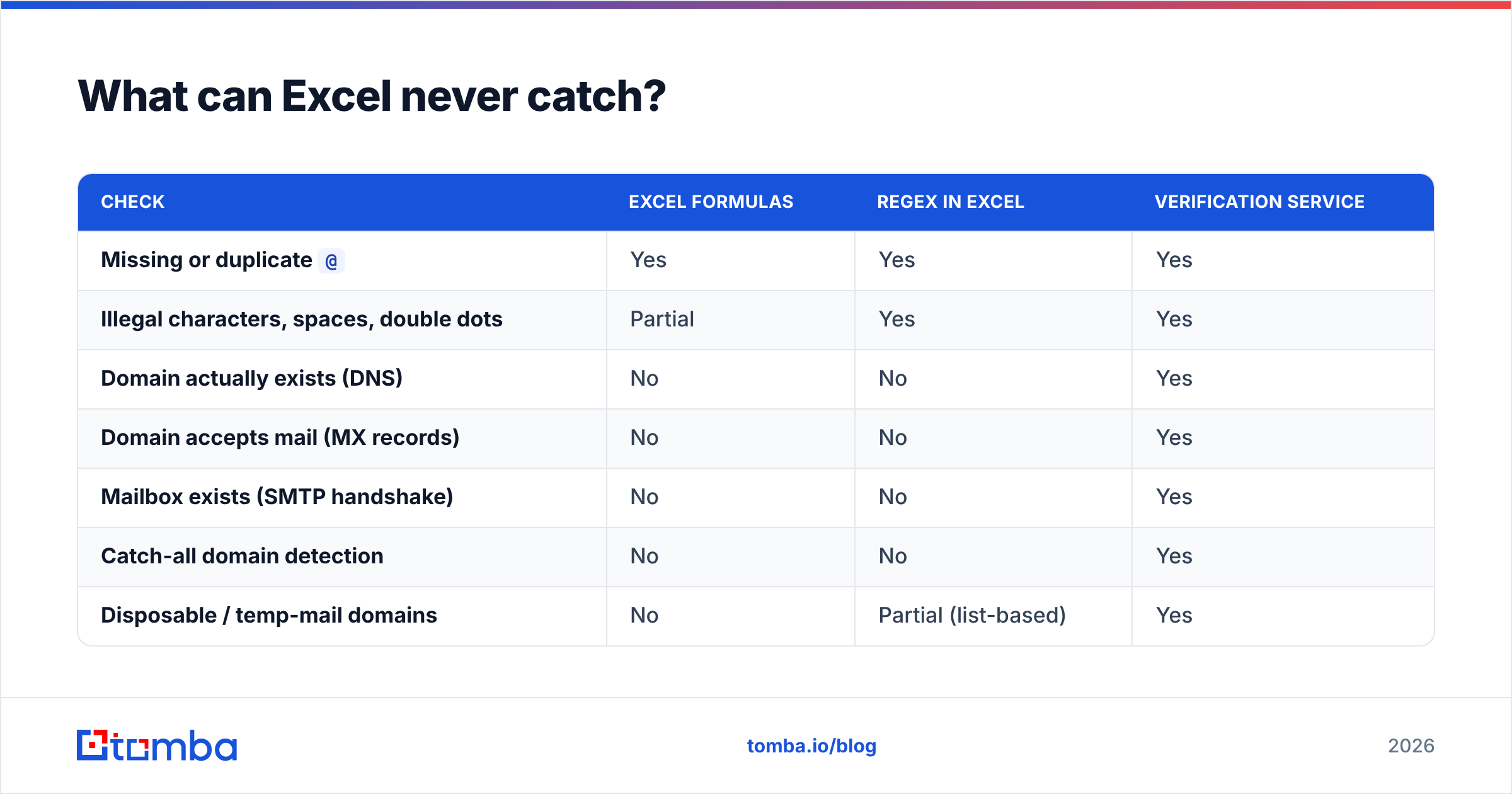
This is where most "clean your list in Excel" tutorials stop, and it's the part that actually determines whether your campaign lands. Here is the honest capability split:
| Check | Excel formulas | Regex in Excel | Verification service |
|---|---|---|---|
Missing or duplicate @ |
Yes | Yes | Yes |
| Illegal characters, spaces, double dots | Partial | Yes | Yes |
| Domain actually exists (DNS) | No | No | Yes |
| Domain accepts mail (MX records) | No | No | Yes |
| Mailbox exists (SMTP handshake) | No | No | Yes |
| Catch-all domain detection | No | No | Yes |
| Disposable / temp-mail domains | No | Partial (list-based) | Yes |
Role accounts (info@, hr@) |
Partial (COUNTIF list) | Yes | Yes |
| Known spam traps | No | No | Yes |
| Cost for 10,000 rows | Free | Free | ~$10-50 |
| Time for 10,000 rows | Seconds | Seconds | 5-20 minutes |
The numbers behind row three and four are the whole argument. B2B contact data decays at roughly 22-30% per year as people change jobs — every one of those addresses is syntactically perfect and completely dead. A formula rates them "OK." Your ESP rates them "hard bounce."
Mailbox providers start throttling or filtering once your bounce rate crosses about 2%, and Google and Yahoo's bulk-sender rules made that threshold explicit rather than folkloric. A list that passed a regex check but never got verified routinely bounces at 12-20%. That's not a deliverability dip; that's a burned sending domain.

How do you dedupe and normalise before verifying?#
Verification is priced per credit, so remove waste before you spend anything.
Lowercase everything. John@Acme.com and john@acme.com are the same mailbox but Excel's Remove Duplicates treats them as identical anyway (it's case-insensitive) — the reason to lowercase is that downstream tools and CRMs often are not. Use =LOWER(TRIM(A2)) into a clean column, then paste-values over the original.
Remove duplicates properly. Data → Remove Duplicates on the cleaned column, not the raw one. On a typical multi-source list this drops 5-15% of rows. If you'd rather not build the helper columns, a browser-based remove duplicates tool does the same job on a pasted list.
Split personal from business. Use the domain column with a COUNTIF against a small free-provider list. Consumer domains in a B2B list usually signal a form-fill you don't want in a cold sequence.
Decide on role accounts. info@, support@, careers@ rarely convert in outbound and often sit behind shared inboxes with aggressive filtering. Flag them with =IF(OR(LEFT(A2,5)="info@",LEFT(A2,6)="sales@",LEFT(A2,8)="support@"),"ROLE","PERSON") and segment rather than delete — for partnership or vendor outreach they're sometimes the right target.
Then verify what's left. After these four passes you're typically sending 60-75% of the original row count into a paid verifier, which is where the savings show up.
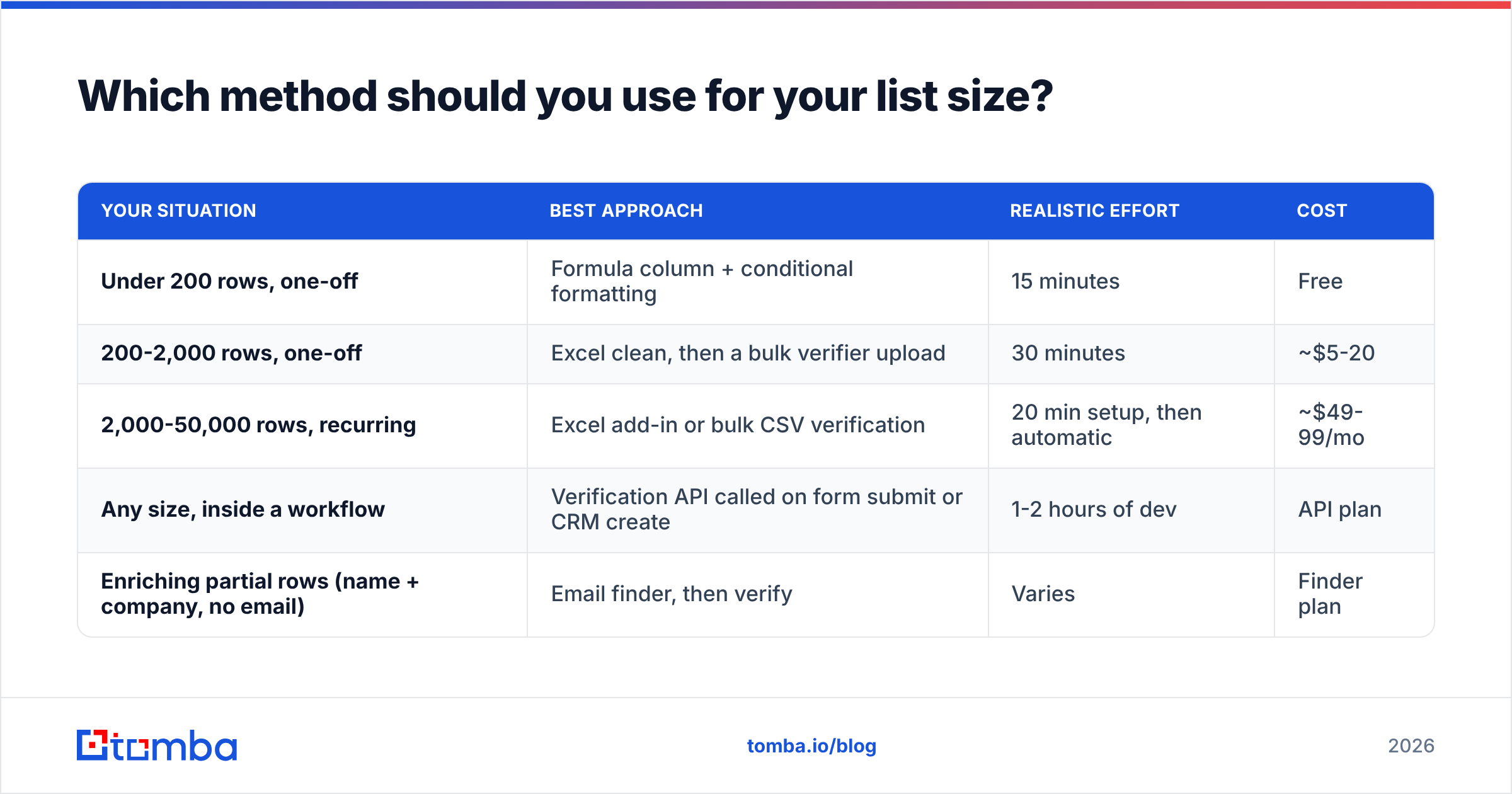
Which method should you use for your list size?#
| Your situation | Best approach | Realistic effort | Cost |
|---|---|---|---|
| Under 200 rows, one-off | Formula column + conditional formatting | 15 minutes | Free |
| 200-2,000 rows, one-off | Excel clean, then a bulk verifier upload | 30 minutes | ~$5-20 |
| 2,000-50,000 rows, recurring | Excel add-in or bulk CSV verification | 20 min setup, then automatic | ~$49-99/mo |
| Any size, inside a workflow | Verification API called on form submit or CRM create | 1-2 hours of dev | API plan |
| Enriching partial rows (name + company, no email) | Email finder, then verify | Varies | Finder plan |
For the middle rows, an Excel email finder add-in matters more than it sounds: the friction of exporting to CSV, uploading, waiting, downloading and VLOOKUP-ing results back into the sheet is what makes people skip verification entirely. Doing it in the same window removes the excuse.
If you're spot-checking a handful of addresses rather than a list, a free email checker answers the question in a browser tab without spending credits.
How do you handle catch-all domains?#
Catch-all domains are the reason two verification tools can disagree about the same address.
A catch-all (or "accept-all") server says yes to every recipient at that domain — ceo@acme.com and asdkjh@acme.com both come back accepted. The SMTP handshake genuinely cannot distinguish them. Roughly 15-25% of B2B domains are configured this way, and it's more common at larger enterprises.
Tools handle this in one of three ways, and you should know which one yours does:
- Mark everything at that domain valid. Optimistic. Inflates your "verified" count and quietly raises your bounce rate.
- Mark everything "unknown" and refuse to guess. Safe but wasteful — you paid for a credit and got a shrug, and you may be discarding a third of your enterprise targets.
- Score the address using pattern evidence — does the address match the company's dominant format, does it appear in other sources, is the person confirmed at the company. This is what a dedicated catch-all verifier does, and it's the only approach that keeps enterprise domains usable.
Practical rule: send to high-confidence catch-all addresses in a separate campaign from a separate subdomain, at low volume, and watch the bounce rate before you scale it. Never blend them into a 5,000-address blast on your primary domain.
What does a complete cleaning workflow look like?#
Here's the end-to-end sequence that takes a raw export to a sendable list:
- Normalise.
=LOWER(TRIM(CLEAN(SUBSTITUTE(A2,CHAR(160)," "))))into a new column, then paste-values. - Strip prefixes and stray names. Remove
mailto:and anything outside<>brackets with SUBSTITUTE or Flash Fill. - Syntax check. REGEXTEST or the FIND-based formula. Filter to
CHECK, repair what's repairable, delete the rest. - Extract domains. Sort by domain and hand-fix typo domains — this step recovers contacts nothing else will.
- Dedupe. Data → Remove Duplicates on the cleaned column.
- Segment. Role vs person, business vs personal domain.
- Verify. Run the survivors through an email verifier for MX, SMTP, disposable, and catch-all checks.
- Split the output. Valid → send. Catch-all → separate low-volume test. Invalid/unknown → suppression list, not the bin. Keeping them prevents re-importing the same dead addresses next quarter.
- Re-verify on a schedule. Every 60-90 days for an active list, or before any campaign to a list older than three months.
Step 8 is the one teams skip and regret. A suppression list is institutional memory; deleting bad rows just means you'll buy them again.
If you want to compare tools before committing, the email verification category on G2 has enough real reviews to filter out the vendors whose accuracy claims don't survive contact with a real list.
What if the addresses in your spreadsheet are wrong, not just invalid?#
There's a scenario the whole workflow above can't fix: the column is full of guessed addresses. Someone ran a permutation tool, generated first.last@company.com for 800 contacts, and now 60% of them fail verification.
Verification tells you those are dead. It doesn't tell you the right one.
That's a sourcing problem, not a cleaning problem. When your sheet has names and companies but the emails are guesses, the fix is to re-source the addresses from actual data — public web signals, corporate patterns confirmed across multiple employees, and cross-referenced sources — rather than to keep permuting and testing. Verifying a guess costs a credit and returns nothing you can use.
Clean the list you have, then source the ones you're missing. Tomba's Email Finder returns confirmed professional addresses from a name and domain, with a confidence score and the sources behind it, so the rows entering your spreadsheet are right before any formula has to judge them. The free tier covers 25 searches a month if you just want to test it against addresses you already know are correct; paid plans start at $49/mo, and the Excel add-in, bulk uploads and API all run on the same data. Start with the addresses your formulas just flagged red — replace them instead of deleting them.
Related guides#
// get started
Find, verify and enrich your first contacts today
Start on the free plan with 25 searches a month, then scale when your team is ready.
Free plan · No credit card required · GDPR & CCPA
// about the author