How to Set Up SPF and DKIM: A 2026 Step-by-Step Guide
SPF and DKIM take about 20 minutes to configure and stop most of your cold email from landing in spam. Here is the exact DNS record setup, the syntax that breaks it, and how to verify it worked.
TL;DR
- SPF is a DNS TXT record listing which servers may send mail as your domain. DKIM is a cryptographic signature proving the message was not altered in transit. You need both, plus DMARC on top.
- You can only publish one SPF TXT record per domain, and it must resolve in 10 DNS lookups or fewer. Breaking either rule silently kills authentication.
- DKIM is generated by your sending platform (Google Workspace, Microsoft 365, SendGrid, Instantly). You copy the selector record into DNS — you never write the key yourself.
- Since February 2024, Google and Yahoo require SPF or DKIM for all senders, and SPF and DKIM and DMARC for anyone sending 5,000+ messages a day to their users.
- Budget 20 minutes of work and up to 48 hours of DNS propagation. Verify with a checker before you send a single cold email.
What Are SPF and DKIM, in Plain Terms?#
Think of an envelope arriving at an apartment building. SPF is the doorman's approved-visitor list: the building checks whether the courier who showed up is on the list for that apartment. DKIM is a tamper-evident seal on the envelope: even if the courier is legitimate, the seal proves nobody opened and rewrote the letter along the way.
Technically:
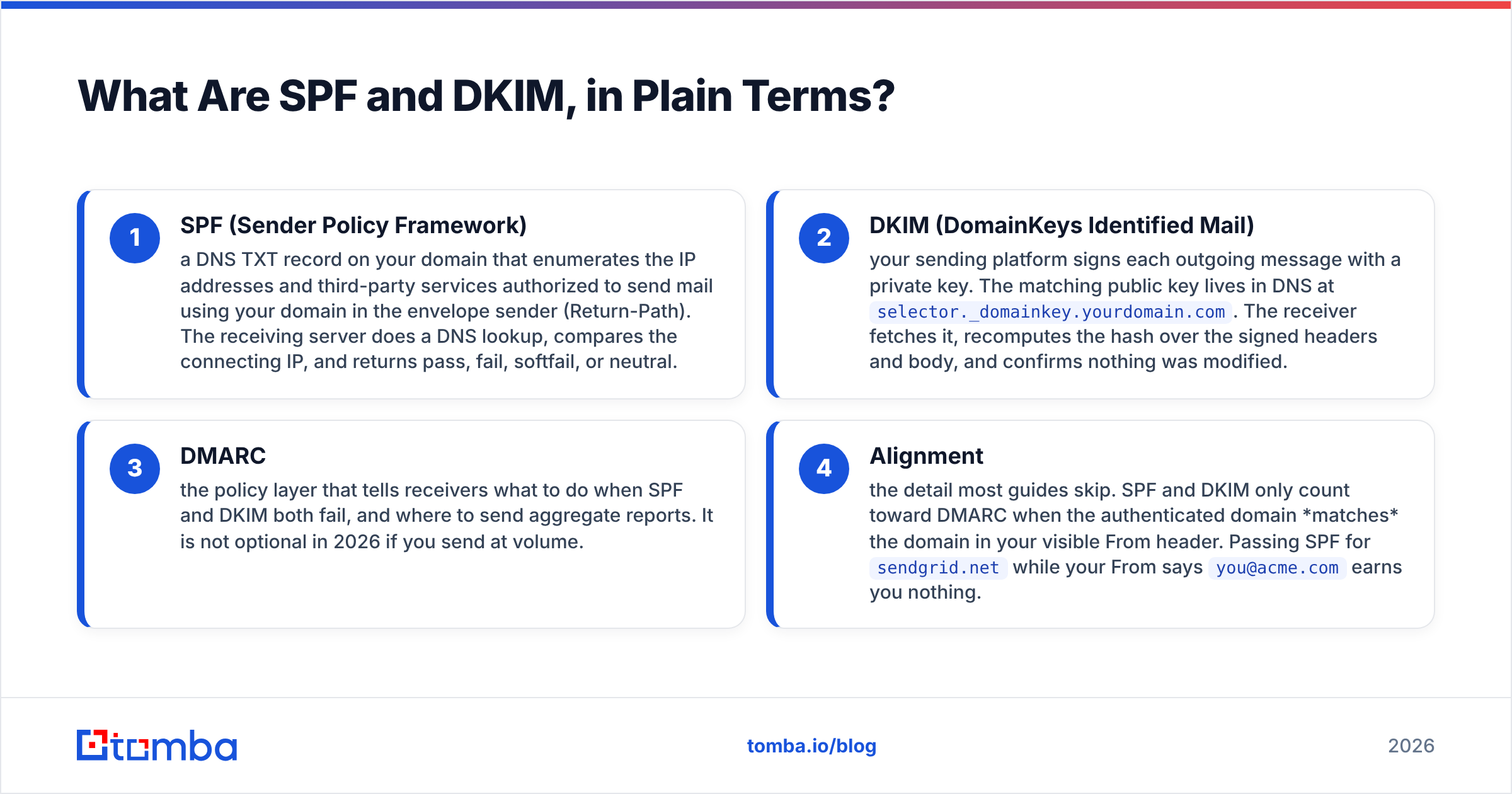
- SPF (Sender Policy Framework) — a DNS TXT record on your domain that enumerates the IP addresses and third-party services authorized to send mail using your domain in the envelope sender (Return-Path). The receiving server does a DNS lookup, compares the connecting IP, and returns pass, fail, softfail, or neutral.
- DKIM (DomainKeys Identified Mail) — your sending platform signs each outgoing message with a private key. The matching public key lives in DNS at
selector._domainkey.yourdomain.com. The receiver fetches it, recomputes the hash over the signed headers and body, and confirms nothing was modified. - DMARC — the policy layer that tells receivers what to do when SPF and DKIM both fail, and where to send aggregate reports. It is not optional in 2026 if you send at volume.
- Alignment — the detail most guides skip. SPF and DKIM only count toward DMARC when the authenticated domain matches the domain in your visible From header. Passing SPF for
sendgrid.netwhile your From saysyou@acme.comearns you nothing.
That fourth point is why plenty of teams "have SPF set up" and still land in spam. Authentication that does not align is authentication that does not count.

How Do You Set Up SPF Step by Step?#
You need access to your domain's DNS panel — Cloudflare, GoDaddy, Namecheap, Route 53, whatever hosts your nameservers. Not your email client. DNS.
Step 1 — Inventory every service that sends as your domain. Google Workspace, Microsoft 365, HubSpot, Mailchimp, your billing system, your helpdesk, your cold email tool. Miss one and its mail starts failing the day you publish a strict record.
Step 2 — Collect each vendor's SPF include. Every provider documents theirs. Google Workspace uses include:_spf.google.com. Microsoft 365 uses include:spf.protection.outlook.com. Check the vendor's own docs rather than a blog post — includes change.
Step 3 — Write a single record. Combine everything into one TXT record at the root of your domain:
v=spf1 include:_spf.google.com include:spf.protection.outlook.com include:sendgrid.net ~allRules that matter:
v=spf1must come first.- Order of mechanisms after that does not affect the result, but the record is evaluated left to right and stops at the first match.
- End with
~all(softfail) or-all(hardfail). Start with~allwhile you validate, move to-allonce you are confident. Never use+all— that authorizes the entire internet to spoof you. - One SPF record per domain. Two
v=spf1TXT records is a permerror, and permerror is treated as no SPF at all.
Step 4 — Publish it. Host: @ (or your domain). Type: TXT. TTL: 3600 is fine.
Step 5 — Count your lookups. SPF allows a maximum of 10 DNS lookups when resolving the whole chain. Each include, a, mx, ptr, and exists costs one — and includes nest, so a single vendor include can consume three or four on its own. Blow past 10 and you get permerror. This is the single most common SPF failure in B2B stacks that have accumulated tools over the years.
If you are over the limit, remove services you no longer use, replace a and mx mechanisms with explicit ip4: entries (those cost zero lookups), or use an SPF flattening service. Run your record through a free SPF checker before you trust it.
How Do You Set Up DKIM Step by Step?#
DKIM is less error-prone because you do not author the key — your platform does.
Step 1 — Generate the key in your sending platform. In Google Workspace: Admin console → Apps → Google Workspace → Gmail → Authenticate email → Generate new record. Pick 2048-bit if your DNS host supports long TXT values (most now do). In Microsoft 365: Defender portal → Email & collaboration → Policies & rules → Threat policies → Email authentication settings → DKIM.
Step 2 — Copy the selector and the public key. You will get something like host google._domainkey and a value starting v=DKIM1; k=rsa; p=MIIBIjANBgkq.... The word before ._domainkey is the selector, and it lets you run multiple keys on one domain — one per sending platform.
Step 3 — Publish as a TXT record. Host: google._domainkey. Type: TXT. Value: the full string, unbroken. Some DNS panels split long values into quoted chunks automatically; that is fine and standards-compliant. Manually inserting spaces or line breaks is not.
Step 4 — Return to the platform and click "Start authentication." Google will not sign your mail until you flip that switch, even with the DNS record live. Plenty of people publish the record, walk away, and wonder why nothing changed.
Step 5 — Repeat per sending service. Each vendor gets its own selector. SendGrid uses s1._domainkey and s2._domainkey as CNAMEs. Mailchimp uses k1._domainkey. There is no conflict as long as the selectors differ.
Step 6 — Add DMARC. Once SPF and DKIM both pass, publish at _dmarc.yourdomain.com:
v=DMARC1; p=none; rua=mailto:dmarc@yourdomain.com; fo=1Run p=none for two to four weeks, read the aggregate reports, then move to p=quarantine and eventually p=reject. Jumping straight to p=reject on a domain with unknown senders is how legitimate invoices vanish.
SPF vs DKIM vs DMARC: Which Does What?#
| Attribute | SPF | DKIM | DMARC |
|---|---|---|---|
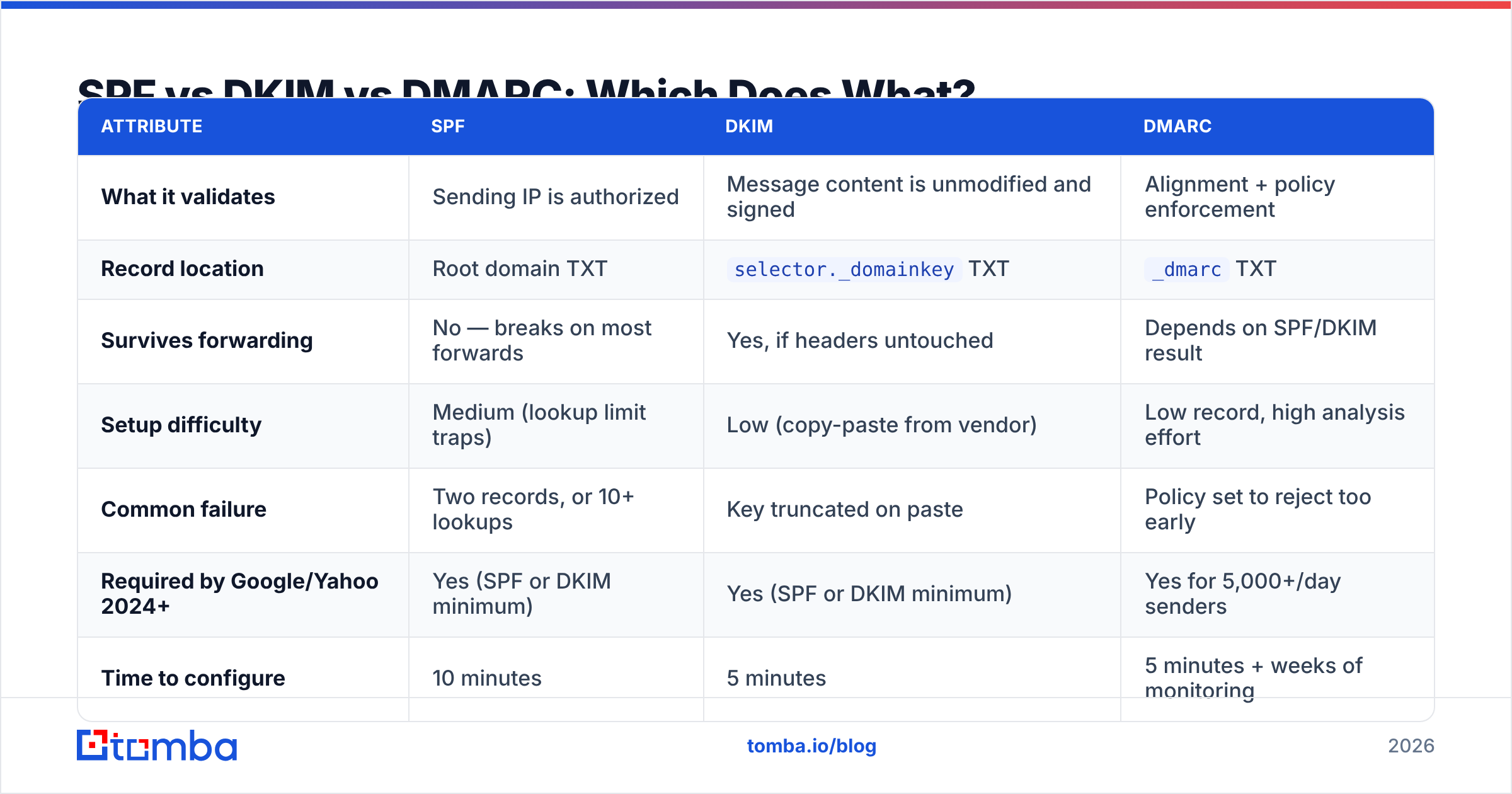
| What it validates | Sending IP is authorized | Message content is unmodified and signed | Alignment + policy enforcement |
| Record location | Root domain TXT | selector._domainkey TXT |
_dmarc TXT |
| Survives forwarding | No — breaks on most forwards | Yes, if headers untouched | Depends on SPF/DKIM result |
| Setup difficulty | Medium (lookup limit traps) | Low (copy-paste from vendor) | Low record, high analysis effort |
| Common failure | Two records, or 10+ lookups | Key truncated on paste | Policy set to reject too early |
| Required by Google/Yahoo 2024+ | Yes (SPF or DKIM minimum) | Yes (SPF or DKIM minimum) | Yes for 5,000+/day senders |
| Time to configure | 10 minutes | 5 minutes | 5 minutes + weeks of monitoring |
The practical reading: DKIM is the more durable signal because it survives forwarding, SPF is the faster check, and DMARC is what turns both into an enforceable policy. Google's own Email sender guidelines spell out the current thresholds if you want the primary source.
How Do You Verify It Actually Worked?#
Do not trust the DNS panel's green checkmark. Verify from outside.
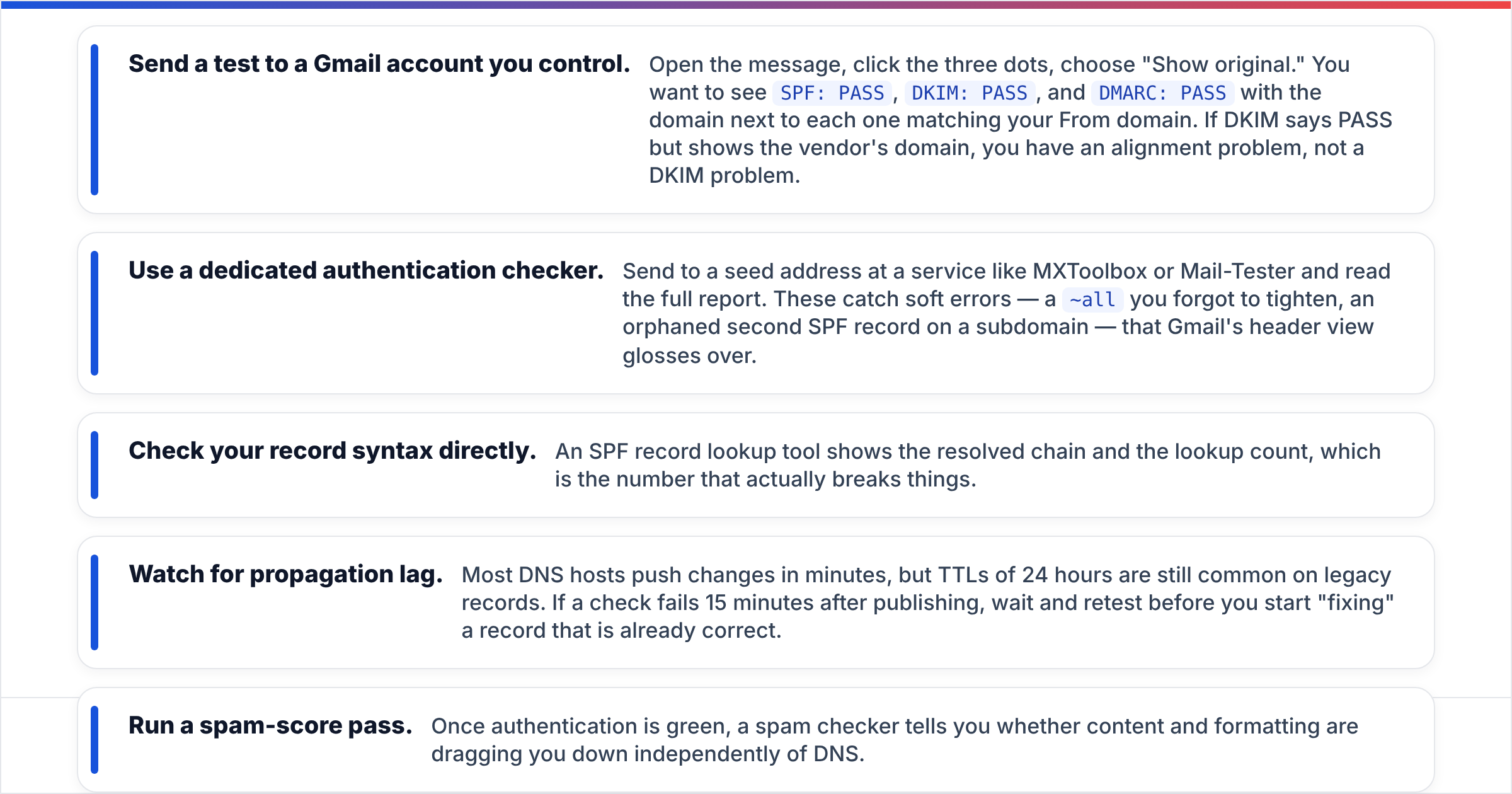
- Send a test to a Gmail account you control. Open the message, click the three dots, choose "Show original." You want to see
SPF: PASS,DKIM: PASS, andDMARC: PASSwith the domain next to each one matching your From domain. If DKIM says PASS but shows the vendor's domain, you have an alignment problem, not a DKIM problem. - Use a dedicated authentication checker. Send to a seed address at a service like MXToolbox or Mail-Tester and read the full report. These catch soft errors — a
~allyou forgot to tighten, an orphaned second SPF record on a subdomain — that Gmail's header view glosses over. - Check your record syntax directly. An SPF record lookup tool shows the resolved chain and the lookup count, which is the number that actually breaks things.
- Watch for propagation lag. Most DNS hosts push changes in minutes, but TTLs of 24 hours are still common on legacy records. If a check fails 15 minutes after publishing, wait and retest before you start "fixing" a record that is already correct.
- Run a spam-score pass. Once authentication is green, a spam checker tells you whether content and formatting are dragging you down independently of DNS.

What Are the Most Common SPF and DKIM Mistakes?#
These are the failures that show up over and over in deliverability audits:
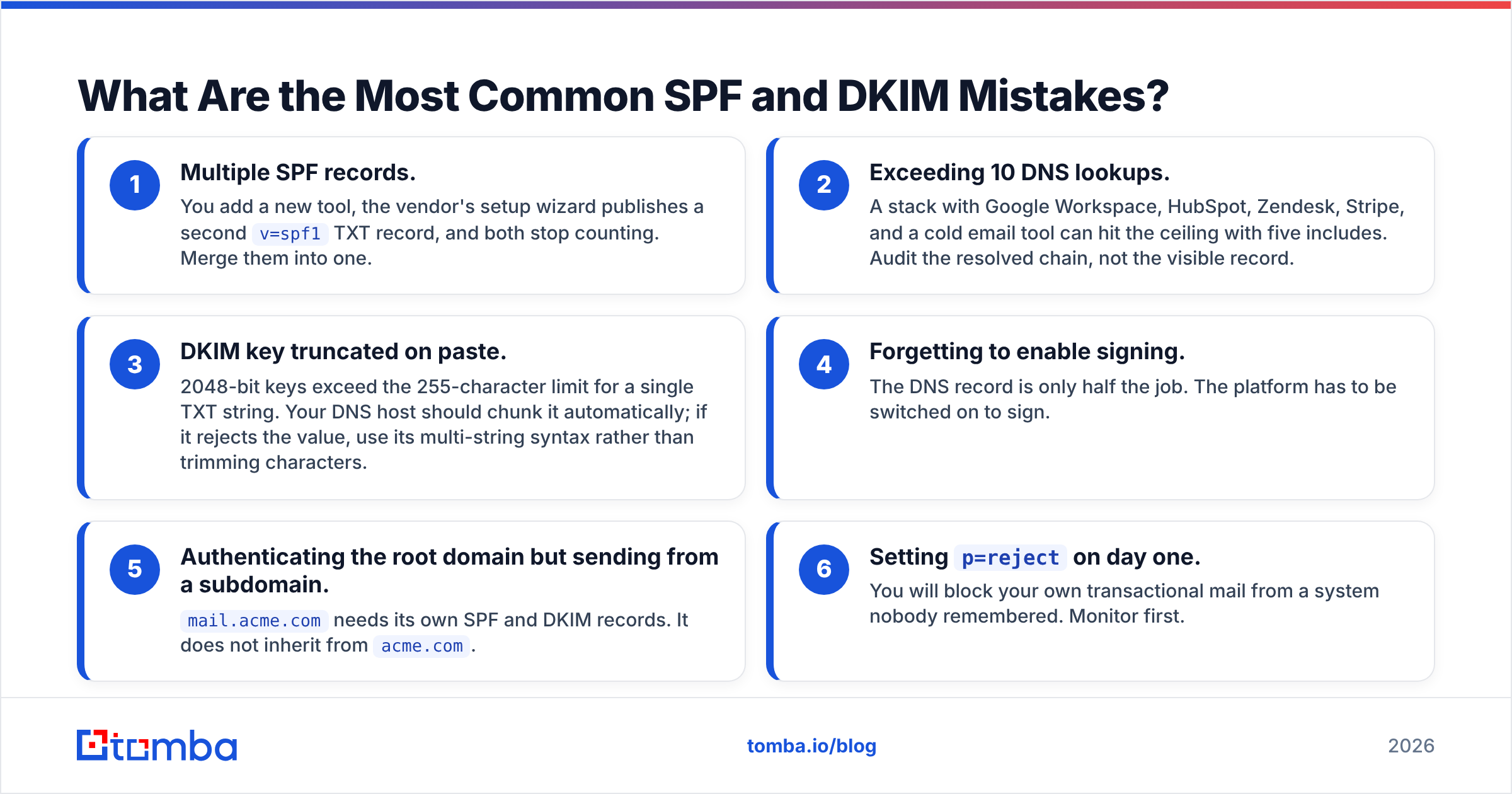
- Multiple SPF records. You add a new tool, the vendor's setup wizard publishes a second
v=spf1TXT record, and both stop counting. Merge them into one. - Exceeding 10 DNS lookups. A stack with Google Workspace, HubSpot, Zendesk, Stripe, and a cold email tool can hit the ceiling with five includes. Audit the resolved chain, not the visible record.
- DKIM key truncated on paste. 2048-bit keys exceed the 255-character limit for a single TXT string. Your DNS host should chunk it automatically; if it rejects the value, use its multi-string syntax rather than trimming characters.
- Forgetting to enable signing. The DNS record is only half the job. The platform has to be switched on to sign.
- Authenticating the root domain but sending from a subdomain.
mail.acme.comneeds its own SPF and DKIM records. It does not inherit fromacme.com. - Setting
p=rejecton day one. You will block your own transactional mail from a system nobody remembered. Monitor first.
Getting DNS right also removes the excuse for the other half of deliverability work. Authentication gets you to the inbox door; list quality decides whether you stay there. Sending to dead addresses spikes bounce rates and torches sender reputation regardless of how clean your SPF record is — which is why a verification pass before every send matters as much as the DNS work.
Do You Still Need SPF and DKIM If You Use a Warmup Tool?#
Yes, and warmup does nothing without them.
Warmup tools generate positive engagement signals — opens, replies, moves out of spam — from a network of seed accounts. That builds reputation for a domain the receiving provider already trusts enough to evaluate. If your messages fail authentication, providers do not get far enough to weigh engagement. You are warming a domain that mailbox providers are still treating as unverified.
Sequence it in this order:
- Week 0: Publish SPF, DKIM, and DMARC at
p=none. Verify with header inspection. - Week 1–2: Start warmup at low volume. Read DMARC aggregate reports for unauthorized senders.
- Week 3: Move DMARC to
p=quarantine. Increase sending volume gradually. - Week 4+: Move to
p=rejectonce reports are clean. Ramp to full volume.
Skipping to week 3 is the standard mistake. Authentication is the prerequisite, not a parallel track.
What About Multiple Domains and Sending Accounts?#
Most outbound teams run secondary domains — getacme.com, acme-mail.com — to insulate the primary brand domain from reputation damage. Each one needs the full treatment: its own SPF record, its own DKIM selector, its own DMARC policy. There is no inheritance and no shortcut.
Keep a simple registry: domain, registrar, DNS host, SPF record, DKIM selectors, DMARC policy, date last verified. Ninety percent of "our deliverability suddenly dropped" incidents trace back to a domain nobody had checked in a year, usually after a vendor rotated its includes or someone let a registration lapse.
For teams running outbound at scale, pair that registry with a quarterly re-verification of the contact data flowing through those domains. A clean DNS setup pushing a stale list still produces bounces, and bounces are what mailbox providers actually punish. Running lists through an email verifier before each campaign keeps hard bounces under the 2% threshold that most providers treat as the danger line, and a catch-all verifier handles the domains that accept everything and tell you nothing.
Where Should You Go From Here?#
SPF and DKIM are a one-afternoon job with a long tail of maintenance. Publish one SPF record under 10 lookups, add a DKIM selector per sending platform, layer DMARC on top at p=none, verify from outside your own infrastructure, and re-check every quarter. That is the entire discipline.
The part most teams underestimate is what flows through the authenticated pipe. Perfect DNS records with a list scraped six months ago produce bounce rates that undo the work in a week. Build the prospect list with data that is verified at the moment of send, not at the moment of scrape.
That is where Tomba's Email Finder fits: find verified professional addresses by name and domain, with verification built into the same call, so the addresses you send to are live when your authenticated servers hand them off. The free tier gives you 25 searches a month to test the accuracy on your own target accounts, and paid plans start at $49/month — see Tomba pricing for the full breakdown. Get the DNS right this afternoon, then make sure the list deserves it.
Related guides#
// get started
Find, verify and enrich your first contacts today
Start on the free plan with 25 searches a month, then scale when your team is ready.
Free plan · No credit card required · GDPR & CCPA
// about the author