How to Setup SPF, DKIM, and DMARC: A 2026 Walkthrough
A step-by-step guide to publishing SPF, DKIM, and DMARC records that actually pass — including the DNS syntax, the alignment rules everyone gets wrong, and how to move to p=reject without losing mail.
TL;DR
- SPF, DKIM, and DMARC are three separate DNS records. You need all three — DMARC only works if at least one of the other two aligns with your From domain.
- SPF is a single TXT record at your root domain listing who may send for you. Keep it under 10 DNS lookups or it hard-fails.
- DKIM is a public key at
selector._domainkey.yourdomain.com, generated by your mail provider. Enable it in the provider's console, paste the record, verify. - DMARC is a TXT record at
_dmarc.yourdomain.com. Start atp=nonewith reporting on, read the reports for 2–4 weeks, then move toquarantineandreject. - Google and Yahoo have required DMARC for bulk senders since February 2024, and Microsoft extended enforcement to Outlook consumer mailboxes in 2025. Unauthenticated cold email is no longer "risky" — it is rejected.
What are SPF, DKIM, and DMARC, and why do you need all three?#
Think of sending an email like mailing a physical package. SPF is the approved-carriers list taped to the loading dock: only these trucks may drop off packages in our name. DKIM is a tamper-evident seal across the flap — if someone opened the box in transit, the seal breaks. DMARC is the policy the receiving warehouse follows when the truck isn't on the list or the seal is broken: log it, hold it, or refuse it.
Technically:
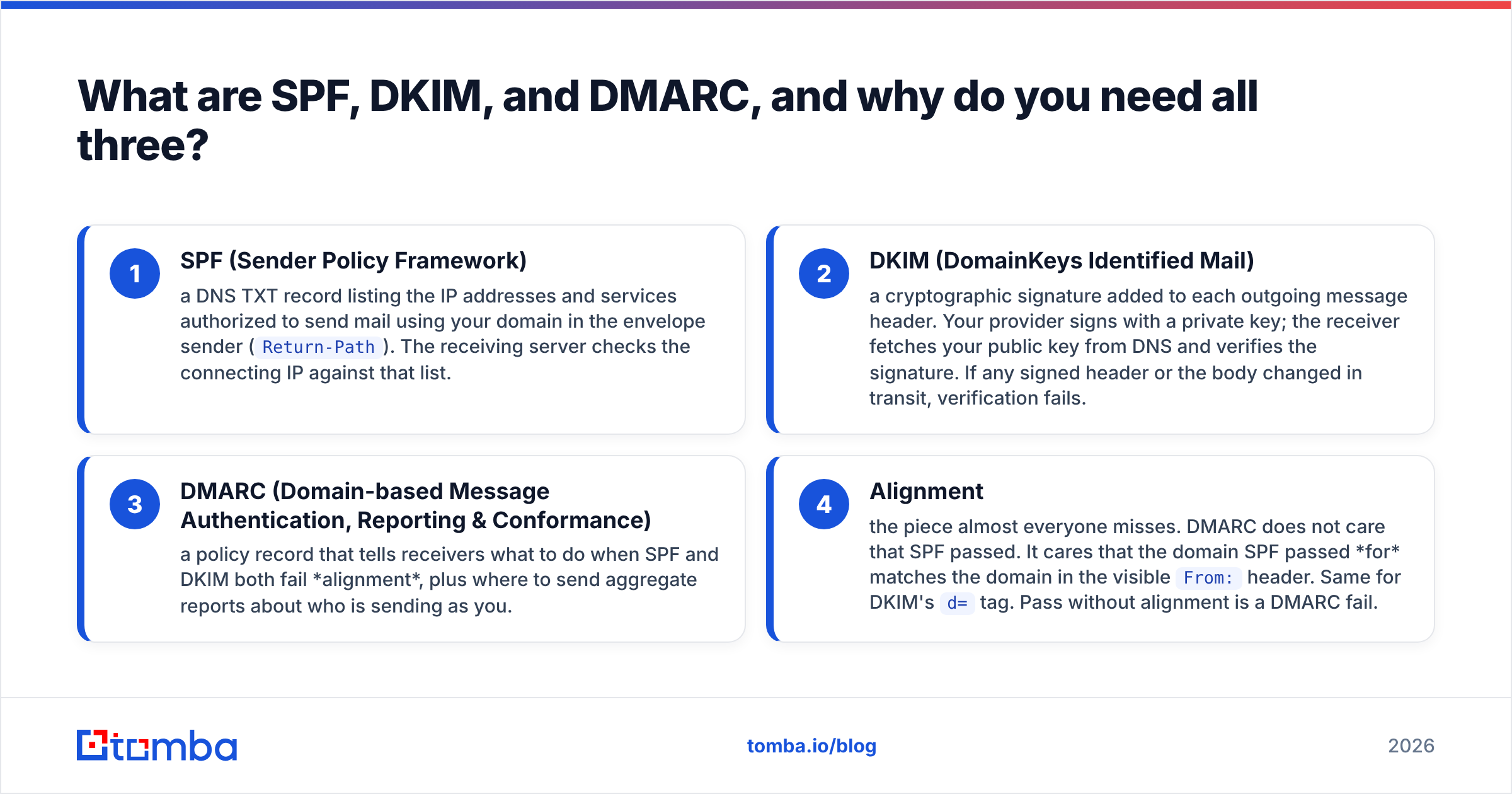
- SPF (Sender Policy Framework) — a DNS TXT record listing the IP addresses and services authorized to send mail using your domain in the envelope sender (
Return-Path). The receiving server checks the connecting IP against that list. - DKIM (DomainKeys Identified Mail) — a cryptographic signature added to each outgoing message header. Your provider signs with a private key; the receiver fetches your public key from DNS and verifies the signature. If any signed header or the body changed in transit, verification fails.
- DMARC (Domain-based Message Authentication, Reporting & Conformance) — a policy record that tells receivers what to do when SPF and DKIM both fail alignment, plus where to send aggregate reports about who is sending as you.
- Alignment — the piece almost everyone misses. DMARC does not care that SPF passed. It cares that the domain SPF passed for matches the domain in the visible
From:header. Same for DKIM'sd=tag. Pass without alignment is a DMARC fail.
That fourth point is the whole game. A message sent through a third-party platform can pass SPF against mail.sendingplatform.com and still fail DMARC because your readers see you@yourcompany.com in the From line. This is exactly why custom sending domains and CNAME-based branded tracking exist.

How do the three records compare?#
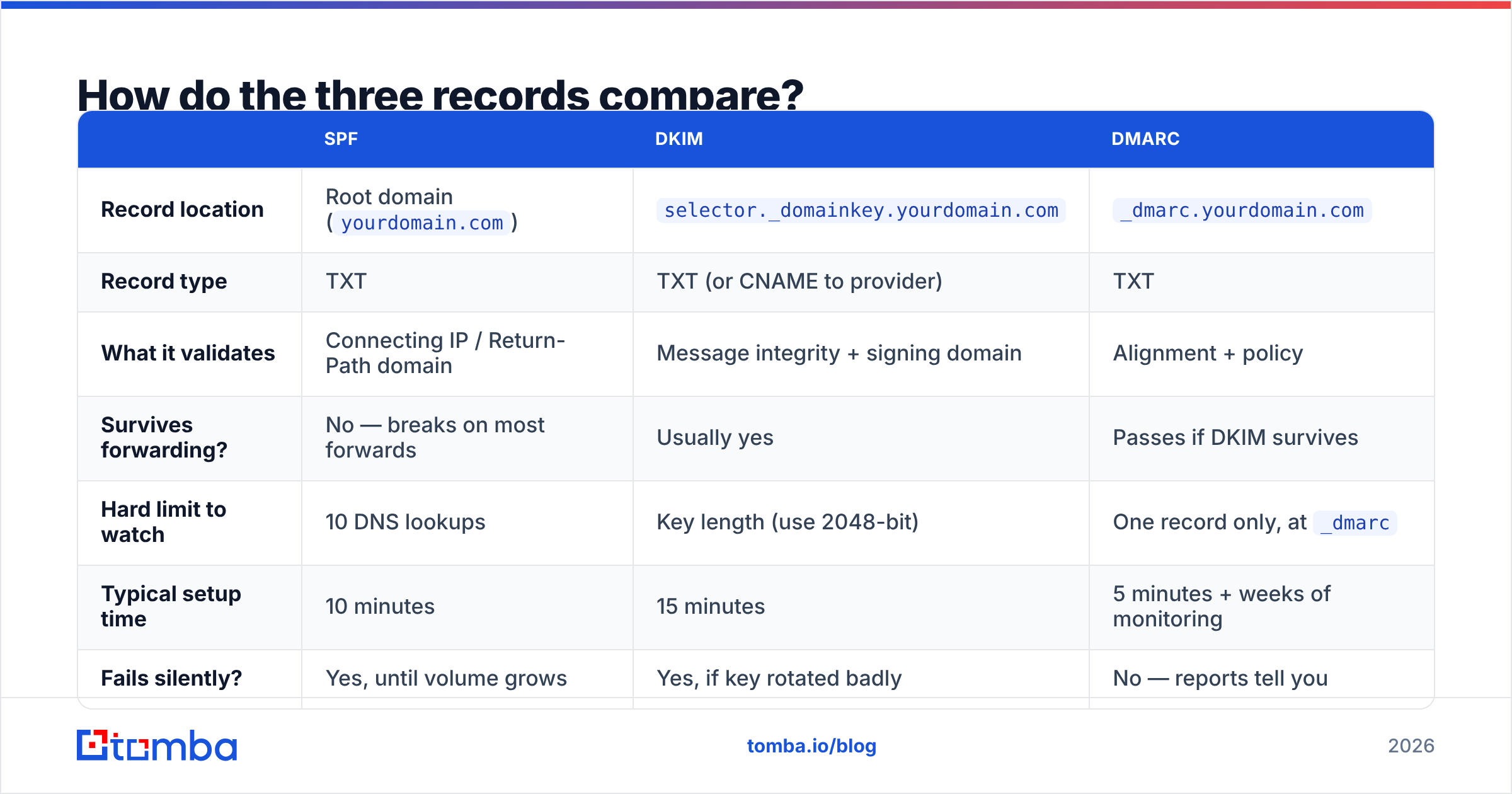
| SPF | DKIM | DMARC | |
|---|---|---|---|
| Record location | Root domain (yourdomain.com) |
selector._domainkey.yourdomain.com |
_dmarc.yourdomain.com |
| Record type | TXT | TXT (or CNAME to provider) | TXT |
| What it validates | Connecting IP / Return-Path domain | Message integrity + signing domain | Alignment + policy |
| Survives forwarding? | No — breaks on most forwards | Usually yes | Passes if DKIM survives |
| Hard limit to watch | 10 DNS lookups | Key length (use 2048-bit) | One record only, at _dmarc |
| Typical setup time | 10 minutes | 15 minutes | 5 minutes + weeks of monitoring |
| Fails silently? | Yes, until volume grows | Yes, if key rotated badly | No — reports tell you |
| Multiple records allowed? | No, one TXT starting v=spf1 |
Yes, one per selector | No |
Read that "survives forwarding" row twice. It explains why DKIM is the more durable of the two authentication mechanisms and why a DMARC setup resting only on SPF will produce mystery failures whenever a recipient auto-forwards your mail to a personal address.
How do you set up SPF step by step?#
Step 1 — inventory every system that sends as your domain. Your mail host (Google Workspace, Microsoft 365), your cold email tool, your marketing platform, your CRM, your helpdesk, your billing system, your app's transactional sender. Missing one is the number one cause of "our invoices stopped arriving."
Step 2 — build one record. You get exactly one SPF record per domain. Two records starting with v=spf1 is a permanent error and receivers will treat the whole check as invalid.
v=spf1 include:_spf.google.com include:sendgrid.net include:spf.yourtool.com -allinclude:pulls in a vendor's own list of sending IPs. Use the exact string the vendor documents.ip4:/ip6:add your own servers directly.-allis a hard fail — anything not listed should be rejected.~allis a soft fail. Start with~allif you're not confident your inventory is complete, then tighten to-allwithin a month.
Step 3 — count your DNS lookups. SPF permits a maximum of 10 DNS-resolving mechanisms (include, a, mx, ptr, exists, redirect). Exceed it and you get permerror, which most receivers treat as a fail. Each include: may itself nest more lookups — Google Workspace alone consumes several. If you're over, use an SPF flattening service or drop senders you no longer use.
Step 4 — publish and verify. Add the TXT record at the root (@) of your domain, wait for propagation, then confirm with an SPF checker and send a test message to a Gmail address. Open the message, hit "Show original," and read the SPF line.
How do you set up DKIM step by step?#
DKIM is generated on the provider's side — you never invent the key yourself.
Step 1 — turn on DKIM signing in each sending platform. In Google Workspace it lives under Apps → Google Workspace → Gmail → Authenticate email. In Microsoft 365 it's in the Defender portal under Email authentication settings. In your cold email tool it's usually part of the custom-domain setup wizard.
Step 2 — pick a 2048-bit key if the provider offers a choice. Some legacy DNS hosts choke on the longer TXT value and require splitting it into 255-character chunks; most modern hosts handle it. 1024-bit still validates but is being phased out of best-practice guidance.
Step 3 — publish the record at the selector host. The provider gives you something like google._domainkey (the selector is google) with a value beginning v=DKIM1; k=rsa; p=MIIBIjANBg.... Paste it exactly — a single truncated character breaks every signature.
Step 4 — hit "Start authentication" in the provider console, not just in DNS. Publishing the record without flipping the provider's switch means nothing gets signed.
Step 5 — plan for rotation. Use a dated selector convention (s2026a, s2026b) so you can publish a new key, switch signing to it, and retire the old one without a signing gap. Rotate at least annually.
Each sending platform gets its own selector. Ten platforms means ten DKIM records — that's expected and fine, unlike SPF where you must consolidate into one.
How do you set up DMARC without breaking your mail flow?#
This is where teams do damage. Publishing p=reject on day one, before you know which legitimate senders fail alignment, will silently kill your invoices, password resets, and newsletter.
Run it in three phases.
Phase 1 — monitor (2–4 weeks). Publish at _dmarc.yourdomain.com:
v=DMARC1; p=none; rua=mailto:dmarc@yourdomain.com; fo=1; adkim=r; aspf=rp=none changes nothing about delivery. It just turns on the aggregate reports (rua), which arrive as daily XML from every major receiver. Feed them into a DMARC report parser — raw XML is unreadable at volume. What you're looking for: sending sources you don't recognize, and legitimate sources failing alignment.
Phase 2 — quarantine with a percentage ramp.
v=DMARC1; p=quarantine; pct=25; rua=mailto:dmarc@yourdomain.compct=25 applies the policy to a quarter of failing mail. Watch reports for a week, then go to 50, then 100. Failing mail lands in spam rather than vanishing, so mistakes are recoverable.
Phase 3 — reject.
v=DMARC1; p=reject; rua=mailto:dmarc@yourdomain.com; sp=reject; adkim=s; aspf=ssp=reject extends the policy to subdomains. adkim=s and aspf=s switch alignment from relaxed (subdomains count as a match) to strict (exact match required) — only do this once you've confirmed every sender signs with the exact From domain.
For the full definition of the terms in play, the email deliverability and sender reputation glossary entries are a useful reference while you read reports.

What are the most common SPF, DKIM, and DMARC mistakes?#
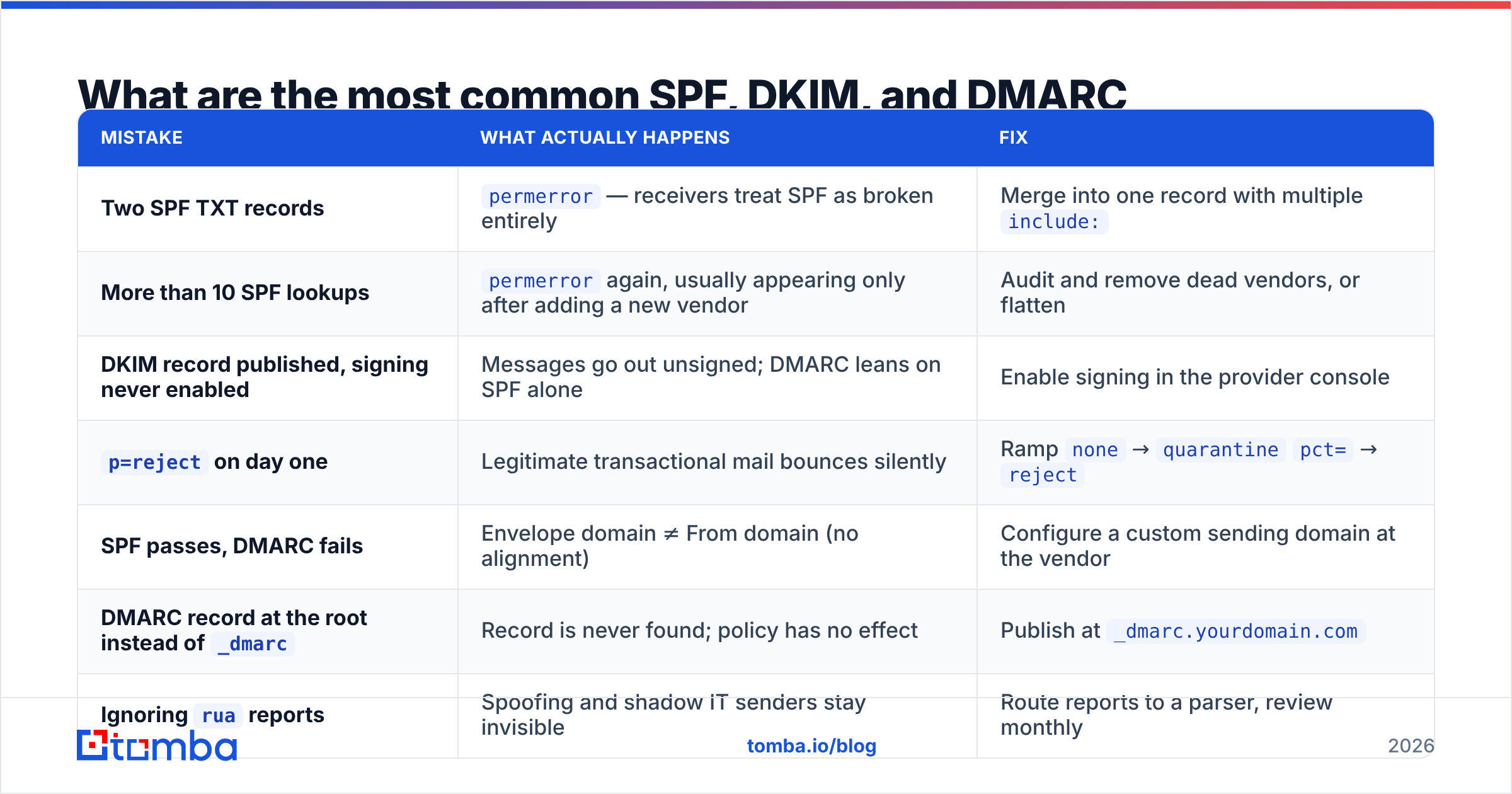
| Mistake | What actually happens | Fix |
|---|---|---|
| Two SPF TXT records | permerror — receivers treat SPF as broken entirely |
Merge into one record with multiple include: |
| More than 10 SPF lookups | permerror again, usually appearing only after adding a new vendor |
Audit and remove dead vendors, or flatten |
| DKIM record published, signing never enabled | Messages go out unsigned; DMARC leans on SPF alone | Enable signing in the provider console |
p=reject on day one |
Legitimate transactional mail bounces silently | Ramp none → quarantine pct= → reject |
| SPF passes, DMARC fails | Envelope domain ≠ From domain (no alignment) | Configure a custom sending domain at the vendor |
DMARC record at the root instead of _dmarc |
Record is never found; policy has no effect | Publish at _dmarc.yourdomain.com |
Ignoring rua reports |
Spoofing and shadow IT senders stay invisible | Route reports to a parser, review monthly |
| Rotating DKIM keys without overlap | Signing gap; a batch of mail fails verification | Dated selectors, overlap the old and new key |
Two more worth calling out. First, subdomain policy: if you don't set sp=, subdomains inherit the parent p= value — which is usually what you want, but a forgotten sp=none on an enforced domain is an open door for spoofers. Second, DMARC only evaluates the visible From domain, so a spoofer using a lookalike domain (yourc0mpany.com) is unaffected by any of this. That's a brand-protection problem, not an authentication one.
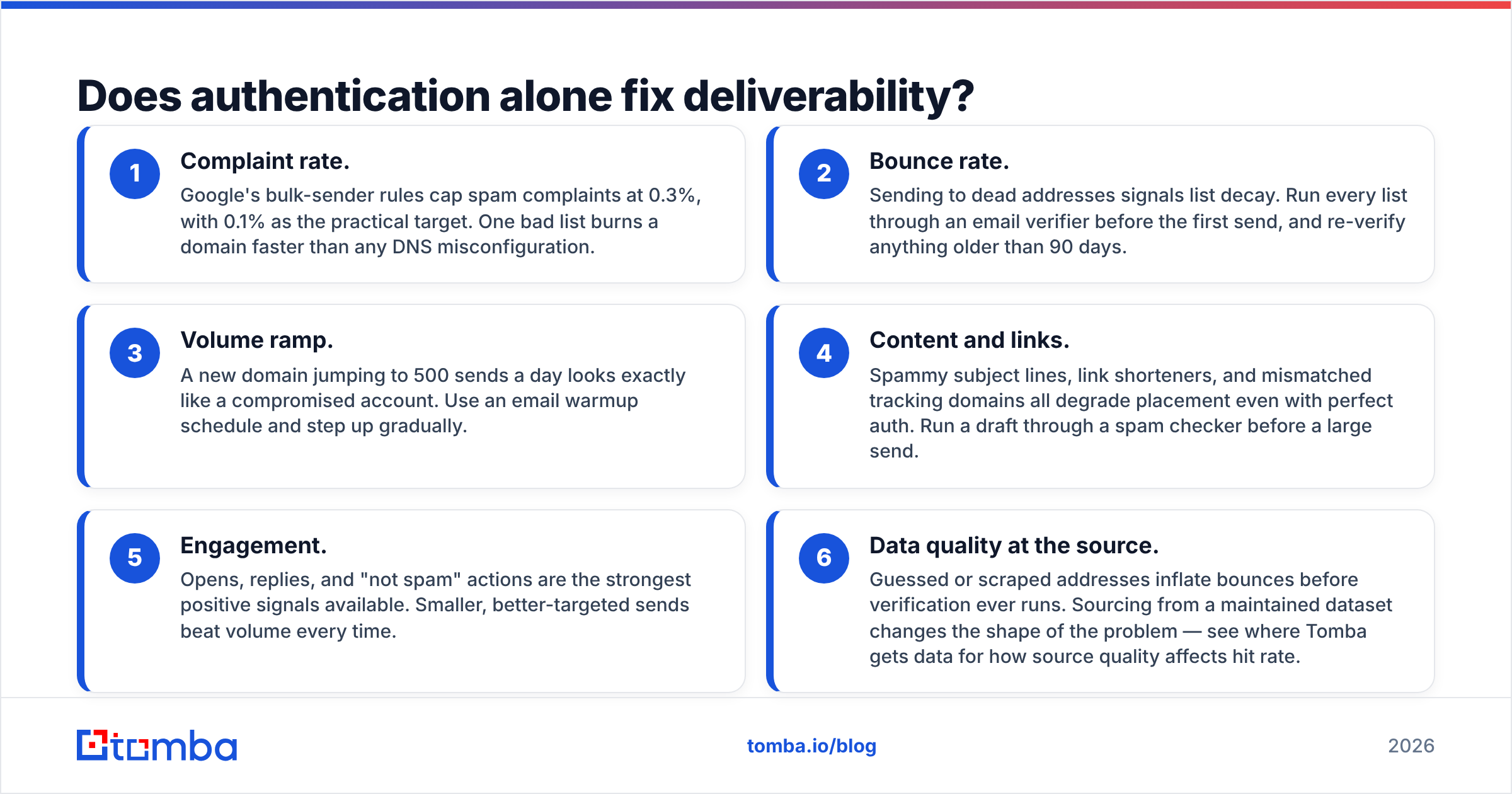
Does authentication alone fix deliverability?#
No — and this is the honest limit of the guide. SPF, DKIM, and DMARC get you permission to be judged on merit. They're table stakes, not an advantage. Passing all three tells Gmail your mail is genuinely from you; it says nothing about whether recipients want it.
Once authentication is clean, the remaining levers are:
- Complaint rate. Google's bulk-sender rules cap spam complaints at 0.3%, with 0.1% as the practical target. One bad list burns a domain faster than any DNS misconfiguration.
- Bounce rate. Sending to dead addresses signals list decay. Run every list through an email verifier before the first send, and re-verify anything older than 90 days.
- Volume ramp. A new domain jumping to 500 sends a day looks exactly like a compromised account. Use an email warmup schedule and step up gradually.
- Content and links. Spammy subject lines, link shorteners, and mismatched tracking domains all degrade placement even with perfect auth. Run a draft through a spam checker before a large send.
- Engagement. Opens, replies, and "not spam" actions are the strongest positive signals available. Smaller, better-targeted sends beat volume every time.
- Data quality at the source. Guessed or scraped addresses inflate bounces before verification ever runs. Sourcing from a maintained dataset changes the shape of the problem — see where Tomba gets data for how source quality affects hit rate.
The order matters. Authentication first, because nothing else you do gets measured until it's in place. Then list hygiene. Then content.
How do you verify everything is working?#
Send one test message to a Gmail account you control and open Show original. You want three lines reading PASS: SPF, DKIM, and DMARC. If DMARC shows FAIL while SPF or DKIM shows PASS, you have an alignment problem, not an authentication problem — go check that the domain in the SPF Return-Path or the DKIM d= tag matches your From domain.
Beyond a manual test:
- Aggregate reports. Within 24–72 hours of publishing
rua=, the XML starts arriving. Google's Postmaster Tools gives you domain reputation, spam rate, and authentication pass rates in a readable dashboard — set it up on day one. - Microsoft SNDS covers the Outlook side.
- Vendor documentation is the authority on
include:strings and selector names. Google's email authentication documentation is the canonical reference for Workspace, and Wikipedia's DMARC article has an accurate, vendor-neutral breakdown of the tag syntax if you want to understand what each field does before publishing it. - Re-check quarterly. Every new SaaS tool that sends mail on your behalf is a new SPF include and a new DKIM selector. Authentication rots as your stack grows.
What's the right sequence for a brand-new sending domain?#
If you're standing up a fresh domain for outbound, do it in this order:
- Register the domain and point MX at your mail host.
- Publish SPF with
~allwhile you confirm the sender inventory. - Enable DKIM signing and publish the selector record.
- Publish DMARC at
p=nonewithruareporting. - Warm up for 2–4 weeks with low-volume, high-engagement sends.
- Tighten SPF to
-allonce reports are clean. - Move DMARC to
quarantine, thenreject. - Only then scale volume.
Skipping straight to step 8 is the single most common reason a new outbound domain lands in spam within a week — and no amount of copy testing rescues it.
Where does list quality fit in?#
Authentication protects your domain. Data quality protects your reputation. You can have a flawless p=reject record and still get throttled by Gmail if a fifth of your sends bounce.
That's the part Tomba's Email Finder is built for: sourcing addresses that are real before they ever hit your sequence, with verification built into the same workflow rather than bolted on afterward. Free tier gives you 25 searches a month to sanity-check your process; Starter is $49/mo and Growth $99/mo when you're ready for volume — full pricing details here. Get your DNS records right first, then give those clean records a clean list to send to.
Related guides#
// get started
Find, verify and enrich your first contacts today
Start on the free plan with 25 searches a month, then scale when your team is ready.
Free plan · No credit card required · GDPR & CCPA
// about the author