Legitimate Emails Going to Spam? 9 Causes and How to Fix Each
Your emails are real, relevant and expected, yet they still land in spam. Filters check authentication, reputation and engagement, not intent. Here are the 9 usual causes and how to fix each one.
TL;DR
- Spam filters don't know whether your email is legitimate. They score signals: authentication, sender reputation, list quality, engagement and content.
- Since 2024, Gmail and Yahoo require SPF, DKIM and DMARC for bulk senders, plus one-click unsubscribe and a spam complaint rate below 0.3%. Microsoft started enforcing similar rules for Outlook.com in 2025.
- Most "good email in spam" cases come from one of three problems: broken or misaligned authentication, a high bounce rate from unverified lists, or too much volume sent from a new domain.
- Figure out which cause applies before you change anything. Rewriting copy won't help if your DKIM signature is failing.
- A 30-day recovery plan (fix DNS, clean the list, cut volume, rebuild engagement) gets most senders back into the inbox.
Why are legitimate emails going to spam?#
Filters don't judge intent. They judge evidence. A mailbox provider like Gmail sees billions of messages a day and can't tell whether your invoice reminder or sales follow-up is sincere. It asks three questions instead:
- Can this sender prove who they are? (authentication)
- How has mail from this sender performed before? (reputation)
- How are recipients reacting right now? (engagement and complaints)
If the answers are weak, your email lands in spam, however honest it is. When legitimate emails go to spam, the problem is almost never the message itself. It's the signals around it.
Think of it like airport security. Nobody at the gate knows you're a harmless traveler. They check your passport (authentication), your travel history (reputation) and whether anything in your bag sets off the scanner (content). Forget your passport and your good intentions won't get you through.
The rest of this guide explains how to find the signal that's failing and how to fix it.
What do mailbox providers actually check before the inbox?#
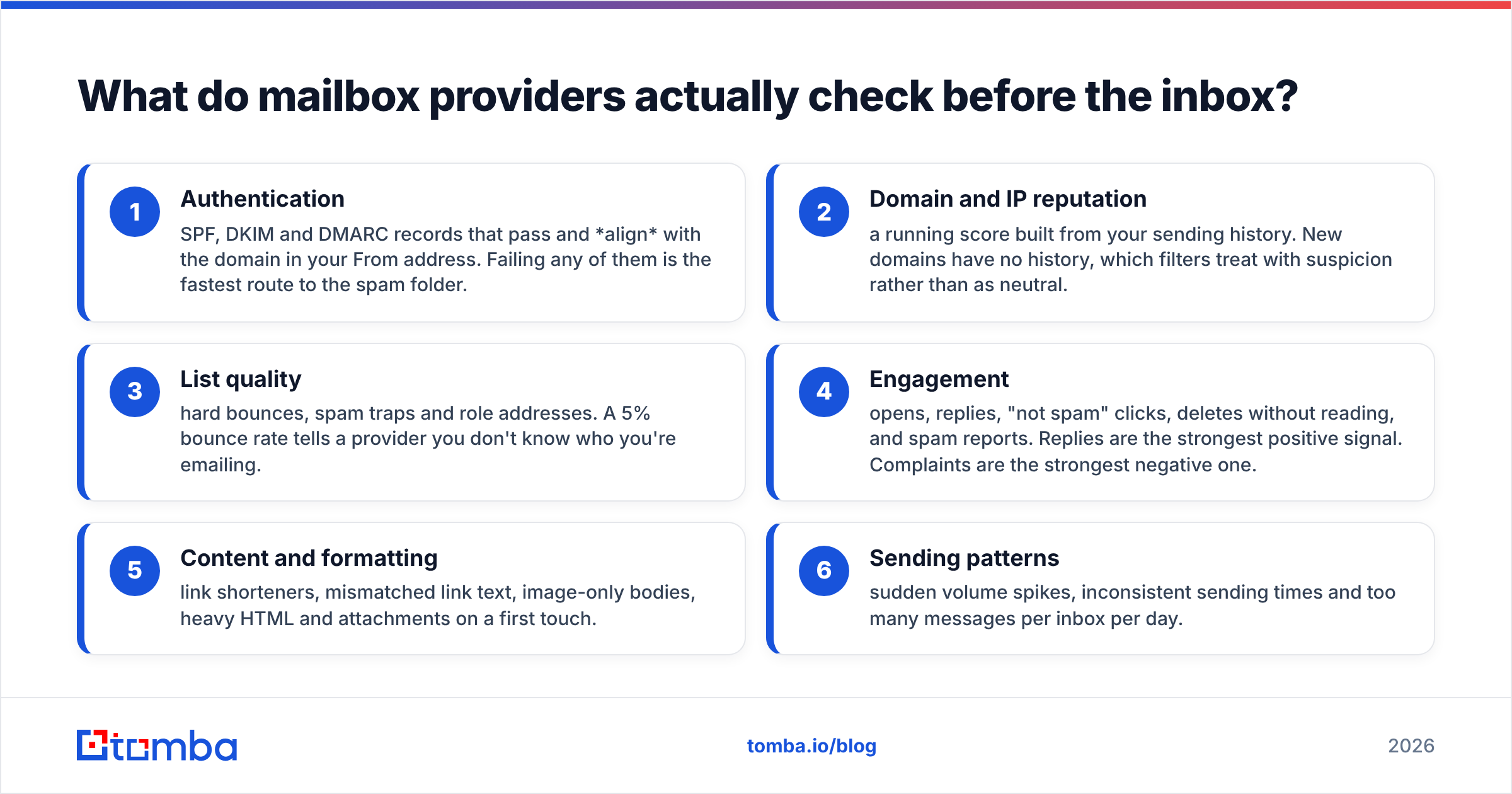
Every major provider weights these factors differently, and none of them publish exact formulas. Across Gmail, Outlook and Yahoo, though, the same six inputs keep coming up:
- Authentication: SPF, DKIM and DMARC records that pass and align with the domain in your From address. Failing any of them is the fastest route to the spam folder.
- Domain and IP reputation: a running score built from your sending history. New domains have no history, which filters treat with suspicion rather than as neutral.
- List quality: hard bounces, spam traps and role addresses. A 5% bounce rate tells a provider you don't know who you're emailing.
- Engagement: opens, replies, "not spam" clicks, deletes without reading, and spam reports. Replies are the strongest positive signal. Complaints are the strongest negative one.
- Content and formatting: link shorteners, mismatched link text, image-only bodies, heavy HTML and attachments on a first touch.
- Sending patterns: sudden volume spikes, inconsistent sending times and too many messages per inbox per day.
Your sender reputation sits on top of all six. Each campaign adds to it or subtracts from it.
Which of the 9 causes is sending your email to spam?#
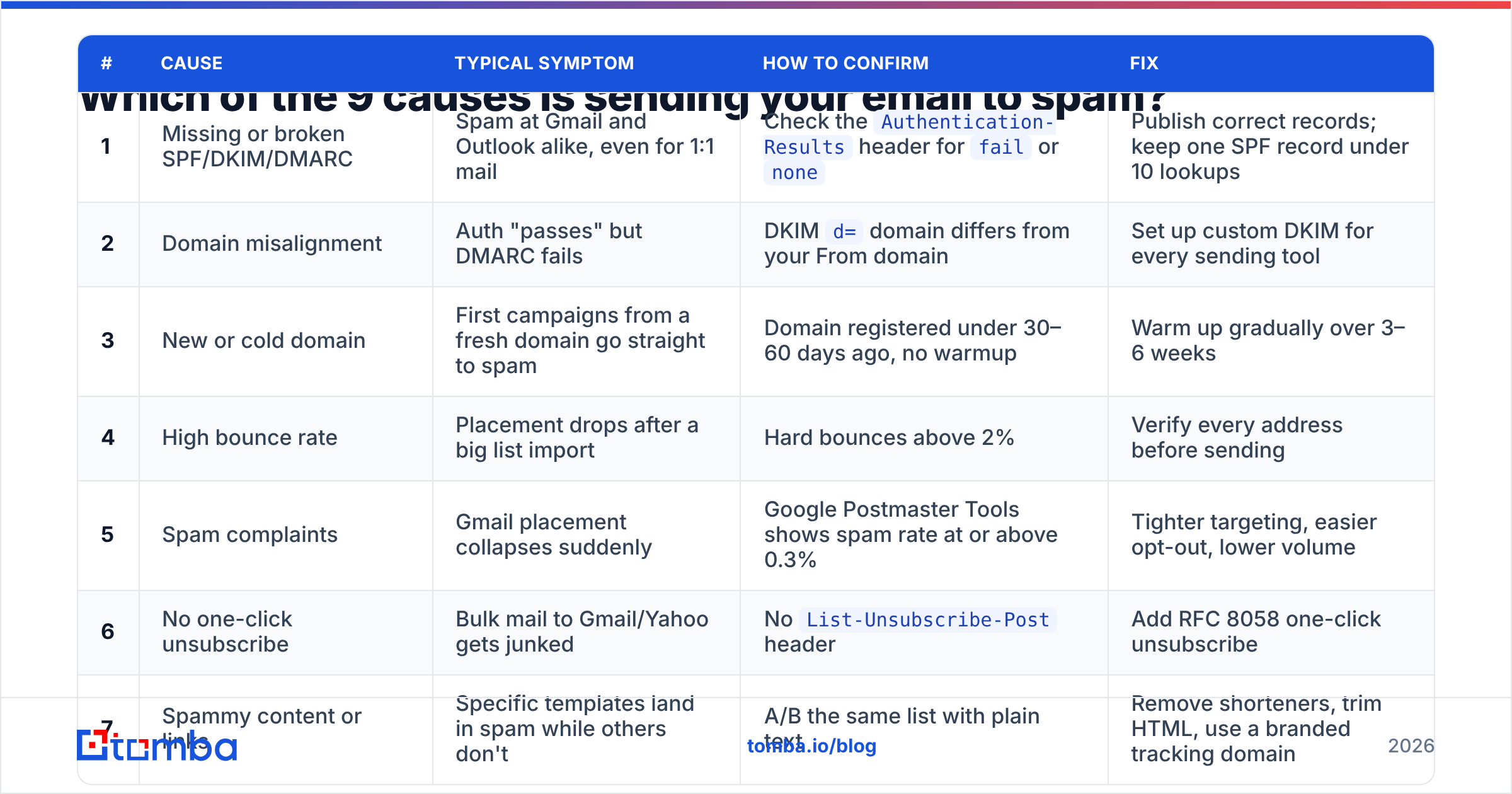
Use this table to narrow it down before you change anything. Match your symptom and run the check in the fourth column.
| # | Cause | Typical symptom | How to confirm | Fix |
|---|---|---|---|---|
| 1 | Missing or broken SPF/DKIM/DMARC | Spam at Gmail and Outlook alike, even for 1:1 mail | Check the Authentication-Results header for fail or none |
Publish correct records; keep one SPF record under 10 lookups |
| 2 | Domain misalignment | Auth "passes" but DMARC fails | DKIM d= domain differs from your From domain |
Set up custom DKIM for every sending tool |
| 3 | New or cold domain | First campaigns from a fresh domain go straight to spam | Domain registered under 30–60 days ago, no warmup | Warm up gradually over 3–6 weeks |
| 4 | High bounce rate | Placement drops after a big list import | Hard bounces above 2% | Verify every address before sending |
| 5 | Spam complaints | Gmail placement collapses suddenly | Google Postmaster Tools shows spam rate at or above 0.3% | Tighter targeting, easier opt-out, lower volume |
| 6 | No one-click unsubscribe | Bulk mail to Gmail/Yahoo gets junked | No List-Unsubscribe-Post header |
Add RFC 8058 one-click unsubscribe |
| 7 | Spammy content or links | Specific templates land in spam while others don't | A/B the same list with plain text | Remove shorteners, trim HTML, use a branded tracking domain |
| 8 | Blacklisted IP or domain | Rejections or spam across several providers | Blacklist lookup shows listings | Fix the root cause, then request delisting |
| 9 | Volume spikes | Inbox one week, spam the next after scaling up | Daily volume jumped more than 2–3x | Ramp volume gradually, spread it across inboxes |
Most senders find two or three matches. Fix them in the order listed. Authentication and list quality come first because they make everything else worse.

How do you fix SPF, DKIM and DMARC?#
Get authentication right before you touch copy, cadence or tools. Since February 2024, Google's email sender guidelines require every sender to set up SPF or DKIM. Anyone sending more than 5,000 messages a day to Gmail needs all three protocols plus DMARC alignment.
SPF lists the servers allowed to send mail for your domain. Common mistakes:
- Two SPF records on one domain. Only one is allowed, and having two breaks both.
- More than 10 DNS lookups. Each
include:counts, and stacking Google Workspace, HubSpot, a sequencer and a helpdesk hits the limit quickly. - Ending with
+all, which lets anyone send as you.
Run your domain through an SPF checker to count lookups and spot syntax errors.
DKIM adds a cryptographic signature to each message. Use 2048-bit keys where your provider supports them. Set up a custom DKIM key for every tool that sends as your domain. Many tools sign with their own domain by default, which passes DKIM but fails alignment.
DMARC tells receivers what to do when SPF or DKIM fails, and it sends you reports. Start with p=none and a reporting address, review the reports for two to four weeks, then move to p=quarantine and finally p=reject. The DMARC overview on Wikipedia covers how alignment works if the concept is new to you.
Alignment is the part most people miss. DMARC passes only if SPF or DKIM passes and the authenticated domain matches your visible From domain. If your From address is you@company.com but your sequencer signs as sendgrid.net, DMARC fails even though DKIM technically passed.
Is list quality the hidden problem?#
For B2B senders it often is. Addresses go stale fast: people change jobs, companies rebrand domains, and old addresses get deactivated. A list that was clean a year ago can easily have a double-digit share of dead addresses today.
Each hard bounce tells the provider you're guessing. Too many of them, and your mail gets filtered even for the recipients who do exist. Keep these thresholds:
- Hard bounce rate below 2% per campaign, ideally below 1%.
- No purchased or scraped lists that haven't been verified. They often contain spam traps, addresses that exist only to catch senders who don't clean their data.
- Treat catch-all domains carefully. A catch-all server accepts every address at the SMTP stage, so a basic check can't tell you whether a person exists. Send to these in smaller batches, or use a tool that checks catch-all addresses specifically.
The fix is simple: run every list through an email verifier before it reaches your sending tool, and re-verify any segment you haven't emailed in 90 days. Verification costs less than recovering a burned domain.
Where the data comes from matters as much as the cleanup. Addresses found against a live company domain and verified at the moment you find them bounce far less than a CSV passed between three vendors.
How much do spam complaints and engagement matter?#
More than anything else once authentication is fixed. Gmail and Yahoo now enforce a complaint ceiling: keep your spam rate below 0.3%, and aim for under 0.1%. At 0.3%, three people in a thousand pressing "Report spam" is enough to put your placement at risk.
Register your domain with Google Postmaster Tools to see your actual spam rate, domain reputation and authentication pass rates. It's free, and it's the only first-party view into how Gmail rates you.
How to reduce complaints:
- Make leaving easier than reporting. Bulk senders need one-click unsubscribe via the
List-UnsubscribeandList-Unsubscribe-Postheaders, defined in RFC 8058. For cold outreach, a plain line like "Not relevant? Reply 'no' and I won't follow up" also works. - Target tighter. Complaints climb when the recipient can't see why you emailed them. One sentence explaining the relevance lowers them.
- Stop sending to people who never engage. Suppress contacts who haven't opened or replied in 3–4 sends. Continuing to email them tells the provider nobody wants your mail.
Replies help most. A conversation between two people looks nothing like a broadcast, so emails that start real back-and-forth threads build reputation faster than anything else.
Does email content still trigger spam filters?#
Less than it used to, but it still matters. Modern filters care more about reputation than about "spam words," so removing "free" from your subject line won't rescue a domain with a 6% bounce rate. When reputation is borderline, though, content can tip the decision.
Common content problems:
- Link shorteners such as bit.ly. Spammers use them to hide destinations, so filters distrust them.
- Mismatched links, where the visible text shows one URL and the href points to another.
- Shared tracking domains. Your open and click tracking may run through a domain shared with thousands of other senders. Set up a custom (branded) tracking domain.
- Image-only emails, or a very low text-to-image ratio.
- Attachments on a first email to someone who has never heard from you.
- Bloated HTML pasted from a design tool, with hidden text and unclosed tags.
For cold outreach, send plain text or very light HTML, include at most one link, and skip open tracking in the first touch if placement is fragile. A spam checker will catch the obvious problems before you send.
Why do cold emails land in spam when newsletters don't?#
Newsletters go to people who opted in and engage with them. Cold emails go to strangers who didn't ask for them. Filters know this, so cold outreach gets less room for error. The infrastructure rules are stricter:
- Send from a secondary domain (for example
getcompany.com) so your main domain's reputation is protected. Authenticate it fully, the same as your main domain. - Warm up new inboxes over three to six weeks, starting at a handful of emails a day.
- Cap volume per inbox. Many teams keep each inbox to roughly 30–50 cold emails a day and add inboxes to scale, rather than pushing one inbox harder.
- Space out sends instead of firing 500 at 9:00 a.m.

The most common mistake: buy a domain on Monday, import a list of 2,000 on Tuesday, and wonder why reply rates are zero on Wednesday. The provider did what it was built to do.
How do you diagnose where your emails are landing?#
Don't guess. Follow this order:
- Read the headers. Send a message to a Gmail account you control, open it, click "Show original," and check whether SPF, DKIM and DMARC say
PASS. If any of them fail, stop and fix that first. - Run a seed test. Send to a set of test inboxes across Gmail, Google Workspace, Outlook, Microsoft 365 and Yahoo. Placement often differs by provider, and that difference points to the cause.
- Check Postmaster Tools for domain reputation ("Bad" or "Low" means you have a reputation problem, not a content problem) and for your spam rate trend.
- Look up blacklists for your sending IP and domain. A listing on a major list like Spamhaus needs action. Obscure lists usually don't.
- Read your DMARC aggregate reports. They show every source sending as your domain, including tools you forgot about and spoofers.
- Isolate content. Send the same list a plain-text version and your normal template. If only the template goes to spam, the problem is content.
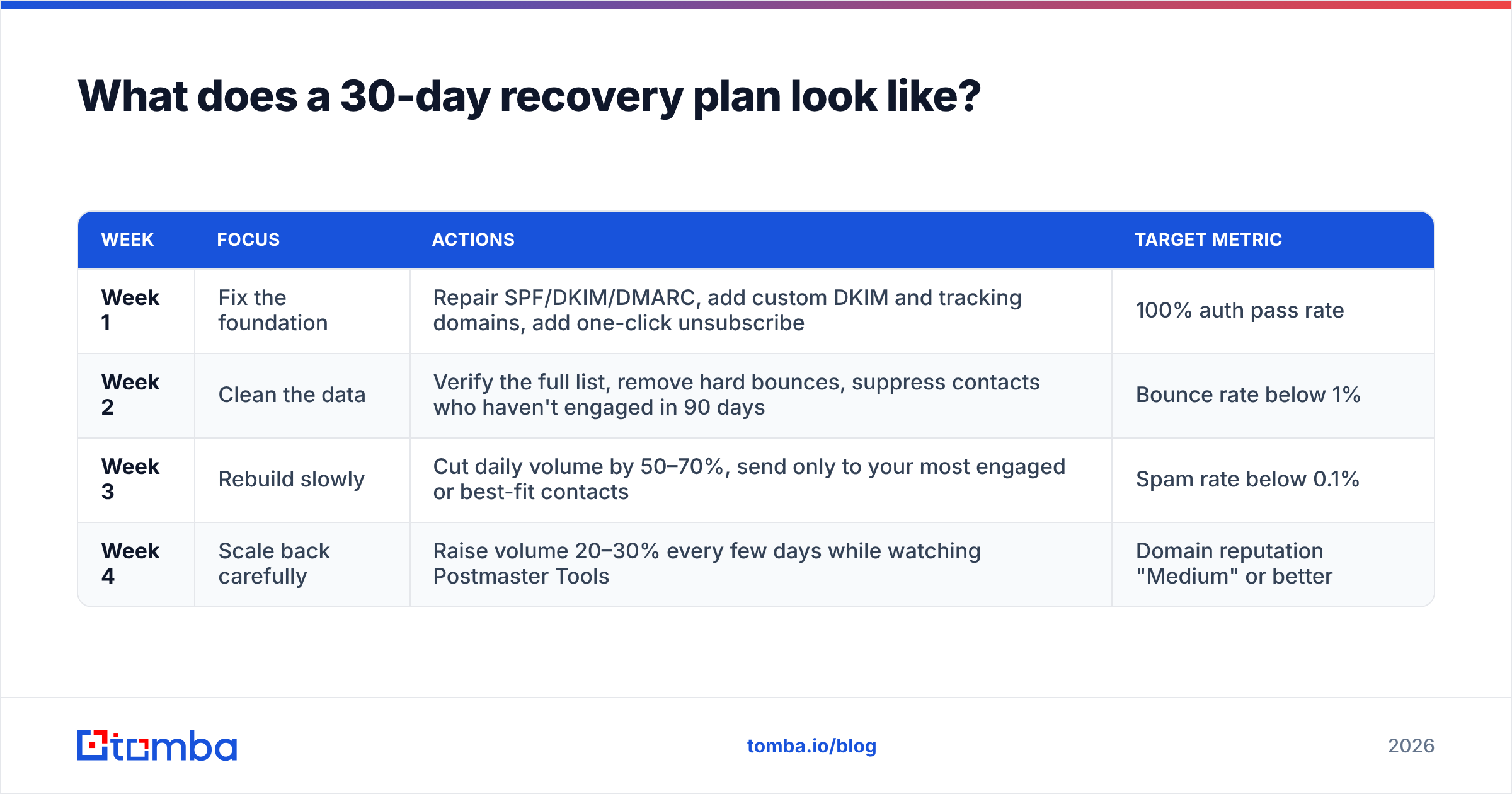
What does a 30-day recovery plan look like?#
If you've confirmed a reputation problem, this sequence works for most senders:
| Week | Focus | Actions | Target metric |
|---|---|---|---|
| Week 1 | Fix the foundation | Repair SPF/DKIM/DMARC, add custom DKIM and tracking domains, add one-click unsubscribe | 100% auth pass rate |
| Week 2 | Clean the data | Verify the full list, remove hard bounces, suppress contacts who haven't engaged in 90 days | Bounce rate below 1% |
| Week 3 | Rebuild slowly | Cut daily volume by 50–70%, send only to your most engaged or best-fit contacts | Spam rate below 0.1% |
| Week 4 | Scale back carefully | Raise volume 20–30% every few days while watching Postmaster Tools | Domain reputation "Medium" or better |
Don't switch domains in the middle of recovery unless the domain is badly blacklisted. A new domain brings the same habits with no history, and you'll be back where you started in a month.
Frequently asked questions#
Can one bad campaign send all my emails to spam?#
Yes. One import of an unverified list, with high bounces and complaints, can drop domain reputation within days. Recovery usually takes weeks of clean sending.
Will a dedicated IP fix my spam problem?#
Rarely, for B2B senders. A dedicated IP needs consistent, high volume to build reputation. At low volume, a well-managed shared IP from your email provider usually performs better. Domain reputation matters more than IP reputation at Gmail today.
Why does my email go to spam in Outlook but not Gmail?#
Each provider runs its own filters and weights signals differently. Microsoft tends to react strongly to volume patterns and to authentication since its 2025 enforcement update. Check alignment first, then slow your sending cadence to Microsoft domains.
How long does it take to get out of spam?#
Once the root cause is fixed, most senders see placement improve within two to four weeks. Severe cases, like major blacklist listings or sustained complaint spikes, can take longer.
Where should you start?#
Clean data comes first, because every other fix assumes you're emailing real people who exist. If bounces and bad addresses are dragging your reputation down, start your list with Tomba Email Finder. It finds professional addresses by name, company or domain and checks them before you export, so your sequencer only gets contacts that exist. Pair it with the authentication and warmup steps above, and your emails will have a much better chance of reaching the inbox.
Related guides#
// get started
Find, verify and enrich your first contacts today
Start on the free plan with 25 searches a month, then scale when your team is ready.
Free plan · No credit card required · GDPR & CCPA
// about the author