Gmail SMTP Server Address: Ports, Settings, and Sending Limits
The Gmail SMTP server address is smtp.gmail.com, but the port you pick, the password you use, and the daily cap Google enforces decide whether your mail actually lands. Here is the full 2026 setup.
TL;DR
- The Gmail SMTP server address is
smtp.gmail.com. Use port 587 with STARTTLS for almost every app, or port 465 with SSL/TLS for older libraries that expect an implicit TLS handshake. - Your normal Google account password will not work. You need either a 16-character app password (with 2-Step Verification enabled) or OAuth 2.0 for production apps.
- Free Gmail caps you at roughly 500 recipients per day; Google Workspace raises that to 2,000 per day via SMTP with an authenticated account.
- Gmail SMTP is fine for transactional mail from a small app, notifications, and low-volume 1:1 outreach. It is the wrong tool for bulk campaigns — use the Workspace SMTP relay or a dedicated ESP.
- Most "SMTP not working" tickets are one of four things: wrong port, missing app password, an outbound firewall blocking 587, or a daily quota you already blew through.
What is the Gmail SMTP server address?#
The Gmail SMTP server address is smtp.gmail.com. That single hostname handles outbound mail for both free Gmail accounts and Google Workspace accounts. There is no separate address for paid plans, no regional variant, and no smtp2.gmail.com fallback — if you have seen one in a forum post, it was wrong.
SMTP (Simple Mail Transfer Protocol) is the delivery half of email. Think of it like a post office counter: IMAP and POP are how you go pick up your mail, SMTP is how you hand outgoing envelopes over. When you configure a WordPress plugin, a Python script, a Laravel app, or Thunderbird to "send as" your Gmail address, you are telling it to hand envelopes to Google's counter using your credentials. Google then signs them with its own DKIM keys and sends them out from its IP ranges — which is exactly why deliverability from Gmail SMTP tends to be good out of the box.
Here are the settings you actually need:
| Setting | Value |
|---|---|
| SMTP server address | smtp.gmail.com |
| Port (TLS / STARTTLS) | 587 |
| Port (SSL / implicit TLS) | 465 |
| Encryption | Required — TLS 1.2 or higher |
| Authentication | Required |
| Username | Your full address (you@gmail.com or you@yourdomain.com) |
| Password | 16-character app password, or OAuth 2.0 token |
| Incoming (IMAP) | imap.gmail.com, port 993, SSL |
| Incoming (POP3) | pop.gmail.com, port 995, SSL |
Google documents these in its official Gmail IMAP/SMTP settings page, and they have been stable for years. The moving parts are authentication and quotas, not the hostname.
Which Gmail SMTP port should you use: 587, 465, or 25?#
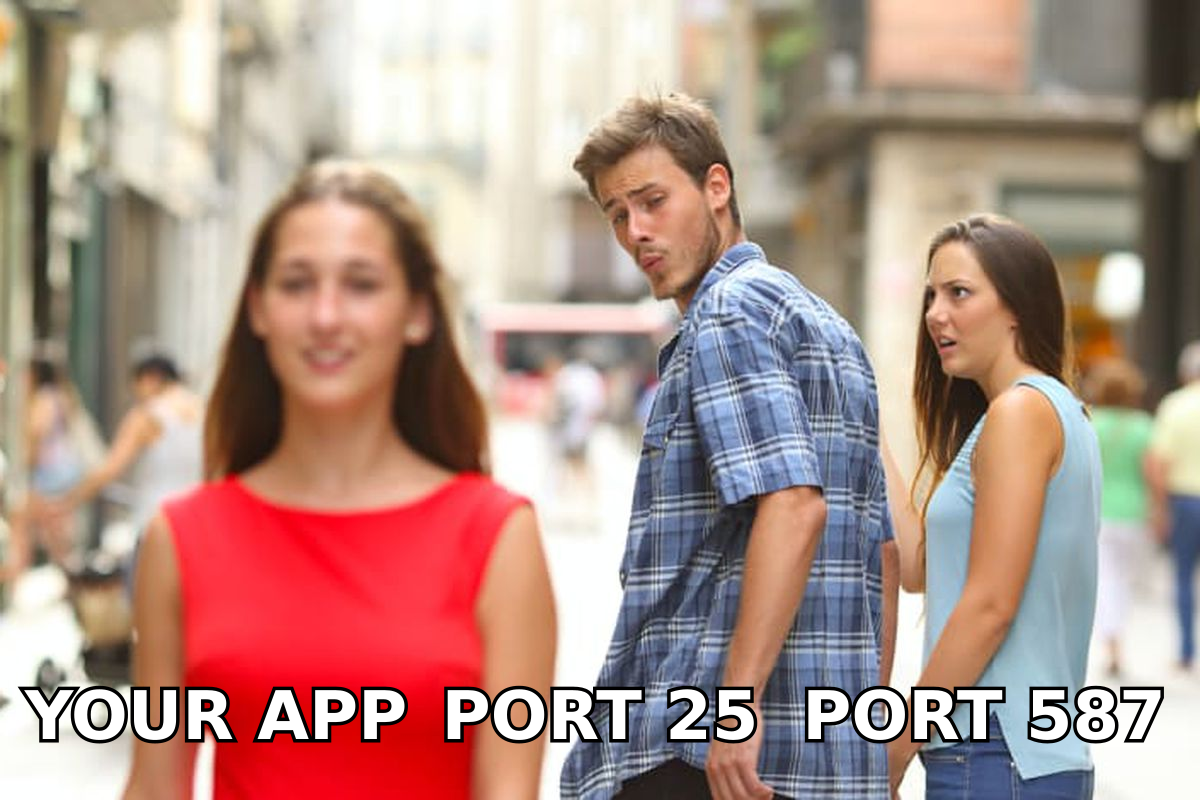
Use 587. It is the modern submission port defined for authenticated mail clients, it works with STARTTLS, and every serious mail library supports it.
Port 465 is not deprecated anymore — it was un-deprecated and formally reassigned for implicit TLS submission — so if your library wants SMTPS or SSL: true with no upgrade step, 465 is correct and safe. PHPMailer with SMTPSecure = 'ssl', older .NET code, and some shared hosts fall into this bucket.
Port 25 is a trap for this use case. It is the server-to-server relay port, most residential ISPs and cloud providers (AWS EC2, DigitalOcean, Azure) block outbound 25 by default, and Gmail will not accept authenticated submission on it from a client. If your app hangs for 30 seconds and then times out, port 25 is the first suspect.
The practical decision tree:
- Modern library, no strong opinion — port 587, STARTTLS. This is the default answer.
- Library that only offers "SSL on/off" — port 465, SSL on.
- Google Cloud Platform / Compute Engine — 587 or 465 only; GCP blocks 25 permanently with no exception process.
- Corporate network that blocks both — you need an internal relay or an ESP with an HTTPS API, because no port config will save you.
- You are seeing
Connection timed out— it is a network block, not a credential problem. Test withtelnet smtp.gmail.com 587before touching your code.
How do you set up Gmail SMTP step by step?#
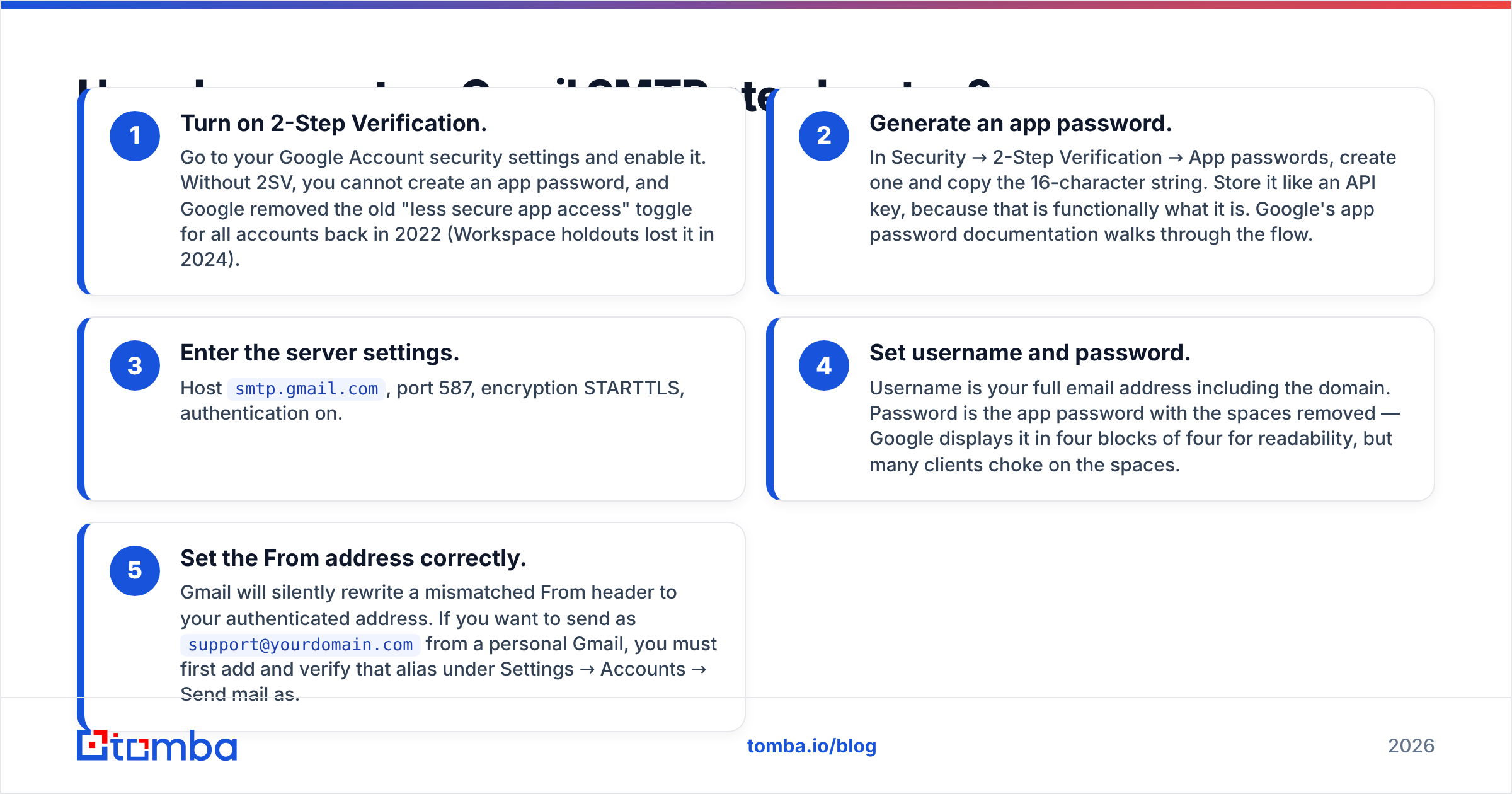
The setup is five steps, and step two is where most people get stuck.
- Turn on 2-Step Verification. Go to your Google Account security settings and enable it. Without 2SV, you cannot create an app password, and Google removed the old "less secure app access" toggle for all accounts back in 2022 (Workspace holdouts lost it in 2024).
- Generate an app password. In Security → 2-Step Verification → App passwords, create one and copy the 16-character string. Store it like an API key, because that is functionally what it is. Google's app password documentation walks through the flow.
- Enter the server settings. Host
smtp.gmail.com, port 587, encryption STARTTLS, authentication on. - Set username and password. Username is your full email address including the domain. Password is the app password with the spaces removed — Google displays it in four blocks of four for readability, but many clients choke on the spaces.
- Set the From address correctly. Gmail will silently rewrite a mismatched From header to your authenticated address. If you want to send as
support@yourdomain.comfrom a personal Gmail, you must first add and verify that alias under Settings → Accounts → Send mail as.
For production applications, skip app passwords entirely and use OAuth 2.0 with the XOAUTH2 SASL mechanism. It is more work upfront — you register a Cloud project, request the https://mail.google.com/ scope, and handle token refresh — but it survives password rotations, works with organization-wide security policies, and can be revoked per-application instead of per-account.
Why does Gmail SMTP reject your password?#
Because you are almost certainly sending your account password instead of an app password. The error looks like this:
535-5.7.8 Username and Password not accepted.
Learn more at https://support.google.com/mail/?p=BadCredentials
Nine times out of ten, one of these is true:
- You used your regular Google password. Generate an app password instead.
- You copied the app password with spaces intact. Strip them.
- 2-Step Verification is off, so the App passwords menu never appeared.
- Your Workspace admin has disabled "Allow users to manage their access to less secure apps" or blocked app passwords org-wide. Only an admin can reverse that in the Admin console.
- The account has a security hold after a login from a new country. Sign in through the web UI once and clear the alert.
A second common failure is 534-5.7.9 Application-specific password required, which is Google telling you the same thing in plainer language. And 550-5.7.1 with a "suspicious activity" note usually means your sending pattern tripped abuse heuristics — which brings us to limits.
What are Gmail's SMTP sending limits in 2026?#
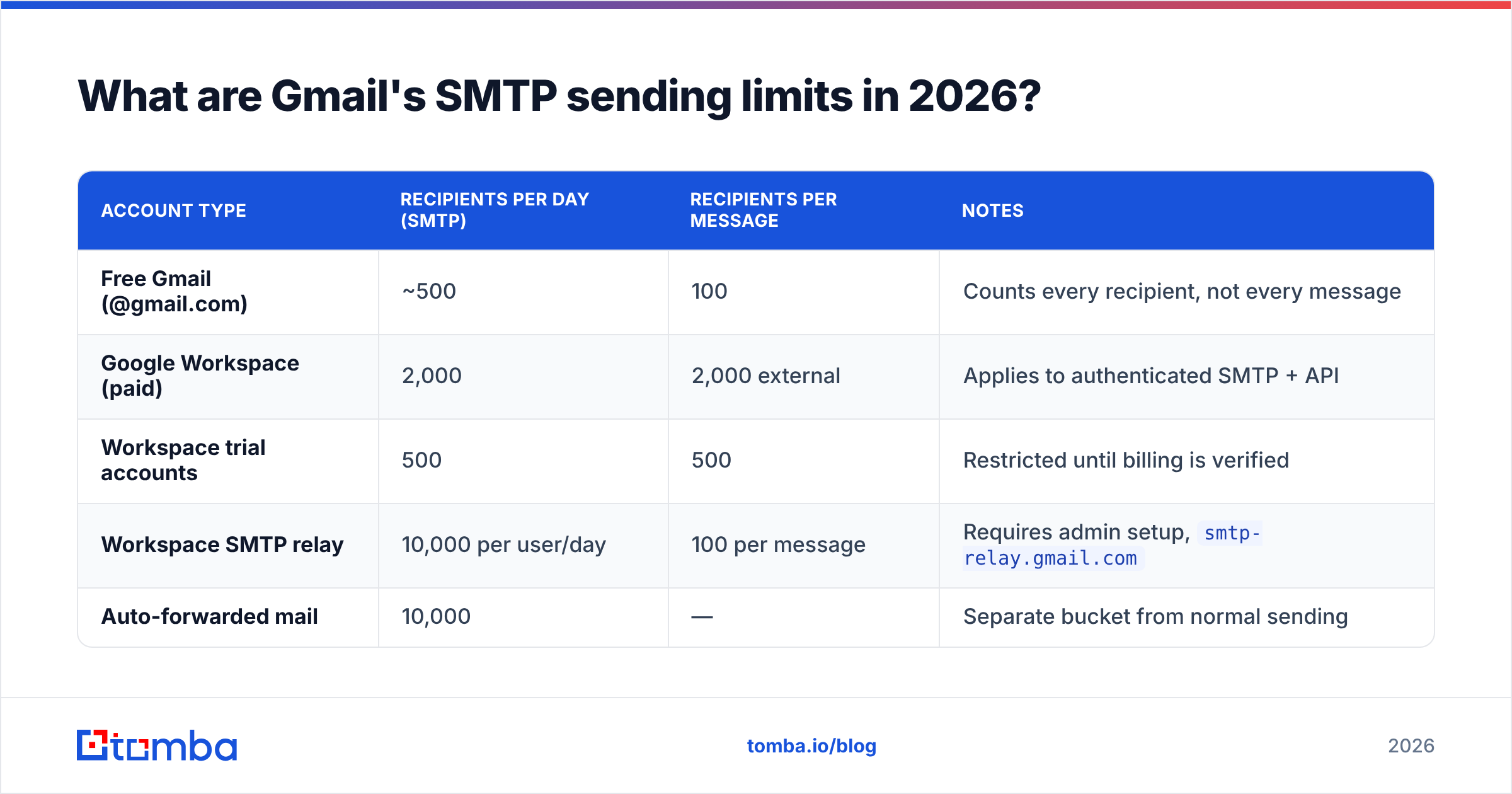
Google enforces quotas on a rolling 24-hour window, not a calendar day. Blow past one and the account gets a temporary send block, typically 24 hours, sometimes longer for repeat offences.
| Account type | Recipients per day (SMTP) | Recipients per message | Notes |
|---|---|---|---|
| Free Gmail (@gmail.com) | ~500 | 100 | Counts every recipient, not every message |
| Google Workspace (paid) | 2,000 | 2,000 external | Applies to authenticated SMTP + API |
| Workspace trial accounts | 500 | 500 | Restricted until billing is verified |
| Workspace SMTP relay | 10,000 per user/day | 100 per message | Requires admin setup, smtp-relay.gmail.com |
| Auto-forwarded mail | 10,000 | — | Separate bucket from normal sending |
Two details people miss. First, a message to 50 people burns 50 recipients, not one. Second, the SMTP relay service is a different hostname — smtp-relay.gmail.com — configured by an admin in the Google Workspace console, and it is the correct route for application mail sent on behalf of your domain. Google's SMTP relay setup guide covers the allowed-senders and IP-allowlist configuration.
If you are anywhere near these ceilings, the constraint is no longer your SMTP config. It is your list quality. Sending 400 messages a day to addresses you never validated is the fastest way to torch your sender reputation — bounces above 3% get you throttled by receiving servers regardless of what Google allows on the outbound side. Run the list through an email verifier before it ever touches SMTP.
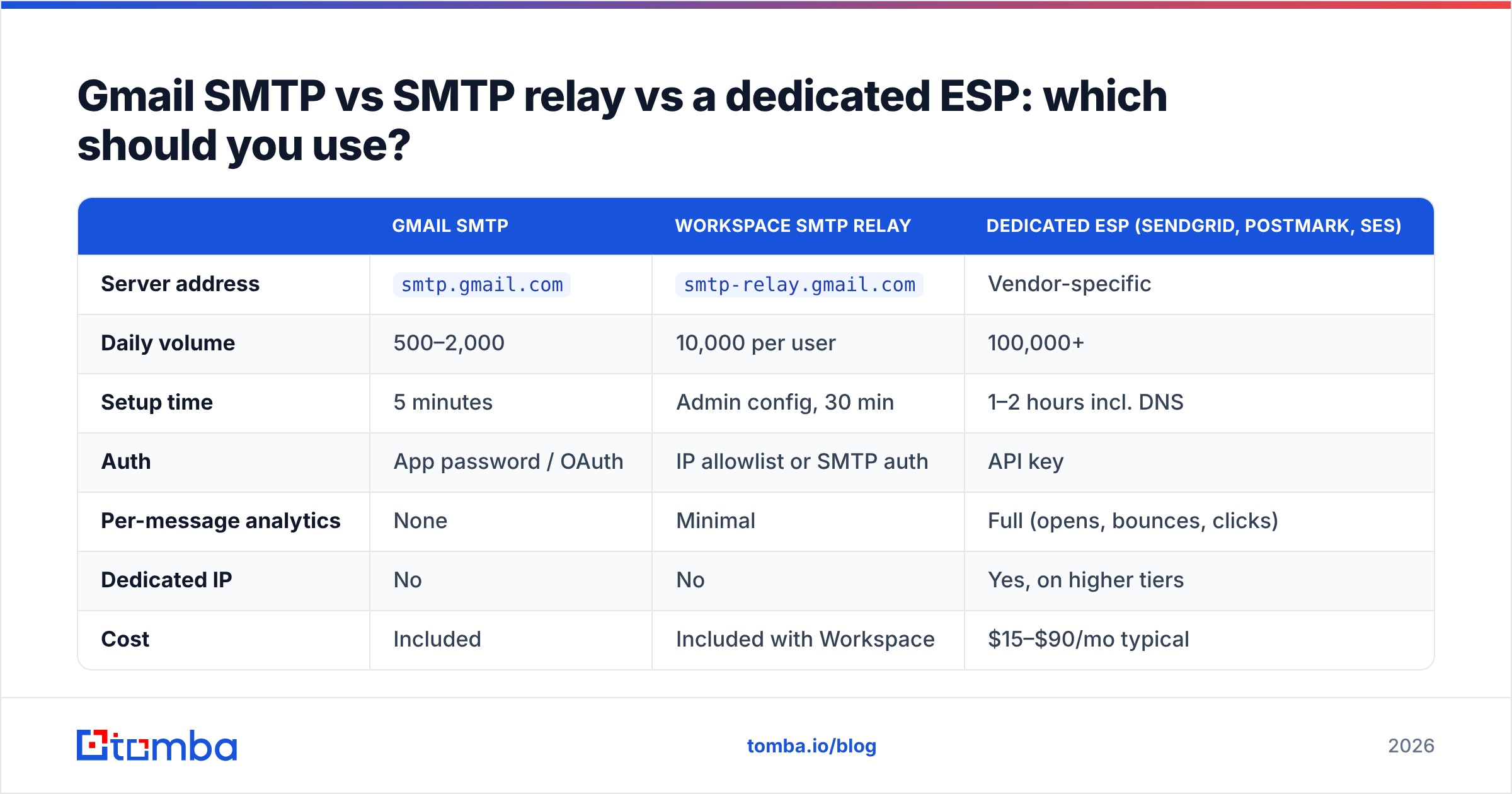
Gmail SMTP vs SMTP relay vs a dedicated ESP: which should you use?#
Different jobs, different tools. The honest breakdown:
| Gmail SMTP | Workspace SMTP relay | Dedicated ESP (SendGrid, Postmark, SES) | |
|---|---|---|---|
| Server address | smtp.gmail.com |
smtp-relay.gmail.com |
Vendor-specific |
| Daily volume | 500–2,000 | 10,000 per user | 100,000+ |
| Setup time | 5 minutes | Admin config, 30 min | 1–2 hours incl. DNS |
| Auth | App password / OAuth | IP allowlist or SMTP auth | API key |
| Per-message analytics | None | Minimal | Full (opens, bounces, clicks) |
| Dedicated IP | No | No | Yes, on higher tiers |
| Cost | Included | Included with Workspace | $15–$90/mo typical |
| Best for | Personal sends, small apps, dev | App notifications on your domain | Marketing, transactional at scale |
The short version: if a human is writing each message, Gmail SMTP is fine. If a server is generating the message, use the relay. If you need bounce webhooks, suppression lists, and per-campaign analytics, use an ESP — bolting those onto Gmail SMTP means rebuilding infrastructure that already exists.

Is Gmail SMTP good enough for cold email?#
For a genuinely small, targeted volume — say 20 to 40 personalized messages a day from a real human inbox — yes, and it often outperforms an ESP because the mail comes from a warmed consumer-grade domain with real two-way conversation history.
Beyond that, it degrades fast, and here is why:
- No bounce handling. Gmail bounces land in your own inbox as delivery-failure notices. Nothing suppresses that address for next time.
- No unsubscribe infrastructure. The 2024 Google and Yahoo bulk-sender rules made one-click unsubscribe headers mandatory above 5,000 messages a day, and Gmail SMTP gives you no way to inject them at the platform level.
- Your primary inbox is the blast radius. If the domain gets flagged, your calendar invites, invoices, and support replies go to spam alongside your campaign.
- No sending-window control. Firing 300 messages in four minutes at 03:00 looks nothing like human behavior. Real sequencers pace sends.
If you are running outbound at that level, separate the domains: keep your primary Google Workspace domain for real conversation, and run campaigns from a lookalike domain with proper SPF, DKIM, and DMARC records. Then check the email deliverability fundamentals before you scale volume — authentication, warmup schedule, list hygiene, and content scoring all matter more than which port you picked.
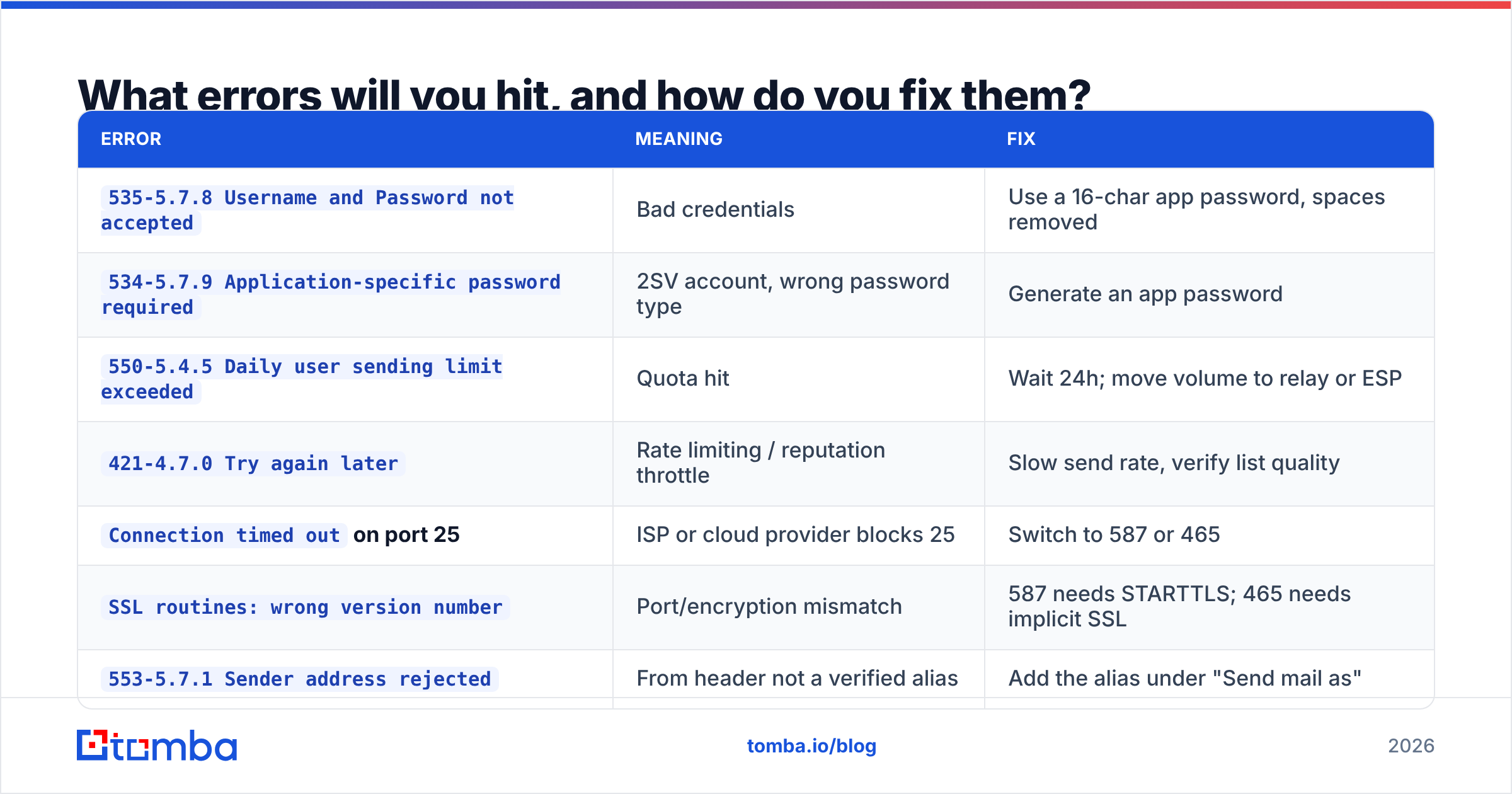
What errors will you hit, and how do you fix them?#
| Error | Meaning | Fix |
|---|---|---|
535-5.7.8 Username and Password not accepted |
Bad credentials | Use a 16-char app password, spaces removed |
534-5.7.9 Application-specific password required |
2SV account, wrong password type | Generate an app password |
550-5.4.5 Daily user sending limit exceeded |
Quota hit | Wait 24h; move volume to relay or ESP |
421-4.7.0 Try again later |
Rate limiting / reputation throttle | Slow send rate, verify list quality |
Connection timed out on port 25 |
ISP or cloud provider blocks 25 | Switch to 587 or 465 |
SSL routines: wrong version number |
Port/encryption mismatch | 587 needs STARTTLS; 465 needs implicit SSL |
553-5.7.1 Sender address rejected |
From header not a verified alias | Add the alias under "Send mail as" |
One diagnostic habit worth building: before blaming Gmail, prove the socket opens. Run an SMTP tester against smtp.gmail.com on both 587 and 465. If neither connects, the problem is your network, not your credentials, and no amount of config tweaking will help.
Where should you go from here?#
Get the boring parts right in this order: hostname smtp.gmail.com, port 587 with STARTTLS, an app password rather than your account password, and a From address that matches a verified alias. That covers the vast majority of setup failures. Then check your volume against Google's 500 or 2,000 recipient ceiling and decide honestly whether Gmail SMTP or the Workspace relay is the right pipe for what you are actually sending.
The thing that will sink you long before you hit a port issue is the list itself. A perfect SMTP config sending to 30% invalid addresses still lands you in the spam folder. Build the list from verified, current data instead — the Tomba Email Finder returns professional addresses with confidence scoring and SMTP-level validation, so what reaches your Gmail outbox is already clean. The free tier covers 25 searches a month, and paid plans start at $49/mo if you need volume; full Tomba pricing is on the site. Fix the data, then the deliverability math starts working in your favor.
Related guides#
Ready to find emails that actually work?
Join 150,000+ professionals who stopped guessing and started sending. Free credits on signup — no credit card required.
Get the Tomba newsletter
Practical outbound tactics and product updates — once every two weeks.
About the author