Google Workspace SPF Record: The Complete 2026 Setup Guide
Your Google Workspace SPF record is one DNS line that decides whether cold email lands in the inbox or the spam folder. Here is the exact syntax, the 10-lookup trap, and how to verify it in five minutes.
TL;DR
- The only Google Workspace SPF record you need is
v=spf1 include:_spf.google.com ~all— published as a TXT record on your root domain, not onmail.orsmtp. - You may publish exactly one SPF record per domain. Two SPF TXT records is a
permerror, and a permerror is treated as no SPF at all by most receivers. - SPF has a hard limit of 10 DNS lookups.
_spf.google.comalone consumes 4 of them. Add SendGrid, Mailchimp, and Zendesk and you are already over. - SPF alone is not enough in 2026. Google and Yahoo require SPF or DKIM aligned with your From domain, plus a DMARC record, for anyone sending over ~5,000 messages a day.
- Fixing SPF does nothing for a list full of dead addresses. Authentication gets you to the door; list hygiene decides whether you are let in.
What is a Google Workspace SPF record?#
An SPF record is a bouncer's guest list. When a receiving mail server gets a message claiming to come from you@yourcompany.com, it looks up your domain's SPF record and asks: is the IP address that just handed me this message actually on the list? If not, the message gets marked as suspicious, quarantined, or dropped.
Technically, SPF (Sender Policy Framework) is a TXT record in your domain's DNS that enumerates the servers authorized to send mail using your domain in the envelope sender (Return-Path). When you use Google Workspace, Google's outbound servers do the sending, so your record needs to tell the world that Google's IP ranges are legitimate for you.
The record itself is short:
v=spf1 include:_spf.google.com ~allThree parts:
v=spf1— the version tag. Every SPF record starts with this exact string. No other version exists;spf2.0is a dead Microsoft variant you can ignore.include:_spf.google.com— the mechanism that pulls in Google's authorized sending IPs. Google maintains this record, so when they add or rotate IP ranges, you inherit the change automatically.~all— the catch-all policy.~allmeans "softfail": anything not on the list is suspicious but should still be accepted and flagged.-allmeans "hardfail": reject it outright.
Google's own documentation recommends ~all, and there is a reason we will get to below.

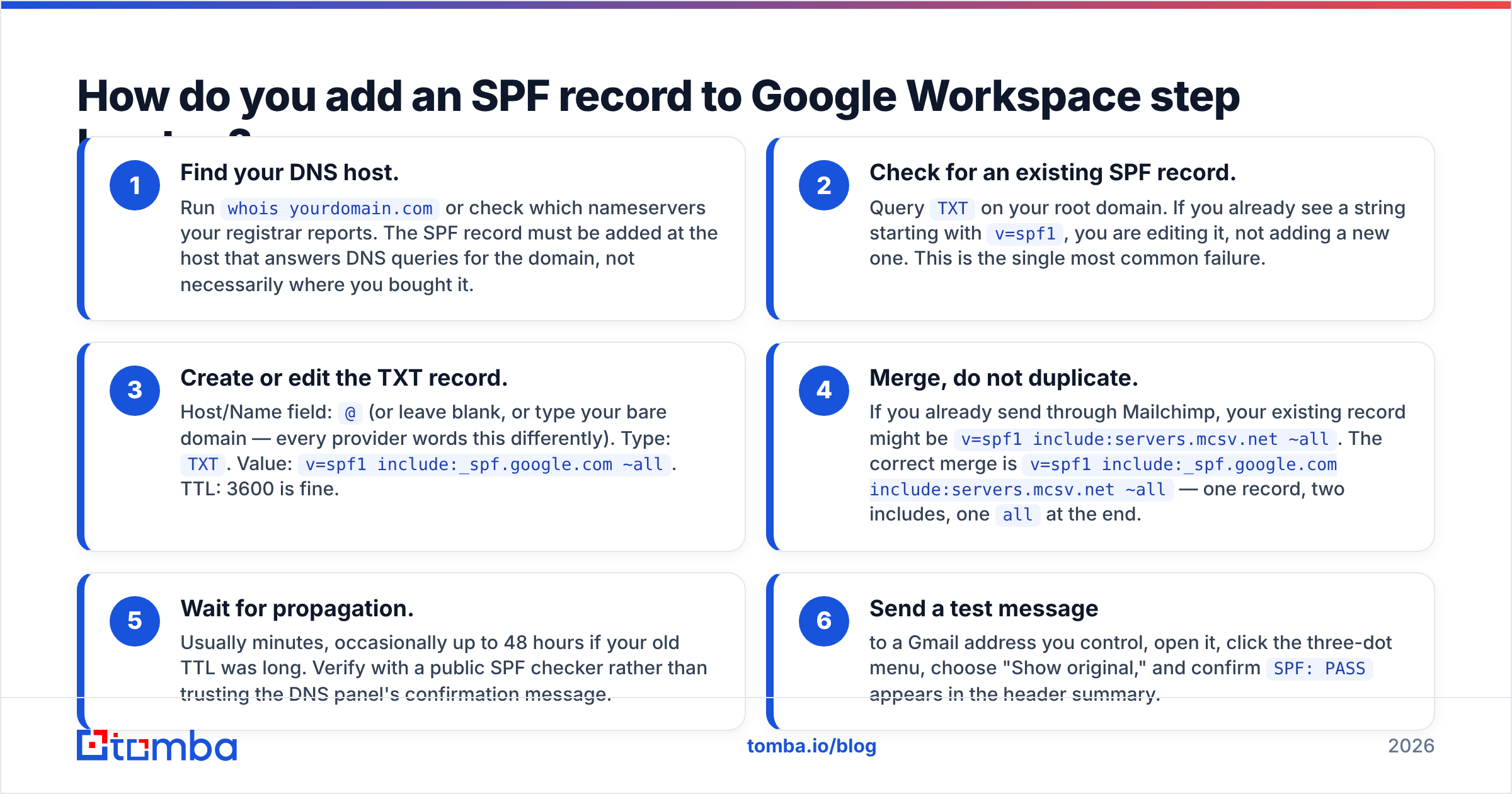
How do you add an SPF record to Google Workspace step by step?#
Google Workspace does not host your DNS unless you bought your domain through Google Domains (now Squarespace). The record goes wherever your nameservers live — Cloudflare, GoDaddy, Namecheap, Route 53.
- Find your DNS host. Run
whois yourdomain.comor check which nameservers your registrar reports. The SPF record must be added at the host that answers DNS queries for the domain, not necessarily where you bought it. - Check for an existing SPF record. Query
TXTon your root domain. If you already see a string starting withv=spf1, you are editing it, not adding a new one. This is the single most common failure. - Create or edit the TXT record. Host/Name field:
@(or leave blank, or type your bare domain — every provider words this differently). Type:TXT. Value:v=spf1 include:_spf.google.com ~all. TTL: 3600 is fine. - Merge, do not duplicate. If you already send through Mailchimp, your existing record might be
v=spf1 include:servers.mcsv.net ~all. The correct merge isv=spf1 include:_spf.google.com include:servers.mcsv.net ~all— one record, two includes, oneallat the end. - Wait for propagation. Usually minutes, occasionally up to 48 hours if your old TTL was long. Verify with a public SPF checker rather than trusting the DNS panel's confirmation message.
- Send a test message to a Gmail address you control, open it, click the three-dot menu, choose "Show original," and confirm
SPF: PASSappears in the header summary.
That last step is the only one that actually proves anything. A record that exists in DNS but fails alignment is worse than useless, because it gives you false confidence.
What does each SPF mechanism actually do?#
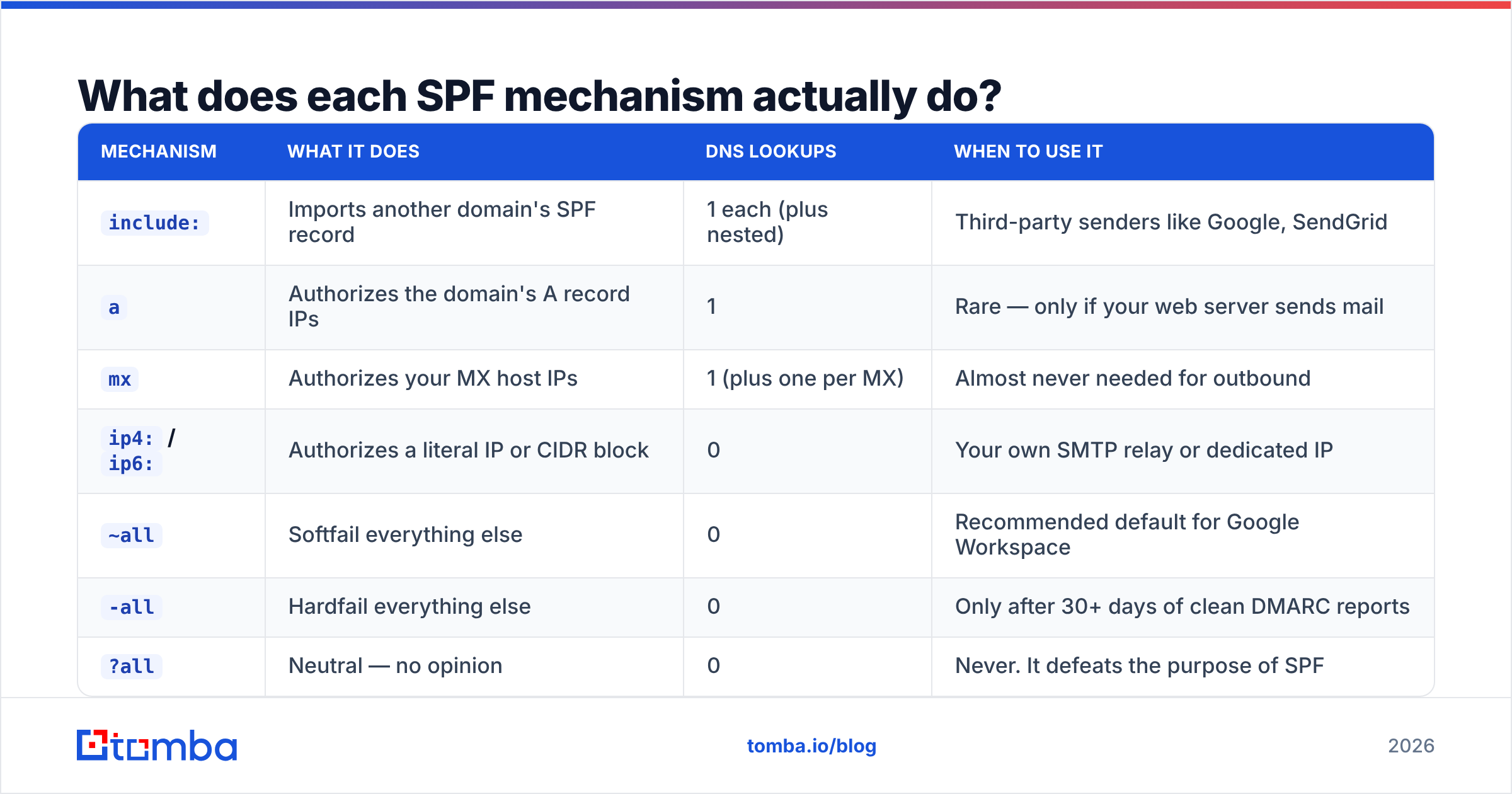
Most SPF confusion comes from people copying a record they do not understand. Here is what the pieces mean.
| Mechanism | What it does | DNS lookups | When to use it |
|---|---|---|---|
include: |
Imports another domain's SPF record | 1 each (plus nested) | Third-party senders like Google, SendGrid |
a |
Authorizes the domain's A record IPs | 1 | Rare — only if your web server sends mail |
mx |
Authorizes your MX host IPs | 1 (plus one per MX) | Almost never needed for outbound |
ip4: / ip6: |
Authorizes a literal IP or CIDR block | 0 | Your own SMTP relay or dedicated IP |
~all |
Softfail everything else | 0 | Recommended default for Google Workspace |
-all |
Hardfail everything else | 0 | Only after 30+ days of clean DMARC reports |
?all |
Neutral — no opinion | 0 | Never. It defeats the purpose of SPF |
Two things stand out. First, ip4: mechanisms cost zero lookups, which makes them the escape hatch when you are near the limit. Second, mx and a are almost always dead weight on a Google Workspace domain — your MX records point at Google's inbound servers, which are not the same machines that send your outbound mail.
Why does the 10-lookup limit break so many Google Workspace domains?#
Because _spf.google.com is not one lookup. It is four.
The SPF specification caps evaluation at 10 DNS lookups. Exceed it and the receiver returns permerror, which most large mailbox providers treat as "no SPF record present." Your carefully written record silently stops working, and nothing in your DNS panel tells you.
Here is how a typical stack burns through the budget:
include:_spf.google.com— 1 lookup for the include, then it expands to_netblocks.google.com,_netblocks2.google.com, and_netblocks3.google.com. Running total: 4.include:sendgrid.net— 1 lookup, plus its own nested expansion. Running total: 6.include:servers.mcsv.net(Mailchimp) — Running total: 7.include:mail.zendesk.com— Running total: 8.include:spf.protection.outlook.com(a leftover from a migration) — Running total: 10 or 11. Broken.
Three fixes, in order of preference:
- Delete includes you no longer use. Most domains carry SPF entries for tools cancelled two years ago. Audit before you optimize.
- Replace low-volume includes with
ip4:literals. If a vendor publishes a static IP list, hardcode it. Zero lookups. The tradeoff: you own the maintenance when they renumber. - Use SPF flattening. Third-party services resolve your includes and republish them as flat IP lists behind a single lookup. This works, but you are now dependent on a vendor to keep your authentication current.
Google's Workspace admin documentation covers the base record but does not walk you through multi-vendor consolidation, which is where the real breakage happens.
Is SPF alone enough for inbox placement in 2026?#
No, and this is the section most SPF guides skip.
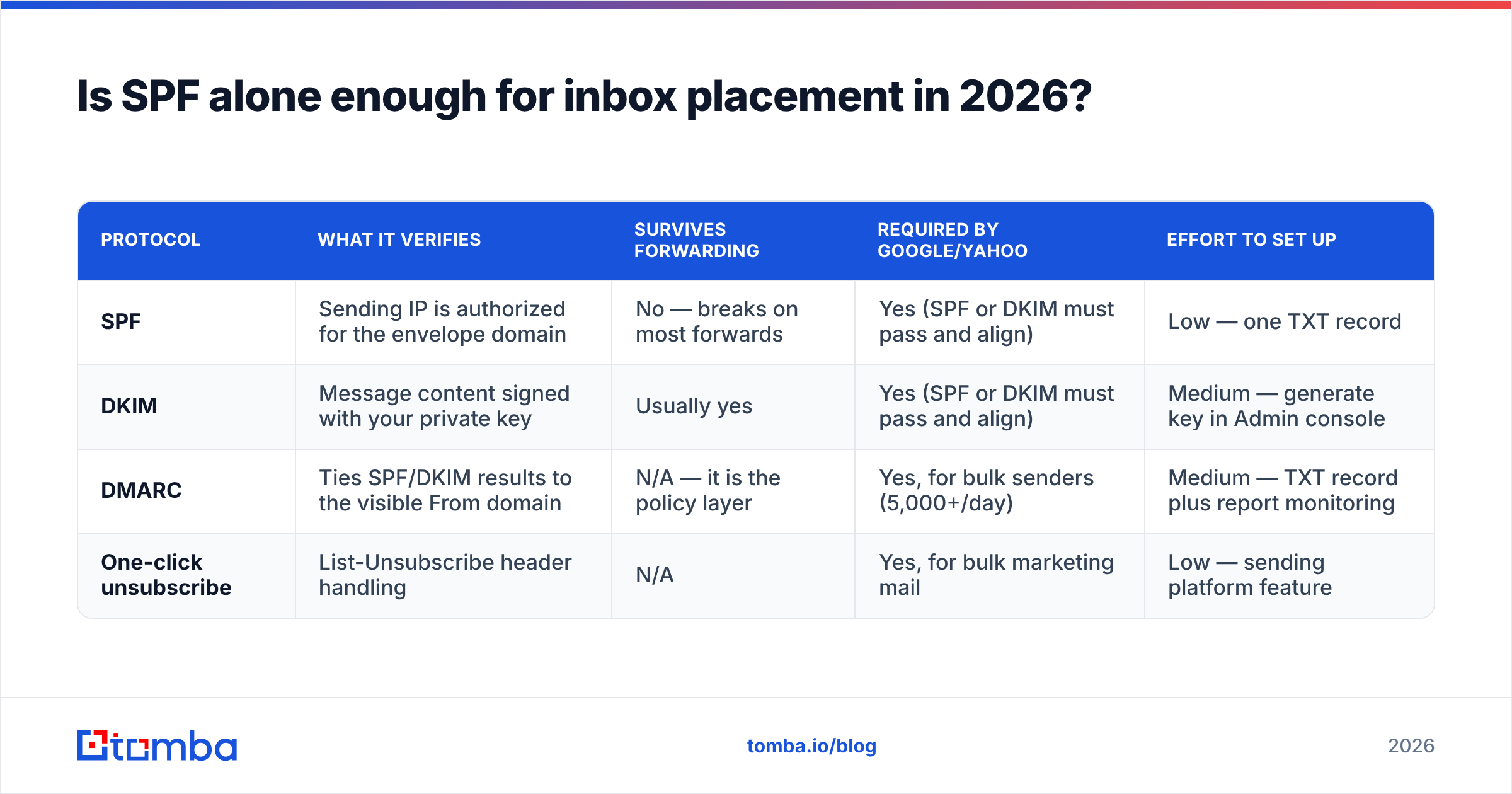
Since the February 2024 Google and Yahoo bulk sender requirements — now fully enforced and tightened further through 2025 — SPF is one of three required signals, not the whole answer. Here is how the three authentication protocols divide the work.
| Protocol | What it verifies | Survives forwarding | Required by Google/Yahoo | Effort to set up |
|---|---|---|---|---|
| SPF | Sending IP is authorized for the envelope domain | No — breaks on most forwards | Yes (SPF or DKIM must pass and align) | Low — one TXT record |
| DKIM | Message content signed with your private key | Usually yes | Yes (SPF or DKIM must pass and align) | Medium — generate key in Admin console |
| DMARC | Ties SPF/DKIM results to the visible From domain | N/A — it is the policy layer | Yes, for bulk senders (5,000+/day) | Medium — TXT record plus report monitoring |
| One-click unsubscribe | List-Unsubscribe header handling | N/A | Yes, for bulk marketing mail | Low — sending platform feature |
The practical implication: fix all three or none of them matter much. A domain with a perfect SPF record, no DKIM, and no DMARC will still see erratic placement at Gmail and Outlook. Meanwhile a domain with SPF plus DKIM plus p=none DMARC and clean sending behavior lands consistently.
If you are starting from zero, publish SPF and DKIM first, then add DMARC at p=none so you get aggregate reports without risking legitimate mail. Read the reports for at least 30 days before moving to p=quarantine. Only then consider tightening ~all to -all. Understanding email deliverability as a system rather than a checklist is what separates domains that scale from domains that get throttled.

What are the most common Google Workspace SPF mistakes?#
Ranked by how often they show up in real audits.
1. Two SPF records on the same domain. You added Google's record without deleting the old one from your previous provider. RFC 7208 is explicit: more than one v=spf1 record is a permanent error. Merge them into one.
2. SPF published on a subdomain instead of the root. mail.yourcompany.com gets the record, yourcompany.com gets nothing. Your From address uses the root, so SPF finds nothing to evaluate.
3. Using -all too early. Hardfail means any sender you forgot — your CRM, your invoicing tool, your helpdesk, the marketing automation someone in another department signed up for — gets rejected outright. Start with ~all, watch DMARC reports, then tighten.
4. Exceeding the 10-lookup limit. Covered above. It is silent, which makes it the most dangerous item on this list.
5. Assuming SPF covers the visible From address. SPF checks the envelope sender (Return-Path), not the header From your recipient sees. That gap is precisely why DMARC exists — it enforces alignment between the two.
6. Forgetting the record after a domain migration. New registrar, new DNS panel, records not transferred. Mail keeps flowing for a while because reputation lags, and then it does not.
7. Treating SPF as a deliverability strategy. It is a prerequisite, not a strategy. Sending to invalid addresses will destroy your sender reputation faster than any DNS misconfiguration. A 12% bounce rate tells Gmail you scraped a list, regardless of how clean your authentication is.
How do you verify your SPF record is actually working?#
Four checks, in increasing order of rigor.
- DNS lookup.
dig TXT yourdomain.com +shortfrom a terminal, or an SPF record lookup tool. Confirms the record exists and is syntactically valid. Also confirms there is only one. - Lookup counter. Any decent SPF validator counts DNS lookups for you. If it reports more than 10, the record is broken today, not "at risk."
- Live header inspection. Send to Gmail, open "Show original," and read the Authentication-Results line. You want
spf=pass,dkim=pass, anddmarc=pass. Anything else is a real problem in production, not a theoretical one. - DMARC aggregate reports. Once DMARC is published with a
rua=address, you get daily XML reports showing every IP sending as your domain, and whether SPF and DKIM passed. This is the only method that catches the sender you forgot about.
Round it out with a blacklist checker and a spam checker run against a representative message. Authentication, reputation, and content are three separate failure modes, and fixing one does not diagnose the others.
What should you fix after SPF?#
Authentication is the floor, not the ceiling. Once spf=pass is reliable, the next lever is who you are emailing.
Invalid addresses are the fastest way to burn a domain that has perfect DNS. Every hard bounce is a signal to Gmail and Outlook that you do not know who is on your list. Mailbox providers weight bounce rate heavily — well above content signals — and a domain that repeatedly hits nonexistent mailboxes gets throttled no matter what its TXT records say. Industry guidance from vendors and review platforms like G2 consistently puts bounce rate under 2% as the working threshold; above 5% you are in visible trouble.
The sequence that works:
- Publish SPF and DKIM. One afternoon of DNS work.
- Add DMARC at
p=none. Monitor for 30 days. - Verify every address before you send. Especially anything older than six months or sourced from an export.
- Segment by engagement. Send to people who open. Suppress people who never do.
- Then tighten the policy.
p=quarantine, and-allonly once the reports are clean.
Steps 1, 2, and 5 are DNS. Step 3 and 4 are data quality — and data quality is where most cold outreach programs actually fail.
Ready to stop guessing about your list?#
Your SPF record takes ten minutes. Keeping your contact data accurate is the ongoing job. Tomba's email verifier runs syntax, domain, MX, and SMTP-level checks so you know which addresses will bounce before you send, and the Tomba Email Finder sources verified professional addresses by domain or name so you are not building a list from guesses in the first place. The free tier covers 25 searches a month, and Tomba pricing starts at $49/mo on Starter with $99/mo Growth and $249/mo Pro tiers for teams running volume. Publish the SPF record today, then verify the list you were about to mail.
Related guides#
Ready to find emails that actually work?
Join 150,000+ professionals who stopped guessing and started sending. Free credits on signup — no credit card required.
Get the Tomba newsletter
Practical outbound tactics and product updates — once every two weeks.
About the author