How to Add an Unsubscribe Link to Gmail in 2026 (Step by Step)
Gmail's compose window has no unsubscribe button. Here are the three ways to add one — manual footer links, List-Unsubscribe headers, and sending platforms — plus what Google's bulk sender rules actually demand.
TL;DR
- Gmail's compose window has no built-in unsubscribe feature. You add the link yourself — either as a hyperlink in the body/signature, or as a
List-Unsubscribeheader set by whatever sends the mail. - A visible footer link is enough for one-off and small-volume sending. It is not enough if you send more than 5,000 messages a day to Gmail addresses — Google requires a one-click header-based unsubscribe there.
- Three practical methods: manual hyperlink in the Gmail signature, header injection via SMTP/API (Gmail API, Postfix, or a sending platform), or a sequencer/ESP that writes the header for you.
- The unsubscribe destination matters as much as the link. One click, no login, processed within two days.
- Clean lists reduce the need for unsubscribes in the first place. Verified, permission-based contacts complain less and bounce less.
What does "adding an unsubscribe link to Gmail" actually mean?#
It means two different things, and mixing them up is why most people get stuck.
The first is the visible link — the "Unsubscribe" text at the bottom of your email that a reader can click. You control this entirely. It is just an anchor in your message body.
The second is the List-Unsubscribe header — an invisible piece of metadata attached to the message. When Gmail sees it, Gmail renders its own native "Unsubscribe" button next to your sender name at the top of the message. That button is not something you place; it is something Gmail decides to show because your message declared the header.
Think of it like a hotel room. The visible link is the "Do Not Disturb" sign you hang on the doorknob yourself. The header is telling the front desk to flag your room in their system — now every staff member sees it, not just the one walking past your door.
When someone searches for how to add an unsubscribe link to Gmail, they usually want the first thing and eventually discover they need the second.
Does Gmail have a built-in unsubscribe button for senders?#
No. Gmail's compose window offers formatting, attachments, confidential mode, and scheduling — there is no unsubscribe toggle, no merge-field menu, no list management. Google built Gmail as a personal mailbox client, not a bulk sending tool, and it has never added sender-side list controls.
What Gmail does have is the receiving side: the unsubscribe button readers see on marketing mail. That button is powered by headers set by the sending system. If you send from the Gmail web interface, no such header is attached, so no button appears.
This is the practical fork in the road:
- Sending a handful of emails manually? A hyperlink in your body or signature is the correct and sufficient answer.
- Sending campaigns, sequences, or newsletters? You need something between you and Gmail's servers that can write headers — an SMTP relay, the Gmail API, or a dedicated sending platform.
What does Google actually require in 2026?#
Google's bulk sender guidelines, rolled out from February 2024 and tightened since, set a clear line. If you send 5,000 or more messages per day to personal Gmail accounts, you must:
- Authenticate with SPF, DKIM, and DMARC on your sending domain
- Include a one-click unsubscribe in commercial and subscribed messages
- Process unsubscribe requests within two days
- Keep your spam complaint rate below 0.3%, ideally under 0.1%
The one-click requirement is specific: it means both List-Unsubscribe and List-Unsubscribe-Post headers, following RFC 8058. A mailto: unsubscribe alone no longer satisfies it. Google documents the full rule set in its bulk sender guidelines.
Below the 5,000/day threshold, the header is not mandated by Google — but the legal floor still applies. Under the CAN-SPAM Act, any commercial email needs a clear opt-out mechanism and a physical postal address, honored within ten business days. GDPR and CASL raise the bar further by requiring a lawful basis for contact in the first place.
Even when it is optional, adding the header is free upside. Readers who use Gmail's native button unsubscribe instead of hitting "Report spam" — and that swap directly protects your sender reputation.
How do you add an unsubscribe link in the Gmail compose window?#
This is the manual method. It takes about two minutes and works for any Gmail or Google Workspace account.
Method 1 — hyperlink in the message body
- Open Gmail and click Compose.
- Write your email, then move the cursor to the bottom.
- Type your opt-out sentence, for example: If you'd rather not hear from me, unsubscribe here.
- Select the word "unsubscribe".
- Press Ctrl+K (Windows) or Cmd+K (Mac), or click the link icon in the toolbar.
- Paste your unsubscribe URL — a landing page, a form, or a
mailto:address likemailto:unsubscribe@yourdomain.com?subject=Unsubscribe. - Click OK, then send.
Method 2 — put it in your Gmail signature so it is automatic
- Go to Settings (gear icon) → See all settings → General.
- Scroll to Signature and select or create a signature.
- Add your opt-out line at the bottom of the signature block.
- Highlight the anchor text, click the link icon, paste the URL.
- Scroll down and click Save Changes.
Now every message you compose carries the link without you thinking about it. The trade-off: it appears on internal replies and one-to-one threads too, which can look odd. Many senders keep two signatures — one plain, one with the opt-out — and switch per message using the signature picker in the compose toolbar.
Method 3 — mailto: fallback for zero-infrastructure setups
If you have no landing page, mailto:unsubscribe@yourdomain.com?subject=Unsubscribe%20me is a legitimate opt-out mechanism under CAN-SPAM. You must actually monitor that inbox and act on requests. It does not satisfy Google's one-click rule on its own, so treat it as a floor, not a finish line.
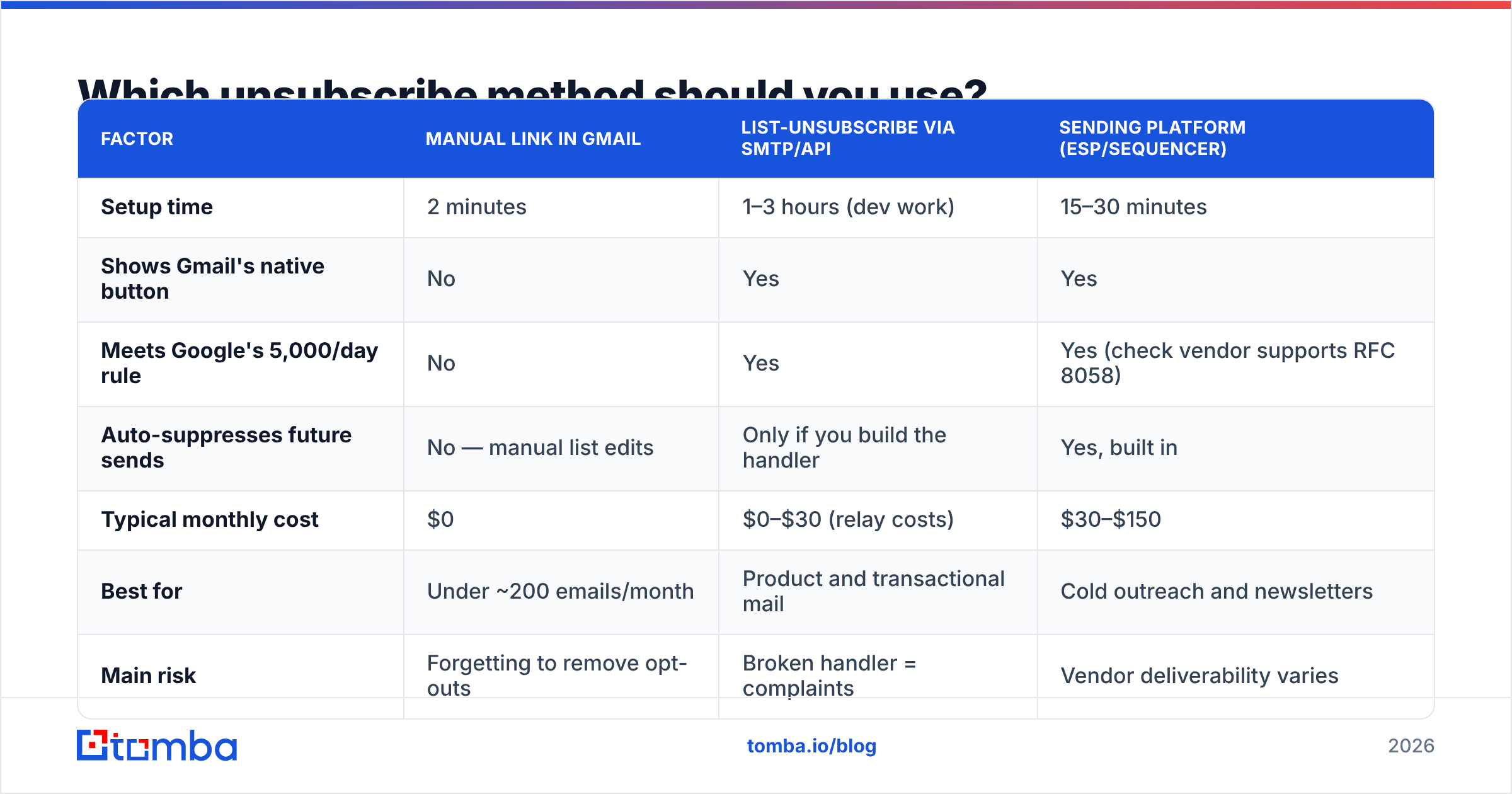
Which unsubscribe method should you use?#
| Factor | Manual link in Gmail | List-Unsubscribe via SMTP/API | Sending platform (ESP/sequencer) |
|---|---|---|---|
| Setup time | 2 minutes | 1–3 hours (dev work) | 15–30 minutes |
| Shows Gmail's native button | No | Yes | Yes |
| Meets Google's 5,000/day rule | No | Yes | Yes (check vendor supports RFC 8058) |
| Auto-suppresses future sends | No — manual list edits | Only if you build the handler | Yes, built in |
| Typical monthly cost | $0 | $0–$30 (relay costs) | $30–$150 |
| Best for | Under ~200 emails/month | Product and transactional mail | Cold outreach and newsletters |
| Main risk | Forgetting to remove opt-outs | Broken handler = complaints | Vendor deliverability varies |
The honest read: if you send fewer than a couple hundred emails a month by hand, the manual link is fine and everything else is over-engineering. The moment you are running sequences, you need a system that both writes the header and suppresses the address afterward. An unsubscribe that does not stop the next email is worse than no unsubscribe at all — it converts a mild annoyance into a spam complaint.
What goes into a compliant unsubscribe setup?#
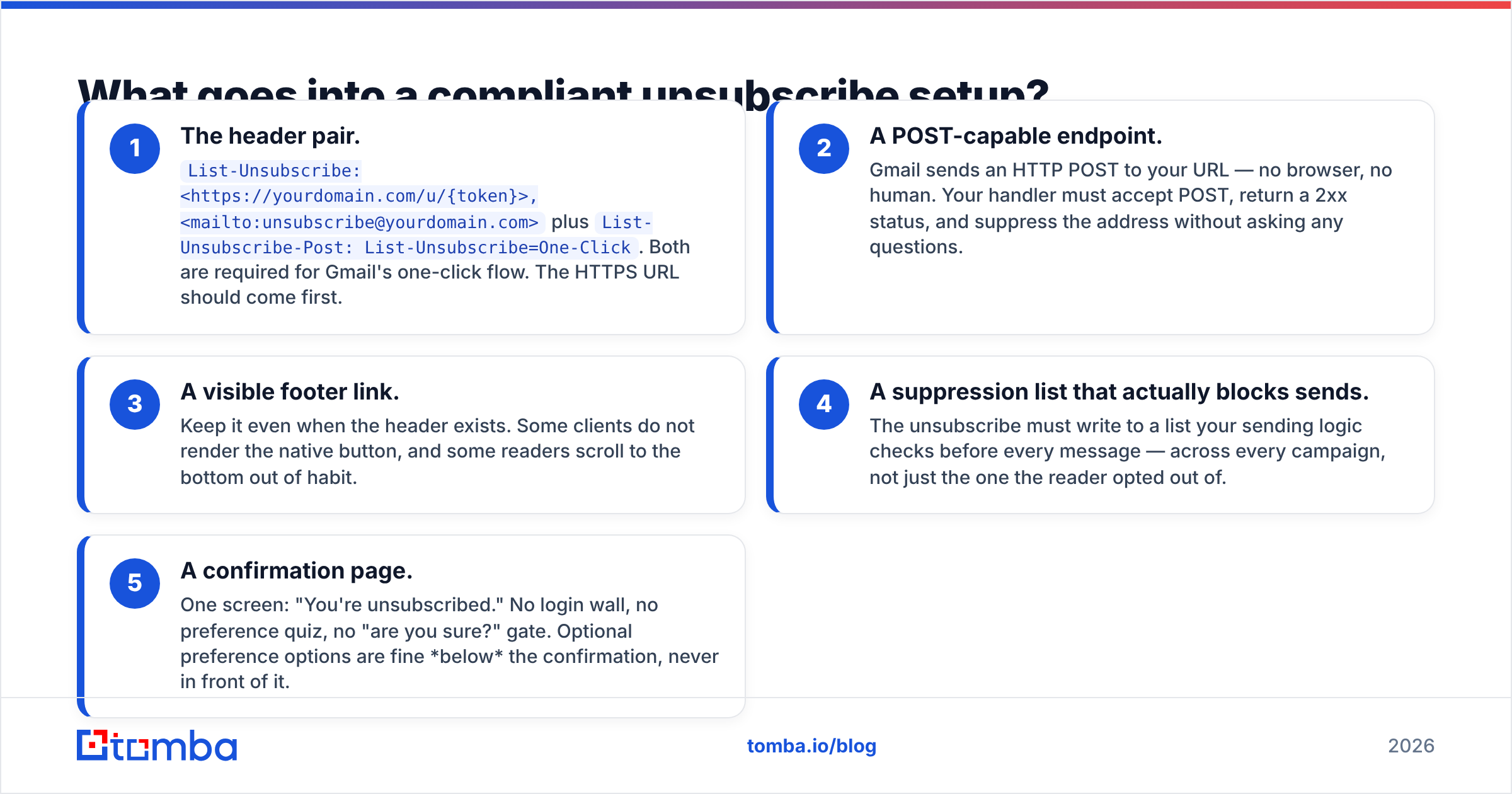
Five components, in the order they matter:
- The header pair.
List-Unsubscribe: <https://yourdomain.com/u/{token}>, <mailto:unsubscribe@yourdomain.com>plusList-Unsubscribe-Post: List-Unsubscribe=One-Click. Both are required for Gmail's one-click flow. The HTTPS URL should come first. - A POST-capable endpoint. Gmail sends an HTTP POST to your URL — no browser, no human. Your handler must accept POST, return a 2xx status, and suppress the address without asking any questions.
- A visible footer link. Keep it even when the header exists. Some clients do not render the native button, and some readers scroll to the bottom out of habit.
- A suppression list that actually blocks sends. The unsubscribe must write to a list your sending logic checks before every message — across every campaign, not just the one the reader opted out of.
- A confirmation page. One screen: "You're unsubscribed." No login wall, no preference quiz, no "are you sure?" gate. Optional preference options are fine below the confirmation, never in front of it.

How do you add the List-Unsubscribe header yourself?#
If you are sending programmatically, you set the header on the outgoing message. With the Gmail API, you build a raw RFC 2822 message and include the header lines before the body:
From: you@yourdomain.com
To: reader@example.com
Subject: Your monthly update
List-Unsubscribe: <https://yourdomain.com/u/a1b2c3>, <mailto:unsub@yourdomain.com?subject=unsub-a1b2c3>
List-Unsubscribe-Post: List-Unsubscribe=One-Click
Content-Type: text/html; charset=UTF-8
Three rules that trip people up:
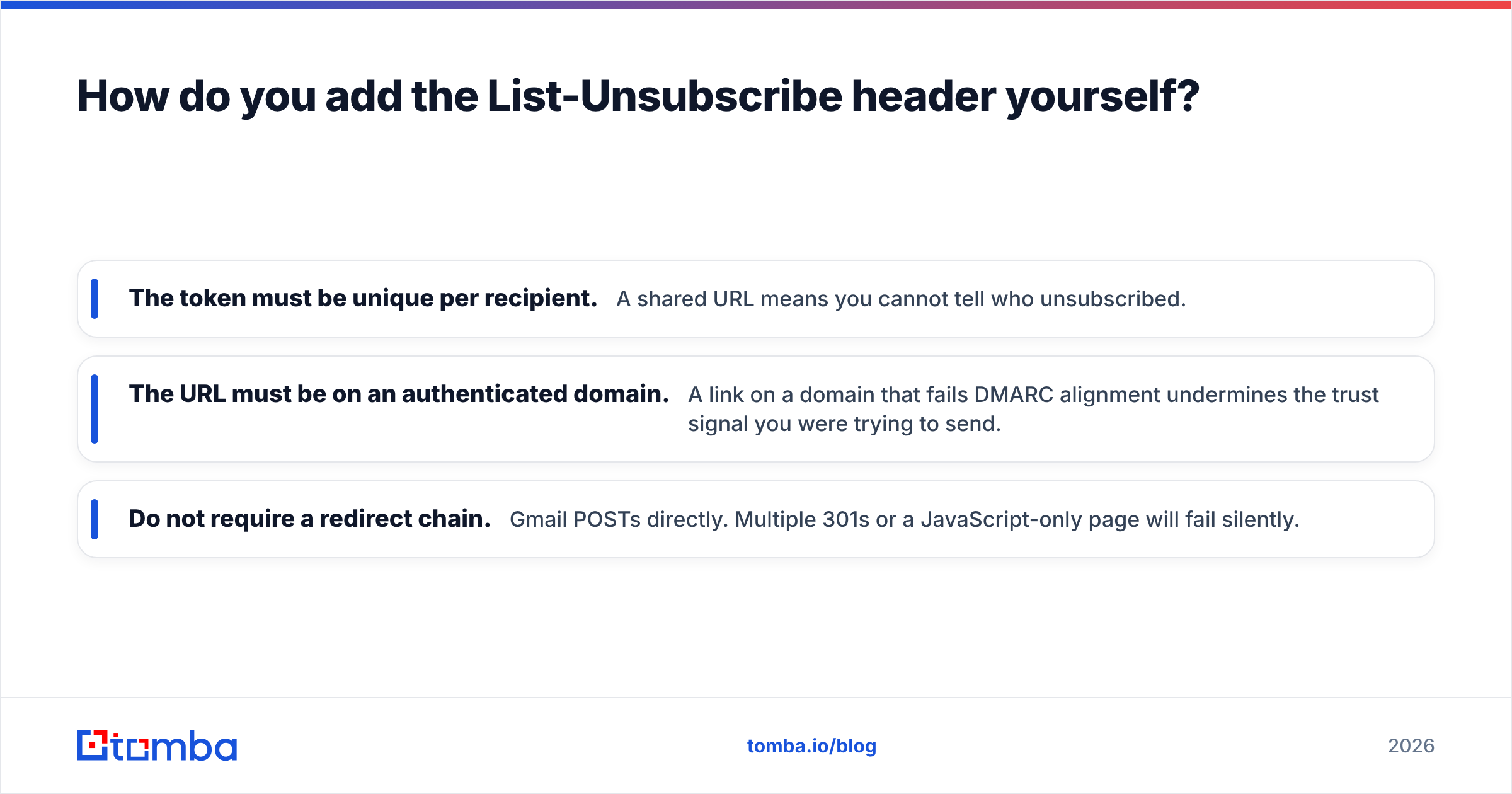
- The token must be unique per recipient. A shared URL means you cannot tell who unsubscribed.
- The URL must be on an authenticated domain. A link on a domain that fails DMARC alignment undermines the trust signal you were trying to send.
- Do not require a redirect chain. Gmail POSTs directly. Multiple 301s or a JavaScript-only page will fail silently.
Also confirm the sending domain is set up properly before you worry about headers. Run your record through an SPF checker and score your message with a spam checker — a missing SPF record will hurt placement far more than a missing unsubscribe button.
Why do unsubscribes protect your Gmail deliverability?#
Because Gmail treats an unsubscribe as neutral feedback and a spam complaint as a red flag. Both remove you from that inbox. Only one damages your ability to reach everyone else.
Gmail's filtering weighs engagement signals at the domain and IP level. A 0.3% complaint rate is the documented ceiling; past it, Google throttles or junks your mail wholesale. Making the exit easy diverts unhappy readers into the harmless channel. Hiding the link does not keep subscribers — it converts them into complainants.
The other half of the equation is who is on the list. Bad addresses generate bounces, spam traps generate blocklistings, and neither can be fixed with a better footer. Running contacts through an email verifier before the first send removes the invalid and risky addresses that push your bounce rate over Gmail's tolerance. Combine that with a genuine opt-out path and your email deliverability stops being a mystery.
What mistakes should you avoid?#
- Burying the link in 6pt grey text. It is legally required to be "clear and conspicuous." It also invites spam reports when readers cannot find it.
- Requiring a login to unsubscribe. Explicitly non-compliant under CAN-SPAM and a reliable complaint generator.
- Charging or asking for a reason first. You may ask after confirming the opt-out. Never before.
- Only offering
mailto:. Fine as a secondary option, insufficient for Google's one-click rule. - Unsubscribing from one list only. If the reader opts out of your newsletter and then receives your product blasts, they will report you.
- Sitting on requests. Google says two days; CAN-SPAM says ten business days. Automate it and the question never arises.
- Adding an unsubscribe link to genuinely transactional mail. Receipts, password resets, and shipping notices do not need one, and offering it can create confusing suppression states.
How should cold outreach handle this?#
Cold email sits in an awkward middle. Recipients never subscribed, so "unsubscribe" is technically the wrong word — but the exit ramp is still non-negotiable.
The pattern that works: a plain, conversational opt-out line rather than a formatted footer. "Not the right time? Just reply 'no' and I'll close the file." This reads human, keeps the message looking like one-to-one mail, and gives the recipient a zero-friction way out.
If your volume is genuinely high, add the List-Unsubscribe header anyway — a header is invisible to the reader and only helps your sender reputation. What you should not do is paste a marketing-style footer with a company logo and a preference center onto a cold email. It signals bulk, and Gmail's filters read that signal.
The upstream fix is targeting. A tight list of 200 relevant people generates almost no opt-outs; a scraped list of 20,000 generates enough complaints to poison the domain. Build the list from verified, role-appropriate contacts rather than volume, and check the response rate you get from a smaller, better-researched batch before scaling anything.
Build the list that does not need an escape hatch#
An unsubscribe link is a safety valve — necessary, but a sign that something upstream sent mail to someone who did not want it. The best defense against opt-outs and complaints is contacting the right people at verified addresses in the first place.
Tomba Email Finder locates verified professional email addresses by name, company, or domain, with confidence scoring on every result so you know what you are sending to before you hit send. The free tier includes 25 searches a month; paid plans start at $49/mo, with Growth at $99/mo and Pro at $249/mo — full Tomba pricing is on the site. Set up the header, keep the footer link honest, and spend the saved effort on a list worth mailing.
Related guides#
Ready to find emails that actually work?
Join 150,000+ professionals who stopped guessing and started sending. Free credits on signup — no credit card required.
Get the Tomba newsletter
Practical outbound tactics and product updates — once every two weeks.
About the author