How to Send Mass Emails in Gmail Without Getting Blocked
Gmail caps you at 500 recipients a day and silently throttles anything that looks like bulk mail. Here are the four working methods, the real limits, and the setup that keeps you out of spam.
TL;DR
- Gmail's real ceiling is 500 recipients/day on free accounts and 2,000/day on paid Google Workspace — and "recipients" counts every name in To, CC, and BCC.
- Four ways to do it: BCC (fastest, worst), native Google Workspace multi-send, a mail-merge add-on like GMass or YAMM, or a dedicated cold email platform on a separate domain.
- BCC blasts break personalization, expose you to reply-all disasters, and trigger Gmail's throttling faster than anything else.
- List hygiene matters more than the sending method. A 5% bounce rate on 500 emails will damage your sender reputation before your subject line ever gets a chance.
- Verify every address before you send. A clean list plus a mail merge tool beats a big list plus a fast blast, every time.
What Does "Mass Email" Actually Mean in Gmail?#
Gmail was built for one-to-one conversation, not broadcasting. That single design decision explains every limit, warning, and silent throttle you'll run into.
Think of Gmail like a residential mailbox. It's fine for personal letters, and it will handle a stack of holiday cards. But the moment you back a truck up to it, the postal service starts asking questions. Google's abuse systems do the same thing — they watch recipient counts, sending velocity, bounce rates, and complaint rates, and they apply brakes without telling you.
"Mass email in Gmail" in practice means one of three jobs:
- A one-off announcement to 50–300 known contacts (customers, event attendees, an internal list).
- A personalized outreach sequence to 20–200 prospects per day, where each message needs to look and read as individual.
- A newsletter to 1,000+ subscribers — which Gmail genuinely cannot do and you should not try.
Job 3 belongs in Mailchimp, Brevo, or a similar ESP. Jobs 1 and 2 are what this guide covers, and they have very different right answers.
What Are Gmail's Actual Sending Limits in 2026?#
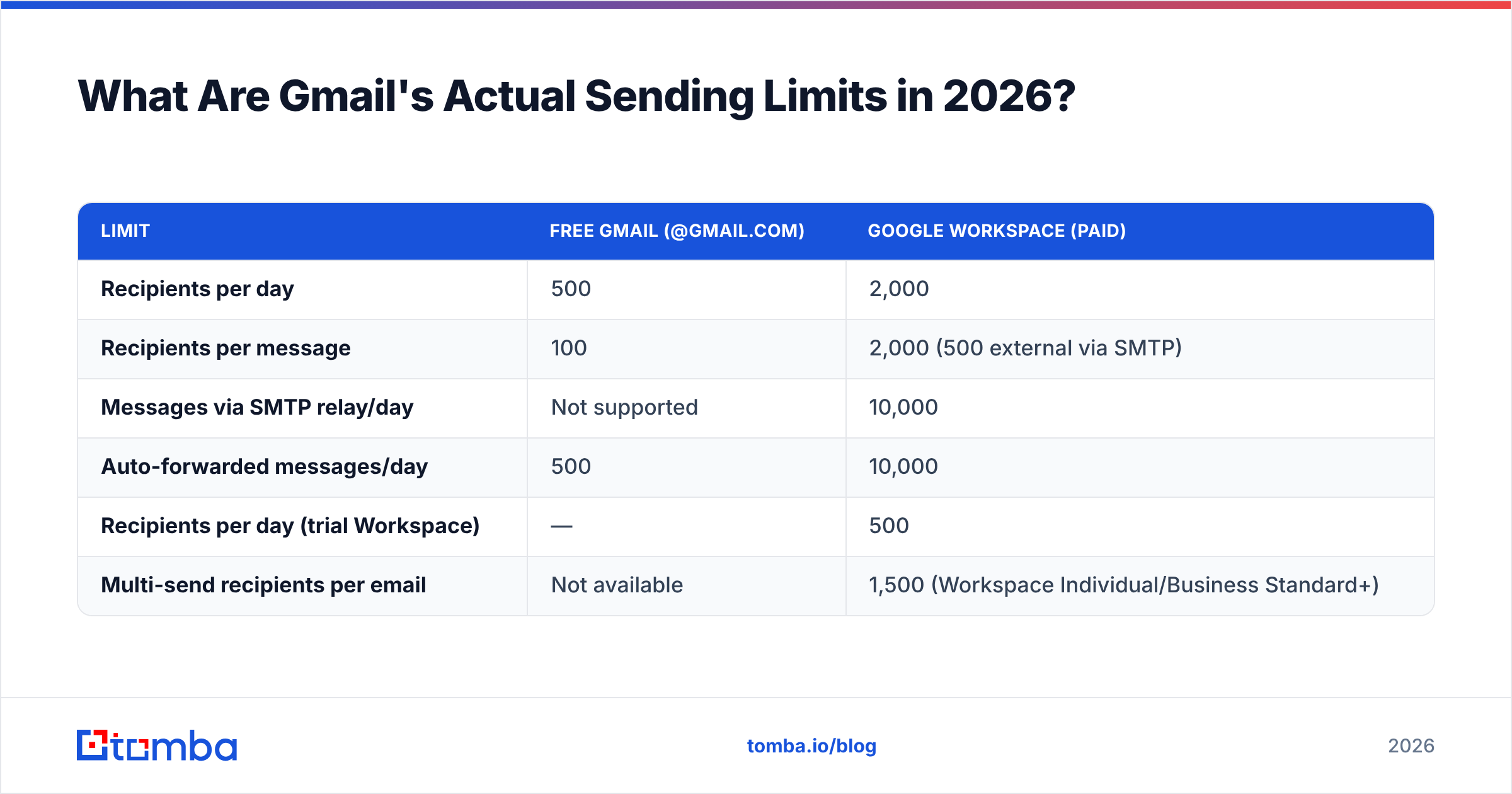
Know the numbers before you pick a method, because the method that fits your volume is usually the correct one.
| Limit | Free Gmail (@gmail.com) | Google Workspace (paid) |
|---|---|---|
| Recipients per day | 500 | 2,000 |
| Recipients per message | 100 | 2,000 (500 external via SMTP) |
| Messages via SMTP relay/day | Not supported | 10,000 |
| Auto-forwarded messages/day | 500 | 10,000 |
| Recipients per day (trial Workspace) | — | 500 |
| Multi-send recipients per email | Not available | 1,500 (Workspace Individual/Business Standard+) |
Two traps most people hit:
- Rolling 24-hour window. The counter isn't calendar-day based. If you send 500 at 4pm Monday, you're not clear until 4pm Tuesday.
- New Workspace accounts start at trial limits. A brand-new domain sending 2,000 emails on day one is the fastest way to get suspended. Google's official Gmail sending limits documentation is worth bookmarking; the numbers do move.
Hit the ceiling and you get "You have reached a limit for sending mail" and a 24-hour lockout on outbound mail. Your inbox still works, which is why people don't notice until a campaign is half-sent.
How Do You Send Mass Emails in Gmail with BCC?#
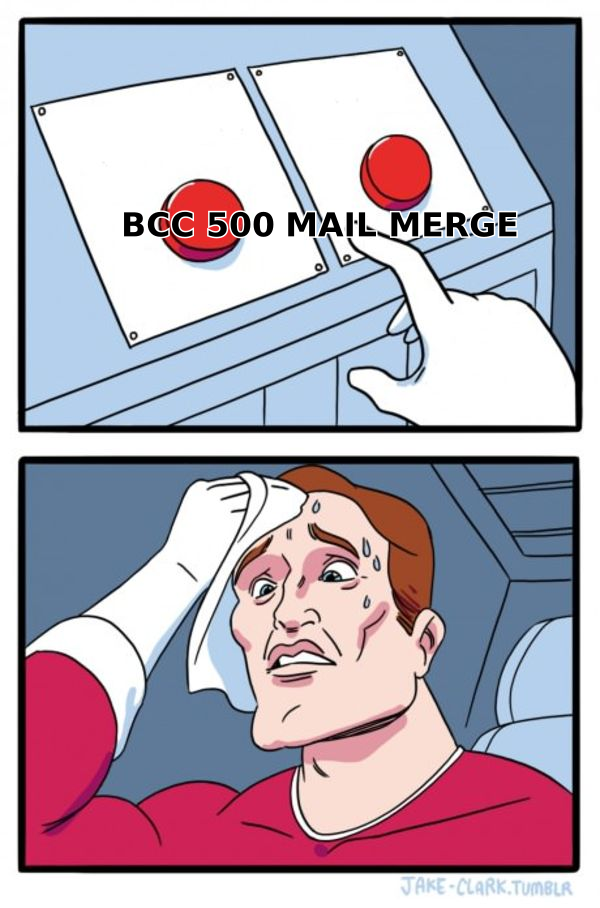
BCC is the method everyone starts with and almost everyone should abandon.
The mechanics are simple. Put your own address in To, paste up to 100 addresses into BCC, write the message, hit send. Recipients can't see each other. Done in ninety seconds.
Here's what you're giving up:
- Zero personalization. No first name, no company, no role. Reply rates on generic broadcasts sit in the 1–2% range for cold audiences.
- No tracking. You cannot tell who opened, who clicked, or who bounced without a third-party layer.
- Deliverability penalty. Large BCC blocks are a classic bulk-mail signal. Gmail's own filters and receiving providers both score them down.
- No sequencing. Follow-ups have to be sent manually, one by one, which defeats the point.
- Human error risk. One accidental CC instead of BCC and you've leaked your entire contact list.
Use BCC when you have fewer than 50 recipients, the message is genuinely identical for all of them, and you don't need replies attributed. An office closure notice, a venue change, a "we've moved" note. That's the whole use case.
How Does Google Workspace Multi-Send Work?#
Multi-send is Gmail's built-in answer, available on Workspace Individual, Business Standard, Business Plus, and most Enterprise tiers. It's the cleanest native option if you already pay for Workspace.
To use it:
- Open Compose in Gmail on desktop.
- Click the Multi-send icon (the people icon with a plus) in the toolbar.
- Add up to 1,500 addresses in the To field — each one receives a separate copy.
- Insert
@firstnamestyle merge tags from the mail-merge menu, or pull from a Google Sheet. - Send, or send a test to yourself first.
Every recipient gets an individual email with their own thread and an automatic unsubscribe link in the footer. That last part is not optional and not removable, which is the right call for compliance and a limitation if you're doing one-to-one sales outreach where an unsubscribe footer looks off-brand.
Multi-send does not support attachments, scheduled sends, or Confidential Mode. It also counts against your daily recipient cap like any other send.
Which Mail Merge Tool Should You Use with Gmail?#
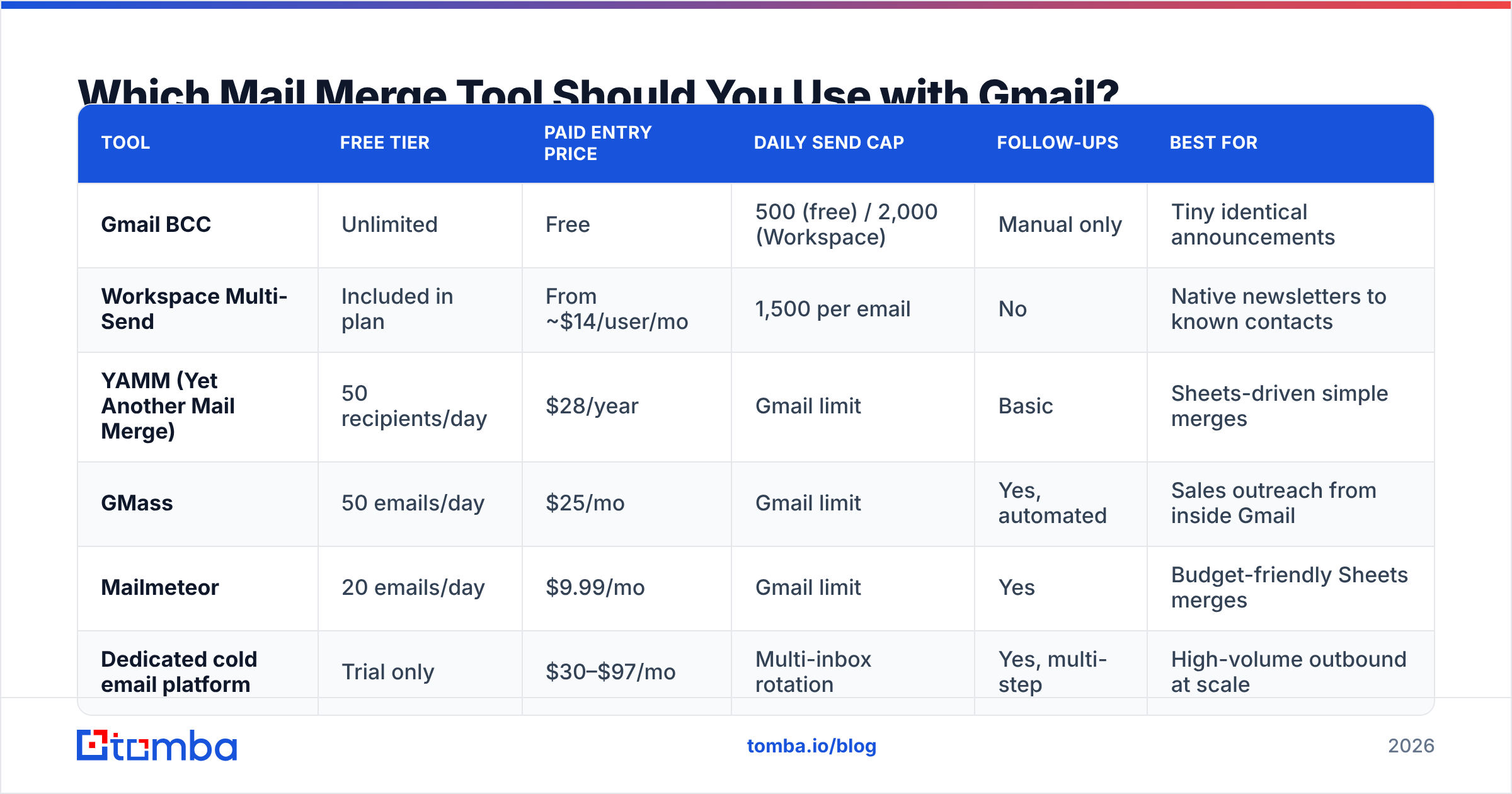
If you need personalization, follow-ups, and reporting, you need a layer on top of Gmail. Here's how the common options compare.
| Tool | Free tier | Paid entry price | Daily send cap | Follow-ups | Best for |
|---|---|---|---|---|---|
| Gmail BCC | Unlimited | Free | 500 (free) / 2,000 (Workspace) | Manual only | Tiny identical announcements |
| Workspace Multi-Send | Included in plan | From ~$14/user/mo | 1,500 per email | No | Native newsletters to known contacts |
| YAMM (Yet Another Mail Merge) | 50 recipients/day | $28/year | Gmail limit | Basic | Sheets-driven simple merges |
| GMass | 50 emails/day | $25/mo | Gmail limit | Yes, automated | Sales outreach from inside Gmail |
| Mailmeteor | 20 emails/day | $9.99/mo | Gmail limit | Yes | Budget-friendly Sheets merges |
| Dedicated cold email platform | Trial only | $30–$97/mo | Multi-inbox rotation | Yes, multi-step | High-volume outbound at scale |
The pattern is clear. Every Gmail-native tool inherits Gmail's daily cap — no add-on can raise it, and any vendor claiming otherwise is either rotating inboxes behind the scenes or lying. If you need more than 2,000 sends a day, the answer is more sending accounts or a dedicated platform, not a better add-on.
For most B2B teams doing 50–200 targeted emails a day, GMass or Mailmeteor sitting on a Workspace account is the sweet spot: real personalization, automated follow-ups, and you stay in the inbox you already live in.
Why Does List Quality Matter More Than the Send Method?#
Because bounces kill you faster than bad copy does.
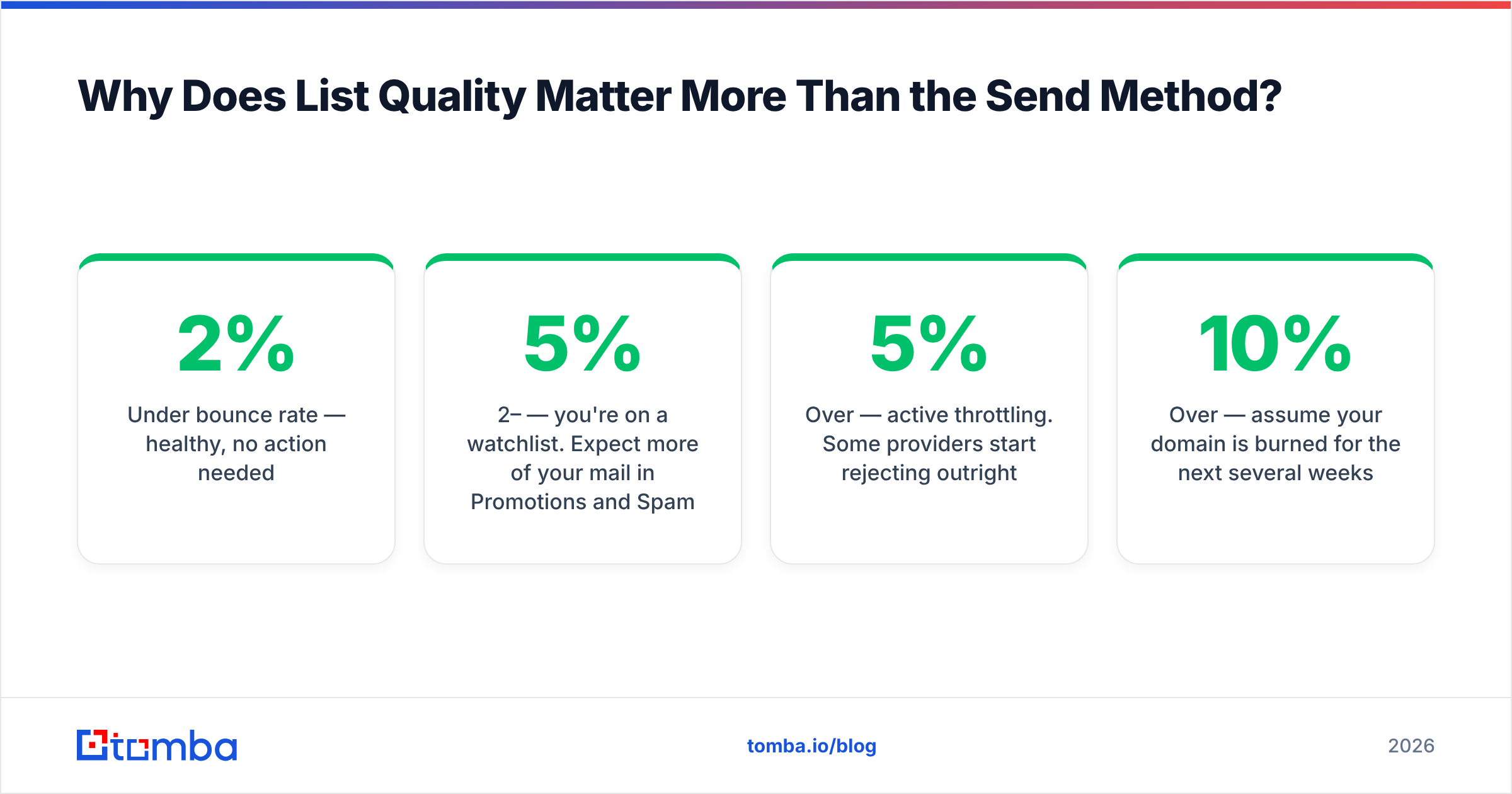
Gmail, Microsoft 365, and every major receiving provider track your bounce rate as a primary reputation signal. The rough thresholds:
- Under 2% bounce rate — healthy, no action needed.
- 2–5% — you're on a watchlist. Expect more of your mail in Promotions and Spam.
- Over 5% — active throttling. Some providers start rejecting outright.
- Over 10% — assume your domain is burned for the next several weeks.
Run the math on a 500-recipient send. At a 10% bounce rate — completely normal for a scraped or year-old list — that's 50 hard bounces in a single afternoon. You've done more damage to your sender reputation in one send than a month of good campaigns will repair.
The fix is boring and it works: verify before you send. Run your list through an email verifier and drop anything that comes back invalid, disposable, or role-based (info@, sales@, support@ — high complaint, low reply). For lists where you have names and company domains but no addresses, an email finder resolves them against live sources rather than guessing at patterns.
Catch-all domains deserve special mention. They accept everything at the SMTP layer, so a standard verifier returns "unknown" and you're left guessing. A catch-all verifier applies additional signals to resolve them, which matters because catch-alls are disproportionately common at mid-market and enterprise companies — exactly the accounts you want.

How Do You Set Up Gmail So Mass Sends Actually Land?#
Authentication first, warmup second, content third. In that order.
1. Authenticate your domain. SPF, DKIM, and DMARC are non-negotiable since Google and Yahoo's 2024 bulk-sender requirements took effect. Any domain sending over 5,000 messages a day to Gmail needs all three plus one-click unsubscribe. Under that threshold you still need SPF or DKIM, and you should have all three anyway. Check your record with an SPF checker before your first campaign, not after.
2. Warm up new domains and inboxes. A domain registered last week that sends 400 cold emails on day one will land in spam. Start at 10–20 sends a day and ramp roughly 30% weekly over four to six weeks. An email warmup calculator gives you a schedule to follow instead of guessing.
3. Use a subdomain for outbound. Send campaigns from mail.yourcompany.com or go.yourcompany.com, not your root domain. If reputation goes sideways, your transactional and internal mail on the root domain is insulated.
4. Slow the send rate. Blasting 500 emails in ten minutes looks like exactly what it is. Most mail merge tools let you set a delay between sends — 30 to 90 seconds spreads a 200-email campaign across several hours and mimics human sending behavior.
5. Strip the spam triggers. No link shorteners, no more than two links total, no tracking pixel if you can live without opens, plain text over heavy HTML. Run drafts through a spam checker and fix anything flagged before it goes out.
6. Monitor after sending. Google Postmaster Tools shows your domain reputation, spam complaint rate, and authentication pass rate directly from Google's side. It's free, it takes ten minutes to set up, and it's the only view into how Gmail actually scores you. Their Postmaster Tools documentation covers setup.
When Should You Stop Using Gmail Entirely?#
Four clear signals:
- You need more than 2,000 sends a day. Gmail can't do it, and stacking add-ons won't change that. Move to a platform with inbox rotation across multiple domains.
- You're sending newsletters to opted-in subscribers. Use a real ESP. They handle unsubscribe compliance, list segmentation, and shared-IP reputation management that Gmail simply doesn't offer.
- Your primary domain reputation is already damaged. Stop sending from it entirely, fix the underlying list quality problem, and rebuild on a fresh subdomain.
- You need multi-channel sequences. Email plus LinkedIn plus calls, orchestrated together, is outside what any Gmail add-on does well. If you're evaluating that tier, comparing an Instantly alternative or a Saleshandy alternative is the right next step.
For everything below those thresholds, Gmail plus a mail merge tool plus a verified list is genuinely hard to beat. You're sending from a real inbox with real reputation history, which is worth more than any feature list.
What's the Fastest Working Setup?#
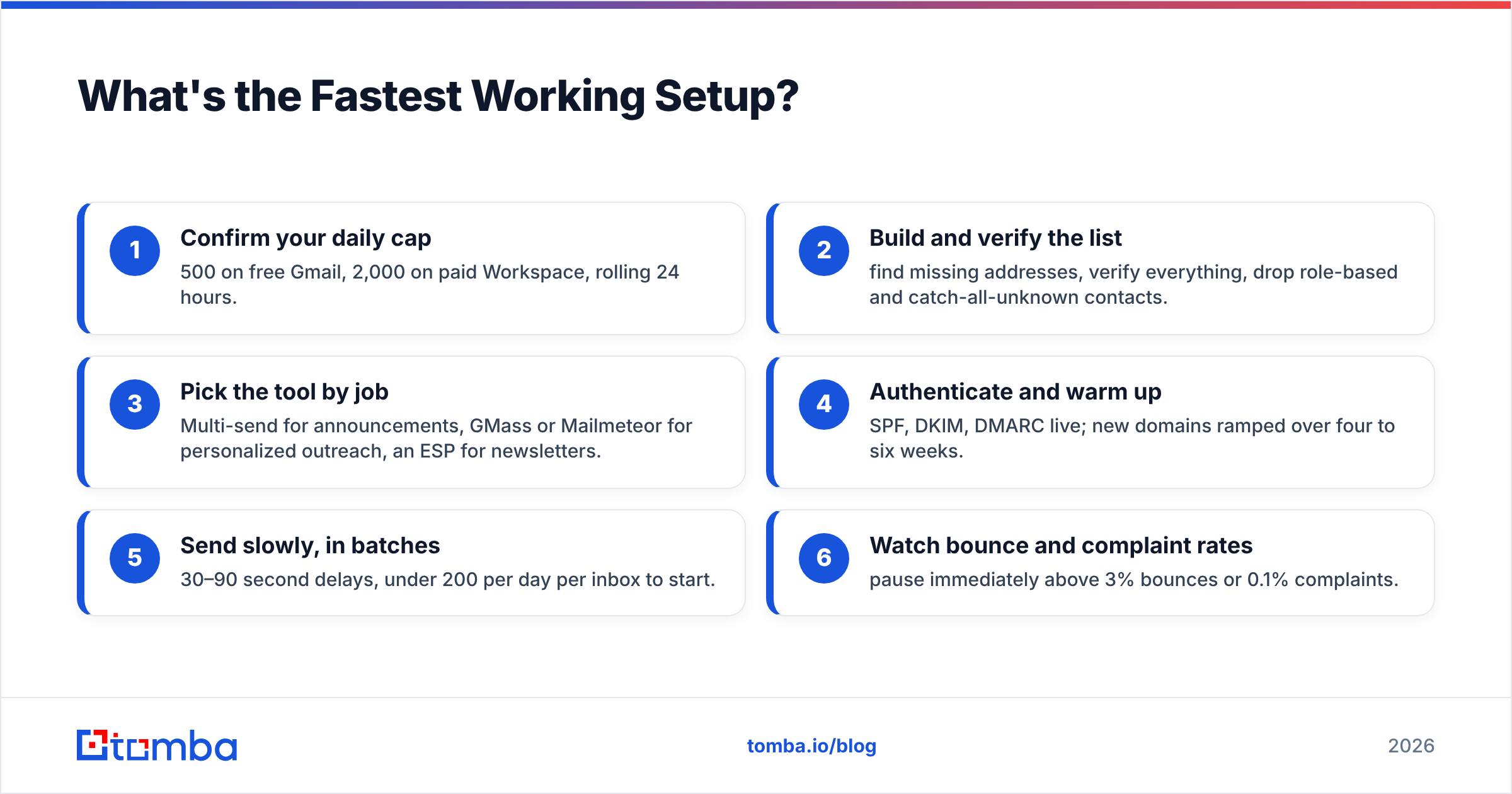
If you want the short version, here it is as a checklist:
- Confirm your daily cap — 500 on free Gmail, 2,000 on paid Workspace, rolling 24 hours.
- Build and verify the list — find missing addresses, verify everything, drop role-based and catch-all-unknown contacts.
- Pick the tool by job — Multi-send for announcements, GMass or Mailmeteor for personalized outreach, an ESP for newsletters.
- Authenticate and warm up — SPF, DKIM, DMARC live; new domains ramped over four to six weeks.
- Send slowly, in batches — 30–90 second delays, under 200 per day per inbox to start.
- Watch bounce and complaint rates — pause immediately above 3% bounces or 0.1% complaints.
Follow that and Gmail will carry a surprising amount of outbound volume without complaint. Skip step 2 and none of the other steps will save you.
Get the List Right Before You Hit Send#
The method you choose matters less than the addresses you send to. A perfectly configured mail merge pointed at a stale, unverified list will still bounce, still get flagged, and still cost you weeks of domain reputation.
Start with Tomba Email Finder. Find verified professional addresses by name, domain, or company, confirm each one before it enters your campaign, and export a clean list straight into whichever Gmail tool you've picked. The free tier gives you 25 searches a month to test it, and paid plans start at $49/mo — see Tomba pricing for the full breakdown. Verify first, send second, and Gmail will stay on your side.
Related guides#
// get started
Find, verify and enrich your first contacts today
Start on the free plan with 25 searches a month, then scale when your team is ready.
Free plan · No credit card required · GDPR & CCPA
// about the author