How to Send Mass Emails in Outlook Without Landing in Spam
Outlook can send mass emails four different ways, and three of them will quietly wreck your deliverability. Here is the method-by-method breakdown, the real send limits, and when to stop using Outlook entirely.
TL;DR
- Outlook has four real ways to send mass email: BCC, Word mail merge, Power Automate, and the Microsoft Graph API. Only two of them scale past a few hundred recipients.
- Microsoft 365 caps you at 10,000 recipients per day and 500 recipients per message. Outlook.com free accounts are far tighter — roughly 300/day and 100 per message.
- BCC blasts are the fastest way to trip spam filters and get your tenant throttled. Use mail merge or Graph so each recipient gets an individually addressed message.
- The variable that actually decides whether your campaign lands is list quality, not the send method. A 12% bounce rate will sink a perfectly configured tenant.
- For anything past ~2,000 recipients per month or true sequencing, move to a dedicated sending platform and keep Outlook for one-to-one replies.
What does "mass email" actually mean in Outlook?#
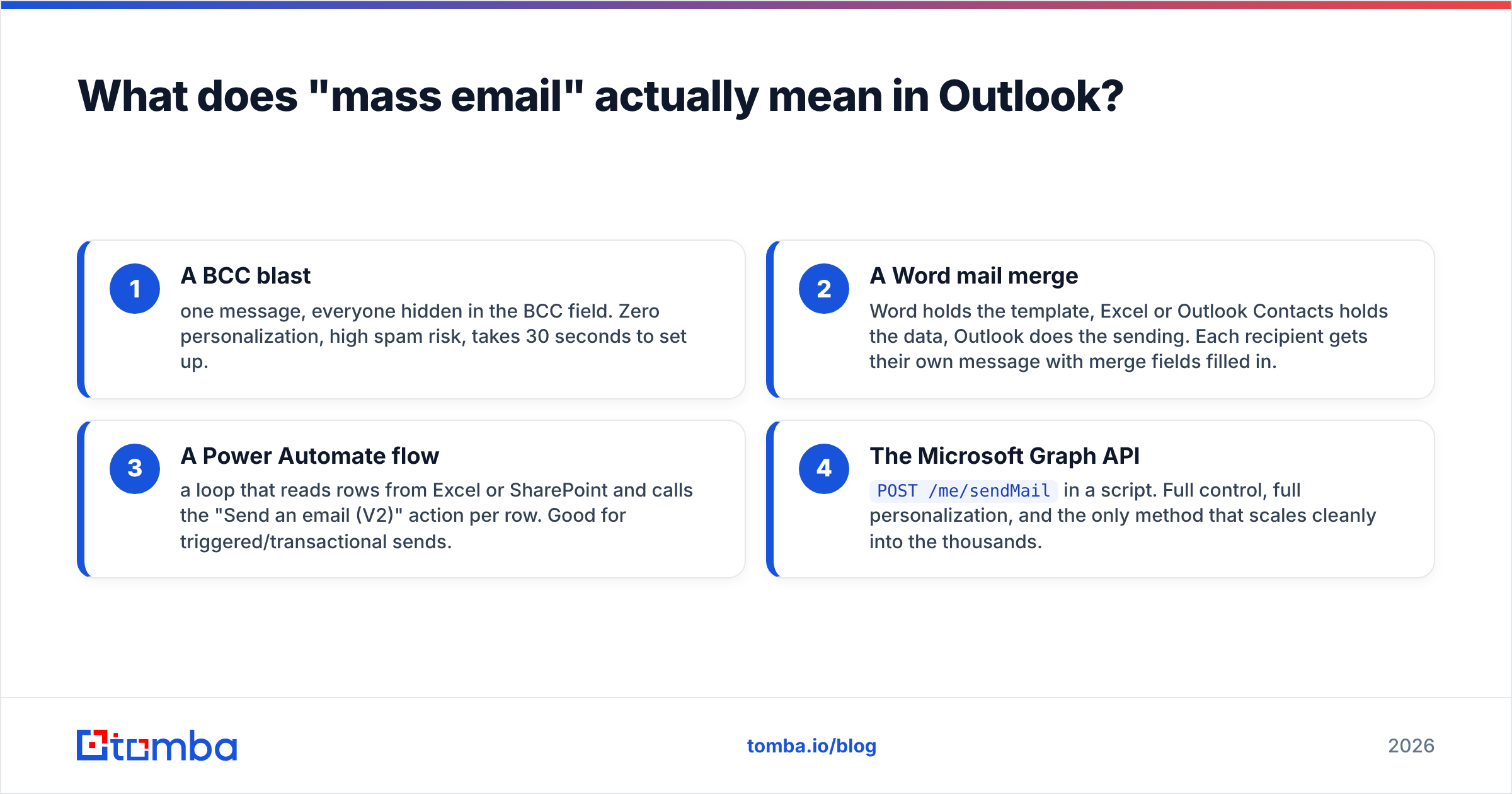
Outlook was built for one-to-one correspondence, then had bulk features bolted on over 25 years. That history explains the mess. When someone says "mass email in Outlook," they usually mean one of four very different things:
- A BCC blast — one message, everyone hidden in the BCC field. Zero personalization, high spam risk, takes 30 seconds to set up.
- A Word mail merge — Word holds the template, Excel or Outlook Contacts holds the data, Outlook does the sending. Each recipient gets their own message with merge fields filled in.
- A Power Automate flow — a loop that reads rows from Excel or SharePoint and calls the "Send an email (V2)" action per row. Good for triggered/transactional sends.
- The Microsoft Graph API —
POST /me/sendMailin a script. Full control, full personalization, and the only method that scales cleanly into the thousands.
The right pick depends on volume, personalization depth, and whether you need reply tracking. Everything below assumes a Microsoft 365 (work/school) account unless stated otherwise.
Which Outlook mass-email method should you use?#
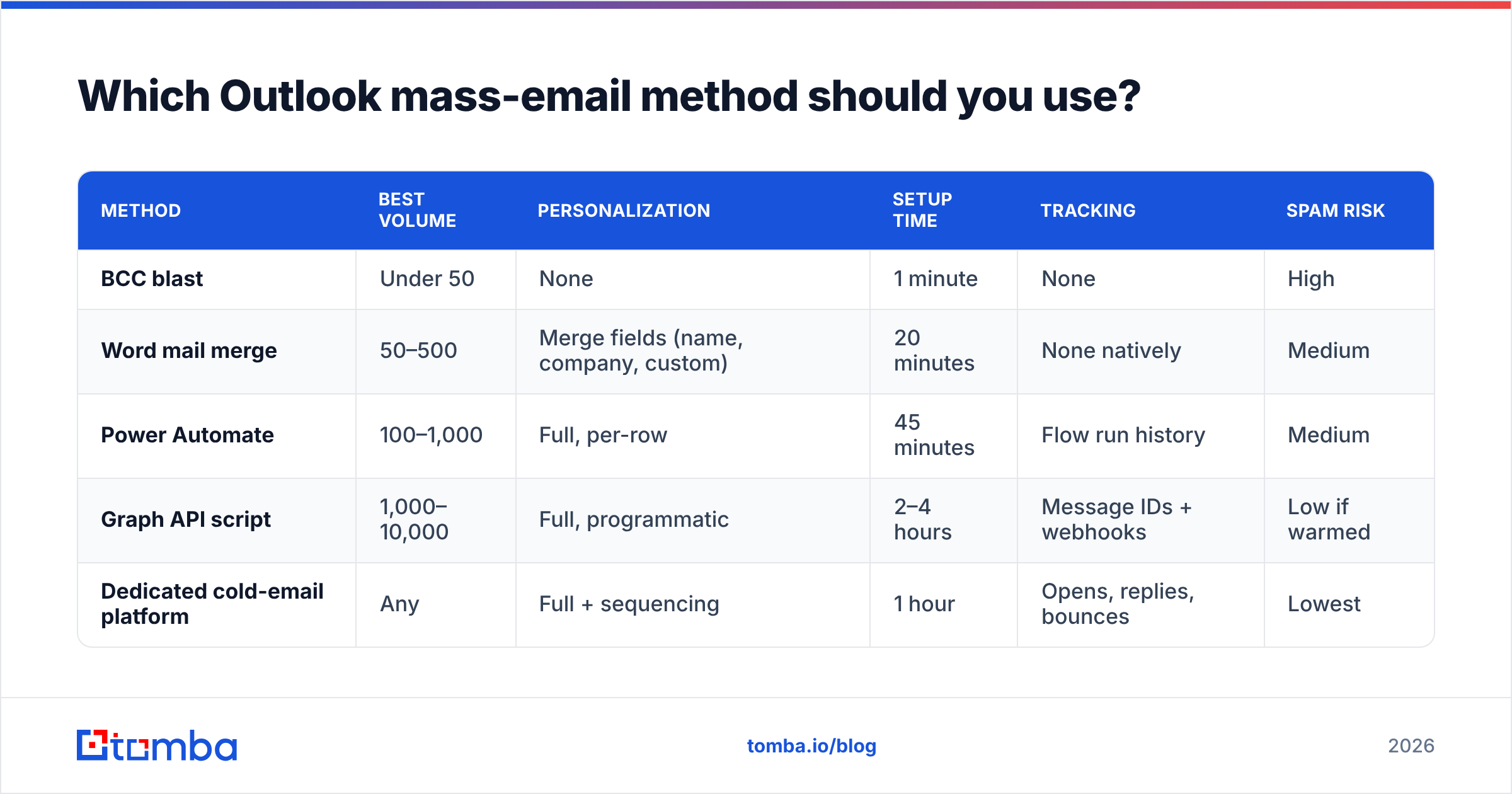
| Method | Best volume | Personalization | Setup time | Tracking | Spam risk |
|---|---|---|---|---|---|
| BCC blast | Under 50 | None | 1 minute | None | High |
| Word mail merge | 50–500 | Merge fields (name, company, custom) | 20 minutes | None natively | Medium |
| Power Automate | 100–1,000 | Full, per-row | 45 minutes | Flow run history | Medium |
| Graph API script | 1,000–10,000 | Full, programmatic | 2–4 hours | Message IDs + webhooks | Low if warmed |
| Dedicated cold-email platform | Any | Full + sequencing | 1 hour | Opens, replies, bounces | Lowest |
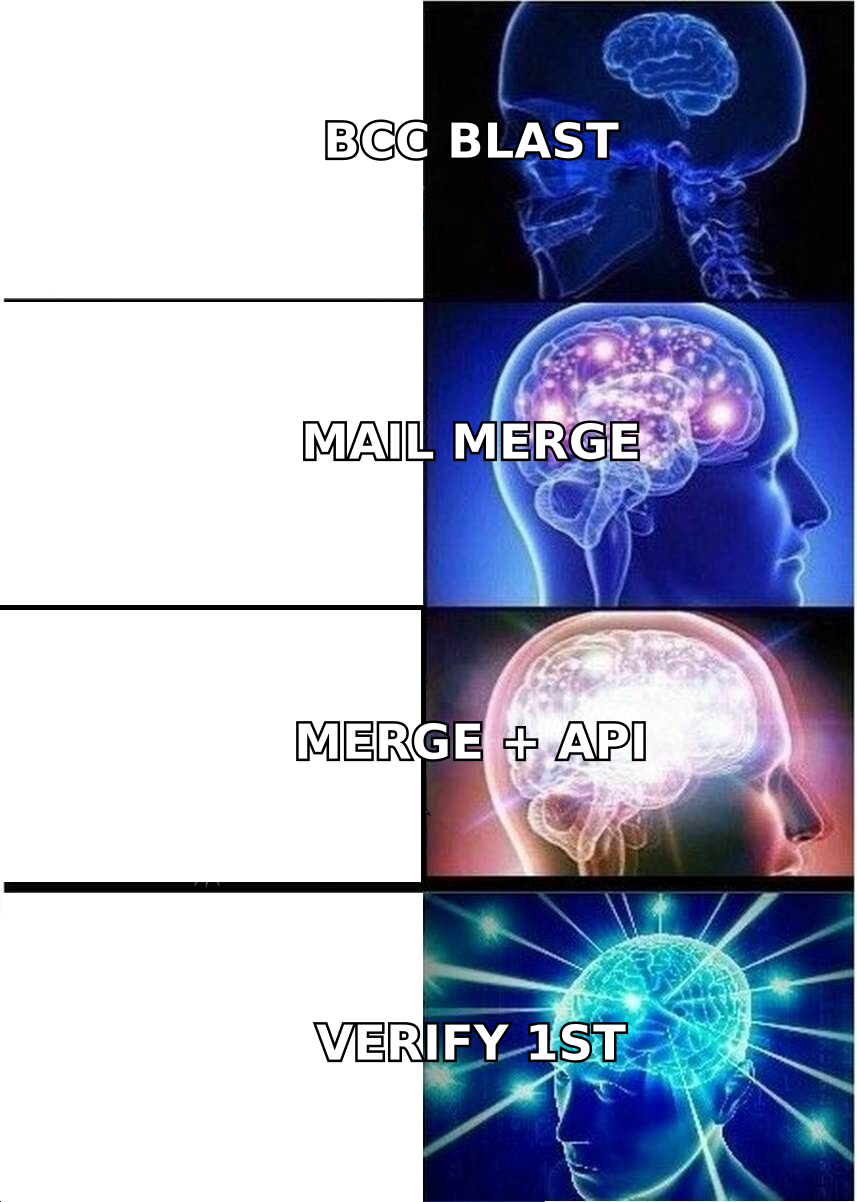
Read that table as a ladder, not a menu. Most teams start at BCC, get burned, climb to mail merge, hit the personalization ceiling, and then either script against Graph or leave Outlook for a purpose-built sender.

How do you send a mass email in Outlook with BCC?#
This is the method you should almost never use, but you need to know its shape.
- Open a new message in Outlook (desktop or web).
- Put your own address in the To field. Never leave To empty — several filters treat an empty To as a bulk signal.
- Click Options → BCC to reveal the BCC field, then paste your recipient list, comma-separated.
- Write the body with no merge fields — everyone gets the identical text.
- Send.
Why it fails at scale: every recipient sees a message addressed to you, not to them. Personalization is impossible. Microsoft's own throttling treats large BCC counts as bulk traffic, and if even a handful of addresses are dead, the entire message pattern gets flagged. One privacy slip — pasting into CC instead of BCC — exposes your whole list.
Use BCC for a 20-person internal announcement. Nothing more.
How do you set up a Word mail merge with Outlook?#
Mail merge is the workhorse for 50–500 recipients. It sends individually addressed messages from your own mailbox, so each one looks like a normal one-to-one email.
Step 1 — Build the data file. Create an Excel sheet with one row per recipient. Columns: Email, FirstName, Company, plus any custom merge variables. Keep the header row clean, no merged cells, no blank rows. Save as .xlsx.
Step 2 — Verify the list before you touch Word. This is the step everyone skips. Run the file through an email verifier and drop anything marked invalid, disposable, or risky. Bounce rate above 3% is where reputation damage starts; above 8% you are actively burning your domain.
Step 3 — Write the template in Word. Go to Mailings → Start Mail Merge → E-mail Messages. Then Select Recipients → Use an Existing List and point at your Excel file.
Step 4 — Insert merge fields. Use Insert Merge Field wherever you want a variable: Hi «FirstName», I noticed «Company» just.... Preview with Preview Results and click through 10 records to catch blanks and casing errors.
Step 5 — Finish and merge. Finish & Merge → Send E-mail Messages. Set the To field to your Email column, write the subject line, choose HTML as the format, and send.
Three limitations worth knowing before you commit:
- No attachments. Native mail merge cannot attach files. You need a third-party add-in or a Graph script for that.
- No scheduling or throttling. Word dumps the whole batch into your Outbox at once. On a fresh domain that spike alone can trigger filtering.
- No tracking. No opens, no clicks, no bounce dashboard. You find out something broke when the NDRs pile up.
What are Outlook's actual sending limits in 2026?#
Hitting a limit doesn't produce a friendly warning — it produces a hard block on your mailbox, sometimes for 24 hours. Know the ceilings before you plan a campaign.
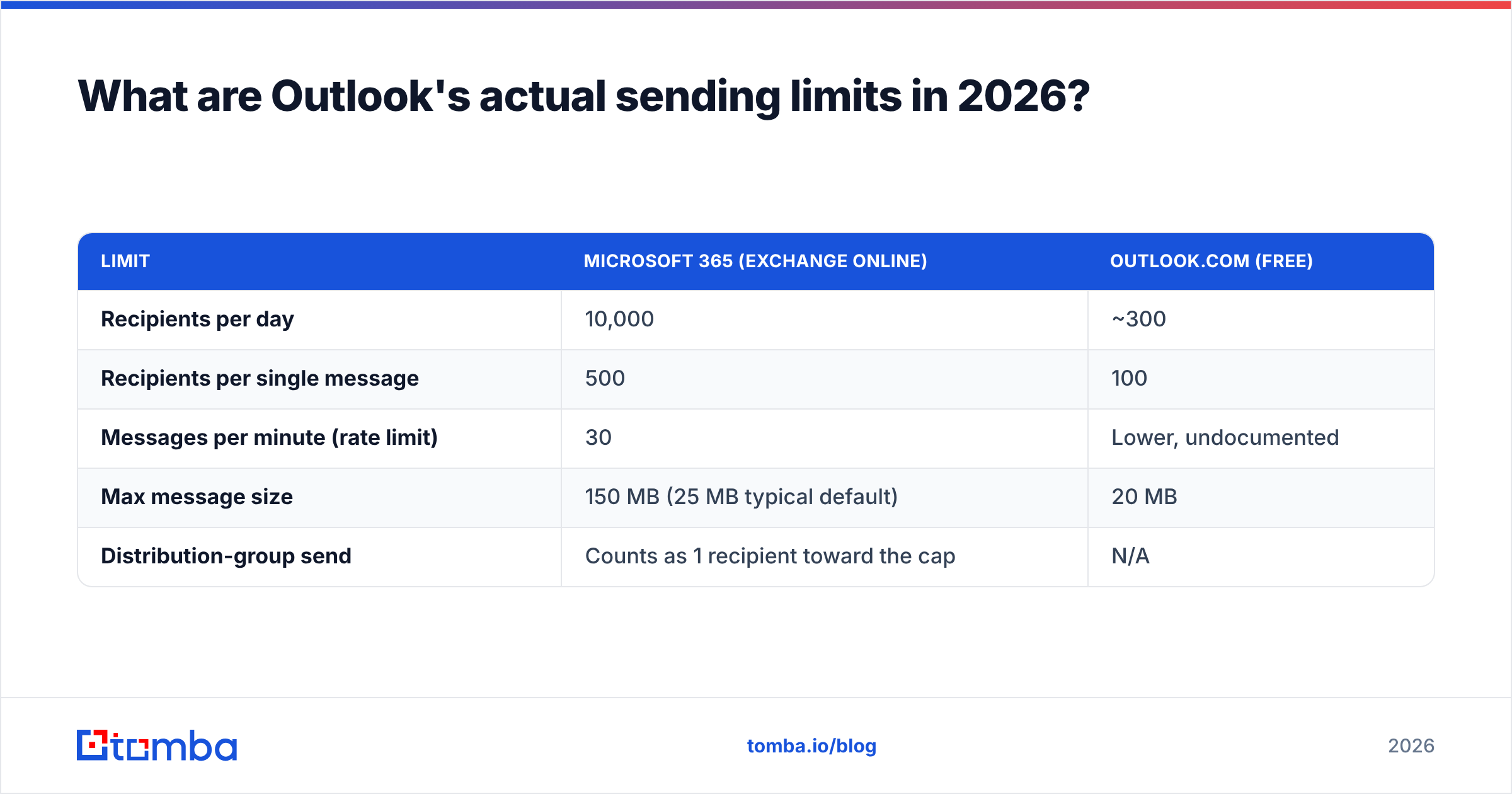
| Limit | Microsoft 365 (Exchange Online) | Outlook.com (free) |
|---|---|---|
| Recipients per day | 10,000 | ~300 |
| Recipients per single message | 500 | 100 |
| Messages per minute (rate limit) | 30 | Lower, undocumented |
| Max message size | 150 MB (25 MB typical default) | 20 MB |
| Distribution-group send | Counts as 1 recipient toward the cap | N/A |
A "recipient" is each address in To, CC, and BCC combined. A single message to 500 people burns 500 of your 10,000 daily allowance. Microsoft publishes the current figures in the Exchange Online service description — check it before any large campaign, because the numbers move.
Practical guidance: even with a 10,000/day ceiling, a new domain should not exceed 30–50 cold emails per day for the first two weeks. The technical limit and the reputational limit are wildly different numbers. Run the math with a warmup calculator before you scale up.
How do you send mass emails with Power Automate or the Graph API?#
Once you need attachments, throttling, or per-recipient timing, you leave the GUI.
Power Automate route. Create a flow with a manual or scheduled trigger, add List rows present in a table (Excel Online), then an Apply to each loop containing Send an email (V2). Reference columns as dynamic content: item()?['FirstName']. Add a Delay action of 2–5 seconds inside the loop so you don't hit the 30-messages-per-minute rate limit. This works well up to about 1,000 rows; past that, flow run durations get unwieldy and premium connector costs appear.
Graph API route. Authenticate with OAuth 2.0, then loop over your list calling POST https://graph.microsoft.com/v1.0/me/sendMail with a JSON body containing the subject, HTML content, and a single recipient. You control the pacing, the retry logic, and the personalization depth. You also get a message ID back for every send, which you can join against replies later.
The Graph route is the only in-Outlook method that gives you real observability. If you're already scripting, pull contact data from an email finder API in the same job so enrichment and sending live in one pipeline rather than two spreadsheets.
Why do Outlook mass emails land in spam?#
Nine times out of ten the send method isn't the problem. These five things are, in rough order of impact:
- Unverified list. Dead addresses generate hard bounces. Microsoft and Google both read bounce rate as a spam signal. Clean the list before every send, not once a year — B2B data decays around 22–30% annually as people change jobs.
- Missing or broken authentication. No SPF record, no DKIM, no DMARC policy means Gmail and Yahoo bulk-sender rules reject you outright. Check yours with a free SPF checker — it takes 10 seconds.
- Volume spikes. Going from 5 emails a day to 800 tells filters you've been compromised. Ramp gradually.
- Identical content at scale. BCC blasts and unpersonalized merges produce byte-identical bodies across hundreds of inboxes. Vary the opening line, use real merge fields, and skip the image-heavy HTML template.
- No unsubscribe path. Under GDPR, CAN-SPAM, and the 2024 Gmail/Yahoo bulk-sender requirements, a working opt-out is mandatory. Add a plain-text line with a mailto or a link.
Fixing your email deliverability foundation is worth more than any clever send trick. Run a message through a spam checker before you commit a batch of 500.
When should you stop using Outlook for mass email?#
Outlook is a mailbox, not a campaign platform. Four signals mean you've outgrown it:
- You need sequences. Follow-up 2, 3, and 4 that auto-stop on reply. Outlook has no concept of this.
- You need reply and bounce analytics. Word merge gives you nothing; Graph gives you raw material you'd have to build a dashboard on.
- You're sending over ~2,000/month cold. Sustained cold volume from your primary tenant risks the mailbox your whole company depends on.
- You need multiple sending accounts. Rotating across 3–5 inboxes with per-inbox caps is standard practice for outbound teams, and impossible natively in Outlook.
At that point you split the stack: a dedicated sending tool for campaigns, a data provider for contacts, and Outlook for genuine one-to-one conversation. Peer reviews on G2 are a reasonable starting point for evaluating sending platforms, and HubSpot's marketing email guidance covers the compliance side well.
What does a clean Outlook mass-email workflow look like end to end?#
Here's the sequence that actually holds up, whichever send method you land on:
- Source contacts — pull decision-maker addresses by company domain rather than buying a static list. A domain search returns the people at a company plus the email pattern that domain uses, which is far more current than a purchased CSV.
- Verify every address — remove invalids, disposables, role accounts, and unresolvable catch-alls. Target sub-2% bounce.
- Authenticate the domain — SPF, DKIM, DMARC live and passing. Non-negotiable.
- Warm the mailbox — two to three weeks of gradual volume increase if the domain or mailbox is new.
- Segment and personalize — 200 well-segmented recipients with a real merge field beat 2,000 generic ones every time.
- Send in batches — 50–100 per batch with delays between, never a single 500-recipient dump.
- Monitor and prune — pull bounces out of the list immediately, suppress unsubscribes permanently, and re-verify anything older than 90 days.
Steps 1 and 2 are where most campaigns are won or lost. If you're pasting a list someone handed you into Word and hitting merge, you're gambling with your domain reputation on data you never validated.
Ready to send to addresses that actually exist?#
Outlook will happily send to a list full of dead addresses and let you discover the damage afterward. Build the list properly first: use the Tomba Email Finder to source verified, current work addresses by name and domain, then export straight into your merge file. The free tier gives you 25 searches a month to test the workflow, Starter runs $49/mo, and Growth is $99/mo when you're ready to scale — see full Tomba pricing for the details. Clean data in, clean sends out.
Related guides#
// get started
Find, verify and enrich your first contacts today
Start on the free plan with 25 searches a month, then scale when your team is ready.
Free plan · No credit card required · GDPR & CCPA
// about the author