How to Stop Emails Going to Junk in Gmail: 2026 Fix Guide
Gmail's spam filter isn't random. It scores authentication, sender reputation, list hygiene and engagement — and you can fix all four. Here's the diagnostic order that actually moves mail from Spam back to Primary.
TL;DR
- How to stop emails going to junk in Gmail, in short: fix four causes in weight order — failed authentication (SPF/DKIM/DMARC), bad domain reputation, poor recipient engagement, then content/link signals.
- Since February 2024, Google enforces DMARC, one-click unsubscribe, and a 0.3% spam-complaint ceiling for bulk senders. Most "sudden spam folder" problems trace back to one of those three.
- Your single highest-leverage fix is usually list hygiene, not copywriting. Bounces and spam traps damage reputation faster than any subject line.
- Gmail Postmaster Tools is the only place you see your actual domain reputation. If you haven't set it up, you're debugging blind.
- Fixes compound slowly. Expect 2–4 weeks of clean sending before Gmail moves you back to Primary — there is no reset button.
Your emails land in Gmail's Spam folder and you don't know why. That's normal. Gmail deliberately doesn't tell you. But the filter is not a black box built on vibes. It's a scoring system with inputs you control, and each one is observable once you know where to look.
This guide shows how to stop emails going to junk in Gmail in the order that matters, from the checks that take five minutes to the ones that take three weeks.
Why does Gmail send your emails to junk in the first place?#
Gmail decides where mail goes using a layered model. Think of it like airport security. Your passport (authentication) gets checked first, then your travel history (reputation), then what other passengers say about you (engagement). Only last does anyone open your bag (content).
The three signals that carry the most weight:
- Authentication — Do SPF, DKIM, and DMARC all pass and align with your From domain? A failure here is close to an automatic junk verdict for bulk mail.
- Domain and IP reputation — Google's rolling score for your sending domain, based on complaints, bounces, spam-trap hits, and volume patterns. This slow-moving number sets your baseline.
- Recipient engagement — Opens, replies, and "move to inbox" actions, weighed against deletes and "report spam" clicks. Gmail scores this per recipient. That's why one contact gets your mail in Primary and another finds it in Spam.
The remaining three matter less on their own, but they stack up fast:
- List quality signals — Hard bounces, invalid addresses, and recycled spam traps. A 5% bounce rate tells Gmail you bought or scraped the list.
- Content and link reputation — Link shorteners, tracking domains that share an IP with spammers, image-only emails, spammy phrasing, and a mismatched reply-to.
- Volume behavior — A cold domain that jumps from 0 to 2,000 sends a day looks exactly like a compromised account.
Notice that four of the six have nothing to do with your copy. Most people rewrite their subject line first. That's the least effective lever available.
What are Gmail's 2024–2026 bulk sender rules you must meet?#
In February 2024, Google and Yahoo turned optional best practices into hard requirements. The rules apply to anyone sending more than 5,000 messages a day to Gmail addresses. They have only tightened since, and enforcement now reaches smaller senders too.
The non-negotiables:
- SPF and DKIM both configured and passing on your sending domain.
- A DMARC record published, at minimum
p=none, with alignment between your From domain and your authenticated domain. - One-click unsubscribe (RFC 8058
List-Unsubscribe-Postheader) on all marketing and bulk mail, honored within two days. - Spam complaint rate below 0.3%, measured in Postmaster Tools. Google's stated target is under 0.1%; 0.3% is the line where filtering kicks in hard.
- Valid forward and reverse DNS on sending IPs, and TLS on transmission.
You can read Google's own requirements on the Gmail sender guidelines page. Treat that document as the spec, not as advice.
The practical takeaway: if your DMARC record doesn't exist, nothing else you do this week will matter. Publish it first.
How do you diagnose the actual cause in under 30 minutes?#
Work top to bottom. This is the fastest path to how to stop emails going to junk in Gmail, because a single root cause often produces several downstream symptoms. Stop when you find a failure, fix it, and re-measure before moving on.
Step 1 — Send yourself a test and read the headers. In Gmail, open the message, click the three dots, choose "Show original." You want three lines reading PASS: SPF, DKIM, DMARC. Any SOFTFAIL, NEUTRAL, or FAIL is your answer, and you can stop here.
Step 2 — Verify your SPF record has no syntax or lookup problems. SPF allows a maximum of 10 DNS lookups. Chain three or four ESPs together with include: statements and you silently blow past that limit. Every message then fails SPF, no matter how correct the record looks. Run your domain through an SPF checker and count the lookups.
Step 3 — Check Gmail Postmaster Tools. Add your domain, verify via DNS TXT record, and wait 24–48 hours for data. Look at Domain Reputation first. "High" or "Medium" means the problem is elsewhere. "Low" or "Bad" means you have a reputation repair project, not a quick fix.
Step 4 — Check blacklists. Spamhaus, SpamCop, and Barracuda listings will torpedo delivery across every provider, not just Gmail. A blacklist checker surfaces these in seconds. Delisting is usually a form submission plus the underlying fix.
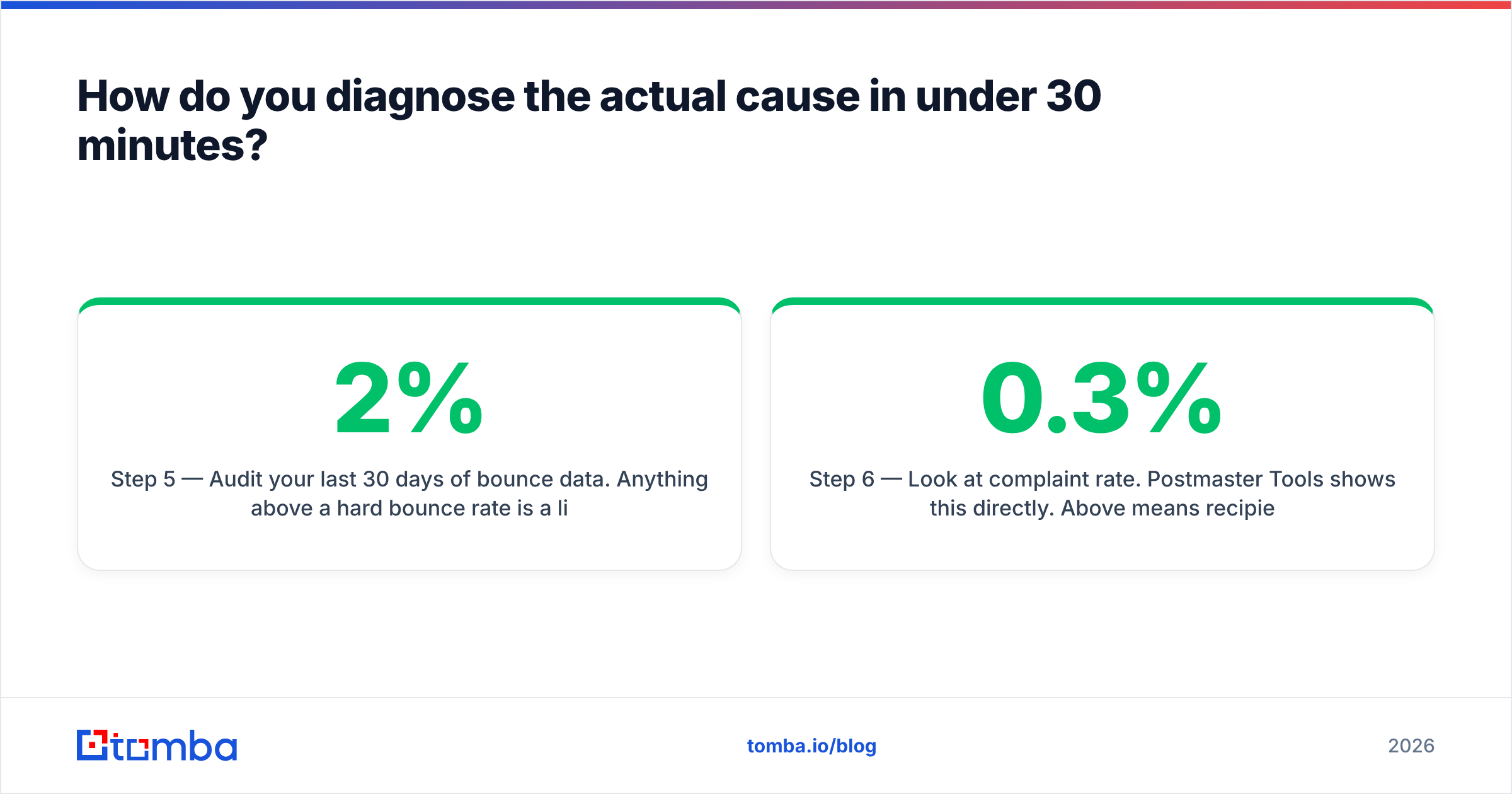
Step 5 — Audit your last 30 days of bounce data. Anything above a 2% hard bounce rate is a list-quality problem. Above 5% and Gmail has almost certainly already downgraded you.
Step 6 — Look at complaint rate. Postmaster Tools shows this directly. Above 0.3% means recipients are actively marking you as spam, and no technical fix will outrun that.
Step 7 — Review content and links only after 1–6 are clean. Run the message through a spam checker to catch heavy-handed phrasing, image-to-text imbalance, and risky link domains.
Which fix should you prioritize? A cost-vs-impact comparison#
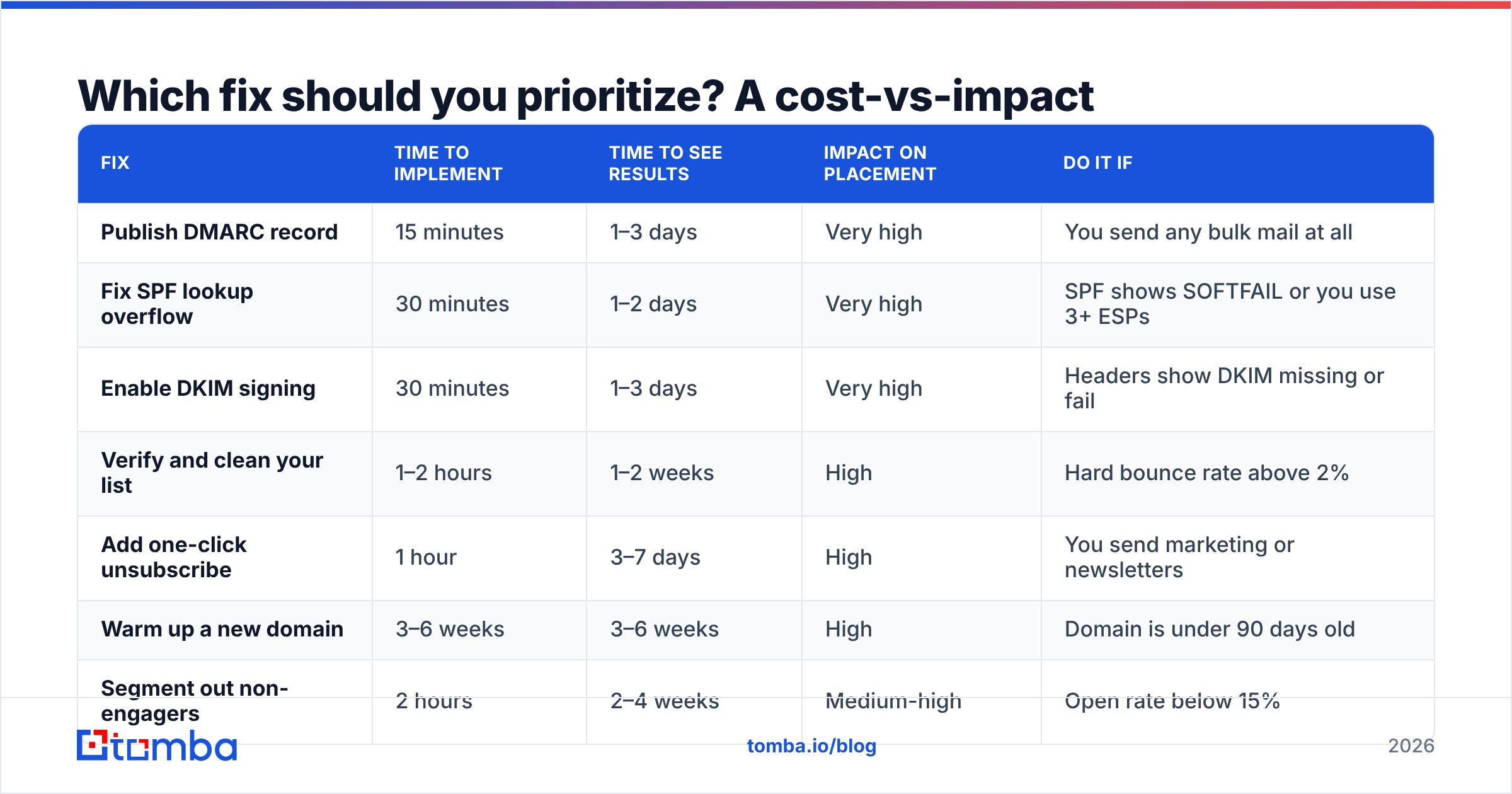
Not all fixes deserve equal attention. This is what each one actually buys you:
| Fix | Time to implement | Time to see results | Impact on placement | Do it if |
|---|---|---|---|---|
| Publish DMARC record | 15 minutes | 1–3 days | Very high | You send any bulk mail at all |
| Fix SPF lookup overflow | 30 minutes | 1–2 days | Very high | SPF shows SOFTFAIL or you use 3+ ESPs |
| Enable DKIM signing | 30 minutes | 1–3 days | Very high | Headers show DKIM missing or fail |
| Verify and clean your list | 1–2 hours | 1–2 weeks | High | Hard bounce rate above 2% |
| Add one-click unsubscribe | 1 hour | 3–7 days | High | You send marketing or newsletters |
| Warm up a new domain | 3–6 weeks | 3–6 weeks | High | Domain is under 90 days old |
| Segment out non-engagers | 2 hours | 2–4 weeks | Medium-high | Open rate below 15% |
| Move off shared tracking domain | 1 hour | 1–2 weeks | Medium | Using a default ESP click domain |
| Rewrite subject lines | 1 hour | Immediate | Low-medium | Everything above is already green |
| Remove images and links | 30 minutes | Immediate | Low | Diagnostic testing only |
The pattern is clear. Authentication fixes are cheap, fast, and decisive. Content fixes are cheap and fast but rarely decisive. List hygiene is the one item worth hours of work, because it's the only fix that improves reputation rather than just avoiding a penalty.
How does list quality affect whether Gmail junks your mail?#
More than anything else you control day to day. Gmail treats invalid addresses as evidence about how you acquired your list, and it's right to.
When you send to a dead mailbox, three things happen. The receiving server issues a hard bounce. Gmail records that you didn't know your recipient existed. And if that address is a recycled spam trap, you take a direct reputation hit with no bounce notification at all. A spam trap is an abandoned account Google reactivated to catch careless senders.
Scraped lists are dense with all three. So are lists that haven't been re-verified in eighteen months. Roughly 20–30% of B2B email addresses go stale each year through job changes alone.
The fix is mechanical:
- Verify before every campaign, not once at import. An address valid in March may be dead by September. Run your list through an email verifier as a pre-send step.
- Remove role accounts.
info@,sales@,support@, andadmin@produce disproportionate complaint rates because nobody personally opted in to them. - Handle catch-all domains separately. Catch-all servers accept everything, so standard verification returns "unknown." A dedicated catch-all verifier applies deeper checks instead of forcing you to guess or blanket-exclude.
- Suppress non-openers after 90 days. Sending repeatedly to people who never open teaches Gmail your mail is unwanted.
- Source addresses that were verified at discovery. Finding contacts through a validated email finder rather than pattern-guessing means fewer bounces reach Gmail in the first place.
That last one matters more than it sounds. Guessing firstname.lastname@company.com and hoping is the single most common way people build a list that Gmail will punish them for.
How do you repair a domain reputation that's already damaged?#
Slowly and deliberately. There's no appeal process and no reset. You rebuild by showing a new pattern long enough that the rolling average moves.
Weeks 1–2: stop the bleeding. Pause all cold or low-engagement sending. Fix every authentication issue. Remove every unverified address from your active list. If your domain reputation reads "Bad" in Postmaster Tools, sending more mail during this window actively works against you.
Weeks 2–4: send only to your best segment. Take the recipients who opened or replied in the last 60 days — usually 10–20% of your list. Send them genuinely useful mail at a normal cadence. Positive engagement is the only input that raises reputation, and you need volume of good signals, not just absence of bad ones.
Weeks 4–8: expand gradually. Add back the next engagement tier, roughly doubling volume every 4–5 days while watching Postmaster Tools daily. If reputation dips, hold at the previous volume for a week rather than pushing through.
Ongoing: separate your streams. Transactional mail, newsletters, and cold outreach should not share a sending domain. A subdomain structure (mail.yourdomain.com for marketing, outbound.yourdomain.com for prospecting) isolates a reputation hit in one stream from the others. This is standard practice and something HubSpot documents for its own customers.
If your domain is brand new, use an email warmup calculator to plan the ramp rather than eyeballing it. Going from zero to full volume in a week is how new domains get filtered on day nine.
Does content still matter, and what actually triggers filters?#
Yes, but less than the internet claims. Modern Gmail filtering does not maintain a naive banned-word list — writing "free" once will not junk your email. What does move the needle:
- Link reputation. A shortener like bit.ly, or a tracking domain shared with hundreds of other senders, inherits their reputation. Use a custom tracking domain on your own root domain.
- Image-to-text ratio. Emails that are one large image with three words of text look like the classic image-spam evasion pattern. Aim for meaningful plain text.
- Missing plain-text alternative. Send multipart MIME. HTML-only is a mild negative signal.
- From/Reply-To mismatch. Sending as
sarah@company.comwith a reply-to at a different domain reads as a phishing pattern. - Attachment types.
.zip,.exe, and unexpected.htmlattachments are heavily penalized. Link to a file instead. - Volume of links. One or two contextual links is fine. Twelve is a newsletter template; on a one-to-one cold email it looks automated.
Test before you scale. Send to a seed set of five to ten real Gmail accounts you control and check placement — Primary, Promotions, or Spam. Promotions placement isn't failure for a newsletter. But on a one-to-one sales email it means Gmail read your message as bulk mail. Strip the tracking pixel and heavy HTML, then re-test.
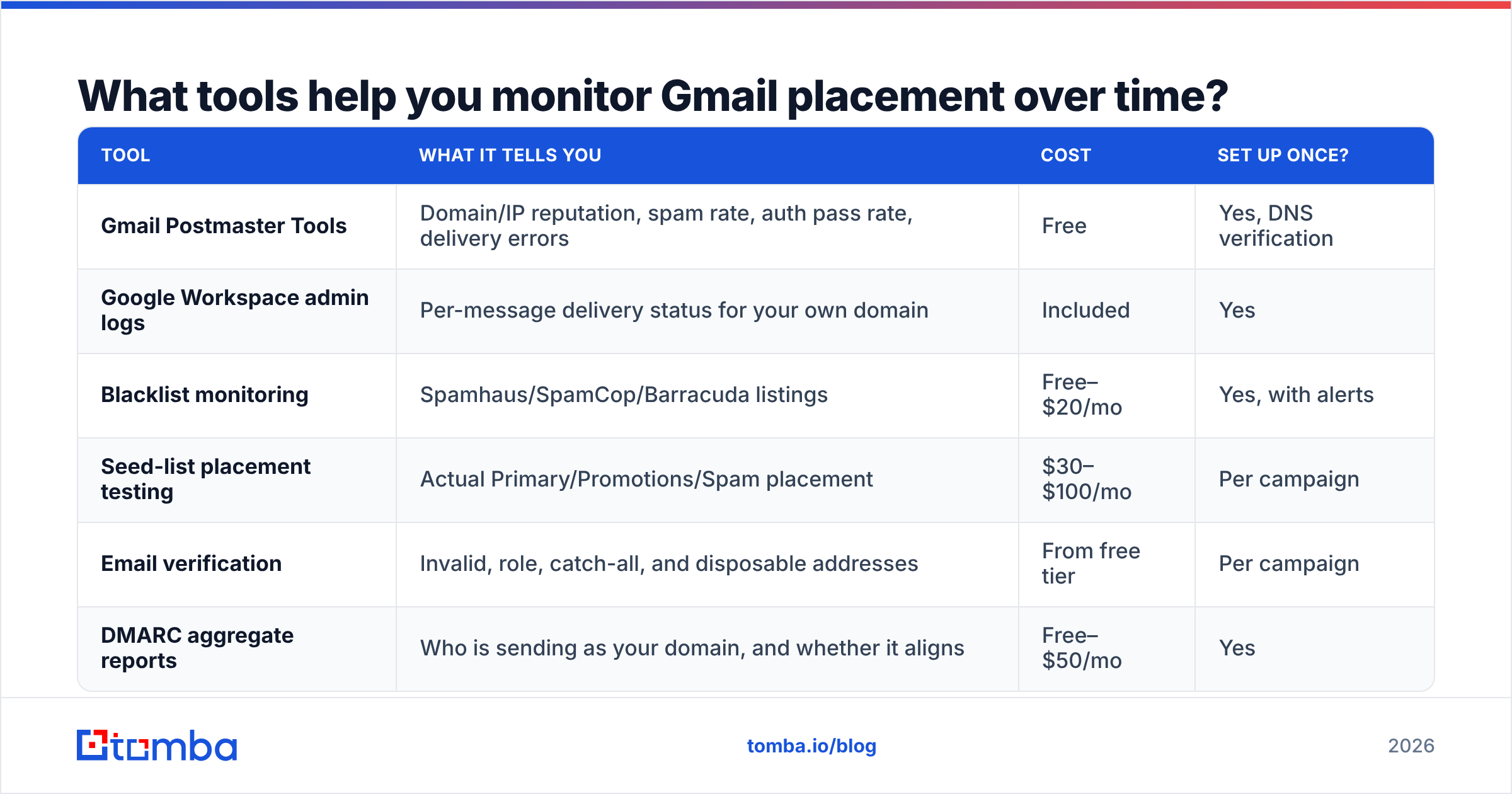
What tools help you monitor Gmail placement over time?#
Fixing placement once is easy. Keeping it requires monitoring, because reputation drifts.
| Tool | What it tells you | Cost | Set up once? |
|---|---|---|---|
| Gmail Postmaster Tools | Domain/IP reputation, spam rate, auth pass rate, delivery errors | Free | Yes, DNS verification |
| Google Workspace admin logs | Per-message delivery status for your own domain | Included | Yes |
| Blacklist monitoring | Spamhaus/SpamCop/Barracuda listings | Free–$20/mo | Yes, with alerts |
| Seed-list placement testing | Actual Primary/Promotions/Spam placement | $30–$100/mo | Per campaign |
| Email verification | Invalid, role, catch-all, and disposable addresses | From free tier | Per campaign |
| DMARC aggregate reports | Who is sending as your domain, and whether it aligns | Free–$50/mo | Yes |
Start with the free tier: Postmaster Tools plus blacklist alerts plus DMARC reports covers 80% of what you need. Add seed-list testing when your monthly volume justifies the spend.
One habit worth building: check Postmaster Tools every Monday. Reputation degradation is gradual, and catching a slide from "High" to "Medium" gives you weeks to correct. Discovering it after you've dropped to "Bad" gives you a month of rebuild work. Independent reviews on G2 are a reasonable starting point if you're evaluating paid monitoring vendors.
What's the realistic timeline to get out of the spam folder?#
Set expectations honestly:
- Authentication fixes (SPF/DKIM/DMARC): 24–72 hours after DNS propagates. This is the only fast win.
- Blacklist delisting: 24 hours to 2 weeks depending on the list and whether you fixed the cause.
- List hygiene improvements: 1–2 weeks of visible bounce-rate improvement, 3–4 weeks for reputation to reflect it.
- Engagement recovery: 3–6 weeks of consistent positive signals.
- Full recovery from "Bad" reputation: 6–10 weeks, assuming you don't reintroduce the original cause.
If someone promises to fix Gmail placement in 48 hours, be skeptical. They're either selling you an authentication fix you could do yourself, or they plan to move you to a fresh domain. That resets your reputation to neutral, but it also starts the warmup clock from zero.
How to stop emails going to junk in Gmail: where to start today#
Do these three things this afternoon:
- Send a test to a Gmail address, open "Show original," and confirm SPF, DKIM, and DMARC all read PASS. Fix any that don't.
- Add your sending domain to Gmail Postmaster Tools so you have data next week.
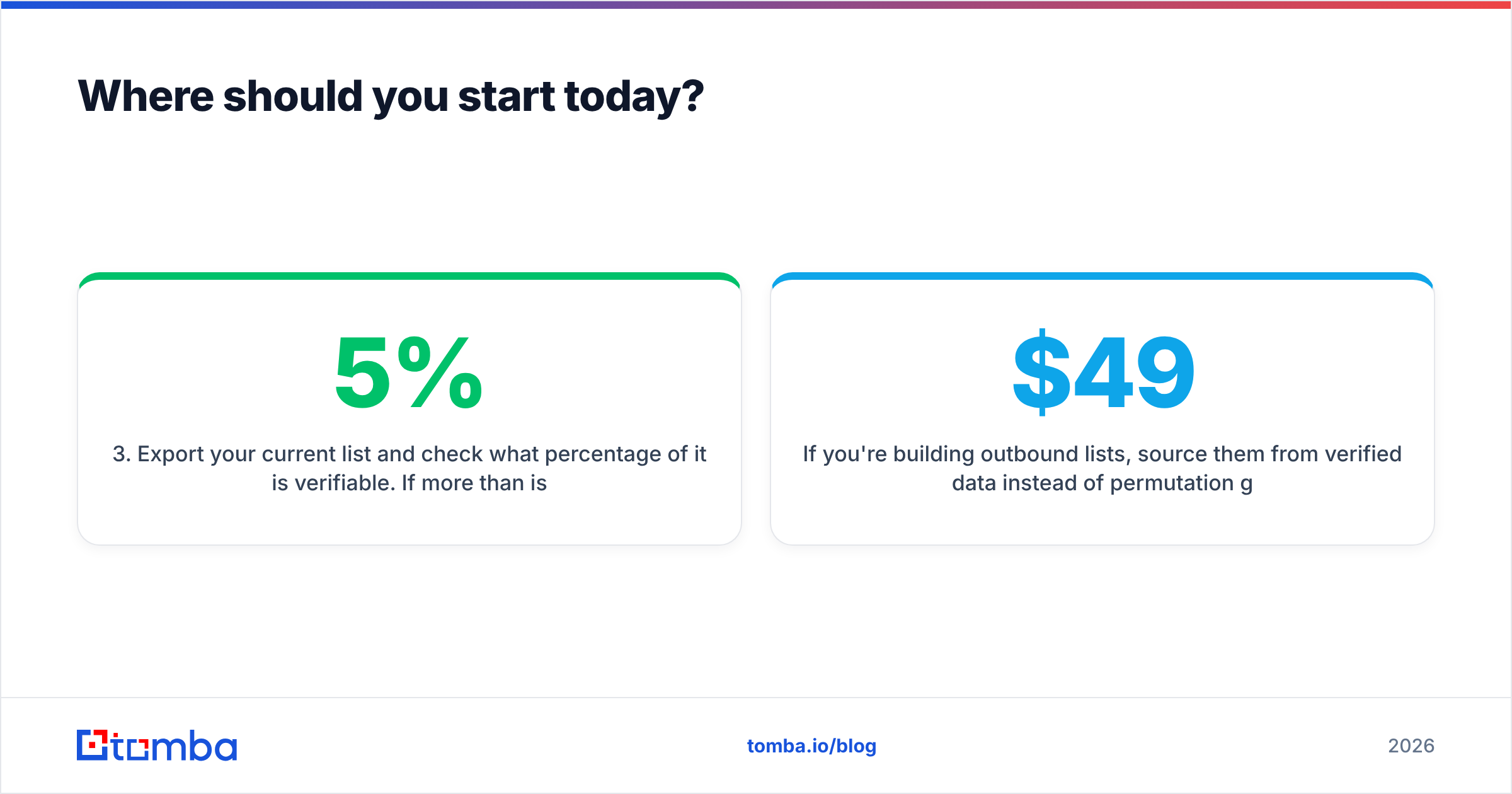
- Export your current list and check what percentage of it is verifiable. If more than 5% is invalid or unknown, that's your project.
The third item is where most cold outreach programs quietly fail. A list built from guessed patterns produces bounces, bounces produce reputation damage, and reputation damage produces the spam folder — long before anyone reads your subject line.
So if you only remember one rule about how to stop emails going to junk in Gmail, make it this one: source outbound lists from verified data, not permutation guessing. Tomba Email Finder returns professional addresses with a confidence score and SMTP-level validation built in, so bad addresses never reach your sequence. The free tier gives you 25 searches a month to test the difference in your own bounce rate. Paid plans start at $49/mo on the Starter tier, with full Tomba pricing covering Growth at $99/mo and Pro at $249/mo. Clean input is the cheapest deliverability fix you will ever make.
Related guides#
// get started
Find, verify and enrich your first contacts today
Start on the free plan with 25 searches a month, then scale when your team is ready.
Free plan · No credit card required · GDPR & CCPA
// about the author