How to Whitelist an Email in AOL: 2026 Step-by-Step Guide
AOL folds senders into Yahoo's filtering stack, so the old "add to address book" trick only does half the job. Here are the exact steps — plus what senders must fix on their end.
TL;DR
- AOL Mail runs on Yahoo's infrastructure, so "whitelisting" means using AOL's Contacts, Filters, and the Not Spam button — there is no classic allow-list field anymore.
- The fastest fix for a reader: add the sender to Contacts, then create a filter that routes their domain to Inbox. Two minutes, done.
- The Not Spam action is the strongest single signal you can send. It teaches the engagement model, not just the rule engine.
- If you're the sender, recipient-side whitelisting is a band-aid. AOL/Yahoo filter on authentication (SPF, DKIM, DMARC), complaint rate, and list hygiene.
- Bounce rates above roughly 2-3% will get you throttled regardless of how many people whitelist you. Clean the list before you blame the filter.
What does "whitelisting" actually mean in AOL Mail in 2026?#
It means telling AOL, through the signals it actually reads, that mail from a specific address or domain belongs in your inbox.
Here's the part most guides get wrong: AOL has not run its own mail filtering stack since Verizon merged AOL and Yahoo under the Oath/Yahoo umbrella. Today AOL Mail, Yahoo Mail, and the smaller Yahoo-operated domains share one filtering backend. So when someone searches for a "whitelist" setting in AOL, they're looking for a checkbox that no longer exists under that name. What exists instead is a set of three actions, each with a different weight:
- Add to Contacts — a soft trust signal. Helps, but on its own it will not rescue mail that trips a content or reputation filter.
- Create an inbox filter — a hard routing rule. Mail matching your condition lands where you tell it to, bypassing the Spam folder in most cases.
- Mark as Not Spam — the heaviest signal. This is an explicit correction of the classifier's decision for that sender and that user.
Do all three for a sender you genuinely want and the mail stays put. Do only the first and you'll be back in the Spam folder in three weeks.
How do you whitelist an email in AOL, step by step?#
Three methods, ordered by how durable the result is. Use all three on senders that matter.
Method 1 — Add the sender to AOL Contacts#
- Sign in at mail.aol.com.
- Open a message from the sender you want to whitelist.
- Hover over the sender's name in the message header, then click the Contacts icon (or the sender name in the AOL Desktop app).
- Select Add to Contacts, confirm the address, and save.
If the message is already sitting in Spam, drag it to Inbox first — adding a contact from inside the Spam folder doesn't retrain anything.
Mobile (AOL Mail app, iOS and Android): open the message, tap the sender's avatar, tap Add Contact, save. Same effect, fewer clicks.
Method 2 — Build a filter that forces the Inbox#
This is the one that actually holds.
- Click the Settings gear (top right) → More Settings.
- Choose Filters in the left sidebar → Add new filters.
- Name the filter something you'll recognize later, e.g.
Newsletter allow. - Under From, choose contains and enter the sender address (
alerts@yourbank.com) or just the domain (@yourbank.com) to cover the whole sending domain. - Set Move to folder → Inbox.
- Save.
Domain-level filters are the underrated move. A vendor that sends from no-reply@, billing@, and support@ at the same domain needs one filter, not three.
Method 3 — Mark as Not Spam (and never delete from Spam)#
- Open the Spam folder.
- Select the message.
- Click Not Spam in the toolbar.
The message moves to Inbox and, more importantly, AOL records the correction against that sender's reputation for your mailbox. If you instead delete the message from Spam, you've reinforced the original classification. Deleting is the opposite of whitelisting.
What if mail still goes to Spam after all three?#
Check these in order:
- Is the sender's address slightly different each time? Many platforms rotate subdomains (
mail1.,send.,email.). Filter on the root domain instead. - Is your filter list too long? AOL caps filters per account. Old dead filters can crowd out new ones — prune them.
- Is the mail failing authentication? No amount of recipient-side whitelisting reliably overrides a hard DMARC failure. That's a sender problem, covered below.
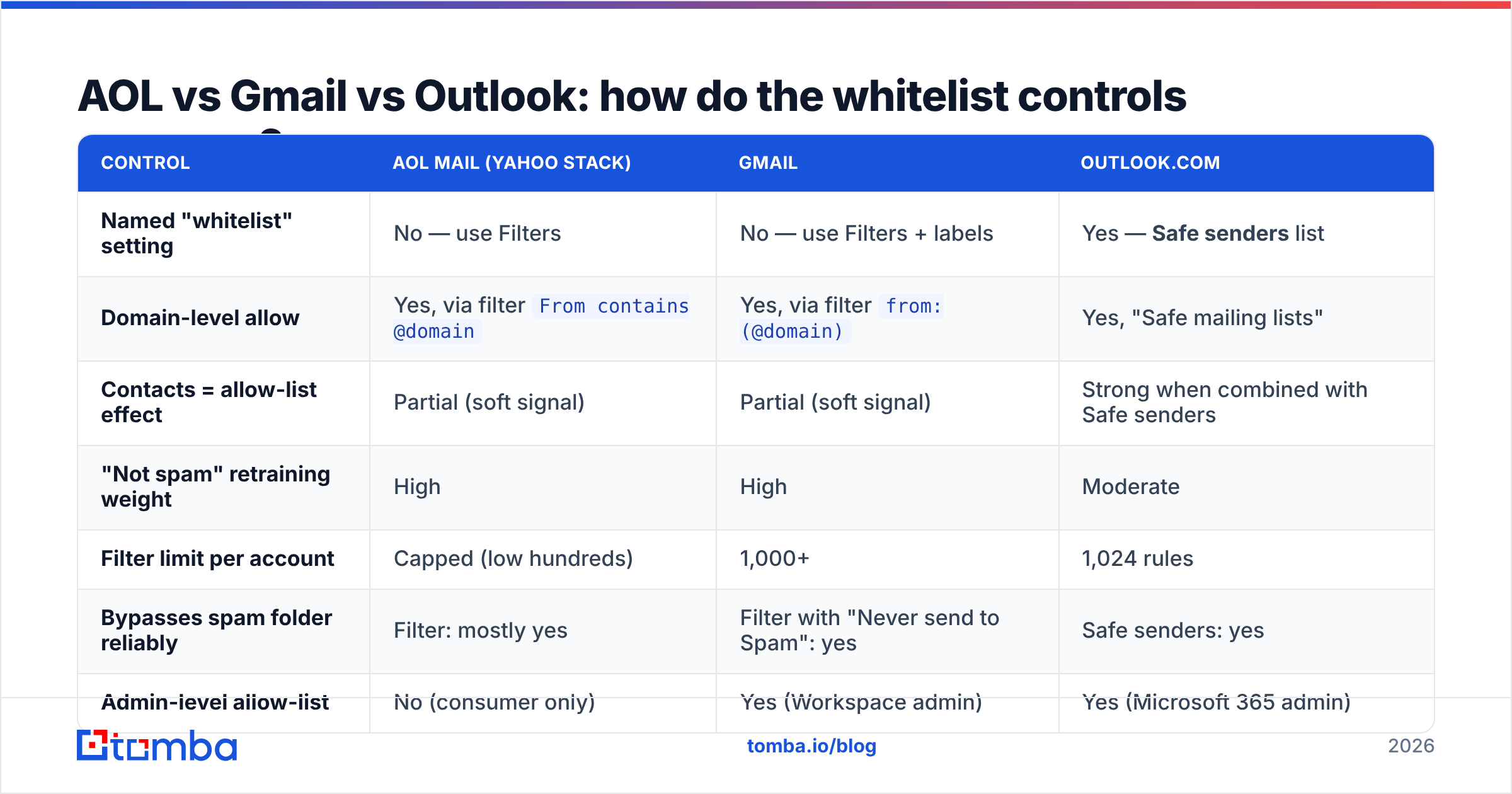
AOL vs Gmail vs Outlook: how do the whitelist controls compare?#
If you support customers across providers, the mechanics diverge more than you'd expect.
| Control | AOL Mail (Yahoo stack) | Gmail | Outlook.com |
|---|---|---|---|
| Named "whitelist" setting | No — use Filters | No — use Filters + labels | Yes — Safe senders list |
| Domain-level allow | Yes, via filter From contains @domain |
Yes, via filter from:(@domain) |
Yes, "Safe mailing lists" |
| Contacts = allow-list effect | Partial (soft signal) | Partial (soft signal) | Strong when combined with Safe senders |
| "Not spam" retraining weight | High | High | Moderate |
| Filter limit per account | Capped (low hundreds) | 1,000+ | 1,024 rules |
| Bypasses spam folder reliably | Filter: mostly yes | Filter with "Never send to Spam": yes | Safe senders: yes |
| Admin-level allow-list | No (consumer only) | Yes (Workspace admin) | Yes (Microsoft 365 admin) |
The practical takeaway: Outlook gives you a real allow-list, Gmail gives you an explicit "Never send it to Spam" filter action, and AOL gives you a routing filter that achieves the same thing with slightly less certainty. Tell your customers exactly which of the three they're on before you send them a generic help article.
Why does AOL keep filtering mail people asked for?#
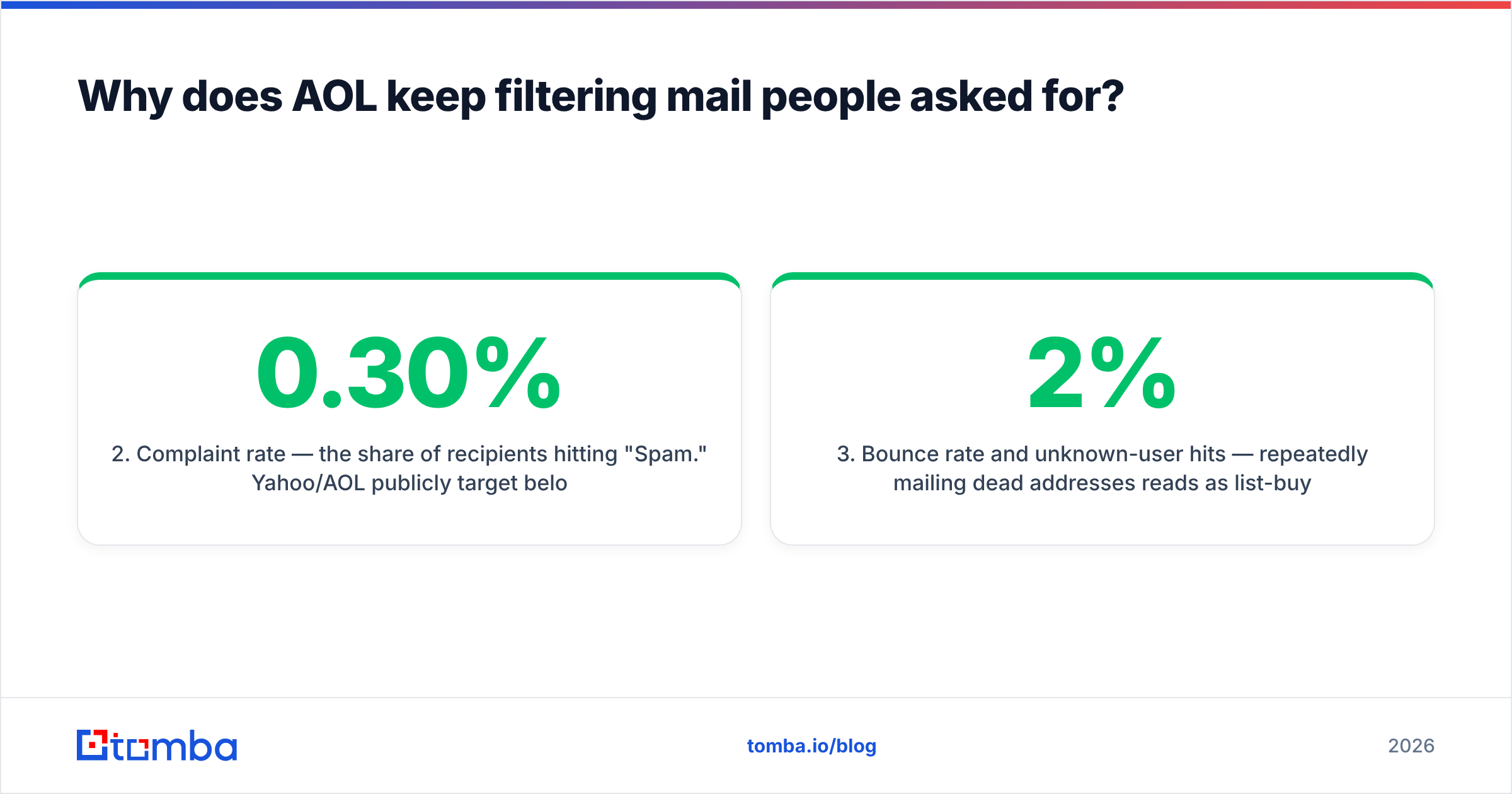
Because the filter isn't reading intent — it's reading signals. AOL/Yahoo weights roughly this set:
- Authentication — SPF, DKIM, and DMARC alignment. A missing or broken record is the single most common cause of a clean sender landing in Spam. Run your domain through an SPF checker before you troubleshoot anything else.
- Complaint rate — the share of recipients hitting "Spam." Yahoo/AOL publicly target below 0.30%, and treat 0.10% as the healthy ceiling. Above that, everything else stops mattering.
- Bounce rate and unknown-user hits — repeatedly mailing dead addresses reads as list-buying behavior. Keep hard bounces under 2%.
- Engagement — opens, replies, moves-to-inbox, and time-in-inbox. AOL is aggressive about demoting senders nobody opens.
- Sending consistency — a domain that sends 200 emails a week for a month and then 40,000 on a Tuesday gets throttled. Volume ramps must be gradual.
- Content and link reputation — shortened links, one-image emails, and domains on public blocklists all cost you. A blacklist checker tells you which lists you're on in under a minute.
Google and Yahoo both formalized bulk-sender requirements starting in 2024, and AOL inherits Yahoo's enforcement. If you send more than 5,000 messages a day to Yahoo/AOL addresses, authentication and one-click unsubscribe aren't optional — see Yahoo's sender requirements for the current thresholds.
Should senders rely on recipients whitelisting them?#
No. Asking subscribers to whitelist you is a reasonable belt-and-braces move, but it fails at scale for a simple reason: the people who would follow the instructions are the ones already engaging with you, and engaged recipients are exactly the ones the filter already trusts. The recipients you're actually losing never read the instructions.
Here's the honest hierarchy of what moves AOL/Yahoo placement, from most to least effective:
- Fix authentication. SPF + DKIM + a DMARC policy at
p=noneminimum, aligned to your sending domain. This is a one-day project with permanent returns. - Verify the list before every send. Invalid addresses are the fastest way to build a bad reputation. Route every new contact through an email verifier and re-verify anything older than 90 days.
- Segment by engagement. Suppress anyone who hasn't opened in 180 days. Your open rate rises, your complaint rate falls, and AOL notices both.
- Warm the domain properly. Ramp volume over 4-6 weeks, not 4-6 days. A warmup calculator gives you a realistic per-day schedule.
- Then, and only then, add "add us to your contacts" to your welcome email.
What does a clean AOL-safe sending setup look like?#
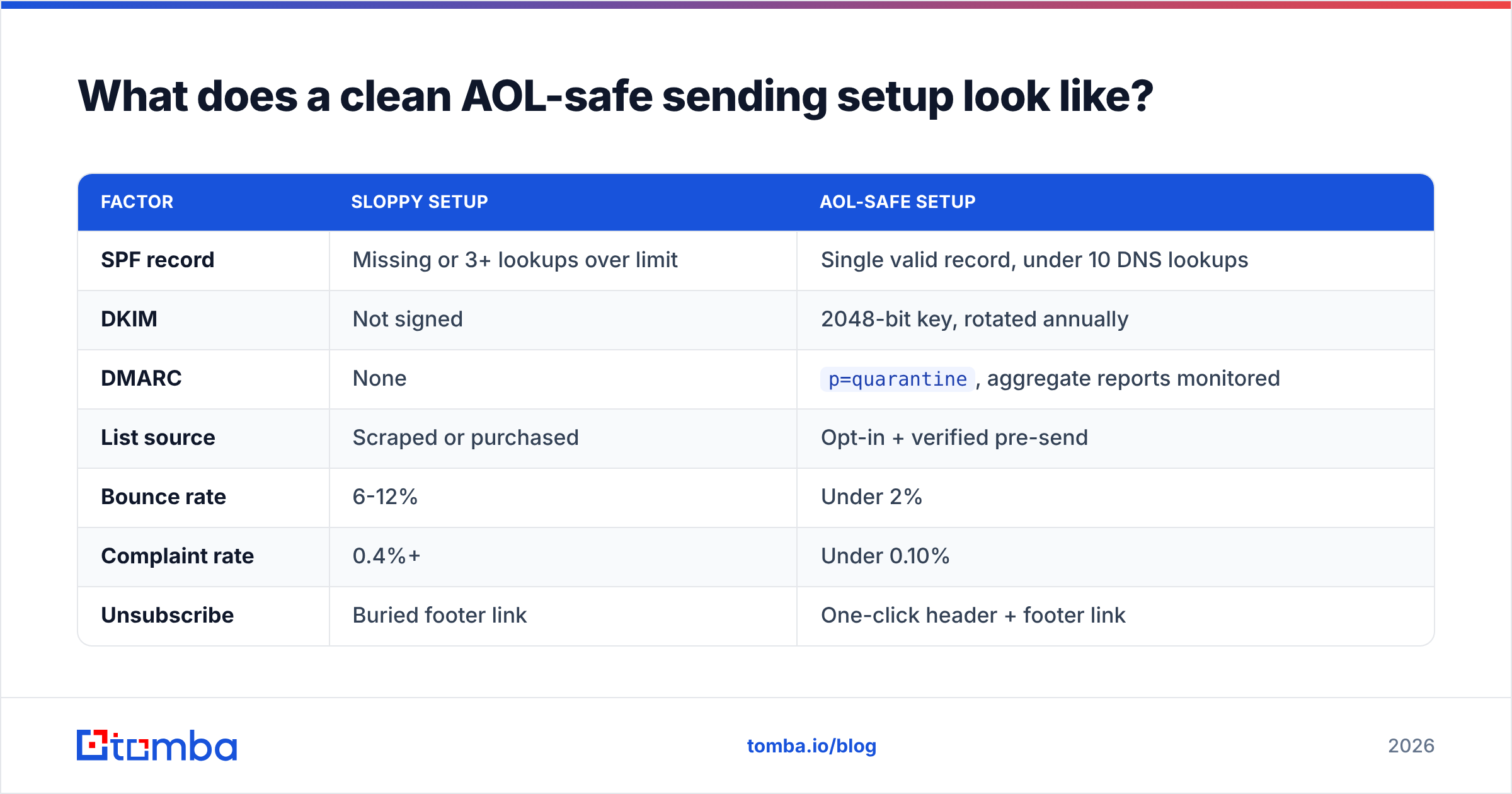
Compare a typical sloppy setup against a disciplined one. The delta is not subtle.
| Factor | Sloppy setup | AOL-safe setup |
|---|---|---|
| SPF record | Missing or 3+ lookups over limit | Single valid record, under 10 DNS lookups |
| DKIM | Not signed | 2048-bit key, rotated annually |
| DMARC | None | p=quarantine, aggregate reports monitored |
| List source | Scraped or purchased | Opt-in + verified pre-send |
| Bounce rate | 6-12% | Under 2% |
| Complaint rate | 0.4%+ | Under 0.10% |
| Unsubscribe | Buried footer link | One-click header + footer link |
| Volume pattern | Spiky, campaign-driven | Steady daily baseline |
| Re-verification cadence | Never | Every 90 days |
The list-source row is where most teams quietly lose. You can have flawless DNS and still get filtered if a third of your addresses were guessed rather than found. Pattern-guessing tools generate firstname.lastname@domain and hope; a real finder checks the address against actual sources before returning it. If you're building B2B lists, sourcing verified addresses with a proper email finder and running them through bulk verify before import removes the single biggest deliverability risk you control.
How do you test whether your AOL whitelist actually worked?#
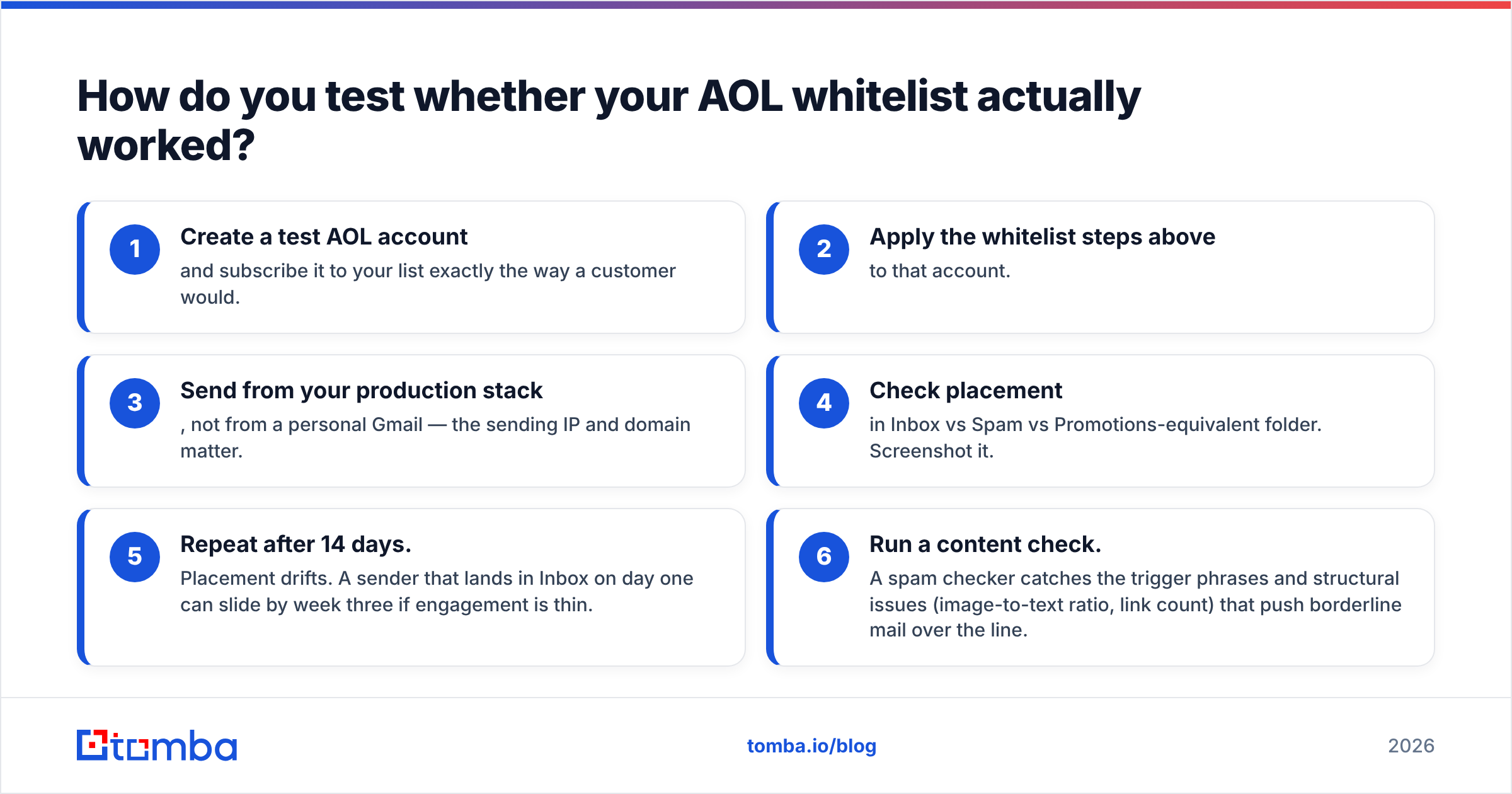
Don't assume. Verify with a real inbox.
- Create a test AOL account and subscribe it to your list exactly the way a customer would.
- Apply the whitelist steps above to that account.
- Send from your production stack, not from a personal Gmail — the sending IP and domain matter.
- Check placement in Inbox vs Spam vs Promotions-equivalent folder. Screenshot it.
- Repeat after 14 days. Placement drifts. A sender that lands in Inbox on day one can slide by week three if engagement is thin.
- Run a content check. A spam checker catches the trigger phrases and structural issues (image-to-text ratio, link count) that push borderline mail over the line.
If you support customers at scale, do this against Gmail, Outlook, and AOL simultaneously — the same message can land in three different places, and your help docs need to say so. Independent reviews on G2 are a decent starting point for picking a seed-testing vendor, since placement-testing tools vary widely in how many real seed accounts they maintain.
What should you tell customers who ask "why didn't I get your email?"#
Give them a two-line answer and a two-step fix, in this order:
- "Check your Spam folder and click Not Spam — that's the fastest fix and it trains AOL for future messages."
- "Then add us to Contacts, or set a filter on our domain so it always lands in your Inbox."
Anything longer and they won't do it. Keep the full step-by-step on a help page you can link to, and keep the version above in the email itself.
For your own team, the internal version is different: log which providers generate the most "didn't receive it" tickets. If AOL and Yahoo are overrepresented relative to their share of your list, the problem isn't user behavior — it's your authentication or your list quality. Fix the cause, not the ticket.
Where does list quality fit into all of this?#
At the front. Every deliverability problem downstream of a bad list is a symptom, not a cause.
Consider the arithmetic. A 10,000-address list with 8% invalid addresses produces 800 hard bounces on the first send. That single send is enough to move you from "unknown sender" to "suspicious sender" on the Yahoo/AOL stack, and reputation recovers slowly — weeks, not days. Meanwhile a list where every address was sourced and verified before import bounces under 1%, keeps your complaint rate low by default (real people who expected your mail complain less), and never needs a whitelist campaign in the first place.
That's the case for treating sourcing as a deliverability decision rather than a growth decision. Tools in this space split roughly into two camps: pattern-guessers that assemble likely addresses from name plus domain, and verified finders that check each result against real signals before returning it. BookYourData sits in the prepaid-database camp with strong coverage for teams that want to buy verified contacts outright, while Tomba's approach is search-and-verify at the point of use — you look up what you need, and each result is checked before it reaches your CRM. Both beat guessing.
If you want the fuller picture on how sourcing quality feeds sender reputation, the email deliverability and sender reputation entries in the glossary cover the mechanics.
Quick reference: AOL whitelist checklist#
- Move the message out of Spam before doing anything else
- Click Not Spam on any misfiled message
- Add the sender to Contacts
- Create a Filter on the sender's root domain → Inbox
- Prune stale filters so you stay under the account cap
- Sender side: verify SPF, DKIM, DMARC alignment
- Sender side: keep bounces under 2%, complaints under 0.10%
- Sender side: re-verify the list every 90 days
Start with a list AOL has no reason to filter#
Whitelisting is a recipient-side patch for a sender-side problem. The durable version is simpler: send authenticated mail to addresses that actually exist, at a steady volume, to people who asked for it.
That starts with sourcing. Tomba's Email Finder returns verified professional addresses by name and domain, with each result checked before it lands in your list — so your first send to an AOL or Yahoo recipient doesn't burn reputation on a bounce. The free tier gives you 25 searches a month to test the accuracy yourself; paid plans start at $49/mo on Starter and $99/mo on Growth if you need volume. Full Tomba pricing is public, no sales call required.
Fix the list, fix the DNS, and the whitelist instructions become a courtesy rather than a lifeline.
Related guides#
// get started
Find, verify and enrich your first contacts today
Start on the free plan with 25 searches a month, then scale when your team is ready.
Free plan · No credit card required · GDPR & CCPA
// about the author