DKIM for Google Workspace: Setup, Testing, and Fixes
DKIM for Google Workspace takes about ten minutes to turn on and years to notice when it silently breaks. Here's the full setup, the record values that matter, and the five failure modes that quietly kill your inbox rate.
TL;DR
- DKIM for Google Workspace is a two-part job: generate the key in the Admin console, publish the TXT record at
google._domainkey.yourdomain.com, then come back and click Start authentication. Skipping that last click is the single most common failure. - Use the 2048-bit key unless your DNS host physically rejects long TXT values. Google defaults to 2048-bit for new domains; older tenants may still be sitting on 1024-bit keys from years ago.
- DKIM alone does not get you inboxed. Google and Yahoo's bulk-sender rules require SPF and DKIM and a DMARC record for domains sending 5,000+ messages a day to their users.
- Every third-party tool sending as your domain — your sequencer, your CRM, your invoicing app — needs its own DKIM key with its own selector. Google's key does not cover them.
- The most expensive DKIM problem is not a broken signature. It's a valid signature attached to a bad list, which teaches Gmail that your authenticated domain sends unwanted mail.
What is DKIM, and why does Google Workspace need it?#
DKIM is a wax seal on an envelope. The sending server stamps each outgoing message with a cryptographic signature generated from a private key; the receiving server looks up the matching public key in your DNS and checks whether the seal is intact. If the seal matches, the receiver knows two things: the message really came from your domain, and nobody rewrote the headers or body in transit.
Technically, DomainKeys Identified Mail (DKIM) adds a DKIM-Signature header to every outbound message. That header names a domain (d=) and a selector (s=). The receiver concatenates them into a DNS lookup — selector._domainkey.domain — retrieves the public key, and verifies the hash.
Google Workspace does not sign your outbound mail by default. This surprises people. Out of the box, your messages leave Google's infrastructure signed with gmail.com — which authenticates Google, not you. Until you generate a domain key in the Admin console, DKIM alignment for your own domain simply is not happening, and DMARC has only SPF to lean on.
That mattered less in 2020. It matters a lot now. Since February 2024, Google and Yahoo have required bulk senders (5,000+ messages per day to Gmail or Yahoo addresses) to authenticate with SPF and DKIM, publish a DMARC policy, keep spam complaints below 0.3%, and support one-click unsubscribe. Microsoft followed with comparable rules for high-volume senders to Outlook.com. The floor moved. Unauthenticated bulk mail no longer gets a warning — it gets rejected or filed in spam.
How do you set up DKIM for Google Workspace?#
Four steps, roughly ten minutes of work plus DNS propagation time.
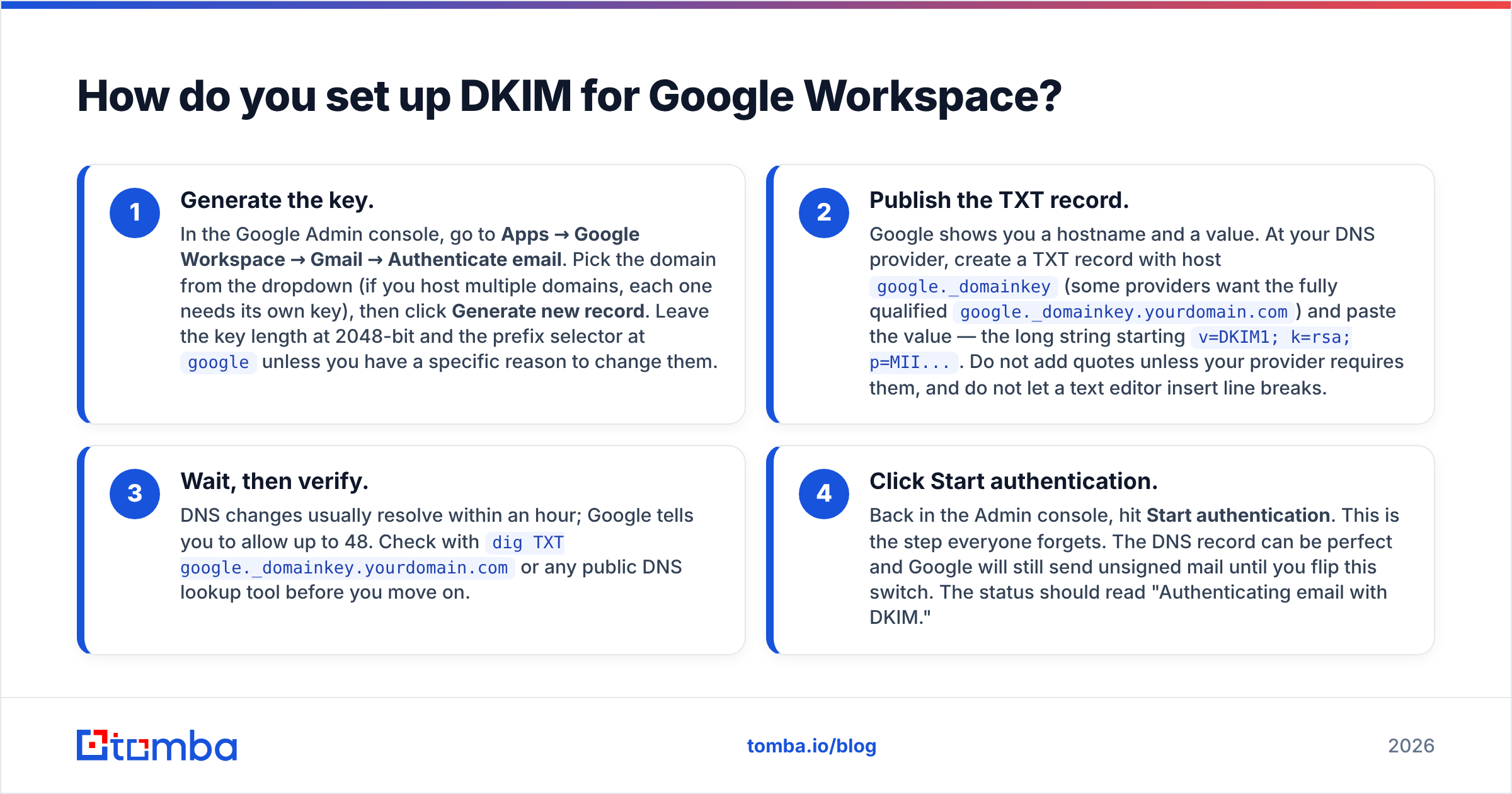
- Generate the key. In the Google Admin console, go to Apps → Google Workspace → Gmail → Authenticate email. Pick the domain from the dropdown (if you host multiple domains, each one needs its own key), then click Generate new record. Leave the key length at 2048-bit and the prefix selector at
googleunless you have a specific reason to change them. - Publish the TXT record. Google shows you a hostname and a value. At your DNS provider, create a TXT record with host
google._domainkey(some providers want the fully qualifiedgoogle._domainkey.yourdomain.com) and paste the value — the long string startingv=DKIM1; k=rsa; p=MII.... Do not add quotes unless your provider requires them, and do not let a text editor insert line breaks. - Wait, then verify. DNS changes usually resolve within an hour; Google tells you to allow up to 48. Check with
dig TXT google._domainkey.yourdomain.comor any public DNS lookup tool before you move on. - Click Start authentication. Back in the Admin console, hit Start authentication. This is the step everyone forgets. The DNS record can be perfect and Google will still send unsigned mail until you flip this switch. The status should read "Authenticating email with DKIM."
Once active, send a test message to a Gmail address you control, open it, click the three-dot menu, and choose Show original. You want to see DKIM: 'PASS' with domain yourdomain.com — your domain, not gmail.com. If it says PASS with a different domain, alignment is broken and DMARC will not credit the result.
Google's own Turn on DKIM documentation covers provider-specific DNS quirks if your host has an unusual TXT interface.
Should you use a 2048-bit or 1024-bit DKIM key?#
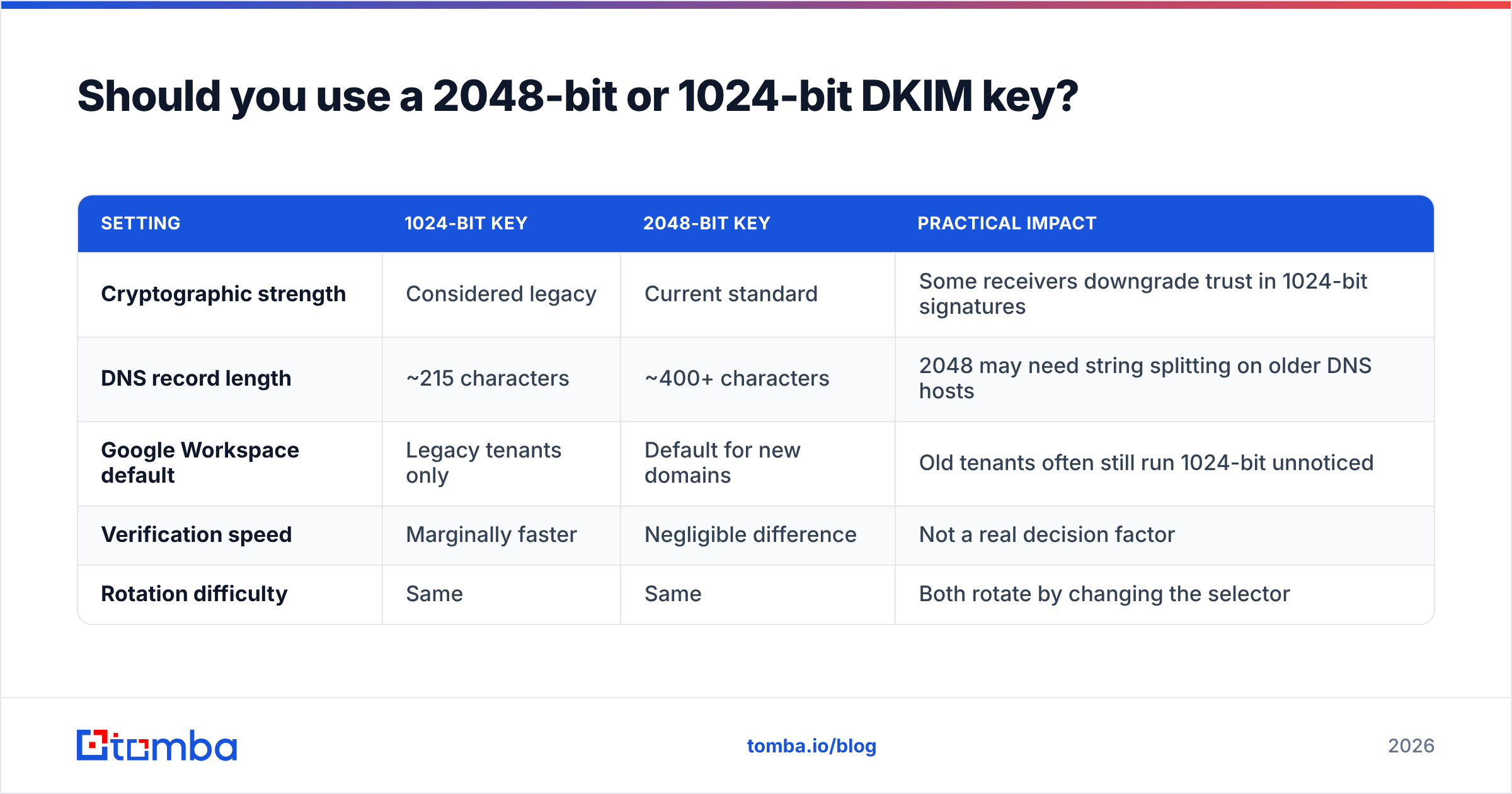
2048-bit, in almost every case. The only reason to fall back is a DNS provider that cannot store a TXT value longer than 255 characters and does not support automatic string splitting — an increasingly rare limitation.
| Setting | 1024-bit key | 2048-bit key | Practical impact |
|---|---|---|---|
| Cryptographic strength | Considered legacy | Current standard | Some receivers downgrade trust in 1024-bit signatures |
| DNS record length | ~215 characters | ~400+ characters | 2048 may need string splitting on older DNS hosts |
| Google Workspace default | Legacy tenants only | Default for new domains | Old tenants often still run 1024-bit unnoticed |
| Verification speed | Marginally faster | Negligible difference | Not a real decision factor |
| Rotation difficulty | Same | Same | Both rotate by changing the selector |
If your Workspace tenant is more than a few years old, open Authenticate email and check the key length shown. If it says 1024, generate a new 2048-bit record, publish it, wait for propagation, and re-authenticate. Rotating the key does not interrupt mail flow as long as the new TXT record resolves before you switch.
On selectors: google is the default prefix and it is fine. Change it only when you need multiple keys on the same domain — for example, if another service already occupies google._domainkey (unlikely) or if you rotate keys on a schedule and want google2024, google2026, and so on. Whatever you choose, the selector in the DNS hostname must exactly match the s= value in your outbound headers.
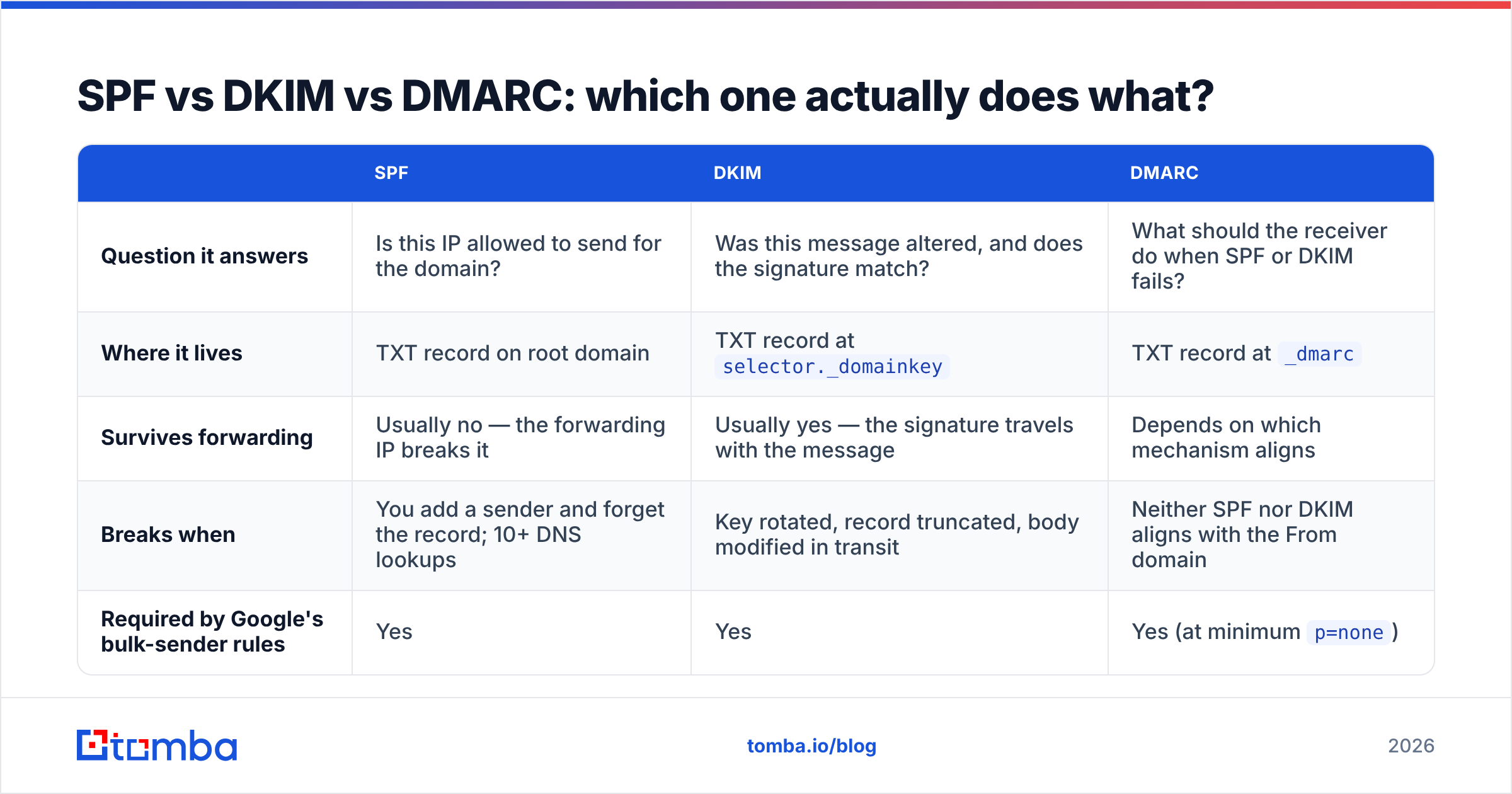
SPF vs DKIM vs DMARC: which one actually does what?#
These three get lumped together as "email authentication," but they answer different questions. Understanding the split is what lets you diagnose a failure instead of guessing.
| SPF | DKIM | DMARC | |
|---|---|---|---|
| Question it answers | Is this IP allowed to send for the domain? | Was this message altered, and does the signature match? | What should the receiver do when SPF or DKIM fails? |
| Where it lives | TXT record on root domain | TXT record at selector._domainkey |
TXT record at _dmarc |
| Survives forwarding | Usually no — the forwarding IP breaks it | Usually yes — the signature travels with the message | Depends on which mechanism aligns |
| Breaks when | You add a sender and forget the record; 10+ DNS lookups | Key rotated, record truncated, body modified in transit | Neither SPF nor DKIM aligns with the From domain |
| Required by Google's bulk-sender rules | Yes | Yes | Yes (at minimum p=none) |
The relationship is layered: SPF and DKIM produce results, DMARC interprets them and tells the receiver what to enforce. DKIM's forwarding resilience is why it carries more weight than SPF in practice — a message relayed through a mailing list will usually fail SPF but keep a valid DKIM signature, and DMARC passes as long as one aligned mechanism holds.
Start your DMARC record at v=DMARC1; p=none; rua=mailto:dmarc@yourdomain.com, read the aggregate reports for two to four weeks, then move to p=quarantine and eventually p=reject. Jumping straight to reject before you know every legitimate sender is how companies black-hole their own invoices. DMARC.org maintains a plain-language overview if you want the spec-level detail.
Once the three records are live, run a SPF checker against your root domain and confirm you are under the ten-DNS-lookup limit — an SPF record that exceeds it fails permanently, and DKIM will not save a DMARC policy set to reject.
Why does DKIM pass but mail still land in spam?#
Because authentication is identity, not reputation. DKIM tells Gmail who you are. It says nothing about whether people want your mail.
Think of it as a driver's license at a bar. The license proves you're you. It does not stop the bouncer from turning you away because you caused a scene last Tuesday. Once you authenticate, Gmail can attribute every complaint, every deletion-without-reading, and every spam report directly to your domain — permanently and accurately. Authentication makes reputation sticky.
The signals that decide placement after DKIM passes:
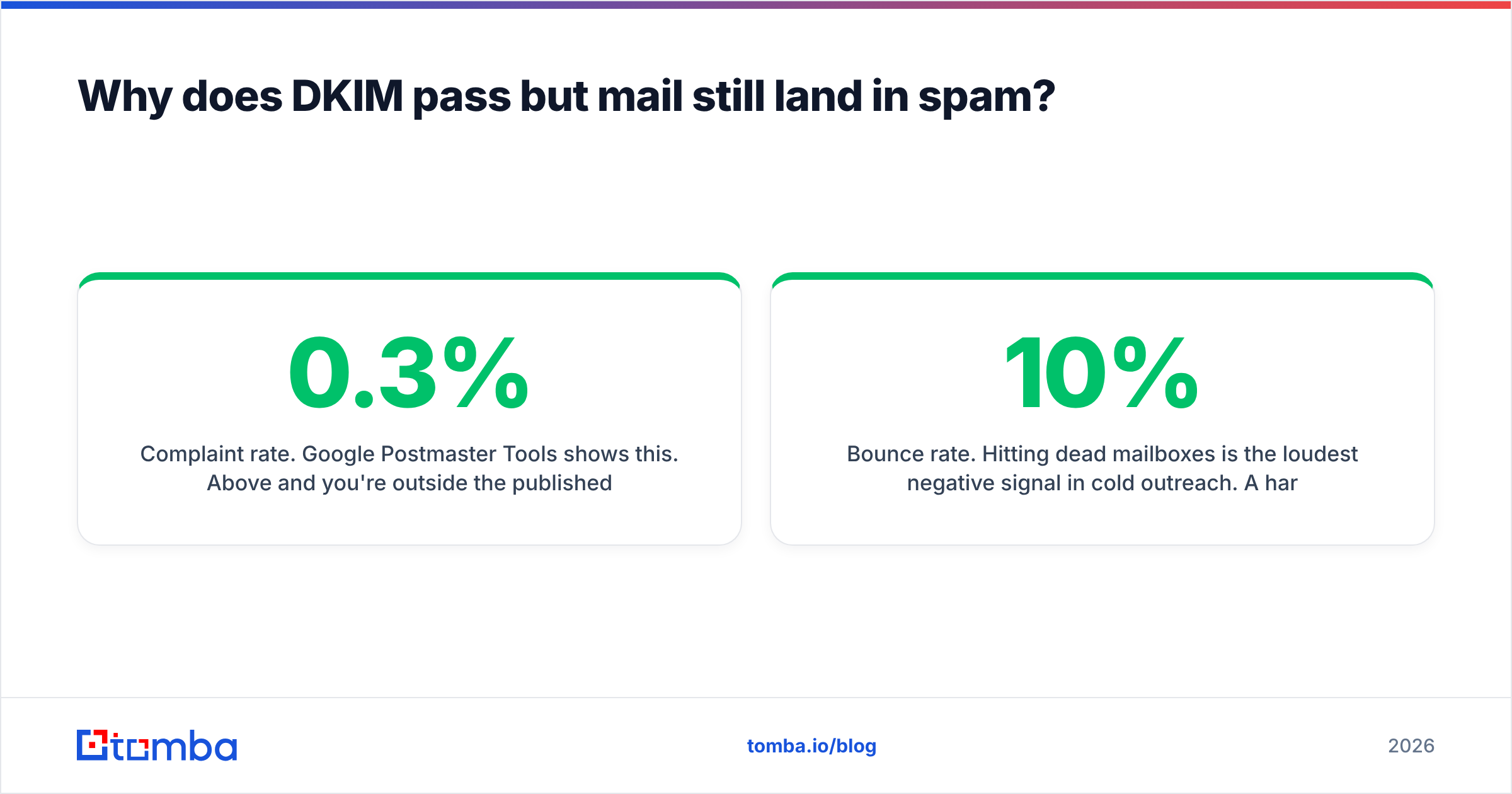
- Complaint rate. Google Postmaster Tools shows this. Above 0.3% and you're outside the published threshold; above 0.1% and you should already be worried.
- Bounce rate. Hitting dead mailboxes is the loudest negative signal in cold outreach. A 10% hard-bounce rate on a fresh domain is close to fatal.
- Spam trap hits. Recycled addresses on scraped lists. One pristine trap hit can suppress an entire domain.
- Engagement. Opens are noisy post-MPP, but replies, stars, and moves-out-of-spam are strong positive signals.
- Sending pattern. Zero to 500 messages a day on a two-week-old domain reads as a compromised account, not a growing business.
This is where most "my DKIM is set up, why am I in spam" threads end. The record is fine. The list is the problem. Before a campaign, push your addresses through an email verifier to strip dead mailboxes, and check whether your domain or IP already sits on a public list with a blacklist checker. Authenticating a bad list just makes the damage attributable.
How do you test DKIM for Google Workspace properly?#
Four checks, in escalating order of usefulness.
- DNS lookup.
dig TXT google._domainkey.yourdomain.com +shortshould return one unbrokenv=DKIM1string. Two records at the same host, or a value split across multiple quoted strings that your provider didn't reassemble, means verification will fail. - Show original in Gmail. Send to a Gmail account, open Show original, and read the SPF/DKIM/DMARC block at the top. All three should say PASS and DKIM should name your domain.
- Seed test across providers. Send the same message to Gmail, Outlook, Yahoo, and one corporate Microsoft 365 tenant. Placement varies more between receivers than most people expect, and Microsoft filters differently from Google.
- Google Postmaster Tools. Verify your domain at postmaster.google.com and watch the Authentication, Domain Reputation, and Spam Rate dashboards over a couple of weeks. This is the only view of how Gmail actually scores you, and it is free.
Run a spam checker on the message content itself while you're at it. Perfect authentication does not rescue copy stuffed with trigger words, a bare link with no text, or a 12-image HTML template with 40 words of body copy.
What breaks DKIM after it's working?#
Setup is a one-time event. Breakage is ongoing. The five recurring causes:
- DNS migration. You move nameservers, the exporter drops
_domainkeyrecords because of the underscore, and nobody notices for six weeks. Always re-verify authentication after any nameserver change. - Record truncation. A DNS panel silently trims a 2048-bit value at 255 characters. The record exists, looks plausible, and fails every verification.
- Key rotation without overlap. You generate a new key and click Start authentication before the new TXT record has propagated. Mail sent in that window is signed with a key nobody can find.
- Modification in transit. Some appliances and mailing lists rewrite subject lines or append footers, invalidating the body hash. The signature was valid when it left; it isn't when it arrives.
- Unsigned third-party senders. Your CRM, your billing system, and your marketing platform all send as
@yourdomain.com. If they aren't individually DKIM-configured, ap=rejectDMARC policy will start bouncing your own invoices.
The last one deserves emphasis. Google's DKIM key signs mail leaving Google's servers. It does not sign mail leaving HubSpot, Mailchimp, or your sequencer. Each of those platforms issues its own selector and CNAME or TXT records — HubSpot, for example, walks you through connecting a sending domain with its own DKIM records. Inventory every system that sends as your domain, authenticate each one, and re-check after every new tool you buy.
Do you need a separate domain for cold outreach?#
Usually yes, and the DKIM setup is identical on it.
The logic: your primary domain carries payroll, contracts, and customer support. Cold outreach carries complaint risk. Keeping them on one domain means a bad campaign can put your invoices in the spam folder. A dedicated lookalike domain — getyourcompany.com, yourcompany.co — isolates that risk.
The setup pattern that works:
- Register the sending domain and let it age at least 30 days before real volume.
- Configure SPF, a 2048-bit DKIM key, and DMARC at
p=noneon day one. - Warm up gradually — a handful of messages a day, climbing over four to six weeks. An email warmup calculator gives you a defensible ramp instead of a guess.
- Cap steady-state volume per mailbox rather than pushing one inbox to its limit. Multiple mailboxes across multiple domains beats one mailbox at maximum throughput.
- Verify every list before it sends. Bounces on a young domain do disproportionate damage.
Everything in the first half of this guide applies to the outreach domain exactly as written. The Admin console flow, the google._domainkey host, the Start authentication click — all identical. You're just doing it twice, and monitoring sender reputation separately for each.
What should you do first?#
If you're starting from zero, the order is: DKIM key generated and authenticated → SPF record verified under ten lookups → DMARC at p=none with reporting on → Postmaster Tools verified → list hygiene → volume ramp. Each step is cheap. Skipping one and discovering it four months later is not.
And once the plumbing is right, the constraint moves to your data. Authenticated mail to a wrong address still bounces, and bounces are what actually erode the email deliverability you just spent an afternoon protecting. That's the part DKIM cannot fix.
Get the addresses right before you scale the sending. The Tomba Email Finder returns verified professional addresses with a confidence score on each result, so your first send to a new prospect isn't a coin flip against a hard bounce. Start on the free tier at 25 searches a month, or check Tomba pricing — Starter runs $49/mo — when you're ready to run volume against a properly authenticated domain.
Related guides#
Ready to find emails that actually work?
Join 150,000+ professionals who stopped guessing and started sending. Free credits on signup — no credit card required.
Get the Tomba newsletter
Practical outbound tactics and product updates — once every two weeks.
About the author