Email Domain Setup: The Complete 2026 Deliverability Guide
SPF, DKIM, DMARC, MTA-STS, warmup, and the sending-domain decisions most guides skip. A step-by-step 2026 walkthrough of email domain setup that keeps cold and lifecycle mail out of spam.
TL;DR
- Never send cold or high-volume outbound from your primary company domain. Buy a lookalike sending domain, set it up properly, and keep your main domain's reputation clean.
- The non-negotiable DNS stack in 2026 is SPF + DKIM (2048-bit) + DMARC at
p=reject, plus a custom tracking domain and a valid PTR. MTA-STS and BIMI are the next tier. - Google and Microsoft now enforce what used to be "best practice": authenticated mail, one-click unsubscribe on bulk sends, and spam complaint rates under 0.3%.
- Warmup is 4–6 weeks of steadily rising volume with real reply activity. There is no shortcut, and no warmup tool fixes a bad list.
- A perfect DNS record set still bounces if your data is stale. Verification and authentication are two halves of the same job.
What does "email domain setup" actually mean?#
Email domain setup is the process of configuring a domain so that mailbox providers can prove your messages are really from you, and so that your sending history builds a reputation you control.
Think of it like getting a business license before opening a storefront. The license does not make people buy anything, but without it the city shuts you down before you sell your first item. SPF, DKIM, and DMARC are the license. Content, targeting, and list quality are the actual store.
The setup covers four layers, and most teams only do the first one:
- Domain strategy — which domain sends what. Primary domain for transactional and lifecycle mail, separate lookalike domains for outbound prospecting.
- Authentication DNS — SPF, DKIM, DMARC, and the supporting records that let Gmail and Outlook verify the sender.
- Infrastructure hygiene — reverse DNS, custom tracking domain, TLS enforcement, and a sane number of mailboxes per domain.
- Reputation building — warmup, volume pacing, complaint monitoring, and list hygiene.
Skip layer one and you eventually torch your company domain. Skip layer four and your perfectly authenticated mail still lands in Promotions or spam.
Should you send cold email from your primary domain?#
No. Use a separate sending domain for anything cold or high-volume.
Domain reputation is scored per domain, and it does not reset. If your outbound campaign generates spam complaints on yourcompany.com, that same reputation follows your invoices, password resets, and support replies. You cannot un-ring that bell quickly.
The standard structure looks like this:
yourcompany.com— website, transactional email, executive mail. Never used for cold outreach.get-yourcompany.com,yourcompany.io,try-yourcompany.com— dedicated outbound sending domains, each with 2–3 mailboxes.- Each mailbox sends 20–40 cold emails per day maximum after warmup.
Buy the lookalike domains at least 30 days before you plan to send. Domain age is a weak signal on its own, but a domain registered yesterday sending 500 emails tomorrow is a strong negative one. Point the sending domain at a simple redirect or a one-page site so it resolves in a browser; a sending domain with no website is a classic throwaway-spammer signature.

Which DNS records do you actually need in 2026?#
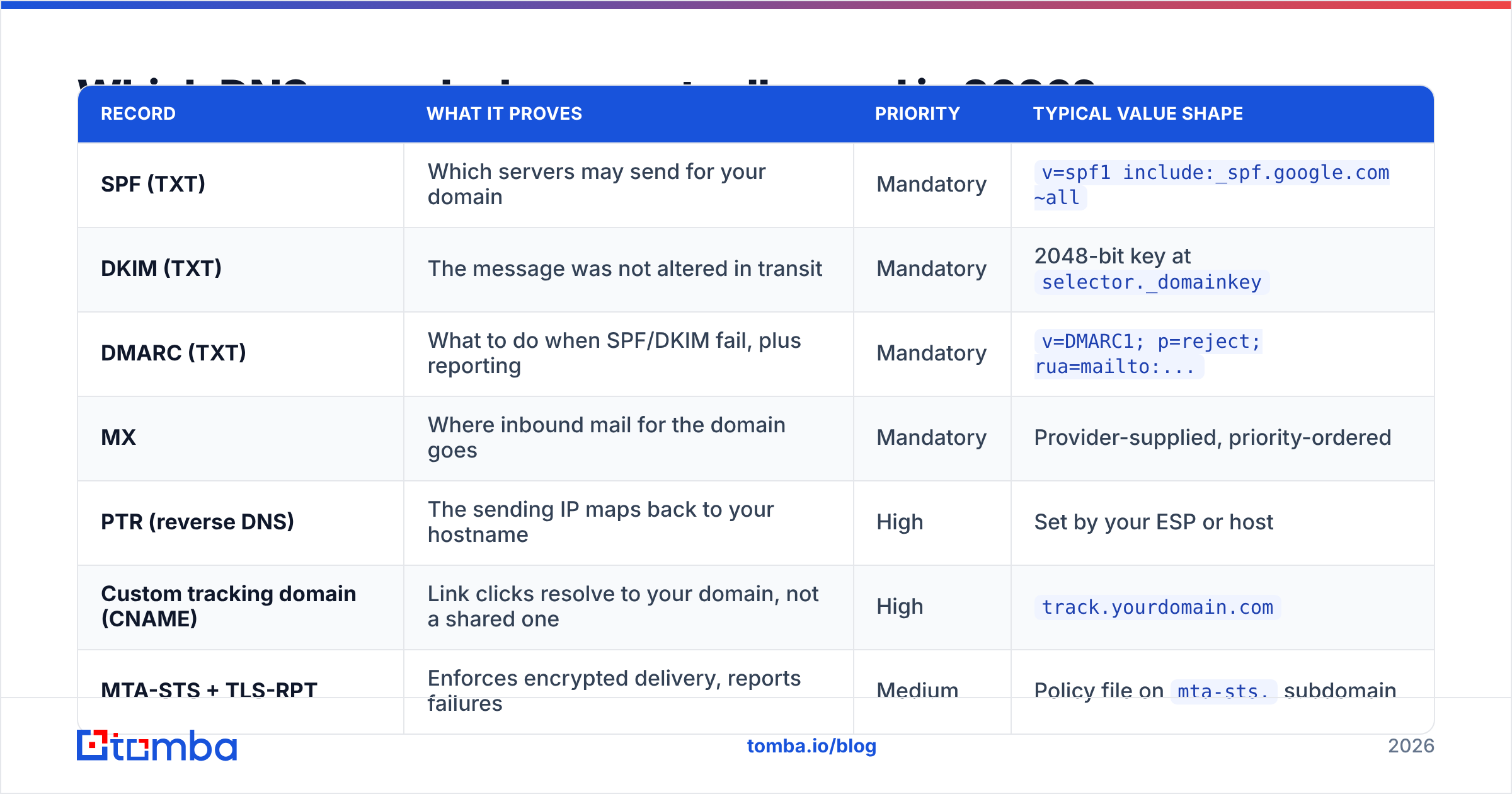
Here is the full record set, ranked by whether you can afford to skip it.
| Record | What it proves | Priority | Typical value shape |
|---|---|---|---|
| SPF (TXT) | Which servers may send for your domain | Mandatory | v=spf1 include:_spf.google.com ~all |
| DKIM (TXT) | The message was not altered in transit | Mandatory | 2048-bit key at selector._domainkey |
| DMARC (TXT) | What to do when SPF/DKIM fail, plus reporting | Mandatory | v=DMARC1; p=reject; rua=mailto:... |
| MX | Where inbound mail for the domain goes | Mandatory | Provider-supplied, priority-ordered |
| PTR (reverse DNS) | The sending IP maps back to your hostname | High | Set by your ESP or host |
| Custom tracking domain (CNAME) | Link clicks resolve to your domain, not a shared one | High | track.yourdomain.com |
| MTA-STS + TLS-RPT | Enforces encrypted delivery, reports failures | Medium | Policy file on mta-sts. subdomain |
| BIMI | Displays your verified logo in the inbox | Low | Requires p=reject + VMC certificate |
Two rules trip people up constantly. First, you get exactly one SPF record per domain — if you add Google Workspace and a sending platform, you merge them into a single v=spf1 string with multiple include: mechanisms, not two separate TXT records. Second, SPF has a hard limit of 10 DNS lookups; exceed it and the whole record returns permerror, which most receivers treat as a fail. Run your domain through an SPF checker after every change rather than assuming the DNS panel validated it for you.
On DMARC, do not park at p=none forever. p=none is a monitoring mode — it collects reports and enforces nothing. Run it for two to four weeks, read the aggregate reports, confirm every legitimate sender (your CRM, invoicing tool, marketing platform, help desk) is aligned, then move to p=quarantine and finally p=reject. Since the 2024 Google and Yahoo bulk-sender rules, and the tightening Microsoft applied to consumer Outlook domains in 2025, p=reject is effectively the price of entry for anyone sending over 5,000 messages a day. Cloudflare's breakdown of SPF, DKIM, and DMARC is a solid reference if you need to explain the mechanics to a non-technical stakeholder.
How do SPF, DKIM, and DMARC differ?#
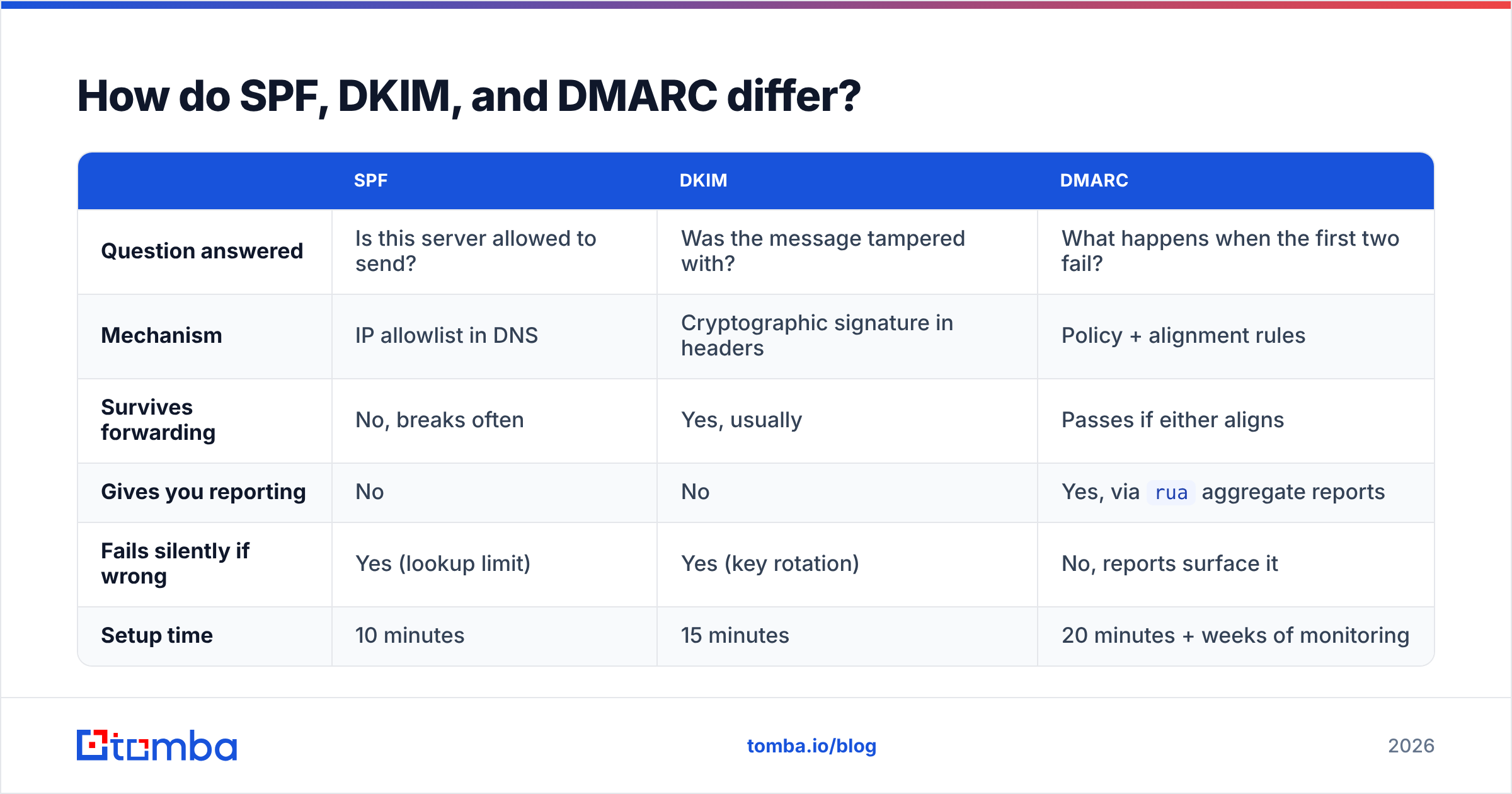
They are three different checks that answer three different questions, and no single one of them is sufficient.
| SPF | DKIM | DMARC | |
|---|---|---|---|
| Question answered | Is this server allowed to send? | Was the message tampered with? | What happens when the first two fail? |
| Mechanism | IP allowlist in DNS | Cryptographic signature in headers | Policy + alignment rules |
| Survives forwarding | No, breaks often | Yes, usually | Passes if either aligns |
| Gives you reporting | No | No | Yes, via rua aggregate reports |
| Fails silently if wrong | Yes (lookup limit) | Yes (key rotation) | No, reports surface it |
| Setup time | 10 minutes | 15 minutes | 20 minutes + weeks of monitoring |
The practical takeaway: SPF alone is fragile because forwarding breaks it. DKIM alone has no policy teeth. DMARC ties them together with alignment — it requires that the domain in the visible From: header matches the domain validated by SPF or DKIM. That alignment requirement is what actually stops spoofing, and it is why a "passing" SPF record on the wrong domain does nothing for you.
How do you configure a sending domain step by step?#
Work in this order. Each step depends on the one before it.
- Register the sending domain and let it sit. Buy it, set a redirect to your main site, and wait at least 2–4 weeks before the first send. Registering with WHOIS privacy is fine; leaving the domain unresolvable is not.
- Connect the mailbox provider and publish MX records. Google Workspace, Microsoft 365, or Zoho — pick one and add its MX records exactly as documented, priorities included. Delete any leftover MX records from the registrar's default parking config.
- Publish a single merged SPF record. List every service that sends as this domain. Use
~all(softfail) while you verify, then tighten to-allonce DMARC reports confirm nothing legitimate is failing. - Generate and publish a 2048-bit DKIM key. Google's admin console still defaults to 1024-bit in some tenants — change it before you generate. Then click "Start authentication," which people forget, leaving a valid key that signs nothing. Google's DKIM documentation walks through the console path.
- Publish DMARC at
p=nonewith a reporting address. Pointrua=at a mailbox or a DMARC report parser. Read reports for two weeks. Every legitimate sender should show alignment before you escalate. - Add the extras: PTR, custom tracking domain, MTA-STS. Then escalate DMARC to
p=quarantine, and top=rejecttwo weeks after that.
Budget about two hours of hands-on work and four to six weeks of elapsed time. DNS propagation is usually minutes, not days, but the monitoring windows are real and cannot be compressed.
How long does domain warmup take, and what does a real ramp look like?#
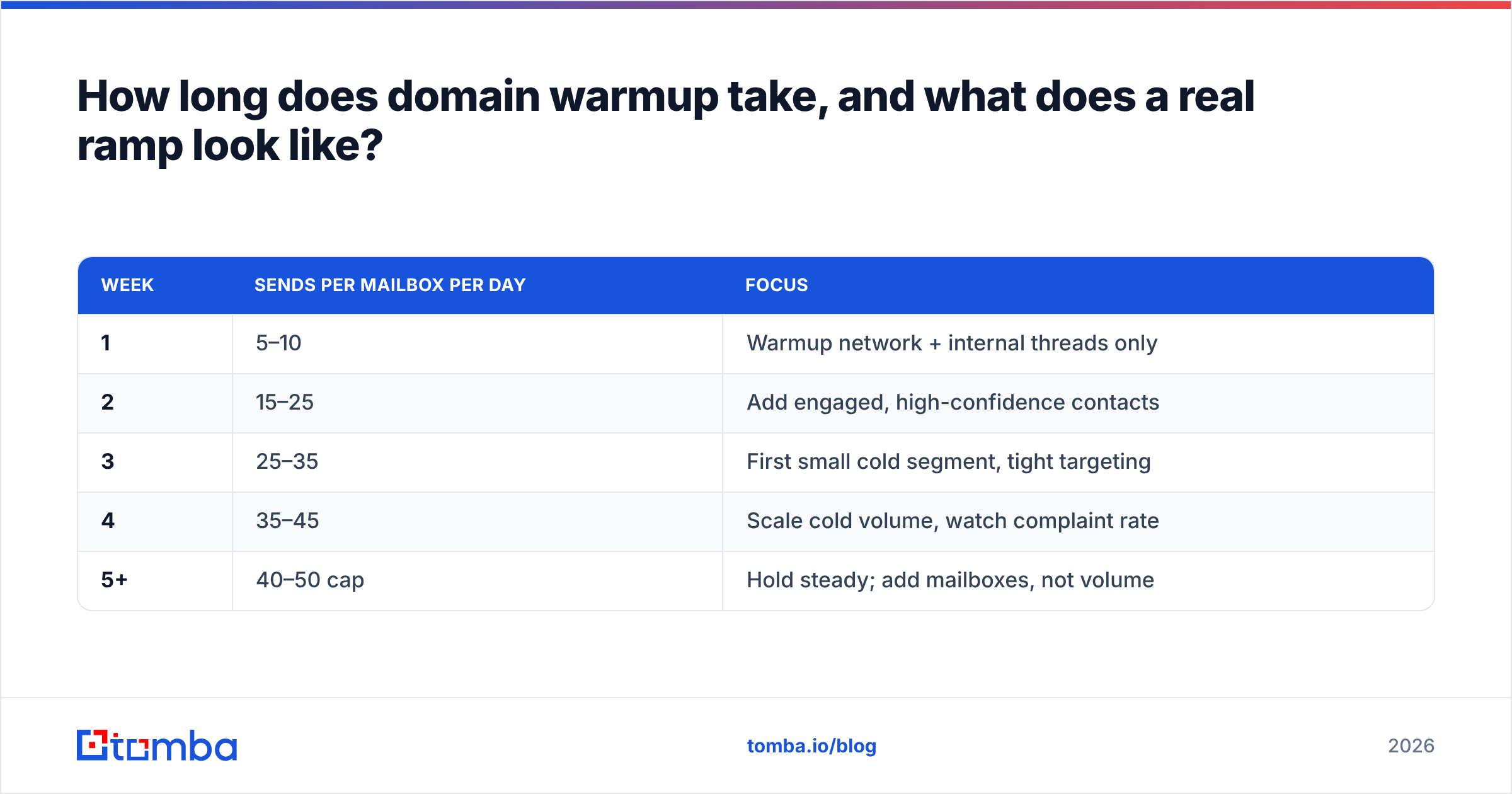
Four to six weeks for a brand-new domain, and the curve matters more than the total.
Mailbox providers score you on engagement, not just volume. A domain that jumps from zero to 200 sends on day one looks exactly like a compromised account. A domain that starts at 5–10 sends per mailbox per day and roughly doubles weekly, with real replies coming back, builds a positive history.
| Week | Sends per mailbox per day | Focus |
|---|---|---|
| 1 | 5–10 | Warmup network + internal threads only |
| 2 | 15–25 | Add engaged, high-confidence contacts |
| 3 | 25–35 | First small cold segment, tight targeting |
| 4 | 35–45 | Scale cold volume, watch complaint rate |
| 5+ | 40–50 cap | Hold steady; add mailboxes, not volume |
Two things break warmups. The first is stopping abruptly — a domain that sends 40/day for a month and then goes silent for two weeks loses its footing, so keep a baseline running. The second is treating warmup tools as a reputation laundry. Automated warmup networks generate artificial opens and replies; Google has been visibly better at discounting that traffic since 2024. Warmup earns you the benefit of the doubt. It does not offset a 6% bounce rate.
If you want a concrete ramp schedule for your mailbox count and target volume, the email warmup calculator will generate one, and the email deliverability glossary entry covers the underlying scoring concepts.

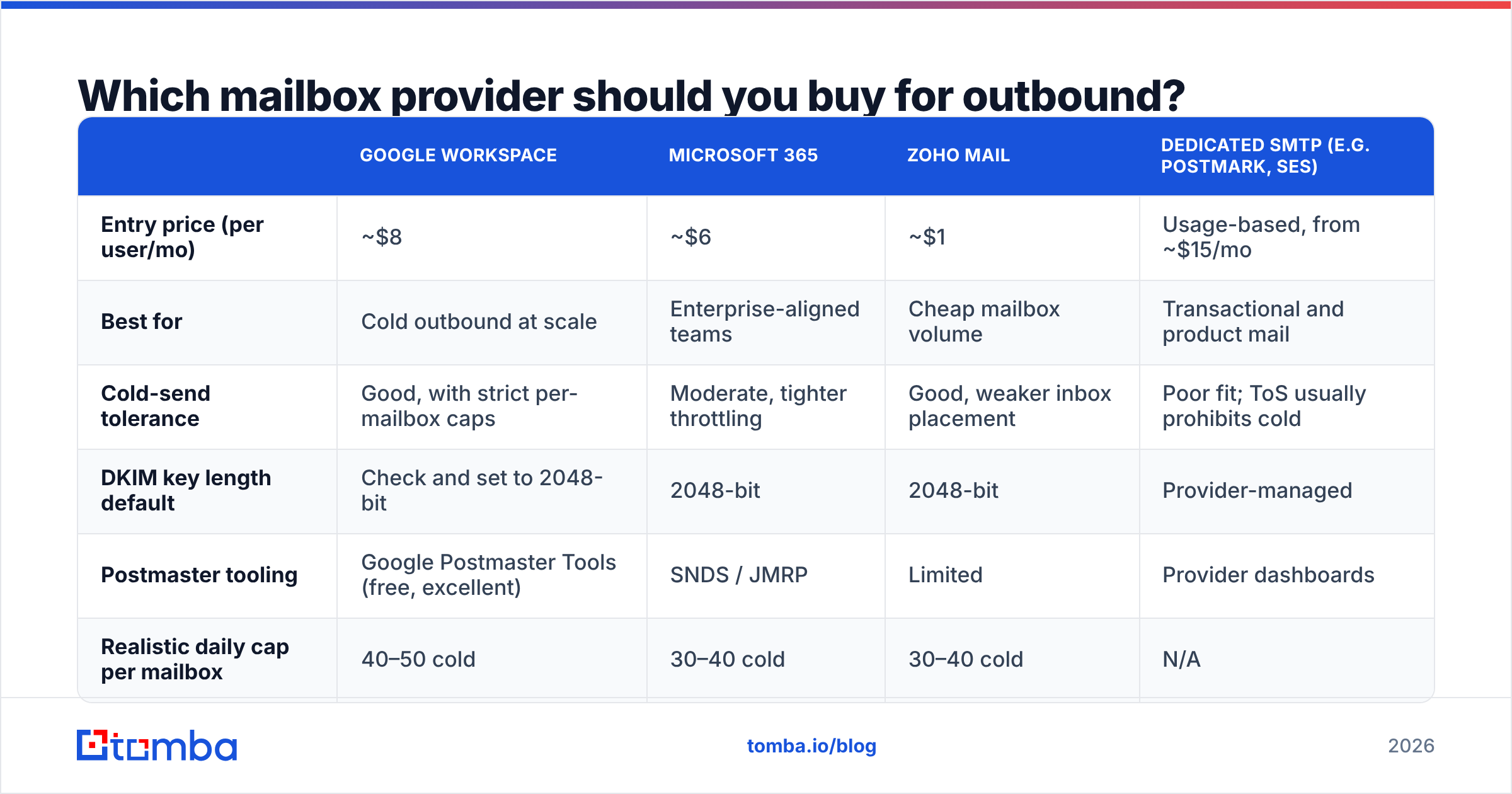
Which mailbox provider should you buy for outbound?#
The honest answer is that provider choice matters less than configuration, but there are real trade-offs in cost and API access.
| Google Workspace | Microsoft 365 | Zoho Mail | Dedicated SMTP (e.g. Postmark, SES) | |
|---|---|---|---|---|
| Entry price (per user/mo) | ~$8 | ~$6 | ~$1 | Usage-based, from ~$15/mo |
| Best for | Cold outbound at scale | Enterprise-aligned teams | Cheap mailbox volume | Transactional and product mail |
| Cold-send tolerance | Good, with strict per-mailbox caps | Moderate, tighter throttling | Good, weaker inbox placement | Poor fit; ToS usually prohibits cold |
| DKIM key length default | Check and set to 2048-bit | 2048-bit | 2048-bit | Provider-managed |
| Postmaster tooling | Google Postmaster Tools (free, excellent) | SNDS / JMRP | Limited | Provider dashboards |
| Realistic daily cap per mailbox | 40–50 cold | 30–40 cold | 30–40 cold | N/A |
Most outbound teams land on Google Workspace for prospecting domains because Google Postmaster Tools gives you actual reputation data — domain reputation, spam rate, authentication pass rates — instead of guesswork. Microsoft is the right call when your buyers are heavily on Outlook and you want the sending environment to mirror the receiving one. Zoho is legitimately cheap and fine for volume, though placement at Gmail tends to be a step behind. Do not run cold outbound through a transactional provider; it violates most acceptable-use policies and gets your account terminated, not just throttled.
What breaks after setup is "done"?#
Setup is not a one-time project. These are the recurring failure modes, in rough order of how often they bite:
- Key rotation without DNS updates. You rotate a DKIM key in the admin console and forget the DNS record. Signatures fail silently for weeks.
- A new tool added to SPF pushes you past 10 lookups. Marketing connects a webinar platform, SPF returns
permerror, and nobody notices until reply rates halve. Flatten the record or use an SPF-flattening service. - Shared tracking domains getting blacklisted. If your sending platform uses one shared click-tracking domain across thousands of customers, one bad actor drags you down. Always use a custom tracking CNAME.
- Complaint rate creep. Google's threshold is 0.3%, and reputation degrades well before you hit it. Check Postmaster Tools weekly, not quarterly.
- List decay. B2B contact data goes stale at roughly 25–30% per year through job changes alone. A list that bounced at 2% in January can bounce at 6% by summer.
Run a blacklist checker against your sending domain and IPs monthly. Most listings are recoverable if you catch them in the first week.
Does authentication matter if your list is bad?#
Authentication and data quality are the same job viewed from two angles, and doing one without the other is wasted effort.
Here is the mechanic that surprises people: hard bounces damage domain reputation directly. A message to a dead mailbox is a signal that you acquired the address without permission or without maintenance. Gmail and Outlook both weight bounce rate heavily in their spam scoring. So a domain with flawless SPF, DKIM, and DMARC sending to a list with an 8% invalid rate will still end up filtered — the authentication proves you are who you say you are, and what you are is a sender with a decaying list.
The fix is unglamorous. Verify before every campaign, not just at import. Route catch-all domains through a dedicated check rather than guessing, since catch-all servers accept everything at SMTP time and bounce later, after the damage is recorded. Segment your list by confidence score and send to the highest-confidence tier first during any warmup phase, so your early reputation history is built on mail that actually lands.
If your bounce rate on a fresh list is above 3%, stop and clean it before you send another campaign. Running your list through an email verifier costs a fraction of what a burned sending domain costs to replace, and it protects the four to six weeks of warmup you just invested.
What should your final pre-send checklist look like?#
Before the first real campaign goes out from a new domain, confirm all of the following:
- SPF returns
passwith a single record and under 10 lookups - DKIM signs with a 2048-bit key and passes on a test send to Gmail and Outlook
- DMARC is published, reports are being received, and policy is at least
quarantine - PTR resolves for the sending IP
- Custom tracking domain is live and not shared with other senders
- Warmup has run for at least four weeks with rising volume
- List verified within the last 30 days, bounce rate projected under 2%
- Unsubscribe header present on any bulk send, honored within two days
Send a test message to a Gmail account and a Microsoft account, open "Show original" in Gmail, and confirm all three checks read PASS. That thirty-second test catches most misconfigurations that DNS validators miss.
Where to go from here#
A correctly configured sending domain is the floor, not the ceiling. Once authentication is clean and warmup is done, the variable that moves reply rates is who you are actually emailing — and whether those addresses are real, current, and matched to the right person.
That is where Tomba Email Finder fits. It finds verified professional addresses by name and domain, scores each result by confidence, and flags catch-all and risky patterns before they reach your sequencer — so the domain you just spent six weeks warming up sends to mailboxes that exist. The free tier covers 25 searches a month, Starter runs $49/mo, and Growth is $99/mo; see the full Tomba pricing breakdown to match a plan to your monthly send volume.
Set the DNS up once, correctly. Then protect it by never sending to an address you have not verified.
Related guides#
Ready to find emails that actually work?
Join 150,000+ professionals who stopped guessing and started sending. Free credits on signup — no credit card required.
Get the Tomba newsletter
Practical outbound tactics and product updates — once every two weeks.
About the author