Gmail Blocking Outgoing Emails: Causes and Fixes for 2026
Gmail suddenly refusing to send your messages? Here's how to read the actual bounce codes, diagnose the real cause in under 10 minutes, and fix sending limits, auth failures, and reputation damage for good.
TL;DR
- Gmail blocking outgoing emails is almost never random. It's one of five causes: a hit sending limit, an authentication failure (SPF/DKIM/DMARC), a spam-content trigger, a compromised-account lockout, or a reputation problem from bouncing lists.
- The bounce code tells you which one.
550-5.4.5is a rate limit.550-5.7.26is authentication.550-5.7.1is policy/reputation. Read the code before you change anything. - Free Gmail caps you at 500 recipients per rolling 24 hours; Google Workspace gives you 2,000 per day via the web interface and 10,000 recipients per day for external SMTP relay — but bulk-sender rules apply above 5,000 messages/day.
- A hard rate-limit block clears itself in 24 hours. A reputation block does not — you have to fix list hygiene, cut your bounce rate under 2%, and rebuild send volume slowly.
- The single highest-leverage prevention step: verify every address before it enters a send. Bounces are what turn "occasional block" into "permanent throttle."
Why Is Gmail Blocking My Outgoing Emails?#
Because Gmail decided your account looks more like a spam source than a person. That judgment is automated, it happens in milliseconds, and it triggers at the SMTP layer — before your recipient ever sees the message.
Think of Gmail's outbound filter like a bouncer at a club who also watches people leave. If you walk out and back in 400 times in an hour, hand out flyers to strangers, and half of them throw the flyer on the ground, the bouncer stops you at the door. He isn't judging your character. He's counting behavior.
Gmail counts five behaviors:
- Volume velocity — how many recipients you touched in the last rolling 24 hours, and how fast.
- Authentication alignment — whether your SPF, DKIM, and DMARC records prove you're allowed to send as your domain.
- Content signals — link shorteners, attachment types, spammy phrasing, image-only bodies, mismatched display names.
- Recipient reaction — bounces, spam complaints, and the absence of replies.
- Account integrity — logins from new locations, unusual API access, or a suspected compromise.
Any one of these can produce a block. Most people assume it's #3 (the content) and rewrite their email. In practice, #1 and #4 cause the overwhelming majority of "Gmail suddenly won't send" incidents.

Wait — that's a placeholder concept. The actual meme:
What Do Gmail's Bounce Codes Actually Mean?#
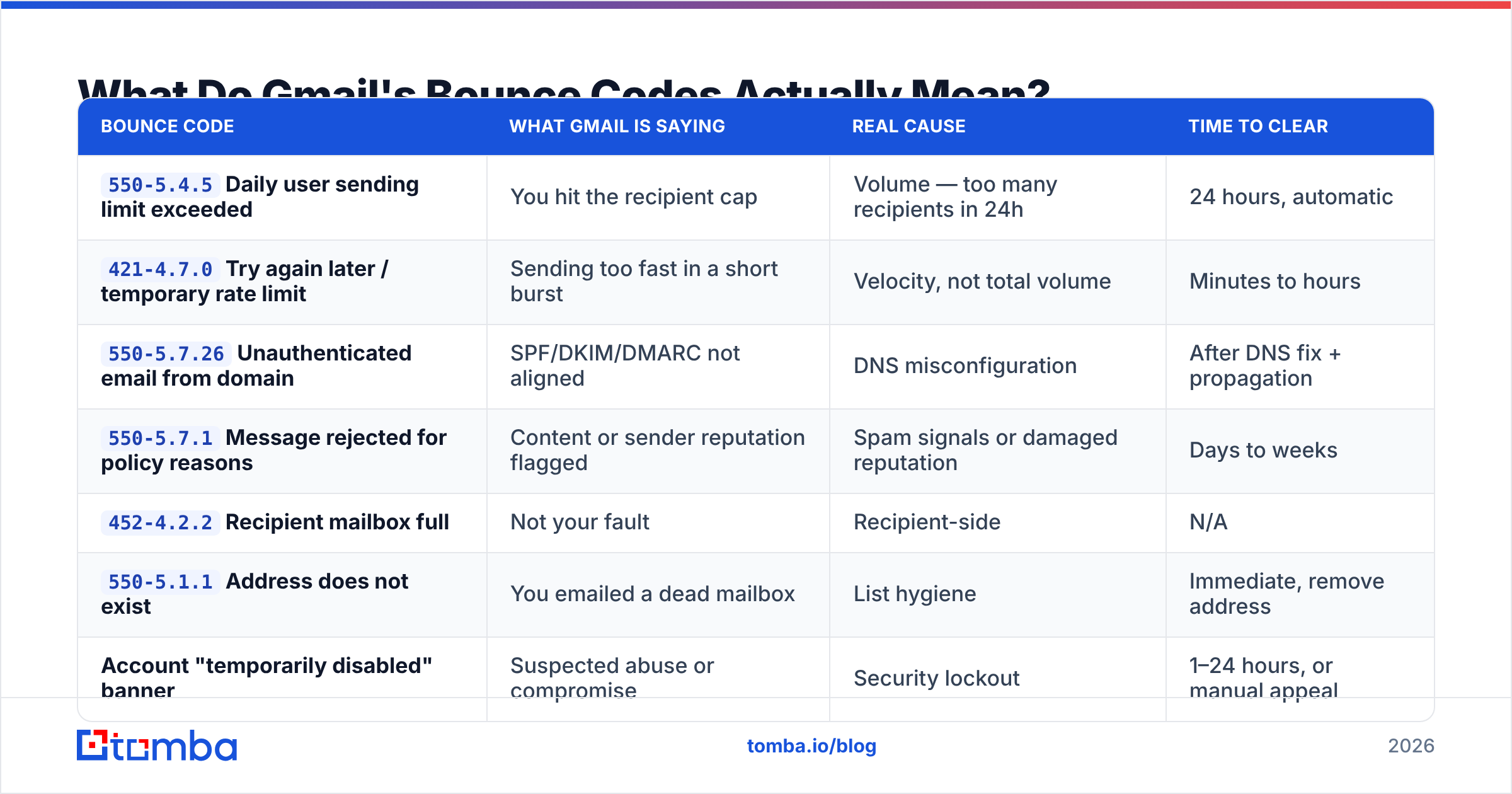
Stop guessing and read the SMTP response. Gmail is unusually specific compared to other providers — the enhanced status code narrows the cause to one category. Open the bounced message, click "Show original" or expand the delivery-failure details, and find the string that starts with 550, 421, or 452.
| Bounce code | What Gmail is saying | Real cause | Time to clear |
|---|---|---|---|
550-5.4.5 Daily user sending limit exceeded |
You hit the recipient cap | Volume — too many recipients in 24h | 24 hours, automatic |
421-4.7.0 Try again later / temporary rate limit |
Sending too fast in a short burst | Velocity, not total volume | Minutes to hours |
550-5.7.26 Unauthenticated email from domain |
SPF/DKIM/DMARC not aligned | DNS misconfiguration | After DNS fix + propagation |
550-5.7.1 Message rejected for policy reasons |
Content or sender reputation flagged | Spam signals or damaged reputation | Days to weeks |
452-4.2.2 Recipient mailbox full |
Not your fault | Recipient-side | N/A |
550-5.1.1 Address does not exist |
You emailed a dead mailbox | List hygiene | Immediate, remove address |
| Account "temporarily disabled" banner | Suspected abuse or compromise | Security lockout | 1–24 hours, or manual appeal |
The distinction that matters most: 550-5.4.5 and 421-4.7.0 are throttles — they heal on their own. 550-5.7.1 is a reputation verdict — it does not heal on its own, and every additional send while blocked makes it worse.
What Are Gmail's Actual Sending Limits in 2026?#
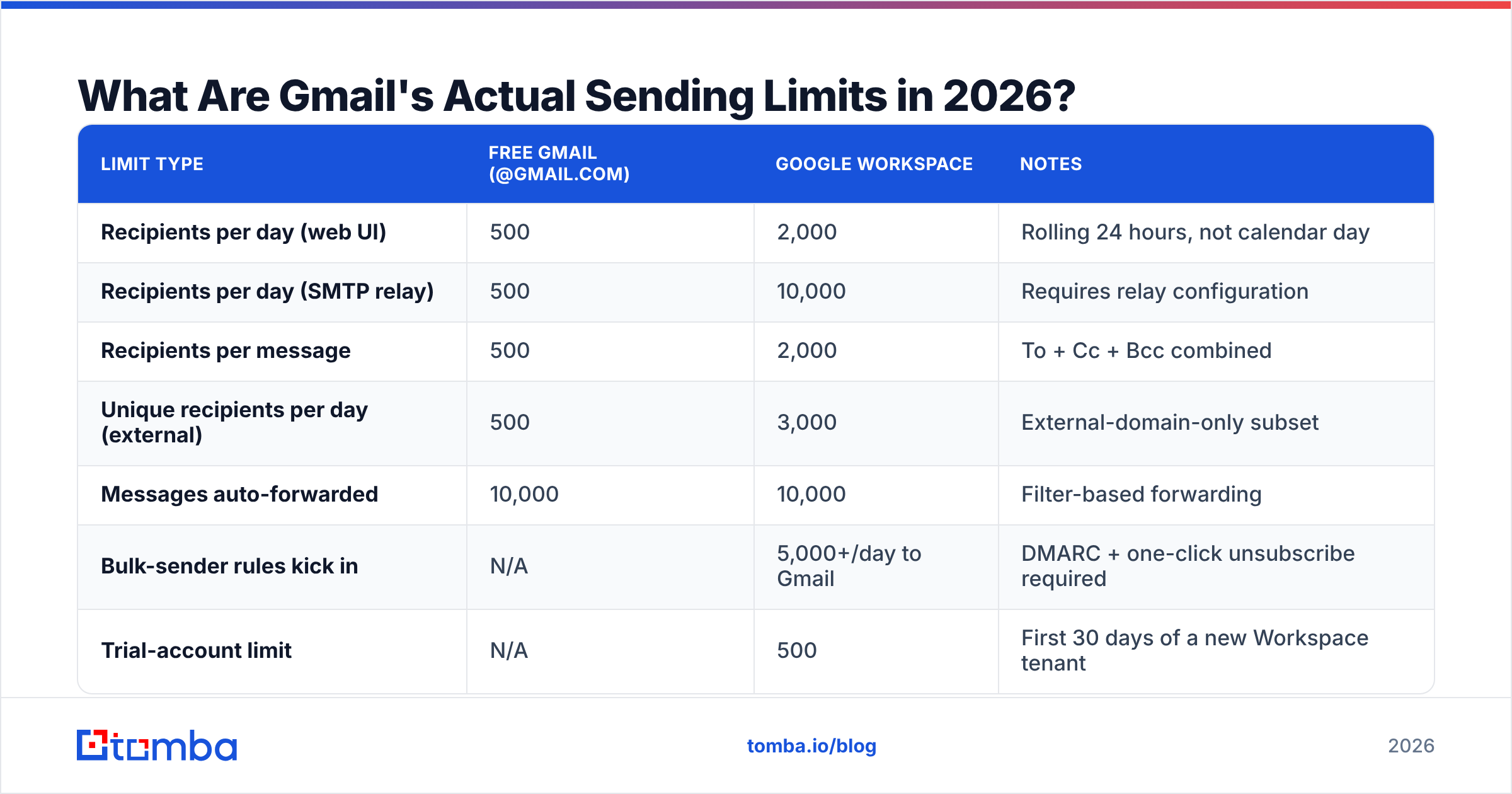
Know your ceiling before you blame anything else. Google publishes these limits, but they're scattered across help articles and people routinely quote the wrong number.
| Limit type | Free Gmail (@gmail.com) | Google Workspace | Notes |
|---|---|---|---|
| Recipients per day (web UI) | 500 | 2,000 | Rolling 24 hours, not calendar day |
| Recipients per day (SMTP relay) | 500 | 10,000 | Requires relay configuration |
| Recipients per message | 500 | 2,000 | To + Cc + Bcc combined |
| Unique recipients per day (external) | 500 | 3,000 | External-domain-only subset |
| Messages auto-forwarded | 10,000 | 10,000 | Filter-based forwarding |
| Bulk-sender rules kick in | N/A | 5,000+/day to Gmail | DMARC + one-click unsubscribe required |
| Trial-account limit | N/A | 500 | First 30 days of a new Workspace tenant |
Three traps people fall into:
- The rolling window. The 24-hour clock doesn't reset at midnight. It resets 24 hours after each individual send. If you blasted 500 at 3pm Tuesday, you're clear at 3pm Wednesday — not at 12:01am.
- Recipients, not messages. One email with 200 people in Bcc costs you 200 units, not one.
- New tenants are capped hard. A Workspace account inside its first 30 days is limited to 500 recipients/day regardless of plan. Teams that buy Workspace specifically to send more get blocked on day one and assume the product is broken.
Since February 2024, Google's bulk sender requirements added hard gates above 5,000 messages/day to Gmail addresses: authenticated SPF and DKIM, a DMARC policy on the sending domain, one-click unsubscribe (RFC 8058), and a spam complaint rate held below 0.3%. Those thresholds have only tightened since. If you're a cold-outreach team, assume they apply to you well before you hit 5,000 — Gmail applies reputation logic at every volume level.
How Do You Diagnose the Block in Under 10 Minutes?#
Work top-down through the causes, cheapest check first. Don't rewrite copy until you've cleared the first four steps.
- Read the bounce code. Open the failure notice, find the
5xx/4xxstring, and match it against the table above. This alone resolves the majority of cases. - Count your last 24 hours. Search your Sent folder with
newer_than:1dand count recipients, not threads. If you're near the cap, you have your answer. - Check authentication. Send one message to a mailbox you control, open "Show original," and confirm SPF, DKIM, and DMARC all read PASS. Any FAIL or NEUTRAL is your cause. A quick SPF checker confirms the record syntax before you touch DNS.
- Check Postmaster Tools. Google Postmaster Tools shows your domain reputation (High/Medium/Low/Bad), spam rate, and authentication pass rates. A "Low" or "Bad" domain reputation explains every
550-5.7.1you're seeing. Requires domain verification and meaningful volume to populate. - Check for a security lockout. Visit your Google Account security page. A "suspicious activity" notice or a forced sign-out across devices means the block is account integrity, not deliverability.
- Only now, audit content. Run the message through a spam checker and look for link shorteners, tracking-pixel-only bodies,
.zip/.exeattachments, and mismatched From/Reply-To.
[Screenshot placeholder: Google Postmaster Tools domain reputation dashboard showing a "Low" reputation trendline alongside a spike in spam rate.]
[Screenshot placeholder: Gmail "Show original" panel with SPF, DKIM, and DMARC status rows expanded, showing DKIM: FAIL.]
How Do You Fix Each Cause?#
The fix depends entirely on which of the five causes you confirmed. Applying the wrong fix wastes days.
If it's a rate limit (550-5.4.5, 421-4.7.0):
Stop sending. Wait 24 hours. Do not retry in a loop — repeated retries against a throttle extend it. Then reduce volume per inbox and add sending inboxes instead of pushing one harder. Fifty sends per inbox per day across eight inboxes beats 400 from one, every time. Space sends 60–180 seconds apart rather than firing them in a burst.
If it's authentication (550-5.7.26):
Publish or repair three DNS records. SPF must include Google's mechanism (include:_spf.google.com) and stay under the 10-lookup limit. DKIM must be generated in the Workspace admin console and published as a TXT record at the selector host — a 2048-bit key, not the legacy 1024. DMARC starts at p=none for monitoring and moves to p=quarantine once the reports are clean. Give DNS up to 48 hours to propagate before re-testing.
If it's content (550-5.7.1 with clean reputation):
Strip link shorteners — bit.ly and similar are heavily abused and Gmail treats them as a risk signal. Keep your text-to-image ratio heavy on text. Remove attachments from first-touch emails entirely. Make sure your display name, From address, and Reply-To all resolve to the same domain. Test subject lines that don't lead with urgency words or all caps.
If it's reputation (550-5.7.1 with Low/Bad Postmaster reputation):
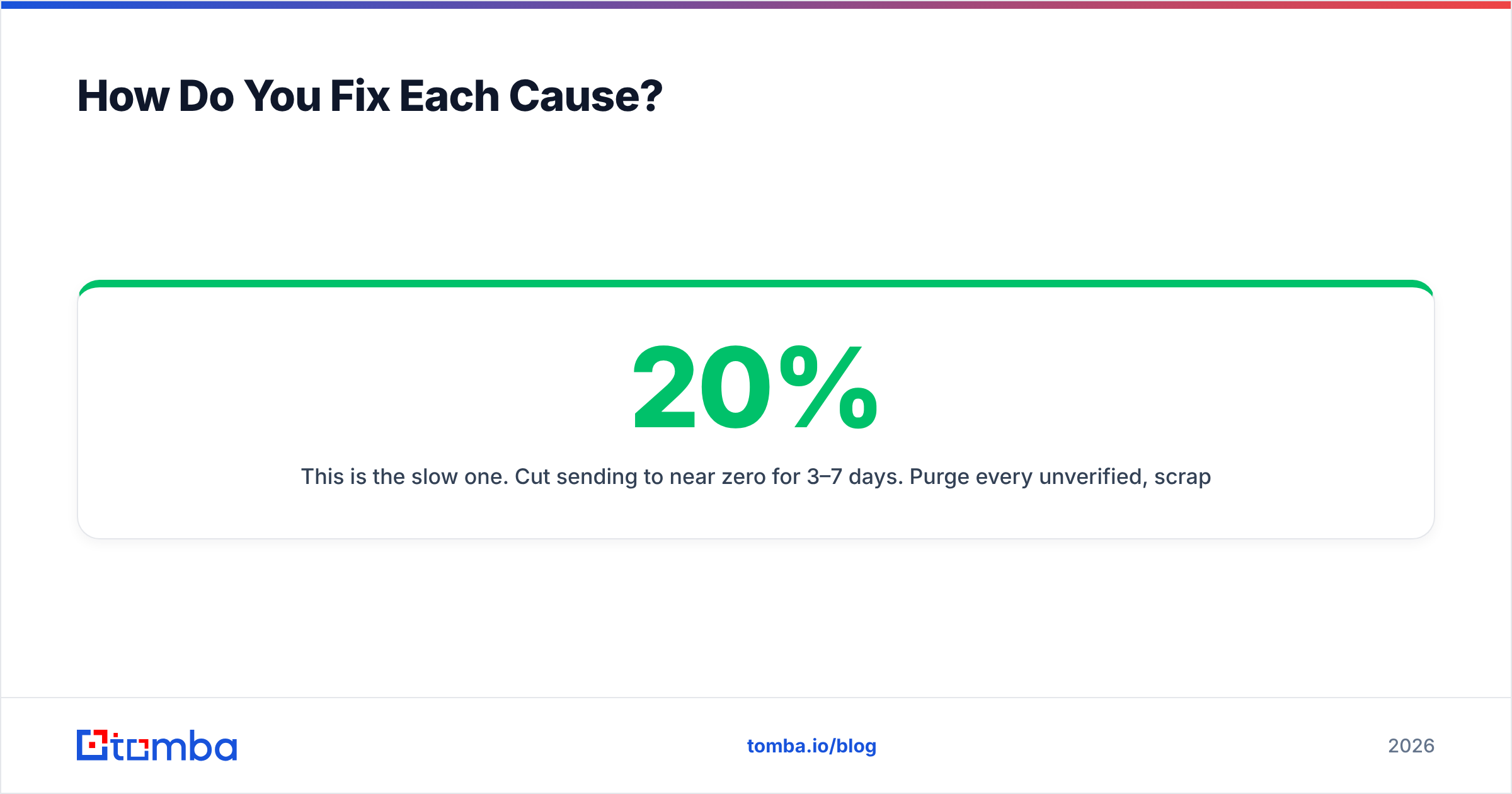
This is the slow one. Cut sending to near zero for 3–7 days. Purge every unverified, scraped, and inactive address from your lists. Re-warm the domain from 10–20 sends/day, climbing roughly 20% weekly, weighted toward recipients who reply. Your target metrics: bounce rate under 2%, spam complaints under 0.1%, reply rate above 3%. There's no shortcut and no appeal form for this one — Gmail's reputation model is behavioral and only new behavior moves it.
If it's an account lockout: Change your password, revoke unrecognized app passwords and OAuth grants, enable 2FA, and wait. Google Workspace admins can restore a suspended user from the admin console; free Gmail accounts sometimes clear after 24 hours or require the account-recovery flow.
Which Prevention Habits Actually Keep Gmail Happy?#
Prevention is cheaper than recovery by roughly an order of magnitude. Four habits cover most of the risk:
- Verify before you send, every time. Bounces are the fastest path to a reputation block, and unverified lists routinely run 15–30% invalid. Running addresses through an email verifier before import keeps your bounce rate in the sub-2% band Gmail rewards. This is the single highest-ROI habit on the list.
- Split volume across inboxes and domains. Never route your entire outbound program through one Gmail account. Use secondary sending domains, keep each inbox under ~50 cold sends/day, and treat your primary corporate domain as sacred.
- Warm new inboxes properly. A brand-new mailbox sending 200 cold emails on day three will get blocked. Ramp over 3–4 weeks. An email warmup calculator gives you a concrete daily schedule instead of a guess.
- Monitor leading indicators, not lagging ones. Bounce rate and spam complaints move before the block arrives. Check Postmaster Tools weekly; a reputation slipping from High to Medium is your warning shot.
- Prune non-responders. Contacts who never open and never reply drag engagement metrics down. Remove them after 3–4 touches rather than recycling them forever.
- Keep authentication current. Rotate DKIM keys periodically, re-check SPF after every new tool you connect (each one adds a DNS lookup), and read your DMARC aggregate reports.
Should You Use Gmail for Cold Outreach at All?#
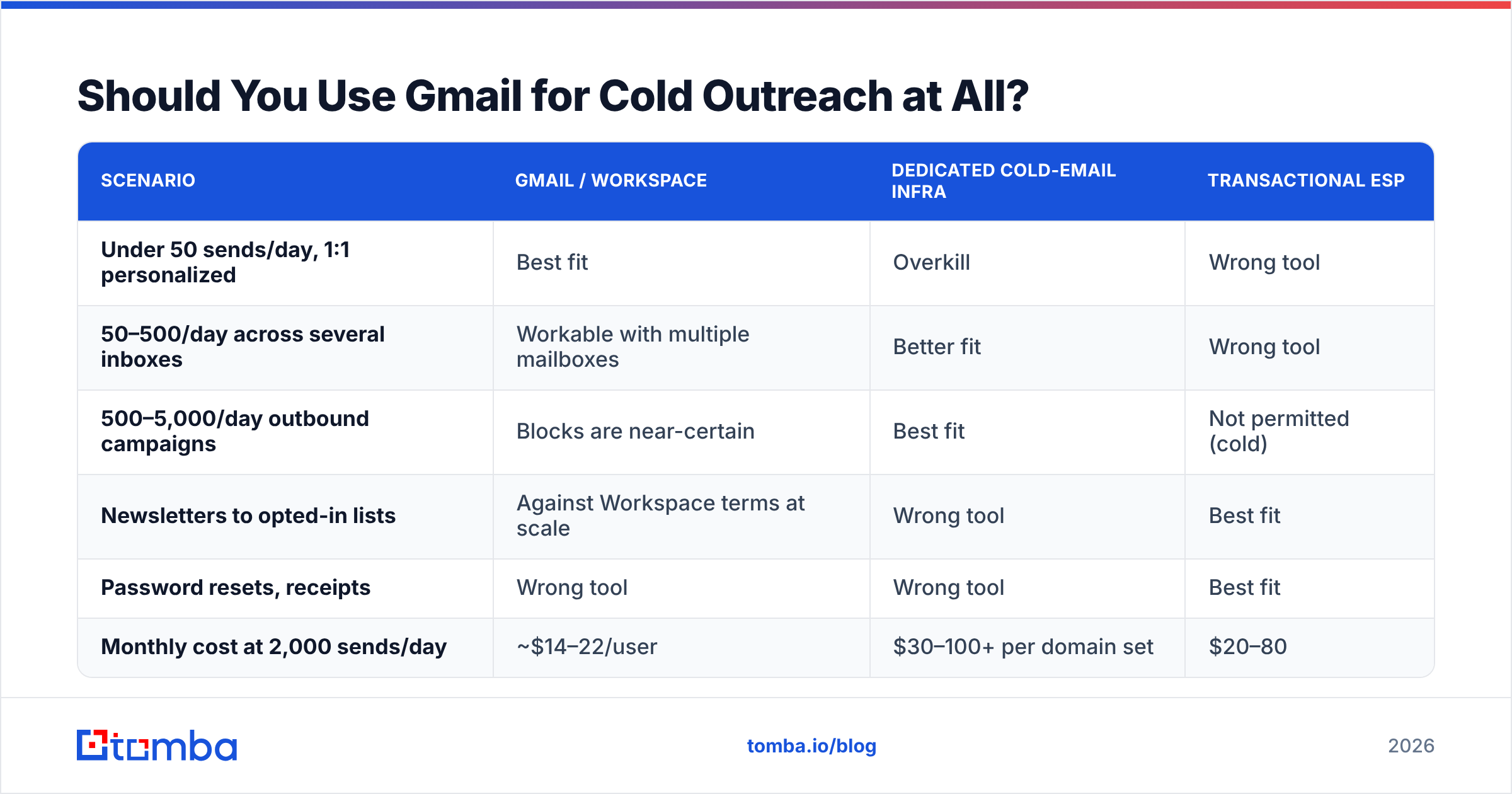
Honestly: for small, targeted volumes, yes. For anything resembling bulk, no.
| Scenario | Gmail / Workspace | Dedicated cold-email infra | Transactional ESP |
|---|---|---|---|
| Under 50 sends/day, 1:1 personalized | Best fit | Overkill | Wrong tool |
| 50–500/day across several inboxes | Workable with multiple mailboxes | Better fit | Wrong tool |
| 500–5,000/day outbound campaigns | Blocks are near-certain | Best fit | Not permitted (cold) |
| Newsletters to opted-in lists | Against Workspace terms at scale | Wrong tool | Best fit |
| Password resets, receipts | Wrong tool | Wrong tool | Best fit |
| Monthly cost at 2,000 sends/day | ~$14–22/user | $30–100+ per domain set | $20–80 |
Google Workspace is a productivity product with an SMTP endpoint attached. Its limits exist to protect Gmail's overall reputation, not to serve your outbound program. If your plan requires 3,000 sends a day, no configuration trick makes Workspace the right vehicle. Distribute across purpose-built infrastructure, keep each mailbox conservative, and accept that inbox count — not per-inbox volume — is the variable you scale.
What About Data Quality — Does It Really Move the Needle?#
It's the biggest single lever, and it's the one most teams skip.
Here's the causal chain: bad data → high bounce rate → damaged sender reputation → 550-5.7.1 blocks → weeks of recovery. Every step downstream is expensive. The step upstream costs a fraction of a cent per address.
Providers vary widely in how they handle this. Peers like BookYourData take the pre-verified-database approach, selling contacts that have already passed validation — a solid fit if you want lists that arrive clean. Tools like Tomba come at it from the discovery side: find the address from a name and domain, then verify it in the same workflow before it ever reaches your sequence. Both routes get you to the same place; the choice depends on whether you're buying lists or building them.
What matters is that something sits between your research and your send button:
- Syntax and MX validation catches typos and dead domains before they bounce.
- Catch-all handling matters because catch-all domains accept everything and tell you nothing — a catch-all verifier separates likely-real from likely-fiction.
- Role-address filtering removes
info@,sales@, andsupport@, which draw complaints and rarely reply. - Recency matters more than people think: B2B contact data decays roughly 25–30% per year as people change jobs.
For teams building lists rather than buying them, domain search plus per-address verification is the cleanest workflow — you get the contacts for a target account and confirm each one is live before a single message leaves your outbox. Batch it through a bulk email finder when you're working a whole account list at once.
Frequently Asked Questions#
How long does a Gmail sending block last?
A rate limit clears in 24 hours automatically. A temporary 421 throttle clears in minutes to hours. A reputation-based 550-5.7.1 block has no fixed duration — it lifts when your sending behavior improves, typically 2–4 weeks of disciplined low-volume sending.
Will using an SMTP relay bypass the limits? No. The Workspace SMTP relay raises the ceiling to 10,000 recipients/day but applies the same authentication and reputation rules. It changes the number, not the judgment.
Can I appeal a block? Google Workspace admins can open a support case, and Gmail has a bulk sender contact form for high-volume senders. Free Gmail accounts have no appeal path for deliverability blocks — only for account suspensions via account recovery.
Does sending from an alias help? No. Limits and reputation attach to the account and domain, not the alias.
Is a paid Workspace account less likely to get blocked? Slightly — higher limits and admin visibility help. But a paid account with a 20% bounce rate gets blocked faster than a free account with a 1% bounce rate. Behavior beats billing.
Where Should You Start Today?#
Read your bounce code first, count your last 24 hours second, and check authentication third. Those three steps resolve most Gmail block incidents without touching your copy at all. If Postmaster Tools shows a degraded reputation, cut volume immediately and start the slow rebuild — pushing through a reputation block only deepens it.
Then fix the upstream cause. If your bounce rate is above 2%, your list is the problem, not Gmail. Run every address through Tomba's Email Finder and its built-in verification before it enters a sequence — find the address from a name and domain, confirm it's deliverable, and skip the bounce entirely. The free tier gives you 25 searches a month to test the workflow, and Tomba pricing starts at $49/mo on Starter when you're ready to run real volume. Clean data in, no bounce codes out.
Related guides#
Ready to find emails that actually work?
Join 150,000+ professionals who stopped guessing and started sending. Free credits on signup — no credit card required.
Get the Tomba newsletter
Practical outbound tactics and product updates — once every two weeks.
About the author