Gmail Is Blocking My Emails: How to Diagnose and Fix It
Gmail rarely blocks senders at random. It blocks patterns. Here's how to read the bounce code, isolate the real cause in 30 minutes, and rebuild inbox placement without burning your domain.
TL;DR
- Gmail almost never blocks a sender for one bad email. It blocks a pattern — usually high bounce rates, spam complaints above 0.3%, missing authentication, or a sudden volume spike.
- Read the bounce code first.
550-5.7.1(policy/reputation),421-4.7.28(rate limit), and550-5.7.26(authentication failure) mean three completely different problems with three different fixes. - Since February 2024, Gmail enforces SPF, DKIM, DMARC, one-click unsubscribe, and a spam-complaint ceiling for bulk senders. In 2026 those rules are enforced harder and at lower volume thresholds.
- The fastest lever most teams ignore: list hygiene. A 6% bounce rate will get you blocked no matter how perfect your DNS is.
- Recovery takes 2–6 weeks of disciplined sending. There is no support ticket that skips the queue.
Why Does Gmail Say It's Blocking My Emails?#
Because your sending behavior crossed a threshold that Gmail's filters treat as abuse — not because a human at Google reviewed you.
Think of Gmail's filter like a bouncer at a club who never forgets a face. He doesn't care that you're a legitimate SaaS founder. He cares that the last 500 people who walked in with your domain on their wristband either got turned away at the door (bounces), complained to management (spam reports), or never ordered a drink (zero engagement). After enough of that, he stops letting your group in at all.
Technically: Gmail scores your sending domain and IP on a rolling reputation model. Inputs include bounce rate, spam complaint rate, authentication pass rate, engagement signals (opens, replies, "not spam" clicks, deletions without reading), volume consistency, content and link reputation, and whether your domain appears on public blocklists.
When that composite score drops below a threshold, one of three things happens:
- Soft throttling — Gmail accepts fewer messages per hour and defers the rest with a 4.x.x code.
- Spam folder placement — mail is accepted but never seen. Technically not a block, practically worse, because you get no error to debug.
- Hard rejection — a 5.x.x bounce at the SMTP layer. This is the "Gmail is blocking my emails" that most people mean.
The dangerous middle state is #2. Teams see 98% "delivered" in their sending tool and assume everything is fine while their reply rate quietly goes to zero.
What Do Gmail's Bounce Codes Actually Mean?#
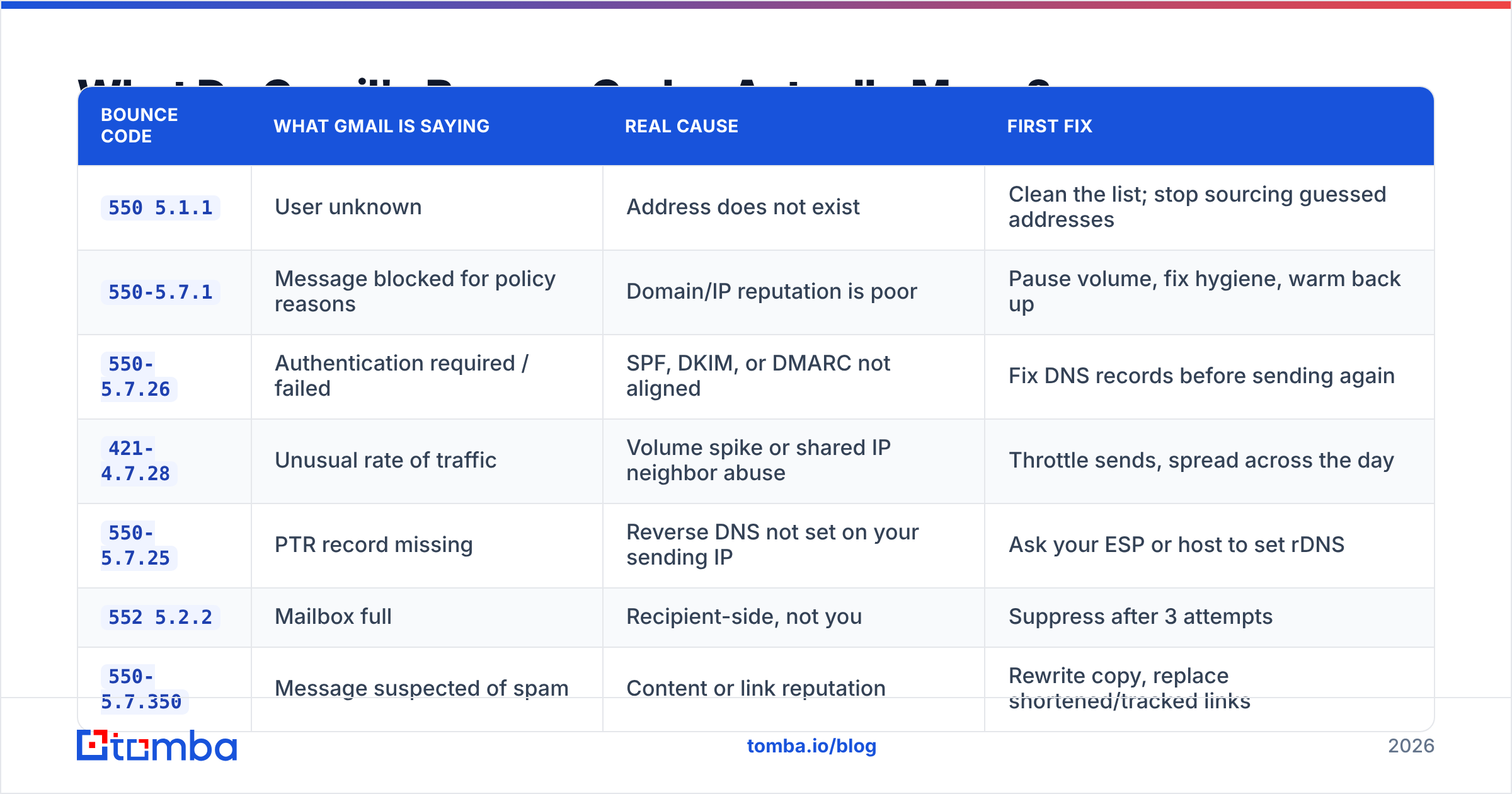
Your bounce code is the single highest-signal piece of diagnostic data you have. Pull the raw bounce text from your ESP — not the summarized label in the dashboard, which flattens everything into "bounced."
| Bounce code | What Gmail is saying | Real cause | First fix |
|---|---|---|---|
550 5.1.1 |
User unknown | Address does not exist | Clean the list; stop sourcing guessed addresses |
550-5.7.1 |
Message blocked for policy reasons | Domain/IP reputation is poor | Pause volume, fix hygiene, warm back up |
550-5.7.26 |
Authentication required / failed | SPF, DKIM, or DMARC not aligned | Fix DNS records before sending again |
421-4.7.28 |
Unusual rate of traffic | Volume spike or shared IP neighbor abuse | Throttle sends, spread across the day |
550-5.7.25 |
PTR record missing | Reverse DNS not set on your sending IP | Ask your ESP or host to set rDNS |
552 5.2.2 |
Mailbox full | Recipient-side, not you | Suppress after 3 attempts |
550-5.7.350 |
Message suspected of spam | Content or link reputation | Rewrite copy, replace shortened/tracked links |
Two of these are recipient problems (5.1.1 on a single address, 5.2.2). The rest are yours. If you're seeing 550-5.7.1 or 550-5.7.26 at scale, nothing about your copy matters until the underlying issue is fixed.
Is It a Block, a Spam Folder Problem, or a Rate Limit?#
Run this triage before changing anything. Each symptom points to a different root cause:
- Hard bounces above 3% — This is a list quality problem, full stop. Gmail treats a high invalid-address rate as evidence you're sending to purchased or scraped data. Fix by running your list through an email verifier before the next campaign, not after.
- Delivered but zero opens from Gmail addresses specifically — Spam folder placement. Compare Gmail open rates against Outlook and corporate domains in the same campaign. A 25-point gap that only affects Gmail is the tell.
- Deferrals climbing through the day, then clearing overnight — Rate limiting. You're pushing more volume per hour than your reputation supports. Spread sends across a 10-hour window and cap per-mailbox daily volume.
- Sudden block after weeks of clean sending — Check for a compromised account, a new template with a bad link domain, or a shared-IP neighbor. Also check whether someone on your team imported a list without telling you.
- Blocked from day one on a new domain — Missing authentication or an unwarmed domain. New domains have no reputation, and a cold domain sending 500 messages on day one looks exactly like a throwaway spam domain.
- Only some Gmail recipients blocked, others fine — Per-user filtering. Individual recipients marked you as spam, and Gmail is applying that at the user level before it escalates domain-wide.
The point of the triage is to stop guessing. Most teams respond to any deliverability problem by rewriting subject lines, which fixes exactly one of the six scenarios above.
What Are Gmail's Sender Requirements in 2026?#
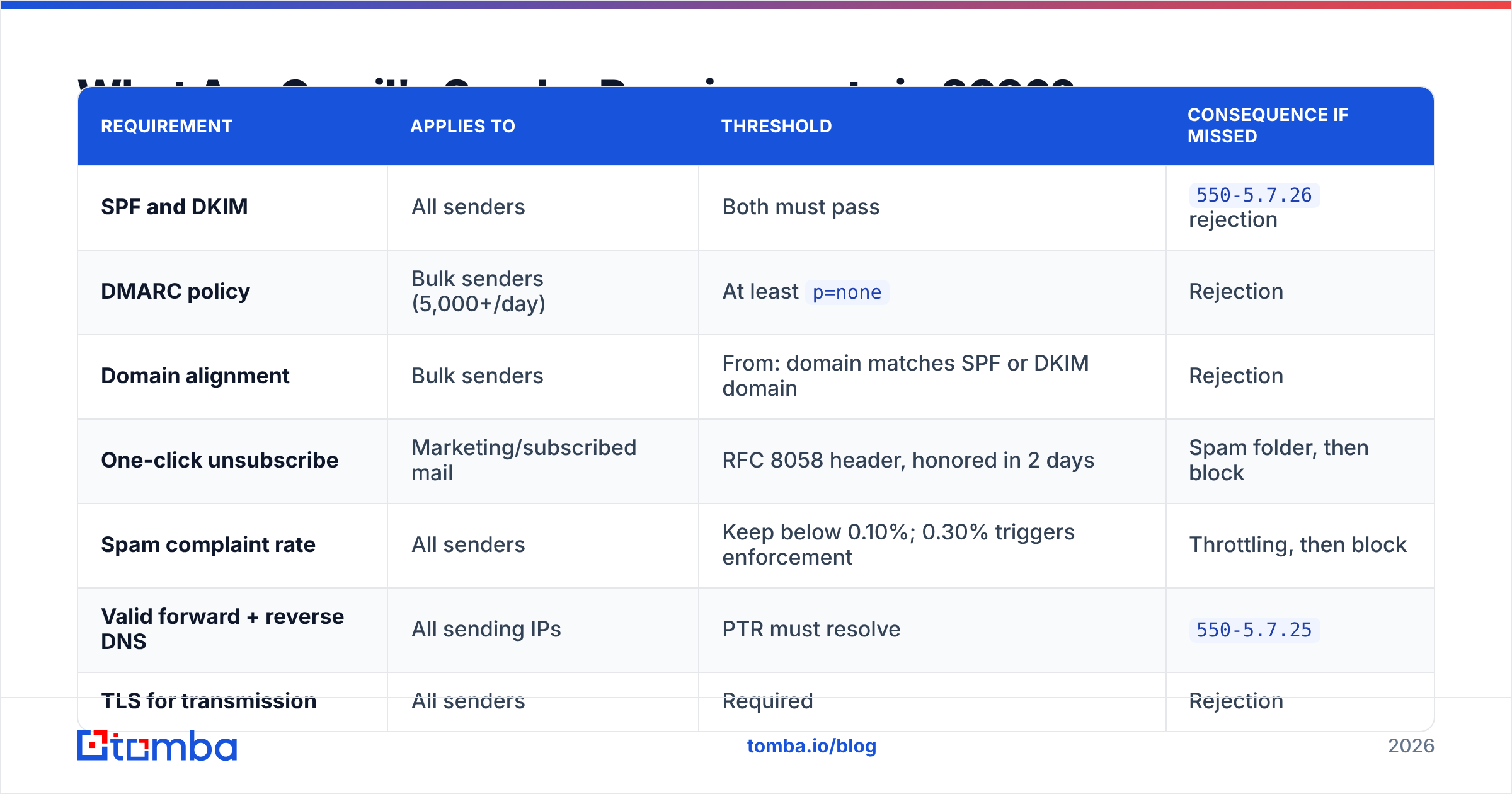
Google's bulk sender rules took effect in February 2024 and have tightened since. The current baseline, per Google's own bulk sender guidelines, is non-negotiable:
| Requirement | Applies to | Threshold | Consequence if missed |
|---|---|---|---|
| SPF and DKIM | All senders | Both must pass | 550-5.7.26 rejection |
| DMARC policy | Bulk senders (5,000+/day) | At least p=none |
Rejection |
| Domain alignment | Bulk senders | From: domain matches SPF or DKIM domain | Rejection |
| One-click unsubscribe | Marketing/subscribed mail | RFC 8058 header, honored in 2 days | Spam folder, then block |
| Spam complaint rate | All senders | Keep below 0.10%; 0.30% triggers enforcement | Throttling, then block |
| Valid forward + reverse DNS | All sending IPs | PTR must resolve | 550-5.7.25 |
| TLS for transmission | All senders | Required | Rejection |
Two practical notes. First, the 5,000/day threshold is a documented floor, not a safe harbor — Google applies reputation-based filtering to senders far below it, and cold outreach at 200/day is filtered on the same signals. Second, the 0.10% complaint target means one complaint per thousand sends. On a 5,000-address campaign, five people hitting "report spam" puts you at the enforcement line.
Verify your own setup with a free SPF checker and confirm DMARC alignment before you assume the problem is content. If you're unfamiliar with how the three records interact, DMARC's technical overview explains why passing SPF alone is no longer enough.
How Do You Diagnose It in 30 Minutes?#
A repeatable diagnostic sequence, in order of information density per minute spent:
- Enroll in Google Postmaster Tools. Add and verify your sending domain at postmaster.google.com. It gives you Gmail's own view of your domain reputation, spam rate, authentication pass rate, and delivery errors. Nothing else in your stack shows you what Gmail actually thinks. Data takes 24–48 hours to populate and requires meaningful Gmail volume.
- Export raw bounce logs for the last 14 days. Group by SMTP code, not by ESP label. Calculate hard bounce % and the share of each code. If
5.1.1dominates, you have a data problem. If5.7.xdominates, you have a reputation problem. - Check blocklists. Run your sending domain and IP through a blacklist checker. Spamhaus, SURBL, and Barracuda listings are the ones that actually affect Gmail placement. A listing explains a sudden cliff-edge drop better than anything else.
- Send a seed test. Mail the exact production template to five Gmail accounts you control (mixed: aged accounts with real activity, not fresh burners). Note inbox vs Promotions vs Spam. Then view the message source and confirm SPF, DKIM, and DMARC all read
PASS. - Audit the last list you imported. Where did it come from? Was it verified? Scraped lists and stale exports from a CRM nobody has cleaned since 2023 are the most common single cause of a block that appears "out of nowhere."
- Review link and image domains. A tracking domain shared with hundreds of other senders, a shortener like bit.ly, or an unbranded click-tracking CNAME can drag down an otherwise clean message.
By step 3 you almost always know which of the three problem classes you're in.
How Do You Fix a Gmail Block Permanently?#
Fix the cause in this order. Skipping ahead wastes weeks.
Stage 1 — Stop the bleeding (day 1). Pause all sending from the affected domain. Not reduce — pause. Every additional bounce and complaint deepens the reputation hole you're trying to climb out of. Suppress every address that has hard bounced, ever.
Stage 2 — Fix authentication (day 1–2). SPF record present with the correct includes and under 10 DNS lookups. DKIM signing enabled with a 2048-bit key. DMARC published at p=none with an rua address so you get reports. Confirm alignment: your visible From: domain must match the DKIM signing domain or the SPF envelope domain.
Stage 3 — Rebuild list quality (day 2–5). This is where most of the damage lives. Verify the entire list, remove invalids, remove role accounts (info@, support@, sales@), and handle catch-all domains separately with a catch-all verifier rather than assuming they're safe. Then remove anyone who hasn't engaged in 180 days. That last step feels like throwing away money; it is the single highest-ROI action available.
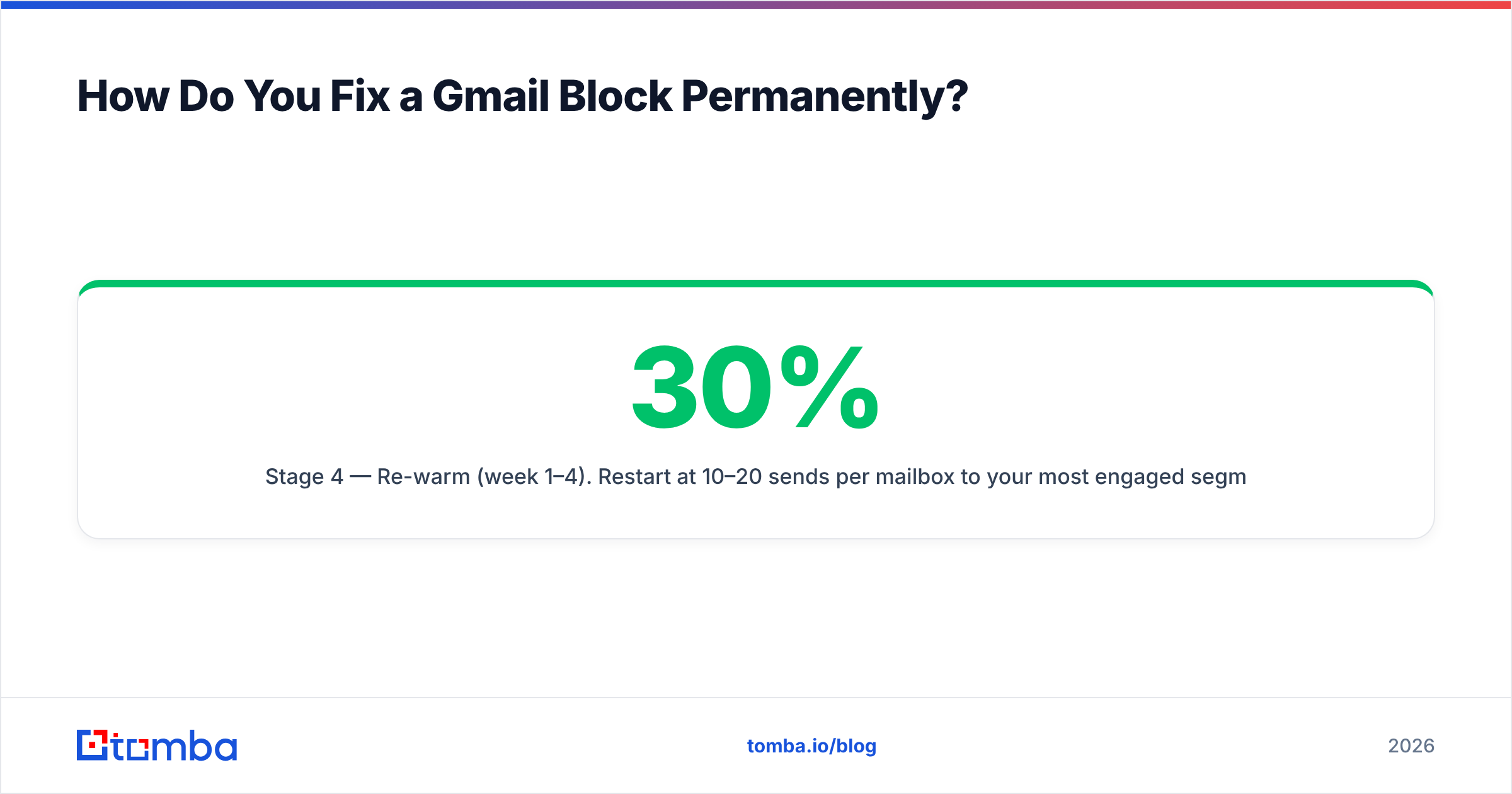
Stage 4 — Re-warm (week 1–4). Restart at 10–20 sends per mailbox per day to your most engaged segment, and increase roughly 30% every three days as long as bounce rate stays under 2% and complaints under 0.05%. Use an email warmup calculator to build the ramp schedule rather than eyeballing it.
Stage 5 — Monitor and hold (ongoing). Watch Postmaster Tools daily during recovery. Your sender reputation should move from Bad → Low → Medium → High over 3–6 weeks. If it stalls at Low, your list still contains dead weight.
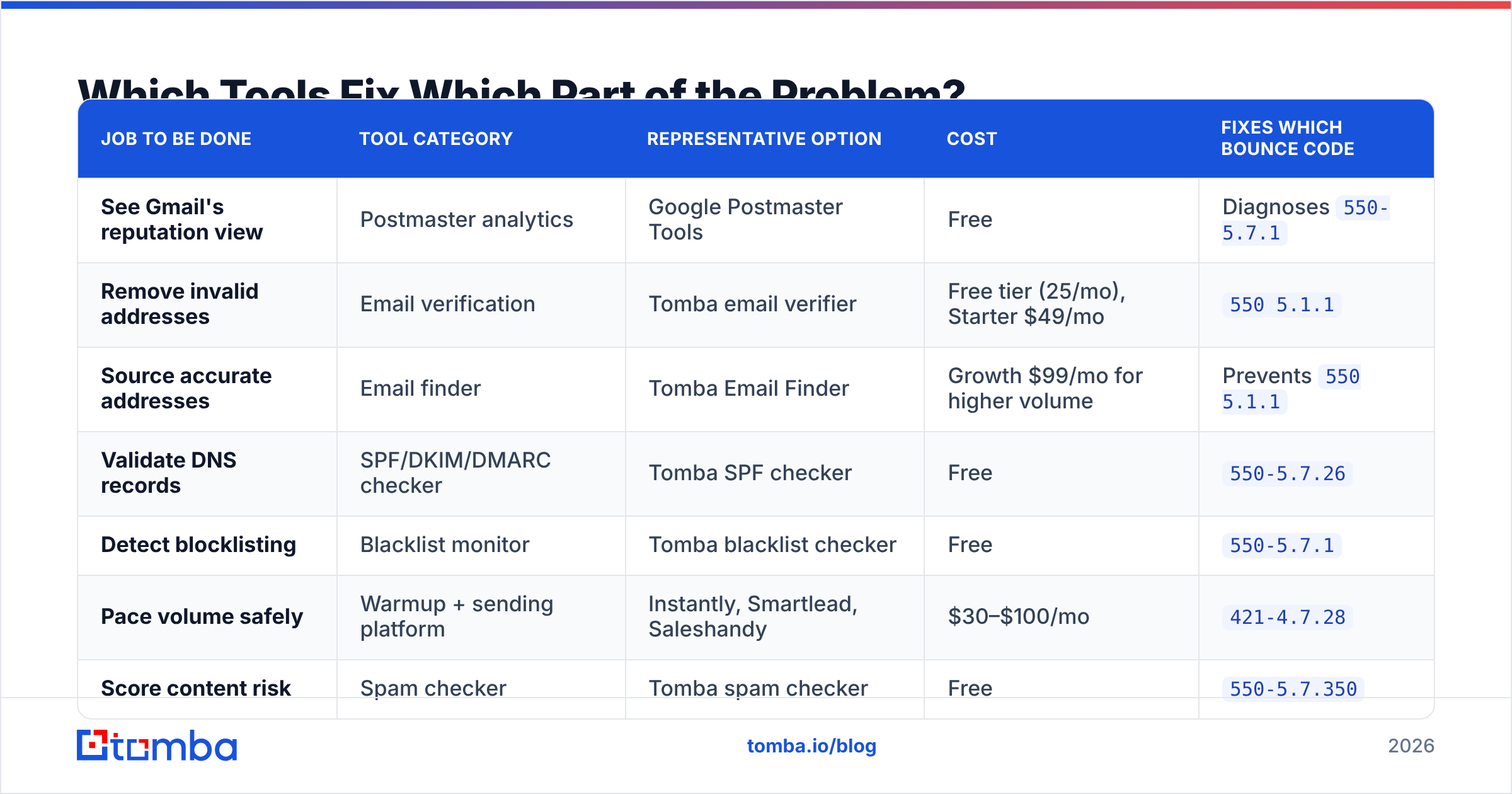
Which Tools Fix Which Part of the Problem?#
No single tool solves Gmail blocks. You need coverage across four jobs: seeing what Gmail sees, cleaning data, authenticating, and pacing volume.
| Job to be done | Tool category | Representative option | Cost | Fixes which bounce code |
|---|---|---|---|---|
| See Gmail's reputation view | Postmaster analytics | Google Postmaster Tools | Free | Diagnoses 550-5.7.1 |
| Remove invalid addresses | Email verification | Tomba email verifier | Free tier (25/mo), Starter $49/mo | 550 5.1.1 |
| Source accurate addresses | Email finder | Tomba Email Finder | Growth $99/mo for higher volume | Prevents 550 5.1.1 |
| Validate DNS records | SPF/DKIM/DMARC checker | Tomba SPF checker | Free | 550-5.7.26 |
| Detect blocklisting | Blacklist monitor | Tomba blacklist checker | Free | 550-5.7.1 |
| Pace volume safely | Warmup + sending platform | Instantly, Smartlead, Saleshandy | $30–$100/mo | 421-4.7.28 |
| Score content risk | Spam checker | Tomba spam checker | Free | 550-5.7.350 |
The pricing that matters most here is verification, because it's the recurring cost. Tomba pricing starts with a free tier at 25 searches per month, Starter at $49/mo, Growth at $99/mo, and Pro at $249/mo — with finding and verification sharing the same credit pool, so you're not paying two vendors to solve one problem. Compare that against buying finding and verification separately, which is how most stacks end up at $150+/mo for the same outcome. Third-party comparisons on G2 are useful for checking that a vendor's accuracy claims survive contact with real reviewers.
How Long Until Gmail Trusts You Again?#
Two to six weeks, assuming you actually fixed the cause.
Reputation is a rolling window. Gmail weights recent behavior heavily but doesn't forget the last 30 days instantly. That means:
- Days 1–7: No visible improvement even if everything is fixed. This is normal and it's where most teams panic and start sending again, resetting the clock.
- Days 7–21: Postmaster domain reputation moves from Bad to Low or Medium. Bounce rate should be under 1%. Reply rates from Gmail recipients start recovering.
- Days 21–45: Return to normal volume, but never in one jump. Increase gradually and hold whenever complaint rate ticks up.
Things that do not work: contacting Google support (there is no deliverability appeals process for standard senders), buying a new domain and repeating the same behavior (the new domain gets blocked faster because the pattern is recognizable), or switching ESPs while keeping the same dirty list.
The uncomfortable truth is that a Gmail block is almost always a data problem wearing a technical costume. Domains with clean, verified, engaged lists and correct DNS records essentially never get blocked. Domains sending to unverified scraped data get blocked no matter how carefully they configure DMARC.
What Should You Do Before Your Next Campaign?#
Build verification into the workflow instead of treating it as cleanup. Find the addresses correctly the first time, verify before import, suppress catch-alls you can't confirm, and pace your volume like your domain depends on it — because it does.
The Tomba Email Finder is where that starts: it returns addresses with a confidence score and SMTP verification already applied, so the list you load into your sequencer is a list Gmail won't punish you for. Start on the free tier at 25 searches a month, or move to Starter at $49/mo once you're sending at volume. Fixing deliverability after a block costs weeks. Not earning one costs a verification credit.
Related guides#
Ready to find emails that actually work?
Join 150,000+ professionals who stopped guessing and started sending. Free credits on signup — no credit card required.
Get the Tomba newsletter
Practical outbound tactics and product updates — once every two weeks.
About the author