Gmail Outgoing SMTP Server: Settings, Ports, and Limits
The Gmail outgoing SMTP server works fine until it quietly stops. Here are the exact settings, the app-password step everyone misses, the real daily caps, and the point where you should move to a relay.
TL;DR
- The Gmail outgoing SMTP server is
smtp.gmail.com, on port 587 with STARTTLS (or 465 with implicit SSL). Port 25 is a dead end for outbound Gmail traffic. - Since Google removed "less secure app" access, you authenticate with a 16-character app password, which requires 2-Step Verification on the account first.
- A free
@gmail.comaccount is capped around 500 recipients per day; Google Workspace accounts get roughly 2,000 external recipients per day, and the Workspace SMTP relay (smtp-relay.gmail.com) is a separate service with its own, much higher ceiling. - Gmail SMTP is excellent for transactional mail from a small app, form notifications, and a single rep's one-to-one outreach. It is a poor fit for bulk campaigns, and Google's own policies say so.
- Most "Gmail SMTP is broken" tickets are actually three things: a missing app password, a blown daily limit, or dirty recipient data producing bounces. Fix the data first.
What is the Gmail outgoing SMTP server?#
Think of SMTP as the postal service's sorting depot, and Gmail's web interface as the mailbox at the end of your driveway. When you hit Send in the browser, Gmail handles the depot part for you invisibly. When your CRM, your Python script, your WordPress plugin, or your Outlook client wants to send as you, it needs to walk up to the depot itself and prove it's authorized. That depot is the Gmail outgoing SMTP server.
Technically, SMTP (Simple Mail Transfer Protocol) is the standard that moves mail between servers — it has been doing that job since 1982, and the protocol spec has barely changed in shape. What has changed is the security wrapper around it. Google now requires TLS on every connection and an app-specific credential instead of your login password. Almost every setup problem you will hit in 2026 comes from that wrapper, not from SMTP itself.
Two things the Gmail outgoing SMTP server is not:
- It is not an email service provider. There is no campaign builder, no suppression list, no bounce webhook, no per-message analytics.
- It is not a bulk-sending platform. Google's Gmail Program Policies explicitly prohibit using a consumer Gmail account for mass unsolicited mail, and enforcement is automated.
What are the correct Gmail SMTP settings in 2026?#
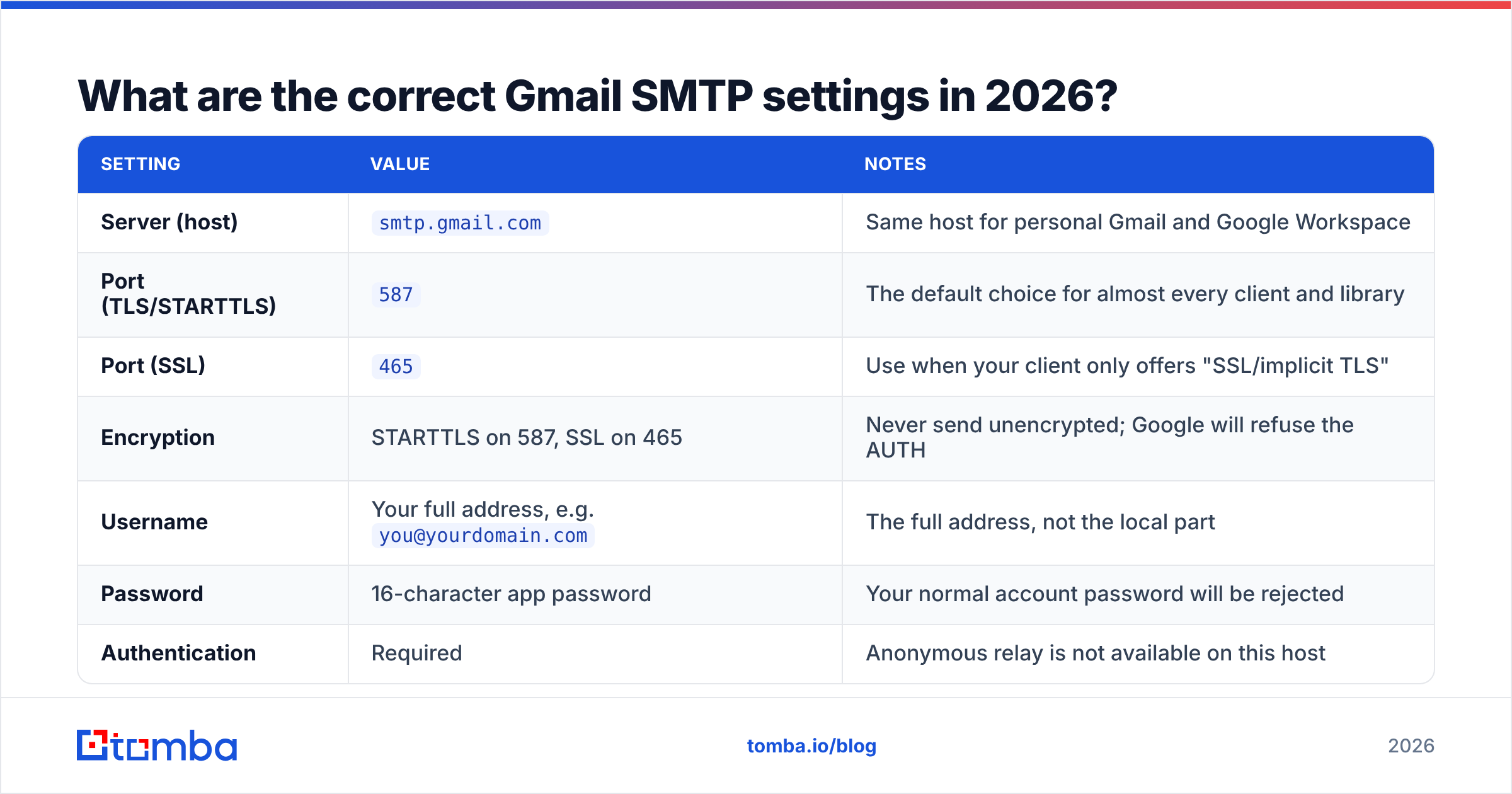
Copy these exactly. Ninety percent of failures are a typo in one of these six fields.
| Setting | Value | Notes |
|---|---|---|
| Server (host) | smtp.gmail.com |
Same host for personal Gmail and Google Workspace |
| Port (TLS/STARTTLS) | 587 |
The default choice for almost every client and library |
| Port (SSL) | 465 |
Use when your client only offers "SSL/implicit TLS" |
| Encryption | STARTTLS on 587, SSL on 465 | Never send unencrypted; Google will refuse the AUTH |
| Username | Your full address, e.g. you@yourdomain.com |
The full address, not the local part |
| Password | 16-character app password | Your normal account password will be rejected |
| Authentication | Required | Anonymous relay is not available on this host |
| From address | Must match the authenticated account or a verified alias | Otherwise you get a 553 relay error |
Google publishes the same values in its official Gmail SMTP documentation, which is worth bookmarking because port and TLS guidance has shifted before and will again.
One detail that trips up developers: Gmail rewrites the From header if it does not match the authenticated identity. If you authenticate as alerts@yourcompany.com but set From: noreply@clientdomain.com, either the send is rejected or the recipient sees "sent on behalf of," which looks untrustworthy and hurts reply rates.
Should you use port 587 or port 465?#
Use 587 unless your client forces you elsewhere.
Port 587 is the submission port defined for authenticated mail from clients. It opens as plaintext, then upgrades to encryption with the STARTTLS command. Port 465 was deprecated for years, then reinstated as implicit TLS — the connection is encrypted from the first byte. Both are secure in practice. 587 has broader library support and cleaner error messages when TLS negotiation fails.
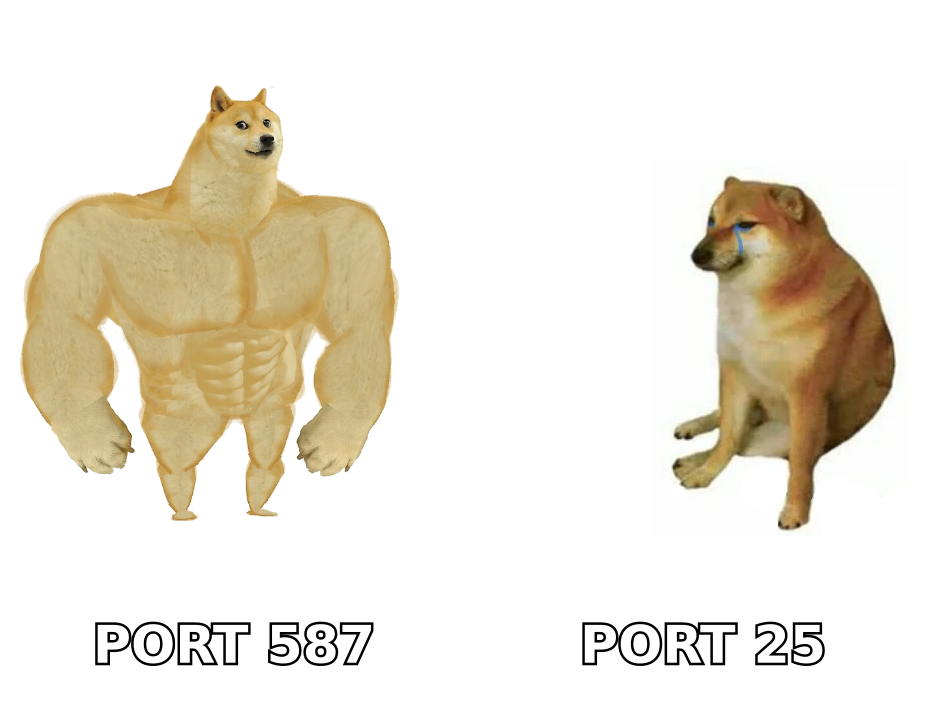
Port 25 is the one to avoid. It exists for server-to-server relay, and essentially every residential ISP, cloud provider, and corporate firewall blocks outbound 25 to stop botnet spam. If your script hangs for 30 seconds and then times out, check whether something in your stack silently defaulted to 25.
If a connection fails and you cannot tell whether the problem is your credentials, your network, or Google, isolate it with a raw handshake. A free SMTP tester will tell you within seconds whether the host is reachable and whether the TLS upgrade completes — which is faster than adding debug logging to your application.
How do you create a Gmail app password?#
This is the step that breaks most first-time setups, because Google no longer accepts your account password over SMTP at all.
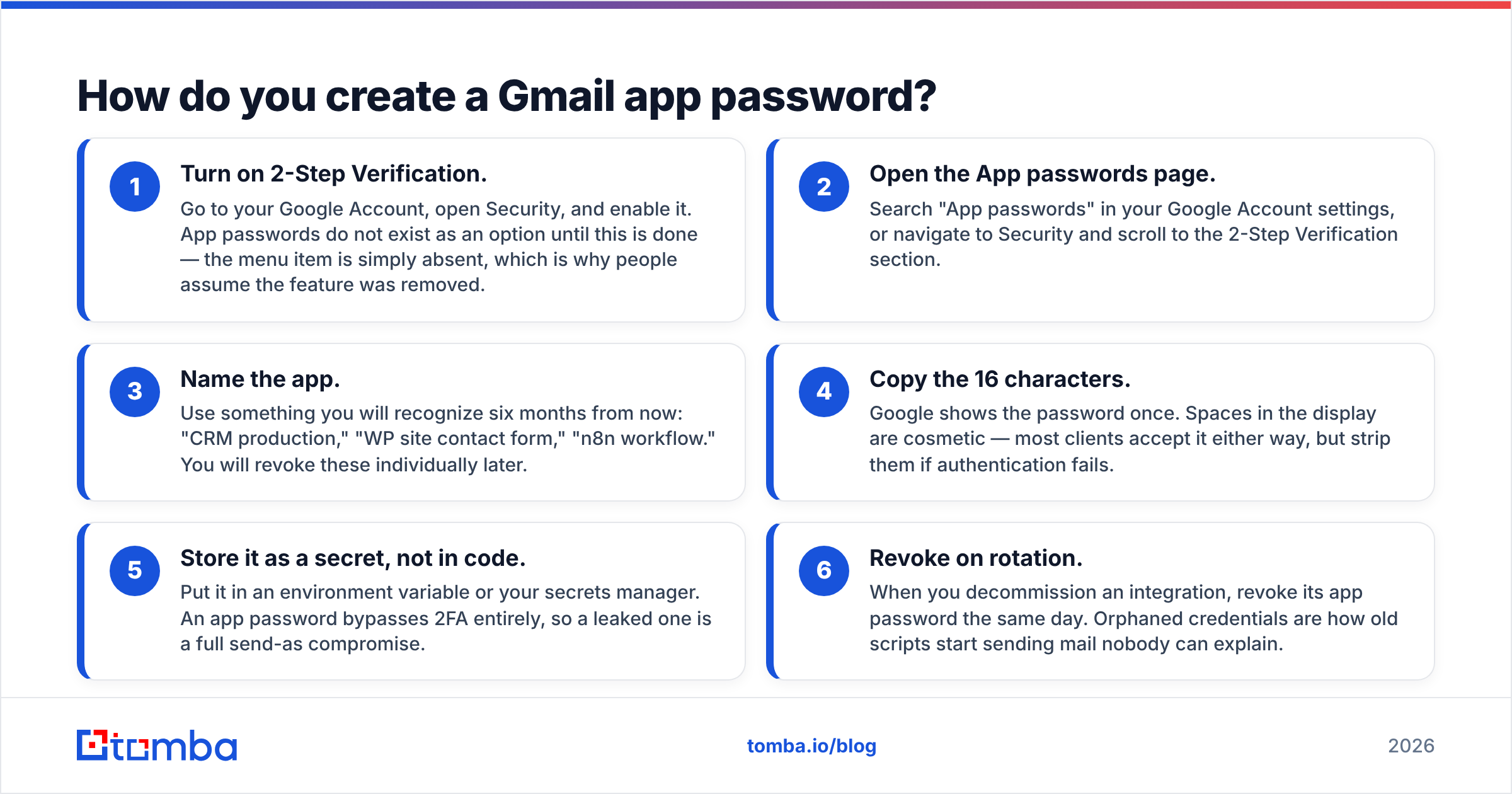
- Turn on 2-Step Verification. Go to your Google Account, open Security, and enable it. App passwords do not exist as an option until this is done — the menu item is simply absent, which is why people assume the feature was removed.
- Open the App passwords page. Search "App passwords" in your Google Account settings, or navigate to Security and scroll to the 2-Step Verification section.
- Name the app. Use something you will recognize six months from now: "CRM production," "WP site contact form," "n8n workflow." You will revoke these individually later.
- Copy the 16 characters. Google shows the password once. Spaces in the display are cosmetic — most clients accept it either way, but strip them if authentication fails.
- Store it as a secret, not in code. Put it in an environment variable or your secrets manager. An app password bypasses 2FA entirely, so a leaked one is a full send-as compromise.
- Revoke on rotation. When you decommission an integration, revoke its app password the same day. Orphaned credentials are how old scripts start sending mail nobody can explain.
Google Workspace admins should note that app passwords can be disabled organization-wide. If the option is missing on a work account and 2-Step Verification is already on, your admin has turned it off and you need OAuth 2.0 or the Workspace SMTP relay instead.
What are Gmail's actual SMTP sending limits?#
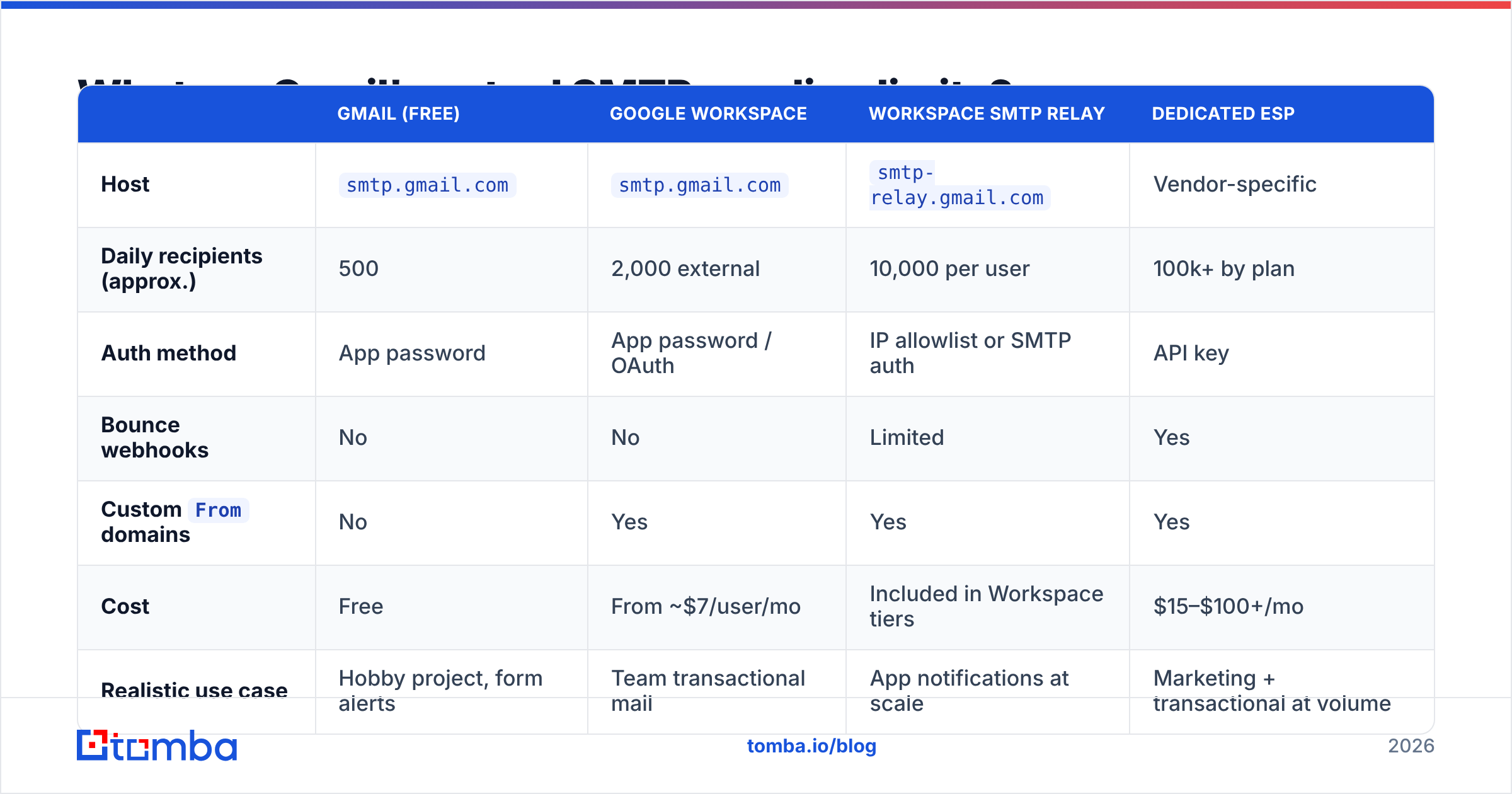
Here is where "it worked yesterday" turns into a support ticket. Google enforces limits on a rolling 24-hour window, and the counters differ by account type and by which host you connect to.
| Gmail (free) | Google Workspace | Workspace SMTP relay | Dedicated ESP | |
|---|---|---|---|---|
| Host | smtp.gmail.com |
smtp.gmail.com |
smtp-relay.gmail.com |
Vendor-specific |
| Daily recipients (approx.) | 500 | 2,000 external | 10,000 per user | 100k+ by plan |
| Auth method | App password | App password / OAuth | IP allowlist or SMTP auth | API key |
| Bounce webhooks | No | No | Limited | Yes |
Custom From domains |
No | Yes | Yes | Yes |
| Cost | Free | From ~$7/user/mo | Included in Workspace tiers | $15–$100+/mo |
| Realistic use case | Hobby project, form alerts | Team transactional mail | App notifications at scale | Marketing + transactional at volume |
Google documents the current numbers in its Workspace sending limits article, and they do get revised — treat any figure you read in a blog post, including this one, as approximate.
Three limit mechanics people miss:
- Recipients, not messages. One email to 40 people burns 40 units of your quota. A "small" internal announcement can eat a tenth of your day.
- The lockout is 24 hours, not midnight. Hit the ceiling at 3pm Tuesday and you are throttled until roughly 3pm Wednesday. There is no admin override to clear it early.
- Bounces count against you twice. They consume quota and they damage your sender reputation, which is the metric that determines whether the mail you can send lands in the inbox.
Why do Gmail SMTP messages bounce or land in spam?#
Authentication and list quality, in that order.
If you send from a custom domain through Gmail, your DNS has to say Google is allowed to do that. That means an SPF record including _spf.google.com, DKIM signing enabled in the Workspace admin console, and a DMARC policy published — even a p=none record is better than nothing. Since the 2024 bulk-sender requirements from Google and Yahoo, senders crossing 5,000 messages a day to Gmail addresses must have all three plus one-click unsubscribe, and enforcement has only tightened since. Run a SPF record check before you blame the SMTP server; a syntax error or a second SPF record on the same domain will fail every message silently.
The second half is your recipient list. Gmail's spam filter weighs bounce rate heavily, and a consumer Gmail account has no bulk-sender reputation to absorb the hit. A list with 12% invalid addresses will tank deliverability inside two sends, and Gmail gives you no dashboard to see it happening — you just notice replies drying up. Running addresses through an email verifier before the first send costs less than recovering a burned domain, and it is the single highest-leverage fix for email deliverability on any SMTP setup.
Ramp matters too. A brand-new domain sending 400 messages on day one looks exactly like a spammer, because that is what spammers do. An email warmup calculator will give you a realistic daily ramp curve so mailbox providers see gradual, human-looking growth.
When should you stop using Gmail SMTP?#
Move off smtp.gmail.com when any of these become true:
- You need more than ~2,000 recipients a day. Splitting across multiple Gmail accounts to dodge the cap is a policy violation, and Google's abuse systems detect the pattern.
- You need delivery telemetry. No bounce webhooks, no open tracking, no per-message status. If your product depends on knowing whether a password reset arrived, Gmail SMTP cannot tell you.
- You send on behalf of multiple domains. Gmail ties the sending identity to the authenticated account. Multi-tenant products need a relay built for it.
- Downtime is unacceptable. Gmail SMTP has no SLA for programmatic sending on consumer accounts, and there is no support queue when your throughput drops.
- You are running cold outbound at volume. This is the big one. Consumer Gmail plus a purchased list is the fastest way to get an account suspended and a domain flagged.
The sensible migration path is usually: Gmail SMTP for personal and low-volume mail, Workspace SMTP relay for application notifications, and a dedicated provider (Postmark, SendGrid, Amazon SES) once you need webhooks, dedicated IPs, and a real support contract. You can absolutely run all three at once — transactional through the relay, one-to-one rep outreach through Gmail, marketing through the ESP — and most mature teams do exactly that.
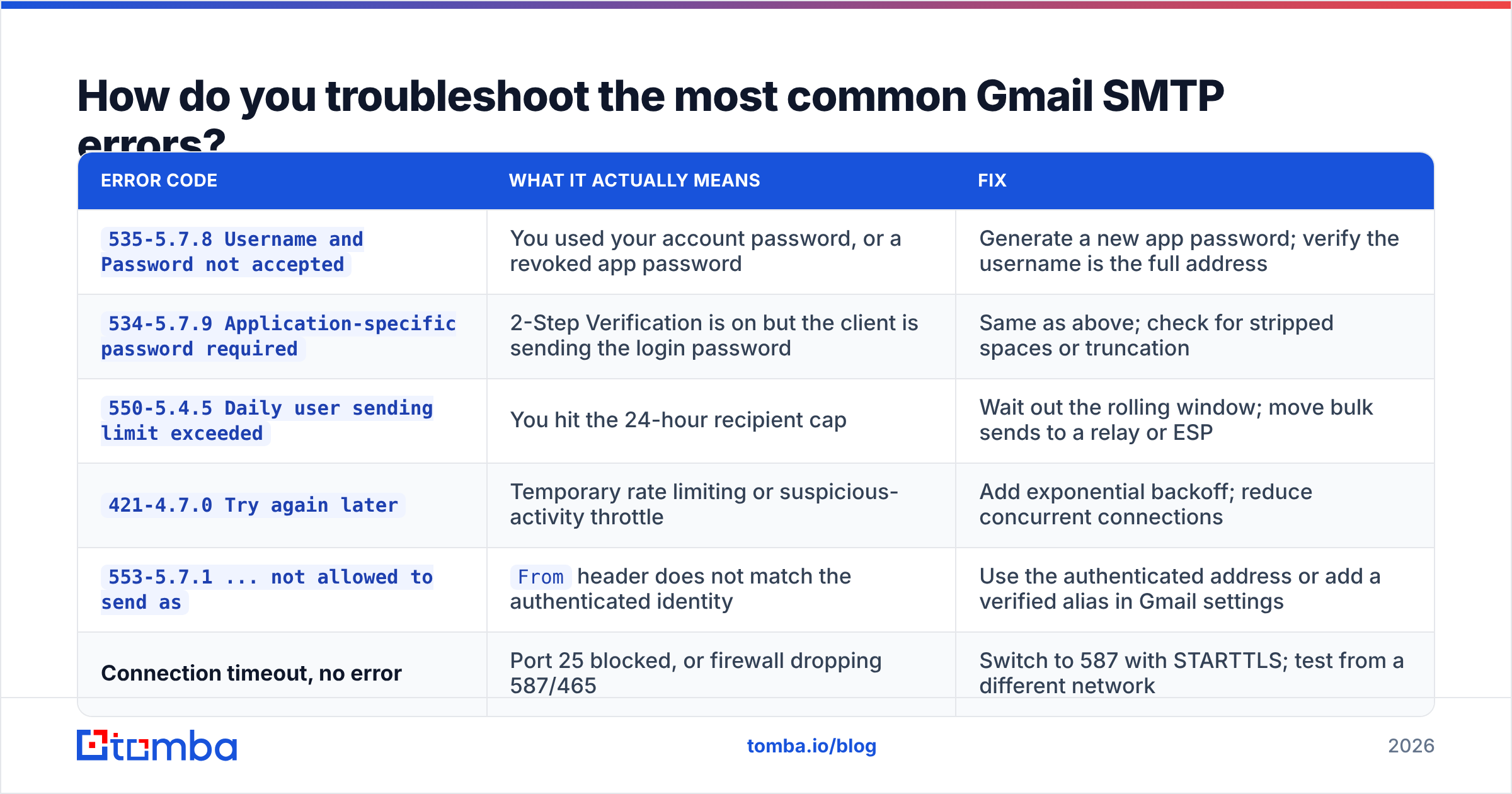
How do you troubleshoot the most common Gmail SMTP errors?#
| Error code | What it actually means | Fix |
|---|---|---|
535-5.7.8 Username and Password not accepted |
You used your account password, or a revoked app password | Generate a new app password; verify the username is the full address |
534-5.7.9 Application-specific password required |
2-Step Verification is on but the client is sending the login password | Same as above; check for stripped spaces or truncation |
550-5.4.5 Daily user sending limit exceeded |
You hit the 24-hour recipient cap | Wait out the rolling window; move bulk sends to a relay or ESP |
421-4.7.0 Try again later |
Temporary rate limiting or suspicious-activity throttle | Add exponential backoff; reduce concurrent connections |
553-5.7.1 ... not allowed to send as |
From header does not match the authenticated identity |
Use the authenticated address or add a verified alias in Gmail settings |
| Connection timeout, no error | Port 25 blocked, or firewall dropping 587/465 | Switch to 587 with STARTTLS; test from a different network |
A rule of thumb for the whole category: 4xx codes are temporary, 5xx codes are permanent. Retrying a 5xx in a loop does nothing except accelerate your throttling. Log the full response string — Google's error text is genuinely descriptive, and truncating it to "send failed" throws away the answer.
Getting your outbound stack right#
The Gmail outgoing SMTP server is a solid, free transport for exactly the workloads it was designed for. Configure it properly — port 587, STARTTLS, a scoped app password, SPF and DKIM aligned on your sending domain — and it will move mail reliably for years. The failures almost never come from the transport. They come from sending to addresses that were never valid, from ramping too fast, or from asking a consumer mailbox to do a bulk-sender's job.
Fix the input side first. If you are prospecting, start with verified, correctly formatted addresses rather than guessed permutations: the Tomba Email Finder returns professional email addresses with a confidence score and the sources behind each one, so your bounce rate stays low enough that Gmail keeps delivering. The free tier covers 25 searches a month, and paid plans start at $49/mo on Tomba pricing if you need volume. Clean data in, inbox placement out — that is the part of deliverability no SMTP setting can fix for you.
Related guides#
Ready to find emails that actually work?
Join 150,000+ professionals who stopped guessing and started sending. Free credits on signup — no credit card required.
Get the Tomba newsletter
Practical outbound tactics and product updates — once every two weeks.
About the author