Gmail Workspace SMTP Settings: The Complete 2026 Setup Guide
Google Workspace SMTP has three delivery paths, two auth methods, and a set of sending limits that quietly throttle cold outreach. Here is exactly which one to use, with the ports, records, and limits laid out.
TL;DR
- Use
smtp.gmail.comon port 587 with STARTTLS and an OAuth 2.0 or app password login for almost every real use case. Port 465 (SSL) works too; port 25 does not, on almost any modern host. - Google Workspace gives you three SMTP paths — Gmail SMTP, the SMTP relay service, and the restricted relay — and they have very different limits and authentication rules.
- Hard ceiling: 2,000 recipients per user per day on Gmail SMTP for paid Workspace accounts, 500 on trial and legacy free accounts, and 10,000 per day via the SMTP relay service.
- Less than 2FA-enabled accounts can't create app passwords anymore. If "app password" isn't in your security settings, turn on 2-Step Verification first.
- SMTP settings are the plumbing. Your reply rate lives or dies on list quality — a clean list verified before send beats any port configuration.
Google Workspace SMTP looks like a five-field form and behaves like a distributed system with opinions. Most setup guides hand you a host, a port, and a shrug. This one covers which of the three relay paths you actually want, what breaks when you pick wrong, and the sending limits that quietly cap your outbound before anyone on your team notices.
What are the Gmail Workspace SMTP settings?#
Here are the values, and then the caveats.
| Setting | Value |
|---|---|
| SMTP server | smtp.gmail.com |
| Port (TLS / STARTTLS) | 587 |
| Port (SSL) | 465 |
| Port 25 | Technically supported, blocked by most hosts and ISPs |
| Username | Your full Workspace address (you@yourdomain.com) |
| Password | App password (16 chars) or OAuth 2.0 token — not your login password |
| Authentication | Required. Always. |
| Encryption | TLS 1.2 or higher |
| Daily send cap | 2,000 recipients/day (paid Workspace) |
Two things trip people up here.
First, your normal account password will not work. Google killed basic username/password SMTP auth for Workspace accounts. You need either an app password (requires 2-Step Verification enabled on that user) or a full OAuth 2.0 flow with a refresh token. If your tool offers "Sign in with Google," take it — that's OAuth, and it survives password changes.
Second, the username must be the sending address. If you authenticate as sales@yourdomain.com but set the From header to founder@yourdomain.com, Gmail rewrites the header or rejects the message unless you've configured "Send mail as" with that alias verified in the Gmail settings.
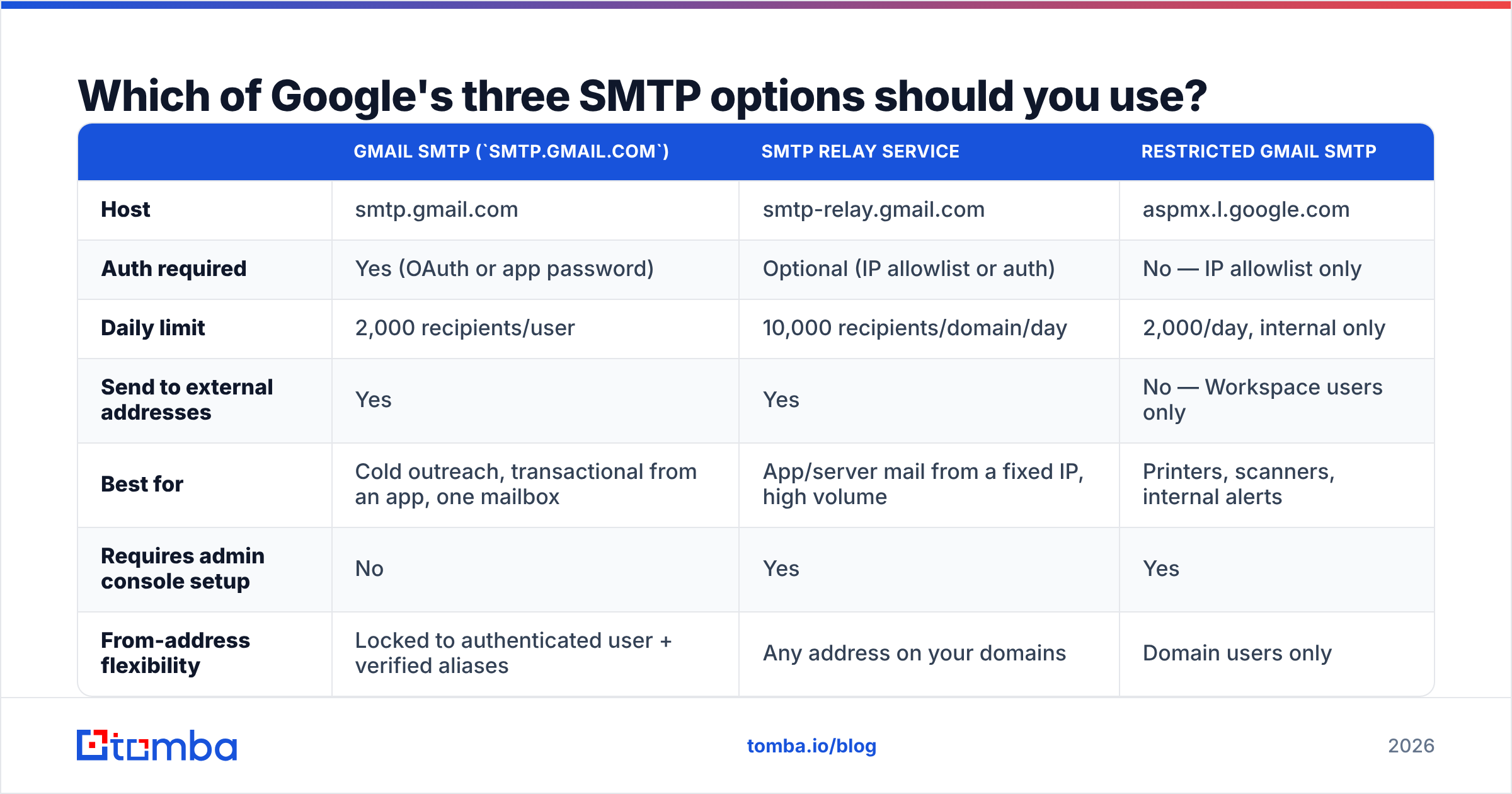
Which of Google's three SMTP options should you use?#
This is the fork in the road, and picking wrong costs you either deliverability or a support ticket with your ESP.
Gmail SMTP (smtp.gmail.com) |
SMTP relay service | Restricted Gmail SMTP | |
|---|---|---|---|
| Host | smtp.gmail.com | smtp-relay.gmail.com | aspmx.l.google.com |
| Auth required | Yes (OAuth or app password) | Optional (IP allowlist or auth) | No — IP allowlist only |
| Daily limit | 2,000 recipients/user | 10,000 recipients/domain/day | 2,000/day, internal only |
| Send to external addresses | Yes | Yes | No — Workspace users only |
| Best for | Cold outreach, transactional from an app, one mailbox | App/server mail from a fixed IP, high volume | Printers, scanners, internal alerts |
| Requires admin console setup | No | Yes | Yes |
| From-address flexibility | Locked to authenticated user + verified aliases | Any address on your domains | Domain users only |
Use Gmail SMTP if you're connecting a sequencer, a CRM, or a small app and sending as a real human mailbox. This is what 90% of B2B teams need.
Use the SMTP relay service if a server or SaaS product sends on your domain's behalf from a stable IP — invoicing systems, product notifications, alerting. You configure it under Admin console → Apps → Google Workspace → Gmail → Routing → SMTP relay service. The higher limit is the reason it exists.
Use the restricted relay for office hardware that needs to email internal staff and nothing else. It doesn't need credentials, which is exactly why you don't expose it externally.

How do you set up Gmail Workspace SMTP step by step?#
- Enable 2-Step Verification on the sending user account. Without it, the app password option doesn't render in the security panel at all — which is the single most common "the setting is missing" complaint.
- Generate an app password at your Google Account → Security → 2-Step Verification → App passwords. Name it after the tool ("Instantly", "Smartlead", "internal-billing-cron"). You'll see 16 characters with spaces; strip the spaces when you paste it.
- Enter the SMTP details in your tool:
smtp.gmail.com, port 587, STARTTLS on, username = full email, password = the app password. - Publish SPF, DKIM, and DMARC. SPF gets
include:_spf.google.com. DKIM is generated per-domain in Admin console → Apps → Gmail → Authenticate email — generate the key, publish the TXT record, then click Start Authentication. DMARC starts atp=nonewhile you monitor, then tightens toquarantine. - Send a test to a seed address on a different provider (Outlook, Yahoo, a personal Gmail) and inspect the headers. You want
dkim=pass,spf=pass,dmarc=pass. Anything else is a config error, not a warmup problem. - Verify your list before the first real campaign. Bounces from a fresh Workspace domain are the fastest way to get throttled — run addresses through an email verifier first.
Step 4 is where people cut corners and pay for it three weeks later. Google's own Workspace admin documentation is unambiguous that unauthenticated mail from your domain gets filtered aggressively, and Gmail's 2024 bulk-sender requirements made DMARC non-optional above 5,000 messages/day. Check your record with an SPF checker before you trust it.
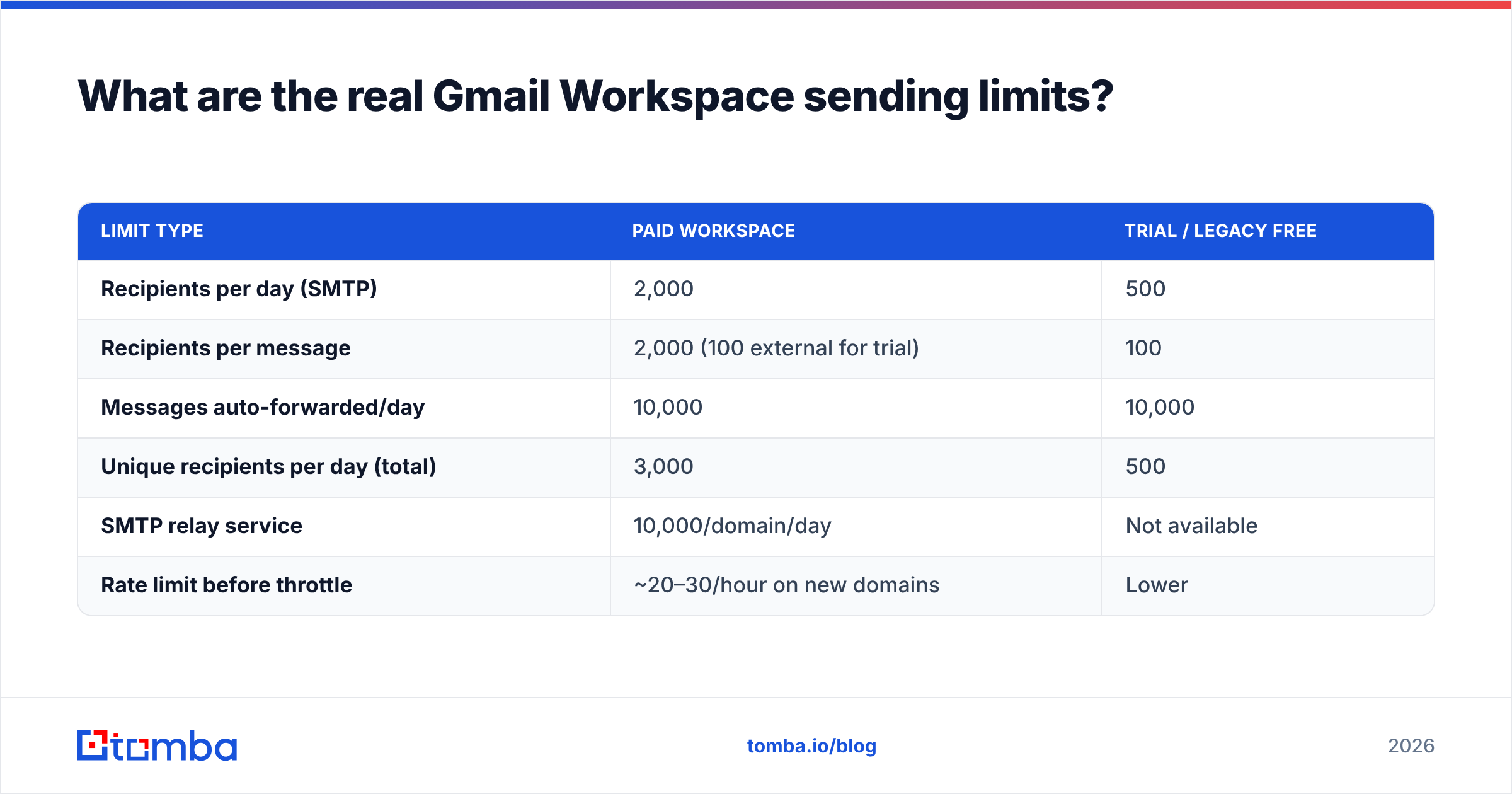
What are the real Gmail Workspace sending limits?#
The published numbers and the practical numbers are different, and only one of them matters.
| Limit type | Paid Workspace | Trial / legacy free |
|---|---|---|
| Recipients per day (SMTP) | 2,000 | 500 |
| Recipients per message | 2,000 (100 external for trial) | 100 |
| Messages auto-forwarded/day | 10,000 | 10,000 |
| Unique recipients per day (total) | 3,000 | 500 |
| SMTP relay service | 10,000/domain/day | Not available |
| Rate limit before throttle | ~20–30/hour on new domains | Lower |
The published cap is 2,000. The practical cap on a domain less than 90 days old is dramatically lower — Google applies unpublished per-account reputation throttling, and you'll hit 550-5.4.5 Daily user sending limit exceeded well before 2,000 if your bounce rate or spam-complaint rate is elevated.
Rules of thumb that hold up in practice:
- New domain, first 2 weeks: 20–30 sends/day per mailbox, ramping ~20% weekly.
- Warmed mailbox, 90+ days: 150–300/day per mailbox is the sane outbound ceiling regardless of what the quota page says.
- Bounce rate above 3%: stop and clean the list. Google's filters weight this heavily, and recovery takes weeks.
- Spam complaint rate above 0.3%: Gmail's stated threshold. Above 0.1% you're already in degraded territory.
Volume isn't the lever most teams think it is. If you need 1,000 sends/day, that's four to six mailboxes at a healthy per-mailbox rate — not one mailbox pushed to its quota ceiling. Model it with a warmup calculator before you commit to a sequence schedule.
Why does SMTP work but mail still land in spam?#
Because SMTP configuration answers "can this message be sent," not "should this message be trusted." Those are separate systems.
A correctly configured Workspace SMTP connection with passing SPF, DKIM, and DMARC gets you authentication. What Gmail's filters actually score is sender reputation: engagement rate, complaint rate, bounce rate, sending consistency, and content signals. You can pass every authentication check and still land in Promotions or Spam.
The four failure modes, in the order they actually bite:
- Invalid addresses. Every hard bounce is a negative reputation event. A list with 12% invalid addresses will tank a brand-new domain inside two campaigns. This is fixable before you ever open the SMTP settings.
- Volume spikes. Going from 0 to 400 sends in one day reads as compromise or abuse. Ramp linearly.
- Identical content at scale. Fifty byte-identical messages in an hour is a fingerprint. Vary the first line, and don't fake it with
{{spintax}}mush. - No engagement. Gmail heavily weights replies and opens from real recipients. Cold lists with zero prior engagement start from a weak baseline, which is why targeting matters more than volume.
Point 1 is the one you control cheapest. A verification pass costs fractions of a cent per address; a burned domain costs weeks. Google's Postmaster Tools will show you the damage after the fact — spam rate, domain reputation, authentication pass rates — but it won't undo it.

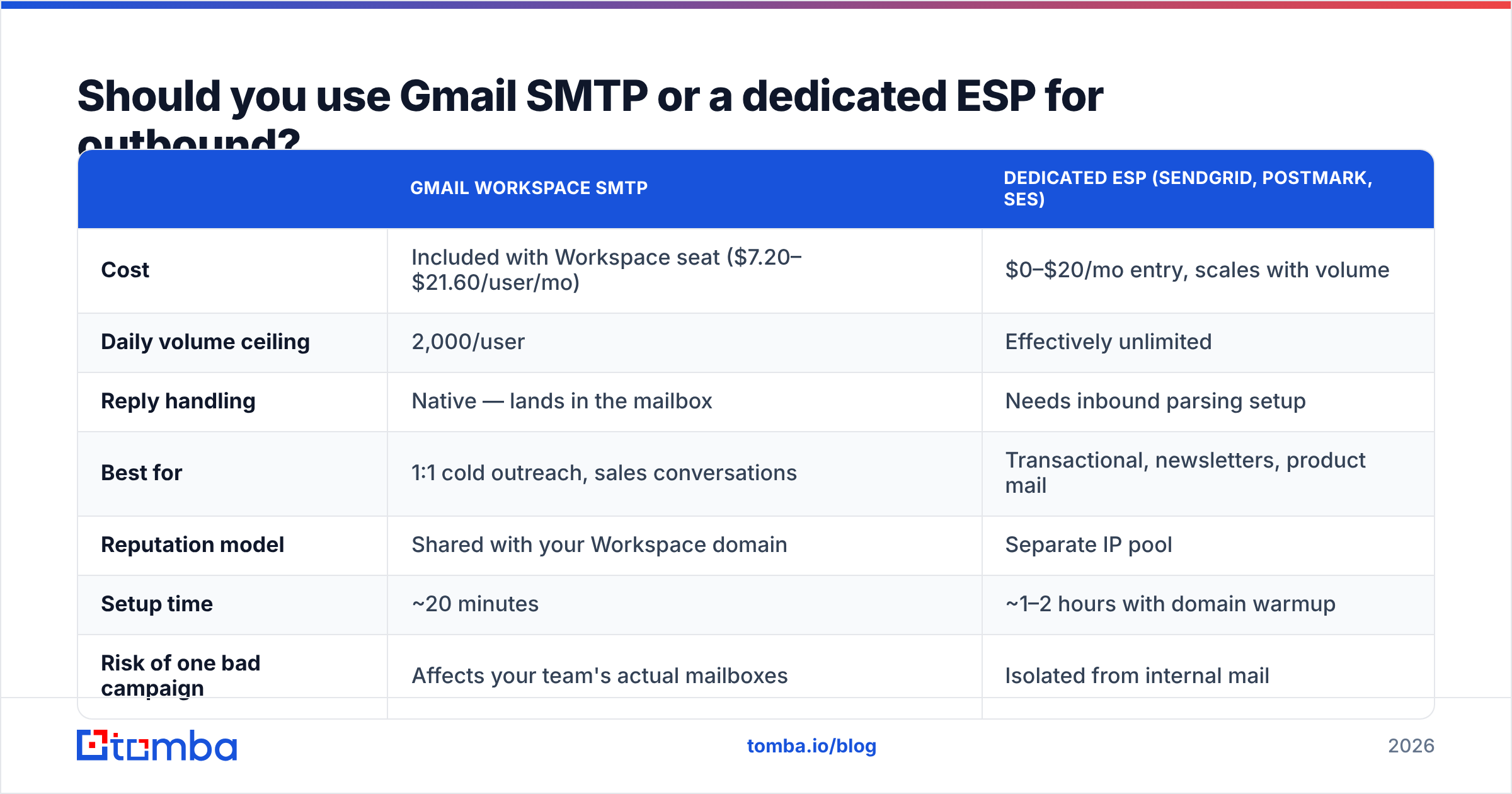
Should you use Gmail SMTP or a dedicated ESP for outbound?#
Depends entirely on volume and purpose.
| Gmail Workspace SMTP | Dedicated ESP (SendGrid, Postmark, SES) | |
|---|---|---|
| Cost | Included with Workspace seat ($7.20–$21.60/user/mo) | $0–$20/mo entry, scales with volume |
| Daily volume ceiling | 2,000/user | Effectively unlimited |
| Reply handling | Native — lands in the mailbox | Needs inbound parsing setup |
| Best for | 1:1 cold outreach, sales conversations | Transactional, newsletters, product mail |
| Reputation model | Shared with your Workspace domain | Separate IP pool |
| Setup time | ~20 minutes | ~1–2 hours with domain warmup |
| Risk of one bad campaign | Affects your team's actual mailboxes | Isolated from internal mail |
For cold outreach and sales conversations, Gmail SMTP is correct. Replies arrive in a real inbox, threading works, and the message looks like it came from a person because it did.
For transactional and bulk marketing, use an ESP. Running your password resets through a rep's Workspace mailbox means one bad outbound campaign takes down your product email too. Separate the reputation surfaces.
The mistake is using Gmail SMTP for newsletters. You'll blow through 2,000 recipients, get throttled mid-send, and drag your whole domain's reputation down with a single campaign. Providers like HubSpot and Salesforce both push the same separation for exactly this reason.
What should you check when Gmail SMTP throws errors?#
The error codes are readable once you know the pattern.
535-5.7.8 Username and Password not accepted— You're using the account password, not an app password, or 2FA isn't enabled. Regenerate an app password.534-5.7.9 Application-specific password required— Same root cause, more explicit.550-5.4.5 Daily user sending limit exceeded— You hit the quota. It resets on a rolling 24-hour window, not at midnight. Wait it out; don't retry in a loop.421-4.7.0 Try again later— Rate limiting, usually from too-fast connection cycling. Add delays between messages.553-5.7.1 Sender address rejected— Your From header doesn't match the authenticated user and isn't a verified alias.- Connection timeout on port 465 or 587 — Your host blocks outbound SMTP. Most cloud providers (AWS, GCP, DigitalOcean) block port 25 by default and some restrict 587. Check the provider's egress rules before blaming Google.
If authentication passes but nothing arrives, test the SMTP handshake directly with an SMTP tester to isolate whether the problem is your config, your host's firewall, or the recipient's filter.
How does list quality change your SMTP outcomes?#
More than any port setting. Here's the arithmetic.
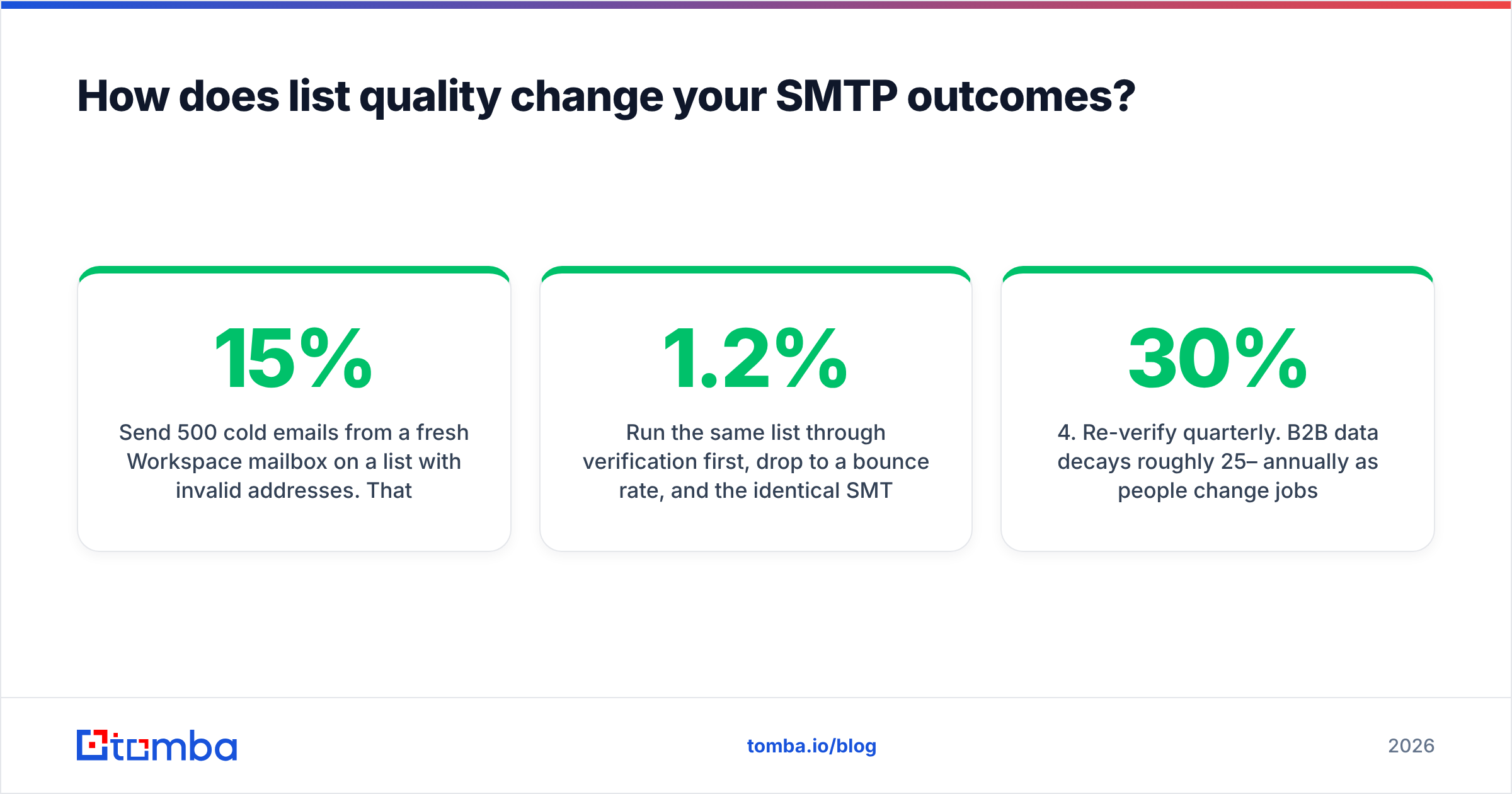
Send 500 cold emails from a fresh Workspace mailbox on a list with 15% invalid addresses. That's 75 hard bounces — a 15% bounce rate against a 3% tolerance. Google's filters throttle the account, your domain reputation drops in Postmaster Tools, and the 425 valid recipients get filtered into spam anyway. The SMTP settings were perfect. The outcome was a burned domain.
Run the same list through verification first, drop to a 1.2% bounce rate, and the identical SMTP configuration produces a normal delivery curve.
The order of operations that works:
- Source addresses from a real data provider rather than scraping — use a domain search to pull verified contacts at target companies.
- Verify in bulk before import. Anything marked risky or catch-all gets segmented, not deleted — send to it separately at lower volume.
- Check catch-all domains separately. They accept everything at the SMTP layer and bounce later, which is worse than an immediate reject. A catch-all verifier resolves most of them.
- Re-verify quarterly. B2B data decays roughly 25–30% annually as people change jobs.
- Suppress hard bounces permanently. Re-sending to a confirmed dead address is a self-inflicted reputation hit.
Tools differ on how they handle step 3. Providers like BookYourData sell pre-verified contact lists with a bounce guarantee, which suits teams that want data and verification bundled. Tools such as Tomba sit on the other side — you bring the targets, and the platform finds and verifies addresses against live sources on demand. Both approaches work; pick based on whether your ICP is list-shaped or search-shaped. Compare Tomba pricing against per-record list costs if you're building lists continuously rather than buying once.
Frequently asked questions#
Can I use Gmail SMTP with a free @gmail.com account? Yes, with the same host and ports, but the daily limit is 500 recipients and Google throttles consumer accounts more aggressively. Not viable for business outbound.
Do I need SMTP settings if I use OAuth? No. OAuth-based integrations (Gmail API, "Sign in with Google") skip SMTP entirely and are more resilient — they don't break when a password changes and don't require 2FA app passwords. Prefer OAuth when your tool supports it.
Does the SMTP relay service improve deliverability? No. It raises the volume ceiling and lets you send from any address on your domain. Reputation still depends on authentication and recipient engagement.
Why is port 25 in every tutorial if it doesn't work? Port 25 is the historical SMTP standard for server-to-server transfer. Nearly every consumer ISP and cloud host blocks outbound 25 to limit spam. Use 587.
How many mailboxes do I need for 500 cold emails a day? Three to five warmed mailboxes at 100–150/day each, spread across two or more domains. One mailbox at 500/day will get throttled.
Get the list right before you touch the SMTP form#
The configuration is the easy part — host, port 587, app password, SPF/DKIM/DMARC, done in twenty minutes. What determines whether those messages land is the quality of the addresses you're sending to, and that's a data problem, not a settings problem.
Tomba's Email Finder finds and verifies professional email addresses by domain, name, or company, with confidence scoring on every result so you know what's safe to send before it hits your Workspace quota. The free tier gives you 25 searches a month to test against your own target accounts; paid plans start at $49/mo. Verify first, then send.
Related guides#
Ready to find emails that actually work?
Join 150,000+ professionals who stopped guessing and started sending. Free credits on signup — no credit card required.
Get the Tomba newsletter
Practical outbound tactics and product updates — once every two weeks.
About the author