Google Postmaster Tools: The 2026 Guide to Sender Reputation
Gmail decides whether your cold email lands in the inbox or spam — and Google Postmaster Tools is the only place it tells you why. Here's how to read every chart, fix what's broken, and set a spam-rate budget that actually holds.

TL;DR
- Google Postmaster Tools is the only free, first-party window into how Gmail actually treats your sending domain — spam rate, domain reputation, IP reputation, authentication pass rates, and delivery errors.
- The single number that matters most is user-reported spam rate. Google's bulk-sender rules require you to stay under 0.3%, and you should treat 0.10% as your real ceiling.
- Postmaster Tools tells you what broke, never why. It has no per-campaign, per-subject-line, or per-list breakdown — you have to correlate the dates yourself.
- You need roughly 5,000 Gmail messages per day to see any data at all. Below that threshold, the dashboard stays empty and you need proxy signals instead.
- Most "bad reputation" cases trace back to list quality, not copy. Verifying contacts before you send is the cheapest fix available.
What is Google Postmaster Tools?#
Google Postmaster Tools is a free dashboard from Google that reports how Gmail's filters evaluate mail sent from your domain. Think of it as the credit report for your sending domain: you don't see individual transactions, but you see the score, the trend, and the flags that made lenders nervous.
It launched in 2015 and got a significant rebuild — often called Postmaster Tools v2 — that consolidated the older per-chart pages into a single dashboard with an API. The data covers only Gmail and Google Workspace recipients. Outlook, Yahoo, and corporate Exchange servers are invisible here, which is a limitation people forget when they treat one dashboard as the whole picture.
What you get, chart by chart:
- User-reported spam rate — the percentage of your delivered Gmail messages that recipients marked as spam. The number that gets you throttled.
- Domain reputation — Bad, Low, Medium, or High. A rolling assessment of your domain, not your IP.
- IP reputation — same four-tier scale, applied to each sending IP. Matters if you're on a dedicated IP; almost meaningless on a large shared pool.
- Authentication — SPF, DKIM, and DMARC pass rates as a percentage of your volume. Should be 100% or near it.
- Encryption — the share of traffic delivered over TLS. Modern ESPs sit at 100%.
- Delivery errors — the percentage of messages rejected or temp-failed, broken out by reason (rate-limited, bad content, policy).
The dashboard is aggregate and delayed. Data lags 2–3 days, and it's grouped by sending domain, not by campaign, list, or mailbox.

How do you set up Google Postmaster Tools?#
Setup takes about ten minutes and one DNS record.
- Go to postmaster.google.com and sign in with a Google account you control long-term — not a personal Gmail you'll lose access to when someone leaves.
- Click Add domain and enter the domain that appears in your From: header — more precisely, the domain that DKIM signs with (the
d=value). If your DKIMd=ismail.yourcompany.com, register that, notyourcompany.com. - Google gives you a TXT record. Add it to your DNS, wait for propagation, click Verify.
- Repeat for every sending domain and subdomain. Cold outreach domains, transactional domains, and your marketing ESP domain are separate entries.
That last point trips up most teams. If you run five secondary domains for outbound, you need five Postmaster Tools entries. Each one has an independent reputation. A burned outbound domain does not automatically poison your primary domain's reputation — that separation is the entire reason people use secondary domains — but it also means you're flying blind on four of five domains if you only registered one.
If your DNS is managed by your ESP, check whether they can add arbitrary TXT records. Some locked-down platforms can't, and you'll need to verify via an alternate method or move DNS to a registrar you control.
Why is your spam rate the only number that really matters?#
Because it's the one Google wrote into policy with a hard number attached.
Google's bulk sender guidelines, enforced since February 2024, require senders of 5,000+ daily Gmail messages to keep user-reported spam rates below 0.3% and to "avoid ever reaching" 0.1%. Cross 0.3% and Gmail starts rejecting or spam-foldering your mail — not gradually, but fast.
Here's the arithmetic nobody does before they panic. At 0.3%, three complaints per thousand delivered messages puts you at the threshold. Send 2,000 emails a day and six people clicking "Report spam" is enough to break you. That's not a copy problem at that scale — that's a targeting problem.
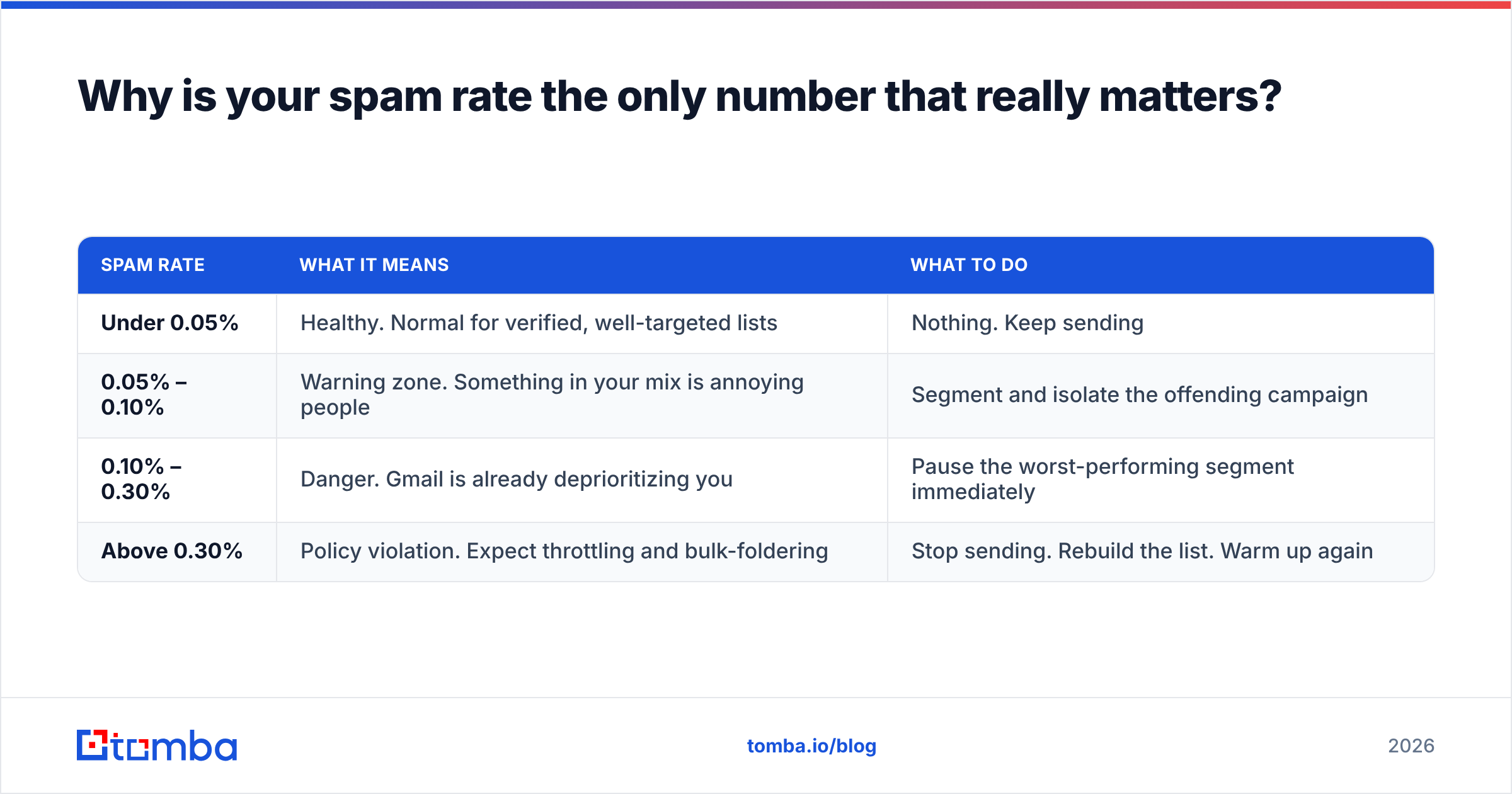
Practical spam-rate budget:
| Spam rate | What it means | What to do |
|---|---|---|
| Under 0.05% | Healthy. Normal for verified, well-targeted lists | Nothing. Keep sending |
| 0.05% – 0.10% | Warning zone. Something in your mix is annoying people | Segment and isolate the offending campaign |
| 0.10% – 0.30% | Danger. Gmail is already deprioritizing you | Pause the worst-performing segment immediately |
| Above 0.30% | Policy violation. Expect throttling and bulk-foldering | Stop sending. Rebuild the list. Warm up again |
One important caveat: the spam rate denominator is delivered messages, not sent. Messages already filtered to spam don't count. That means a domain in deep trouble can show a falling spam rate simply because fewer messages are getting delivered to inboxes where anyone could complain. Always read spam rate alongside your volume chart, never alone.
How do you read domain reputation and IP reputation?#
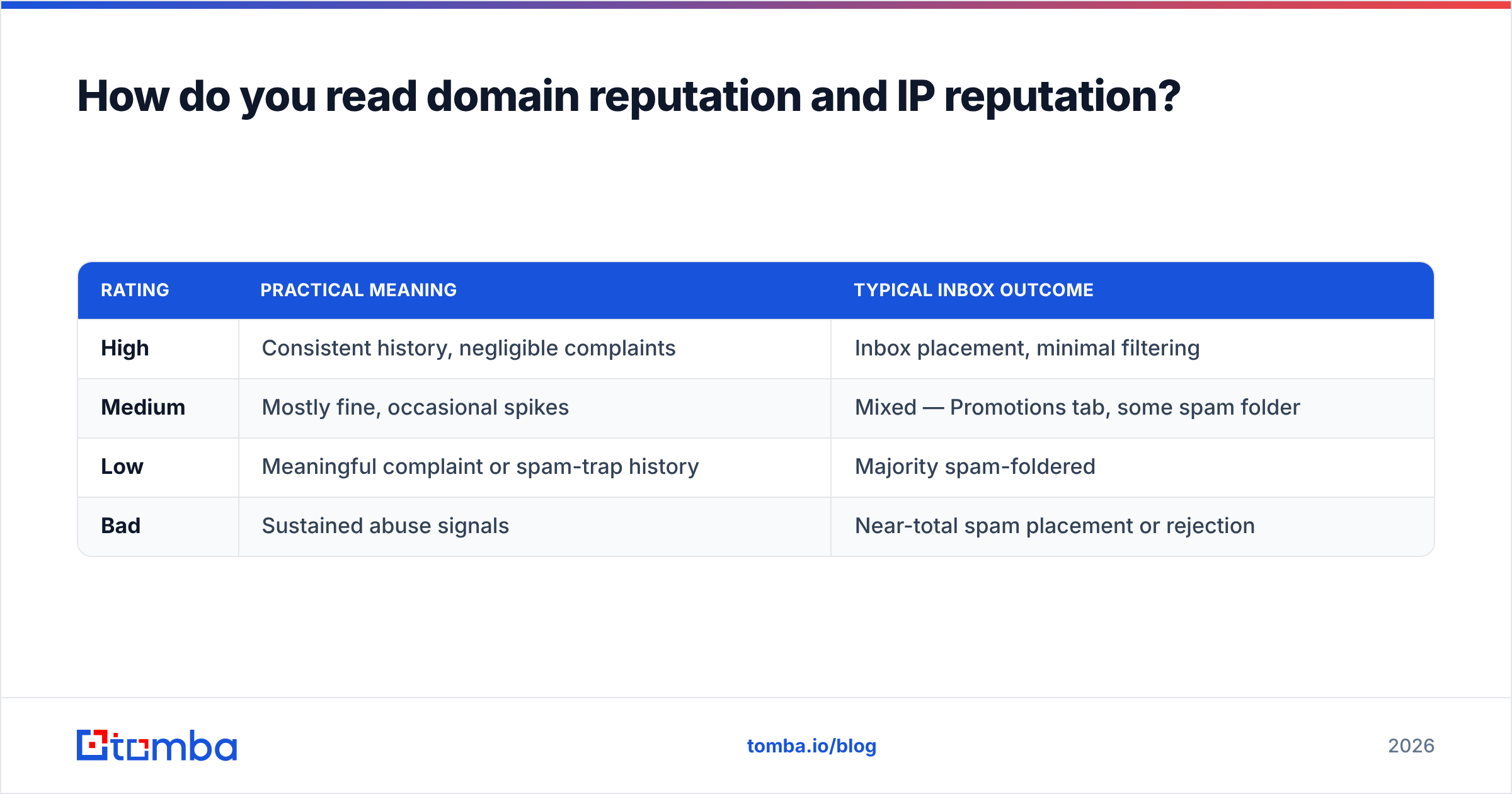
Domain reputation is Google's four-word summary of everything else. It updates slowly — days, sometimes a week or more behind the behavior that caused it.
| Rating | Practical meaning | Typical inbox outcome |
|---|---|---|
| High | Consistent history, negligible complaints | Inbox placement, minimal filtering |
| Medium | Mostly fine, occasional spikes | Mixed — Promotions tab, some spam folder |
| Low | Meaningful complaint or spam-trap history | Majority spam-foldered |
| Bad | Sustained abuse signals | Near-total spam placement or rejection |
Two rules for reading it:
- Recovery is slower than damage. A domain can go from High to Low in three days of bad sending and take three to six weeks of clean sending to climb back. There is no reset button, no appeal form, no support ticket that fixes it.
- Ignore IP reputation on shared infrastructure. If you send through a shared pool at a large ESP, the IP reputation chart reflects thousands of other senders. It's noise. Domain reputation is yours alone and is what you should optimize.
Also worth knowing: Postmaster Tools sometimes shows no domain reputation data even when volume is sufficient. That usually means your traffic is split across multiple DKIM domains and none individually clears the reporting bar. Consolidate your signing domain and the data appears.
What can't Google Postmaster Tools tell you?#
This is the section most guides skip, and it's the one that saves you time.
- No per-campaign breakdown. If your spam rate spiked Tuesday, Postmaster Tools shows a spike on Tuesday. Which of your four sequences caused it? Unknown. You correlate manually against your send logs.
- No per-recipient data. You'll never learn which addresses complained. Privacy by design.
- No non-Gmail visibility. Roughly a third to a half of B2B inboxes are Microsoft. Postmaster Tools says nothing about them. Pair it with Microsoft SNDS for that side.
- No bounce-list quality signal. Hard bounces from dead addresses don't appear as their own metric. They show up indirectly in delivery errors and, eventually, in reputation.
- A 5,000/day threshold. Below roughly 5,000 daily Gmail messages, most charts stay blank. Cold-outreach teams sending 200/day from ten domains will see nothing — ever.
That last limitation is the big one for outbound teams. If you're under the threshold, your usable signals are reply rate, hard-bounce rate, and seed-list placement testing — not this dashboard.
How do you fix a bad reputation once you see it?#
Work the causes in order of impact, not order of convenience.
1. Fix the list before you touch the copy. The fastest route to complaints is sending to people who never should have received the message: role accounts, stale contacts, wrong-person guesses from a pattern generator. Run every list through an email verifier before it enters a sequence, and use a catch-all verifier for domains that accept everything — those are where guessed addresses hide and where spam traps live.
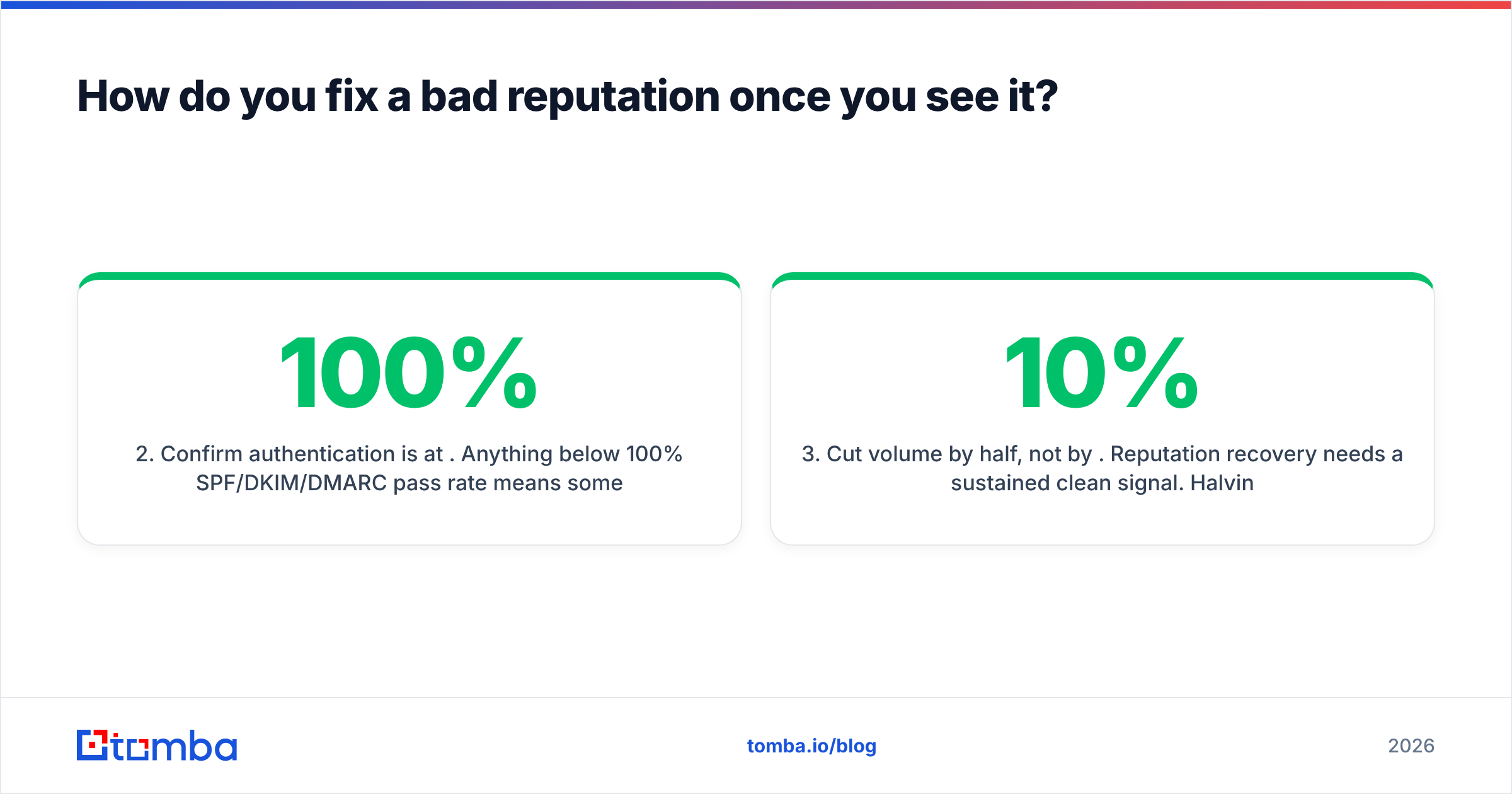
2. Confirm authentication is at 100%. Anything below 100% SPF/DKIM/DMARC pass rate means some path is sending unsigned mail — a forgotten marketing tool, a CRM, an invoice system. Find it. Check your record syntax with a free SPF checker and confirm your DMARC policy has moved past p=none.
3. Cut volume by half, not by 10%. Reputation recovery needs a sustained clean signal. Halving volume and sending only to your most engaged segment for two weeks produces a faster climb than trimming the edges.
4. Re-warm properly. Ramp back from a low daily volume over 3–4 weeks. A warmup calculator gives you a defensible ramp schedule instead of guessing.
5. Audit the unsubscribe path. Google requires one-click unsubscribe (RFC 8058) for bulk senders. If unsubscribing is hard, people use the spam button instead — and that button costs you 100x more.

Which tools should you pair with Postmaster Tools?#
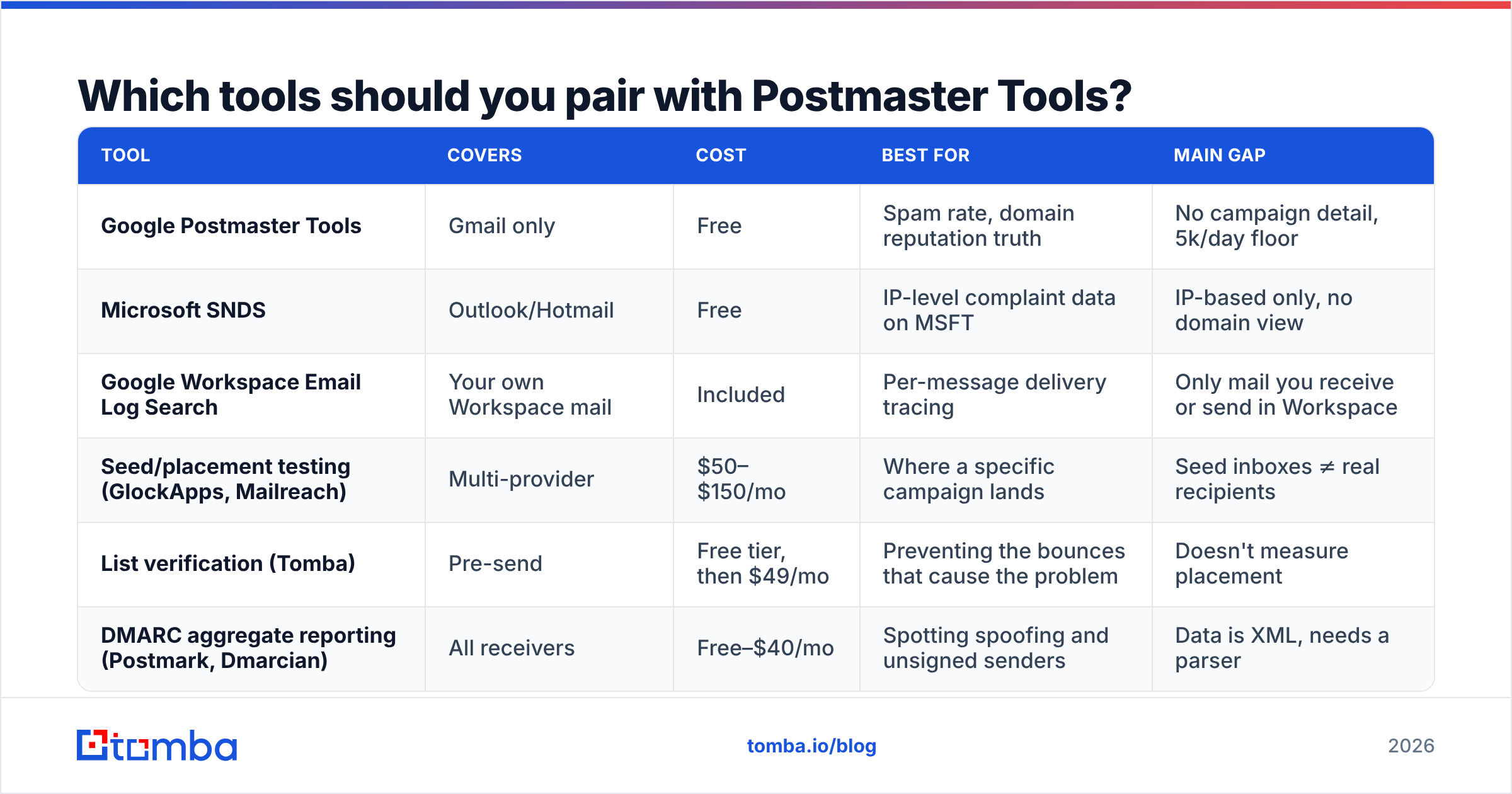
Postmaster Tools is a diagnostic gauge, not a repair kit. Here's how the common companions compare on what they actually do:
| Tool | Covers | Cost | Best for | Main gap |
|---|---|---|---|---|
| Google Postmaster Tools | Gmail only | Free | Spam rate, domain reputation truth | No campaign detail, 5k/day floor |
| Microsoft SNDS | Outlook/Hotmail | Free | IP-level complaint data on MSFT | IP-based only, no domain view |
| Google Workspace Email Log Search | Your own Workspace mail | Included | Per-message delivery tracing | Only mail you receive or send in Workspace |
| Seed/placement testing (GlockApps, Mailreach) | Multi-provider | $50–$150/mo | Where a specific campaign lands | Seed inboxes ≠ real recipients |
| List verification (Tomba) | Pre-send | Free tier, then $49/mo | Preventing the bounces that cause the problem | Doesn't measure placement |
| DMARC aggregate reporting (Postmark, Dmarcian) | All receivers | Free–$40/mo | Spotting spoofing and unsigned senders | Data is XML, needs a parser |
The pattern worth noticing: Postmaster Tools, SNDS, and DMARC reports are all rear-view mirrors. They tell you about mail you've already sent. Verification and targeting are the steering wheel. Teams that obsess over dashboards while sending to unverified scraped lists are watching the mirror and wondering why they keep hitting things.
For sourcing the addresses in the first place, accuracy at the point of collection compounds. A domain search that returns confidence-scored, verified addresses produces a materially lower bounce and complaint rate than a permutator plus hope. See Tomba's data sources for how those confidence scores are built.
How should you build a weekly Postmaster Tools routine?#
Fifteen minutes, once a week, same day. Longer than that and you're overfitting to noise; less often and you'll catch a reputation slide three weeks late.
- Open the spam-rate chart first. Look at the 30-day trend line, not yesterday's dot. One spike after a large send is normal variance. Three consecutive elevated days is a trend.
- Check domain reputation against last week. Any downgrade — even High to Medium — triggers an investigation.
- Confirm authentication is still 100%. New tools get connected to your domain without anyone telling deliverability. This is how you find them.
- Scan delivery errors by reason. A rise in "rate limited" means you're sending too fast. A rise in "content" means your copy or links are tripping filters.
- Correlate any anomaly with your send calendar. Match the spike date to the campaign that shipped 2–3 days earlier, accounting for reporting lag.
- Log it. A four-column spreadsheet — date, spam rate, reputation, what shipped — is worth more after six months than any dashboard screenshot.
If you're managing more than three domains, pull this via the Postmaster Tools API into a sheet instead of clicking through five dashboards. Google publishes the API reference under the Gmail Postmaster Tools API docs.
Is Google Postmaster Tools enough on its own?#
No — and treating it as sufficient is the most common mistake.
It's necessary. Every B2B sender with meaningful Gmail volume should have it configured, and it costs nothing. But it measures outcomes on one mailbox provider, with a two-day lag, at an aggregate level, above a volume floor that many outbound teams never reach.
The complete picture is three layers:
- Input quality — verified addresses, correct targeting, real permission or genuine relevance. This is where 80% of deliverability is decided, before a single message leaves the server.
- Infrastructure — SPF, DKIM, DMARC, dedicated domains, sane ramp schedules, one-click unsubscribe.
- Measurement — Postmaster Tools for Gmail, SNDS for Microsoft, DMARC reports for everyone, reply rate as your ground truth.
Most teams invert this. They spend weeks tuning subject lines and staring at reputation charts while feeding an unverified list into the top of the funnel. The chart is telling them the truth; they're just reading it as a copy problem instead of a data problem.
Start where the problem actually starts#
Postmaster Tools will show you a bad spam rate. It won't tell you that 14% of your list was never a real mailbox, that a third of your "contacts" were guessed from a name pattern, or that a handful of catch-all domains are silently swallowing everything you send.
Clean inputs are cheaper than reputation repair. Run your prospect lists through the Tomba Email Finder to source confidence-scored, verified addresses instead of guesses — free tier included, 25 searches a month, no card. If you're already sitting on a list, push it through bulk verification first and check Tomba pricing if you need volume beyond the free tier. Your Postmaster Tools dashboard will look better in three weeks, and you won't have had to rewrite a single subject line.
Related guides#
Ready to find emails that actually work?
Join 150,000+ professionals who stopped guessing and started sending. Free credits on signup — no credit card required.
Get the Tomba newsletter
Practical outbound tactics and product updates — once every two weeks.
About the author