Google Sheets Email Verification: The 2026 Working Guide
Formulas catch typos. They don't catch dead mailboxes. Here's how Google Sheets email verification actually works in 2026 — regex, add-ons, APIs, and the real cost of each.

TL;DR
- A regex formula in Google Sheets confirms an address is shaped like an email. It cannot tell you whether the mailbox exists, which is what actually causes bounces.
- Four real methods exist: formulas, Apps Script + API, a verification add-on, and a bulk export/import loop. Each has a clear break-even list size.
- Syntax checks catch roughly the typo tier of bad data. Dead mailboxes, role accounts, disposables, and catch-all domains all pass regex cleanly.
- Free bulk-paste web checkers are fine for 50 rows and dangerous for 5,000 — you're handing your prospect list to an unknown processor.
- For lists under ~500 rows, an add-on or copy-paste run is fine. Past that, wire an API into Apps Script and stop touching it manually.
What does "Google Sheets email verification" actually mean?#
It means two very different jobs that people constantly conflate.
Job one is syntax validation: does jane.doe@acme,com look like a valid address? That's a string-pattern problem, and a spreadsheet formula solves it in about ten seconds.
Job two is mailbox verification: does jane.doe@acme.com currently accept mail? That requires talking to Acme's mail server — DNS lookups, MX record checks, and an SMTP handshake. A spreadsheet cannot do this natively. No formula, no matter how clever, will do it.
Think of it like checking a street address. Syntax validation confirms the address has a house number, a street name, and a ZIP code in the right order. Mailbox verification is driving there to see whether the house was demolished last year. Both are useful. Only one prevents your mail from coming back.
Most people who search for this want job two and end up with job one, then wonder why their bounce rate didn't move.

How do you validate email syntax with a Google Sheets formula?#
Start here because it's free, instant, and catches the dumbest errors — the ones your interns and web forms generate.
Drop this in B2, assuming addresses sit in column A:
=IF(A2="","",IF(REGEXMATCH(TRIM(LOWER(A2)),"^[a-z0-9._%+\-]+@[a-z0-9.\-]+\.[a-z]{2,}$"),"Valid syntax","Check"))What it does, in plain terms: trims whitespace, lowercases the string, then requires a local part, an @, a domain, and a real top-level domain of at least two characters.
Add a few companion columns and you've built a decent first-pass triage:
- Domain extractor —
=IFERROR(MID(A2,FIND("@",A2)+1,LEN(A2)),"")so you can pivot bad domains by frequency. One misspelledgmial.comusually appears forty times. - Free-provider flag —
=IF(REGEXMATCH(B2,"gmail|yahoo|hotmail|outlook|aol"),"Personal","Business"). For B2B outbound, personal addresses convert differently and often shouldn't be in the same sequence. - Role-account flag —
=IF(REGEXMATCH(LOWER(A2),"^(info|sales|support|admin|contact|hello|billing)@"),"Role","Person"). Role accounts inflate complaint rates and rarely reply. - Duplicate check —
=IF(COUNTIF($A$2:$A2,A2)>1,"Dupe",""). Duplicates double your send volume to the same person, which is a fast route to a spam complaint. A remove duplicates pass before import saves the headache entirely. - Disposable-domain flag — maintain a small list of throwaway domains on a second tab and
VLOOKUPagainst it. This one decays fast; new disposable domains appear weekly. - Blank/whitespace catch —
=IF(TRIM(A2)="","EMPTY",""). Sounds trivial until a 12,000-row CRM export ships with 400 empty cells that break your merge.
Run all six and you'll typically remove 5–15% of a scraped list before spending a single verification credit. That's the whole point of the formula tier: it's a cheap filter in front of an expensive one.
What it will never catch: an address that's perfectly formed and belongs to someone who left the company in 2023.
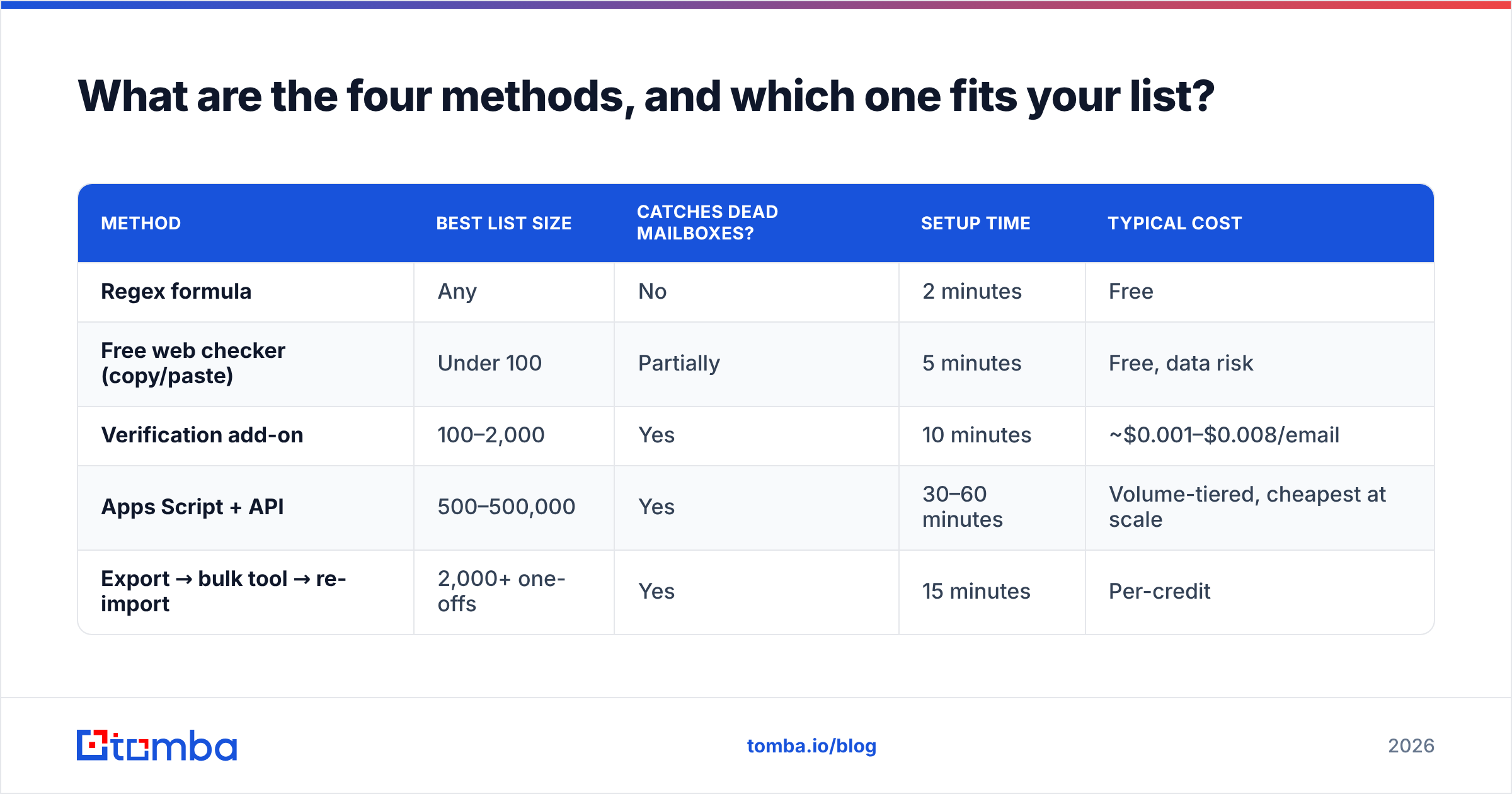
What are the four methods, and which one fits your list?#
| Method | Best list size | Catches dead mailboxes? | Setup time | Typical cost |
|---|---|---|---|---|
| Regex formula | Any | No | 2 minutes | Free |
| Free web checker (copy/paste) | Under 100 | Partially | 5 minutes | Free, data risk |
| Verification add-on | 100–2,000 | Yes | 10 minutes | ~$0.001–$0.008/email |
| Apps Script + API | 500–500,000 | Yes | 30–60 minutes | Volume-tiered, cheapest at scale |
| Export → bulk tool → re-import | 2,000+ one-offs | Yes | 15 minutes | Per-credit |
The decision is mostly about repetition, not size. A one-time 5,000-row cleanup is a bulk export job. A sheet that gains 200 rows a week from a form should be wired to an API and forgotten about.
How do you connect a verification API to Google Sheets?#
Apps Script is the bridge. It turns Sheets from a static grid into something that can make HTTP calls, which is the only way to get real mailbox status into a cell.
Open Extensions → Apps Script and paste a custom function shaped like this:
function VERIFY_EMAIL(email) {
  if (!email) return '';
  const key = PropertiesService
    .getScriptProperties()
    .getProperty('TOMBA_KEY');
  const secret = PropertiesService
    .getScriptProperties()
    .getProperty('TOMBA_SECRET');

  const url = 'https://api.tomba.io/v1/email-verifier/'
    + encodeURIComponent(email);

  try {
    const res = UrlFetchApp.fetch(url, {
      headers: { 'X-Tomba-Key': key, 'X-Tomba-Secret': secret },
      muteHttpExceptions: true
    });
    const data = JSON.parse(res.getContentText());
    return data.data.email.status || 'unknown';
  } catch (err) {
    return 'error';
  }
}
Then in the sheet: =VERIFY_EMAIL(A2).
Four things that will bite you if you skip them:
- Never hardcode credentials in the script body. Use
PropertiesService(as above) or the Script Properties UI. Sheets get shared; scripts travel with them. - Custom functions have a 30-second execution limit and Google caps
UrlFetchAppcalls per day. Dragging the formula down 10,000 rows will fail loudly. - For anything past a few hundred rows, write a batch function instead — a menu-triggered script that reads the whole column, sends addresses in chunks, and writes results back in one
setValues()call. Far faster and far kinder to your quota. - Cache aggressively. Verification results don't change hour to hour. Store the status and a timestamp, and re-check only rows older than 60–90 days.
If you'd rather not maintain script code, the Google Sheets add-on does the same thing with a sidebar, and the Tomba API documentation covers the raw endpoints if you're building something bigger.
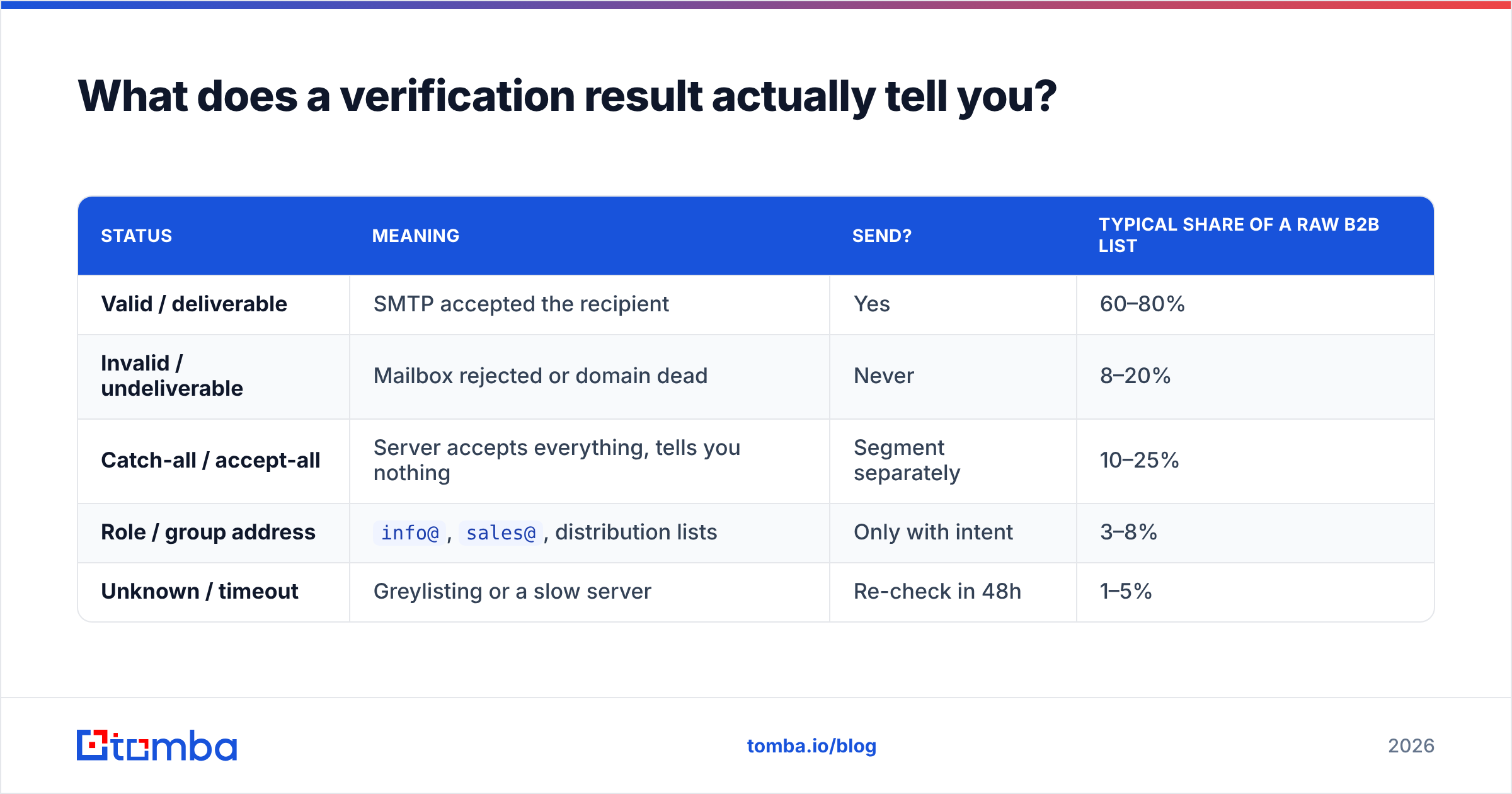
What does a verification result actually tell you?#
Statuses vary by vendor, but they collapse into five practical buckets. Knowing which bucket you're looking at determines whether you send.
| Status | Meaning | Send? | Typical share of a raw B2B list |
|---|---|---|---|
| Valid / deliverable | SMTP accepted the recipient | Yes | 60–80% |
| Invalid / undeliverable | Mailbox rejected or domain dead | Never | 8–20% |
| Catch-all / accept-all | Server accepts everything, tells you nothing | Segment separately | 10–25% |
| Role / group address | info@, sales@, distribution lists |
Only with intent | 3–8% |
| Unknown / timeout | Greylisting or a slow server | Re-check in 48h | 1–5% |
Catch-all is where most people lose money. The domain's server says "sure, I'll take that" to every address you throw at it, valid or not — so a naive verifier marks it deliverable and you send confidently into a void. Enterprise domains do this constantly.
Handling it well means either scoring the address on pattern confidence and known-employee signals, or using a dedicated catch-all verifier that goes beyond the basic SMTP handshake. What you should not do is treat catch-all as valid and mix it into your main send. Segment it, send at low volume, and watch the bounce rate on that slice specifically.
The reason this matters more than it used to: Google and Yahoo's bulk sender requirements, documented by Google here, put a hard spam-complaint threshold on senders. Bounces feed sender reputation directly, and reputation damage takes weeks to undo. A 3% bounce rate is a warning. Anything above 5% and mailbox providers start throttling you.

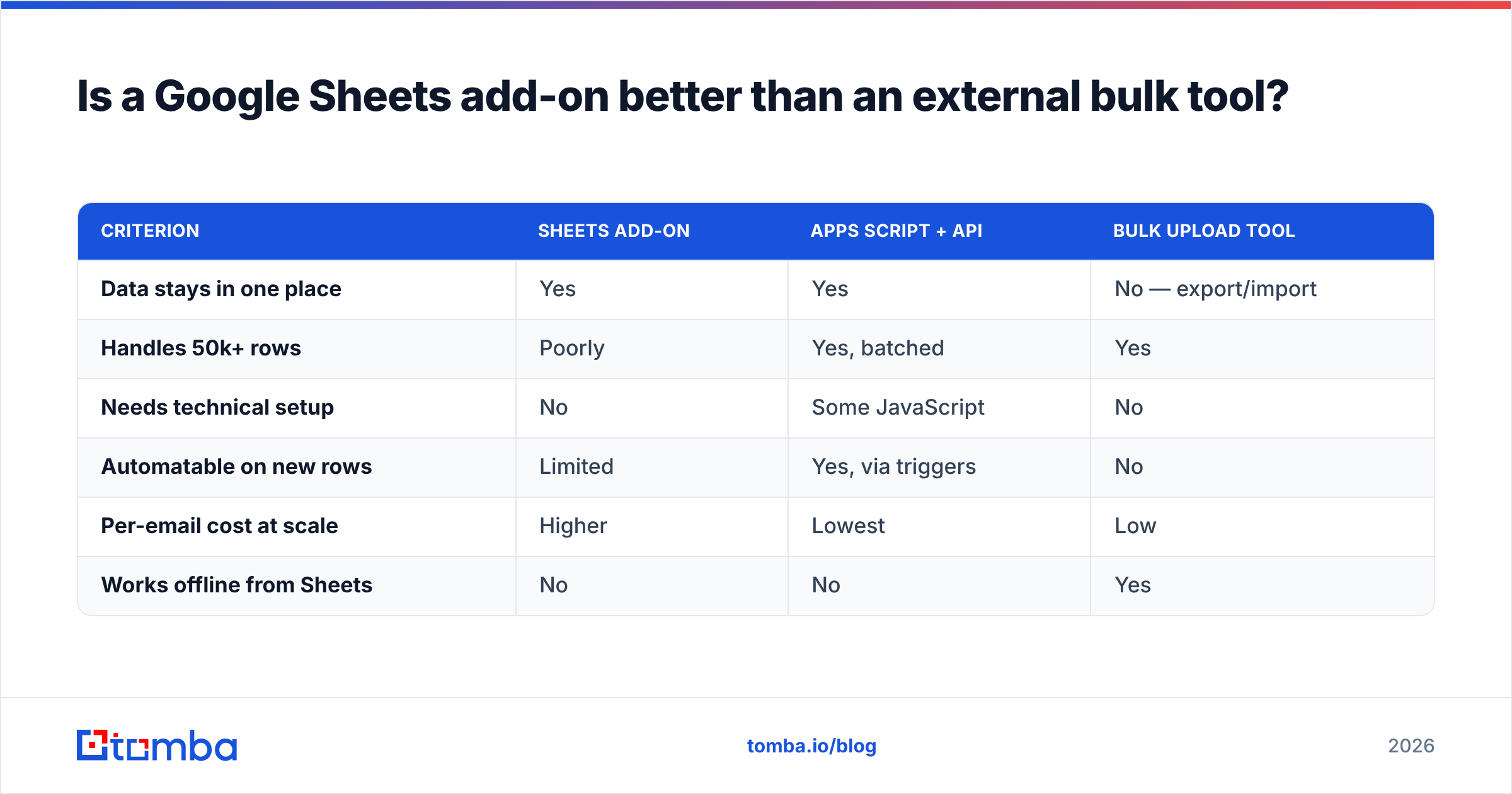
Is a Google Sheets add-on better than an external bulk tool?#
Depends entirely on whether the list lives in the sheet permanently or passes through it.
Add-ons win when the sheet is the system of record. Sales ops teams running a lightweight prospect tracker in Sheets, agencies handing off lists to clients, anyone whose workflow starts and ends in a browser tab. Results land next to the data, no export, no re-import, no version confusion about which CSV is current.
Bulk tools win on cost and throughput. Verifying 50,000 addresses through a sidebar is miserable; uploading a CSV to a bulk verification queue and downloading the result twenty minutes later is not. Bulk pricing per credit also tends to be better than interactive lookups.
Here's how the main paths compare on the things that actually decide it:
| Criterion | Sheets add-on | Apps Script + API | Bulk upload tool |
|---|---|---|---|
| Data stays in one place | Yes | Yes | No — export/import |
| Handles 50k+ rows | Poorly | Yes, batched | Yes |
| Needs technical setup | No | Some JavaScript | No |
| Automatable on new rows | Limited | Yes, via triggers | No |
| Per-email cost at scale | Higher | Lowest | Low |
| Works offline from Sheets | No | No | Yes |
One more consideration nobody mentions: shared sheets leak credentials. If you install an add-on on a sheet that gets shared with a client, check whose quota is being consumed. With Apps Script and Script Properties, the credentials belong to the script owner regardless of who opens the file.
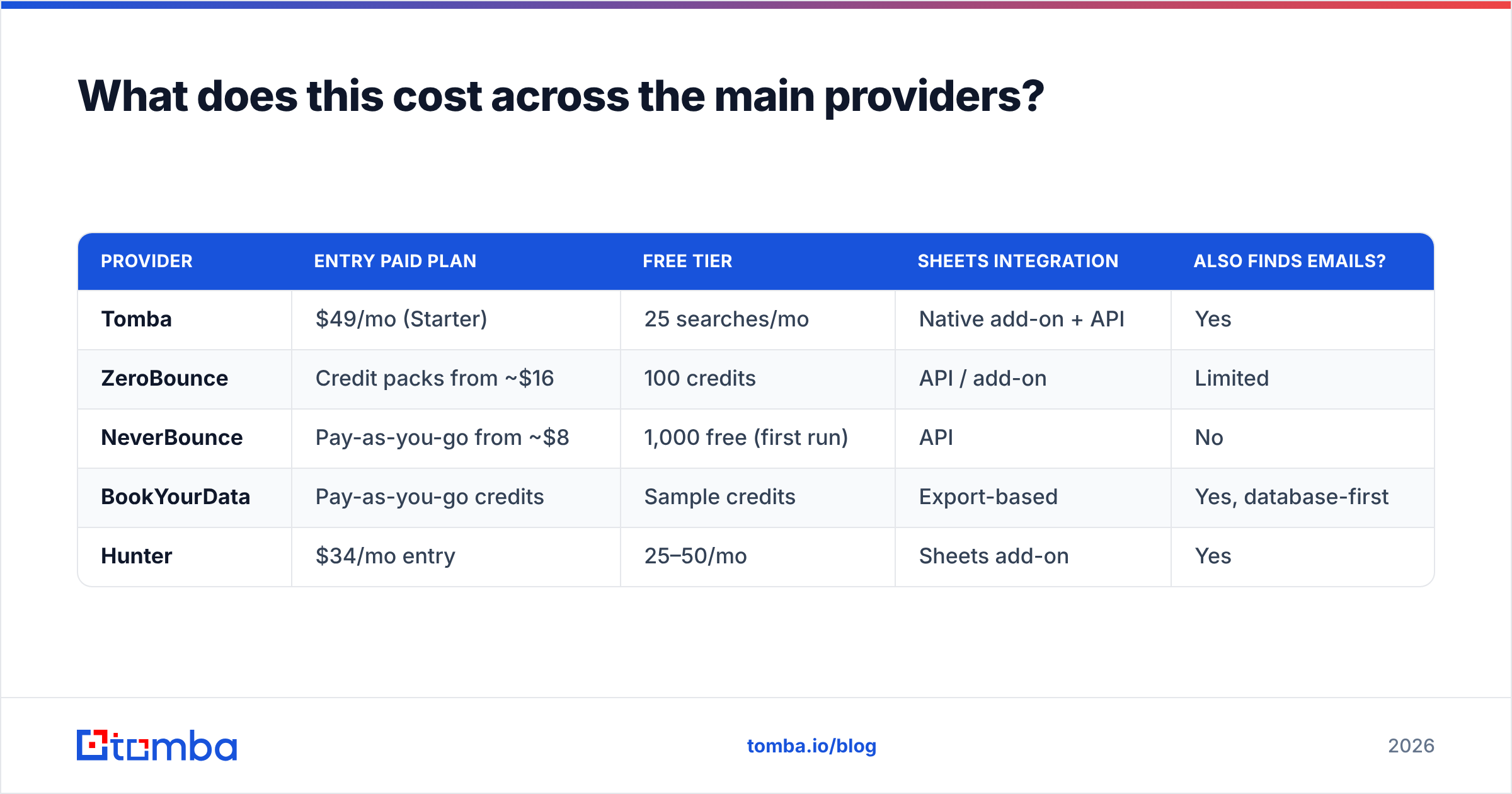
What does this cost across the main providers?#
Verification pricing is usually per-credit, and credits are usually consumed whether or not the answer is useful. Compare the floor price and the free tier together — a cheap per-credit rate with no trial means you're paying to find out if the accuracy is any good.
| Provider | Entry paid plan | Free tier | Sheets integration | Also finds emails? |
|---|---|---|---|---|
| Tomba | $49/mo (Starter) | 25 searches/mo | Native add-on + API | Yes |
| ZeroBounce | Credit packs from ~$16 | 100 credits | API / add-on | Limited |
| NeverBounce | Pay-as-you-go from ~$8 | 1,000 free (first run) | API | No |
| BookYourData | Pay-as-you-go credits | Sample credits | Export-based | Yes, database-first |
| Hunter | $34/mo entry | 25–50/mo | Sheets add-on | Yes |
Two notes on reading that table honestly. First, BookYourData is a database-first product — you're buying pre-verified contacts rather than running your own list through a checker, so it solves a different problem well and shouldn't be judged on integration depth. Second, pure verifiers like NeverBounce are often cheaper per credit than combined find-and-verify platforms, and if verification is genuinely all you need, that's the right trade.
Where combined platforms earn the premium is when your sheet has gaps. If half your rows are "Jane Doe, VP Marketing, Acme Corp" with no address at all, a verifier has nothing to work with. An email finder fills the blank first, then verifies what it found — one pass instead of two tools and a manual merge. Full Tomba pricing runs Free (25 searches/mo), Starter $49/mo, Growth $99/mo, Pro $249/mo, and custom Enterprise.
Independent user reviews across these categories are worth skimming before you commit — G2's email verification category is the least-bad public source for accuracy complaints, since vendors rarely publish their own miss rates.
What's the practical workflow, start to finish?#
Run it in this order. Each step is cheaper than the one after it, so filtering early saves credits.
- Deduplicate and trim.
COUNTIFfor duplicates,TRIMfor whitespace. Free, removes 3–10% of most exports. - Regex filter. Kill malformed addresses before they consume credits. Free.
- Flag roles and free providers. Segment them out — don't delete, just separate. They need different messaging and different volume caps.
- Verify the survivors via add-on or API. This is where you spend money, and now you're spending it on a clean subset.
- Split by status. Valid goes to your main send. Catch-all goes to a low-volume test batch. Unknown gets re-checked in 48 hours. Invalid gets deleted, not "saved for later."
- Timestamp everything. Add a
Verified Oncolumn. B2B data decays around 22–30% annually as people change jobs, so anything older than a quarter needs a re-check before reuse. - Automate the re-check. An Apps Script time-driven trigger that re-verifies rows older than 90 days costs nothing to run and keeps the sheet permanently trustworthy.
That last step is the one that separates a clean list from a clean-list-shaped memory. Verification is not an event, it's maintenance.
What should you not do?#
Don't paste your prospect list into a random free web checker. You have no idea what happens to it. Some free tools monetize by aggregating and reselling the addresses you submit. If the list represents real commercial effort, treat it like the asset it is.
Don't trust "valid" on a catch-all domain. Covered above, but it's the single most expensive misread in the whole process.
Don't verify and then sit on the list for six months. Re-verify before any send that's more than 90 days past the last check.
Don't skip the free formula tier because you have a paid tool. Regex filtering costs nothing and reduces your paid credit consumption by double digits on scraped data.
Don't run verification as your only deliverability control. Clean addresses are necessary and insufficient — you still need SPF, DKIM, DMARC, and sane sending volume. A perfectly verified list sent from a cold domain at 800/day still lands in spam. Check your SPF record before blaming the data.
Which approach should you pick?#
If your sheet has under 500 addresses and you clean it monthly, use the add-on. Ten minutes of setup, no code, results land in the next column.
If your sheet grows continuously or crosses a few thousand rows, write the Apps Script batch function. The upfront hour buys you an asset that runs on a trigger forever and costs less per email than any interactive method.
If you're doing a one-time cleanup of a legacy list, export to CSV, run it through a bulk verifier, re-import. Don't over-engineer a job you'll do once.
And if the real problem is that your sheet has names and companies but no email addresses at all, verification is the wrong step to be optimizing. Start with the Tomba Email Finder — feed it a domain or a name-plus-company and it returns the address with a confidence score and verification status attached, straight into your sheet via the add-on or the API. Free tier gives you 25 searches a month to test the accuracy on your own data before you pay for anything, which is exactly how you should evaluate any provider on this page.
Related guides#
Ready to find emails that actually work?
Join 150,000+ professionals who stopped guessing and started sending. Free credits on signup — no credit card required.
Get the Tomba newsletter
Practical outbound tactics and product updates — once every two weeks.
About the author