Google Workspace MX Records Setup: 2026 Step-by-Step Guide
Wrong MX records silently kill inbound mail for days. Here is the exact 2026 Google Workspace MX setup — the single smtp-relay host, TTL traps, SPF/DKIM/DMARC order, and how to verify propagation before you send.
TL;DR
- Google Workspace now uses one MX record —
smtp.google.comat priority 1 — not the five-recordASPMX.L.GOOGLE.COMstack most tutorials still show. Both work; the single record is what Google provisions for new domains. - Delete every legacy MX record before you publish the new one. Leftover records from your old host cause split delivery, where some mail lands in a mailbox you never check.
- Drop TTL to 300 seconds before the change, not during. A 24-hour TTL means your typo lives for a full day.
- MX only handles inbound. Outbound authentication needs SPF, DKIM (enabled manually in the Admin console — it is off by default), and DMARC, in that order.
- Verify with
dig MX yourdomain.comand a live test send from an external address. Never trust the registrar's green checkmark alone.
What Are MX Records and Why Does Google Workspace Need Them?#
An MX record is a forwarding address for your building's mailroom. When someone posts a letter to you@yourdomain.com, the sending server asks DNS one question: "who accepts mail for this domain?" The MX record answers with a hostname. Everything else — spam filtering, routing to the right inbox, storage — happens after that handoff.
Google Workspace cannot receive a single message until that record points at Google's infrastructure. This trips up more teams than it should, because buying a Workspace subscription and creating users feels like setup is complete. It isn't. Your domain's MX record still points wherever your registrar parked it — often at a default parking service, or at the shared hosting mail server bundled with your web plan.
Two properties matter on every MX record:
- Priority (preference) — a number. Lower wins. Priority 1 is tried before priority 5. Servers fall back down the list when the top host is unreachable.
- Host (value) — the fully qualified domain name of the mail server. It must resolve to an A or AAAA record, never to a CNAME. Pointing an MX at a CNAME is a spec violation that some senders enforce strictly.
There is no "MX verification" step in Google's onboarding that catches a wrong priority or a stale second record. Google checks that its host appears somewhere in your MX set and calls it done. Split delivery is invisible until a customer says they emailed you and got no reply.

What Are the Correct Google Workspace MX Records in 2026?#
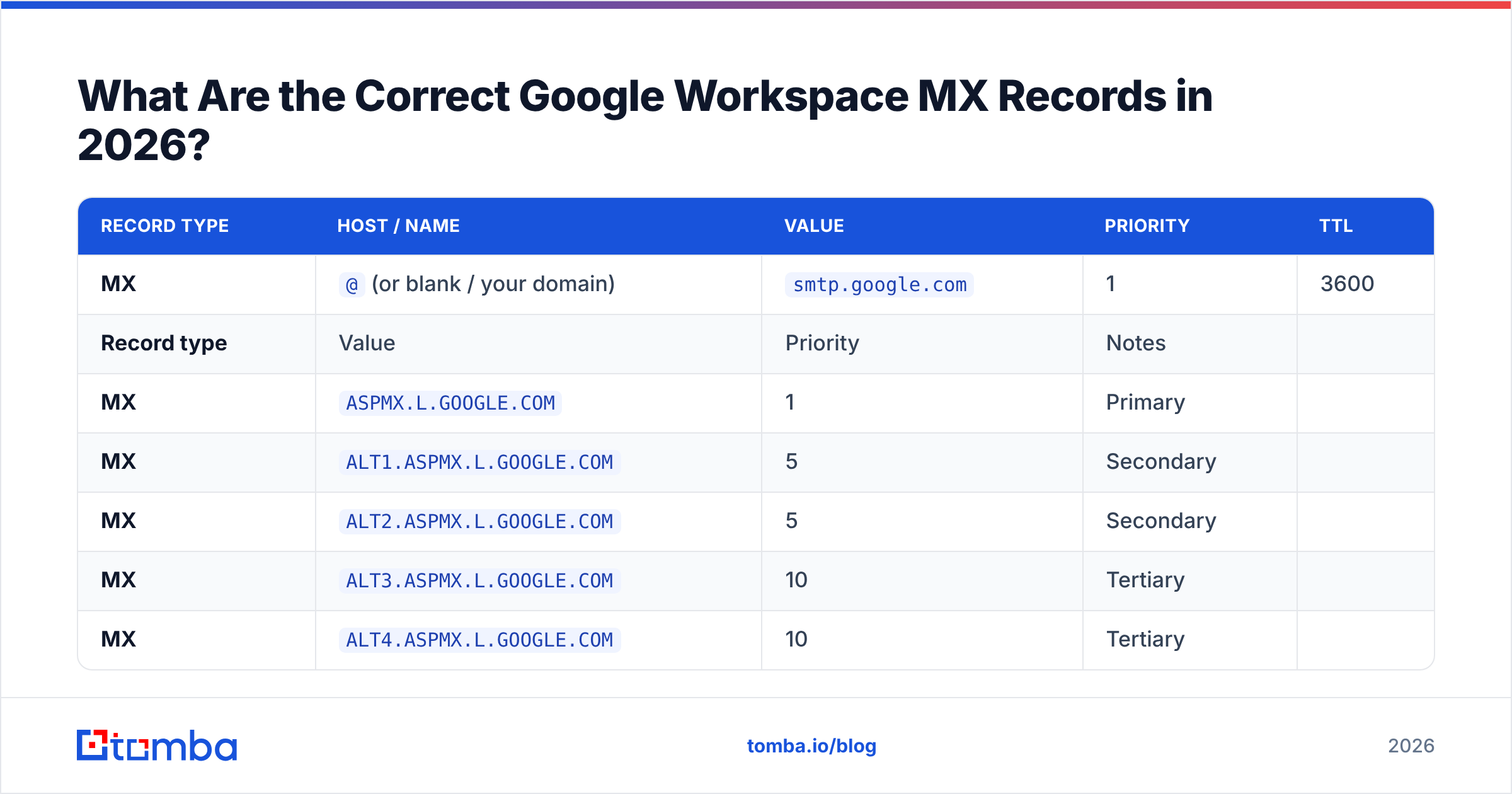
Google consolidated to a single MX host. For any domain provisioned recently, the Admin console setup wizard gives you exactly one line:
| Record type | Host / Name | Value | Priority | TTL |
|---|---|---|---|---|
| MX | @ (or blank / your domain) |
smtp.google.com |
1 | 3600 |
That's the whole thing. One record.
If your domain was set up before the consolidation, you may still be running the classic five-record configuration, which remains fully supported:
| Record type | Value | Priority | Notes |
|---|---|---|---|
| MX | ASPMX.L.GOOGLE.COM |
1 | Primary |
| MX | ALT1.ASPMX.L.GOOGLE.COM |
5 | Secondary |
| MX | ALT2.ASPMX.L.GOOGLE.COM |
5 | Secondary |
| MX | ALT3.ASPMX.L.GOOGLE.COM |
10 | Tertiary |
| MX | ALT4.ASPMX.L.GOOGLE.COM |
10 | Tertiary |
Do not mix the two sets. Running smtp.google.com at priority 1 alongside the four ALT records is not a redundancy upgrade — it's a configuration that behaves unpredictably during failover and makes debugging harder. Pick one. If you're setting up fresh in 2026, use the single record. If the five-record set is already working, there is no urgency to migrate; Google has not announced a deprecation date. Confirm the current values in the Google Workspace Admin Help documentation before you publish, since Google is the only authoritative source for its own hostnames.
A note on the trailing dot. Some DNS panels (BIND-style zone editors, older cPanel installs) require smtp.google.com. with a terminating period. Others append it automatically and will break if you add it. Check how existing records in the same zone are written and match that convention exactly.
How Do You Set Up Google Workspace MX Records Step by Step?#
The order matters. Doing these out of sequence is what produces the "we lost two days of email" postmortem.
- Lower the TTL first — 24 to 48 hours ahead. Set your existing MX records to a 300-second TTL and wait for the old TTL to expire. Now, if you fat-finger the new value, the blast radius is five minutes instead of a day. This single step prevents most MX disasters, and almost every tutorial skips it.
- Inventory what's there now. Run
dig MX yourdomain.com +shortand screenshot the result. You need a rollback target. If you're migrating from Microsoft 365, Zoho, or a shared host, write down every record including the ones you don't recognize. - Provision users in Google Workspace before cutting over. Every mailbox that will receive mail must exist. Mail arriving for a non-existent user gets bounced with a hard 550, and hard bounces train sending servers to deprioritize your domain.
- Delete the old MX records, then add the new one. Delete first. Some DNS providers silently reject a new record that conflicts with an existing one, and you end up thinking the change saved when it didn't.
- Add SPF, then enable DKIM, then publish DMARC. Covered in detail below — this is the outbound half and it is not optional in 2026.
- Verify before you announce.
digfrom at least two networks, then send a real message from an external Gmail or Outlook account and confirm it arrives with correct headers. - Raise the TTL back to 3600 once stable. Leave it at 300 for a week if you're nervous. There is no meaningful performance cost.
Budget 15 minutes of work and up to 48 hours of propagation. In practice, most changes resolve globally within an hour when the TTL was pre-lowered.
How Do MX, SPF, DKIM, and DMARC Fit Together?#
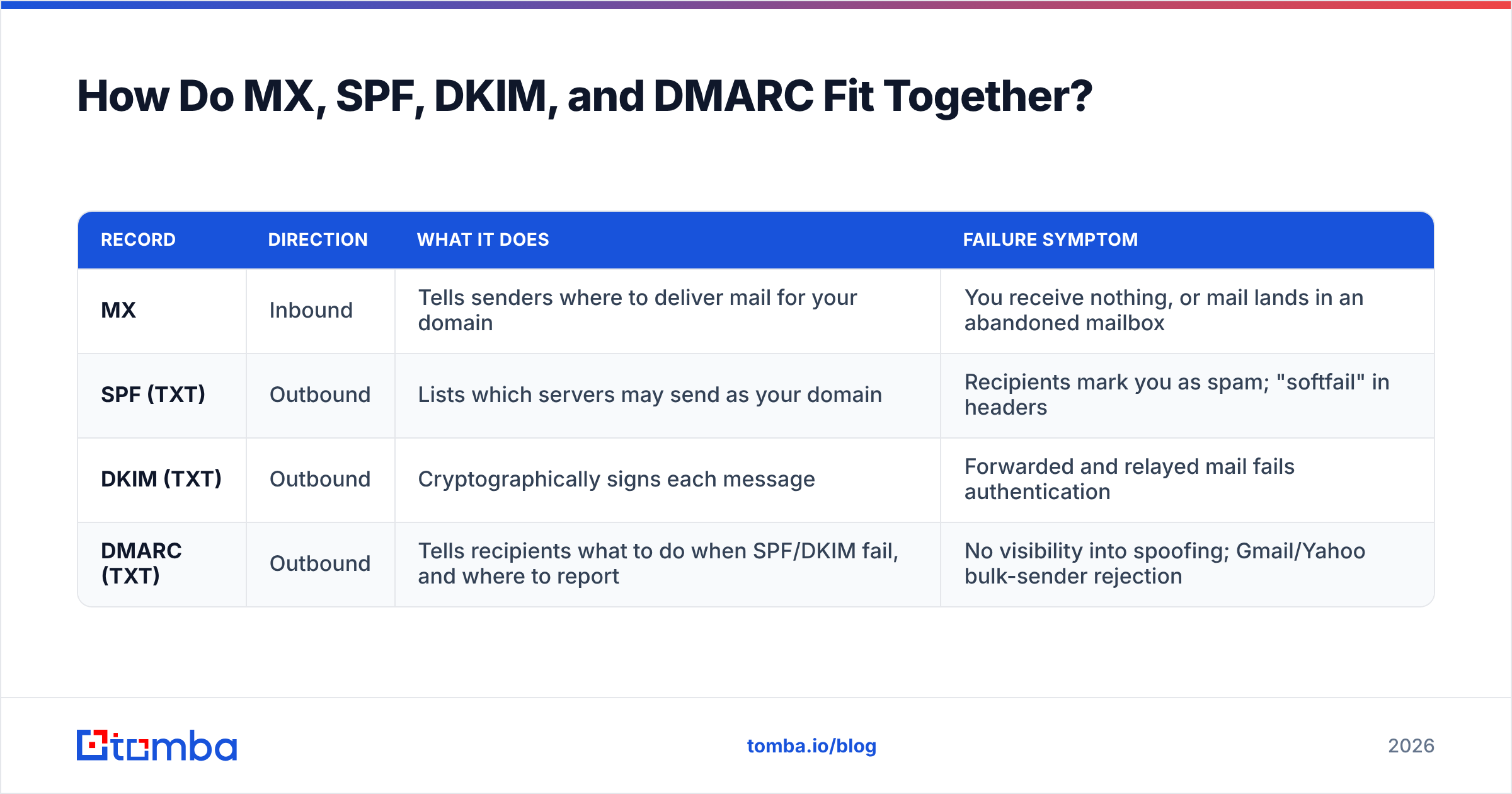
MX is inbound. The other three are outbound. Confusing the two is the single most common misdiagnosis when a team says "our email deliverability is broken."
| Record | Direction | What it does | Failure symptom |
|---|---|---|---|
| MX | Inbound | Tells senders where to deliver mail for your domain | You receive nothing, or mail lands in an abandoned mailbox |
| SPF (TXT) | Outbound | Lists which servers may send as your domain | Recipients mark you as spam; "softfail" in headers |
| DKIM (TXT) | Outbound | Cryptographically signs each message | Forwarded and relayed mail fails authentication |
| DMARC (TXT) | Outbound | Tells recipients what to do when SPF/DKIM fail, and where to report | No visibility into spoofing; Gmail/Yahoo bulk-sender rejection |
The 2024 Gmail and Yahoo bulk sender requirements made all three outbound records mandatory for anyone sending over 5,000 messages a day, and enforcement has only tightened since. If you're running cold outreach on a Workspace domain, treat them as hard requirements at any volume.
The minimum viable Google Workspace SPF record:
v=spf1 include:_spf.google.com ~allOne SPF record per domain. If you already have one for a marketing platform, merge the includes into a single record — two SPF TXT records is a permanent fail, not a warning. Also watch the ten-lookup limit: each include: costs a lookup, and _spf.google.com itself nests further includes. Stacking Google, HubSpot, Mailchimp, and a sequencer will blow past ten. Use an SPF checker to count them before you publish.
DKIM is off by default. This surprises people. Go to Admin console → Apps → Google Workspace → Gmail → Authenticate email, generate a 2048-bit key, publish the TXT record it gives you at google._domainkey, then come back and click Start authentication. Skipping that last click is a common miss — the DNS record exists, but Google isn't signing anything.
DMARC starts in monitor mode:
v=DMARC1; p=none; rua=mailto:dmarc@yourdomain.comRun p=none for two to four weeks, read the aggregate reports, then move to p=quarantine and eventually p=reject. Jumping straight to p=reject will silently kill mail from any legitimate service you forgot about — your invoicing tool, your helpdesk, your CRM. Background on how policy inheritance works is covered well in the DMARC entry on Wikipedia and in Tomba's email deliverability glossary entry.
How Do You Verify the Setup Actually Worked?#
Registrar dashboards lie. They show what's in their database, not what the world resolves. Verify from outside.
Command line (macOS, Linux, WSL):
dig MX yourdomain.com +short
dig TXT yourdomain.com +short
dig TXT google._domainkey.yourdomain.com +short
dig TXT _dmarc.yourdomain.com +short
Expected MX output for the modern configuration is a single line: 1 smtp.google.com.
Query a resolver you don't control, because your ISP may be serving a cached answer:
dig @8.8.8.8 MX yourdomain.com +short
dig @1.1.1.1 MX yourdomain.com +short
Then do the thing that actually proves it. Send a message from an external Gmail account to a Workspace mailbox on the domain. Open it, click the three-dot menu, choose "Show original," and confirm you see SPF: PASS, DKIM: PASS, and DMARC: PASS. Anything less than three passes means you have work left.
For ongoing monitoring, Google's Postmaster Tools gives you domain reputation, spam rate, and authentication success rate over time. It requires a separate domain verification and takes a few days to populate data, so set it up now rather than during an incident. Pair it with a sender reputation checker and a blacklist checker if the domain has any history you didn't create.

What Goes Wrong Most Often?#
Ranked by how frequently they show up in real migrations:
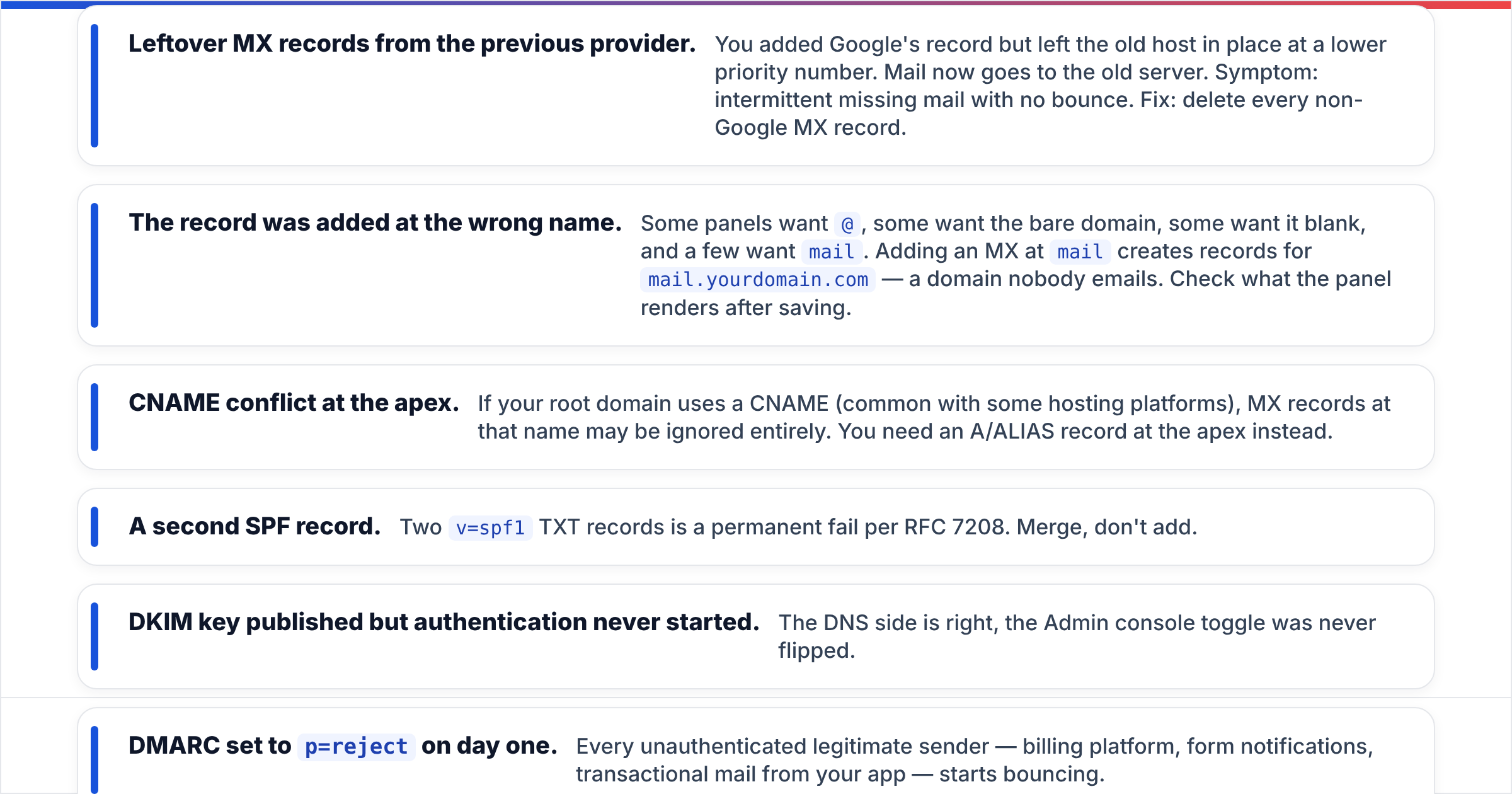
- Leftover MX records from the previous provider. You added Google's record but left the old host in place at a lower priority number. Mail now goes to the old server. Symptom: intermittent missing mail with no bounce. Fix: delete every non-Google MX record.
- The record was added at the wrong name. Some panels want
@, some want the bare domain, some want it blank, and a few wantmail. Adding an MX atmailcreates records formail.yourdomain.com— a domain nobody emails. Check what the panel renders after saving. - CNAME conflict at the apex. If your root domain uses a CNAME (common with some hosting platforms), MX records at that name may be ignored entirely. You need an A/ALIAS record at the apex instead.
- A second SPF record. Two
v=spf1TXT records is a permanent fail per RFC 7208. Merge, don't add. - DKIM key published but authentication never started. The DNS side is right, the Admin console toggle was never flipped.
- DMARC set to
p=rejecton day one. Every unauthenticated legitimate sender — billing platform, form notifications, transactional mail from your app — starts bouncing. - Cached TTL from before the change. If you didn't pre-lower the TTL, the old value can persist for however long you originally set it. There is no way to force-flush the global cache. You wait.
Google Workspace also offers Default Routing and Split Delivery for teams that genuinely need mail split between two systems during a migration. Configure it in the Admin console explicitly — do not try to achieve it by leaving two providers' MX records in the same zone. That approach isn't split delivery, it's a race condition.
Does the MX Setup Affect Cold Outreach Deliverability?#
Yes, but not the way most people assume. MX itself doesn't influence whether your outbound mail lands in the inbox — it governs what you receive. What it does influence is your ability to receive replies, bounces, and DMARC reports, all of which feed the signals that determine your sending reputation.
Concretely: if bounce messages can't reach you because your MX is misconfigured, you can't clean your list. You keep sending to dead addresses, your bounce rate climbs, and mailbox providers throttle you. The domain's sender reputation degrades from a DNS mistake that has nothing to do with your copy.
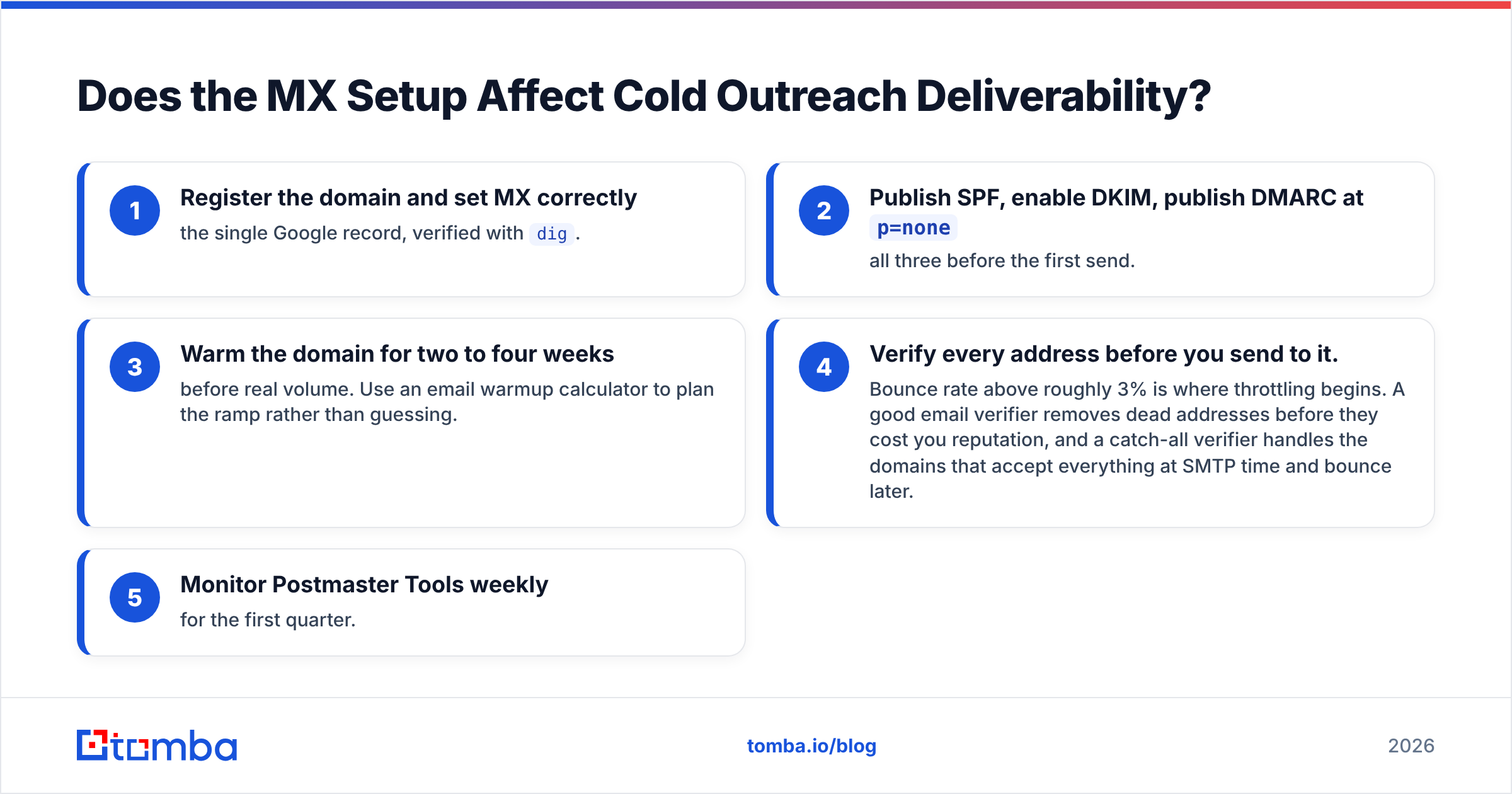
The practical sequence for a new outreach domain looks like this:
- Register the domain and set MX correctly — the single Google record, verified with
dig. - Publish SPF, enable DKIM, publish DMARC at
p=none— all three before the first send. - Warm the domain for two to four weeks before real volume. Use an email warmup calculator to plan the ramp rather than guessing.
- Verify every address before you send to it. Bounce rate above roughly 3% is where throttling begins. A good email verifier removes dead addresses before they cost you reputation, and a catch-all verifier handles the domains that accept everything at SMTP time and bounce later.
- Monitor Postmaster Tools weekly for the first quarter.
Teams that skip step 4 and blame step 1 are extremely common. A misconfigured MX record breaks things loudly and immediately. A dirty list breaks things slowly, and the damage compounds. Both are worth fixing, but only one of them fixes itself once the DNS propagates.
What Should You Do Next?#
Get the DNS right once and it stays right for years. The setup is genuinely simple — one MX record, three TXT records, a verification pass — but the order and the TTL discipline are what separate a clean 20-minute migration from a two-day outage. Lower the TTL first. Delete before you add. Verify from a resolver you don't control. Send a real test message and read the headers.
Once inbound mail is landing and authentication passes on all three checks, the bottleneck moves to your list quality. Sending to addresses you guessed or scraped will undo careful DNS work in a single campaign. Tomba's email finder returns verified, source-attributed business addresses with a confidence score, so what you load into your sequencer is already clean. The free tier covers 25 searches a month, Starter runs $49/mo, and Growth is $99/mo — see Tomba pricing for full credit allocations. Set up your MX records today, verify them properly, then feed the domain a list that deserves it.
Related guides#
Ready to find emails that actually work?
Join 150,000+ professionals who stopped guessing and started sending. Free credits on signup — no credit card required.
Get the Tomba newsletter
Practical outbound tactics and product updates — once every two weeks.
About the author