Gmail Sending Limits in 2026: Caps, Warnings, and Fixes
Gmail caps you at 500 or 2,000 recipients a day — but the number that actually blocks your outbound is much lower. Here are the real limits, the hidden throttles, and what to send instead.
TL;DR
- Free Gmail (@gmail.com) allows 500 recipients per rolling 24 hours. Google Workspace allows 2,000 per day via the web interface, but only 500 per day if you send through SMTP or the Gmail API with a non-Workspace-authenticated relay.
- The published cap is not your real cap. Google applies undocumented throttles based on account age, domain age, bounce rate, spam complaints, and how fast you ramp. New accounts get blocked well below 500.
- Hitting the limit triggers a 24-hour send lock with error
550 5.4.5 Daily user sending limit exceeded. Repeated hits escalate to full account suspension. - For cold outbound, the practical safe ceiling is 30–50 emails per inbox per day after a 3–4 week warmup — not 500.
- The fix is horizontal, not vertical: more verified inboxes at low volume, plus a clean list. Bad addresses burn your quota and your reputation at the same time.
What are Gmail sending limits, exactly?#
Gmail sending limits are the number of messages and recipients Google lets a single account send in a rolling 24-hour window. There are actually three distinct ceilings stacked on top of each other, and most people only know about the first one.
Ceiling 1 — the published quota. This is the number in Google's help docs: 500 recipients/day for free Gmail, 2,000/day for Google Workspace. A "recipient" is one address, so an email to 10 people burns 10 units, not 1.
Ceiling 2 — the transport quota. If you send through SMTP relay, the Gmail API, or a third-party sequencer connected via OAuth, Workspace drops you to 2,000 messages/day but caps external recipients at 3,000 and auto-forwarded mail at 10,000. Free Gmail over SMTP is hard-capped at 500, no exceptions.
Ceiling 3 — the reputation throttle. This is undocumented, dynamic, and the one that actually stops you. Google watches your bounce rate, spam-complaint rate, send velocity, account age, and domain age. If any of those look wrong, it silently reduces your effective limit — sometimes to 50 or fewer — before it ever tells you.
The gap between ceiling 1 and ceiling 3 is where almost every failed cold campaign lives. Teams plan around 2,000/day, send 400 on day one from a two-week-old domain, and get locked out by lunch.
What are the exact Gmail sending limits in 2026?#
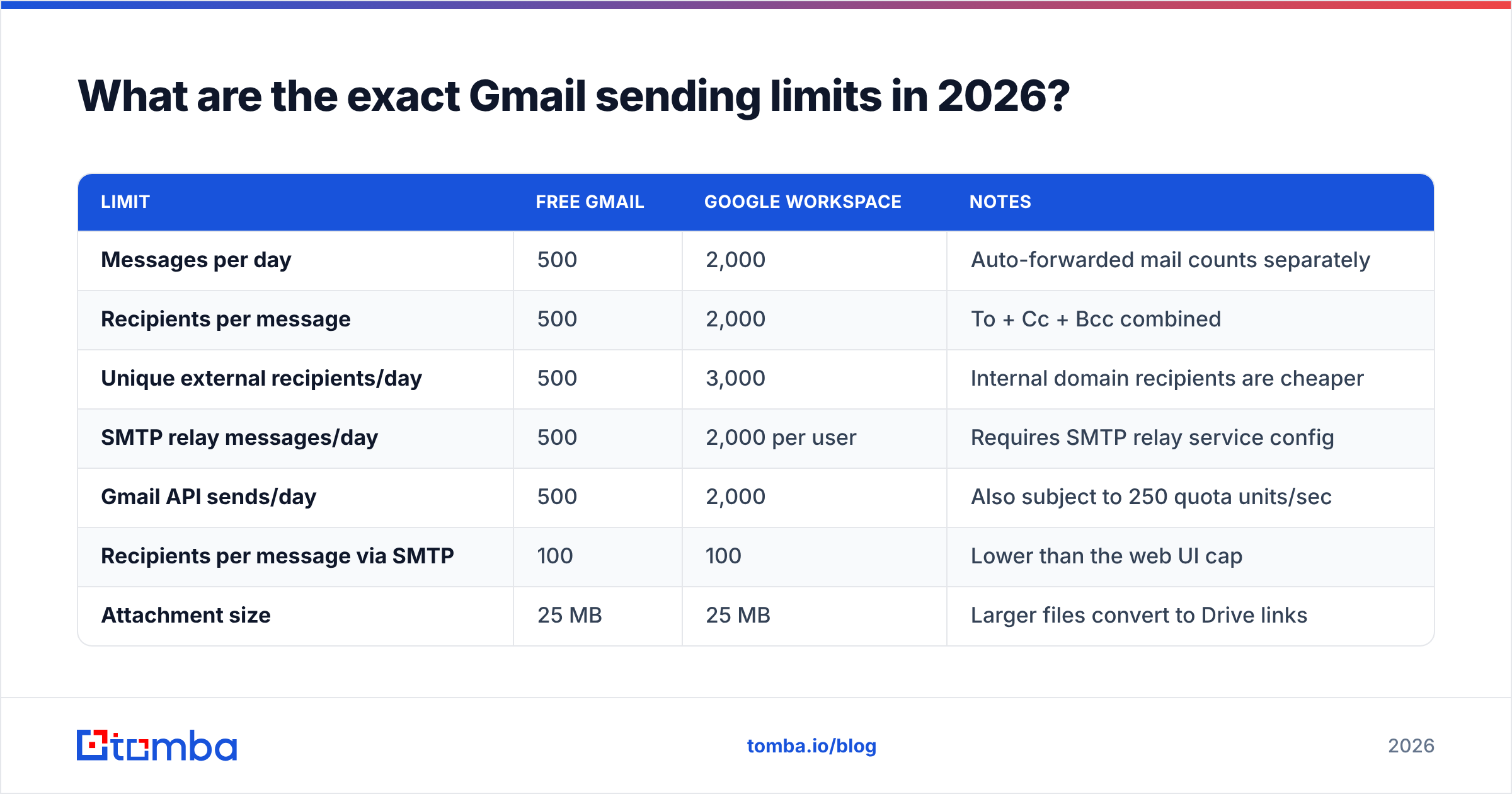
Here is the full picture across account types and send methods. Numbers are per rolling 24 hours, not per calendar day — the window resets gradually as your oldest sends age out.
| Limit | Free Gmail | Google Workspace | Notes |
|---|---|---|---|
| Messages per day | 500 | 2,000 | Auto-forwarded mail counts separately |
| Recipients per message | 500 | 2,000 | To + Cc + Bcc combined |
| Unique external recipients/day | 500 | 3,000 | Internal domain recipients are cheaper |
| SMTP relay messages/day | 500 | 2,000 per user | Requires SMTP relay service config |
| Gmail API sends/day | 500 | 2,000 | Also subject to 250 quota units/sec |
| Recipients per message via SMTP | 100 | 100 | Lower than the web UI cap |
| Attachment size | 25 MB | 25 MB | Larger files convert to Drive links |
| Trial Workspace accounts | n/a | 500/day | Full 2,000 unlocks after billing history |
| Google Groups as recipient | Counts as 1 | Counts as 1 | Common quota workaround, high spam risk |
Two things trip people up here. First, trial and newly-billed Workspace accounts are capped at 500, not 2,000 — Google unlocks the higher tier only after you've had a payment method on file and a clean send history. Second, SMTP caps recipients per message at 100 even on Workspace, so a 500-recipient Bcc blast that works in the web UI will fail through your sequencer.
Why does Gmail block you before you hit 500?#
Because the published quota is a hard ceiling, not a target. The soft throttle sits far below it and moves based on signals you control.
The five things that pull your effective limit down:
- Bounce rate above 2–3%. Every invalid address is a signal that you scraped or bought your list. Google's mail servers see the NDRs and downgrade the sending account fast. This is the single biggest lever.
- Spam complaints above 0.1%. Google's own Postmaster Tools documents 0.3% as the danger threshold for bulk senders; for cold outbound from a small domain, treat 0.1% as your ceiling.
- Send velocity. Going from 5 emails/day to 300 emails/day overnight looks like a compromised account. Google's spam filters weigh acceleration, not just volume.
- Domain and account age. A domain registered three weeks ago with no web traffic, no MX history, and no inbound mail has zero reputation. Zero reputation means the throttle starts tight.
- Missing or broken authentication. No SPF, no DKIM, no DMARC policy — or a misaligned From header — and you're throttled by default. Run your domain through an SPF checker before you send anything, and confirm your sender reputation is clean.
The mechanism is worth understanding: Google isn't counting your emails and comparing to 500. It's scoring your account continuously and deciding, per message, whether to accept, defer, or reject. The 500 is just the point where it stops asking questions and refuses outright.
What happens when you exceed the limit?#
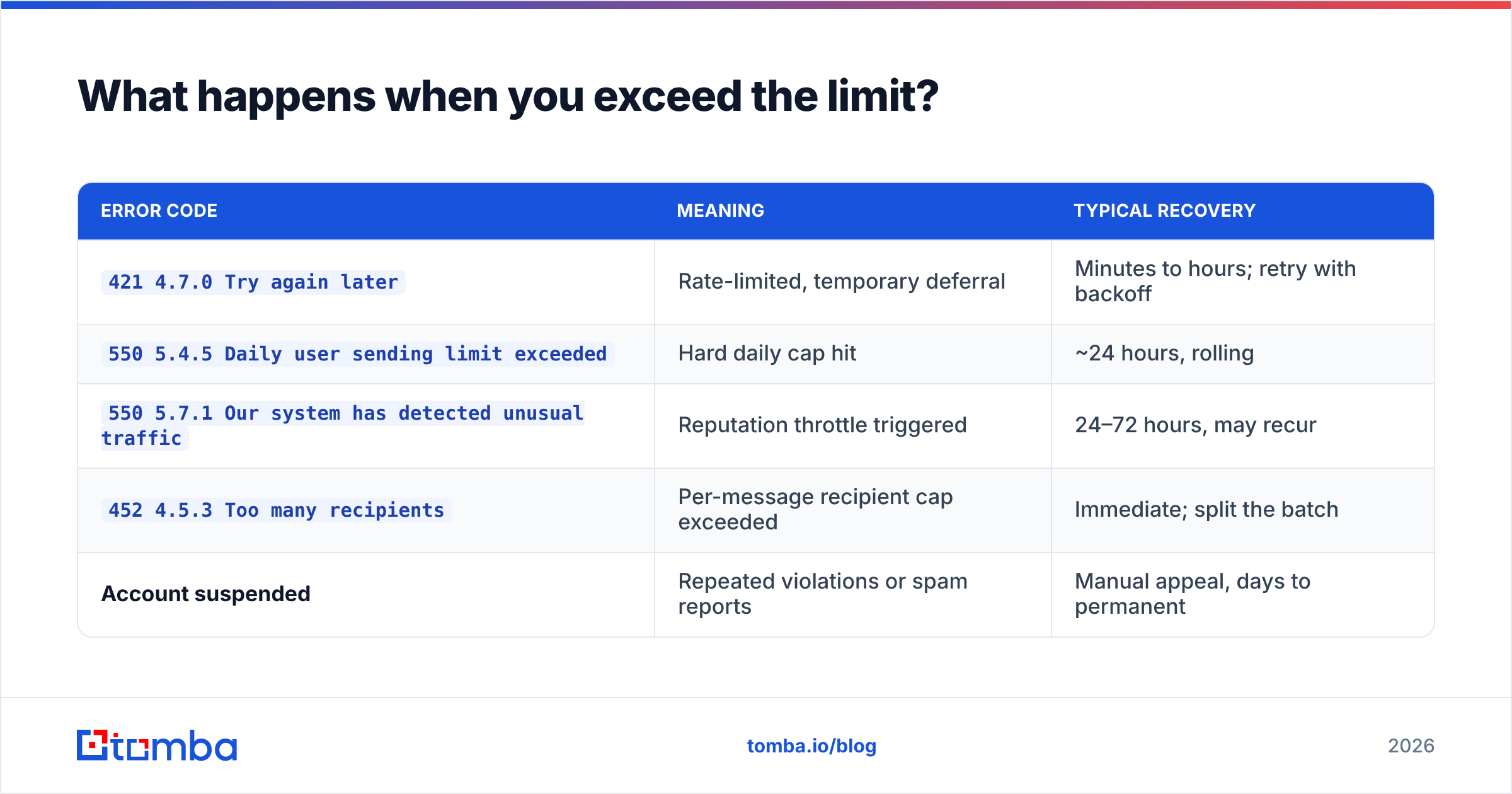
You get an SMTP-level rejection and a temporary lock. The specific errors, in rough order of severity:
| Error code | Meaning | Typical recovery |
|---|---|---|
421 4.7.0 Try again later |
Rate-limited, temporary deferral | Minutes to hours; retry with backoff |
550 5.4.5 Daily user sending limit exceeded |
Hard daily cap hit | ~24 hours, rolling |
550 5.7.1 Our system has detected unusual traffic |
Reputation throttle triggered | 24–72 hours, may recur |
452 4.5.3 Too many recipients |
Per-message recipient cap exceeded | Immediate; split the batch |
| Account suspended | Repeated violations or spam reports | Manual appeal, days to permanent |
The 24-hour lock is the mild outcome. What kills programs is the third row — the reputation throttle. It doesn't reset cleanly. Once Google has flagged an account, your effective limit stays suppressed for weeks even after you stop sending, and mail that does get accepted lands in spam. You've traded a temporary quota problem for a durable email deliverability problem.
Worse, the damage isn't contained to one inbox. Repeated abuse from multiple accounts on the same domain drags the whole domain's reputation down, which affects your marketing sends, your transactional mail, and your recruiting emails.
How many cold emails can you actually send per day from Gmail?#
30–50 per inbox per day, after a proper warmup. That's the number experienced outbound teams operate at, and it's an order of magnitude below the published cap.
Here's a realistic ramp for a new domain and inbox:
- Week 1: 5–10 emails/day. Mostly warmup traffic (automated conversations that generate opens and replies), a handful of real sends.
- Week 2: 15–20/day. Start real prospecting. Watch bounce rate obsessively.
- Week 3: 25–35/day. If bounces stay under 2% and no spam complaints, keep climbing.
- Week 4+: 40–50/day steady state. Stop here. The marginal deliverability cost above 50 is not worth the extra volume.
If you need 500 sends/day, you don't need a bigger limit — you need 10 inboxes at 50/day, ideally across 3–4 separate sending domains, none of which is your primary company domain. This is the standard architecture for outbound at scale, and it's why "Gmail sending limits" is usually the wrong problem to solve. The right problem is list quality and inbox distribution.

What are the alternatives when you outgrow Gmail?#
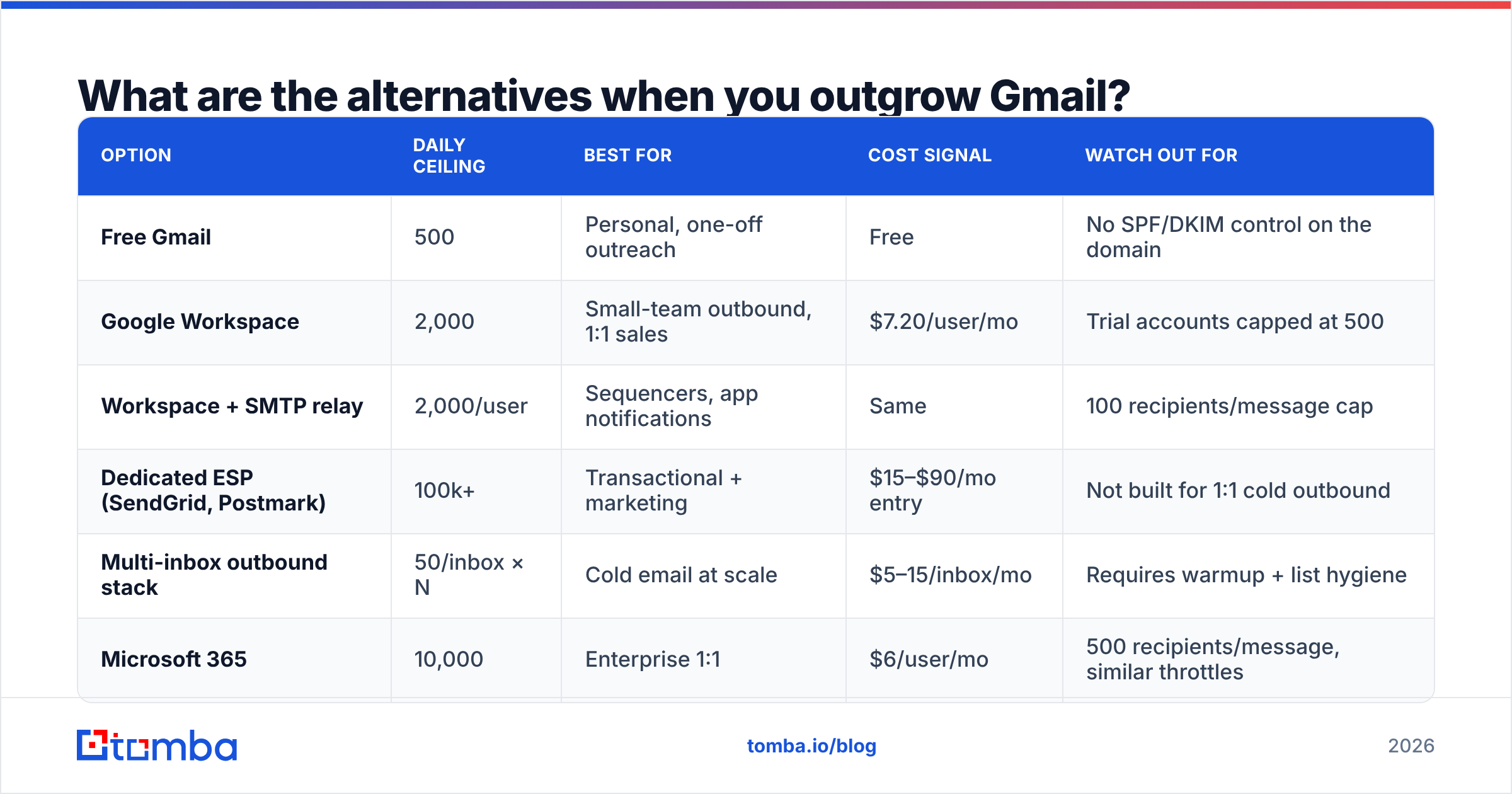
Gmail was never designed as a bulk sending platform. Once you're past a few hundred sends a day, you're using the wrong tool. Here's how the options compare.
| Option | Daily ceiling | Best for | Cost signal | Watch out for |
|---|---|---|---|---|
| Free Gmail | 500 | Personal, one-off outreach | Free | No SPF/DKIM control on the domain |
| Google Workspace | 2,000 | Small-team outbound, 1:1 sales | $7.20/user/mo | Trial accounts capped at 500 |
| Workspace + SMTP relay | 2,000/user | Sequencers, app notifications | Same | 100 recipients/message cap |
| Dedicated ESP (SendGrid, Postmark) | 100k+ | Transactional + marketing | $15–$90/mo entry | Not built for 1:1 cold outbound |
| Multi-inbox outbound stack | 50/inbox × N | Cold email at scale | $5–15/inbox/mo | Requires warmup + list hygiene |
| Microsoft 365 | 10,000 | Enterprise 1:1 | $6/user/mo | 500 recipients/message, similar throttles |
The multi-inbox route is what most outbound teams land on. Note that switching platforms does nothing for reputation — a dirty list will get you throttled on Outlook and burned on SendGrid exactly the same way. Providers like BookYourData and other verified-data vendors exist precisely because clean input is the prerequisite, not an optimization.
How do you stop wasting quota on bad addresses?#
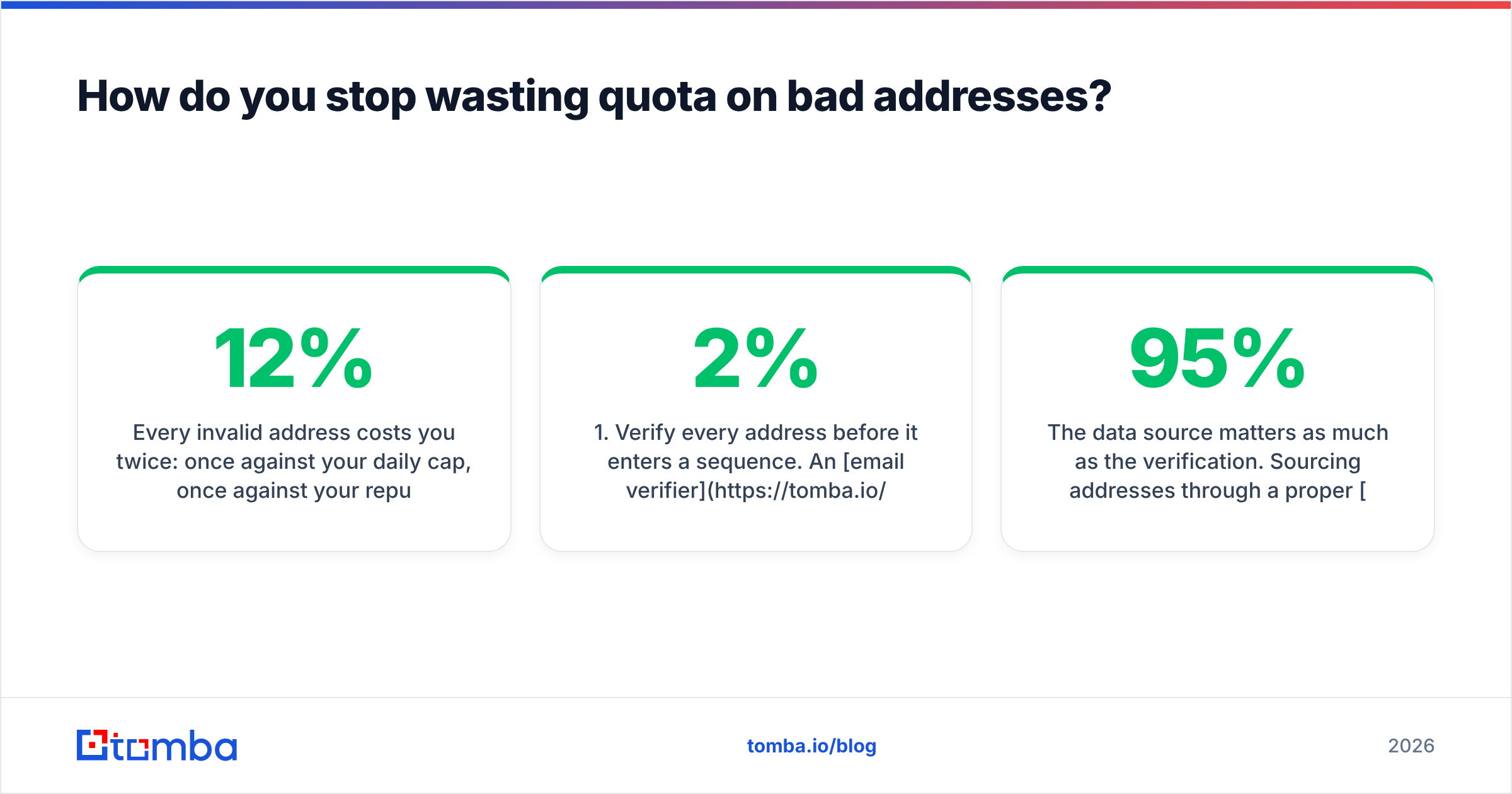
Every invalid address costs you twice: once against your daily cap, once against your reputation score. If 12% of your list is dead — a normal figure for scraped or year-old data — you're burning 60 of your 500 daily sends on guaranteed bounces and simultaneously teaching Google that you're a spammer.
The fix is verification before sending, not after bouncing:
- Verify every address before it enters a sequence. An email verifier runs SMTP-level checks and flags invalid, disposable, and role-based addresses. Target under 2% bounce rate on any batch that goes out.
- Handle catch-all domains separately. Catch-all servers accept everything, so standard verification returns "unknown." A dedicated catch-all verifier applies pattern confidence and secondary signals to grade these instead of guessing.
- Deduplicate before import. The same person at two email formats counts as two sends and two chances to annoy them. Run your list through a remove duplicates pass first.
- Check your spam score before launch. A spam checker catches trigger phrases, link ratios, and image-to-text problems that push you toward the complaint threshold.
- Monitor Postmaster Tools weekly. Google gives you domain reputation, spam rate, and delivery errors for free. If domain reputation drops from "High" to "Medium," cut volume by half immediately.
- Warm up on a schedule, not by feel. Use a warmup calculator to set daily targets rather than improvising your ramp.
The data source matters as much as the verification. Sourcing addresses through a proper email finder with SMTP validation built in produces a list that starts at 95%+ deliverable, rather than one you have to clean after the fact. On Tomba pricing, the Free tier covers 25 searches/month for testing, Starter runs $49/mo, and Growth at $99/mo covers most single-team outbound programs.
What about workarounds — do they work?#
Mostly no, and the ones that "work" carry risk.
Google Groups as a recipient. A message to a Group counts as one recipient regardless of member count. Technically true, and technically a quota bypass. In practice, Google treats high-volume Group sends as bulk mail and applies the same reputation scoring, so you get the same throttle with worse visibility into who bounced.
Multiple aliases on one account. Aliases share the parent account's quota. Zero benefit.
Delegated accounts. Sends from a delegated mailbox count against the delegate's quota, not the owner's. This does add capacity, but it also spreads reputation damage across more accounts if your list is bad.
Third-party SMTP with your Gmail address in the From field. This works if SPF and DKIM are correctly aligned, and it does bypass Gmail's quota because you're not using Gmail's servers. But you've now moved the reputation problem to a new IP with no history — often worse than where you started.
The only workaround that reliably scales is the boring one: more inboxes, lower per-inbox volume, cleaner lists. Check Google's official sending limits documentation for the current published numbers, and treat everything else as a reputation problem rather than a quota problem.
How should you structure sending across a team?#
Think of it like a restaurant kitchen. One chef can plate 50 covers a night at quality. Asking that chef for 500 doesn't get you 500 good plates — it gets you 500 bad ones and a walkout. You hire more chefs.
Applied to outbound:
- Primary domain: transactional, marketing, replies. Never cold outbound. Protect it absolutely.
- Sending domains 2–4: lookalike domains (yourcompany-mail.com, getyourcompany.com), each with 2–4 inboxes, each inbox at 40–50/day. Aged at least 30 days before first send.
- Per-rep allocation: 1–2 inboxes per SDR, capped at the warmed limit. Volume growth comes from adding inboxes, not raising caps.
- List routing: verified addresses only, deduplicated across all inboxes so no prospect gets contacted twice.
That structure gets you to 400–500 verified daily sends without ever approaching a Gmail throttle — because no single account is doing anything that looks unusual.
Ready to stop burning quota on dead addresses?#
The quickest win here isn't finding a way around Gmail's caps. It's making sure every send you make counts. Start with Tomba Email Finder — search by name, domain, or company, get SMTP-verified addresses with confidence scores, and push clean lists straight into your sequencer. The Free tier gives you 25 searches to test bounce rates against your current data source before you commit. If your bounce rate drops below 2%, your effective Gmail limit goes up on its own.
Related guides#
Ready to find emails that actually work?
Join 150,000+ professionals who stopped guessing and started sending. Free credits on signup — no credit card required.
Get the Tomba newsletter
Practical outbound tactics and product updates — once every two weeks.
About the author